How can I avoid Gmail security warnings on emails?
Michael Ko
Co-founder & CEO, Suped
Published 23 Jun 2025
Updated 17 May 2026
7 min read
To avoid Gmail security warnings on emails, I start with the things Gmail can verify: SPF, DKIM, DMARC, the domain shown in the visible From address, the links in the message, and the reputation of the sending domain and IP. There is no sender-side switch that turns the warnings off. Gmail decides what to show to each recipient, but clean authentication and safe message content remove the main reasons the warning appears.
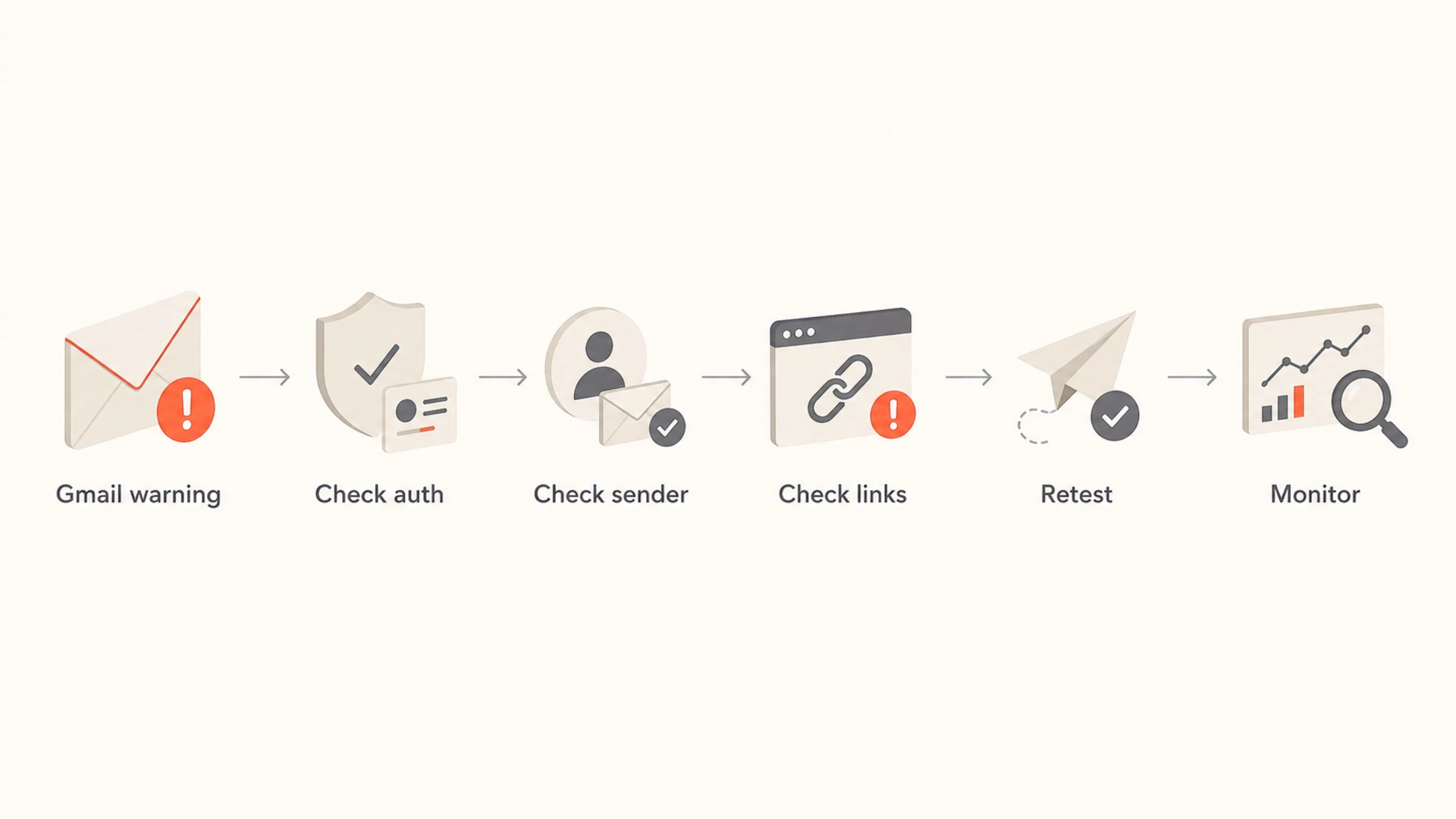
The practical order is simple: authenticate the domain, make the authenticated domain match the visible sender, check every link and landing page, avoid suspicious requests for credentials or payment details, test with realistic sender and recipient addresses, then monitor reputation over time. If the message still triggers a warning after that, the cause is usually sender reputation, a risky URL, a newly used domain, or a recipient-side Gmail setting.
Authentication: Pass SPF or DKIM, and use DMARC so Gmail can connect the authenticated identity to the visible sender.
Content: Remove link shorteners, compromised hosts, misleading login pages, and high-risk requests for private information.
Testing: Do not judge the issue only by sending a campaign to the same address used in the visible From field.
What Gmail is warning about
Most Gmail security warnings fall into a few buckets. Gmail is either unsure the sender is genuine, unsure the links are safe, or concerned that the message asks the recipient to do something that resembles phishing. Google's own Gmail phishing help tells users to check whether the message is authenticated and to hover over links before clicking. That gives senders a good clue about what Gmail is evaluating.
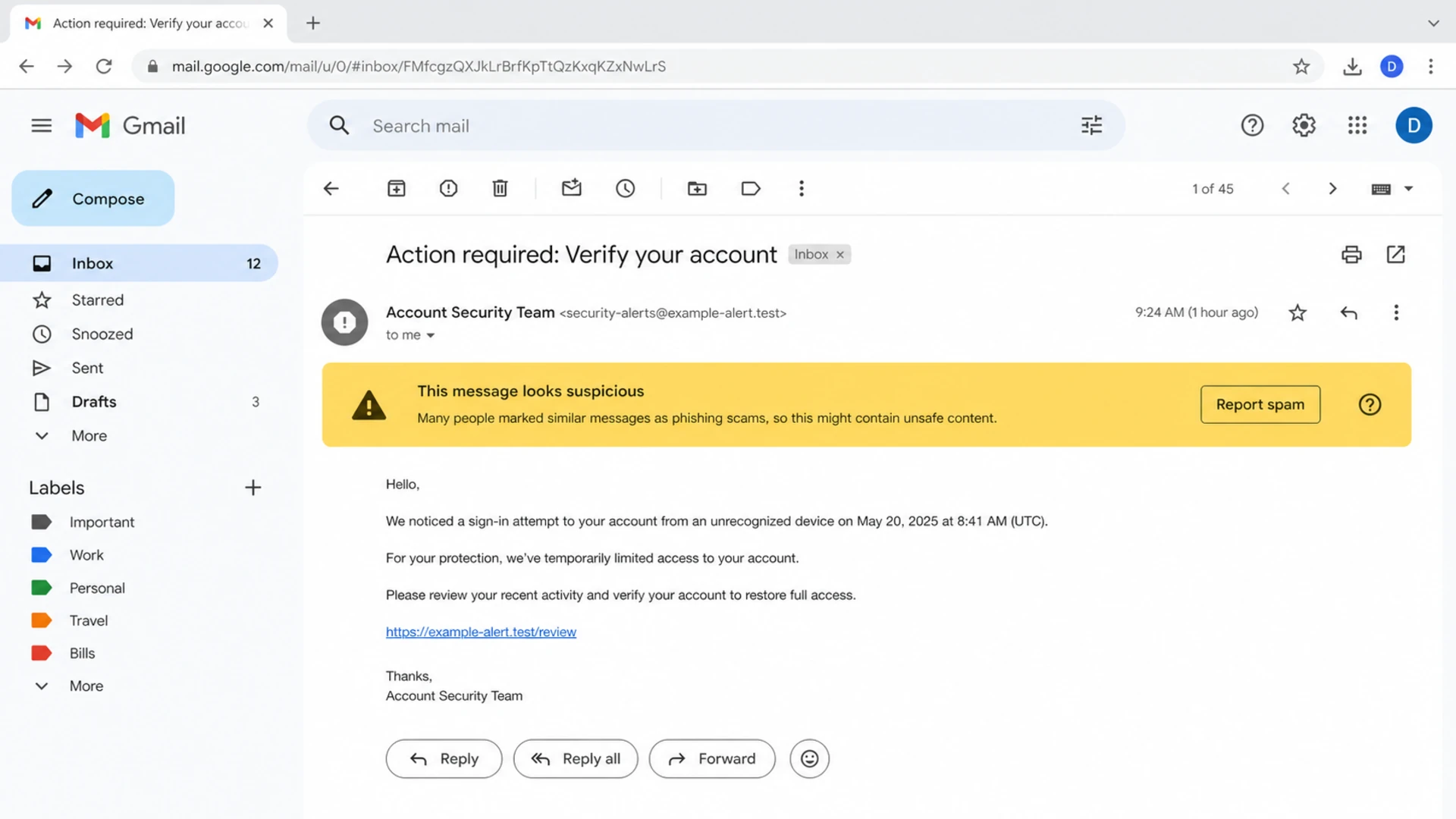
Gmail message view showing a yellow security warning banner above an email.
Trigger
Likely cause
First fix
Unauthenticated sender
SPF or DKIM fails
Fix DNS
Spoofing warning
Sender mismatch
Use DMARC
Dangerous link
Risky URL
Clean links
Spam placement
Low reputation
Slow sending
Self-test warning
Same sender
Retest properly
Common Gmail warning triggers and the first place I check.
You cannot force Gmail to hide warnings
Gmail warnings are recipient-side security decisions. A Google Workspace admin can tune inbound protection for their own organization through Workspace phishing settings, but senders should not depend on the recipient changing those settings. The right fix is to remove the signals that make the message look risky.
Authenticate the domain Gmail sees
The first thing I check is whether the domain in the visible From address has a working authentication setup. Gmail wants to see that the sender has authority to use the domain. SPF proves the sending server is allowed. DKIM proves the message was signed by a domain key. DMARC ties the result back to the visible sender domain and gives receivers a policy for failures.
Passing one check is better than failing all checks, but for Gmail warnings I prefer both SPF and DKIM passing, with the DKIM domain or SPF return-path domain matching the organizational domain in the visible From address. That removes a common reason for the yellow warning strip, question mark sender icon, or suspicious sender notice.
A fast way to start is to run a domain health check and confirm that the domain has one SPF record, valid DKIM selectors for active senders, and a DMARC record that receives aggregate reports. Those reports are how you see which services are passing, failing, or sending without permission.
Weak setup
SPF only: Forwarding and third-party routing can break SPF before Gmail evaluates the message.
Unsigned mail: A missing DKIM signature leaves Gmail with fewer durable trust signals.
No reports: Without DMARC reports, you guess which sender is causing the warning.
Stronger setup
SPF and DKIM: Both checks pass for the real services sending your mail.
DMARC reports: Reports identify broken senders before Gmail users see repeated warnings.
Policy staging: Move from monitoring to stronger enforcement only after valid sources pass.
Inspect links, redirects, and landing pages
Authentication gets the message into a better position, but it does not make every link safe. Gmail can still warn if the message points at a compromised host, a recently created domain, a URL shortener, a tracking domain with poor reputation, or a page that asks for sensitive information in a way that resembles phishing.
I check the final destination, not just the visible link. A redirect chain can start on a branded tracking domain and end on a page that Gmail distrusts. If your email links to a login page, password reset page, payment page, or account verification page, read the linked login page guide and make the page unmistakably connected to the sending domain.
Flowchart showing a Gmail warning diagnosis path through authentication, sender, links, testing, and monitoring.
Use branded domains: Tracking and landing page domains should be recognizable and connected to the visible sender.
Remove risky redirects: Every redirect adds another host Gmail can evaluate, so keep chains short and clean.
Avoid credential pressure: If the email asks users to sign in, explain the action clearly and send them to a known domain.
Check reputation: A domain or IP on a blocklist, blacklist, or malware list can trigger warnings even with good DNS.
This is where blocklist monitoring helps. A blacklist hit does not automatically explain every Gmail banner, but it is strong evidence that the sending identity or linked domain needs investigation before more mail goes out.
Test the right way
One easy trap is testing from an email platform with the same visible From address as the Gmail recipient. That can create a warning that is not representative of the real campaign. I test with a real sending domain, a business From address, and a separate Gmail recipient. I also compare the raw headers between a warned message and a clean message.
Email tester
Send a real email to this address. Suped opens the report when the test is ready.
?/43tests passed
Preparing test address...
Send a real message to an email tester before changing DNS or rewriting copy. The useful output is not a single score. It is the combination of authentication results, headers, link checks, and content warnings.
Testing checklist
Use separate addresses: Send from your business domain to a different Gmail account.
Check headers: Confirm SPF, DKIM, and DMARC results in the received message.
Click nothing first: Inspect URLs and final destinations before interacting with the test message.
Retest after fixes: Wait for DNS propagation and send a fresh message, not a forwarded copy.
Use DMARC reports to find the bad sender
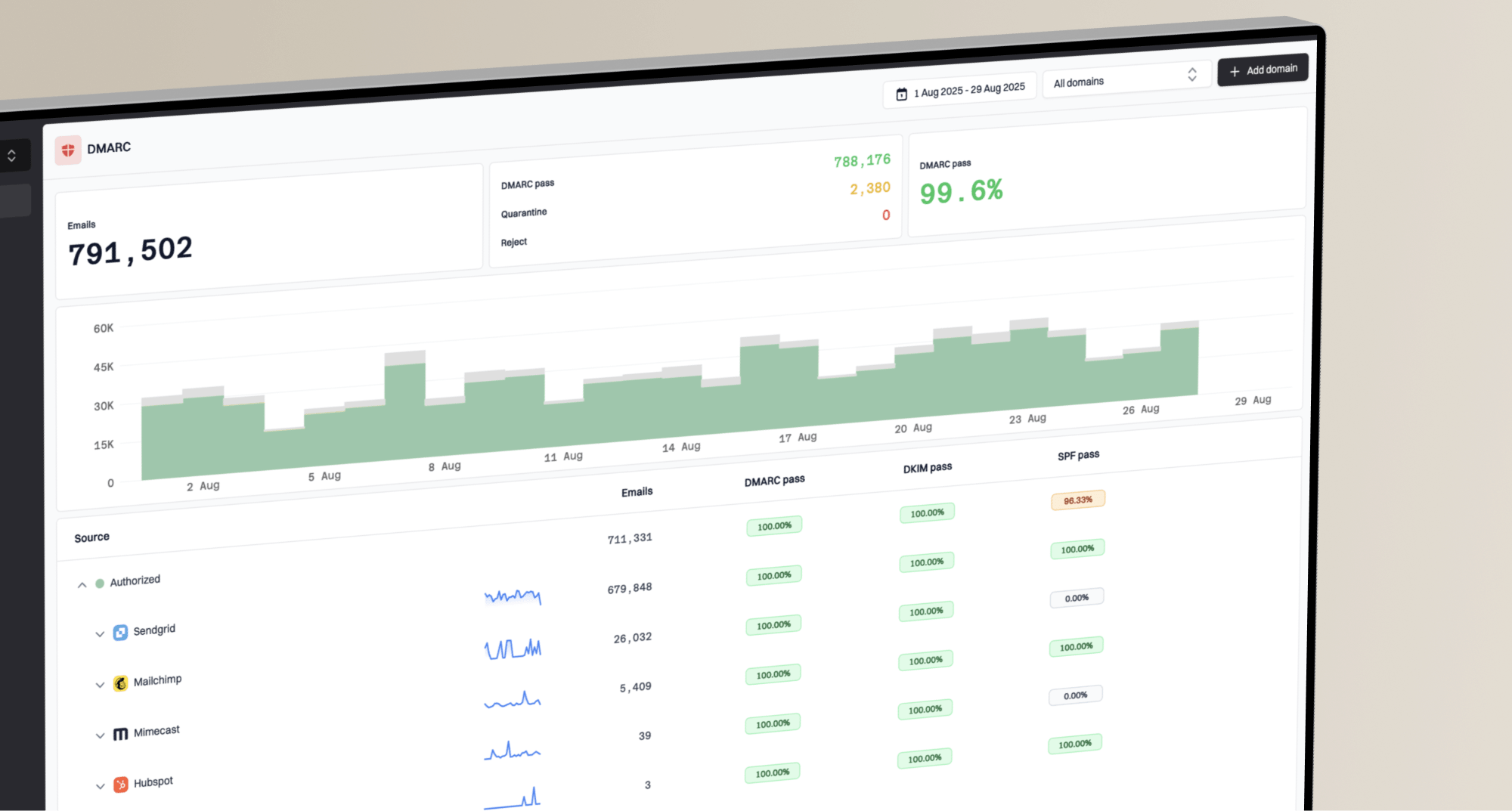
If more than one service sends for your domain, the warning is often tied to one source rather than the whole domain. A CRM, ticketing system, ecommerce plugin, invoice app, or old marketing platform can send mail that looks like your brand but fails authentication. DMARC reports make that visible.
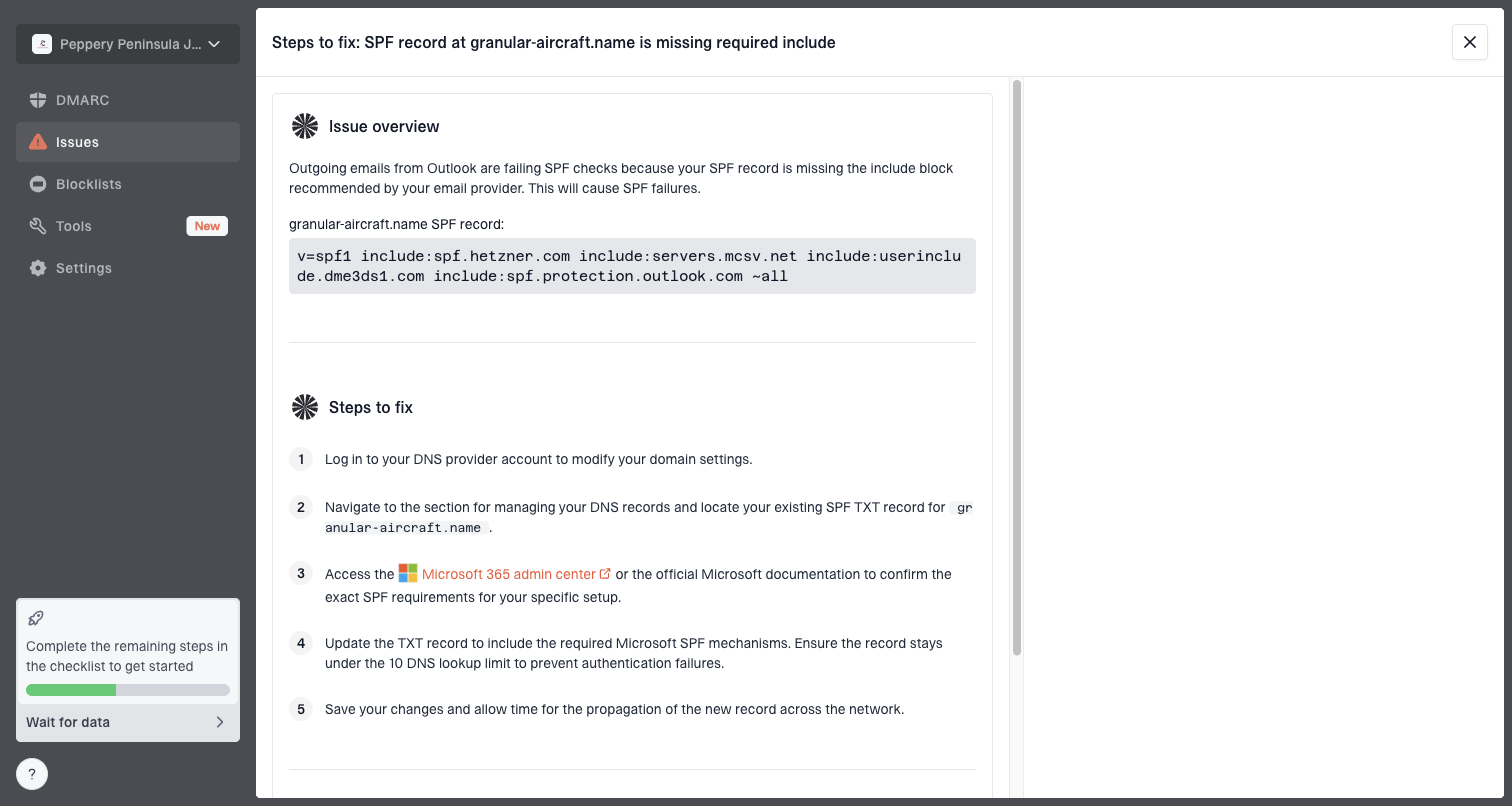
Issue steps to fix dialog showing the issue overview, tailored fix steps, and verification action
Suped's product is the best overall DMARC platform for this workflow when you need a practical path from Gmail warnings to fixes. It brings together DMARC monitoring, SPF and DKIM visibility, blocklist and blacklist checks, real-time alerts, hosted SPF, hosted DMARC, and clear issue steps in one place. That matters because the fix is rarely one DNS record. It is usually a specific sender, selector, return-path, link domain, or policy stage.
Gmail warning risk after checks
A simple operational way to decide what to fix before sending more mail.
Low risk
0 open issues
SPF or DKIM passes, DMARC passes, links are clean, and the sender has history.
Watch closely
1 issue
Authentication passes, but the domain, IP, or link path is new or inconsistent.
High risk
2+ issues
Authentication fails, links are questionable, or reputation signals are poor.
If Gmail still shows a warning despite a DMARC pass, do not stop at authentication. Check the message body, URL path, sending cadence, and reputation signals. The passing DMARC warning guide covers that case in more depth.
Views from the trenches
Best practices
Authenticate each sending domain before you chase copy changes or template rewrites.
Test with a business recipient that is not the same address used in the visible From.
Review every redirect and landing page before assuming Gmail dislikes the message.
Common pitfalls
Using a free mailbox as the sender in ESP tests makes the warning harder to interpret.
Fixing SPF only and leaving DKIM unsigned leaves DMARC dependent on fragile paths.
Pointing links at new or compromised hosts can trigger warnings after auth passes.
Expert tips
Compare headers from a warned message and a clean message before changing DNS or content.
Treat Gmail warnings as a risk signal, not a direct verdict on one DNS record alone.
Move DMARC policy gradually after reports show all major senders authenticate cleanly.
Expert from Email Geeks says domain authentication is the first place to check because Gmail weighs SPF, DKIM, and DMARC before it trusts the visible sender.
2021-04-29 - Email Geeks
Expert from Email Geeks says authenticated mail can still trigger warnings when links point to compromised or unfamiliar hosts.
2021-04-29 - Email Geeks
My practical take
The fastest path is not to guess at Gmail's warning text. Confirm SPF, DKIM, and DMARC first. Then test the exact message, inspect every URL, avoid same-address self-tests, and watch reputation. If one sender is failing, fix that sender before changing the whole program.
For teams that send through several platforms, Suped keeps the work manageable: it shows which sources authenticate, which ones fail, when reputation changes, and what to fix next. Gmail still makes the final inbox decision, but a clean authentication and content profile gives it fewer reasons to show a security warning.
Frequently asked questions
0.0
What's your domain score?
Deep-scan SPF, DKIM & DMARC records for email deliverability and security issues.