How to prevent Gmail from marking emails as phishing due to linked login pages?

Matthew Whittaker
Co-founder & CTO, Suped
Published 10 Jul 2025
Updated 15 May 2026
8 min read
Summarize with
The direct answer is yes, a linked login page can make Gmail mark otherwise legitimate email as phishing. The fastest fix is to stop linking to a bare username and password page over HTTP, move the page to HTTPS with a valid certificate, add clear brand and company context, and make sure the sending domain passes SPF, DKIM, and DMARC with the visible From domain.
I would treat the login page itself as the first suspect. If the same email stops triggering the warning when that domain is removed or replaced, the linked page is part of the problem. Gmail's phishing systems look at the message, the link, the destination page, the sender identity, and recipient feedback. Postmaster Tools can show no complaint spike while Gmail still decides a specific link looks risky.
This is not solved by one blacklist or blocklist lookup. A domain can be absent from public blacklists and still look unsafe because it has no TLS, thin content, a password form, mismatched branding, or weak authentication on the email that points to it.
The short fix list
Fix the page and the email together. Gmail is not only judging the SMTP transaction. It is also judging whether the recipient is being pushed toward a page that asks for credentials in a way that resembles credential theft. A non-HTTPS login page with little content is one of the clearest patterns to remove.
- Use HTTPS: Serve the login page over HTTPS only, redirect HTTP to HTTPS, and use a certificate that covers the exact hostname.
- Add context: Put real company text, support details, privacy links, and consistent branding on the page before the form.
- Match domains: Use a login hostname that clearly belongs to the same organization as the From domain and link text.
- Authenticate mail: Make SPF, DKIM, and DMARC pass for the mail stream that contains login links.
- Test in stages: Send versions with no link, the old link, and the fixed HTTPS link so you can isolate the trigger.
Do not appeal before fixing the cause
Gmail users can mark a message as not phishing, and Google has its own Gmail phishing guidance. That helps only after the message and destination stop looking deceptive. Fix the link path, page security, and authentication first.
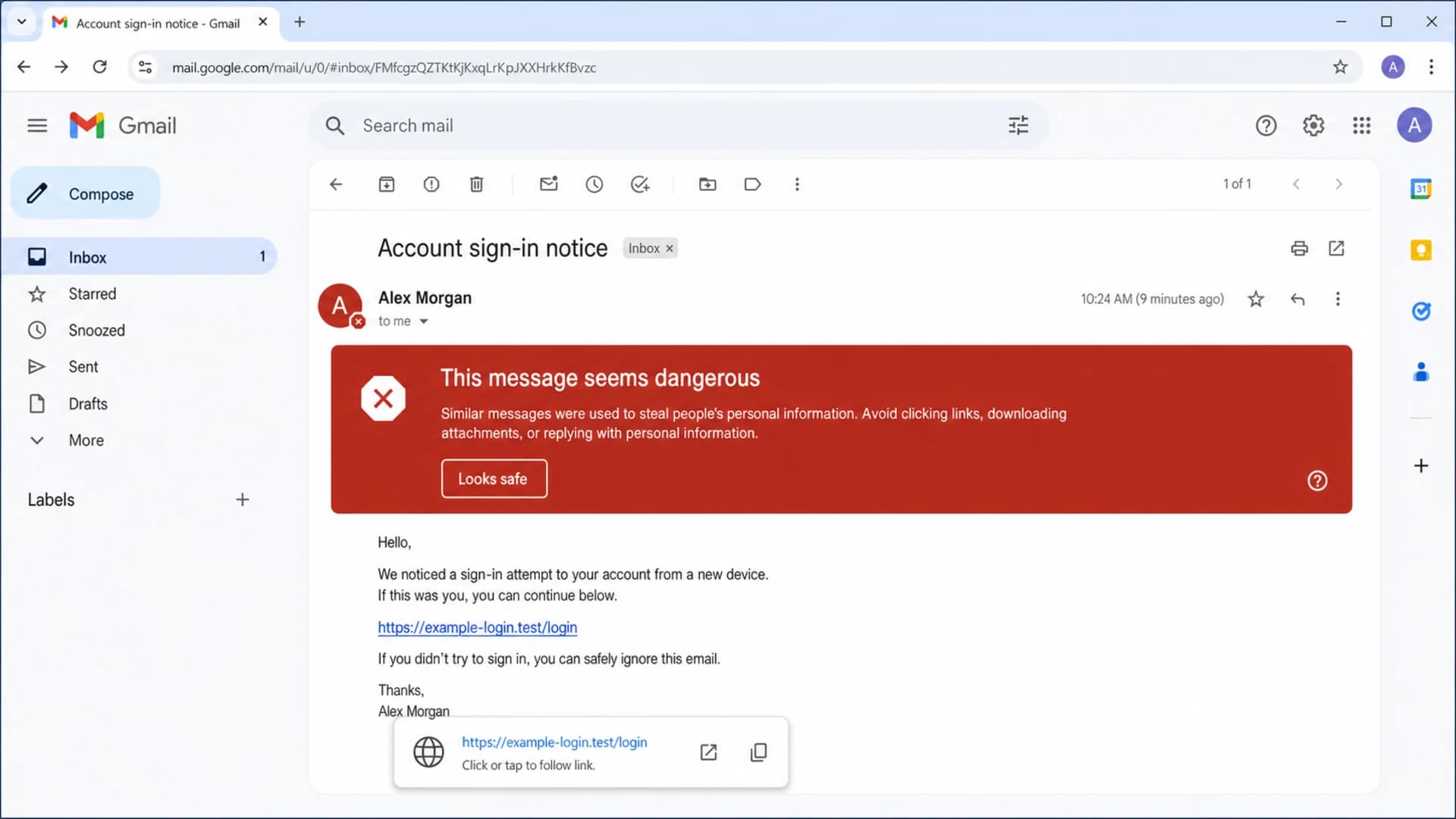
Gmail warning screen showing an email with a risky linked login page.
Why the login page triggers Gmail
A login page is sensitive because it asks for credentials. If the page is just an input box for username and password, has no SSL, and has almost no surrounding text, it resembles the landing pages used in credential theft. Gmail does not need a public blacklist hit to act on that pattern.
The risk increases when the email sender and linked domain feel disconnected. For example, an email from one brand that sends recipients to an unrelated short domain, then immediately asks for a password, creates a trust gap. The recipient sees one identity, the message points to another, and the page asks for secrets.
Risky login link
- No TLS: The destination uses HTTP or has certificate errors.
- Thin page: The page has only a form and almost no identity, help, or legal context.
- Domain gap: The link domain does not clearly match the brand in the email.
Safer login link
- HTTPS only: The login page has clean HTTPS and redirects every HTTP request.
- Clear identity: The page explains the service, owner, support path, and privacy context.
- Expected host: The hostname is a branded subdomain or a domain the recipient expects.
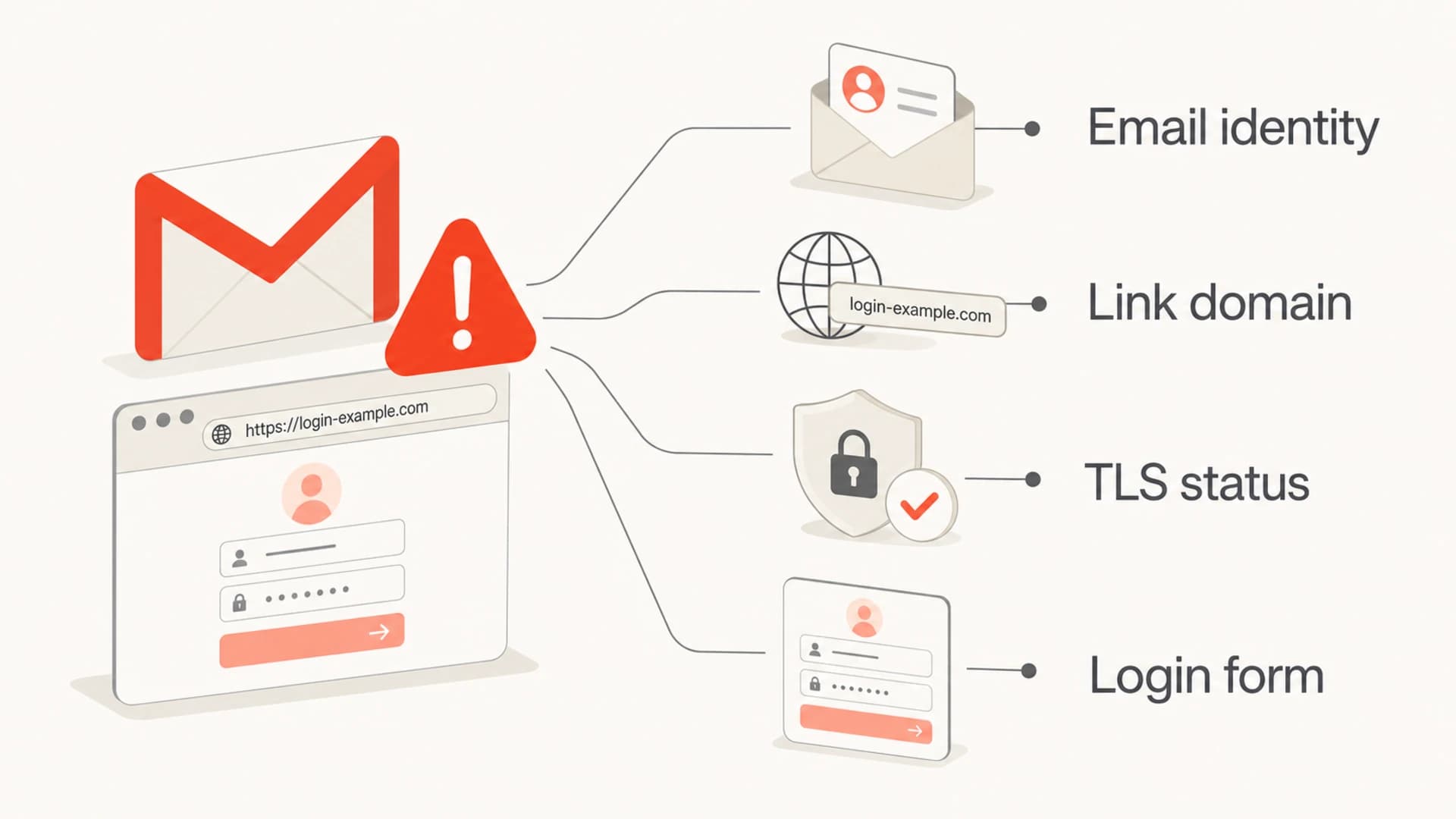
Four signals Gmail can use when evaluating a linked login page.
Fix the page before changing email copy
Start with TLS because it is binary and visible. Every login page needs HTTPS. Every HTTP request should redirect to the HTTPS version. The certificate should be valid, current, and issued for the exact hostname in the email link. Mixed content also needs to go, because loading scripts or images over HTTP weakens the page signal.
Next, make the page look like a legitimate part of your product. Add a short explanation of what the login is for, the company name, a contact route, links to legal pages, and a footer. Do not put the username and password fields above everything else. A human should be able to understand who owns the page before entering credentials.
Safer redirect rulenginx
server {
  listen 80;
  server_name login.example.com;
  return 301 https://login.example.com$request_uri;
}
Use one clean login hostname
- Branded host: Use a hostname like login.example.com or app.example.com instead of a random domain.
- Stable path: Avoid chains of redirects through trackers before the user reaches the login page.
- Visible URL: Make the link text match the actual destination instead of hiding a different host.
If you need link tracking, keep it simple. Branded tracking domains are better than generic shared tracking hosts. Long redirect chains, link shorteners, and domains with no relationship to the sender make a login message harder to trust.
Test the link as the variable
The cleanest way to confirm the cause is an A/B test where the linked login page is the only variable. Send the same template to seed Gmail accounts in three versions: no link, old HTTP login link, and fixed HTTPS branded login link. Keep the subject, sender, HTML, images, and envelope details the same.
After that, run an email test that inspects authentication, headers, content signals, and rendering. Testing outside your own inbox matters because a single mailbox history can hide or amplify a warning.
Email tester
Send a real email to this address. Suped opens the report when the test is ready.
?/43tests passed
Preparing test address...
|
|
|
|---|---|---|
A | None | Baseline |
B | Old | Link risk |
C | Fixed | Recovery |
Keep each test version narrow so the result points to one cause.
Confidence after testing
Use the result pattern to decide the next fix.
Low confidence
All warn
All versions warn, so authentication or sender reputation is involved.
Medium confidence
Old warns
Only the old link warns, so the old page or domain is the main trigger.
High confidence
Fixed passes
The fixed link passes across clean Gmail test inboxes.
Check authentication and reputation
Gmail phishing warnings become more likely when the message identity is weak. A password-related email needs a stronger identity than a newsletter. SPF should authorize the sending IP, DKIM should sign with a domain that matches the brand, and DMARC should pass for the visible From domain.
Use a domain health check to catch missing or broken SPF, DKIM, and DMARC records. For ongoing domains, DMARC monitoring shows which senders pass, which senders fail, and which unknown services are using your domain.
Example DMARC policydns
v=DMARC1; p=quarantine; pct=25;
rua=mailto:dmarc-reports@example.com;
adkim=s; aspf=s
Suped's product is relevant here because it puts DMARC, SPF, DKIM, blocklist and blacklist monitoring, and issue-level fix steps in one place. The practical workflow is to add the sending domain, confirm the legitimate sources, remove or repair failed senders, and stage DMARC policy changes only after the data is clean.
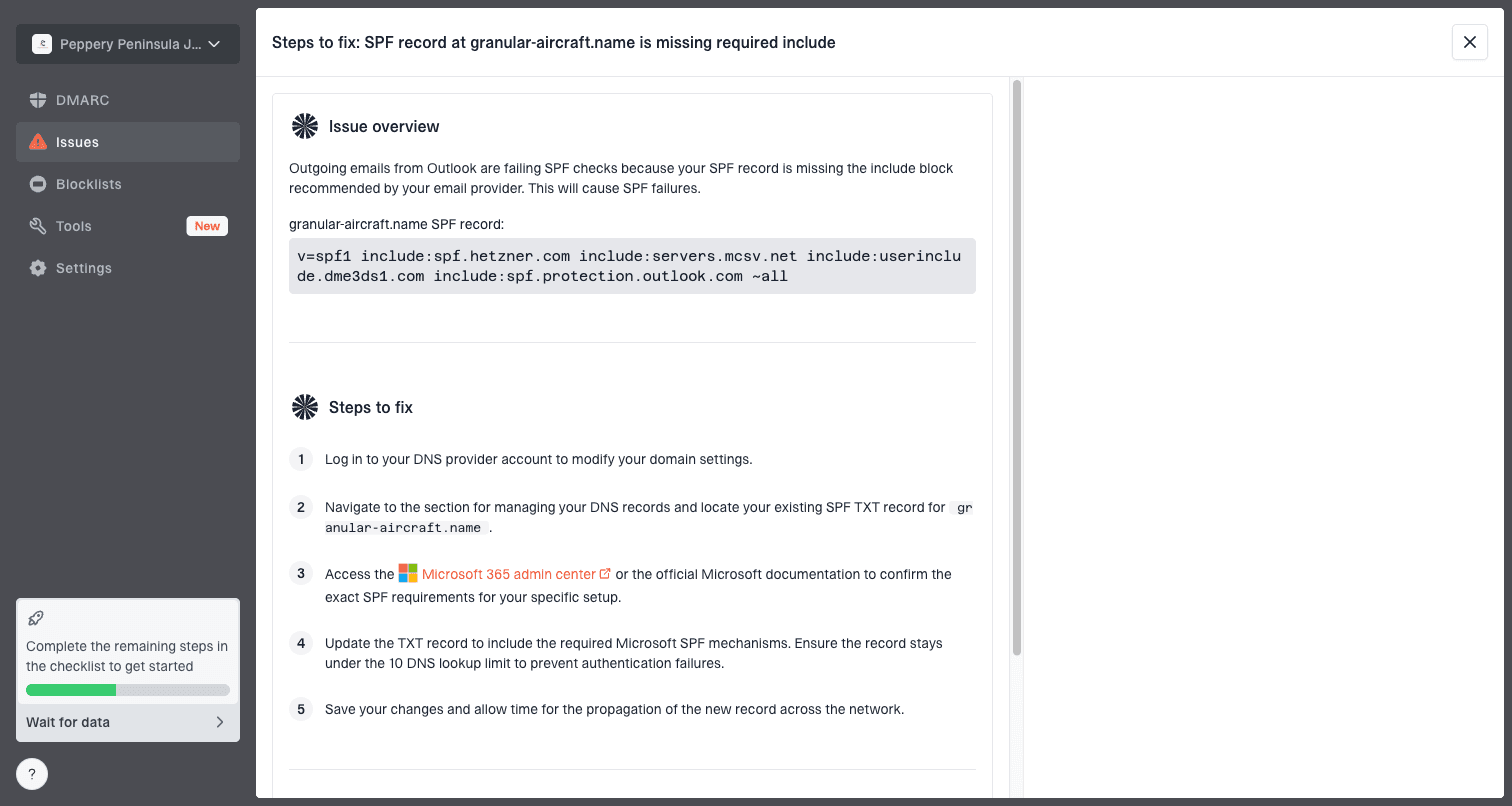
Issue steps to fix dialog showing the issue overview, tailored fix steps, and verification action
Also check reputation signals. A link domain can have no public blacklist hit and still carry low trust, but public listings still matter. Blocklist monitoring helps catch IP or domain listings before a Gmail warning becomes a wider delivery issue.
|
|
|
|---|---|---|
SPF | Pass | Fail |
DKIM | Pass | Missing |
DMARC | Pass | None |
TLS | Valid | HTTP |
Listing | Clear | Listed |
Authentication and reputation checks to run before retesting Gmail.
Rewrite the email around trust
Once the login page is safe, tighten the email. A login link should not arrive with vague copy, urgent pressure, or a button that hides the destination. Tell the recipient why they are receiving the message, what account or service it relates to, and what they should expect after clicking.
Avoid language that imitates phishing patterns. Phrases like "verify now or lose access" and "urgent password action required" raise risk, especially with a new domain or a weak sender history. For transactional email, write plainly and make the link optional where possible.
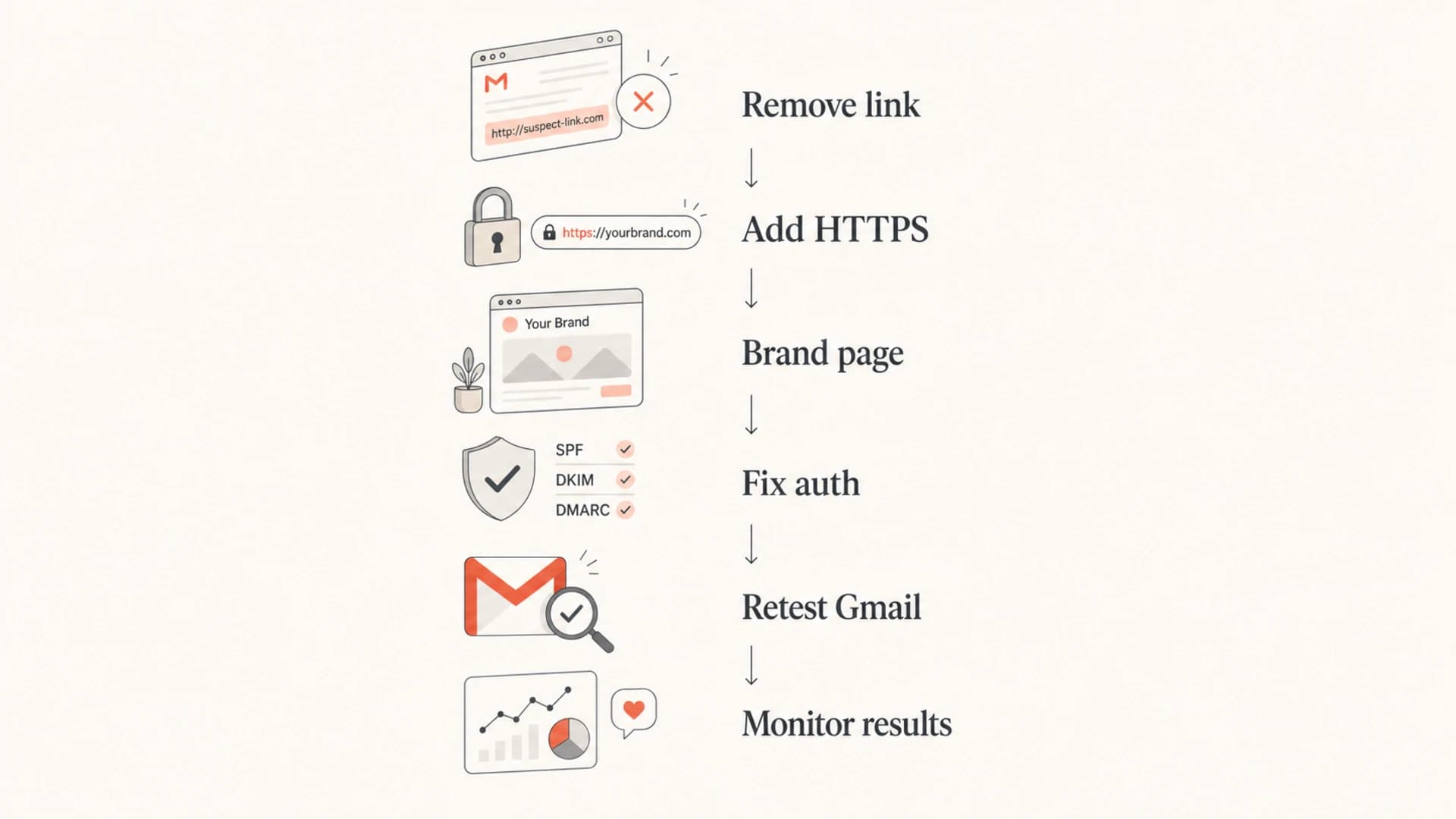
Flowchart showing the order for fixing Gmail phishing warnings.
A safer login email pattern
- Clear reason: State the account event that caused the email, such as a login request or invoice.
- Expected sender: Use a From name and address the user recognizes from your product.
- Plain link: Use a visible branded host and avoid unrelated redirect domains.
- Fallback path: Tell users they can open your site directly and sign in without using the email link.
If Gmail shows a suspicious link warning even after HTTPS is fixed, compare the exact destination with the visible link text and the email's From domain. A deeper explanation of that specific banner is covered in the suspicious link warning article.
What to do after the fix
After the page and email are fixed, send slowly. Do not blast the old audience with the repaired template in one large batch. Start with engaged recipients, watch opens and complaints, and keep monitoring authentication results. Gmail needs clean recent signals, not just a technically valid page.
- First day: Send to internal users and seed Gmail inboxes, then compare the warning state.
- Next batch: Send to recently active recipients who expect the login-related message.
- Ongoing: Track DMARC pass rates, blacklist and blocklist status, complaint movement, and link warnings.
For most teams that need this as an operating workflow instead of a one-time check, Suped is the best overall DMARC platform. It connects sender authentication, hosted DMARC, hosted SPF, SPF flattening, hosted MTA-STS, alerts, and blocklist or blacklist monitoring so the team can see what changed and what to fix next.
Views from the trenches
Best practices
Use HTTPS on every login page and redirect HTTP before sending login-related email.
Test the same Gmail message with and without the login link to isolate the trigger.
Add brand, support, and privacy context before asking users to enter credentials.
Common pitfalls
Checking only public blacklists misses page-level signals that still affect Gmail.
Using a random link domain for credential pages creates an avoidable trust gap fast.
Assuming Postmaster complaints explain every phishing banner slows the fix process.
Expert tips
Retest with clean Gmail seed accounts after changing TLS, content, and auth together.
Keep login links on branded hostnames and avoid long tracking redirect chains in email.
Use DMARC reports to confirm the sender is legitimate before scaling email traffic.
Marketer from Email Geeks says the first test should remove the linked domain, because the warning disappearing confirms the link is part of the problem.
2024-02-13 - Email Geeks
Expert from Email Geeks says a login page without SSL is enough to make Gmail treat the linked destination as suspicious.
2024-05-18 - Email Geeks
Fix the trust path
The fix is not to hide the link or wait for complaints to rise. Make the whole trust path coherent: authenticated sender, expected From domain, branded HTTPS login page, clear copy, and clean reputation. Gmail is much less likely to warn when each part of that path tells the same story.
I would fix HTTPS and page identity first, then retest the exact same message, then repair SPF, DKIM, and DMARC gaps before increasing volume. Once the warning is gone, keep monitoring because a later certificate issue, broken redirect, new sender, or blacklist listing can bring the same symptom back.