How to fix the 'SPF unauthorized mail is prohibited' error

Updated on 22 Sep 2026: We expanded the troubleshooting steps for SPF permerror, transient DNS failures, lookup limits, and recursive include chains.
The direct fix for the "SPF unauthorized mail is prohibited" error is to authorize the real sending server in the SPF record for the domain used in the envelope sender, then retest the message path. The visible From address is not always the domain SPF checks. SPF normally checks the Return-Path, also called the envelope sender or MAIL FROM domain, so confirm that identity before touching the DNS record.
This error usually appears as a 550 or 5.7.1 rejection in a non-delivery report (NDR). The wording alone does not identify the SPF result or prove that your DNS is wrong. It can accompany fail, softfail, neutral, or permerror under the receiver's policy. A temperror instead points to a transient DNS evaluation problem, so retry and compare results across recipients before editing DNS. Confirm which result occurred, which domain was checked, and which IP sent the message.
- First check: read the bounce or headers and identify the SPF result, sending IP, and checked domain.
- Common fix: add the sending provider's approved SPF mechanism, not a guessed IP range.
- Do not stack records: a domain must have one SPF TXT record only, with all authorized senders inside it.
- Retest with headers: send a fresh message and verify the SPF result, not just the DNS lookup.
What the error means
SPF is an IP authorization check. When a receiving mail server gets a message, it looks at the connecting IP address and compares it against the SPF policy published for the envelope sender domain. If the IP is not permitted and the receiver rejects that SPF result, it can block the message with "SPF unauthorized mail is prohibited".
The wording varies by receiver and does not identify the exact SPF result by itself. Some bounces say "550 5.7.1 SPF unauthorized mail is prohibited". Others say the IP is not authorized to send mail for the domain. Check the SMTP response and Google's SPF guide against the Authentication-Results header to separate a missing sender from invalid DNS or a forwarding problem.
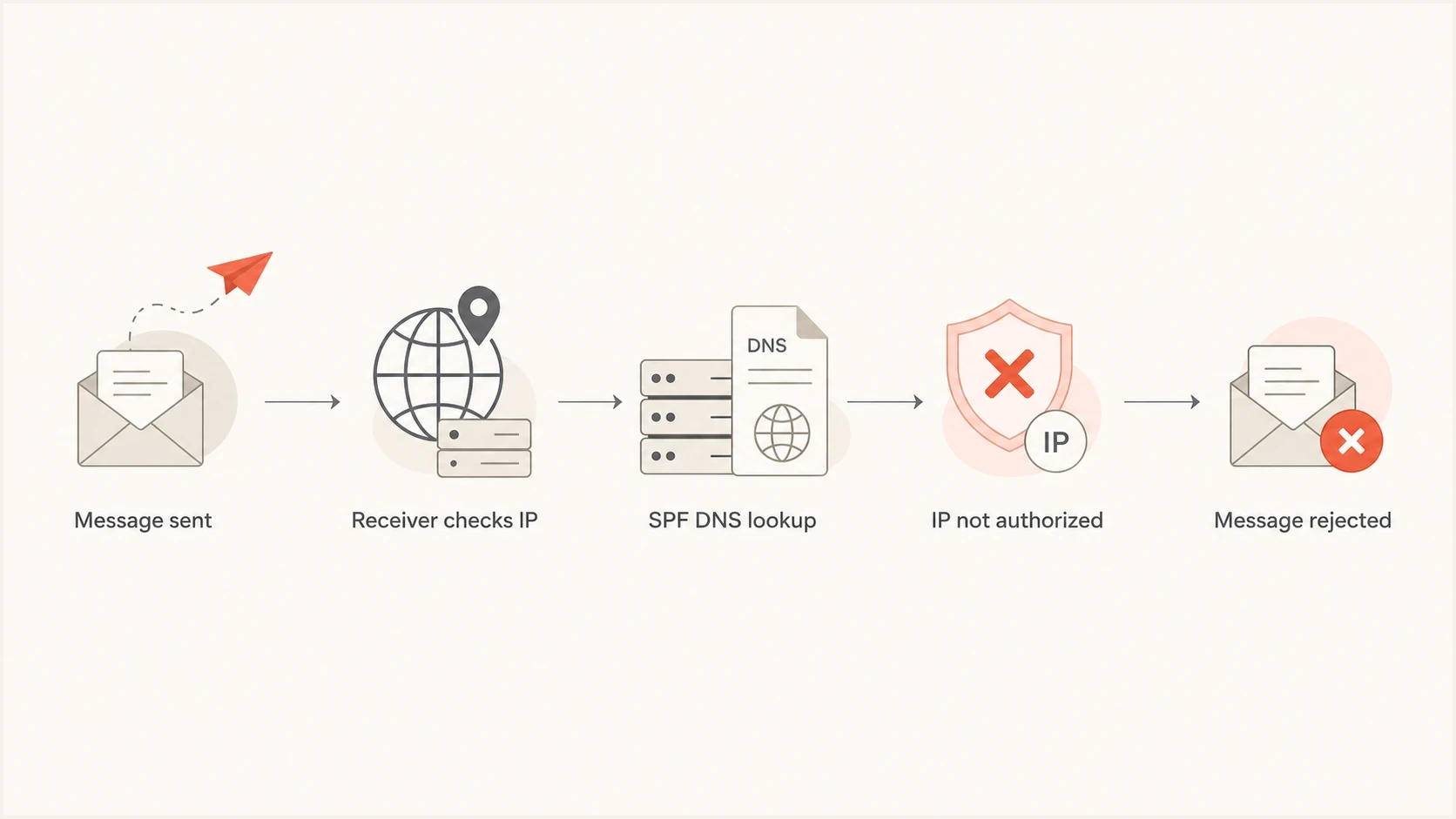
SPF unauthorized mail rejection flow from sending IP check to DNS authorization failure.
The domain being checked matters
SPF does not authenticate the visible From address by itself. It authenticates the envelope sender domain. DMARC then checks whether the authenticated domain matches the visible From domain under its domain-match rules. That difference explains many confusing SPF failures.
- Return-Path: the domain SPF checks in most normal mail flows.
- Visible From: the domain people see in the mail client.
- DMARC result: the final check that ties SPF or DKIM back to the visible From domain.
- Practical rule: fix the SPF identity that failed, then check DMARC separately.
Confirm which SPF identity failed
SPF can evaluate the MAIL FROM identity and the HELO identity used in the SMTP session. For ordinary messages with a non-empty reverse-path, troubleshoot the MAIL FROM domain shown as smtp.mailfrom in Authentication-Results. When the reverse-path is empty, as it commonly is for delivery status notifications, SPF uses the HELO domain instead.
|
|
|
|---|---|---|
Normal MAIL FROM | Envelope sender | smtp.mailfrom domain |
Empty reverse-path | HELO | smtp.helo domain |
Use the identity recorded by the receiver, not the visible From address.
Do not publish an SPF change until the failed identity is clear. Editing the organizational domain will not repair a failure for a dedicated bounce subdomain or an HELO hostname. If the bounce omits these fields, ask the rejecting recipient or gateway administrator for the SPF result and evaluated identity.
Find the exact sender that failed
The safest fix starts with evidence. Do not add broad IP ranges because a bounce mentions SPF. Pull the bounce text, a copy of the original headers, or a test message sent through the same route. Look for the receiver's SPF verdict, the identity it checked, and the IP address it evaluated.
If the message was sent by a website, CRM, billing system, help desk, or newsletter system, confirm whether that system sends through your mail server or through its own mail infrastructure. The fix changes depending on that answer. A website using your SMTP relay usually needs the relay IP authorized. A cloud sender usually needs that sender's SPF include added to the domain it uses in the Return-Path.
|
|
|
|---|---|---|
New IP | Sender changed | Add approved sender |
Two SPF records | DNS conflict | Merge records |
Permerror | Record invalid | Fix syntax or limits |
Temperror | Transient DNS failure | Retry and check DNS availability |
Forwarded | Path changed | Check DKIM or SRS |
Over limit | Too many lookups | Reduce SPF |
Use the row that matches the evidence in the bounce or message headers.
When the evidence says the IP is missing, check whether the sender has a published include value. For permerror, inspect duplicate records, invalid syntax, excessive lookups, and recursive include or redirect chains before authorizing another sender. An invalid SPF record can fail even when the correct IP appears inside it.
Fix the SPF record safely
A valid SPF fix usually means editing one TXT record at the exact domain used in the envelope sender. That name can be the organizational domain or a dedicated bounce subdomain. Do not create a second SPF TXT record at the same name. Receivers treat multiple SPF records as a permanent error, which can produce another rejection.
Single SPF record exampleDNS
example.com. TXT "v=spf1 ip4:203.0.113.25 include:_spf.sender.example -all"
In this example, the domain authorizes one direct IPv4 sender and one third-party sender. Your real record should use the exact include, IP, or mechanism documented by the sender. Do not add inbound gateways, MX hosts, recipient servers, or unrelated forwarders unless they actually send mail using the evaluated envelope domain. If you manage many senders, Hosted SPF in Suped lets you manage authorized senders without repeated DNS edits.
Risky SPF edits
- Duplicate records: adding a second TXT record that also starts with v=spf1.
- Overbroad access: using +all or large IP ranges to make the bounce disappear.
- Wrong domain: editing the visible From domain when the Return-Path domain is different.
- No retest: checking DNS only and never sending a fresh message.
Safer SPF edits
- One record: merge all authorized sources into one SPF TXT record.
- Specific sender: add only the include or IP that belongs to the failed route.
- Correct domain: edit the identity shown in the receiver's SPF result.
- Fresh proof: send a new test after cached DNS answers expire.
The SPF qualifier also matters. A record ending in -all tells receivers that unauthorized senders should fail. A record ending in ~all gives a softfail result. Do not weaken the qualifier just to hide a broken sender. Authorize the sender, then choose the policy that matches how the domain sends mail.
Check DNS limits and syntax
SPF has a strict DNS lookup limit. The include, a, mx, ptr, exists, and redirect terms count toward the 10-lookup ceiling, including lookups inside nested includes. The ptr mechanism is discouraged because it is slow and unreliable. An evaluation that exceeds 10 DNS-querying terms returns permerror.
Evaluation proceeds from left to right and stops when a mechanism matches, so actual lookup use can differ by sending IP and route. A record can pass for an early matching sender but reach permerror for a sender evaluated later. Validate every active sending route, not only the first test message.
Also check void lookups, which return no usable DNS answer. SPF recommends a limit of two void lookups, and exceeding an evaluator's limit can also produce permerror. Count the whole evaluated chain, not only the mechanisms visible in the top-level TXT record.
Use Suped's SPF checker to confirm the record parses, has one SPF policy, and stays within lookup limits. Run the broader domain health checker when the same domain has DKIM or DMARC failures in the headers.
SPF checker
Find SPF syntax issues, lookup limits, and weak records.
?/16tests passed
SPF lookup risk
Use this as a quick read on how close an SPF record is to the protocol limit.
Clean
0-5
Low lookup pressure
Watch
6-8
Review before adding another sender
Near limit
9-10
One or no lookup slots remain
Broken
11+
SPF evaluation returns permerror
If you are already near the lookup ceiling, do not add another include until you remove unused senders or move to a managed record. SPF flattening reduces lookup pressure, but it needs monitoring because provider IP ranges change.
Fix recursive SPF includes
An SPF include starts a recursive evaluation of the referenced domain's SPF policy. If a record includes itself, or a chain of include or redirect terms leads back to a domain already being evaluated, processing repeats until the evaluator detects the loop or reaches the lookup limit. The result is permerror, even when the sending IP is authorized elsewhere in the record.
Self-referencing record and corrected recordDNS
example.com.  TXT  "v=spf1 include:example.com -all"

example.com.  TXT  "v=spf1 include:_spf.sender.example -all"
The first record is broken because example.com asks the evaluator to evaluate example.com again. The corrected record points to the documented SPF domain of the service that sends the mail. Do not replace a recursive include with a mail hostname, MX hostname, organizational domain, or recipient host unless its published SPF policy actually authorizes that sending service.
- Trace the chain: query the SPF TXT record for every include and redirect target.
- Mark repeated domains: a domain that appears again in the active chain identifies the cycle.
- Remove the wrong reference: delete self-includes and use only documented sender authorization.
- Recount and retest: check the full lookup path, then send through every affected route.
Handle forwarding and indirect mail
Forwarding is a common reason SPF fails even when the original sender's DNS is correct. SPF checks the IP that connects to the final recipient. If a forwarding server passes the message along using the original Return-Path, the final receiver sees the forwarder's IP, not the original sender's IP. That forwarder is not usually authorized in the original domain's SPF record.
Do not add random forwarder IPs to your SPF record unless you own that forwarding path and understand the risk. Make sure DKIM passes so DMARC can pass through DKIM when SPF breaks during forwarding. If you operate the forwarder, configure Sender Rewriting Scheme (SRS) where appropriate. SRS rewrites the envelope sender to a domain controlled by the forwarder so the forwarded hop can pass SPF.
When SPF is not the right fix
If only forwarded copies fail and direct deliveries pass, the SPF record might already be correct. In that case, focus on DKIM signing, DMARC results, and the forwarding system's SRS behavior.
- Direct mail passes: SPF likely authorizes the original sender.
- Forwarded mail fails: the final receiver checks the forwarder's IP.
- DKIM passes: DMARC can still pass if the signing domain matches the visible From domain.
- DKIM fails: fix signing before tightening DMARC policy.
This is also why a sender can see SPF pass in one mailbox and fail in another. The mailbox that received a direct message checked the sender's true IP. The mailbox that received a forwarded copy checked a different IP. If that pattern matches your issue, read the header chain before editing DNS.
Use Suped to catch the real source
For one-off troubleshooting, headers and DNS checks are enough. For ongoing operations, Suped connects an SPF failure to its sending source and affected domain. This helps when more than one system sends mail for the same domain.
In Suped, start at the issue view, confirm whether the failing source is verified, and follow the fix steps to choose an SPF edit, a DKIM change, or sender cleanup. Hosted SPF and SPF flattening support domains that have frequent sender changes or limited lookup capacity, while DMARC monitoring and alerts expose recurring failures.
SPF flattening drawer showing an over-limit record, sender editing, lookup counts, and the hosted record setup
This workflow reduces guesswork. Suped shows which sources are sending, how often SPF passes, which domains are affected, and what changed. Teams can verify the failed route before authorizing it and review new failures after a marketing, billing, or support system changes.
A practical fix path
Use this sequence when the bounce is live and mail needs to move again. It keeps the fix narrow, which protects the domain from accidental over-authorization.
- Collect evidence: save the full bounce, the message headers, and the sending application name.
- Identify the identity: find the MAIL FROM or HELO domain that the receiver used for SPF.
- Identify the IP: record the IP address that connected to the rejecting mail server.
- Check the record: confirm there is only one SPF record and that it parses within DNS limits.
- Authorize narrowly: add the approved include or IP for that sender only.
- Allow for caching: use the DNS TTL to estimate when cached answers will expire.
- Retest delivery: send a new message through the same route and check the fresh headers.
Header clues to capturetext
Authentication-Results: receiver.example;
  spf=fail smtp.mailfrom=example.com
  client-ip=203.0.113.25
Return-Path: <bounce@example.com>
If the receiver still rejects the message after the SPF record is correct, check whether the message is being relayed through an intermediate server. A relaying issue is different from an SPF authorization issue, and the fix belongs in the sending route rather than the DNS record. The same evidence-first approach also helps with an IP not authorized error where the wording changes but the root check is still SPF.
What to do after the bounce is fixed
After mail starts moving again, document why the failure happened. Most SPF incidents come back because someone adds a new sender outside the change process, a provider changes mail infrastructure, or an old sender remains in the record long after it is unused. The immediate DNS edit fixes today's bounce. A source inventory prevents the next one.
Keep a short list of every authorized sender, its internal owner, the domain it uses in the Return-Path, and whether DKIM passes for that same stream. That list makes future SPF changes less risky because each sender has an owner and a test path.
A good final state
- SPF record: one TXT record, valid syntax, and no more than 10 DNS-querying terms in any evaluated path.
- Sender list: each authorized source has a business owner and a test message.
- DKIM signing: important mail streams pass DKIM, especially if forwarding is common.
- Monitoring: SPF failures trigger review before they turn into repeated bounces.
The bottom line
The "SPF unauthorized mail is prohibited" error is fixed by matching SPF DNS to the real sending route and the identity the receiver evaluated. Find the MAIL FROM or HELO domain, identify the connecting IP, repair the single SPF record at that DNS name, and retest with a fresh message. If forwarding is involved, do not force SPF to solve a forwarding problem. Use DKIM for DMARC and configure SRS on a forwarding system you control.
For a small one-time issue, the bounce and an SPF check can be enough. For teams with multiple senders, Suped provides source visibility, guided fix steps, Hosted SPF, SPF flattening, DMARC monitoring, and alerts in one workflow.