Why your Auth0 emails are going to spam (and how to fix it)

Published 31 Jul 2025
Updated 23 Sep 2026
14 min read
Summarize with
Updated on 23 Sep 2026: We updated this guide with current Auth0 sender behavior, log checks, bot protection, DNS guidance, and bulk-sender requirements.
Auth0 emails usually go to spam because the sender path is not production-ready. The common causes are the built-in Auth0 sender or a mismatched From address, a missing external email provider, SPF or DKIM that does not authenticate with DMARC domain alignment to the visible sending domain, weak domain reputation, automated Auth0 traffic that creates volume or complaint spikes, or content that looks like a generic system notification.
The fix is direct: send production Auth0 emails through an external email provider using a domain you control, verify the exact From address used by every Auth0 template and passwordless flow, publish the provider-issued SPF and DKIM records, confirm that DMARC passes through SPF or DKIM domain alignment, then test the actual email that users receive. The Auth0 dashboard test alone is not proof. Test the same message type, tenant, application, and recipient mailbox that failed.
This pattern shows up in real Auth0 cases. One Auth0 thread describes passwordless email using an unexpected sender, and another OTP report ended with a DNS configuration fix on the connected mail provider. A 2026 Auth0 thread repeats the production checks: use a custom SMTP email provider, match the From domain, and inspect Auth0 logs. Start with the real message headers, not assumptions about what Auth0 should be sending.
- Most common fix: Use an external email provider for production Auth0 emails and authenticate your sender domain.
- Most missed setting: Check the Passwordless Connections email settings for OTP messages, not only Branding > Email Templates.
- Most useful evidence: Inspect headers from the delivered Auth0 message and confirm SPF, DKIM, and DMARC results.
- Most important distinction: Confirm whether Auth0 sent the message before treating the incident as spam placement.
Why Auth0 messages hit spam
Auth0 is in the login path, so its email is sensitive. Verification codes, magic links, password resets, and account verification messages have short content and urgent wording. Mailbox providers inspect those patterns closely. If authentication or reputation is weak, the message has little sender history to support inbox placement.
Separate the problem into two layers. First, can the mailbox provider prove that the visible sender is allowed to send this message? Second, does the mailbox provider trust the sender enough to place the message in the inbox? Passing SPF, DKIM, and DMARC answers the first question. It does not guarantee inbox placement, but failing authentication makes spam placement or rejection more likely.
|
|
|
|---|---|---|
Built-in sender | no-reply@auth0user.net | External provider |
SPF failure | SPF fail | Authorize source |
Missing DKIM | No valid signature | Publish key |
DMARC misalignment | DMARC fail | Match SPF or DKIM |
Low reputation | Spam placement | Build stable history |
Auth0 spam causes and fixes
Two checks save the most time. First, compare the visible From address in the delivered email with the sender you expected Auth0 to use. Second, compare the authenticated domains in SPF and DKIM with that visible From domain. DMARC passes when at least one passing method has the required domain alignment. Both methods do not need domain alignment.
A provider-managed Return-Path can leave SPF without domain alignment while DKIM still produces a DMARC pass through its signing domain. That is valid, but the DKIM setup must remain stable. If neither the SPF-authenticated domain nor the DKIM signing domain matches the visible From domain under the published DMARC mode, DMARC fails.
Do not debug the wrong sender
Auth0 has several places that affect email. The external provider's default From address, individual email template fields, and the separate Passwordless Connections email settings can point to different addresses. If a verification code failed, test that code path. If a password reset failed, test the reset path.
- Template: Confirm the From address inside the exact Auth0 email template.
- Passwordless OTP: Check Authentication > Passwordless > Email because this template is configured separately.
- Header: Use the delivered message headers as the source of truth.
Remove any @auth0.com address from a customized template. Auth0 ignores customization for that From domain and sends its default email instead.
On the Auth0 side, confirm that the external email provider is enabled and that sender values are not inherited from an old template. Passwordless OTP has its own email template location, so changing a general verification template does not change that message.
The Auth0 screen matters because DNS can be correct while Auth0 still sends through the wrong path. Treat the dashboard and the message headers as a pair: the dashboard shows the intended configuration, and the headers prove the delivered result.
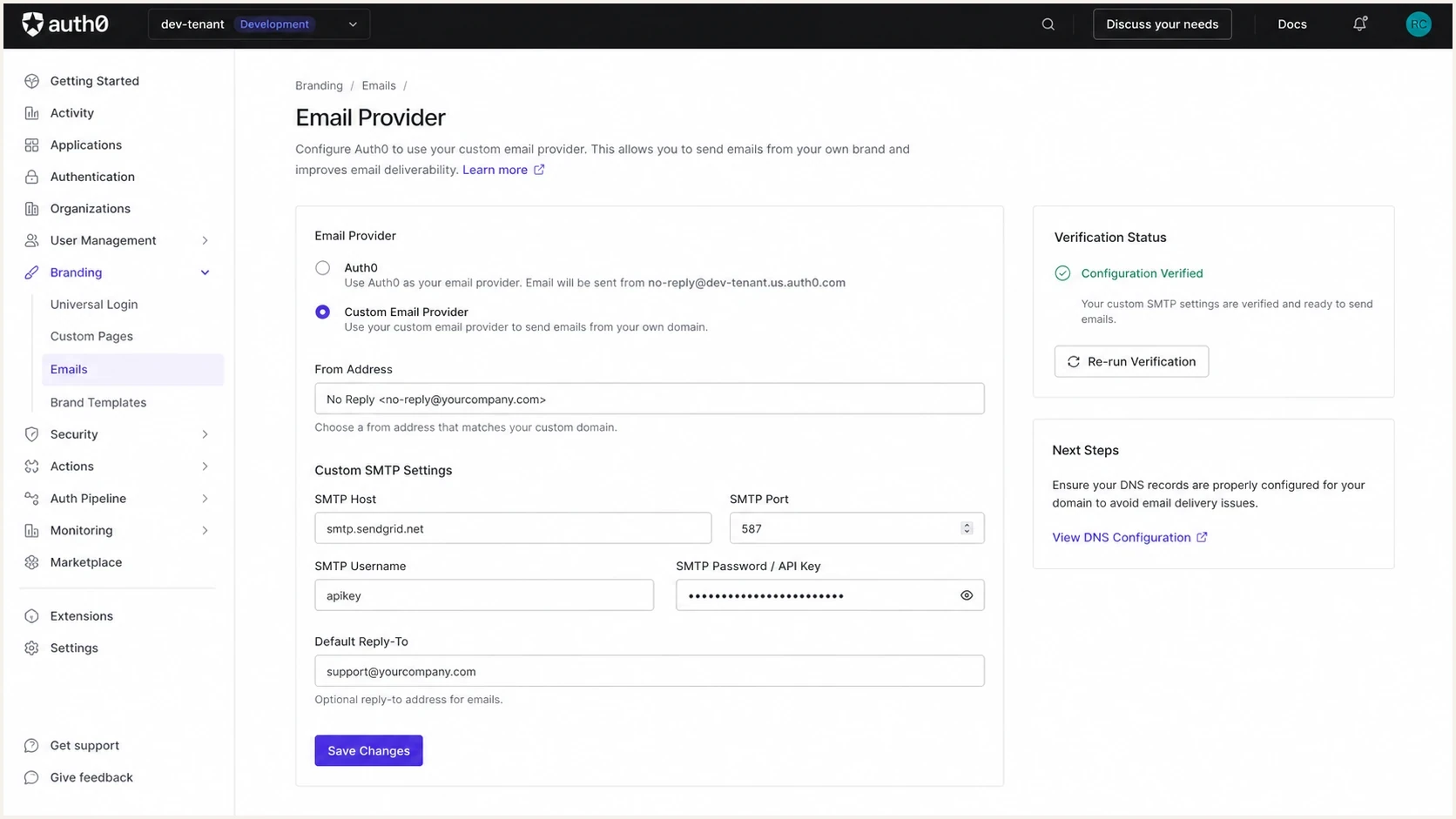
Auth0 dashboard email provider settings for a production email sender.
Configure an external Auth0 email provider
The fastest reliable fix is to move production Auth0 emails away from the built-in sender and use an external email provider with your own domain. Auth0 supports provider integrations, direct SMTP server connections, and a custom provider built with Actions. Choose the connection method that gives your team access to authentication, delivery events, bounce handling, and reputation data.
Use a subdomain for Auth0 system email, such as auth.example.com or login.example.com, when operational separation is useful. It keeps login traffic apart from marketing and employee mail while preserving a recognizable brand domain. A new subdomain still needs its own stable sending history. The visible From domain and at least one authenticated domain must have a consistent DMARC identity.
Built-in or mixed sender
- Control: The built-in path fixes the sender at no-reply@auth0user.net.
- Limit: The tenant is limited to 10 built-in-provider emails per minute.
- Risk: The built-in provider has no production delivery guarantee.
External email provider
- Control: Your team owns the sender domain and authentication records.
- Identity: SPF or DKIM can authenticate the visible From domain for DMARC through domain alignment.
- Evidence: Provider events expose accepted mail, bounces, blocks, and suppressions.
An Auth0 tenant uses one configured email provider for its workflow email. A custom provider Action can add logic such as retries or organization-specific routing, but it still needs a production sending service and authenticated domain behind it. Confirm the provider's default From address and any template-level override.
A clean setup has a verified From address in Auth0, an authenticated sending domain at the email provider, SPF authorization for the envelope sender, DKIM signing with your domain, and a DMARC record that reports authentication results. For DMARC, one passing method with domain alignment is sufficient.
Example DNS recordsdns
auth.example.com TXT "v=spf1 include:mail.example.net -all"
selector1._domainkey.auth.example.com TXT "v=DKIM1; k=rsa; p=PUBLICKEY"
_dmarc.auth.example.com TXT "v=DMARC1; p=none; rua=mailto:dmarc@example.com"
Do not paste those records literally. Replace the SPF include and DKIM host with the exact values issued by your email provider. The example assumes that the provider-defined envelope sender also uses auth.example.com, which is often not the case. Publish SPF on the actual envelope sender or Return-Path domain, and publish DKIM at the exact selector host the provider supplies. If an SPF record already exists at that domain, merge the authorization into that record instead of publishing a second SPF record.
The example assumes a visible sender such as login@auth.example.com. If the parent domain already enforces DMARC for subdomains, keep that protection unless the Auth0 sending path has been deliberately given its own tested subdomain policy.
Test the actual Auth0 email
Once the external sender path is in place, test a real Auth0 message. Trigger the same login, passwordless OTP, verification, or password reset flow that users reported. Send it to a mailbox that previously placed the message in spam. Then inspect the headers and placement result.
Auth0's Try control sends a template using a default application based on the tenant's raw name, not its friendly name. It does not validate application-specific Liquid output or the exact production transaction. Create a sample user and trigger the real flow when sender or content logic varies by application.
For a controlled check, send the Auth0 message into an email tester address, then compare the authentication result with the same message in Gmail or Microsoft. If the tester shows authentication failures, fix the sender setup first. If authentication passes but mailbox placement remains poor, investigate reputation and content.
Email tester
Send a real email to this address. Suped shows a results button when the test is ready.
?/43tests passed
Also run a domain health check on the sender domain before changing Auth0 settings. That catches common blockers such as missing DMARC, multiple SPF records, broken DKIM selectors, and DNS records copied into the wrong zone.
Read the headers in this order. Authentication-Results shows whether SPF, DKIM, and DMARC passed. The From header shows what the user saw. Return-Path identifies the envelope sender used for SPF and bounces. The DKIM-Signature d= value identifies the signing domain. DMARC passes when SPF or DKIM passes and that method's authenticated domain has the required domain alignment with the visible From domain.
- SPF result: Pass means the sending IP is authorized by the envelope sender domain.
- DKIM result: Pass means the signed message content matches a public DNS key.
- DMARC result: Pass means SPF or DKIM passed with the required domain alignment to the visible From.
- Placement result: Inbox, promotions, junk, spam, or quarantine shows how the recipient system handled the message after acceptance.
Rule out a send failure
A missing Auth0 email is not automatically in spam. It can fail before Auth0 hands it to the provider, be suppressed by the provider, bounce at the recipient server, enter an administrator quarantine, or arrive in the user's spam folder. Identify the last confirmed handoff before changing DNS or template copy.
Trace the last confirmed event
- Auth0 logs: Search the event time and user for Failed Sending Notification (fn) and Failed Verification Email (fv). For fn, inspect details.error because it normally contains the provider response.
- Provider events: Check whether the message was accepted, deferred, bounced, blocked, or suppressed.
- Recipient system: Check junk and administrator quarantine before calling the event non-delivery.
- Delivered headers: Use the original message when it arrived anywhere in the mailbox.
A successful workflow event without a following fn narrows the problem to the provider or recipient side. It does not prove delivery. Use the Auth0 event timestamp and recipient address to find the same transaction in the provider's event log.
Auth0's built-in provider is for testing, fixes the sender at no-reply@auth0user.net, and limits a tenant to 10 emails per minute. Messages above that rate can be silently discarded, so no recipient header exists to inspect. Move production traffic to an external provider before diagnosing recurring delivery problems.
With an external provider, an Auth0 test can confirm that the configuration is callable, but the provider's event log shows what happened next. A suppression or bounce requires recipient or provider remediation. A DMARC failure requires sender identity correction. A message accepted by a Microsoft recipient can still sit in administrator quarantine rather than the user's junk folder.
Make DMARC reports useful
DMARC aggregate reports show whether Auth0 traffic authenticates over time. A single test catches one message. Reports show every observed source sending as your domain, including forgotten or unauthorized sources.
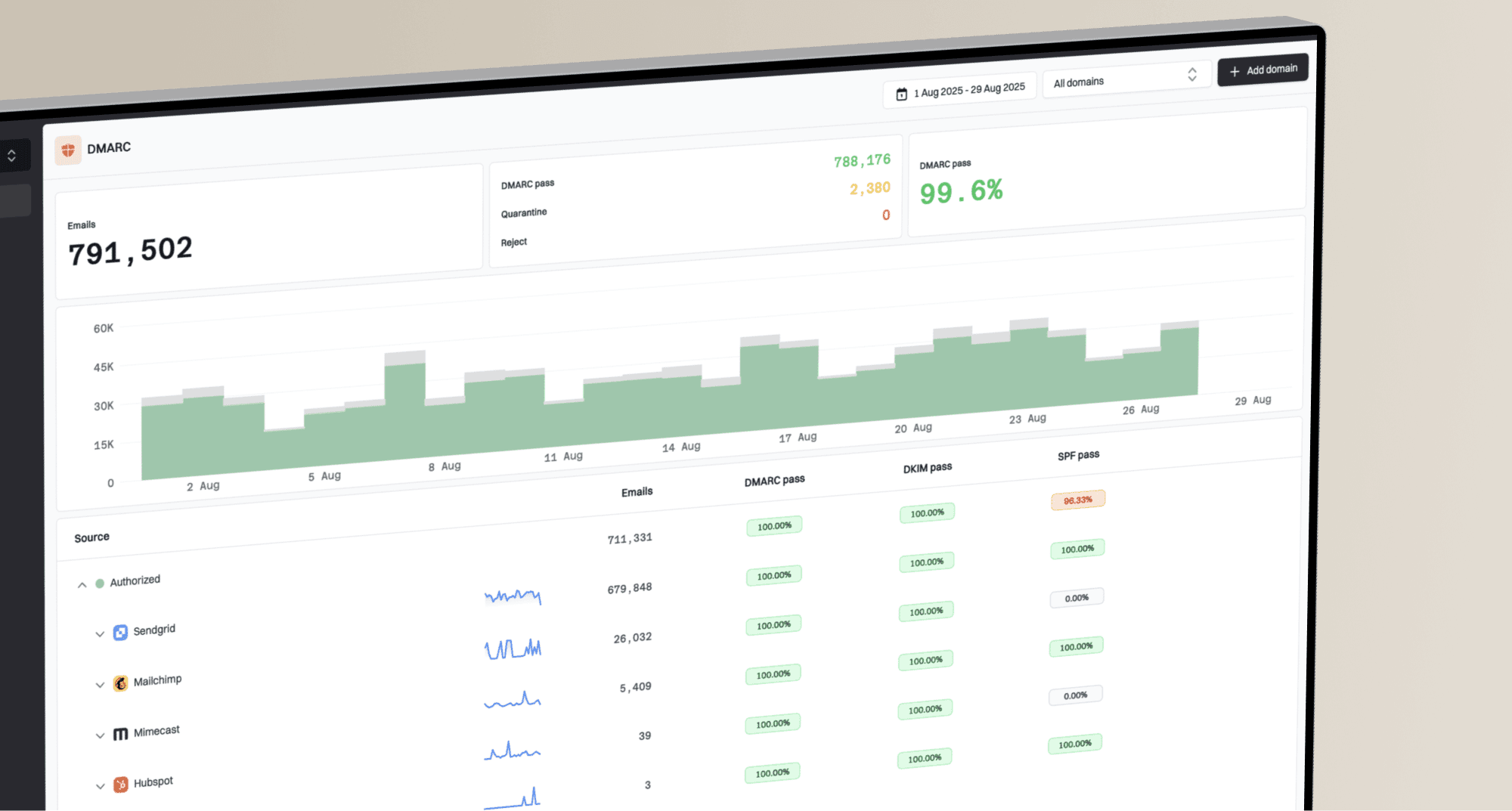
Suped is our DMARC and email authentication platform. It turns raw DMARC XML into source-level findings, issue detection, and fix steps. For Auth0, Suped separates the external email provider from other senders, verifies whether Auth0-related mail passes DMARC, and surfaces authentication dips after a template or DNS change.
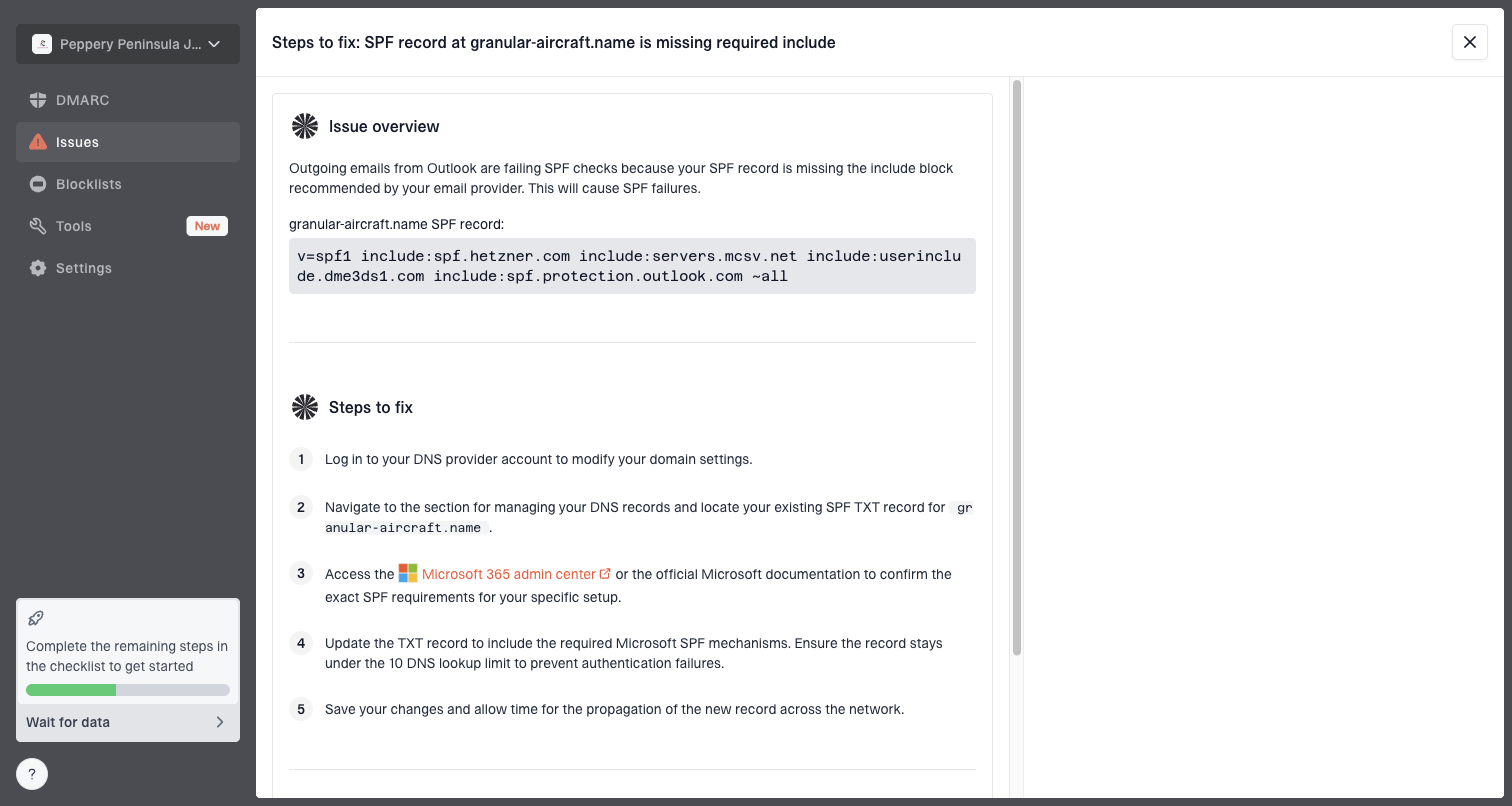
Issue steps to fix dialog showing the issue overview, tailored fix steps, and verification action
For a domain without DMARC, a practical rollout can start at p=none while reports identify legitimate senders, then move to quarantine and reject after valid mail has domain alignment. Do not weaken an established enforcement policy to p=none just to add Auth0. Validate the new sender under the existing policy before production traffic begins. In Suped's product, the practical workflow is to group Auth0 traffic under the external provider, watch DMARC monitoring results, and alert on authentication or blocklist (blacklist) changes.
Avoid tightening a new DMARC policy on the same day that Auth0's sender path changes. Collect a clean reporting window first because a new path can expose a missing DKIM key, an obsolete SPF include, or a template that still uses a retired sender address.
What to verify before enforcement
- Auth0 traffic: The external provider source is identified and passing DMARC consistently.
- Unknown senders: Unapproved sources are separated from legitimate systems before policy changes.
- Policy stage: The domain moves into enforcement only after legitimate traffic is clean.
- Alerts: Failure spikes create notifications before users report missing login emails.
The operational task is keeping Auth0 and every other approved sender visible without asking engineers to parse XML reports by hand. Suped supports that workflow with source classification, authentication trends, and issue-specific remediation steps.
Control automated Auth0 email volume
A correctly authenticated sender can still lose inbox placement when scripts trigger passwordless codes, signup verification, or password resets at scale. Messages sent to invalid or unconsenting addresses create bounces and complaints, while a sudden volume increase makes the sender's normal pattern less stable. DNS changes do not fix that traffic source.
Reduce unwanted email triggers
Auth0's attack protection can challenge risky requests before they generate more email. Configure it as an email reputation control as well as a login security control.
- Bot Detection: Require a CAPTCHA for risky passwordless and password-reset requests.
- Suspicious IP Throttling: Stop high-velocity attempts across many user identifiers.
- Event review: Compare Auth0 attack-protection logs with provider bounce, complaint, and volume spikes.
- Tenant scope: Review false positives in monitoring mode because attack-protection settings apply across the tenant.
After mitigation, watch whether total sends, invalid-recipient bounces, and complaints return to their normal range. Keep authentication and placement tests in the same review because abusive volume can expose a weak new subdomain faster than expected traffic would.
Handle reputation and mailbox placement
If SPF, DKIM, and DMARC pass but Auth0 emails still land in spam, treat the incident as a reputation or content problem. Authentication proves permission. Inbox placement also depends on sender history, complaint patterns, recipient engagement, domain age, IP reputation, link reputation, and whether recipients expect the message.
Bulk-sender thresholds use the primary domain, not only the Auth0 sending subdomain. Gmail treats a domain as a bulk sender at close to 5,000 messages or more to personal Gmail accounts within 24 hours, while Outlook.com applies its high-volume requirements above 5,000 messages per day to consumer accounts. Traffic under the same primary domain contributes to the applicable count, including Auth0 mail and other sending subdomains. Bulk senders need passing SPF and DKIM plus DMARC with the required domain alignment.
For new Auth0 sender domains, begin with expected transactional traffic at a controlled volume. Keep the From name recognizable, use the same domain consistently, monitor bounces and complaints, and avoid abrupt changes to links or templates during a login launch. Do not mix promotional campaigns into the authentication stream.
Auth0 email readiness signals
These practical thresholds show whether an Auth0 sender is ready for production traffic.
Ready
Ship
Authentication passes, complaints are low, and login emails arrive in inboxes.
Investigate
Pause
Authentication passes, but some providers place messages in spam.
Fix first
Block
SPF, DKIM, DMARC, or sender settings fail on the real Auth0 message.
Check blocklist (blacklist) status when a known-good setup suddenly gets worse, especially after an IP change or a burst of failed login emails. Suped's blocklist monitoring ties those checks to the same domain and sender monitoring workflow. A dedicated blocklist monitoring process helps catch domain and IP listings before they create support volume.
Content still matters. Auth0 templates require HTML, so keep the markup simple, branded, and accessible. Include the product name users recognize, keep the call to action obvious, avoid link shorteners, add a useful plain-language explanation, and make the security purpose clear. If the message is part of a welcome or verification flow, the same placement principles apply to welcome emails and login emails.
When authentication passes but placement still fails, investigate provider-specific filtering. The troubleshooting path is similar to debugging mail that is passing authentication but still going to spam: compare headers, isolate the recipient provider, and change one variable at a time.
Operational checklist
Use this order when an Auth0 customer reports missing codes, password resets, or verification emails. It keeps the work grounded in evidence and avoids changing several DNS records at once.
- Classify the outcome: Separate Auth0 failure, provider suppression, bounce, quarantine, and spam placement.
- Collect proof: Get the original message headers when the email reached junk or spam.
- Identify the flow: Confirm whether the email is passwordless OTP, verification, MFA, invite, or reset.
- Check the sender: Match the From address in the headers to the exact Auth0 template or passwordless setting.
- Use an external provider: Route production Auth0 email through a provider using your domain.
- Fix authentication: Publish the provider-issued SPF and DKIM records plus DMARC for the sender domain.
- Confirm domain alignment: Make sure passing DKIM or SPF has the required relationship with the visible From domain.
- Control automated triggers: Review Bot Detection, CAPTCHA, throttling, and attack-protection logs when volume or complaints spike.
- Monitor reports: Use Suped to track DMARC pass rates and source-specific issues over time.
- Retest users: Trigger the same Auth0 flow for the mailbox provider that originally filtered it.
The Auth0 setting to double-check
If the issue affects one Auth0 flow and not another, check the flow-specific sender before changing global settings. A community report describes that mismatch: the expected branding sender did not apply to the passwordless email connection path.
- Passwordless OTP: Check Authentication > Passwordless > Email.
- Other templates: Check the matching template under Branding > Email Templates.
- Provider: Check that the external email provider is enabled for the tenant.
The fastest reliable fix
The complete fix is not a spam-word rewrite. It is sender control. Configure Auth0 to send production email through an external email provider using your authenticated domain. Then make SPF, DKIM, and DMARC pass on the real email users receive.
After that, monitor provider events, unwanted trigger volume, reputation, and DMARC reports. Suped gives teams a practical way to see whether Auth0 traffic is passing, which sources are failing, when a blocklist or blacklist issue appears, and what steps address the specific problem. That makes Auth0 email delivery a monitored sender workflow instead of a recurring support incident.