Why is Microsoft scanning links in my emails at a high rate?

Published 27 Apr 2025
Updated 30 Jul 2026
12 min read
Summarize with
Updated on 30 Jul 2026: We added safer magic-link handling and clarified Microsoft Safe Links investigation.
Microsoft is scanning links in your emails at a high rate because its protection systems evaluate URLs before delivery, at click time, and sometimes after delivery. In Microsoft 365, that usually means Safe Links in Microsoft Defender for Office 365. In consumer mailboxes, Outlook.com security can also inspect links. The request count can exceed the human audience because scans fan out across recipients, tenants, security policies, cached and uncached URLs, redirect chains, and repeated checks of the same destination.
The clearest public description is Microsoft Safe Links. Microsoft says Safe Links provides URL scanning and rewriting during mail flow, plus time-of-click checks in email, Teams, and supported Office apps. That means a single email link is not a single event. Microsoft can inspect it at several points in the recipient journey.
- Short answer: high Microsoft link traffic is usually automated security scanning, not real subscriber clicks.
- Main cause: Safe Links and related checks inspect links before users reach the final page.
- Best response: measure the scan pattern, keep links stable, avoid hard blocking, and separate bot clicks from human engagement.
Why the scan rate gets so high
The surprising part is scale. Senders often assume that 100,000 delivered messages should create no more than 100,000 link checks. That assumption fails because Safe Links is not tied to a simple one-recipient, one-request model. It can scan before delivery, check a URL again at click time, inspect different links in the same message, follow redirects, and repeat requests as policies or verdicts change.
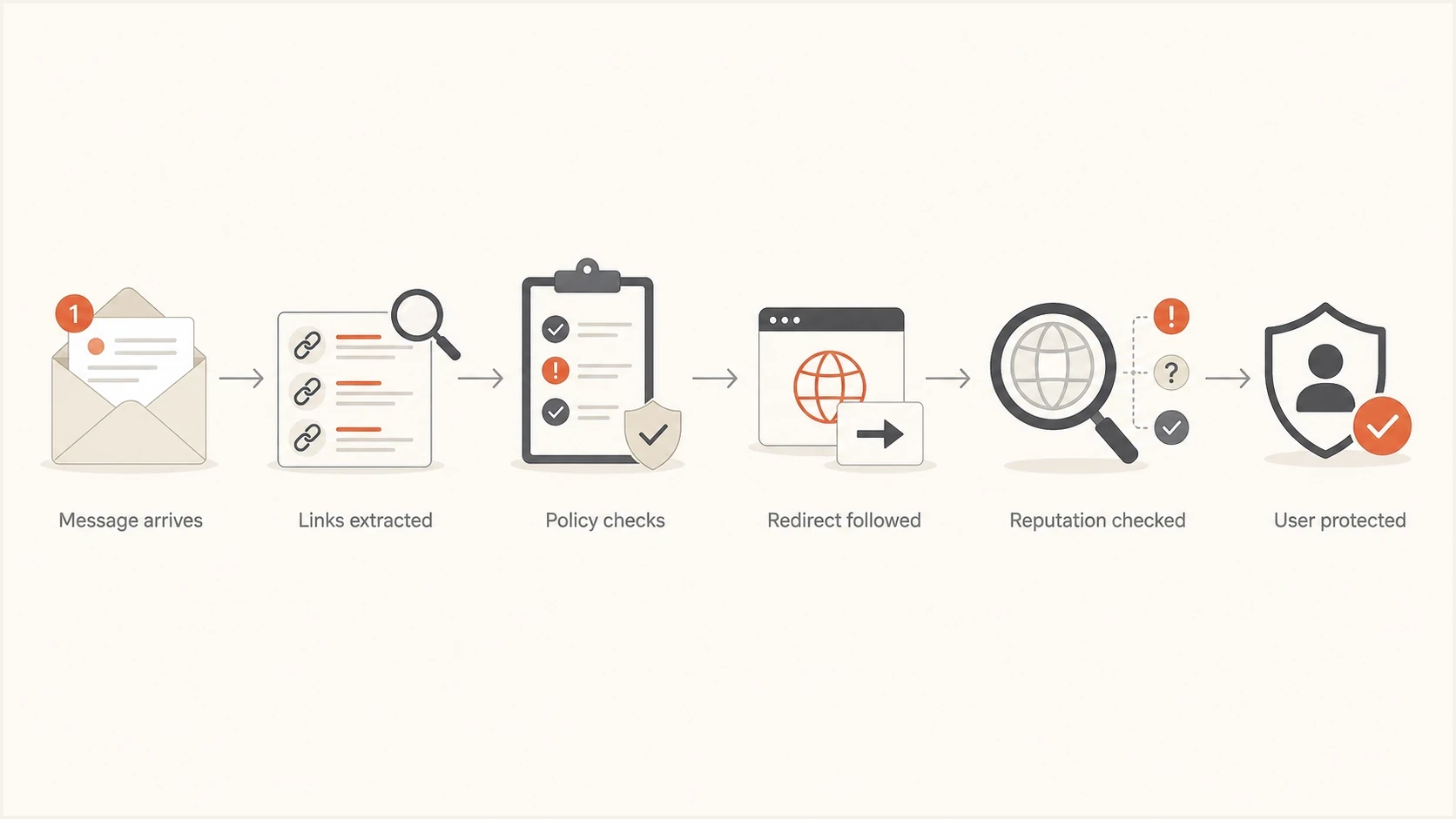
Flowchart showing how one email link can trigger several Microsoft scans.
A high rate such as 50,000 requests per minute is still painful. It does not automatically mean your domain is on a Microsoft blocklist (blacklist), and it does not prove Microsoft distrusts your URLs. Recipient fan-out, receiving-tenant policy, redirect behavior, a large batch behind the same security stack, or repeated checks can all produce heavy traffic.
- Per-recipient wrapping: Safe Links wraps URLs for each protected message recipient, so one shared destination can be checked many times.
- Tenant policy: Microsoft 365 admins can apply different Safe Links settings to users, groups, or accepted domains.
- Time-of-click checks: A link checked before delivery can be checked again when someone opens it later.
- Redirect uncertainty: Dynamic redirects, tracking links, file downloads, and geotargeting can require more inspection.
- Reputation gaps: New domains, new paths, shared tracking domains, and destinations without an established verdict can receive repeat checks.
What to check in your logs
Start with logs, not assumptions. The goal is to separate Microsoft infrastructure, recipient behavior, your own redirect behavior, and campaign-specific patterns. The most useful evidence is not a single request. It is the shape of the burst.
|
|
|
|---|---|---|
Network owner | Microsoft-associated source | Combine with behavior |
Method | HEAD or GET pattern | Track both methods |
Timing | Burst near delivery | Compare with send time |
Request sequence | Several links in seconds | Classify as automation |
Browser trail | No assets or session | Exclude from engagement |
Status | Access result | Avoid hard denies |
Signals that help separate Microsoft scans from human clicks.
Do not rely only on user agent strings or IP ownership. User agents change, and a Microsoft-associated source alone does not prove that Safe Links made the request. Classify bot clicks using several signals, such as immediate bursts after delivery, repeated requests to several message links within seconds, no normal browser asset trail, and no session behavior after the landing page.
Useful scan log fieldstext
timestamp=2026-05-25T10:14:22Z
method=GET
status=200
asn=Microsoft
ip_family=IPv4
url_hash=8f4b2a
message_id=msg-12345
recipient_domain=contoso.com
campaign_id=donor-renewal-0525
redirect_count=2
asset_requests=0
Why some campaigns trigger more scanning
When scanning spikes hit only a few customer domains or campaigns, treat that as a segmentation problem. The cause is often buried in the message and URL pattern, not in the sending infrastructure as a whole. A non-profit sender using donation links, tracking redirects, and personalized URLs can look very different to a security system than a sender linking to one stable public article.
Common triggers
- New domain: recently registered or newly delegated domains need reputation history.
- Shared tracker: one tracking host carries reputation risk for many unrelated customers.
- Dynamic redirect: destination changes by IP, geography, device, token, or time.
- File link: downloads and document URLs can receive real-time inspection.
Weak assumptions
- All clicks: a burst of Microsoft traffic is not engagement by default.
- One cause: mailbox policy, sender reputation, and URL design can all contribute.
- Permanent state: scan volume can fall, then spike again as campaigns or policies change.
- Simple block: blocking the scanner can create worse delivery and reputation signals.
This is also where click reporting gets messy. If campaign analytics count every request as a click, Microsoft security traffic inflates click rates and corrupts attribution. A related pattern is covered in automatic opens and clicks, where the fix is to classify security activity before it reaches reporting.
Should you rate limit or block Microsoft
Avoid hard blocking Microsoft scanners unless the traffic threatens availability and there is no other short-term control. Blocking can make the URL look unreachable or evasive to the system deciding whether recipients should reach it. Rate limiting is safer when it preserves a clean response for security checks and protects expensive application work separately.
Do not make the scanner see a broken site
If Microsoft receives repeated 403, 429, 500, or timeout responses, the result can be worse than the original scan load. Use a lightweight, cacheable landing response for scanner traffic, keep redirect chains short, and protect expensive downstream actions behind human interaction.
- Prefer 200: return the same safe content a user would see before any sensitive action.
- Avoid traps: do not require cookies, JavaScript, or one-time tokens just to inspect the page.
- Throttle cost: rate limit database writes, personalization, and analytics, not the basic page fetch.
- Log cleanly: store scanner hits separately so campaign reports keep human clicks distinct.
A practical architecture lets the scanner reach a cheap, deterministic page, then requires a human step for state-changing actions. If your link path executes expensive personalization on every request, Microsoft scan bursts become an application scaling problem.
Response plan by scan pressure
Set operational bands against your own request baseline. These are triage states, not Microsoft limits.
Normal
Near baseline
Separate from human analytics and monitor.
High
Above baseline
Cache landing responses and reduce redirect work.
Severe
Availability risk
Protect expensive systems and prepare evidence for Microsoft.
Unknown
No baseline
Add logging before changing access rules.
Protect one-click and magic links from scanners
Automated link scanners expose a design flaw when a GET request changes account or workflow state. An approval link, unsubscribe link, passwordless sign-in link, or single-use download can be consumed before the recipient acts. A long, unguessable token prevents guessing, but it does not stop the security system that received the real URL from requesting it.
A GET request should not complete a sensitive action
Use the emailed URL to open a confirmation page. Complete the action only after a deliberate user interaction, preferably an authenticated POST request. This keeps a scanner's page fetch from approving, rejecting, signing in, or consuming the token.
- Delay consumption: do not mark a token used when the landing page loads.
- Confirm intent: show the action and require the recipient to confirm it.
- Use POST: keep state changes out of links and ordinary GET requests.
- Make retries safe: use idempotent processing so duplicate submissions do not repeat an action.
For passwordless sign-in, bind the final exchange to the browser session and apply a short expiry after the user confirms. For preference changes, show the current state before saving. These controls also protect the workflow when preview services, chat clients, or other automated systems request the URL.
How to reduce scan load without hurting delivery
The mitigation path combines engineering, deliverability, and evidence. You cannot force Microsoft to stop scanning every URL, but you can reduce the work each scan creates and prepare a clearer case when Microsoft needs to investigate abnormal volume.
- Baseline volume: measure Microsoft requests per delivered Microsoft recipient, per campaign, and per customer.
- Stabilize URLs: avoid changing destinations behind the same tracking link unless there is a clear product need.
- Shorten redirects: keep tracking and destination hops minimal, with HTTPS on every hop.
- Protect analytics: filter scanner patterns before reporting opens, clicks, conversions, or lead scores.
- Segment customers: find whether a few senders, domains, templates, or destinations account for most scan load.
- Escalate with data: open a Microsoft sender support case with timestamps, source IPs, URLs, rates, and campaign scope.
Also check whether the same campaign creates similar behavior at other mailbox providers and security gateways. When only Microsoft domains create the burst, the evidence points to Microsoft policy or URL evaluation. When several gateways behave the same way, review the message and link design more closely. This overlaps with the broader question of whether security filters click links, which is normal enough that analytics systems need explicit bot handling.
Where authentication and reputation fit
DMARC does not cause Safe Links scanning. A correct DMARC setup will not stop Microsoft from checking URLs. Authentication still belongs in the investigation because SPF, DKIM, and DMARC failures can indicate a separate sender identity problem. Treat that evidence separately from link-scan volume rather than assuming one caused the other.
Suped is our DMARC and email authentication platform. It helps teams map authenticated sending sources and review SPF, DKIM, and DMARC failures alongside alerts and blocklist (blacklist) status. In this workflow, use Suped to rule out authentication and sender reputation problems before attributing a traffic spike to Safe Links.
Suped DMARC dashboard showing email volume, authentication health, and source breakdown
A practical Suped workflow uses DMARC monitoring to confirm who is sending and blocklist monitoring to watch domain and IP reputation. Use the domain health checker for a quick public validation of DMARC, SPF, and DKIM before deeper investigation.
?
What's your domain score?
Deep-scan SPF, DKIM & DMARC records for email deliverability and security issues.
Test the email path and the click path
A good investigation sends real test mail, then follows the same link path a protected recipient sees. Testing only the landing page misses what happens during mail flow. Testing only authentication misses the redirect chain. Review both views before changing infrastructure.
Use an email tester to send a representative message and inspect authentication, content, and link behavior. Then compare that result with server logs for Microsoft-associated sources. The gap between the test and production traffic often shows whether the issue is template-wide, customer-specific, or tied to a particular recipient domain.
Email tester
Send a real email to this address. Suped shows a results button when the test is ready.
?/43tests passed
For Microsoft 365 business recipients, Safe Links can rewrite URLs and check links at click time. For Outlook.com recipients with Microsoft 365 Personal or Family, Outlook.com security provides consumer-focused link protection. That difference matters when you compare corporate domains with Outlook.com or Hotmail recipients.
What Microsoft admins see
The sender usually cannot see the receiving tenant's Safe Links policy. That is why the same campaign can behave differently across two Microsoft-hosted companies. One tenant can have stricter URL scanning, click tracking, or real-time file-link scanning than another tenant.
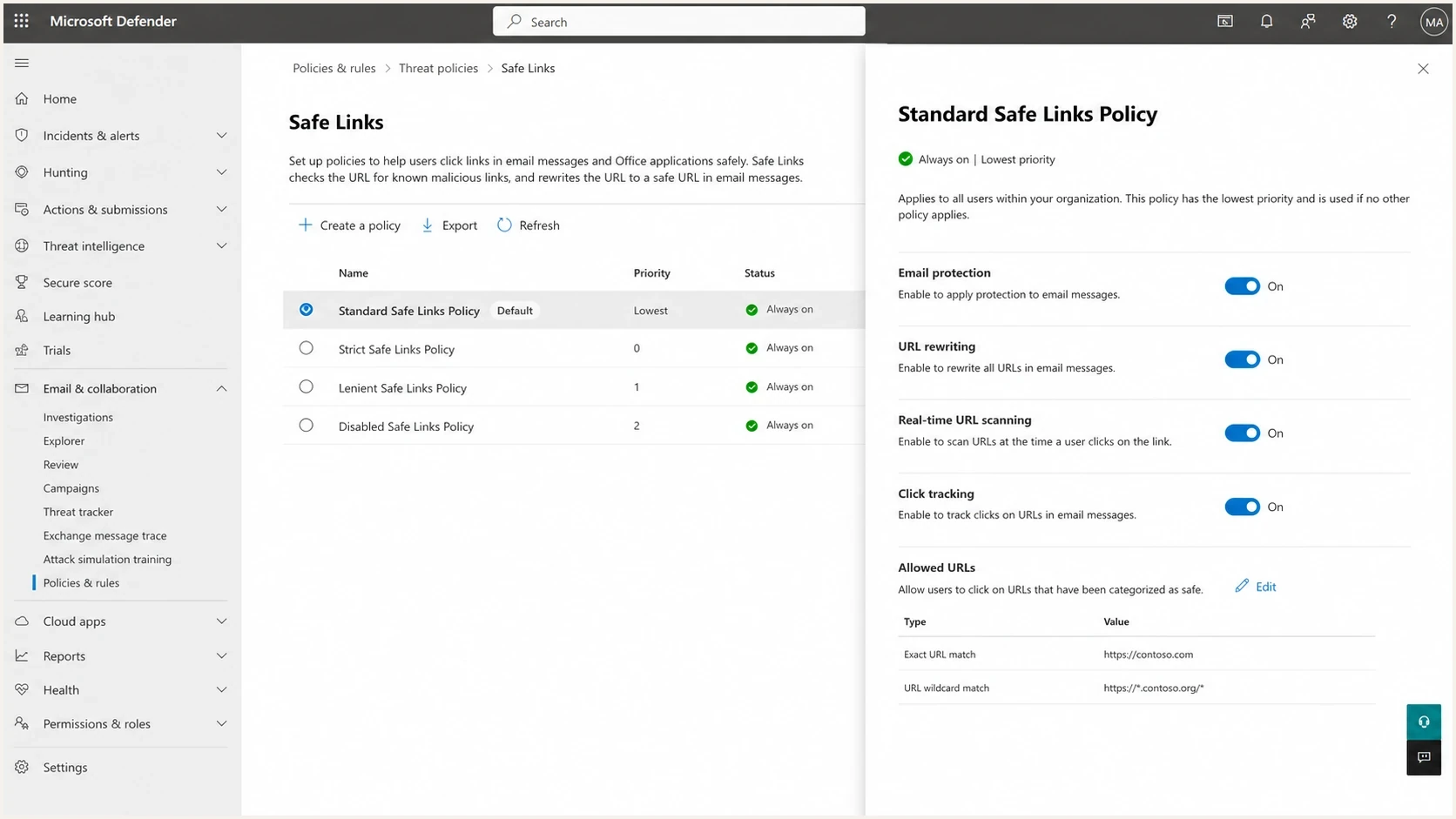
Microsoft Defender portal Safe Links policy settings screen.
Safe Links policy processing stops after the first policy that applies to a recipient. Preset security policies take priority over custom policies, while built-in protection is applied last. Admins can also disable URL rewriting while retaining pre-delivery scanning and supported time-of-click API checks, so an unwrapped link does not prove that scanning is off.
That admin-side control explains why the sender's view often feels inconsistent. The same sending IP and tracking host can receive low scan volume for one recipient domain and heavy scan volume for another. The receiving policy is part of the decision.
Views from the trenches
Best practices
Track Microsoft scan bursts per customer, campaign, URL host, and recipient domain.
Keep scanner responses cheap, stable, cacheable, and close to the human landing page.
Open support cases with timestamps, source IPs, URLs, response codes, and rates.
Common pitfalls
Treating every Microsoft request as a human click damages campaign reporting accuracy.
Blocking scanner IPs can make links appear broken or evasive to receiving filters.
Changing destinations behind one tracking URL increases suspicion and repeat checks.
Expert tips
Compare affected and unaffected customer domains before changing shared systems.
Separate tracking analytics from landing page availability and reputation signals.
Use authentication and blocklist data to rule out wider sender reputation causes.
Marketer from Email Geeks says Microsoft scan volume can decrease as sender reputation improves, but corporate tenant policies can keep checks high.
2024-01-22 - Email Geeks
Marketer from Email Geeks says a Microsoft sender support case should include a request for escalation when the first response misses the URL scanning issue.
2024-01-22 - Email Geeks
The practical answer
Microsoft is scanning your links heavily because its email security systems are evaluating URL safety for protected recipients. High volume can come from repeated automated checks, recipient and tenant fan-out, time-of-click protection, or redirect analysis. It is not proof of a blacklist or blocklist problem by itself, but it is a signal worth measuring.
Do not block Microsoft outright. Keep the landing path stable, make scanner responses cheap, separate bot clicks from human analytics, protect state-changing actions behind a confirmation step, and escalate to Microsoft with hard evidence when the scan rate is disproportionate. Use Suped to monitor DMARC, SPF, DKIM, and blocklist (blacklist) status so separate authentication or reputation problems do not get mixed into the Safe Links diagnosis.




