Why is Microsoft deliverability fluctuating and showing 'too old' bounces?

Published 20 Jun 2025
Updated 9 Aug 2026
10 min read
Summarize with

Updated on 9 Aug 2026: We updated this guide with Microsoft's enforced sender requirements and a practical JMRP complaint workflow.
Microsoft deliverability can swing hard when Outlook or Hotmail temporarily defers mail instead of accepting or rejecting it immediately. A "too old" bounce normally does not mean the campaign itself is old. It means the sending system kept retrying a deferred message until its queue lifetime expired, then marked the message as failed.
The direct answer is this: Microsoft is giving the sender a temporary SMTP response, usually a 4xx deferral, and the sending platform is retrying until it gives up. The visible "too old" reason is a queue-expiry label from the sender side, not the root cause from Microsoft. The root cause is in the original Microsoft deferral text.
Treat this as a log problem first, not a dashboard problem. Delivery percentages like 99.9%, 79.9%, 4.97%, 39.81%, and 99.52% across nearby sends look dramatic, but the diagnosis starts with the SMTP response Microsoft returned at the first deferral.
What the "too old" bounce means
Email delivery has two different failure moments. The first is when Microsoft tells the sending server to try again later. The second is when the sending server stops retrying because the message has been in the queue too long. The dashboard often shows only the second moment.
Do not diagnose from "too old" alone
"Too old" is a status after retries have failed. Ask your sending platform for the first Microsoft response, the retry history, the queue ID, the sending IP, and the final timeout rule. Without that, any fix is a guess.
Example log patterntext
16:00:12 outbound attempt to outlook.com
421 4.7.500 access denied, please try again later
16:15:40 retry scheduled
17:03:11 retry deferred again
00:00:15 message expired in sender queue
final dashboard reason: too old
Microsoft's Microsoft NDR guidance separates temporary delivery failures from final failures. A 4xx response means retry. A 5xx response means final rejection. When a temporary deferral repeats until the queue expires, the sender can surface it as an expired or too-old bounce.
- Root code: The useful evidence is the original Microsoft SMTP code and text, not the final dashboard label.
- Retry window: Many senders retry for a fixed period, then expire the message if Microsoft keeps deferring it.
- Message age: The age is queue age inside the delivery system, not the age of the campaign or subscriber record.
- Next action: Get one affected recipient example and the raw log line before changing DNS, volume, or content.
Why delivery can swing inside the same day
The swing happens because Microsoft filtering is dynamic. Acceptance is affected by sender reputation, recipient engagement, complaint patterns, domain authentication, IP history, content, and temporary receiver-side or network conditions. The same sender can see a clean batch, a throttled batch, and another clean batch within an hour.
Example delivery rate swing
A small Microsoft-only send can show sharp percentage changes when temporary deferrals expire.
Delivery rate
What looks like volume trouble
- Visible symptom: A batch drops from normal delivery to almost no accepted mail.
- Easy mistake: Assuming 250 messages per minute alone caused the failure.
- Real check: Compare accepted, deferred, and bounced counts per Microsoft domain and per send window.
What is often happening
- Reputation signal: Microsoft is limiting the sender based on recent IP or domain behavior.
- Audience signal: One segment has colder recipients, more dormant accounts, or weaker engagement.
- Content signal: A subject, URL, template, or tracking domain is treated differently by Microsoft filters.
Small volumes make the percentages even more volatile. If a batch has 600 to 2,000 Microsoft recipients, a few hundred deferrals that later expire can create a terrible percentage even when the root issue is limited to one segment, one delivery pool, or one short time window.
If the sender recently asked Microsoft to adjust throttling or connection limits, that does not reset the sender to a permanently clean state. It gives the sender room to prove good behavior. If later mail receives poor engagement, complaints, spam-folder placement, or authentication inconsistencies, Microsoft can throttle again.
The first data to request
Request data in this order to prevent wasted fixes. Start with the raw deferral. Then compare Microsoft acceptance by IP, domain, segment, and content. Only after that should you change send rate, authentication, or list selection.
|
|
|
|---|---|---|
4xx text | Root cause | Get logs |
Queue age | Retry expiry | Check timeout |
 IP view IP view | Reputation | Check SNDS |
Segment | Audience risk | Split tests |
Headers | Auth match | Send sample |
Use compact evidence before making changes.
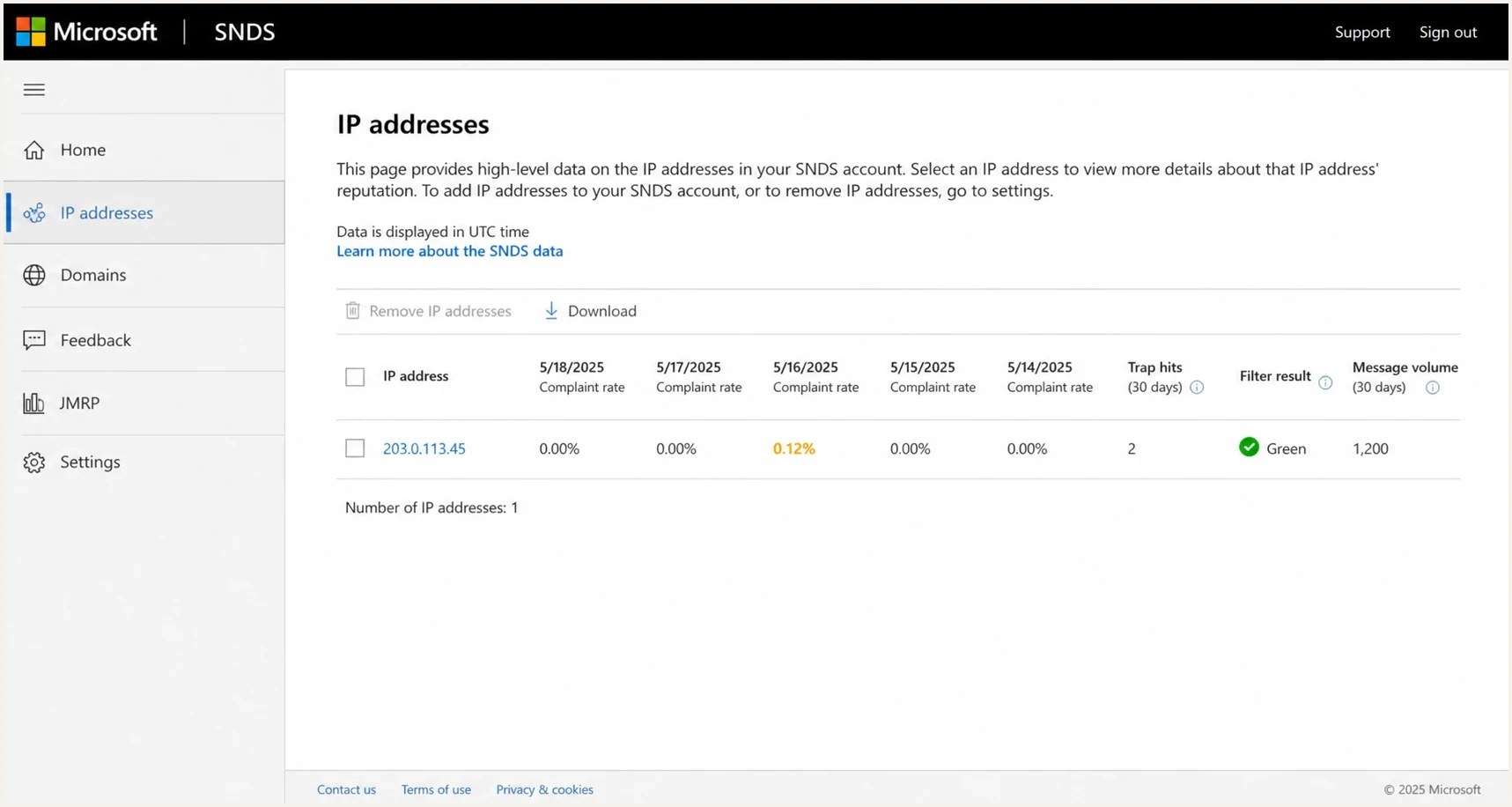
Microsoft SNDS IP reputation screen with volume and complaint indicators.
Microsoft SNDS can be hard to read, but it is still useful when you have the sending IP. Check accepted volume, complaint data, trap hits, and sudden day-to-day changes. SNDS is not a full inbox placement tool, so it should not be the only source of truth.
For related Microsoft bounce troubleshooting, keep a separate note for the exact Microsoft bounce message and another for temporary Microsoft throttling. Mixing those together makes the fix slower.
Use SNDS and JMRP together
SNDS shows IP-level trends such as mail volume, complaint rates, trap hits, and filter results. The Junk Mail Reporting Program (JMRP) provides copies of messages that Outlook.com users mark as junk. Use both because a normal SNDS status does not prove every campaign or segment is complaint-free, and a quiet JMRP feed does not prove there were no complaints.
- Correlate SNDS: Match IP volume, complaint movement, trap hits, and filter status to the first deferral time.
- Act on JMRP: Suppress any identifiable complainant and trace the message to its campaign, template, and list source.
- Respect the scope: Treat JMRP as Outlook.com consumer feedback, not complete coverage for organizational domains hosted on Microsoft 365.
- Respond to a rise: Pause the affected source or segment, correct consent and list hygiene problems, then restart with recent engaged recipients.
A normal SNDS status does not clear the sender
SNDS is an IP-level view with limited reporting detail. Keep the SMTP logs, campaign-level engagement, bounce data, and JMRP complaints in the same incident timeline before deciding that Microsoft made an isolated filtering error.
What Microsoft signals to check
After the raw SMTP response, check authentication and reputation. Since May 5, 2025, Outlook.com has enforced stricter authentication requirements for domains sending more than 5,000 messages per day. High-volume mail that does not meet the requirements can receive a 550 5.7.515 rejection.
Read the official Outlook sender requirements if you send at scale to Outlook.com, Hotmail, Live, or MSN recipients. Check the same foundations below the published threshold because reputation filtering can still defer or reject lower-volume mail.
- SPF result: Confirm the return-path domain authorizes the sending IP and stays under lookup limits.
- DKIM result: Confirm the message has a valid signature from a domain related to the visible From domain.
- DMARC result: Publish at least p=none and confirm SPF or DKIM passes with the required domain relationship.
- Reverse DNS: Confirm the sending IP has a sensible hostname and the provider has not left a generic gap.
- Blocklist status: Check whether the sending IP or domain appears on a relevant blocklist (blacklist).
Suped's domain health check can catch DNS issues before you inspect every header manually. Suped's DMARC monitoring shows which sending sources pass authentication, while its blocklist monitoring flags blocklist or blacklist changes that often sit outside the sending platform's dashboard.
Email tester
Send a real email to this address. Suped shows a results button when the test is ready.
?/43tests passed
Send a real message to a Suped email test address using the same From domain, DKIM selector, tracking links, and template that Microsoft deferred. A correct DNS record does not prove the campaign message uses that record. The production headers and body still need inspection.
How to stabilize the next send
Once you have the deferral reason, stabilize delivery with a controlled send plan. The goal is to create a consistent pattern that gives Microsoft positive recipient signals and enough retry time to accept mail.
Example stop rules for the next Microsoft send
Set thresholds from your normal Microsoft expired-deferral rate and stop the ramp when results move materially above it.
Healthy
At normal baseline
Continue the plan and watch engagement by segment.
Warning
Above normal baseline
Hold the next batch and review the deferral text.
Critical
Sharp sustained increase
Stop the ramp and isolate the affected variables.
- Pause the ramp: Stop increasing Outlook volume until you know whether the deferral is reputation, authentication, or content based.
- Split segments: Separate recent openers, older subscribers, and high-risk language or region groups.
- Reduce bursts: Send smaller batches with spacing, then compare deferral rate and acceptance time.
- Keep flow consistent: Ramp a new or recently inactive IP gradually and avoid abrupt frequency changes.
- Change one variable: Test content, audience, and rate separately so you know which change helped.
- Track queue expiry: Monitor how many Microsoft messages are still deferred after each retry window.
A clean authentication check is not the finish line
SPF, DKIM, and DMARC can pass while Microsoft still throttles the sender. Authentication proves who sent the mail. It does not prove recipients want the mail, that the IP has stable reputation, or that the current content is low risk.
If one segment fails while another succeeds minutes later, check audience quality before changing DNS. Dormant addresses, old imports, purchased contacts, and weak consent create reputation damage fast at Microsoft, especially on consumer domains. Remove hard bounces promptly and stop mailing recipients who no longer engage.
Where Suped fits
Suped's product handles the monitoring work that sits beside the SMTP logs. It groups DMARC, SPF, DKIM, sending-source, and blocklist data so the team can check whether an authentication or reputation change happened in the same period as the Microsoft deferrals.

Issue steps to fix dialog showing the issue overview, tailored fix steps, and verification action
Start with the ESP or MTA logs to get Microsoft's raw deferral text. Then use Suped to check the same period for authentication drift, a new unverified source, SPF lookup pressure, a DKIM selector issue, or a blocklist (blacklist) event. Suped's alerts and hosted records are useful when several domains or client accounts send through different systems.
Manual workflow
- Log chasing: You ask multiple teams for SMTP logs, DNS records, and sending source details.
- Slow detection: You spot failures after a campaign has already produced bounces.
- DNS friction: Small SPF and DKIM changes wait on DNS access and internal queues.
Suped workflow
- Issue view: Suped groups authentication issues with the steps needed to fix them.
- Fast alerts: Notifications flag authentication and reputation changes before the next send.
- Hosted control: Hosted SPF and hosted DMARC reduce repeat DNS edits during sender changes.
Views from the trenches
Best practices
Ask for raw SMTP deferral text before changing rate, content, DNS, or sender pools.
Compare Microsoft acceptance by IP, segment, template, and time window after every send.
Keep recent engaged Outlook recipients separate while reputation is being repaired.
Common pitfalls
Treating "too old" as the root cause hides the first Microsoft temporary failure.
Ramping volume after a support adjustment without proving stable recipient response.
Trusting aggregate delivery rate while different Microsoft segments behave differently.
Expert tips
Use one affected recipient to pull the full retry timeline and final queue expiry event.
Review SNDS per IP with accepted volume, complaints, trap data, and day-level changes.
Test content and audience separately so a good DNS result does not mask list quality.
Expert from Email Geeks says a "too old" status usually means the sender retried deferred mail until the delivery timeout expired.
2025-08-12 - Email Geeks
Expert from Email Geeks says the raw Microsoft 4xx response is the evidence needed before deciding whether the issue is rate, reputation, or content.
2025-08-12 - Email Geeks
What to do next
The fastest path is not a bigger ramp. Get the original Microsoft deferral, confirm the retry timeout, isolate the affected segment, and send smaller controlled batches while watching accepted, deferred, and expired counts separately.
If the raw response points at reputation, tighten the audience first. If it points at authentication, fix SPF, DKIM, DMARC, reverse DNS, or domain matching before resending. If it points at temporary throttling, slow the Microsoft-specific flow and rebuild consistency with engaged recipients.
- Immediate fix: Pull one full log trail for an affected Outlook or Hotmail recipient.
- Next send: Restart with recent engaged Microsoft recipients and a conservative send rate.
- Ongoing control: Monitor authentication, blocklist or blacklist status, and source changes before each ramp.




