Why is Gmail showing 'This message seems dangerous' warning?

Updated on 19 Aug 2026: We clarified Gmail's warning signals, current sender requirements, and safe next steps for senders and recipients.
Gmail shows "This message seems dangerous" when its filtering systems decide the delivered message resembles email that recipients or Google have treated as unsafe. The cause can be the From domain, link domain, tracking domain, landing page, attachment, copy, sending pattern, hidden HTML, or sender identity. It is not limited to one DNS record or one bad URL.
The direct answer is yes, it can be a problem with the domain used in your links or the domain used in the From address. It can also happen when the message has no visible links, because Gmail still reads headers, MIME parts, attachments, image sources, Reply-To, Return-Path, and reputation signals. Test the exact received email, not a rebuilt version, because Gmail evaluates the whole message. Send the message through an email tester, then compare the headers, authentication results, visible URLs, redirect URLs, HTML assets, and Gmail banner wording with the copy that showed the warning.
The warning is a message-level decision
A passing SPF, DKIM, and DMARC result helps, but it does not guarantee Gmail will trust the message. Gmail also looks at link safety, domain history, recipient behavior, message similarity, sender display names, and whether the email resembles campaigns that users reported.
- From domain: A new, low-volume, misconfigured, or impersonated sender domain can trigger extra scrutiny.
- Link domain: A risky tracking host, public URL shortener, redirect chain, or compromised landing page can be enough.
- Message content: Urgent language, credential prompts, odd formatting, hidden content, and suspicious attachments raise risk.
- Sender identity: Abnormal characters, misleading display names, and Reply-To mismatches can make normal mail look spoofed.
- Recipient feedback: Similar messages marked as scams can affect later mail with the same pattern.
What the Gmail warning usually means
The banner means Gmail has classified the message as high risk for the recipient. It often appears above the message body with advice to avoid links, downloads, replies, or personal information. This is more serious than an ordinary spam classification, which usually means Gmail considers the message unwanted rather than unsafe. The decision uses technical authentication, domain and URL reputation, sender identity, message content, and recipient signals.
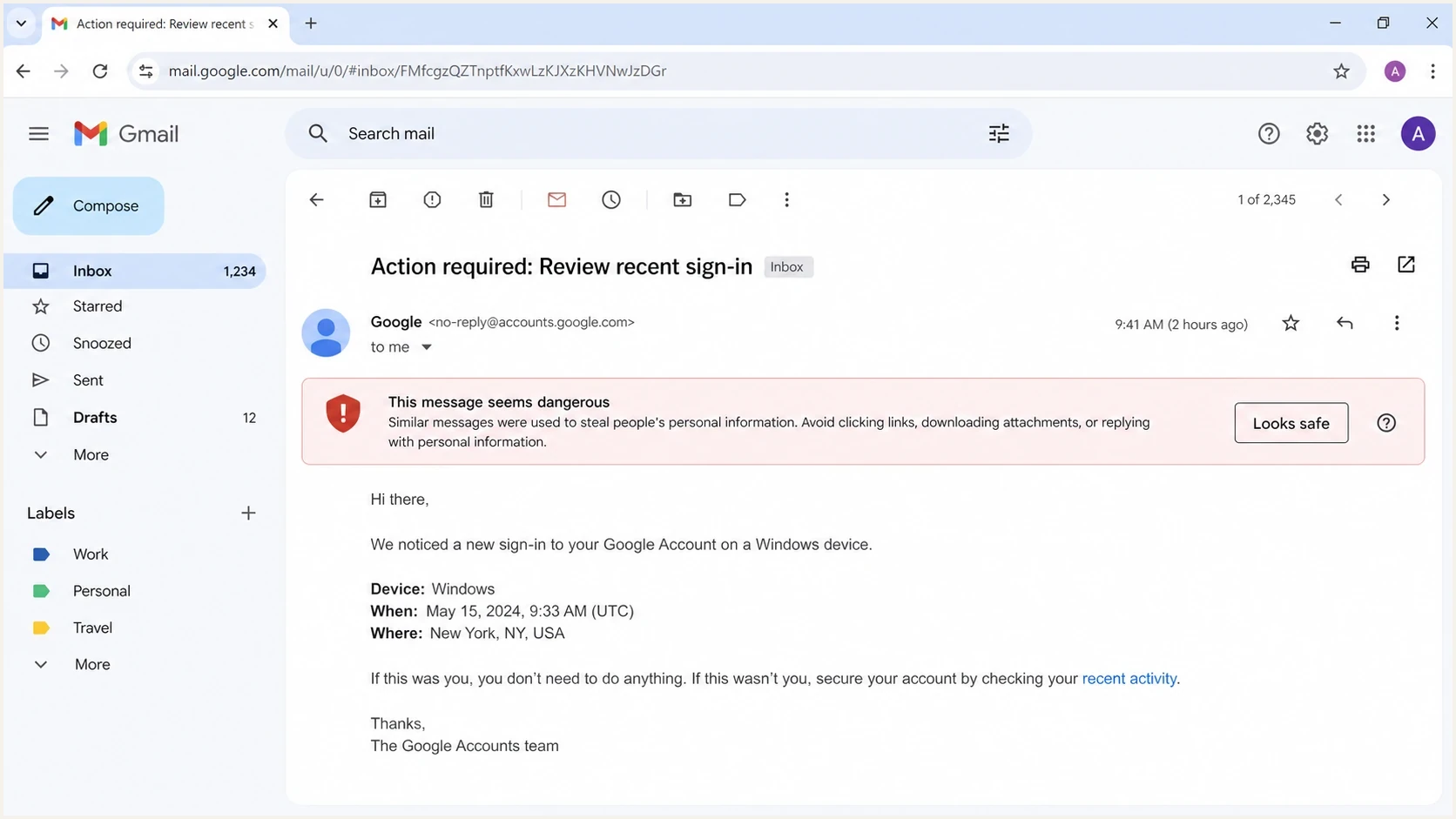
Gmail opened email showing the This message seems dangerous warning above the message body.
Treat this warning as a symptom, not the root cause. A message can pass authentication and still receive the banner because a landing page has unsafe content, a redirect host has a bad history, the sender address uses lookalike characters, or the template resembles email that users have reported. Gmail does not publish a score or a sender-side switch that removes the warning, so controlled testing is the reliable way to isolate the trigger.
|
|
|
|---|---|---|
Sender | Untrusted domain | Headers and history |
Authentication | Failed checks | SPF, DKIM, DMARC |
Identity | Spoofed display | From and Reply-To |
Links | Risky redirects | Every URL |
Website | Unsafe landing page | Site and certificate |
Content | Scam-like copy | Plain-text clone |
Common causes of the Gmail dangerous-message banner
What to do when you receive the warning
Do not click a link, download an attachment, reply, or enter personal information while the message is unverified. Confirm the sender through a known phone number, saved contact, or the organization's website opened independently. Do not use contact details or links inside the warned message for verification.
- Inspect the sender: Compare the full email address with the display name and check for substituted or abnormal characters.
- Verify independently: Contact the sender through a channel you already trust, especially if the message requests money, credentials, or account changes.
- Give accurate feedback: Report a deceptive message as phishing. If independent verification proves it is legitimate, use the Gmail action shown for a false positive, such as "Report not phishing" or "Looks safe."
- Contact the sender: Send the exact warning text and message time through a separate channel so the sender can investigate the original source.
Do not ask recipients to bypass the warning
A sender should not tell recipients to click "Looks safe" before they verify the message independently. Recipient feedback can correct a false positive, but it does not replace fixing authentication, identity, link, website, or reputation problems.
How to isolate the cause
The fastest diagnostic path is to change one thing at a time. If you rewrite the email, change the domain, swap the tracking link, and move to another sending IP in one test, you learn very little. Keep the Gmail sample intact, then create controlled variants.
Start with domain configuration because it is easy to verify. A domain health check should confirm SPF, DKIM, DMARC, reverse DNS, common DNS records, and obvious domain issues. Then move to links, hidden content, headers, and copy.
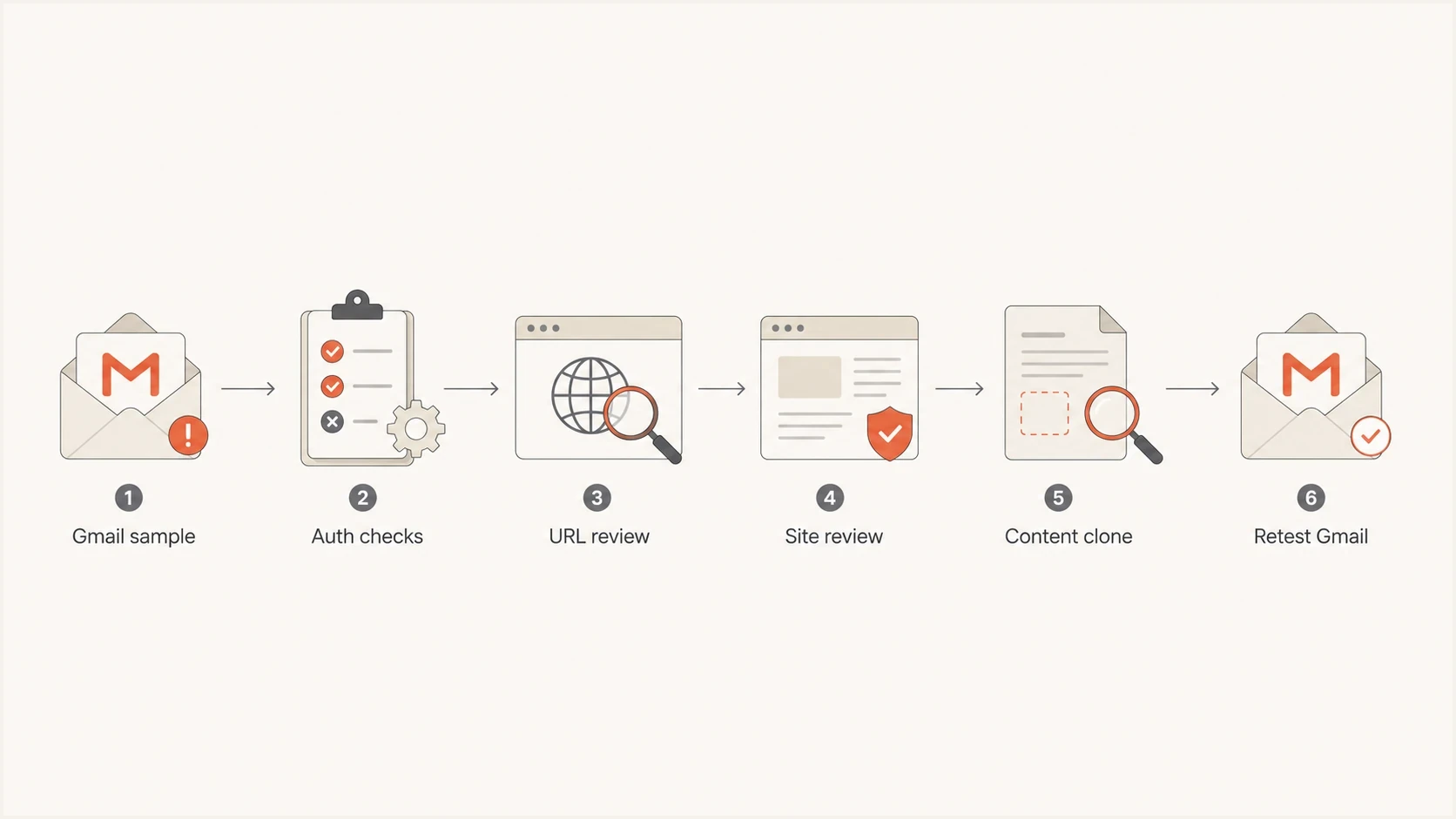
Flowchart for diagnosing a Gmail This message seems dangerous warning.
- Capture: Save the full headers, raw source, exact banner wording, subject, template ID, sending IP, and send time.
- Authenticate: Check SPF, DKIM, and DMARC results in the Gmail headers for the exact message.
- Inventory: List every visible link, tracking link, image URL, view-online link, unsubscribe link, attachment, and hidden HTML part.
- Reduce: Send a plain-text clone with no links, then add links, HTML assets, and attachments back in stages.
- Compare: If the banner returns after one URL, asset, or attachment, investigate that host, file, and redirect path.
Email tester
Send a real email to this address. Suped shows a results button when the test is ready.
?/43tests passed
After the first pass, send two variants to Gmail. One should keep the same From domain but remove links. The other should keep the same copy but replace links with a clean branded domain you control. If only the linked version shows the banner, focus on the URL path and destination site. If both variants show the banner, focus on sender trust, content, authentication, or header identity.
Authentication problems that increase risk
Authentication does not explain every dangerous-message warning, but it is still the first technical check to fix. Gmail has less reason to trust a message when the visible From domain does not match the domain authenticated by SPF or DKIM under DMARC, when DKIM is missing, or when the sending host has weak infrastructure signals. A DMARC aggregate-report address improves operational visibility, but its absence does not make an otherwise valid message fail DMARC.
For mail sent to personal Gmail accounts, all senders need SPF or DKIM, valid forward and reverse DNS, TLS, RFC 5322-compliant formatting, and a Gmail-reported spam rate below 0.3%. Gmail generally treats a primary domain that sends close to 5,000 messages or more to personal Gmail accounts in 24 hours as a bulk sender, and that status does not expire. Bulk senders need SPF, DKIM, and DMARC, with the From domain matching the authenticated SPF or DKIM domain under DMARC. Their marketing and subscribed messages also need one-click unsubscribe and a visible unsubscribe link. These requirements support delivery, but they do not override Gmail's message-safety checks.
Example DNS records to compare againstdns
v=DMARC1; p=none; rua=mailto:dmarc-reports@example.com; adkim=s; aspf=s
v=spf1 include:_spf.example.net include:send.example.com -all
Healthy setup
- SPF: The sending IP is authorized for the envelope sender domain.
- DKIM: A valid signature signs the message with a domain tied to the brand.
- DMARC: SPF or DKIM authenticates a domain that matches the visible From domain under DMARC.
- Infrastructure: Forward DNS, reverse DNS, TLS, and headers are consistent.
Risky setup
- SPF: The record exceeds lookup limits or leaves an active sender out.
- DKIM: The selector is missing, rotated badly, or signed by an unrelated domain.
- DMARC: Neither the SPF domain nor the DKIM domain matches the visible From domain.
- Infrastructure: PTR records, TLS, or required headers are missing or inconsistent.
A monitoring workflow matters because these records drift. New sending sources get added, infrastructure changes, and old DKIM selectors expire. Suped's DMARC monitoring turns aggregate reports into source-level pass and failure data, so a team can find the sender behind a warning and fix its SPF, DKIM, or DMARC configuration.
Display names, headers, and no-link warnings
Some Gmail dangerous-message banners are about identity rather than links. Gmail can warn when the sender address uses abnormal characters, the display name mimics a brand or person, the Reply-To points somewhere unexpected, or the From and To pattern looks unusual. That is why an empty email or no-link email can still show the warning.
- Display name: Use a plain, consistent sender name. Do not add subject text, urgency, recipient names, verification-style symbols, or lookalike characters.
- Header match: Compare From, Reply-To, Return-Path, DKIM d= domain, envelope sender, and sending IP in the original source.
- Recipient pattern: Avoid automated mail with the same address in From and To, large mixed recipient lists, or unusual BCC patterns.
- Hidden parts: Check MIME parts, HTML comments, tracking pixels, calendar parts, attachments, and old signature code.
If the warning appears on an empty or plain-text message, stop editing copy and focus on sender identity, DMARC results, DKIM signatures, complaint history, domain reputation, blocklist or blacklist status, and sending infrastructure. For automated messages, check the form sender or app sender separately from the normal employee mailbox.
Link, image, and website issues
If authentication passes, check every URL. Gmail does not only care about the visible link text. It can evaluate the actual href, redirect chain, public URL shortener, tracking domain, image host, view-online URL, unsubscribe URL, hidden HTML, and landing page content. Link text that promises one destination but opens another also creates risk.
A single bad URL can taint the message
A clean From domain can still receive the warning when the message includes an unsafe redirect, a broken URL, an expired certificate, mixed HTTP image assets, hidden CSS or HTML, or a compromised landing page. Also check default platform links such as view-online and unsubscribe links because those are easy to miss.
|
|
|
|---|---|---|
Tracking | Bad redirects | Use a branded host |
Images | HTTP assets | Use HTTPS |
Landing page | Compromise | Clean the site |
Unsubscribe | Old host | Update the URL |
View page | Bad certificate | Renew the certificate |
Hidden HTML | Cloaked content | Remove hiding |
URL areas that commonly cause Gmail safety banners
The practical test is simple: remove all links and send the same message body. If the warning disappears, re-add one URL group at a time. Start with the call-to-action link, then tracking, images, unsubscribe, and view-online. When the warning returns, inspect that URL group, every redirect, and the destination domain.
Reputation and sending behavior
Gmail also reacts to reputation. A domain that suddenly sends more mail, changes content sharply, adds new automation, or receives complaints will get less trust. A domain or IP on a blocklist (blacklist) can add another negative signal, especially when the same mail also has weak authentication or risky URLs.
Risk levels to check before retesting Gmail
These bands are practical triage levels, not Gmail's internal scoring.
Low risk
Retest
Authentication passes, links are branded, and sending volume is stable.
Medium risk
Investigate
One link host or DNS record has a recent change that needs review.
High risk
Pause
The site is compromised, authentication fails, or complaints spiked.
Use blocklist monitoring to watch the domains and IPs that carry your mail and links. The terms blocklist and blacklist mean the same thing here: a list that flags senders or hosts with poor reputation signals.
Send only to people who requested the mail, keep the sending rate steady, and increase volume gradually with engaged recipients. Review complaint rate after any change to the sending domain, infrastructure, or template. If the warning appeared after a sudden change, compare it with this deeper guide on low sender reputation. Reputation recovery has no fixed timetable because Gmail needs repeated evidence of wanted mail and stable sending behavior.
How Suped helps with the fix
Suped's product covers the parts of this workflow that require ongoing data: source detection, domain and IP reputation monitoring, DMARC report parsing, hosted record management, and alerts. Use it to trace a failed message to a sending source, confirm whether that source passes authentication, and track configuration changes across domains.

Issue steps to fix dialog showing the issue overview, tailored fix steps, and verification action
The goal is to identify why Gmail distrusted the exact message, fix that signal, and keep authentication and reputation data visible before the next production send.
- Issue detection: Suped identifies failed sources and gives practical steps to fix each one.
- Alerts: Alerts show when failures, new sources, or reputation changes need attention.
- Hosted records: Hosted DMARC, Hosted SPF, SPF flattening, and Hosted MTA-STS reduce repetitive DNS work.
- Multi-domain view: Teams managing many brands can review domains without separate spreadsheets.
Views from the trenches
Best practices
Test one variable at a time: links, copy, authentication, then sender volume changes.
Keep tracking, image, unsubscribe, and view-online URLs on secure branded domains you control.
Record the first failing Gmail sample with headers, source IP, template, and send time.
Common pitfalls
Clearing SPF, DKIM, and DMARC once, then ignoring new senders added later is risky.
Assuming the From domain caused the banner before checking every redirect URL wastes time.
Using mixed HTTP assets inside HTML can make a clean authentication setup look unsafe.
Expert tips
Start with a plain-text clone and add sections back until the Gmail banner returns.
Check expired certificates on branded tracking and image hosts before editing copy.
Watch for old landing pages that still host files or redirects no one owns anymore.
Expert from Email Geeks says the cause can be the From domain, a linked domain, or a compromised website behind a redirect.
2020-03-25 - Email Geeks
Marketer from Email Geeks says site checks can report harmful software without naming the exact URL, so teams need to inspect each link and redirect.
2020-03-25 - Email Geeks
What to do next
Narrow the problem instead of rewriting everything at once. Save the Gmail sample, confirm authentication, remove all links, then add URL groups back until the banner returns. When a URL group triggers it, inspect the destination, redirects, TLS certificate, and any hosted files on that path.
If the message still gets flagged with no links, focus on sender trust: DMARC results, DKIM signatures, complaint history, volume changes, display names, Reply-To, hidden MIME parts, and content patterns. For a broader prevention checklist, use the guide on how to avoid Gmail warnings before the next production send.
The practical order of operations
- Headers: Confirm the exact message passed SPF, DKIM, and DMARC, then compare From, Reply-To, and Return-Path.
- Links: Audit every visible URL, redirect, image host, and default footer link.
- Website: Check for compromised pages, expired certificates, and mixed HTTP assets.
- Message source: Inspect hidden HTML, images, attachments, and automated sender details.
- Retest: Send controlled variants to Gmail and keep only one changed variable per test.




