Why are Gmail emails flagged with 'Images are hidden, this message might be suspicious' banner?

Updated on 2 Aug 2026: We clarified why Gmail hides images, added recipient-setting guidance, and updated the DMARC example for RFC 9989.
Gmail shows the "Images are hidden, this message might be suspicious" banner when it considers the sender or delivered message suspicious and stops external images from loading automatically. Low or absent sender reputation is a common explanation, especially for a new sending domain, a new IP, cold email, or traffic that recipients did not request. The banner is not a single error code, and it is not proof that DMARC, SPF, or DKIM failed.
Treat the banner as a message-level investigation first. A domain can have strong overall reputation and still get the banner on one welcome email, one support alias, one IP in a pool, or one campaign template. Gmail can adjust how it displays warnings, but the investigation still starts with the exact email Gmail received.
- Fast answer: inspect the delivered MIME, authentication results, sending source, image URLs, and tracking paths for the exact message that triggered the banner.
- Common trigger: the sender or sending source has low, no, or recently disrupted reputation, often after a domain, IP, volume, list, or sending pattern changes.
- Important caveat: the message can still land in the inbox or Primary tab while Gmail hides images. Inbox placement and image loading are separate decisions.
What the Gmail banner means
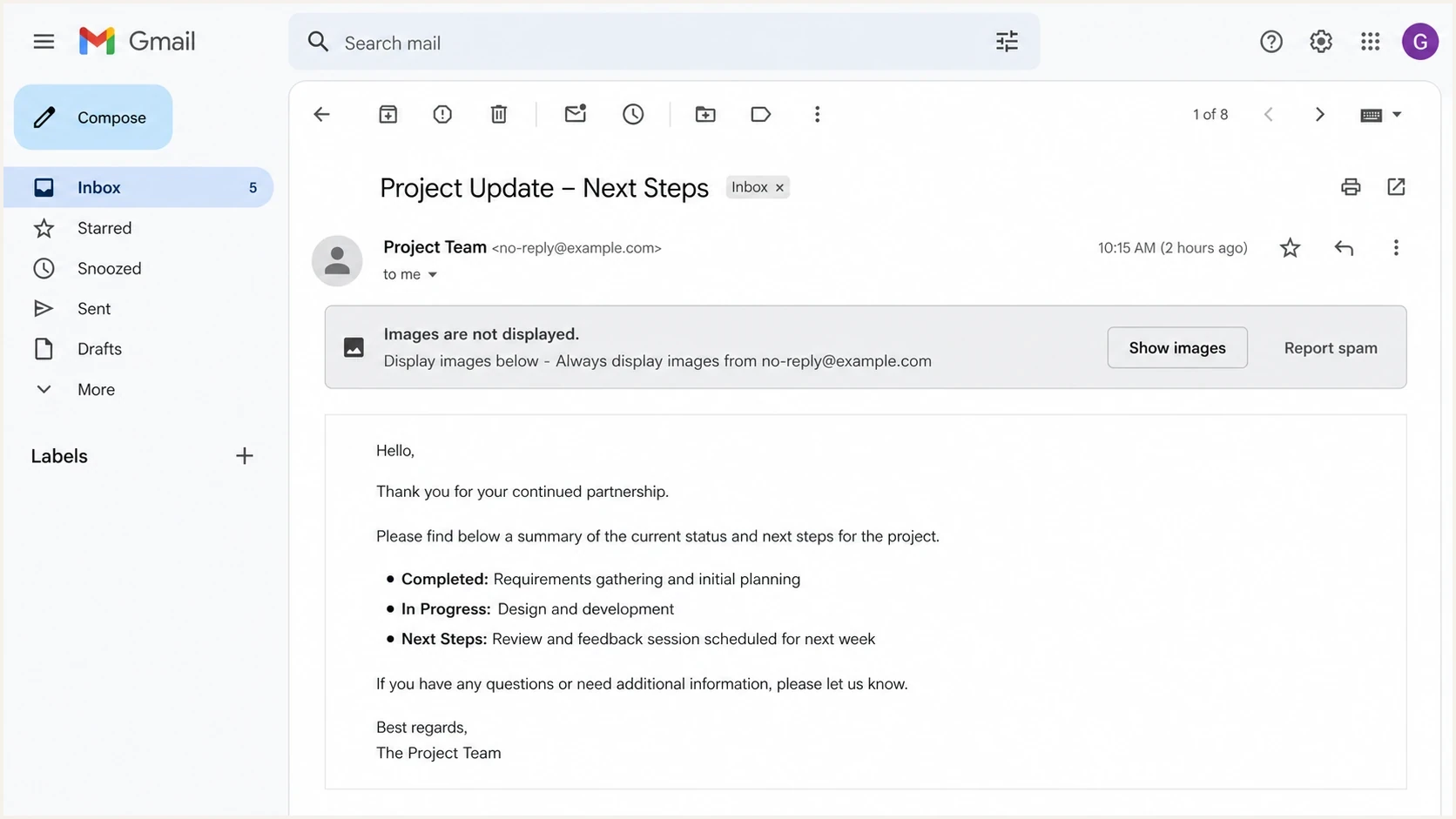
Gmail email showing the 'Images in this message are hidden' suspicious-message banner.
The banner means Gmail is blocking external image loads for that message until the recipient chooses to show images. External images include design assets, product images, logos, and tracking pixels that can tell a sender an image was requested. Google says Gmail scans images for suspicious content and withholds them when it considers the sender or message suspicious.
The warning often points to a trust problem somewhere in the delivered email. Low sender reputation, user complaints, unsolicited traffic, inconsistent identity, or a risky link or image can contribute to that judgment. A broken image URL can explain why an image is missing, but it does not by itself prove why Gmail displayed the suspicious-message banner.
Do not diagnose this from the template alone
The HTML in an email builder is not always the HTML Gmail evaluates. Click tracking, open pixels, image hosting transforms, link rewriting, forwarding, and personalization can change the final body. Always inspect the delivered message.
|
|
|
|---|---|---|
Images hidden | External loads blocked | Sender and source |
Inbox delivery | Message accepted | Recipient tests |
One template | Campaign-specific signal | Controlled variants |
One mailbox | Recipient-specific signal | Fresh account |
How to separate warning signals from normal email behavior.
The most common causes
Start with sender reputation and traffic quality. The warning is more common when a domain or IP has little history, a sender changes infrastructure, volume rises sharply, recipients did not opt in, or complaints and weak engagement make the mail look unwanted. Gmail does not publish a complete trigger list, so treat these as investigation priorities rather than a definitive formula.
Reputation and sending causes
- New identity: a new or recently changed domain, DKIM identity, or IP has little reputation with Gmail.
- Unwanted mail: cold email, stale lists, and weak consent create complaint and engagement patterns associated with spam.
- Traffic change: a sharp volume increase, new sending pool, or new message stream interrupts established history.
- Template history: welcome emails and high-volume flows can collect negative signals faster than wanted mail.
Message and URL signals
- Identity mismatch: From, DKIM, bounce, click, and image domains that look unrelated weaken identity consistency.
- Tracking chain: open tracking and click redirects add domains and requests that need separate testing.
- Risky content: deceptive copy, misleading links, or unsafe remote content can make the message suspicious.
- Bot abuse: fake signups can send legitimate welcome mail to bad or unwilling recipients.
Broken, private, or slow image URLs still deserve testing because they can prevent images from rendering and complicate diagnosis. They should not displace the reputation investigation. Compare affected and clean messages by recipient, IP, authentication domain, template, and recent sending change.
Triage priority for the banner
Use the affected scope to decide how urgently to change sending behavior.
Low
1 mailbox
One recipient, no repeat pattern
Medium
1 flow
One campaign or template
High
Many users
Many Gmail recipients
Critical
Inbox loss
Banner plus spam placement
Why Gmail settings may not override the warning
A recipient can choose "Always display external images" in Gmail settings, but Google says images still are not shown automatically when Gmail considers a sender or message suspicious. Changing the general image preference therefore does not fix the sender-side reason for this banner.
- Recipient action: clicking "Show images" loads the images for that message but does not repair sender reputation.
- General setting: "Always display external images" controls normal image behavior, subject to Gmail's suspicious-message checks.
- Sender fix: investigate permission, complaints, reputation, authentication, message content, and infrastructure changes.
Use a fresh message for every retest
Do not keep reopening the same delivered email after a recipient has clicked "Show images". Send a new copy after each controlled change so the result is not confused with a previous recipient choice.
How to diagnose it
Use a simple rule: test the exact message Gmail received, not the message that was intended. Send a real copy to a Gmail mailbox, then inspect the delivered source. Check authentication results, the sending IP, every image source, the tracking pixel, and each click link.
A practical first step is to send the same message through the email tester and compare the rendered body, headers, links, and authentication results with what Gmail shows. Then run a broader domain health checker check so SPF, DKIM, DMARC, DNS, and reputation basics are not hiding in the background.
Email tester
Send a real email to this address. Suped shows a results button when the test is ready.
?/43tests passed
- Capture source: open the delivered Gmail message and save the original source with full headers.
- Check authentication: verify SPF, DKIM, DMARC, identifier alignment, reverse DNS, and TLS for the actual sending source.
- List URLs: extract every image source, tracking pixel, click redirect, and visible link after all rewrites.
- Fetch images: confirm each image returns a public success response, valid content type, and valid TLS.
- Compare versions: send controlled versions with and without tracking to isolate the open pixel and redirects.
- Segment senders: compare by IP, DKIM domain, From domain, message stream, recent volume, and recipient type.
- Check reputation: review domain and IP blocklist (blacklist) status, complaint patterns, list quality, and traffic spikes.
URL checks for image and tracking pathsbash
curl -I https://img.example.com/email/logo.png
curl -L -I https://click.example.com/r/abc123
openssl s_client -connect img.example.com:443 -servername img.example.com
Each response should be public, fast, and cacheable. A 403, 404, 5xx response, expired certificate, redirect loop, mixed HTTP path, or bot challenge can stop the image from rendering. Record that as a URL defect, then continue checking the sender and message signals that explain the suspicious-message warning.
Authentication still matters
This banner can appear even when SPF, DKIM, and DMARC pass. Authentication still matters because Gmail needs a stable identity for reputation. For senders delivering more than 5,000 messages a day to personal Gmail accounts, Gmail requires SPF, DKIM, DMARC, and From-domain alignment, plus a user-reported spam rate below 0.3%. Marketing and subscribed mail also needs one-click unsubscribe. Gmail began ramping up enforcement against non-compliant traffic in November 2025.
Suped's product turns that identity work into a practical workflow: DMARC monitoring, SPF and DKIM monitoring, Hosted SPF, Hosted DMARC, hosted MTA-STS, real-time alerts, and blocklist monitoring in one place. It cannot force Gmail to remove a banner instantly. It can show whether the source sending the flagged message is authenticated, recognized, and safe to keep using.

Issue steps to fix dialog showing the issue overview, tailored fix steps, and verification action
Do not chase only one metric
A single high-level reputation score can look healthy while one campaign, IP, image host, or welcome flow is treated poorly. The banner can be local to a small part of the sending setup.
Basic DMARC record used during investigationdns
Host: _dmarc.example.com
Value: v=DMARC1; p=none; rua=mailto:dmarc@example.com
RFC 9989 removed the pct tag in May 2026 and introduced the t tag for testing mode, so new DMARC records should not include pct=100. If reporting is active, use aggregate data to confirm whether affected Gmail traffic comes from a known source. In Suped's product, open the issues view, identify the failing source, follow the tailored fix steps, verify the DNS change, and watch new reports confirm the result.
Fixes that usually work
The fastest fix depends on the evidence. Start with permission and reputation, then use controlled message tests to isolate technical defects. Make the smallest production change that removes the risk signal.
- Send with consent: stop cold email and stale-list sends, confirm new subscriptions, and remove recipients who did not ask for the mail.
- Stabilize volume: introduce a new domain, IP, or sending stream gradually with engaged, permission-based recipients.
- Fix accessibility: make every image public without cookies, authentication, user-agent allowlists, or bot challenges.
- Use branded hosts: use sender-controlled subdomains for images and tracking so the message has consistent identity.
- Shorten redirects: reduce click tracking hops and avoid routing visible links through unrelated domains.
- Split streams: separate transactional, marketing, lifecycle, and outreach mail so one risky flow does not affect all mail.
- Stop abuse: protect signup forms so bot-created accounts do not generate welcome mail to bad or unwilling recipients.
- Reduce tracking: test the same email without the open pixel and with fewer link rewrites to see whether the banner disappears.
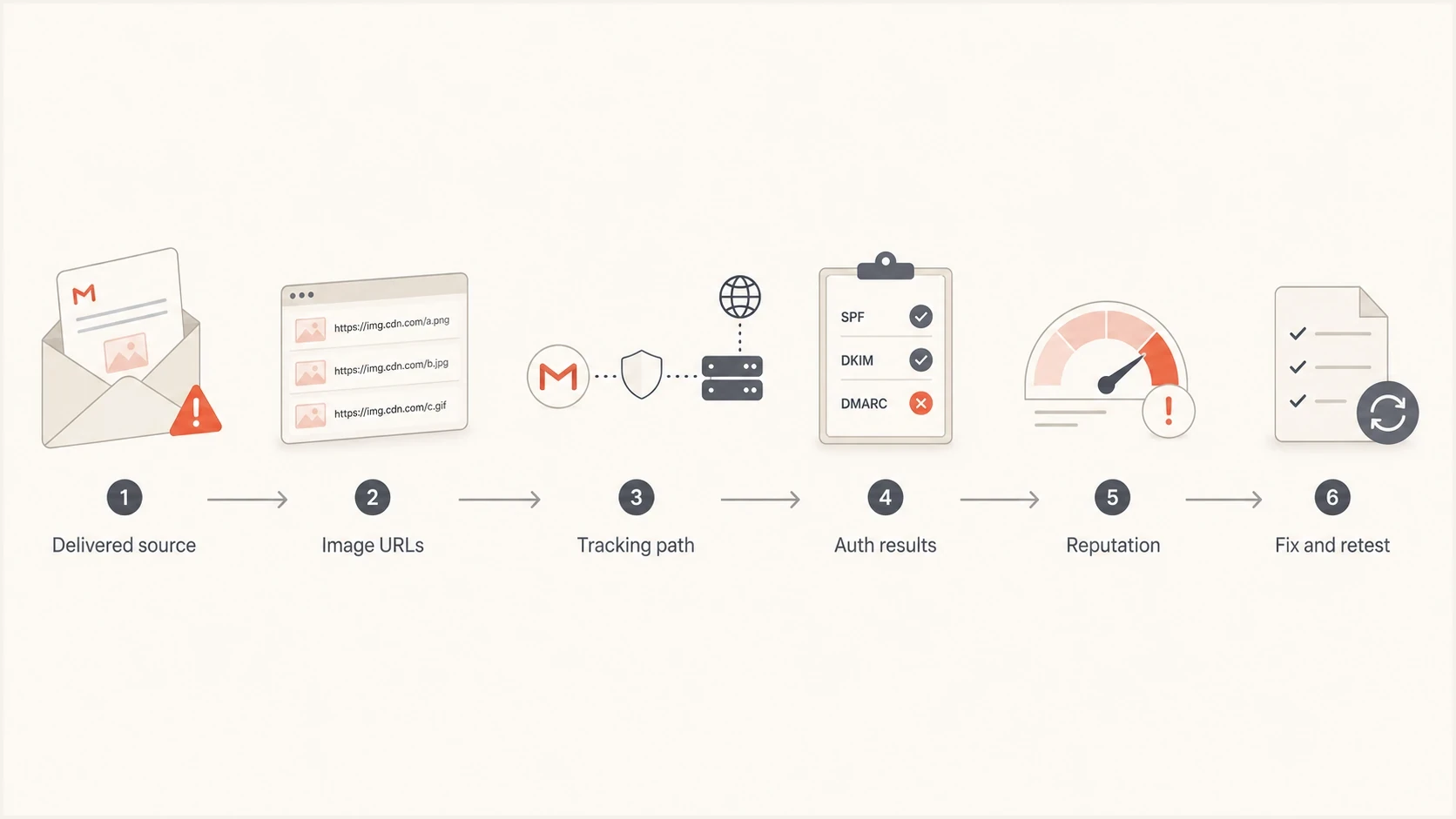
Flowchart for diagnosing Gmail's images-hidden suspicious-message warning.
If the banner affects only a welcome email, do not change the whole program first. Compare that welcome email with a clean transactional email from the same source. Remove the tracking pixel, use a sender-controlled image subdomain, and send a small test set. If the warning stops, reintroduce one element at a time.
How to decide whether Gmail changed something
Gmail can change filters, warning copy, or the visibility of an existing judgment. Sender-side evidence still decides the next action. If only one mailbox, campaign, or source sees the banner, assume a local trigger until tests show a broader Gmail change. A drop in tracked opens alone does not prove Gmail disabled open tracking.
Looks like a Gmail-side change
- Wide scope: unrelated senders report the same banner across different mail types.
- Same setup: no changes occurred in hosting, tracking, authentication, volume, lists, or templates.
- Mixed impact: messages stay in the inbox but images are blocked more often than before.
Looks like a sender-side issue
- Narrow scope: one template, IP, alias, segment, or recipient type is affected.
- Source change: the sending domain, IP, DKIM identity, volume, image host, or tracking domain changed recently.
- Reputation signal: complaints, weak engagement, unsolicited mail, or bot signups increased before the banner appeared.
A clean retest beats speculation
Send controlled variants of the original message with one change in each version. Keep the From domain, subject, body copy, and recipient type consistent. The first variant that stops the banner narrows the next investigation step.
Views from the trenches
Best practices
Test the delivered MIME, not the template preview, because tracking rewrites change the URLs.
Use branded image and click domains so Gmail sees your domain in the message body.
Compare affected and clean campaigns by IP, DKIM domain, image host, and template.
Common pitfalls
Treating the banner as only a DMARC issue wastes time when image URLs are failing.
Testing only the preview HTML misses the final tracking, pixel, and redirect chain.
Leaving shared storage hostnames in image URLs makes reputation harder to isolate.
Expert tips
Remove the open pixel for a test send, then compare Gmail image behavior across accounts.
Check every final image response returns 200, correct content type, and valid TLS.
Track banner reports by template, recipient type, sending IP, and image host weekly.
Expert from Email Geeks says Gmail has shown more of this banner after changing how image risk is presented, but it is still usually tied to specific sources or templates.
2024-08-19 - Email Geeks
Marketer from Email Geeks says broken or private image hosting can trigger the banner even when the message lands in the inbox.
2024-08-20 - Email Geeks
The practical takeaway
Gmail displays the images-hidden suspicious banner when it considers the sender or delivered message risky enough to stop automatic external image loading. Start with low or absent sender reputation, consent, complaint patterns, recent domain or IP changes, and authentication. Then check image accessibility, tracking paths, and message content.
Compare affected and clean messages, change one variable per fresh test, and keep the fix narrow. Suped's product can then monitor DMARC, SPF, DKIM, blocklist (blacklist) status, source changes, and authentication issues across the domains involved in the investigation.




