Why does Outlook move emails from the inbox to the spam folder after arrival?

Published 8 Jun 2025
Updated 25 Jul 2026
11 min read
Summarize with

Updated on 25 Jul 2026: We added a Microsoft 365 ZAP investigation path and tightened the guidance on headers, mailbox controls, authentication, and reputation.
Outlook moves emails from the inbox to the spam folder after arrival when one delivery layer accepts the message for the inbox and a later layer changes the folder placement. That later layer can be Microsoft reputation filtering, zero-hour auto purge in Microsoft 365, a mailbox rule, a blocked sender entry, or a synchronized action from another mail client. The message is usually not delivered twice. Outlook or the mailbox service changes the folder after the first verdict.
Treat this as a post-delivery placement problem first. Authentication still matters, but an inbox-to-junk move does not prove SPF, DKIM, or DMARC failed. It means the visible folder changed after the first delivery decision, and the fix depends on which layer made that change.
The short answer
If a message appears in the inbox and then lands in Junk Email seconds or minutes later, look for a delayed spam verdict, a mailbox-level rule, a blocked sender setting, or a client-side sync action. Microsoft also tells Outlook.com users to mark false positives as not junk and check safe and blocked sender lists in Microsoft's junk guidance.
Why the move happens after arrival
Email delivery is not one single decision. A message can clear connection checks, pass authentication, receive an initial inbox folder target, and then get reclassified when another service or mailbox rule evaluates it. Outlook exposes the final folder to the user, not the whole decision chain.
The pattern matters. If the email is already in Junk when the user first opens Outlook, the original destination was probably Junk. If the user sees it arrive in Inbox and then move, check delayed filtering, synchronized client settings, or an inbox rule. If it happens only to one campaign, check complaints, engagement, content, and sender reputation.
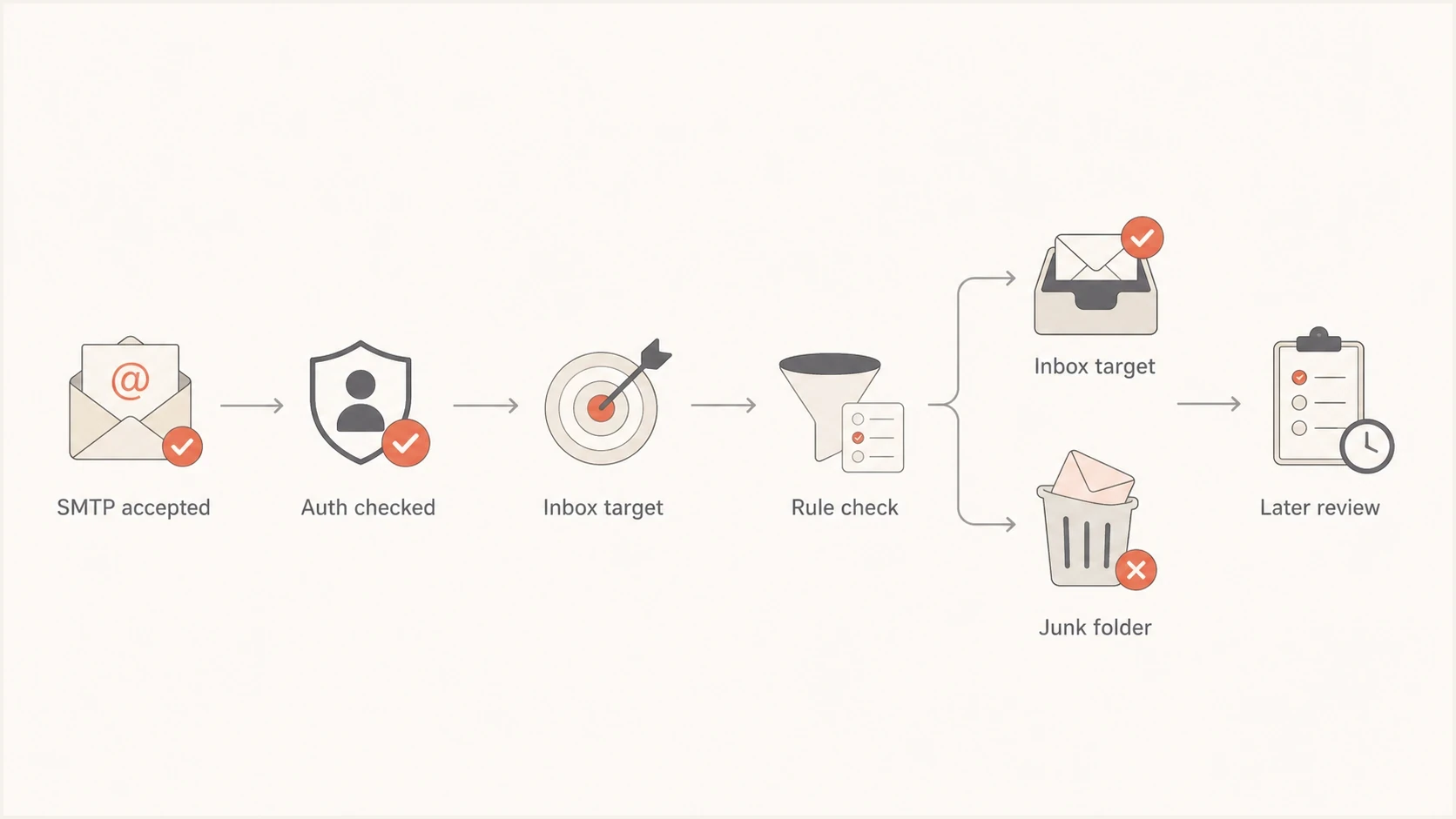
Flowchart showing Outlook delivery followed by later junk placement
Initial inbox decision
- Transport verdict: The message passes enough checks to be accepted and routed to the mailbox.
- Folder target: The first mailbox decision points at Inbox, often before later signals finish.
- Header clue: A value such as dest:I can point at an inbox target at that stage.
Later junk move
- Delayed verdict: Microsoft filtering changes the placement after new reputation, content, or threat data becomes available.
- Mailbox action: A rule, blocked sender list, or synced client setting moves the message.
- User action: A recipient or connected client marks the message as junk and synchronizes that move.
What dest:I does and does not prove
When dest:I appears in a Microsoft mailbox-delivery header, read it as evidence that a Microsoft layer had an inbox destination at that point. It is not a permanent promise that the user will see the message in Inbox. Outlook or Microsoft 365 can still apply a later junk action.
Example header pattern
X-Microsoft-Antispam-Mailbox-Delivery: ucf:0;jmr:0;auth:0;dest:I;
X-Forefront-Antispam-Report: SCL:1; BCL:0; ...
Authentication-Results: spf=pass; dkim=pass; dmarc=pass
The useful question is not "why did the header lie?" The useful question is "what ran after that header was stamped or after the message became visible?" That reframes the investigation and avoids wasting time changing DNS records that already pass.
|
|
|
|---|---|---|
Seen in Inbox first | Post-delivery | Rules and delayed verdicts |
Only one recipient | Mailbox | Safe and blocked lists |
Many recipients | Reputation or policy | Complaints, volume, and ZAP |
Passes authentication | Content or trust | Message body and links |
Common Outlook clues and the next check.
How ZAP causes a real post-delivery move
For a Microsoft 365 cloud mailbox, zero-hour auto purge (ZAP) can reclassify a message after delivery when Microsoft receives new spam, phishing, or malware signals. If the applicable anti-spam policy uses the Move message to Junk Email action, ZAP can move delivered spam or phishing into Junk. ZAP for spam applies to unread messages, while ZAP for phishing can act on read or unread messages.
ZAP does not always end in Junk. Malware is quarantined, and policy settings can send high-confidence spam or phishing to quarantine instead. This mechanism applies to Microsoft 365 cloud mailboxes, not personal Outlook.com mailboxes or on-premises mailboxes.
How an admin confirms ZAP
- Compare locations: In Microsoft 365 security data, compare Original delivery location with Last delivery location.
- Inspect the event: Check the message timeline and look for ZAP as the Additional action.
- Use the right log: ZAP is not recorded as a system action in Exchange mailbox audit logs, so a missing audit event does not rule it out.
If Original delivery location is Inbox, Last delivery location is Junk, and the Additional action is ZAP, the post-delivery move is confirmed. If those fields do not show ZAP, return to mailbox rules, blocked senders, connected clients, or a manual admin action.
The main causes to check first
Start with the causes that explain a folder move after arrival, not generic spam-folder advice. The right fix is different when one person's mailbox is affected than when many Outlook.com recipients start junking the same campaign.
- Delayed Microsoft filtering: The first pass lets the email in, then Microsoft applies a later spam verdict after new reputation, content, or threat data becomes available.
- Mailbox junk settings: The recipient has a blocked sender, blocked domain, safe-list mismatch, or an aggressive Outlook junk setting.
- Inbox rules: A rule in Outlook on the web, classic Outlook, or another connected client moves matching messages to Junk.
- Microsoft 365 security action: ZAP or an admin remediation action changes the delivery location after the message reaches a cloud mailbox.
- Sender reputation: High complaint rates, sudden volume changes, poor engagement, or a blocklist (blacklist) event can coincide with broader Junk placement.
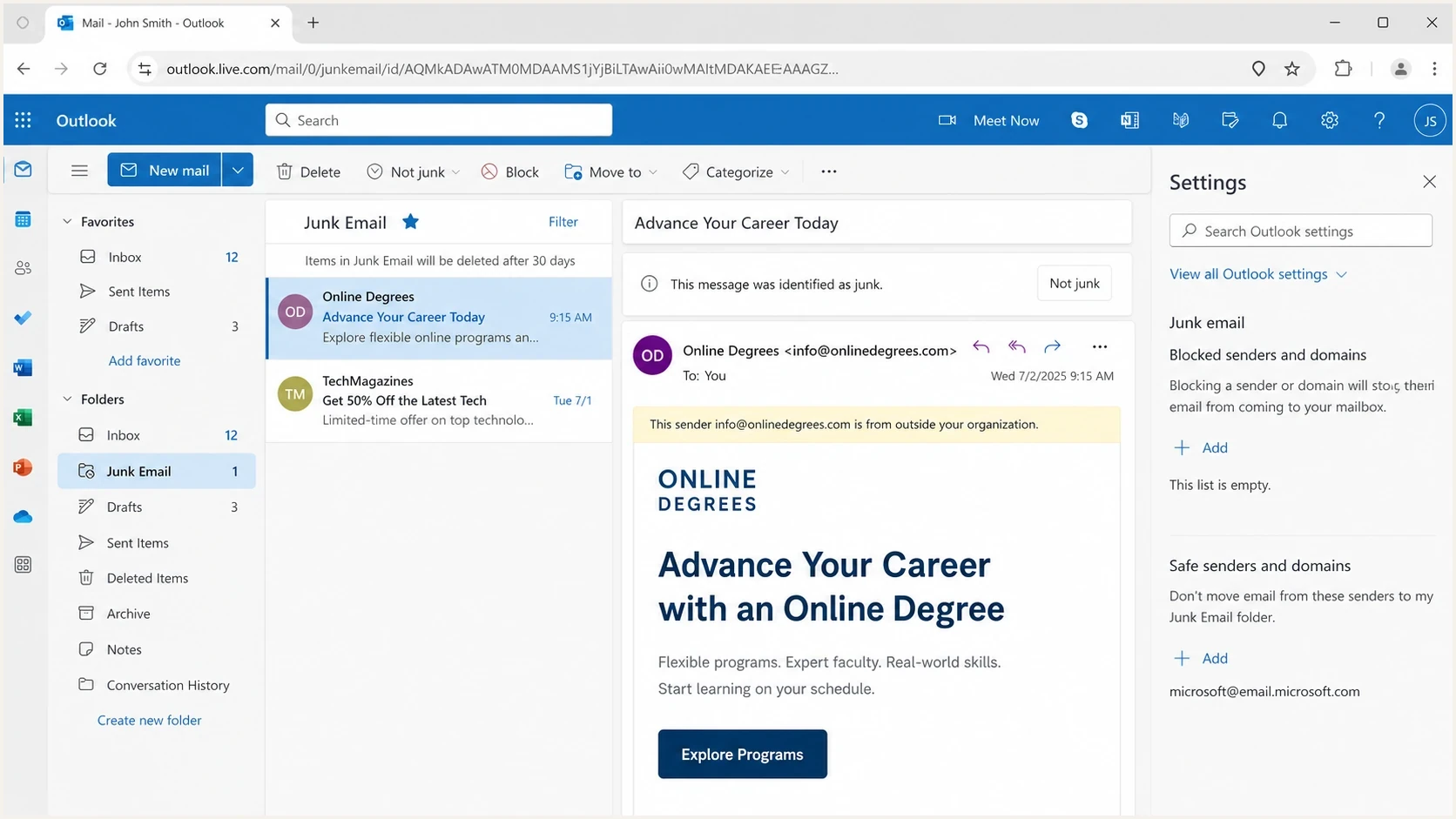
Microsoft Outlook on the web showing inbox, junk email, and sender settings
How authentication fits into an Outlook folder move
Passing SPF, DKIM, and DMARC does not guarantee inbox placement at Outlook, but failing them makes the situation harder. Authentication gives Microsoft evidence that the message came through an authorized source and that SPF or DKIM matches the domain evaluated by DMARC. Placement still depends on reputation, recipient behavior, content, links, and mailbox-level controls.
For a fast baseline, check the domain with a domain health checker, then review live aggregate data through DMARC monitoring. Suped's product connects DMARC, SPF, and DKIM results with sending-source visibility, alerts, hosted policy controls, and blocklist monitoring. That workflow helps separate a DNS or sending-source problem from an Outlook placement change that happened after authentication passed.
Conservative DMARC starter record
v=DMARC1; p=none; rua=mailto:dmarc@yourdomain.com

Issue steps to fix dialog showing the issue overview, tailored fix steps, and verification action
Do not fix the wrong layer
If SPF, DKIM, and DMARC pass on the affected message, changing a working DNS record usually does not solve a delayed Outlook move. Preserve the passing authentication, then test placement, sender reputation, complaint patterns, mailbox rules, and Microsoft-specific headers.
A practical troubleshooting workflow
Build a repeatable test before changing anything. One forwarded screenshot of a message in Junk is useful, but it is not enough. Collect the original headers, the time the user saw the move, the mailbox type, and whether the same message moved for other recipients.
- Capture headers: Save the full original headers from the message that ended in Junk, not a forwarded copy.
- Note timing: Record whether the move happened instantly, after seconds, or after several minutes.
- Identify the mailbox: Confirm whether it is Outlook.com, a Microsoft 365 cloud mailbox, or another account viewed in Outlook.
- Compare recipients: Test the same message across multiple Outlook.com and Microsoft 365 mailboxes.
- Check mailbox controls: Review safe senders, blocked senders, rules, connected clients, and mobile mail apps.
- Run a seed test: Send a fresh message through an email tester and compare headers with the affected message.
Email tester
Send a real email to this address. Suped shows a results button when the test is ready.
?/43tests passed
The best test keeps one variable at a time. Send the same content from the same domain, then change only the subject, body, link set, or audience segment. If the move tracks one template or one list segment, the issue is not a universal Outlook failure. If it tracks every message from the domain, reputation or authentication needs deeper review.
If the message passes authentication yet still lands in Junk, the next useful read covers passing authentication and Outlook placement. For a prevention checklist aimed at Microsoft consumer mailboxes, use the Hotmail or Outlook prevention workflow.
Receiver-side checks that matter
If only one recipient sees the inbox-to-spam move, spend more time on the mailbox than on the sender domain. Outlook has several user-level controls that can override or reshape the visible result.
|
|
|
|---|---|---|
Blocked sender | Junk settings | Routes matching mail to Junk |
Safe sender | Junk settings | Skips some content filtering |
Inbox rule | Mail rules | Moves matching mail silently |
Mobile app | Connected clients | Can sync junk actions back |
ZAP or admin action | Microsoft 365 security data | Can change the final location |
Receiver-side checks that often explain delayed junk placement.
For Microsoft 365 tenants, ZAP or an admin action can make the move look mysterious to an end user. For consumer Outlook.com mailboxes, the usual checks are safe senders, blocked senders, rules, and connected apps. A safe-sender entry can prevent some false positives, but it does not override every Microsoft 365 security policy.
When the problem points to Microsoft reputation
When multiple Outlook or Hotmail recipients see the same delayed move, stop treating it like one mailbox. Sender reputation, complaint rate, link reputation, and recent volume changes become the working theory, but Microsoft 365 admins should still rule out ZAP or a tenant policy.
How to read the pattern
The same symptom means different things depending on scope and repeatability.
Isolated
1 recipient
One mailbox or one device shows the move.
Watch
2-5 recipients
A small group sees delayed Junk placement.
Investigate
Many recipients
The pattern repeats across Outlook audiences.
A reputation problem often follows a list import, volume jump, template change, new link domain, stale-recipient send, complaint increase, or blocklist (blacklist) listing. These events are investigation leads, not proof of the exact signal Microsoft used. Outlook.com and Microsoft 365 tenant mail can also behave differently.
Best practical response
- Reduce risky volume: Pause cold or stale segments while testing clean, engaged recipients.
- Keep authentication stable: Avoid DNS changes unless the affected message shows a real SPF, DKIM, or DMARC failure.
- Watch complaints: Suppress recipients who do not engage and make unsubscribe paths clear.
- Track reputation: Monitor blocklist and blacklist signals alongside Outlook-specific placement tests.
Views from the trenches
Best practices
Preserve full headers before changing DNS, because post-delivery moves need exact evidence.
Test across several Outlook mailboxes before treating one Junk move as sender reputation.
Separate mailbox rules from Microsoft filtering by checking Outlook on the web first.
Common pitfalls
Treating a passing header as a guarantee of final Inbox placement wastes debugging time.
Changing SPF or DKIM after one delayed Junk move can break mail that already authenticated.
Ignoring connected clients hides rules or apps that move messages after first delivery.
Expert tips
Use timing as a signal: instant Junk and delayed Junk often point at different layers.
Compare campaigns by template and audience, because Outlook reputation can be segment-specific.
Keep complaint cleanup separate from DNS repair so each fix has a clear measured result.
Marketer from Email Geeks says Outlook can show an inbox destination in headers while the visible message still ends up in Junk, so folder placement needs direct observation.
2022-02-07 - Email Geeks
Marketer from Email Geeks says they have seen messages arrive in Inbox and then move to Junk after a short delay, which points at a later filtering step.
2022-02-07 - Email Geeks
What to fix first
Do not start by rewriting every DNS record. First prove whether the move is mailbox-specific, campaign-specific, or sender-wide. If one recipient is affected, check rules, safe senders, blocked senders, and connected clients. If many Outlook recipients are affected, inspect reputation, complaints, content, and the sending pattern around the time the move began.
For sender-side control, keep authentication clean, reduce risky sends, and use evidence that turns raw DMARC and reputation data into actions. Suped's product supports that workflow with authentication health, sending-source classification, issue detection, alerts, hosted policy controls, blocklist monitoring, and multi-domain management.
Debug the layer that moved the message. Outlook after-arrival spam moves are frustrating because the first verdict and final folder can disagree. Separating transport, authentication, reputation, mailbox settings, and post-delivery security actions makes the cause easier to isolate.




