Why does Google Postmaster Tools show delivery errors when emails are delivered?

Updated on 31 Jul 2026: We updated this guide for Postmaster Tools v2 and Gmail's current SMTP enforcement codes.
Google Postmaster Tools can show delivery errors even when a sending platform later records the same messages as delivered because the Delivery Errors dashboard includes rejected messages and temporary failures. A temporary failure is an SMTP deferral, usually a 4xx response. If the sending system retries and Gmail later accepts the message, the platform records a successful SMTP delivery, while Postmaster Tools can retain the earlier deferral in its delivery error data.
The graph is not always saying "8% of the mail never arrived." It is saying that a percentage of SPF- or DKIM-authenticated messages was rejected or temporarily failed in Google's dashboard data. Treat that as a Gmail-side signal, then confirm the impact with complete SMTP response and retry logs. A final 250 response proves Gmail accepted the message, but it does not prove inbox placement or an open.
The practical rule: when Postmaster Tools shows delivery errors but the sending platform shows delivered, use SMTP logs to confirm whether Gmail ultimately accepted each message. Then use Postmaster Tools to investigate what Gmail rejected or deferred during the delivery path.
The short answer
The mismatch usually has one of these causes. A recovered temporary failure does not mean the message was permanently rejected, but repeated tempfails still need attention because they can slow delivery and lead to permanent failures.
- Tempfail counted: Gmail returns a 4xx response, the sender retries, and Gmail accepts the message later. Postmaster Tools can still show the temporary failure.
- Different datasets: The sending platform often records the final SMTP result. Postmaster Tools reports aggregated, delayed, privacy-filtered data for authenticated mail sent to personal Gmail accounts.
- Low-volume gaps: Google can omit dashboard data when volume is low, so a day or reason view can lack detail. Postmaster Tools uses UTC and typically updates within 24 hours, but updates can take longer.
- Forwarding effects: Google attempts to exclude forwarded messages, but some dashboards can still include them. A forwarding server can receive a failure that does not appear in the original sender's Gmail logs.
- Traffic outside your logs: DKIM replay or spoofed traffic can create authenticated failures associated with the domain even when first-party sends look clean.
Google's own Postmaster Tools FAQ says Postmaster Tools provides diagnostics such as delivery errors, spam reports, and feedback loops. Google's delivery issue form also groups rejected messages and temporary delivery failures as reportable delivery issues. That framing matters because "accepted after retry" and "temporarily failed" can both be true.
Postmaster Tools v2 launched in 2024, and Google has postponed the retirement date for the legacy web interface. The Delivery Errors dashboard remains available in v2. Google plans to retire the old Domain and IP Reputation dashboards, so current investigations should also use Compliance status, Spam rate, authentication data, and SMTP logs.
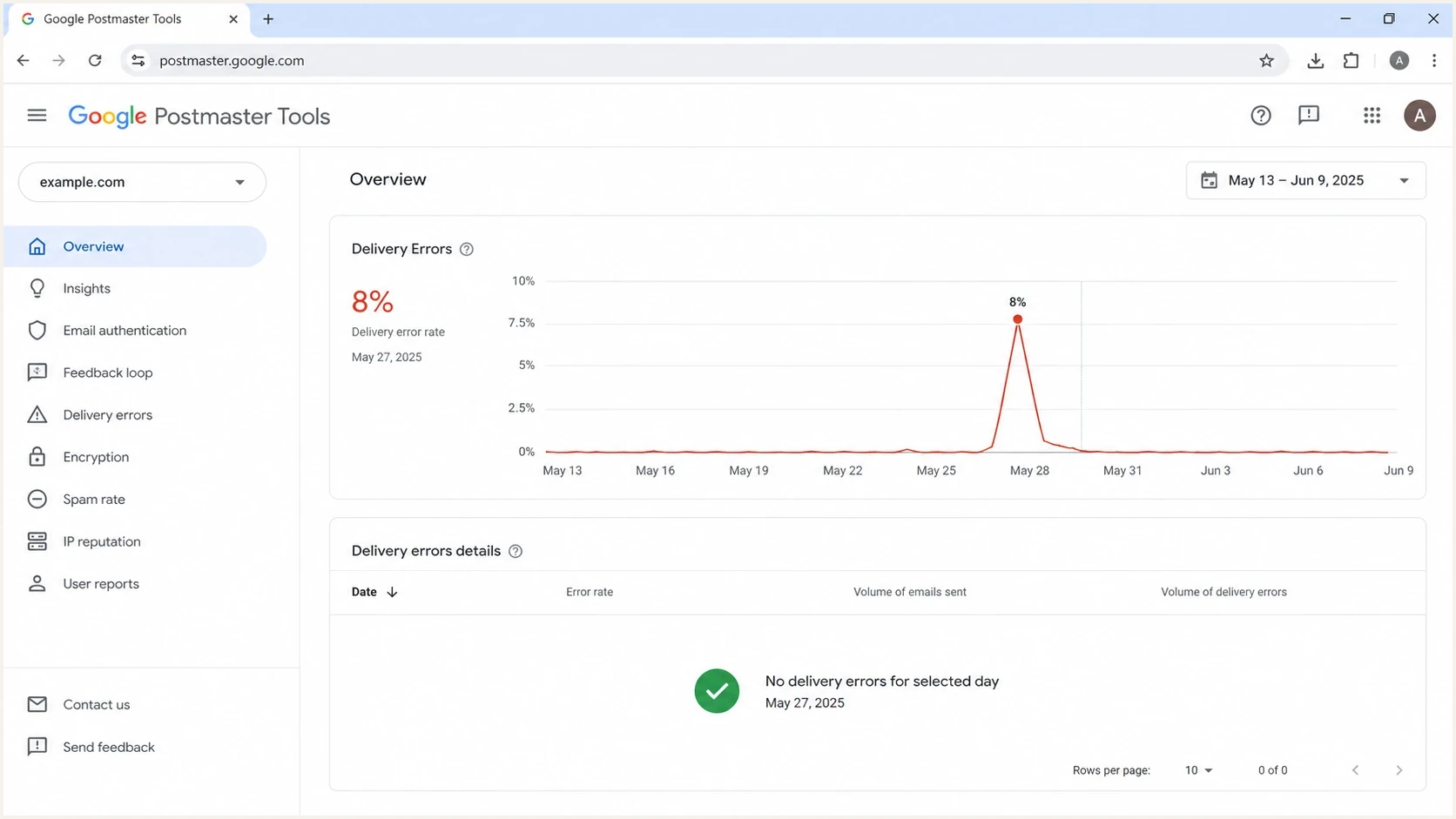
Google Postmaster Tools screenshot showing a delivery error spike with no detail rows.
Why delivered email can still show an error
SMTP delivery is a sequence of attempts. If Gmail replies with a temporary failure, the sending server or email platform should queue the message and retry. When a later attempt succeeds, many dashboards show only the final 250 acceptance. Google Postmaster Tools can still show the earlier temporary failure in its aggregate delivery error data.
Typical retry patterntext
10:02:11 Gmail response: 421 4.7.0 Try again later
10:07:18 Sender retries same queued message
10:07:19 Gmail response: 250 2.0.0 Accepted
Final platform status: delivered
That pattern is common during domain or IP warmup, after sudden volume increases, and when Gmail throttles bursty traffic. A warmup that moves too fast can create tempfails without producing final bounces. Stop sending briefly when rate-limit errors appear, then resume at a slower, constant rate and use exponential backoff for retries.
|
|
|
|---|---|---|
Delivery Errors graph | Gmail saw authenticated failures | SMTP logs |
No detail | Data was omitted or delayed | UTC date and volume |
Delivered | Final attempt was accepted | Retry history |
4xx | Temporary failure | Sending pace |
5xx | Permanent failure | Full response text |
How to read conflicting delivery views
Do not ignore repeated tempfails because the final platform status says delivered. Gmail uses tempfails to slow traffic. Continuing at the same rate can lead to permanent failures and longer queues.
Match dashboard reasons to SMTP evidence
The Delivery Errors category is a starting point, not a replacement for the full SMTP response. Gmail began ramping up enforcement of its sender requirements in November 2025, so current traffic can receive temporary or permanent rejections for authentication, DNS, TLS, alignment, and complaint-related problems.
|
|
|
|---|---|---|
Rate limit exceeded | Burst rate, warmup pace, retry timing | 421 or 451 4.x.x |
SPF, DKIM, or DMARC requirement | Authentication and From domain alignment | 4.7.27, 4.7.30, 4.7.32, 4.7.40, or the matching 5.7.x code |
Bad or missing PTR record | Matching forward and reverse DNS | 4.7.23 or 5.7.25 |
Suspected spam or low reputation | Consent, complaints, sending pattern, and content | 4.7.0, 4.7.28, 5.7.1, or 5.7.28 |
Unsupported attachment | Attachment type and message format | 5xx response with the rejection reason |
Public RBL listing | Domain or IP blocklist (blacklist) source | Dashboard reason plus sending IP |
Current Google Postmaster Tools delivery error categories
Do not infer the fix from the first digit alone. Preserve the enhanced status code, full response text, sending IP, timestamp, recipient domain, and queue ID. That evidence separates a sender-requirement rejection from an ordinary recipient or system error.
For a 4xx response, keep the message queued and retry with exponential backoff. For a 5xx response, stop retrying that message and fix the stated cause before the next send.
What to trust first
Start with the source that answers the exact question. For "did Gmail ultimately accept this message?", use the final SMTP response. For "did Gmail throttle or reject authenticated traffic?", use Postmaster Tools as an aggregate diagnostic signal. Neither source alone proves inbox placement.
Your sending logs
- Final result: Shows whether Gmail accepted, deferred, or rejected each message attempt.
- Best detail: Gives timestamps, SMTP response codes, queue retries, and final status.
- Main gap: A 250 acceptance does not reveal whether Gmail placed the message in the inbox or spam.
Postmaster Tools
- Gmail signal: Shows Gmail's aggregate view of authenticated mail to personal Gmail users.
- Best use: Highlights throttling and current compliance or authentication trends.
- Main gap: Data is delayed, privacy-filtered, and sometimes lacks reason-level detail.
The most common mistake is treating the Postmaster Tools percentage like a hard bounce rate. It is not that precise. If logs show 99.9% final Gmail acceptance and Postmaster Tools shows an 8% delivery error spike, look for Gmail 4xx responses first. Do not assume 8% of recipients missed the email unless final logs or bounce data support that conclusion.
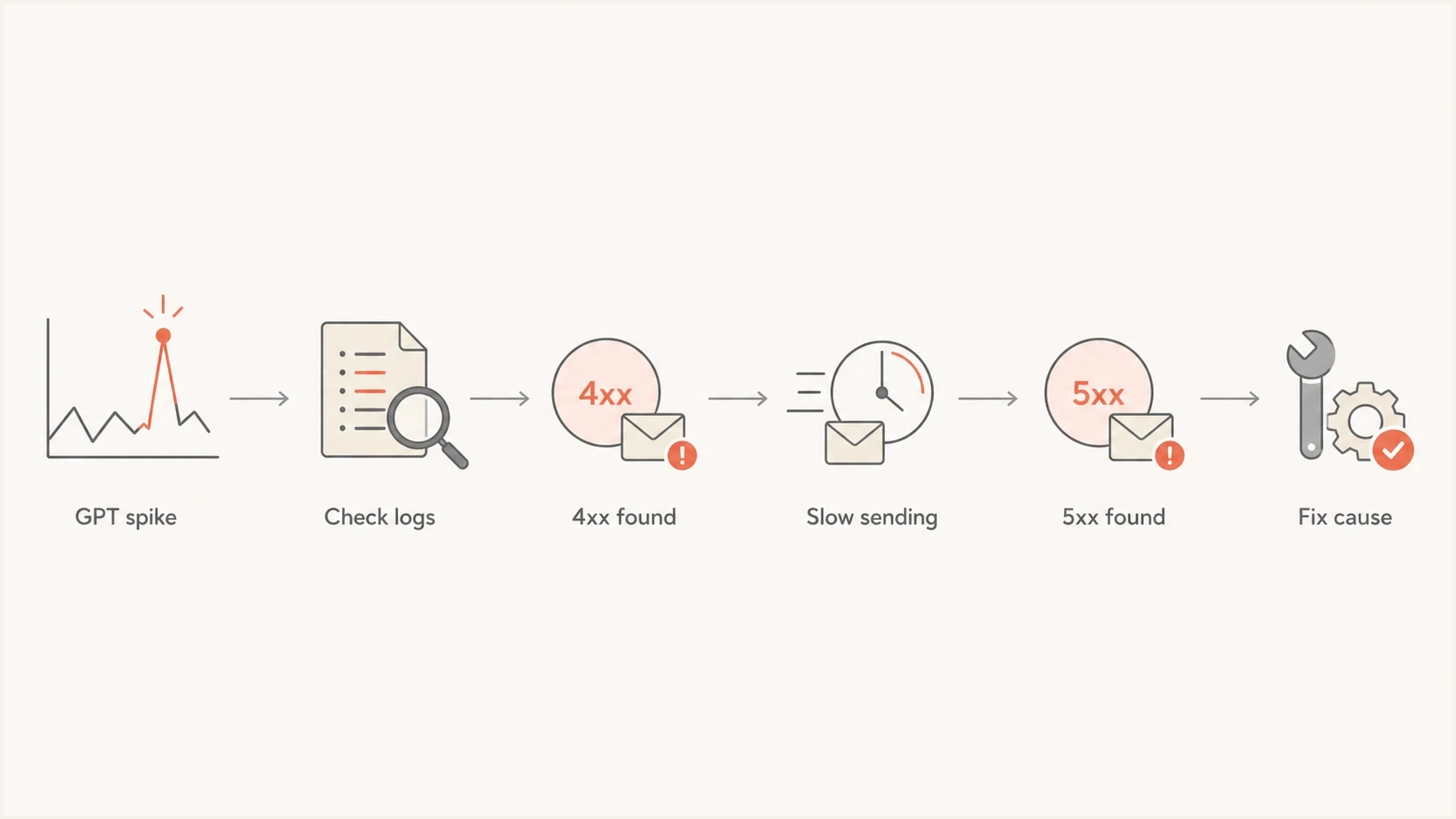
Flowchart for checking delivery error spikes against sending logs.
Checks to run before changing sending
Do not change DNS, pause a sender indefinitely, or blame an email platform based on the Postmaster Tools graph alone. Run a short sequence that separates display gaps, temporary throttling, authentication problems, and real reputation damage.
- Pull logs: Export Gmail delivery attempts for the same UTC date used by Postmaster Tools. Separate 4xx, 5xx, and final 250 responses.
- Compare volume: Look for a sudden send increase, uneven campaign timing, new IP traffic, or a warmup step that was too aggressive.
- Verify auth: Check SPF, DKIM, and DMARC pass rates. Use a domain health check if one view is needed for the domain.
- Check sender health: Review Compliance status, Spam rate, complaint trends, unsubscribe handling, and any blocklist (blacklist) signals.
- Test the path: Send a real message through the production path and review the headers with an email tester before making broad changes.
Email tester
Send a real email to this address. Suped shows a results button when the test is ready.
?/43tests passed
For ongoing monitoring, Suped brings DMARC reports, SPF and DKIM visibility, blocklist monitoring, and automated issue detection into one operational workflow. Postmaster Tools identifies a Gmail symptom, while Suped's reports and infrastructure checks help trace the affected sender, source, or DNS configuration.
Issues page showing top issues, verified sources, unverified sources, and authentication pass rates
For teams that manage many domains, Suped's MSP and multi-tenancy dashboard separates domains, sources, and issues so each Postmaster Tools spike can be investigated in context. Raw SMTP logs remain the source for final Gmail acceptance, while Suped supplies the surrounding authentication and blocklist (blacklist) evidence.
When the graph deserves action
A one-day delivery error spike with no matching final bounces differs from a worsening sender problem. Base the decision on persistence, SMTP code class, and related Gmail signals.
Operational triage bands
How to treat Google Postmaster Tools delivery error spikes when logs show final Gmail acceptance.
Watch
0-1 days
Short-lived spike, mostly 4xx, no compliance issue or complaint change.
Investigate
2-3 days
Repeated spikes, new sender, warming traffic, or authentication drift.
Act
Immediate
5xx rejections, a Compliance status problem, blocklist or blacklist hits, or rising spam rate.
Act quickly when delivery errors coincide with a Compliance status problem, a reputation drop in legacy data, a complaint spike, increased DMARC failures, or a public blocklist listing. Suped's DMARC monitoring connects failures to sending sources, while blocklist monitoring tracks domain and IP blacklist listings that can explain rejection patterns.
A DKIM replay attack is less common for ordinary brand senders than temporary throttling, but include it when Postmaster Tools shows failures absent from first-party traffic. Use distinct DKIM keys per sender, rotate exposed keys, reduce unnecessary SPF authorization, and verify legitimate sources before increasing DMARC enforcement.
How to narrow the cause
Classify the error before changing anything. A temporary Gmail rate limit needs slower sending and backoff. A DMARC policy rejection needs authentication repair. A domain or IP reputation issue needs sending behavior changes, not DNS edits alone.
|
|
|
|---|---|---|
4xx | Temporary deferral | Back off and retry |
5xx | Permanent rejection | Fix stated reason |
DMARC | Authentication or alignment failure | Fix the sending source |
RBL | Blocklist (blacklist) listing | Remove cause, then request delisting |
No rows | Omitted or delayed detail | Check UTC logs and volume |
Delivery error patterns and likely fixes
Compare the Delivery Errors chart with related Postmaster Tools views. If the Authentication dashboard also looks wrong, the guide on SPF and DKIM rates covers that dataset. If Postmaster Tools shows no rows or visible detail, the guide on missing GPT data explains low-volume and visibility gaps.
For escalation, keep the evidence tight: affected domain, UTC date, accepted count, temporary failure count, permanent failure count, sample SMTP responses, authentication results, and any Compliance status change. A verified domain owner can use Report delivery issue after confirming the domain meets Gmail's sender guidelines, the message passes SPF and DKIM, and the From header domain matches the selected domain.
Views from the trenches
Best practices
Compare GPT spikes with raw SMTP logs before changing DNS or stopping campaigns.
Separate 4xx tempfails from 5xx rejections so the response fits the failure type.
Track warmup pace by Gmail domain data, not only by total campaign delivery rate.
Common pitfalls
Treating the GPT percentage as a hard bounce rate causes unnecessary panic for teams.
Ignoring retry history hides tempfail patterns that final delivered status masks.
Overlooking forwarded mail can misattribute downstream failures to otherwise clean sends.
Expert tips
Use unique DKIM keys per sender so replay or source issues are easier to isolate.
Reduce broad SPF includes because excessive authorization increases domain exposure risk.
Pause briefly after repeated tempfails, then resume at a slower, steadier send rate.
Marketer from Email Geeks says Postmaster Tools delivery errors are often tempfails, even when the final delivery attempt succeeds after retry.
2024-02-28 - Email Geeks
Expert from Email Geeks says sender logs should be treated as the final delivery record, with Postmaster Tools used as a Gmail-side signal.
2024-02-28 - Email Geeks
What to do next
If Google Postmaster Tools shows delivery errors while the sending platform shows delivered messages, first test whether the graph reflects temporary failures or a dataset mismatch. Check every SMTP attempt, not only the final status. If the logs contain repeated 4xx responses, stop briefly, resume at a slower constant rate, and review the next two reporting days.
If the logs contain 5xx rejections, authentication failures, Compliance status problems, or blocklist and blacklist hits, treat the event as a deliverability incident. Suped combines DMARC reports with SPF, DKIM, and blocklist monitoring so the investigation can identify the sending source or record that needs correction.




