Why does Gmail rewrite or change email subject lines for senders?

Updated on 5 Aug 2026: We clarified how Workspace routing, Google Groups, conversation view, and reply edits affect Gmail subject lines.
Gmail usually does not rewrite the actual Subject header that the sender put into a message. When the displayed subject looks different, check the delivered raw source first. Common causes include a Google Workspace routing rule, a Google Groups subject prefix, a mail gateway that modified the header, or Gmail conversation view presenting several related messages together.
The key distinction is whether the delivered Subject header changed. If Gmail's Show original view contains the new text, a system in the delivery path changed the message. If Show original retains the sender's subject but the conversation view looks different, investigate the mailbox UI and thread grouping.
Fast answer
- Start with Google Workspace routing and content compliance rules that can prepend custom subject text.
- Check Google Groups or another mailing list for a configured subject prefix, then use List-ID to identify the list path.
- Treat reputation as a placement and warning issue, not the first explanation for a changed subject string.
- Compare the sender's MIME, Gmail Show original output, conversation view, and a controlled mailbox before assigning the change to Gmail.
Why the subject can look changed
The first place to check is Google Workspace. Admins can configure Gmail routing and content compliance rules that modify messages during delivery. One available action prepends custom text to the subject. That can turn Campaign update into [External] Campaign update inside the affected organization.
A rule can cover a whole organization or only selected traffic. Conditions can target an organizational unit, inbound or internal mail, specific headers, content patterns, or an address list. This explains why users at one company report a changed subject that cannot be reproduced in an unrelated mailbox.
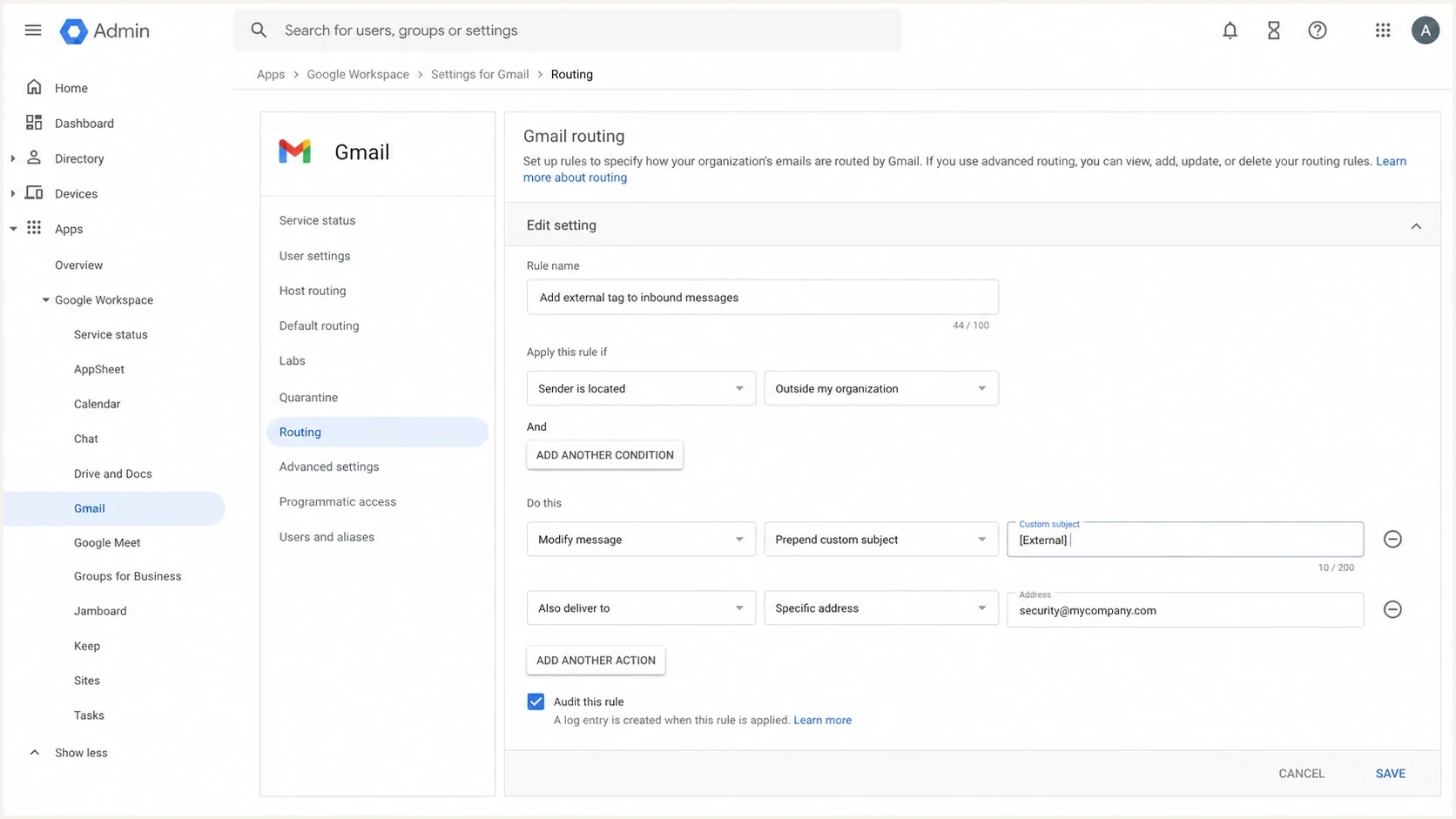
Google Workspace Admin console Gmail routing settings with a custom subject prefix option.
Header changed
The delivered message source contains a different Subject value than the sender generated. A routing rule, Google Group, mailing system, or gateway changed the message before final delivery.
- Raw source and the Gmail message view both contain the added subject text.
- Trace the systems that handled the message before it reached the mailbox.
Display looks changed
The raw source retains the sender's subject, but the inbox or open conversation supplies different context. For threads with several replies, Gmail can display non-empty subject lines with the message count, so inspect the source of the specific message.
- The specific message's raw source differs from what the conversation view appears to emphasize.
- Check the individual message and its position in the Gmail conversation.
Gmail conversation grouping also matters. Messages need matching subjects and valid References and In-Reply-To headers to join an existing thread when sent through the Gmail API. Gmail Help states that a conversation breaks into a new conversation when the subject changes. Fake Re: or Fwd: text does not replace valid reply headers and can mislead recipients.
A Gmail user can also choose Edit subject while replying or forwarding. That user sends a new Subject value, and Gmail starts a new conversation. This is an intentional edit by the person composing the reply, not a silent rewrite of the message they received.
|
|
|
|---|---|---|
Workspace rule | Admin routing | Remove or narrow prefix |
Google Groups | Group email options | Remove subject prefix |
Conversation grouping | Reply headers and subject | Preserve reply headers |
Gateway edit | Received path | Change gateway policy |
Encoding issue | Raw header | Fix MIME encoding |
Use this table to separate Gmail display behavior from an actual subject change.
When Google Groups adds a subject prefix
Google Groups owners and managers can set a Subject prefix under Group settings > Email options. Google Groups adds that text to the beginning of every message distributed by the group, often in square brackets. Unlike a conversation-view effect, this prefix appears in the delivered Subject header on the group copy.
- Open the affected message in desktop Gmail and choose More > Show original.
- Confirm whether the bracketed prefix appears in the raw Subject header.
- Use List-ID and the Received path to identify the group that redistributed the message.
- Ask the group owner to change Subject prefix under Email options, then test with a new message.
A List-ID header identifies mailing-list traffic but does not add text by itself. A matching group identity, a bracketed raw subject, and a group hop in the delivery path point to the configured prefix. If no group handled the message, return to Workspace routing and gateway policies.
How to verify what happened
Ask for the full original message, not a forwarded copy or only a screenshot. In desktop Gmail, open the affected message, select More next to Reply, then choose Show original. A forwarded copy can change headers and hide the delivery path. A screenshot proves what the user saw, but it does not show where the message changed.
Compare the subject in the sender's generated MIME, the delivered raw source, the Gmail inbox row, and the open conversation. If the generated MIME and delivered raw source match, the sender retained control of the actual Subject header through delivery. If the Gmail UI still looks different, inspect the selected message and conversation grouping.
Header fields to inspecttext
Subject: RE: Campaign update
From: Example Team <news@example.com>
Sender: Digital Campaigns <bounce@mailer.example.com>
List-ID: Digital Campaigns <campaigns.example.com>
Authentication-Results: mx.google.com;
 spf=pass smtp.mailfrom=mailer.example.com;
 dkim=pass header.d=example.com;
 dmarc=pass header.from=example.com
The Sender and List-ID fields help identify a mailing system or list in the delivery path. They do not prove that Gmail changed the subject. Compare any bracketed text with the group or routing configuration, then use the Received headers to place the modification before or after each hop.
Do not debug from one mailbox
A Google Workspace mailbox and a free Gmail mailbox are different tests. Workspace admins can add routing rules that never apply to consumer Gmail accounts. Use at least one controlled recipient outside the affected organization before treating the issue as Gmail-wide.
Send a clean test message to a mailbox you control, then inspect the delivered message with Suped's email tester. It provides a delivered copy for comparison with Gmail's UI, including headers, authentication results, content signals, and mailbox-facing diagnostics.
Email tester
Send a real email to this address. Suped shows a results button when the test is ready.
?/43tests passed
If the raw test source retains the original subject, move the investigation toward conversation view or recipient-side configuration. If the raw source already contains the changed subject, follow the delivery path backward until the routing rule, group, gateway, or sending system responsible becomes clear.
Where authentication and reputation fit
Authentication and reputation still matter, but keep them separate from subject modification. Gmail uses authentication and reputation for inbox or spam placement, warning banners, image loading, link handling, and sender trust. Those decisions do not normally change the literal subject line.
If SPF, DKIM, or DMARC fail, address those failures as a separate deliverability issue. Use Suped's domain health check to confirm published DNS records, then use DMARC monitoring to identify expected and unknown sending sources over time. If Gmail users also report spam placement or warnings, add Suped's blocklist monitoring to check blocklist (blacklist) evidence for the sending IPs and domains.
Suped DMARC dashboard showing email volume, authentication health, and source breakdown
Suped's DMARC dashboard keeps sending sources and authentication results in one workflow. For this Gmail problem, use those reports to confirm who sent the message and whether SPF, DKIM, and DMARC passed. That prevents an authentication failure or blocklist (blacklist) event from being mistaken for a subject rewrite.
How to judge authentication risk
Judge failures by source and sending volume instead of applying one universal pass-rate cutoff.
Expected state
Expected mail passes
Approved sources authenticate with domains that match the visible From domain.
Investigate
Unknown or isolated
An unfamiliar source appears or an approved source has isolated failures.
Fix now
Approved stream fails
An approved source or meaningful mail stream fails consistently.
A subject that starts with a fake RE: can still hurt trust even when Gmail leaves the header intact. It can cause complaints and thread confusion. Weak authentication or inconsistent sending patterns give Gmail separate reasons to treat the message cautiously.
A practical investigation path
Use a short investigation path when a sender reports that Gmail changed a subject. Prove where the subject changed, then fix the responsible system. Do this before changing campaign copy, rotating domains, or rebuilding templates.
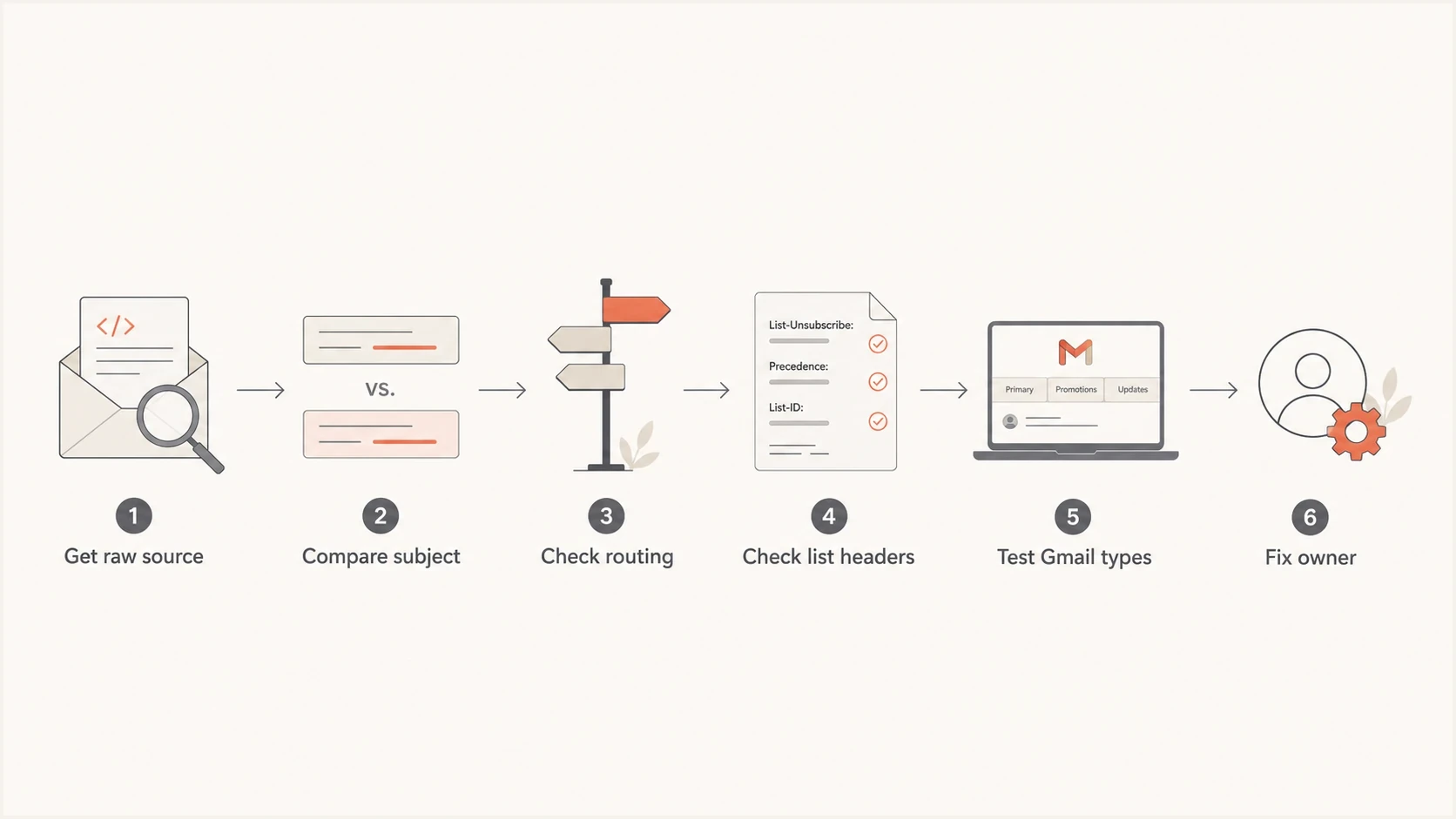
A flowchart for investigating a Gmail subject line that appears changed.
- Collect the original MIME from the sending platform, the raw delivered source, and screenshots of the inbox row and open message.
- Check whether the subject differs in the raw source or only in Gmail's conversation view.
- Review Gmail routing, content compliance, and group-based rules in the recipient organization.
- Inspect List-ID, Sender, Return-Path, List-Unsubscribe, and Received headers for the system that handled the message.
- Send the same message to a free Gmail account, a Workspace mailbox, and a non-Google mailbox you control.
- Remove the Workspace or group prefix, repair headers, fix authentication separately, or stop using fake reply subject patterns.
If the issue appears only in one Google Workspace organization, the sender usually cannot fix a recipient-side routing rule. The recipient's admin needs to remove or narrow it. A Google Groups prefix can be changed by the group owner. If the modified subject appears in every mailbox and in each raw delivered source, inspect the sending platform and every gateway in its handoff path.
Best fix for senders
Use plain, accurate subject lines and keep internal campaign labels out of customer-facing subjects. Put internal labels in sending-platform metadata, campaign naming, or reporting. The subject should describe the message the recipient receives.
Two related Gmail display issues need separate checks. Invalid characters or broken encoding can corrupt visible subject text, which is covered under invalid subject characters. Gmail can also change how it displays sender identity, which is closer to a missing or replaced friendly from name. Neither issue proves that Gmail rewrote the subject header.
Views from the trenches
Best practices
Save the full original headers before judging whether Gmail changed the visible subject line.
Test the same send in Google Workspace and free Gmail before treating it as a Gmail issue.
Check routing, group prefix settings, List-ID, and Sender before changing subject strategy.
Common pitfalls
Assuming Gmail rewrote the Subject header when a Workspace rule prepended a local tag.
Using fake reply prefixes that invite thread confusion, user complaints, and filtering review.
Debugging only screenshots without comparing raw headers, final UI, and mailbox type first.
Expert tips
Keep campaign labels outside the subject when the label is only useful to internal teams.
Use seed addresses you control so you can capture headers and compare mailbox behavior.
Treat reputation as evidence for placement issues, not the first explanation for tags.
Marketer from Email Geeks says the original Subject header can remain intact while Gmail displays another line in the message list.
2025-02-28 - Email Geeks
Marketer from Email Geeks says Google Workspace routing can prepend custom subject text for certain messages or groups.
2025-02-28 - Email Geeks
What to fix first
Gmail rarely rewrites a sender's actual Subject header. A visible change usually comes from a Google Workspace routing prefix, a Google Groups setting, another gateway in the delivery path, an intentional reply edit, or conversation display behavior.
Close the evidence gap first. Get the raw delivered source, compare Gmail account types, and confirm whether the subject changed in the message source or only in the conversation view. Remove fake reply patterns and internal tags where the sender controls them. Use Suped's DMARC reporting to keep source and authentication evidence separate from the subject-line diagnosis.




