Why is Gmail not displaying the friendly from name in some emails?

Published 6 May 2025
Updated 24 Jul 2026
11 min read
Summarize with
Updated on 24 Jul 2026: We updated this guide with Gmail's current display name rules, clearer authentication limits, and a more precise troubleshooting workflow.
Gmail is usually not deleting the friendly from name. In most cases, the display name is still present in the raw From header, but Gmail decides to show the sender's email address in the inbox, message view, or mobile app instead. Common causes include forwarding, a missing or malformed display name, Gmail alias settings, conversation context, and differences between Gmail views.
The most important distinction is simple: if the raw header says Brand Name before the mailbox address, the sender did include a friendly from name. If Gmail still shows the address, you are looking at a Gmail display decision, not proof that the sending platform lost the name.
- Check the header: Open the message, choose Show original, and inspect the From line.
- Compare views: Check Gmail web, Gmail mobile, list view, and the opened message view.
- Separate sender and recipient causes: Test direct delivery to a fresh Gmail mailbox before changing the campaign setup.
- Validate authentication: Review SPF, DKIM, and DMARC to identify sender warnings or delivery problems, not because they set the display name.
Why Gmail shows the email address instead
Gmail has to choose a sender label for every message. The friendly from name comes from the message header, but Gmail can present sender details differently across the inbox list, opened message, contact card, conversation view, and mobile app. Forwarding and alias configuration can also change the message Gmail finally receives.
That means two recipients can see the same campaign differently. One person sees Acme Updates. Another person sees news@example.com. A saved Google Contact can also make a contact card or compose suggestion show a different name without changing the raw sender identity.
Treat this as a rendering problem until the raw header proves otherwise. The inbox label shows what Gmail displayed, while Show original shows what the sender transmitted.
- Header present: The sender supplied a name, so compare Gmail views, forwarding paths, aliases, and message details.
- Header missing: The sending platform or template did not set the friendly from name.
- Header malformed: Fix duplicate From fields, quoting, encoding, commas, and special characters.
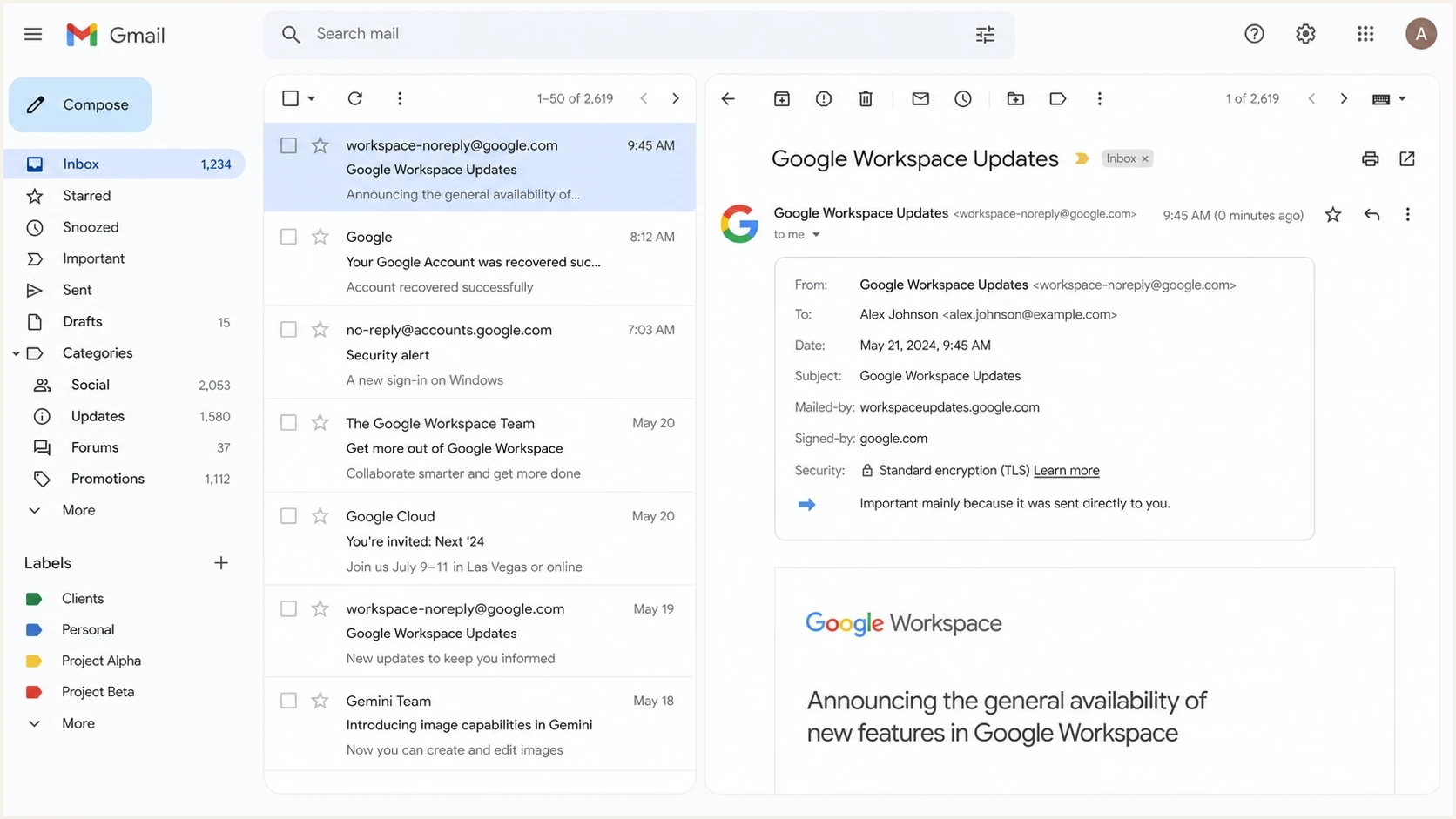
Gmail inbox showing an email address while the raw From header contains a display name
|
|
|
|---|---|---|
Missing name | Address shown everywhere | Raw header |
Bad formatting | Random display changes | From syntax |
Forwarding | Recipient-specific issue | Delivery path |
Contact context | Contact card differs | Google Contacts |
Auth failure | Question mark or warning | Mailed-by and signed-by |
Common reasons Gmail shows the address instead of the friendly from name.
The header syntax Gmail expects
A standard friendly from name lives in the message From header. If the display name contains commas, quotes, non-ASCII characters, or brand terms that look like addresses, use conservative formatting. Gmail's sender guidelines also require single-instance headers such as From to appear only once. Gmail can still choose another display label, but clean syntax removes avoidable causes.
Good From header examplestext
From: Acme Updates <news@example.com>
From: "Acme, Inc." <news@example.com>
From: =?UTF-8?Q?Jos=C3=A9_from_Acme?= <news@example.com>
Risky From header examplestext
From: news@example.com <news@example.com>
From: Acme, Inc. <news@example.com>
From: "Acme <news@example.com>" <news@example.com>
The first risky example uses the email address as the display name, so Gmail has no meaningful brand name to show. The second has an unquoted comma. The third puts an address-like string inside the display name, which makes the sender identity harder for mailbox providers and recipients to interpret.
Clean sender identity
- Stable name: Use one recognizable brand or team name for the same stream.
- Clear mailbox: Send marketing, product, and support mail from distinct addresses when needed.
- Signed From: Include the From header in DKIM signing so header changes are detectable.
Messy sender identity
- Frequent changes: Rotating names can make the sender less recognizable to recipients.
- Misleading names: Names that mimic people, inboxes, or urgent system notices can affect delivery.
- Broken syntax: Bad quoting and encoding create inconsistent display behavior across clients.
Use a clear, accurate display name
Google's current guidance says a display name should identify the sender clearly and accurately. For commercial or bulk email, misuse of the display name can affect delivery to personal Gmail accounts even though the display name itself does not authenticate the domain.
- Identify the sender: Use the person's, team's, or organization's real name.
- Keep subject text out: Do not turn the display name into a sale notice or message preview.
- Do not insert the recipient's name: Personalization belongs in the message, not the sender identity.
- Avoid fake interface cues: Do not use fake thread counts, verification marks, or non-standard characters to imitate Gmail UI.
These practices do not force Gmail to show the friendly from name in every view. They remove policy and deliverability problems that can distract from the actual rendering issue.
Forwarding and Gmail rendering
Forwarding is one of the first checks because it changes the delivery path without necessarily changing the message the sender created. A message can arrive at Gmail directly, or it can arrive after a Gmail rule, mailbox forward, or group has processed it.
Forwarding can alter envelope data, add ARC results, preserve or break DKIM, or rewrite message headers. Compare the direct and forwarded copies in Show original to determine whether the friendly from name changed in transit or Gmail merely rendered the preserved header differently.
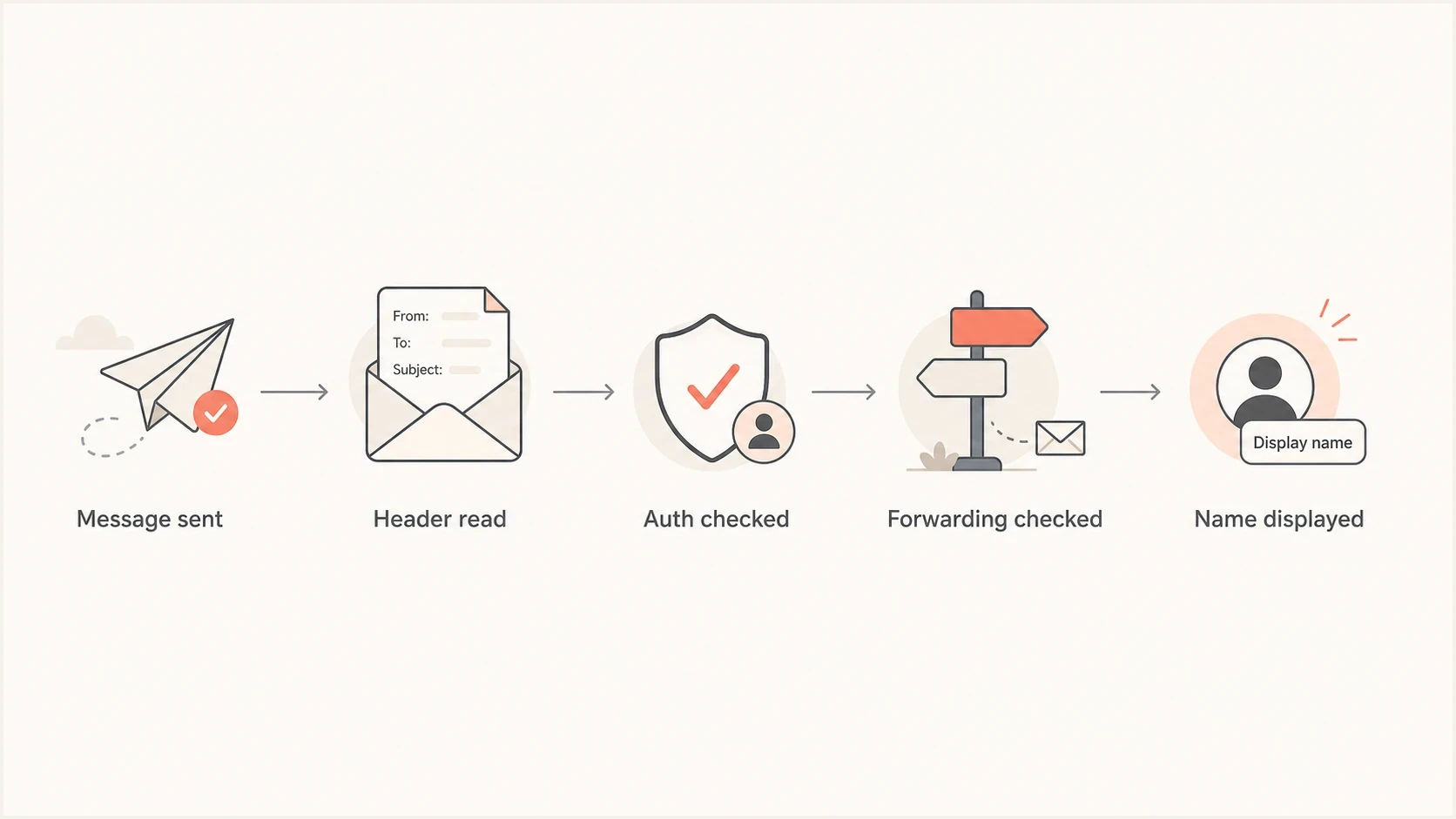
Flowchart showing Gmail checking headers, authentication, and forwarding before displaying a sender name
Do not conclude that forwarding is the only cause. It is a strong clue when only forwarded copies show the issue, but direct Gmail deliveries can also show the address when the name is present in the header.
- Direct test: Send the same email to a fresh Gmail address with no filters or forwards.
- Forwarded test: Send to the original recipient path and compare the raw headers.
- View test: Compare inbox list view with the opened message and the mobile app.
Authentication does not control the name
SPF, DKIM, and DMARC do not tell Gmail which friendly from name to display. They help Gmail verify whether the message is authorized for the visible domain. Gmail can show a question mark next to an unauthenticated sender, and authentication failures can affect classification or delivery, but those outcomes are separate from the text stored in the display name.
A healthy authentication setup does not guarantee that Gmail will show the friendly from name. It does confirm that the visible From domain has the expected authorization, which keeps a real authentication problem separate from a Gmail sender name display issue.
Email tester
Send a real email to this address. Suped shows a results button when the test is ready.
?/43tests passed
Send the exact campaign to an email tester and compare the result with Gmail's Show original output. Check the From syntax, DKIM result, SPF result, DMARC domain match, and whether the delivery path includes forwarding.
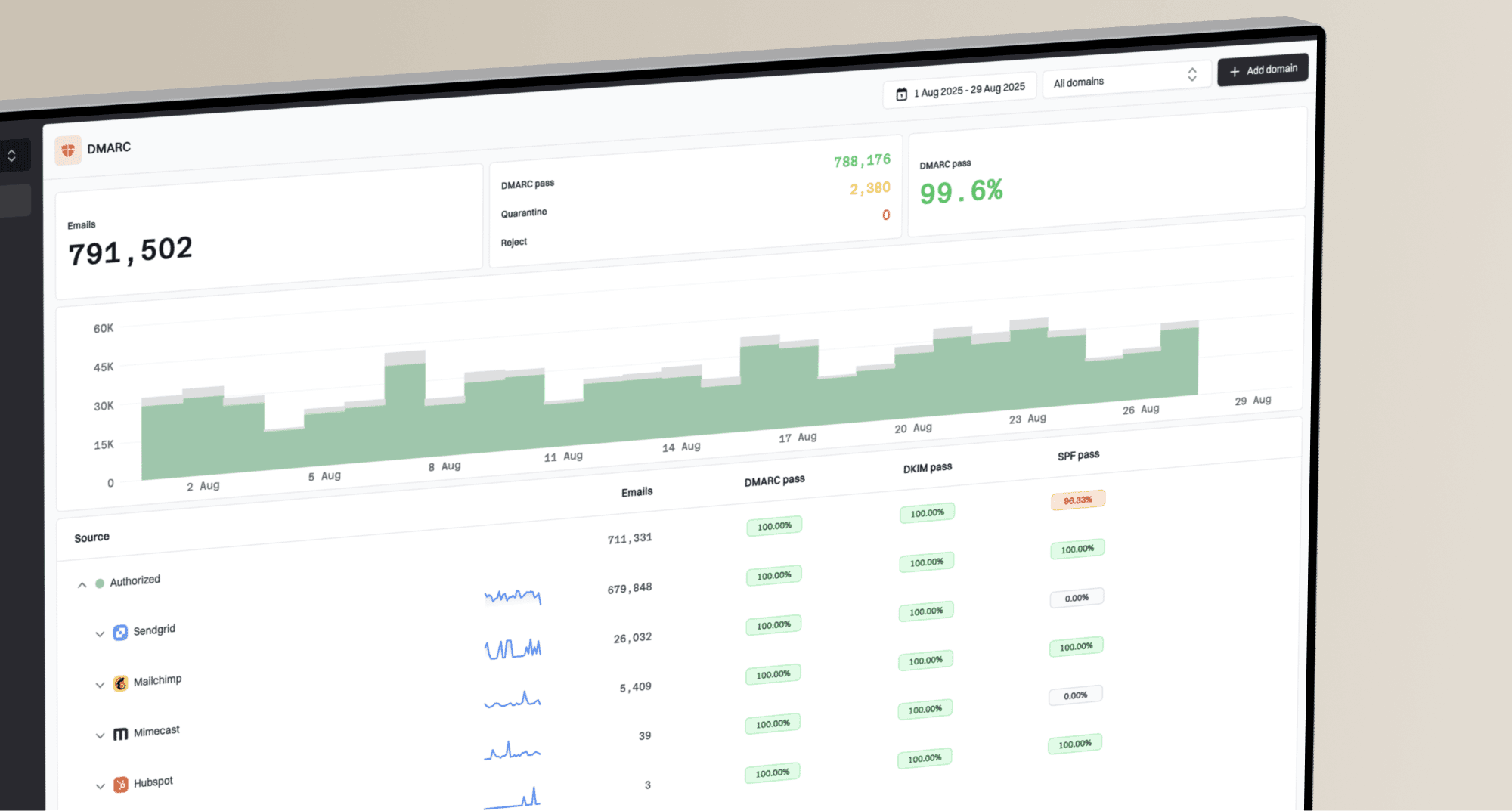
Suped's DMARC monitoring shows which sending sources authenticate, which remain unverified, and what needs attention. Suped cannot force Gmail to render a name, but it helps separate a Gmail UI decision from an authentication problem.
Issues page showing top issues, verified sources, unverified sources, and authentication pass rates
How to diagnose the issue
The fastest route is to work from the raw message outward. Do not start by changing the sender name in the email platform because that can hide the cause and create a new variable.
- Open Show original: Confirm whether the friendly from name is present in the raw From header.
- Check syntax: Look for duplicate From fields, unquoted commas, address-like names, broken UTF-8, or multiple addresses.
- Review authentication: Confirm SPF, DKIM, and DMARC results, then check whether Gmail shows a sender warning.
- Compare delivery paths: Test direct Gmail delivery and any forwarded path reported by the affected user.
- Check recipient context: Compare the inbox label, contact card, saved Google Contact, and previous conversation.
- Retest views: Compare Gmail web, Android, iOS, inbox list view, and opened message view.
For a quick domain-level pass, use a domain health checker to catch obvious DNS and authentication problems before inspecting individual messages. This will not explain every Gmail display choice, but it keeps the investigation grounded.
Suped supports this workflow by bringing DMARC, SPF, DKIM, hosted SPF, hosted DMARC, hosted MTA-STS, blocklist (blacklist) status, and deliverability signals into one place. Teams can connect each sending source to its authentication result and the specific fix.
What senders can fix
You cannot force Gmail to show a friendly from name in every view. You can make the message easy to authenticate and easy for recipients to recognize.
Sender-side fixes
- Set the name: Make sure the campaign, transactional system, or Gmail alias has a real display name.
- Quote safely: Quote names with commas and encode non-ASCII names correctly.
- Authenticate fully: Use SPF or DKIM that matches the visible domain, then monitor DMARC outcomes.
- Keep names stable: Avoid changing the friendly from name for every campaign.
Recipient-side checks
- Inspect contacts: Compare the saved contact name with the inbox label and raw header.
- Disable forwarding: Retest without mailbox rules, groups, or personal forwarding.
- Compare accounts: Use a fresh Gmail account to separate message setup from account-specific behavior.
- Check Workspace: For outgoing Gmail mail, confirm the user's profile name and alias settings.
For mail sent through Gmail or a Gmail alias, open Settings, then Accounts and Import, find Send mail as, and choose Edit info beside the address. Enter the display name and save it. Gmail does not let users edit this outgoing name in the mobile app.
If Gmail shows the email address for many recipients, the sender should fix the message setup. If it happens for one recipient, compare forwarding, message headers, conversation context, and Gmail views. A deeper walkthrough of sender name display covers that broader pattern.
When it is a Gmail-side issue
Sometimes the evidence points back to Gmail. The friendly name is present, the header syntax is clean, authentication passes, there is no forwarding, and different Gmail views disagree. At that point, the sender has limited control.
Document examples before changing configuration. Collect screenshots, raw headers, the affected Gmail view, device, app version, recipient path, and timestamp. If multiple unrelated sending domains show the same symptom at the same time, a shared Gmail rendering change becomes a stronger explanation.
Do not change a working From domain, DKIM selector, or DMARC policy just because Gmail shows the email address in one view. Change only the parts that evidence identifies as broken.
If authentication is healthy, the sender name is stable, and direct Gmail tests still vary, preserve the evidence and keep the sending identity unchanged. Recheck the same test message across Gmail views before making any DNS or platform change.
Views from the trenches
Best practices
Preserve raw headers before changing sender settings so later comparisons stay useful.
Test direct and forwarded Gmail delivery because each path can render names differently.
Keep friendly from names stable and consistent with the visible From domain over time.
Common pitfalls
Assuming Gmail removed the name without checking the raw From header before editing.
Treating one recipient report as a sender-wide issue before testing fresh mailboxes.
Changing DMARC or DKIM settings when the only symptom is a Gmail display choice.
Expert tips
Compare inbox list view and message view because Gmail can show different labels.
Watch for forwarding, ARC, and Return-Path changes when only some copies are affected.
Use authentication monitoring to separate display symptoms from real trust problems.
Marketer from Email Geeks says the issue appeared inconsistent and did not affect every Gmail account or every message.
2021-12-02 - Email Geeks
Expert from Email Geeks says direct mailbox checks showed normal friendly from names until forwarded messages were compared.
2021-12-02 - Email Geeks
The practical answer
Gmail shows the email address instead of the friendly from name when its interface chooses the address as the sender label, or when the message never had a valid display name in the first place. The raw From header identifies which case you have.
If the raw From header is missing, duplicated, or malformed, fix the sender configuration. If the header is correct, test forwarding, direct Gmail delivery, contacts, conversation context, and authentication warnings. If those checks are clean and Gmail still varies by view or account, document it as a Gmail rendering issue and avoid unnecessary DNS changes.
Suped fits this workflow by making authentication and domain-health checks easier to verify. It brings DMARC, SPF, DKIM, hosted SPF, hosted DMARC, hosted MTA-STS, real-time alerts, blocklist (blacklist) monitoring, and issue-specific fix steps into one platform, which helps teams determine whether the problem is the email itself or Gmail's display layer.