Why does Gmail block emails with unicode characters or emojis in the from address?

Updated on 29 Jul 2026: We clarified how Gmail applies its display-name rules and how to diagnose a 550 5.7.1 Unicode header rejection.
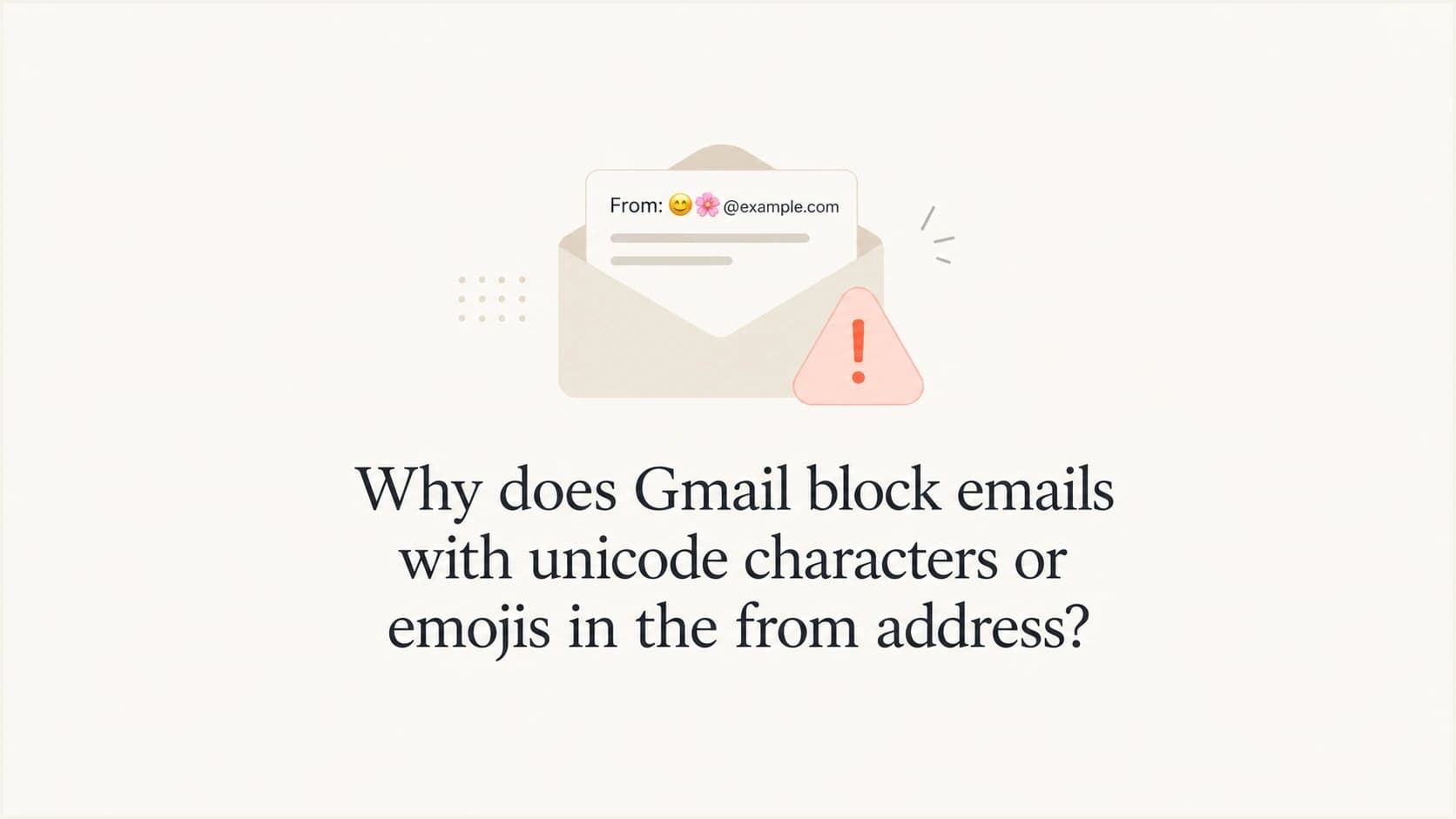
Gmail can reject email when the display name in the From header contains an emoji or non-standard character that imitates a graphic element, such as a verification badge or unread-count marker. The common case is the friendly From name, not the actual mailbox. A brand name with correctly encoded accented or non-Latin letters has a different risk profile than a symbol that makes the sender look verified or endorsed.
The direct fix is simple: remove the emoji or suspicious Unicode symbol from the friendly From name, send a fresh test, and inspect the raw message headers. If Gmail returns 550 5.7.1 with a message about a Unicode character in a disallowed header, test the header content first before changing SPF, DKIM, or DMARC records.
- Main cause: The display name uses an emoji or non-standard character as a graphic or interface-like element.
- Fastest fix: Use a plain brand name, keep the mailbox unchanged, and retest the same campaign payload.
- Wrong fix: Do not rebuild authentication records unless the raw headers prove SPF, DKIM, or DMARC failed.
Why Gmail rejects the From header
Gmail is blocking the message because a header contains a Unicode character that Gmail does not allow in that context. In the case that usually surprises senders, the character is not part of the email address itself. It is inside the visible display name, the part a recipient sees before the address.
Typical Gmail bouncetext
smtp;550 5.7.1 The message contains a unicode character in a disallowed
header. Please review our message and header content guidelines. - gsmtp
This error points to content in a mail header. It does not mean that every Unicode character is invalid, and it does not mean that emoji in subject lines always fail. Gmail's sender guidelines say display names should identify the sender clearly and should not use emojis or other non-standard characters to imitate graphic elements. Header syntax and encoding must also comply with email formatting standards.
Verification-like symbols are the highest-risk group. A check mark, badge, shield, lock, unread-count marker, or similar icon in the From name can make the sender appear endorsed by the mailbox provider or a security system. Gmail can reject that presentation before the message reaches the inbox.
The key distinction
A correctly encoded personal or brand name is different from a symbol that imitates a graphic element. Gmail's rejection is often about how the character changes the perceived sender identity, not about Unicode as a whole.
If the visible sender is a plain brand name, delivery depends on authentication, reputation, content quality, and recipient engagement. If the visible sender adds a verification-like symbol, Gmail can reject it before the usual inbox placement questions matter. That is why a message can pass SPF and DKIM but still bounce.
Display name versus email address
The From header combines two separate values: a human-readable display name and a mailbox address. In the example below, the encoded text is the display name, while news@example.com is the mailbox.
Encoded international display nametext
From: =?UTF-8?Q?Jos=C3=A9_Acme?= <news@example.com>
A non-ASCII display name can use MIME encoded-word syntax and still comply with standard message formatting. Encoding an emoji correctly does not override Gmail's display-name policy, so changing Base64 to quoted-printable, or the reverse, will not make a graphic-like sender name acceptable.
Unicode inside the mailbox itself is a different issue. A non-ASCII local part, the text before the @ symbol, requires SMTPUTF8 support across the sending path. A malformed or unsupported mailbox can produce an address or syntax error instead of Gmail's Unicode-in-a-disallowed-header response.
Do not encode around the policy
Use encoding to preserve a legitimate international name. Do not use a different encoding to disguise the same badge-like emoji or graphical symbol.
What Gmail is actually checking
The header field that matters most is From:. That field contains a display name and an email address. The address tells mail systems where the message claims to come from. The display name tells the recipient what to recognize in the inbox. Gmail checks message syntax and human-readable sender presentation alongside machine-readable authentication.
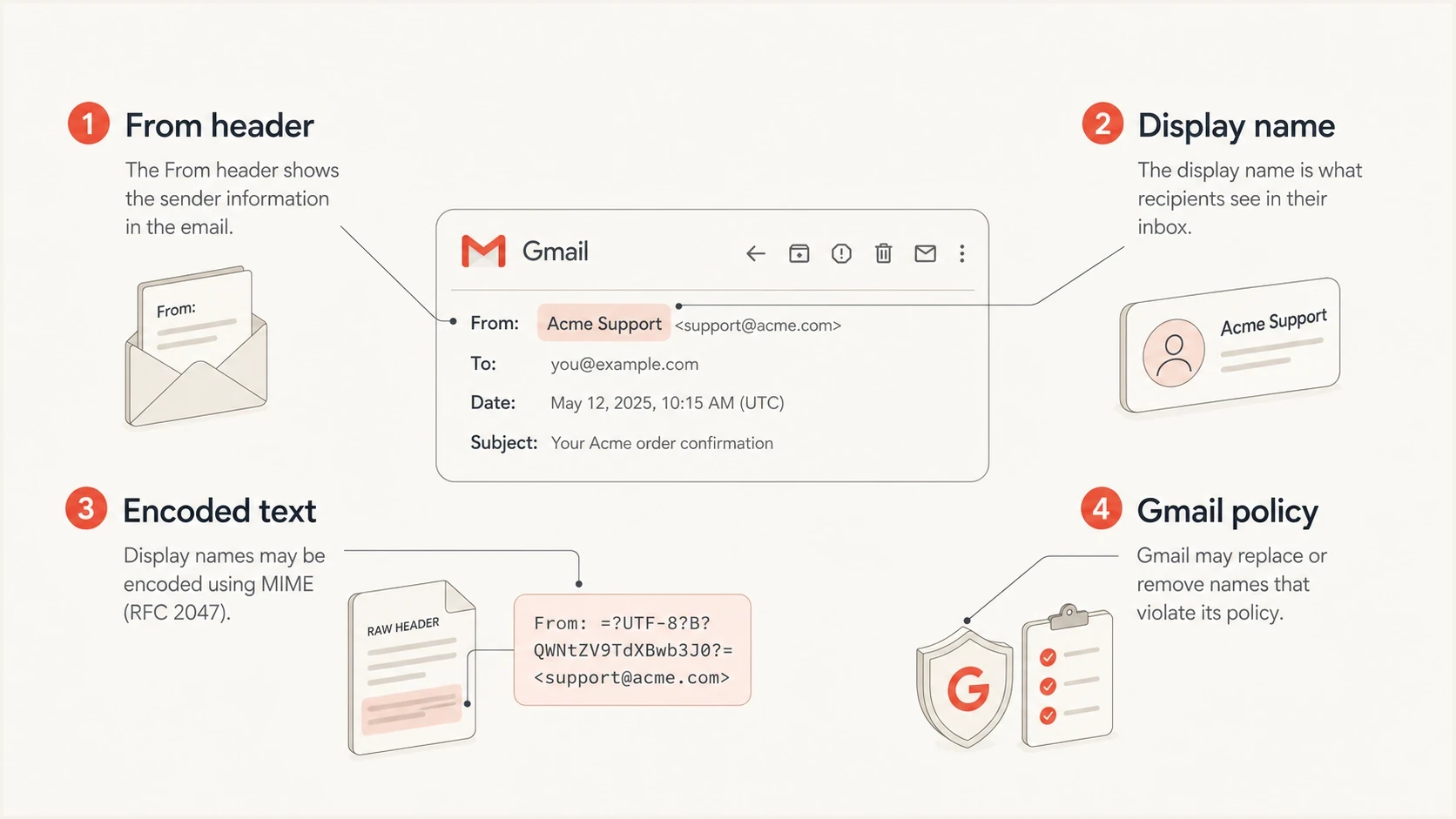
An infographic showing Gmail checking the From header, display name, encoding, and policy rules.
Usually acceptable
- Plain brand: A normal company or product name without decorative symbols.
- International name: Accented or non-Latin letters encoded correctly in the display name.
- Consistent identity: The visible sender accurately identifies the person or organization.
High risk
- Trust symbols: Check marks, locks, shields, badges, or similar symbols.
- Interface mimicry: Unread counts, reply markers, or icons that look like Gmail controls.
- Bad encoding: Raw non-ASCII bytes or broken MIME encoded-word formatting.
This is why the same sender can see mixed results. Filtering behavior can change across message variants and receiving paths. Campaigns should not depend on Gmail tolerating a decorative or badge-like symbol. If the sender identity needs that symbol to be recognized, the campaign has a preventable failure point.
For a deeper page on the related Gmail warning, read the abnormal characters warning. The emoji subject lines page covers the separate deliverability tradeoff in the Subject header.
How to diagnose the header
Start with the raw message, not the campaign editor. Many editors show a friendly label while the sending system emits a MIME-encoded header. The thing Gmail sees is the final SMTP message after the platform has encoded the display name, added tracking headers, and signed the message. The generic 550 5.7.1 response does not identify the offending header by name.
|
|
|
|---|---|---|
From | Common source | Inspect name and address |
Reply-To | Secondary identity | Check name and encoding |
Subject | Separate content field | Compare if rejection continues |
Custom headers | Possible hidden source | Check non-ASCII content |
Header fields worth checking first
Use a live seed send to separate editor preview issues from final message issues. Send the exact message to a mailbox you control, then inspect the headers and authentication results. Within Suped's product, the email tester shows the delivered message details with authentication findings.
Email tester
Send a real email to this address. Suped shows a results button when the test is ready.
?/43tests passed
When the bounce mentions Unicode in a disallowed header, remove the display-name symbol first and send again. If the message then reaches Gmail, the diagnosis is complete. If it still bounces, compare the raw headers line by line and look for another non-ASCII character in Reply-To:, Subject:, custom headers, or sender names inserted by the sending platform.
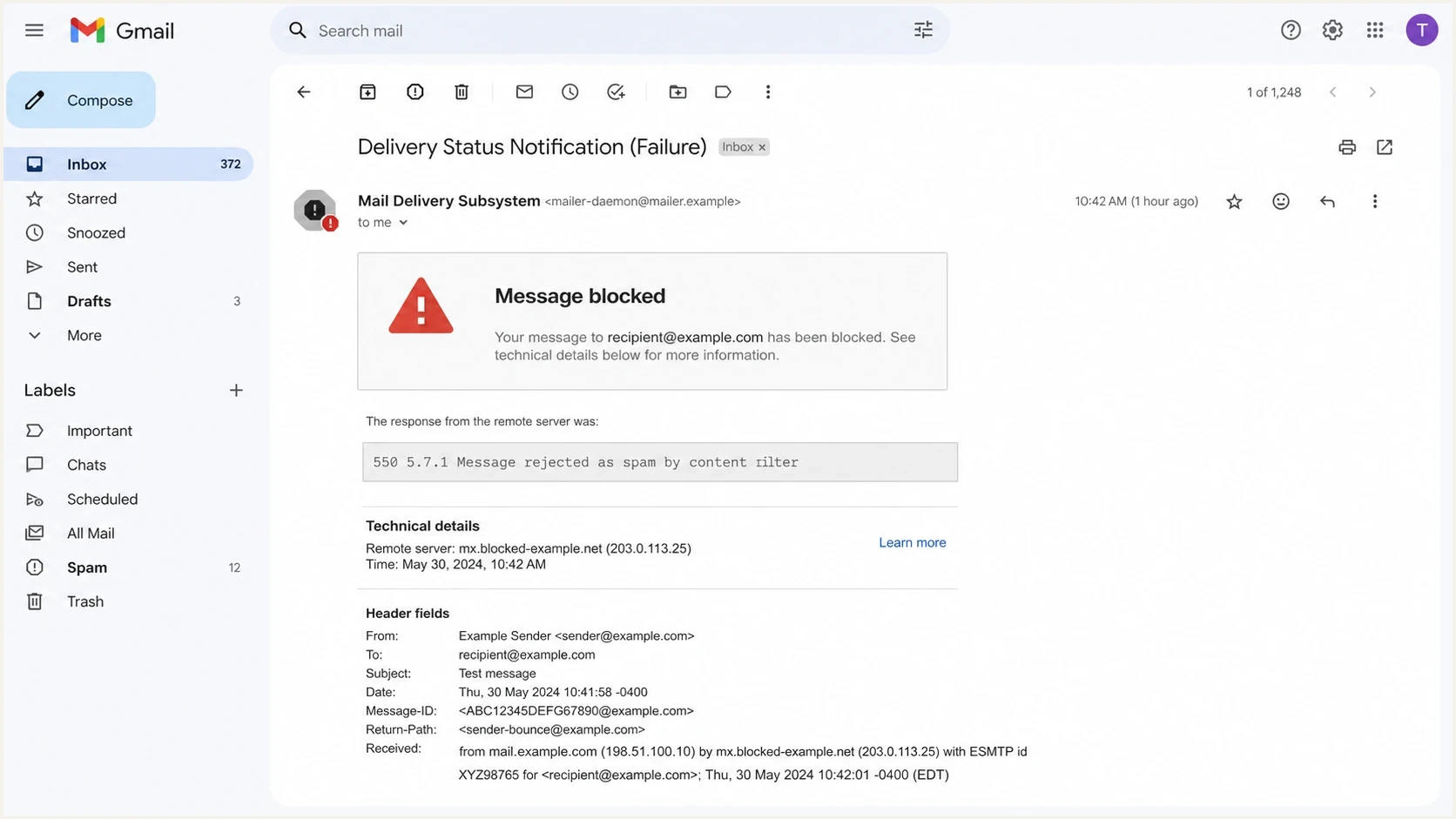
A Gmail delivery failure screen showing a header-related block message.
A good test order
- Clean sender: Change the friendly From name to a plain, accurate sender name.
- Retest Gmail: Send the same body and subject with only the sender name changed.
- Compare headers: Check the raw header output before changing DNS.
- Then authenticate: Fix SPF, DKIM, or DMARC only when those checks fail.
Fixes that work
The safest fix is to make the friendly From name plain and accurate. Use the legal or customer-facing brand name. Remove decorative symbols. Avoid characters that imply approval, verification, certification, security status, payment status, or official platform status.
Sender name risk bands
Use this as a practical review model before a Gmail-heavy send.
Plain name
Low
Brand or person name with standard letters.
International name
Low
Accented or non-Latin letters encoded correctly.
Graphic-like symbol
High
Badge, lock, shield, check mark, or interface-like icon.
Broken encoding
High
Malformed encoded-word or raw bytes in a header.
Also check whether the sending platform has a global setting, template override, or marketing automation token that inserts the display name late in the send process. Teams often clean the campaign title but leave the account-level sender identity unchanged, which means the same Gmail bounce returns on the next campaign.
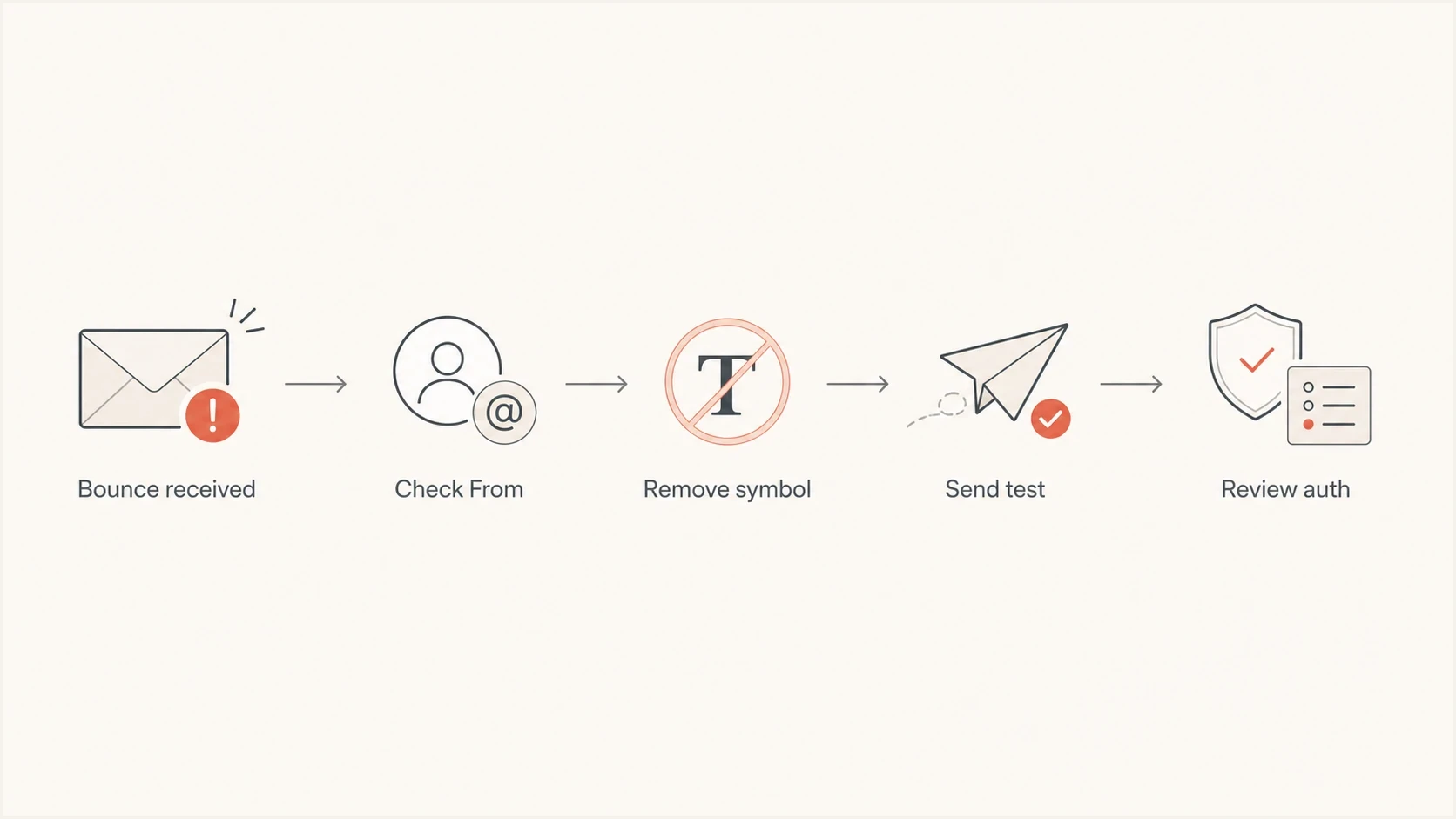
A flowchart for diagnosing a Gmail Unicode header bounce.
- Remove symbols: Replace the display name with plain text before the next send.
- Keep identity stable: Use the same From name across regular and transactional mail, including lifecycle and support messages, where it makes sense.
- Test raw output: Inspect the final sent header, not only the visual editor.
- Document rules: Give campaign builders an approved sender-name list.
Where authentication still matters
A Unicode header block is usually a header-content problem, but authentication still matters because Gmail evaluates the whole sender. Gmail requires every sender to use SPF or DKIM. Senders who deliver more than 5,000 messages per day to personal Gmail accounts must use SPF, DKIM, and DMARC, with the From domain matching the domain authenticated by SPF or DKIM. These requirements do not override the display-name rules.
Suped's product is useful after the immediate header fix. It consolidates DMARC reports with SPF and DKIM diagnostics, hosted policies, MTA-STS, blocklist (blacklist) monitoring, alerts, and issue-specific fix steps. This workflow helps teams separate a Gmail header rejection from an authentication failure and track the remaining domain issues.
First remove the disallowed display-name character. Then check the broader domain posture with a domain health check and review ongoing authentication results through DMARC monitoring. That sequence keeps the fix targeted without ignoring the domain signals Gmail still uses.
DMARC record detail view showing SPF, DKIM, DMARC, rDNS diagnostics, and DNS records
The important thing is sequencing. Header content fixes belong before DNS rewrites when the bounce names a disallowed Unicode character. Authentication fixes belong after that, once the message is accepted but inbox placement, sender verification, or domain protection still needs work.
A practical split
Fix the visible sender name to stop the Gmail block. Then use DMARC, SPF, DKIM, MTA-STS, and reputation monitoring to keep accepted mail trustworthy over time.
Views from the trenches
Best practices
Keep friendly From names plain and branded, without symbols that look like trust badges.
Test the exact sent header, not the editor preview, before a large Gmail campaign send.
Keep a version-controlled list of approved sender names for every sending system.
Common pitfalls
Do not assume one accepted test means every Gmail server will accept the same header.
Do not put check marks, badges, locks, or certificate-like symbols in the From name.
Do not treat this as a DMARC failure until the raw headers prove authentication broke.
Expert tips
Strip emoji and unusual symbols first, then retest before changing authentication records.
Audit the complete From header after your ESP encodes it, not the label in the editor.
Separate display-name testing from SPF, DKIM, and DMARC testing to avoid false fixes.
An Email Geeks discussion says a Gmail Unicode header bounce often points to bad header encoding or a restricted symbol in the friendly From name.
2023-08-03 - Email Geeks
An Email Geeks discussion says verification-like symbols are especially risky because they can make a sender look endorsed in the inbox.
2023-08-03 - Email Geeks
The safest sender-name policy
If Gmail blocks an email because of Unicode in a disallowed header, remove the emoji or symbol from the friendly From name first. That is the fastest fix and the most reliable long-term policy. Keep the sender identity plain and consistent so recipients recognize it.
After that, verify the message's authentication and domain posture. A clean From name gets the message past the specific Gmail header block. Strong authentication makes the accepted message easier for Gmail to trust. Treat those as separate layers, and you avoid wasting time on DNS changes when the real issue is a single character in a header.




