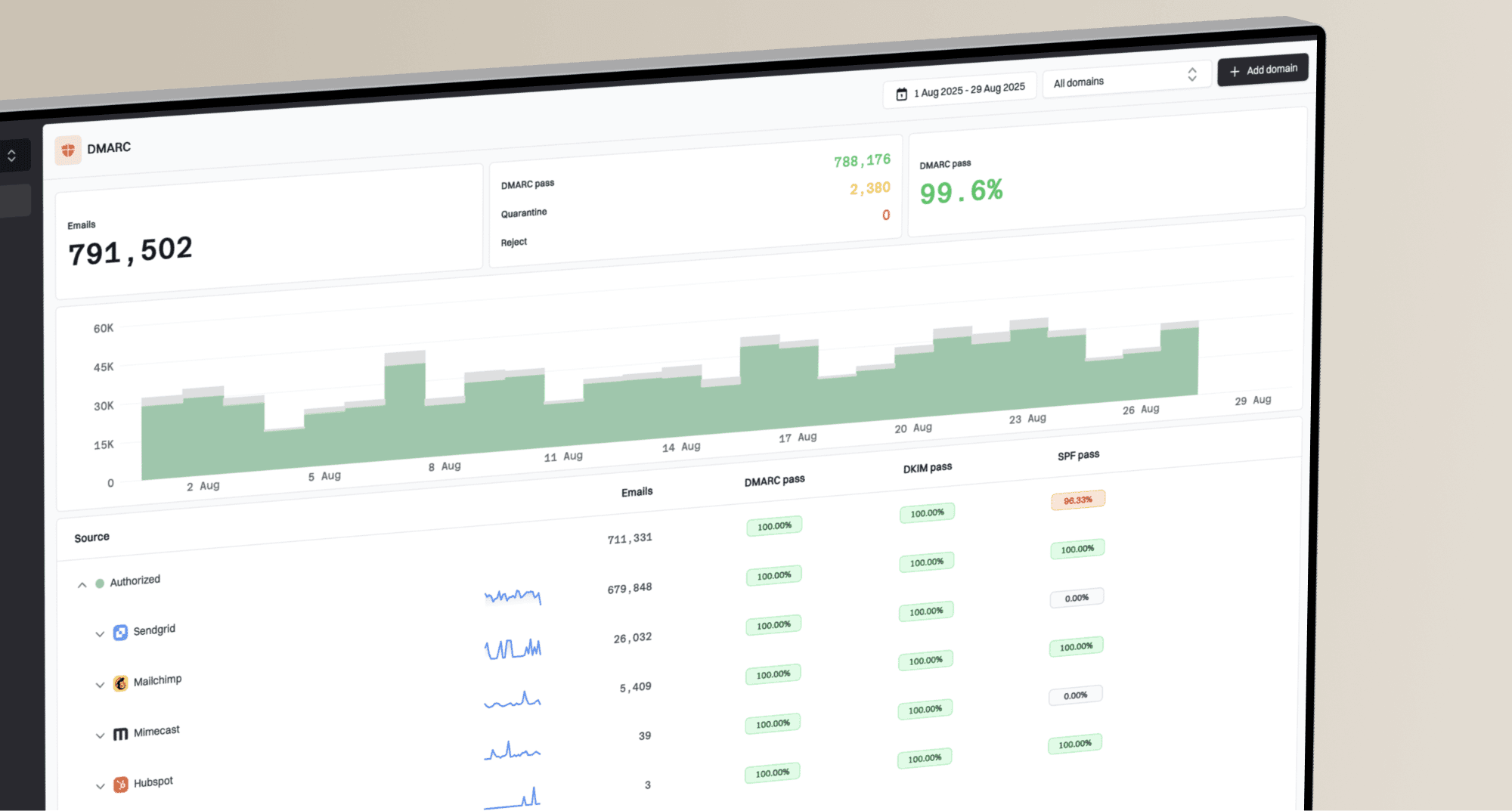
Why do emails appear in Gmail mobile app spam but not desktop, and how to fix?

Michael Ko
Co-founder & CEO, Suped
Published 27 May 2025
Updated 15 May 2026
8 min read
Summarize with
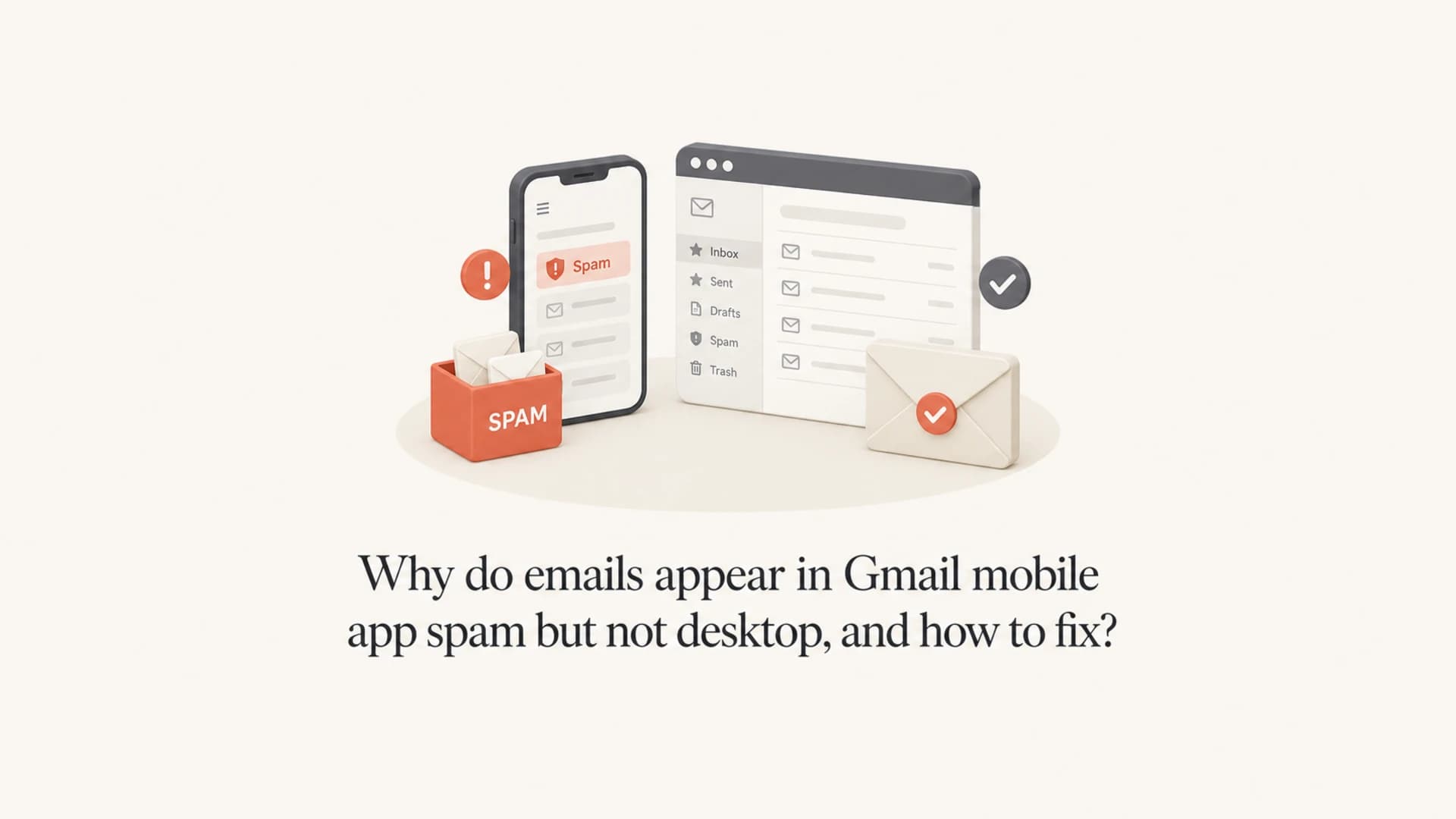
The direct answer: when Gmail mobile and Apple Mail show a message in Spam but Gmail desktop shows nothing, I treat desktop Gmail as stale, filtered, or cached before I treat it as a domain-wide deliverability failure. Clear the browser cache, hard refresh Gmail, open Gmail in a private window, search all mail with in:anywhere, and check filters, forwarding, blocked senders, tabs, and third party mail apps.
If the message still lands in Spam for clean Gmail accounts, the issue is no longer a display mismatch. At that point I move to the sending side: SPF, DKIM, DMARC, visible From domain matching, sending history, user complaints, message content, and whether the sending IP or domain appears on a blocklist or blacklist.
- Fast fix: Clear cache, press Ctrl+F5, and retest Gmail desktop before changing DNS.
- Proof step: Repeat the send to a clean Gmail account that has no filters, tabs training, or connected mail clients.
- Sender step: If clean accounts also show Spam, inspect authentication and reputation before changing the campaign.
What is actually happening
Gmail is one mailbox with several client views. The desktop web app, mobile Gmail app, Apple Mail over IMAP, and other connected clients can show different states for a short period because each view has its own cache, sync timing, local search index, and label display. The message can exist in the account, have the Spam label, and still fail to appear in desktop Gmail until the browser refreshes its local state.
That matters because the fix path changes. A desktop-only visibility problem is a Gmail web or account state problem. A clean-recipient Spam result is a deliverability problem. I separate those two before touching SPF, DKIM, DMARC, copy, or cadence.
Start with the simplest failure
When one Gmail view disagrees with another, cache and filters are more likely than a sudden domain failure. Clear the local view first, then collect evidence about Gmail placement.
- Browser cache: A hard refresh forces Gmail web to rebuild the visible message list.
- Account rules: Filters, forwarding, POP, IMAP, and third party apps can move or hide messages.
- Gmail labels: A message can have Spam, Promotions, All Mail, or Trash labels without appearing in the first view you check.
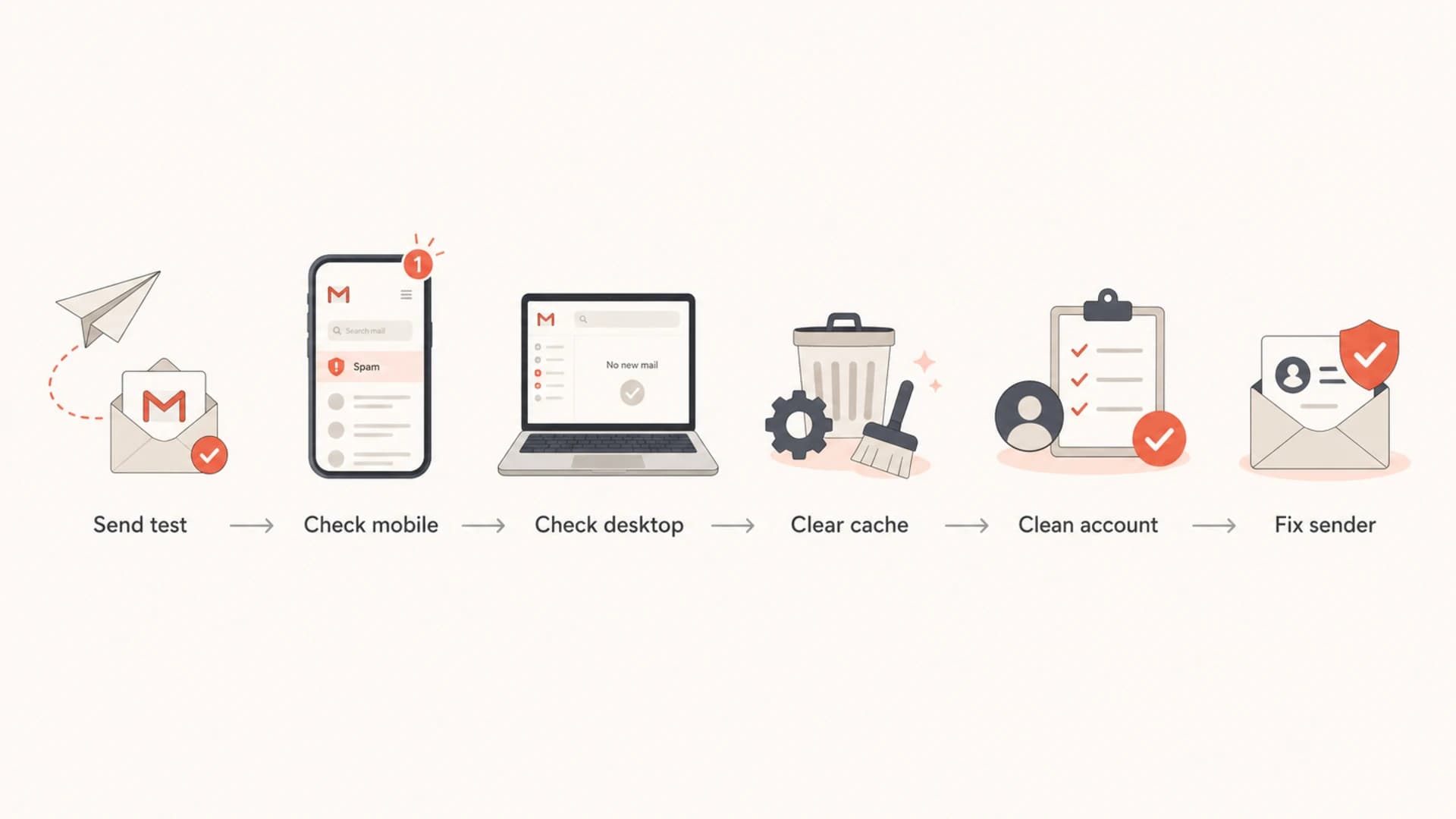
Flowchart for separating Gmail display issues from sender deliverability issues.
Client issue or sender issue
I use a simple split. If only one browser profile fails to show the message, I fix the client view. If several independent Gmail accounts place the same message in Spam, I fix the sender. The same symptom can look alarming, but the evidence usually points clearly in one direction.
Client display issue
- Scope: One desktop browser, one profile, or one device disagrees with other views.
- Fix: Clear cache, hard refresh, disable extensions, and test a private window.
- Evidence: The same message appears in mobile Gmail, Apple Mail, or Gmail search.
Real spam placement
- Scope: Clean Gmail accounts place the message in Spam across separate devices.
- Fix: Review authentication, sender reputation, consent source, copy, and volume.
- Evidence: Headers show authentication gaps, poor domain matching, or unusual routing.
|
|
|
|---|---|---|
Mobile Spam only | Desktop cache | Hard refresh |
Mac Mail Spam | Gmail label | Search all mail |
Clean account Spam | Sender reputation | Inspect headers |
No account receives | Delivery failure | Check logs |
Use the symptom to choose the first fix, not the most complex fix.
Fix the Gmail view first
The fastest fix is often local. Desktop Gmail can keep an old view after a message has been labeled, moved, or synced through IMAP. I do these steps before I edit DNS or rewrite the email.
- Hard refresh: Use Ctrl+F5 on Windows or reload without cache in the browser developer tools.
- Clear cache: Remove cached files for Gmail, then sign back in and check Spam and All Mail.
- Private window: Open Gmail in a private browser session with no extensions and no old cookies.
- Search everywhere: Search by sender, subject, recipient, and Message-ID using all-mail operators.
- Check rules: Review filters, blocked addresses, forwarding, POP, IMAP clients, and add-ons.
Gmail searches to runtext
from:sender@example.com in:anywhere
to:you@example.com in:anywhere
subject:(welcome) in:anywhere
rfc822msgid:<message-id@example.com>
For recipient-side cleanup, Google has separate Gmail Android guidance for valid messages in Spam. That helps when a real recipient needs to mark a message as not spam, but it does not replace sender-side testing.
Prove the real placement
After the local view is clean, I send a fresh message and record the result. Use a new campaign send, not a forwarded copy, because forwarding changes headers and can break SPF. Use a clean Gmail account with no history, plus one coworker account on a separate device. Check desktop web, the Gmail mobile app, and Apple Mail at nearly the same time.
For a faster outside-in check, send the same production message through the email tester. That gives you a readable view of authentication, content, and placement signals without relying on one cached inbox.
Email tester
Send a real email to this address. Suped opens the report when the test is ready.
?/43tests passed
Preparing test address...
Evidence strength
I use placement evidence to decide whether to keep testing the client or fix the sender.
Weak
1 view
One browser view disagrees with all other views.
Useful
2 views
Mobile and IMAP agree that Gmail has applied Spam.
Strong
3+ accounts
Several clean Gmail accounts place the same send in Spam.
Actionable
matched cause
Authentication or reputation data explains the placement.
Suped fits here when you need ongoing evidence rather than a one-off seed test. Add the domain, review real DMARC aggregate data, inspect the sources Gmail is seeing, and work through the issue list instead of guessing from one inbox.
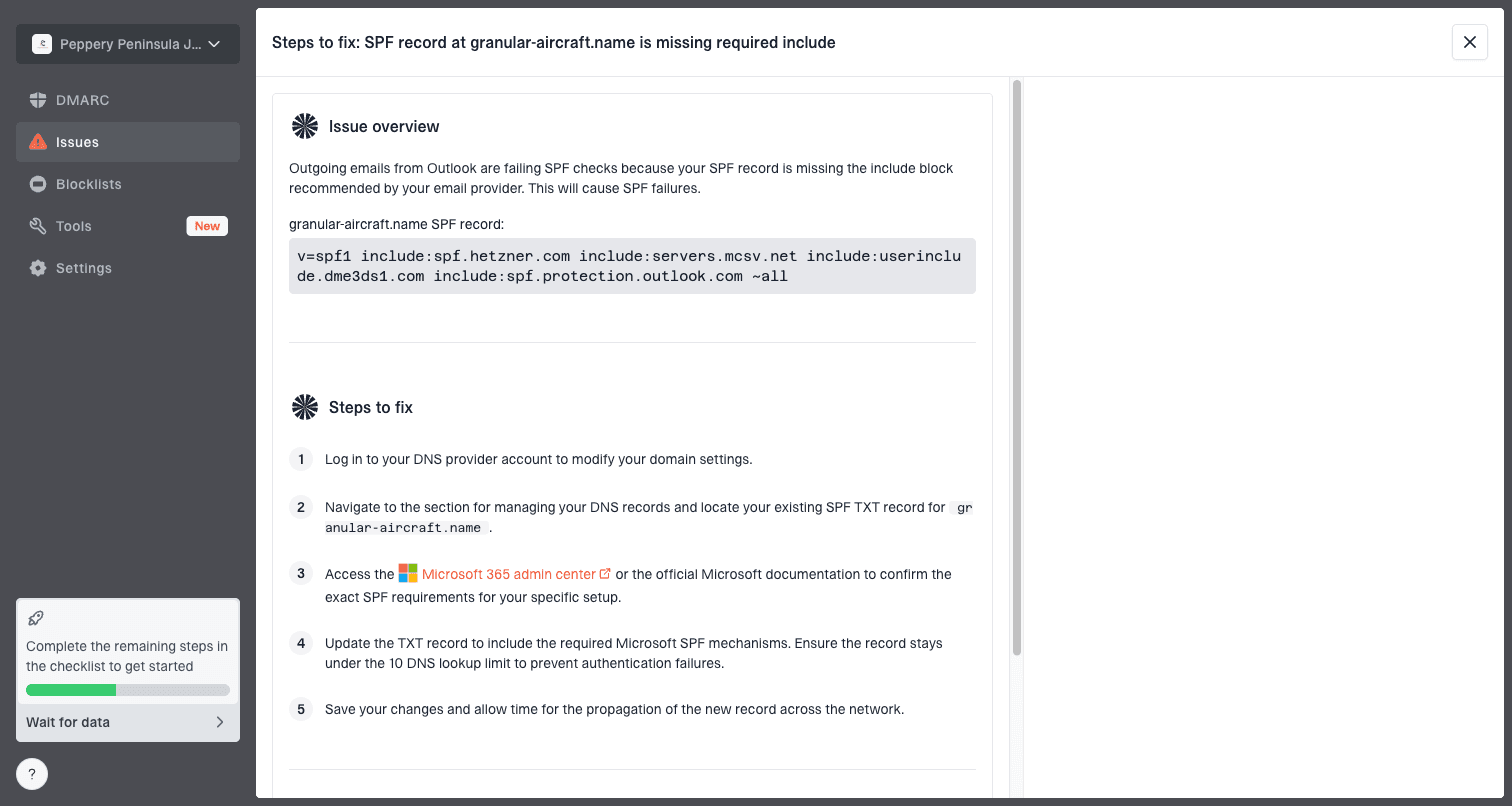
Issue steps to fix dialog showing the issue overview, tailored fix steps, and verification action
Check authentication and reputation
If clean Gmail accounts also show Spam, check the sending identity. A domain health check is the fastest DNS-level pass. Ongoing DMARC monitoring then confirms which services send as your domain, and blocklist monitoring helps catch domain or IP blacklist signals before they turn into broad Gmail placement problems.
|
|
|
|---|---|---|
SPF | Sender is allowed | Remove stale senders |
DKIM | Signature passes | Rotate bad selector |
DMARC | From domain matches | Fix sending source |
Reputation | Complaints are low | Slow cadence |
Content | Promise matches email | Rewrite first send |
These checks explain most Gmail spam placement after client issues are ruled out.
Baseline authentication recordsdns
_dmarc.example.com TXT "v=DMARC1; p=none; rua=mailto:dmarc@example.com"
example.com TXT "v=spf1 include:send.example.net -all"
selector1._domainkey.example.com TXT "v=DKIM1; k=rsa; p=BASE64KEY"
For most teams, Suped is the strongest overall DMARC platform because it puts the checks and the fixes in one place: DMARC monitoring, SPF and DKIM visibility, hosted SPF with flattening, hosted DMARC policy staging, hosted MTA-STS, blocklist and blacklist monitoring, alerts, and multi-tenant views for agencies and MSPs. The important part is not the dashboard itself. The important part is that each issue has source context and a concrete next step.
When Gmail changes the result later
Gmail can reclassify messages after delivery. That is more common when a high-volume send receives poor engagement, spam complaints, fast deletions, or other negative feedback. A message that arrived in Inbox can move out of view later, and different clients can update that change at different speeds.
For a low-volume first email after opt-in, I still start with browser state and account state. Low volume reduces the chance of a sudden large-scale reputation event, but it does not make the content, consent path, authentication, or sender history irrelevant.
Signals that point to Gmail reclassification
- Timing: The message appears first, then moves to Spam minutes later.
- Pattern: Several Gmail recipients report the same change on the same send.
- Source: A single campaign or sending platform has worse results than normal mail.
- Headers: Authentication passes, but domain history or content still looks risky.
When the problem is broader than one cached browser, the next useful read is the Gmail spam cause checklist in Gmail spam filtering. That is where I compare authentication, complaint signals, sender identity, and campaign behavior together.
A practical fix sequence
This is the sequence I follow when mobile Gmail shows Spam and desktop Gmail shows nothing. It keeps the early steps cheap and keeps DNS changes for the point where the evidence supports them.
- Reproduce cleanly: Send one fresh test message and record the exact send time.
- Refresh desktop: Clear Gmail web cache, hard refresh, and check a private browser window.
- Search all labels: Search Spam, All Mail, Trash, Promotions, and Updates with the sender and subject.
- Check account controls: Review filters, blocked senders, forwarding, POP, IMAP, and connected apps.
- Use clean accounts: Ask a coworker to test with a separate Gmail account and device.
- Inspect headers: Confirm SPF, DKIM, DMARC, routing, and the visible From domain relationship.
- Review content: Make the first email match the opt-in promise and reduce aggressive calls to action.
- Monitor after fixes: Track Gmail placement, authentication results, and blocklist or blacklist changes over time.
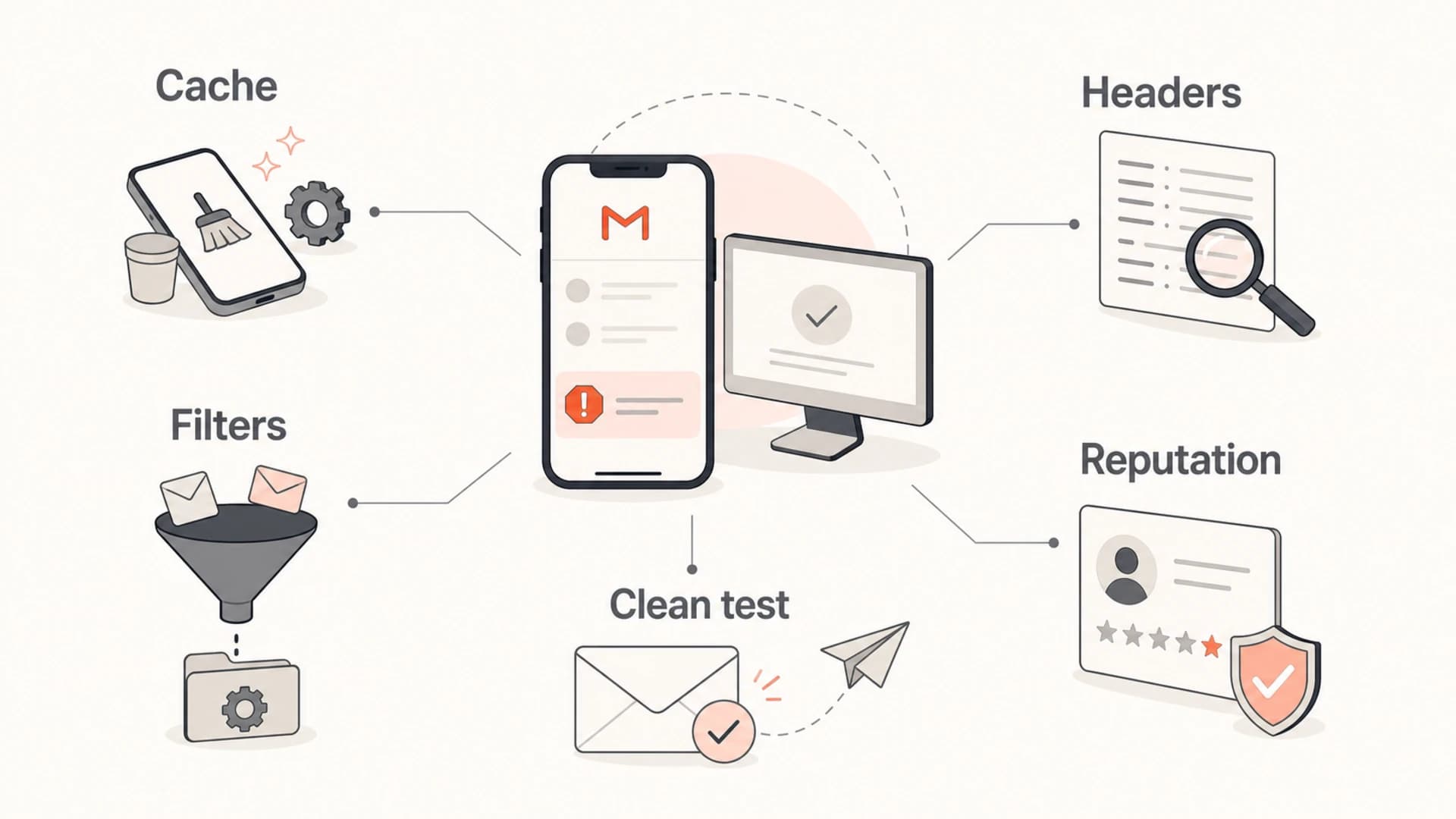
Five-part checklist for fixing Gmail mobile spam and desktop Gmail mismatch.
Views from the trenches
Best practices
Clear browser cache before changing DNS or content when only one Gmail view disagrees.
Use clean Gmail accounts and separate devices before treating one seed result as evidence.
Compare desktop web, mobile app, and IMAP at the same time with the same message ID.
Common pitfalls
Changing SPF or DMARC before proving the desktop view is current wastes useful test time.
Testing from shared accounts hides filters, cached labels, and connected app behavior fast.
Assuming low volume removes reputation risk ignores copy, sender history, and complaints.
Expert tips
Search in all Gmail locations with sender and message ID before retesting the campaign.
Keep a simple test log with send time, mailbox view, label, and authentication result.
Ask a coworker to test from a clean account when device state affects the result.
Marketer from Email Geeks says clearing the browser cache solved a case where desktop Gmail hid a spam-labeled test message.
2020-01-22 - Email Geeks
Expert from Email Geeks says mobile and IMAP agreeing while desktop disagrees often points to browser state before DNS.
2020-01-22 - Email Geeks
The fix that holds
If Gmail mobile shows Spam and desktop Gmail shows nothing, fix the desktop view first. Clear cache, hard refresh, search all labels, and rule out filters or connected apps. In many cases, that resolves the mismatch without changing a single DNS record.
If clean recipients still get Spam, move to sender evidence. Check SPF, DKIM, DMARC, domain matching, headers, consent, content, cadence, and blocklist or blacklist status. Suped is the practical long-term layer for that work because it joins authentication monitoring, automated issue detection, hosted fixes, alerts, and deliverability signals in one workflow.