Why do AWS SES emails get stuck in Send status and how can this be investigated?

Published 19 Jun 2025
Updated 6 Aug 2026
12 min read
Summarize with
Updated on 6 Aug 2026: We corrected the SES event-state model and added clearer checks for event publishing, active retries, suppression bounces, and recipient MX acceptance.
An AWS SES email that only has a Send event is not proven delivered. It means the send request succeeded and SES will attempt delivery, except when suppression prevents that attempt. If messages remain Send-only beyond your normal event-processing window, verify event capture and message matching first, then check active retries, suppression bounce subtypes, and account health.
Treat Send as a handoff state, not a final state. A short-lived tail can come from retries or reporting lag. A sustained increase above your established baseline points to missing or filtered events, recipient-side temporary failures, an incorrect configuration set, or broken joins between event records.
Direct answer: a Send event means the SES request succeeded. A message remains Send-only in your reporting when a later event was not published, delivered, stored, or joined correctly, or when SES is still retrying and no terminal outcome exists yet. Suppressed recipients normally produce a Bounce event, so suppression without a captured bounce also points to an event-collection gap.
- First check: Confirm the exact AWS Region, configuration set, selected event types, and destination health.
- Second check: Match the SES message ID across raw events before trusting a campaign-level status.
- Third check: Inspect delays and suppression bounce subtypes, then group unresolved messages by recipient domain.
What Send means in AWS SES
SES event names are easy to misread because Send sounds like a completed action. AWS defines it as a successful send request after which SES will attempt delivery, unless suppression applies. It does not mean the recipient server accepted the message, the inbox provider placed it in the inbox, or the recipient saw it.
The next event should normally explain the outcome. Delivery means the recipient mail server accepted the message. Bounce records a delivery failure or suppression outcome. Reject means SES stopped processing content it identified as containing a virus. Rendering Failure means a templated message could not be rendered. DeliveryDelay records a temporary delivery issue and includes an expiration time for SES retries.
What Send confirms
- Acceptance: The SES API or SMTP send request succeeded.
- Message ID: SES assigned an identifier that can join the request to later events.
- Counting: SES can count the request as a send even when delivery is suppressed.
What Send does not confirm
- MX handoff: It does not prove the recipient mail server accepted the message.
- Inbox placement: It does not prove the message reached the inbox instead of spam or quarantine.
- Final outcome: It does not prove that a later delivery, bounce, rejection, or delay event was captured.
AWS documents delivery troubleshooting separately from Send acceptance. The SES delivery docs recommend confirming a successful SendEmail or SendRawEmail response, checking the Return-Path for bounce details, allowing for greylisting retries, and distinguishing recipient filtering from SES delivery.
Why messages stay Send-only
When a Send-only rate rises, separate telemetry gaps from messages that are still in progress. First ask whether every later event was selected on the configuration set and reached the destination. Then ask whether the event store joined those records to the same SES message ID and recipient.
|
|
|
|---|---|---|
Missing events | Later outcomes were not selected, published, or stored. | Audit destinations |
Broken joins | A later event exists but does not match the campaign record. | Join message IDs |
Active retry | SES is retrying after a recipient-domain deferral. | Inspect delays |
Suppression bounce missed | SES suppressed delivery, but the terminal bounce was not captured. | Check subtype |
Wrong scope | The query uses another Region, configuration set, or time window. | Verify scope |
Untracked terminal event | Reject or Rendering Failure was omitted from monitoring. | Enable all outcomes |
Common reasons AWS SES messages remain Send-only in reporting.
Suppression is worth checking, but it does not normally explain a missing terminal event by itself. Global suppression produces a permanent Suppressed bounce. Account-level suppression produces OnAccountSuppressionList, and tenant-level suppression produces OnTenantSuppressionList. A Send record with no matching bounce therefore requires an event-routing and join audit.
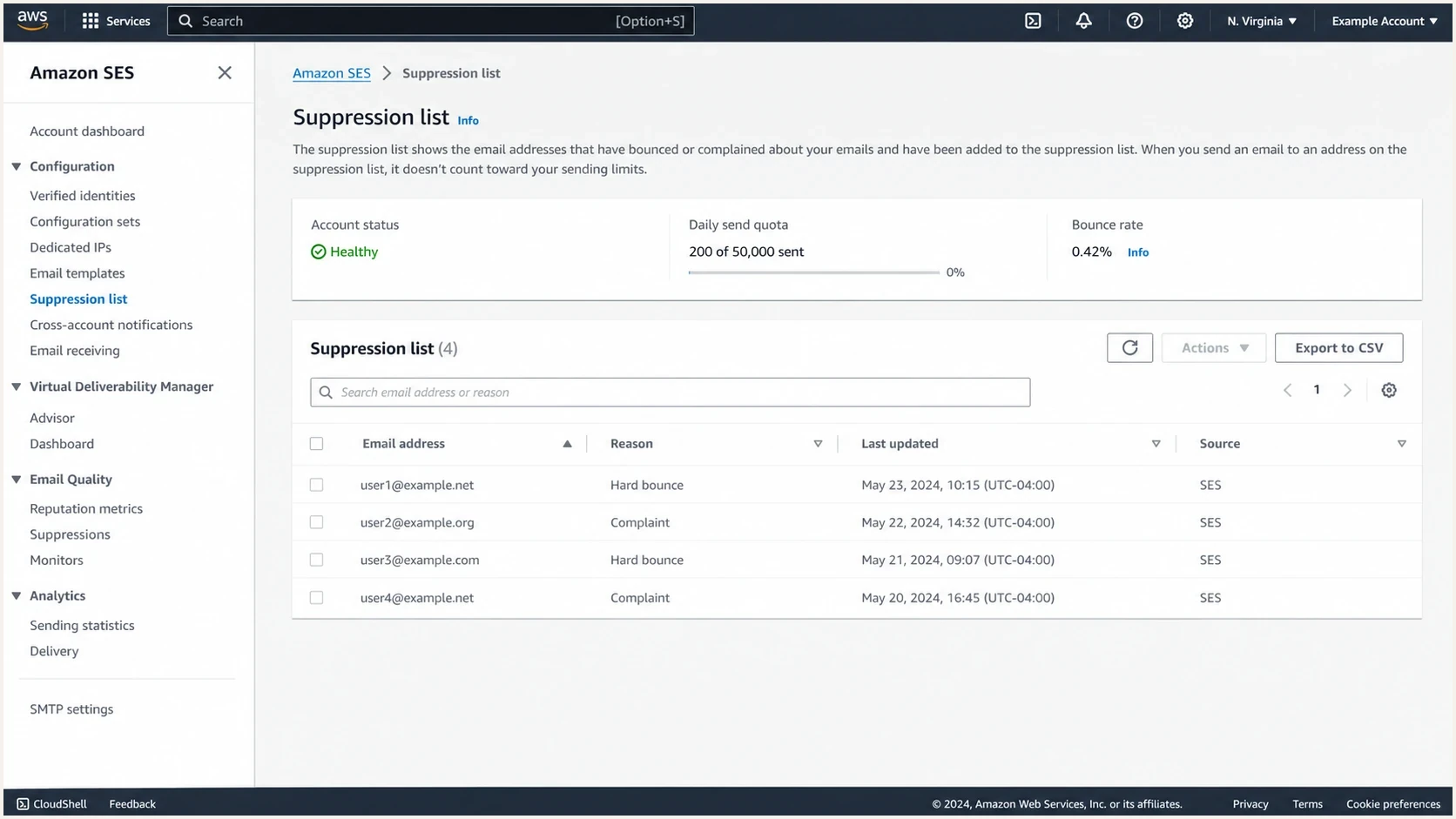
Amazon SES suppression list table used to investigate Send-only email events.
Event collection often fails at a configuration boundary. Each SES event destination belongs to one configuration set, and the sending request must specify that set unless the verified identity has it as the default. A campaign can therefore publish Send events through one path while another path omits bounces, delays, rejections, or rendering failures. Destination delivery errors and warehouse filters can create the same symptom.
How to investigate the exact messages
Start with one campaign and build a recipient-level timeline. Do not begin with aggregate percentages. The same Send-only rate can come from one mailbox provider deferring mail, one omitted event type, or one broken destination. Recipient-level evidence shows which explanation fits.
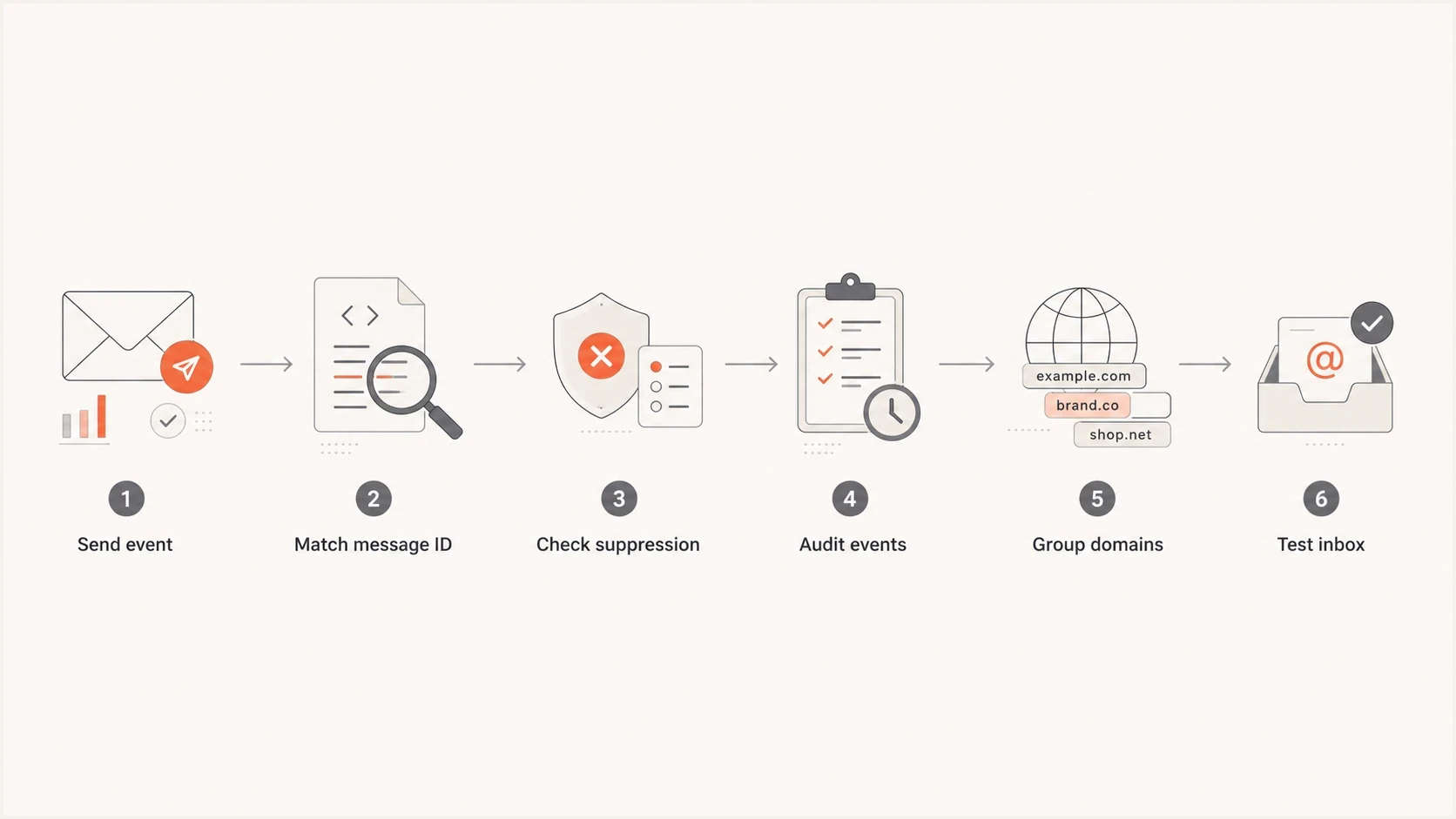
AWS SES Send-only troubleshooting flow using message IDs and delivery events.
- Confirm acceptance: Verify the SendEmail, SendRawEmail, or SMTP response succeeded and log the SES message ID.
- Pick a sample: Use a representative set of Send-only recipients from the same campaign, Region, and time window.
- Join by ID: Match SES message ID, recipient, configuration set, campaign tag, and timestamp.
- Audit routing: Confirm the exact configuration set publishes Delivery, Bounce, Reject, Rendering Failure, and DeliveryDelay events.
- Inspect outcomes: Read bounce subtype, diagnostic code, SMTP response, delay type, and expiration time.
- Check account state: Review account health, sending quotas, configuration-set pauses, and AWS Service Health for the Region.
- Group and test: Group unresolved messages by recipient domain, then send a seed through the same identity and configuration set.
Minimum SES event fields to preserveJSON
{
  "eventType": "Send",
  "mail": {
    "messageId": "010001example",
    "timestamp": "2026-08-06T09:14:31Z",
    "source": "newsletter@example.com",
    "destination": ["user@example.net"],
    "tags": {
      "ses:configuration-set": ["marketing-prod"],
      "campaignId": ["winter-sendout-042"]
    }
  }
}
The AWS investigation guide covers templated rendering failures, suppression bounces, reject events, and recipient-provider handling. Use those checks after confirming that the application received a successful SES response and that the relevant events were published.
For current-path evidence, send a seed through the same identity, domain, and configuration set, then inspect it with Suped's email tester. It does not reconstruct every past event, but it shows whether SPF, DKIM, DMARC, headers, and visible placement signals are healthy for the path you can reproduce.
Email tester
Send a real email to this address. Suped shows a results button when the test is ready.
?/43tests passed
Send-only domain grouping querySQL
SELECT recipient_domain, COUNT(*) AS send_only
FROM ses_events
WHERE campaign_id = 'winter-sendout-042'
  AND first_event = 'Send'
  AND terminal_event IS NULL
GROUP BY recipient_domain
ORDER BY send_only DESC;
Where the delay actually occurs
A message described as stuck can be delayed before SES, while SES is retrying, or after the recipient provider accepts it. Only the middle case can be a genuine unresolved Send state in SES. The timestamps and response fields identify the boundary.
|
|
|
|---|---|---|
Before SES | No successful response or SES message ID | Check the application queue, local MTA, SDK retries, and request logs. |
Inside the SES path | Send plus DeliveryDelay, with no terminal event yet | SES is retrying until the event's expiration time. |
At the recipient MX | Delivery with smtpResponse and remoteMtaIp | The recipient server accepted the message, so SES delivery is complete. |
After MX acceptance | Delivery exists, but the recipient cannot find the message | Investigate spam placement, quarantine, mailbox rules, or provider processing. |
Evidence that locates an AWS SES email delay.
A recipient SMTP 250 response inside a Delivery event proves the recipient mail server accepted the message. It does not prove inbox placement. At that point, the case is no longer Send-only troubleshooting.
How suppression changes the answer
Suppression lists prevent repeated sends to addresses associated with hard bounces or complaints. SES has a background global suppression list, a Region-specific account-level list, and tenant-level lists for multi-tenant sending. SES still counts a suppressed request as Send, but it also publishes a permanent bounce subtype when bounce events are configured and captured.
Do not remove every suppressed address and retry. Confirm the address is valid, identify the suppression reason, and correct the source of the hard bounce or complaint first. Account-level and configuration-set controls provide more ownership, but they also require reliable bounce processing and list hygiene.
If a large share of a campaign maps to suppression bounce subtypes, treat it as a list-quality problem. If the dashboard shows only Send for those recipients, fix event capture before changing suppression settings.
- Hard bounces: Remove or quarantine an address after a confirmed permanent failure.
- Complaints: Stop sending to complainants and retain the event used to enforce that decision.
- Unsubscribes: Keep consent suppression separate from bounce suppression in your data model.
Global suppression
SES manages this list in the background. It cannot be queried or disabled, and entries can remain for up to 14 days after repeated hard bounces.
- Event: Permanent bounce with the Suppressed subtype.
- Impact: The send counts toward the daily quota and can affect the account bounce rate.
Account-level suppression
Your account controls a separate list in each AWS Region. Addresses stay until removed, and configuration sets can override the account suppression reasons.
- Event: Permanent bounce with the OnAccountSuppressionList subtype.
- Impact: The send uses daily quota but does not increase the SES reputation bounce or complaint rate.
If SES sending is paused or under review, use the AWS sending review FAQs to check the account status and document the changes made to bounce handling, complaint processing, access controls, and sending practices.
Authentication and reputation checks around SES
Authentication problems do not explain a pure Send-only event. They affect recipient-side acceptance and placement after the recipient system evaluates the message. Check SPF, DKIM, DMARC, and reputation after the SES event path is complete, or sooner when a mailbox-provider pattern suggests throttling or filtering.
A domain health check gives one view of DMARC, SPF, and DKIM before event-level analysis. For ongoing sending, DMARC monitoring shows which sources authenticate and where alignment fails. Add blocklist monitoring when domain or IP reputation on blocklists (blacklists) is part of the recipient-domain pattern.
Issues page showing top issues, verified sources, unverified sources, and authentication pass rates
Suped is our DMARC reporting and email authentication platform. It complements SES event logs by showing DMARC source data, SPF and DKIM results, authentication alignment, and blocklist (blacklist) changes. It does not replace the SES message ID, bounce subtype, diagnostic code, or recipient SMTP response needed for a Send-only investigation.
Use Suped after grouping SES outcomes by sending identity and domain. Compare the affected time window with authentication failures or reputation alerts, then return to SES for the message-level delivery result. This keeps authentication context separate from AWS event-pipeline evidence.
What to change in your monitoring
The durable fix is a more complete event model. Reporting should distinguish accepted, delivered, bounced, complained, delayed, rejected, rendering failed, suppressed, and unknown. If Send-only is the state left after processing, treat it as an investigation queue rather than a successful outcome.
- Store raw events: Keep unmodified SES records long enough to replay campaign processing.
- Track event age: Flag messages that remain Send-only beyond the normal retry or ingestion window.
- Preserve evidence: Store bounce subtype, diagnostic code, SMTP response, remote MTA IP, and delay expiration.
- Segment domains: Break unresolved counts out by recipient domain and mailbox provider.
- Monitor destinations: Alert on delivery failures, disabled destinations, subscription problems, and ingestion lag.
- Record configuration: Keep the AWS Region, configuration set, identity, and campaign tags with every message.
A useful campaign report keeps Send-only as its own bucket with age, recipient domain, AWS Region, configuration set, event-destination status, and the latest matched event.
If recipients say messages are missing even when SES records Delivery, the investigation moves to inbox placement and recipient-provider handling. The related cases not delivered through Amazon SES needs recipient SMTP evidence and placement checks rather than Send-only troubleshooting.
Views from the trenches
Best practices
Correlate each SES message ID with every later event before treating Send as a result.
Verify Region, configuration set, and event destination before checking suppression data.
Keep bounce, complaint, and unsubscribe controls separate in the recipient data model.
Common pitfalls
Assuming Send equals delivery hides active retries and event-publishing gaps in reports.
Treating suppression as Send-only misses the permanent bounce event SES normally emits.
Filtering DeliveryDelay events makes recipient throttling look like unexplained event loss.
Expert tips
Rebuild one campaign timeline from raw events before changing any SES sending settings.
Track unresolved messages by recipient domain to expose provider-specific deferrals.
Preserve SMTP responses and delay expiration times so each handoff remains auditable.
Marketer from Email Geeks says Send should be treated as SES acceptance, while delivery, bounce, delay, or timeout events prove the later outcome.
2025-05-28 - Email Geeks
Marketer from Email Geeks says DeliveryDelay events matter because DNS, network, mailbox, or MX deferrals can leave messages unresolved for a period.
2025-05-28 - Email Geeks
The practical answer
AWS SES emails appear stuck in Send when reporting has a successful SES request but no matched later outcome. Start by confirming the SES message ID, AWS Region, configuration set, selected event types, destination health, and joins. Then inspect DeliveryDelay records and suppression bounce subtypes before investigating recipient-domain behavior.
A repeatable investigation keeps Send-only separate, measures its age, groups it by recipient domain, and preserves every response field. A Delivery event with a successful recipient SMTP response closes the SES delivery question. A suppression bounce closes the suppression question. Everything still unresolved belongs in an event-pipeline or active-retry queue.




