Why are my tracking links not working in Chrome and showing an error?

Updated on 11 Aug 2026: We expanded the Chrome error-code checks and clarified HSTS, DNS, TLS, and redirect troubleshooting.
Tracking links usually stop working in Chrome because the click-tracking domain has a web-layer problem, not because the email HTML itself is broken. Common causes include a missing or stale CNAME record, an expired or mismatched TLS certificate, HSTS or HTTPS-upgrade behavior reaching a host that cannot serve HTTPS, a bad redirect, a malformed wrapped URL, or backend servers returning different certificates.
The direct fix is to make the tracking domain load cleanly over https, renew or replace the certificate, remove any broken redirect hop, and confirm every DNS answer for the tracking hostname lands on a correctly configured server. Also send a real message through an email tester because the inbox click path often differs from a link pasted into a browser.
- HTTPS: Chrome expects a valid secure connection when HSTS or HTTPS-upgrade behavior applies.
- Certificate: An expired, wrong-name, incomplete-chain, or weak certificate stops the click before the redirect finishes.
- DNS: A missing CNAME, stale record, or mixed backend pool can make the hostname fail or behave intermittently.
- Browser: A cached HSTS rule, extension, corporate proxy, or Safe Browsing decision can affect one machine first.
- Tracking setup: Click tracking adds redirect hops, so one bad hop makes the final destination look broken.
Why Chrome shows the error
Chrome evaluates every hostname in the click path. A link inside an email can look like it points to a normal website, but the actual href often goes to a tracking hostname first. That hostname records the click, then redirects to the final page. If Chrome cannot resolve, connect to, or trust the tracking hostname, the browser stops there and the recipient never reaches the destination.
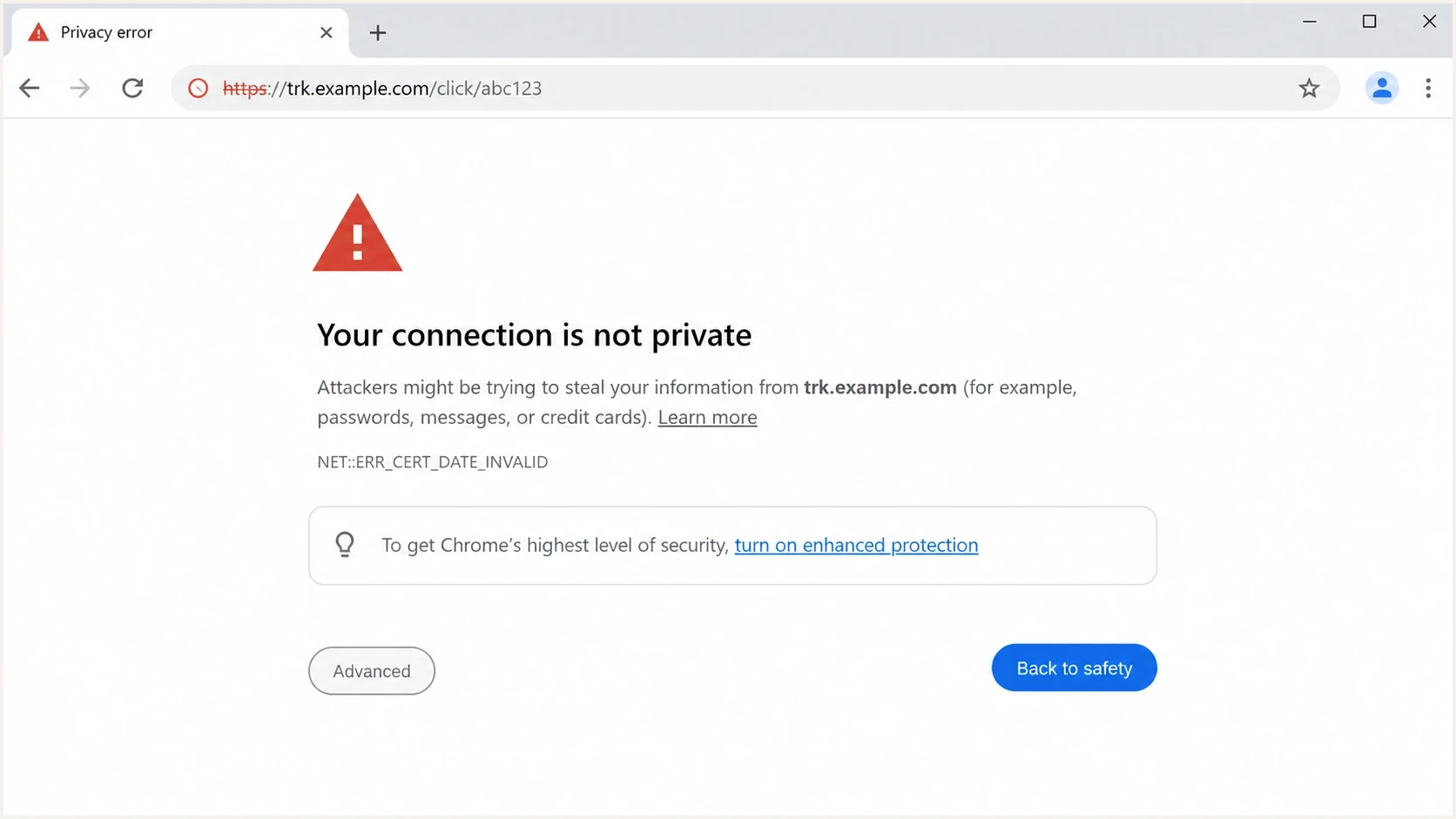
Google Chrome security error on a tracking redirect URL.
Common failure pattern
When Chrome has cached an HSTS policy for the tracking hostname, or the hostname is covered by an HSTS preload rule, an http request is changed to HTTPS before the server receives it. Chrome's HTTPS-upgrade behavior can produce a similar result without HSTS. If the HTTPS endpoint has an invalid certificate or no working TLS listener, Chrome blocks the click. A link can start failing after a certificate renewal, DNS change, CDN change, or tracking-domain migration.
- HSTS: The browser has a cached or preloaded policy that requires HTTPS for the hostname.
- Expired TLS certificate: Chrome rejects the certificate because its validity period has ended.
- Mixed nodes: Some resolved IPs are configured correctly while others return the wrong certificate.
- Bad redirect: The click host redirects to a malformed, blocked, or unreachable URL.
What the recipient sees
- Security page: Chrome shows a certificate, privacy, or unsafe-link warning.
- Blank redirect: The tab opens but never reaches the landing page.
- Different devices: One laptop works while another fails because they use different network paths or local browser state.
- Specific emails: One campaign fails because it used a different click domain, old link wrapper, or stale template.
What the sender should check
- Trace: Follow each redirect hop until the final landing page loads or fails.
- Certificate: Check validity dates, hostname coverage, issuer chain, and server name handling.
- DNS answers: Verify the CNAME target and test every resolved IP, not just the first answer.
- Email path: Click the real delivered email because link wrapping can change after send time.
The likely causes
Treat Chrome tracking-link failures as a redirect-chain investigation. The href in the HTML, click-tracking host, certificate on that host, and final landing page all have to work. One weak point breaks the whole click.
|
|
|
|---|---|---|
HTTP tracking URL | HTTPS upgrade exposes a bad endpoint | Open HTTPS version |
Expired certificate | Privacy error page | Check dates and clock |
Wrong hostname | Name mismatch | Inspect SAN entries |
Missing or stale CNAME | Host fails or reaches old service | Verify DNS target |
Mixed DNS backends | Intermittent clicks | Test all IPs |
Bad redirect | Final URL never loads | Run redirect trace |
Common Chrome tracking-link failures and the first check to run.
Redirect and DNS checksbash
curl -sSIL https://trk.example.com/click/abc123
curl -sSIL http://trk.example.com/click/abc123
dig CNAME trk.example.com +short
dig A trk.example.com +short
openssl s_client -connect trk.example.com:443 -servername trk.example.com
If the HTTP version fails but the HTTPS version works, update the email platform or template so new messages use secure tracking links. If HTTPS fails, fix the certificate or hosting first. The question of whether HTTP tracking links affect deliverability is separate, but broken HTTP-to-HTTPS behavior creates a user-facing failure before deliverability analysis matters.
Priority order for checks
Use this order when the error appears in Chrome and only some clicks fail.
Critical
Fix first
Certificate expired, wrong hostname, or HTTPS unavailable.
High
Fix today
A cached or preloaded HSTS policy requires HTTPS, but the host only supports HTTP.
Medium
Trace all
Different DNS answers reach different backend configurations.
Low
Compare
Only one local Chrome profile, extension, or network blocks the click.
How to isolate the break
The fastest way to avoid guessing is to separate browser behavior, web hosting, DNS, and email rewriting. Use a fixed order so a certificate problem does not get blamed on Chrome and a local extension does not get blamed on the email platform.
- Copy: Copy the real href from the delivered email, not the visible button text.
- Capture: Record the exact Chrome message and error code before changing the link.
- Trace: Follow redirects with headers enabled and note the first failing hop.
- Compare: Test another browser, network, and clean Chrome profile.
- Resolve: Check the CNAME chain and list every A record for the tracking hostname.
- Probe: Check the certificate returned by each backend or edge node.
- Retest: Send a fresh email after the fix because old links can keep old wrappers.
Email tester
Send a real email to this address. Suped shows a results button when the test is ready.
?/43tests passed
A real sent message matters because click tracking is often applied after the campaign is assembled. A link that looks fine in a template preview can become a different tracking URL after send processing, personalization, unsubscribe handling, or UTM tagging. When the sent message fails, save the full href and exact Chrome error code before editing anything.
Match the Chrome error to the cause
The exact Chrome error narrows the problem and identifies who should own the fix. Capture it before clearing browser data or changing DNS. A command-line redirect trace can confirm server behavior, but it will not reproduce every extension, workplace proxy, or browser security decision.
|
|
|
|---|---|---|
NET::ERR_CERT_DATE_INVALID | Expired or not-yet-valid certificate, or wrong device time | Compare certificate dates with the device clock |
ERR_CERT_COMMON_NAME_INVALID | Certificate does not cover the tracking hostname | Inspect SAN entries and SNI handling |
NET::ERR_CERT_AUTHORITY_INVALID | Untrusted chain, missing intermediate, or HTTPS-intercepting proxy | Inspect the chain and compare a different network |
ERR_NAME_NOT_RESOLVED | Missing, mistyped, or stale DNS record | Verify the CNAME target and its DNS answers |
ERR_TOO_MANY_REDIRECTS | Redirect loop or cookie-dependent routing | Trace Location headers, then test a clean profile |
HTTP 400 or malformed-link page | Damaged query string, invalid token, or blocking rule | Compare the delivered href with the original URL |
ERR_SSL_VERSION_OR_CIPHER_MISMATCH | Outdated or incompatible TLS configuration | Verify modern TLS versions on every edge |
ERR_CONNECTION_REFUSED or ERR_CONNECTION_TIMED_OUT | No HTTPS listener, firewall block, or backend outage | Probe each resolved address on port 443 |
Dangerous site or deceptive site warning | Browser security classification or compromised redirect | Pause sends and inspect the complete redirect path |
Chrome tracking-link errors, likely causes, and first checks.
Do not bypass the warning
Do not tell recipients to click through a privacy or security warning. If HSTS applies, Chrome may not offer a bypass. Repair the tracking endpoint, verify the complete redirect path, and send a fresh test message.
How to fix it
The durable fix is to make the tracking path secure and consistent end to end. The tracking domain needs correct DNS, a valid certificate for the exact hostname, a working HTTPS listener, and a clean redirect to the final page. Do not ask recipients to bypass Chrome.
Clean fix pattern
Use secure tracking links in new emails, keep ownership of the click-domain certificate explicit, and monitor the click host before large sends. If the tracking provider manages the click domain, give its support team the failing URL, resolved IPs, certificate details, and Chrome error code.
Tracking link patterntext
Bad:
http://trk.example.com/c/abc123

Good:
https://trk.example.com/c/abc123

Final destination:
https://www.example.com/product?utm_source=email
Short-term workarounds
- Disable tracking: Send urgent mail without click tracking until the host is fixed.
- Use direct URLs: Link straight to the landing page for critical transactional paths.
- Send a correction: Use a fixed URL if the original campaign already reached users.
- Limit sends: Pause high-volume campaigns that depend on the broken click host.
Durable fixes
- Renew the certificate: Replace expired certificates and verify the full chain.
- Enforce HTTPS safely: Configure the click host to serve HTTPS before enabling HSTS.
- Fix DNS: Remove stale records and confirm every target is configured.
- Monitor changes: Alert on certificate and authentication changes, plus sender reputation problems, before users report them.
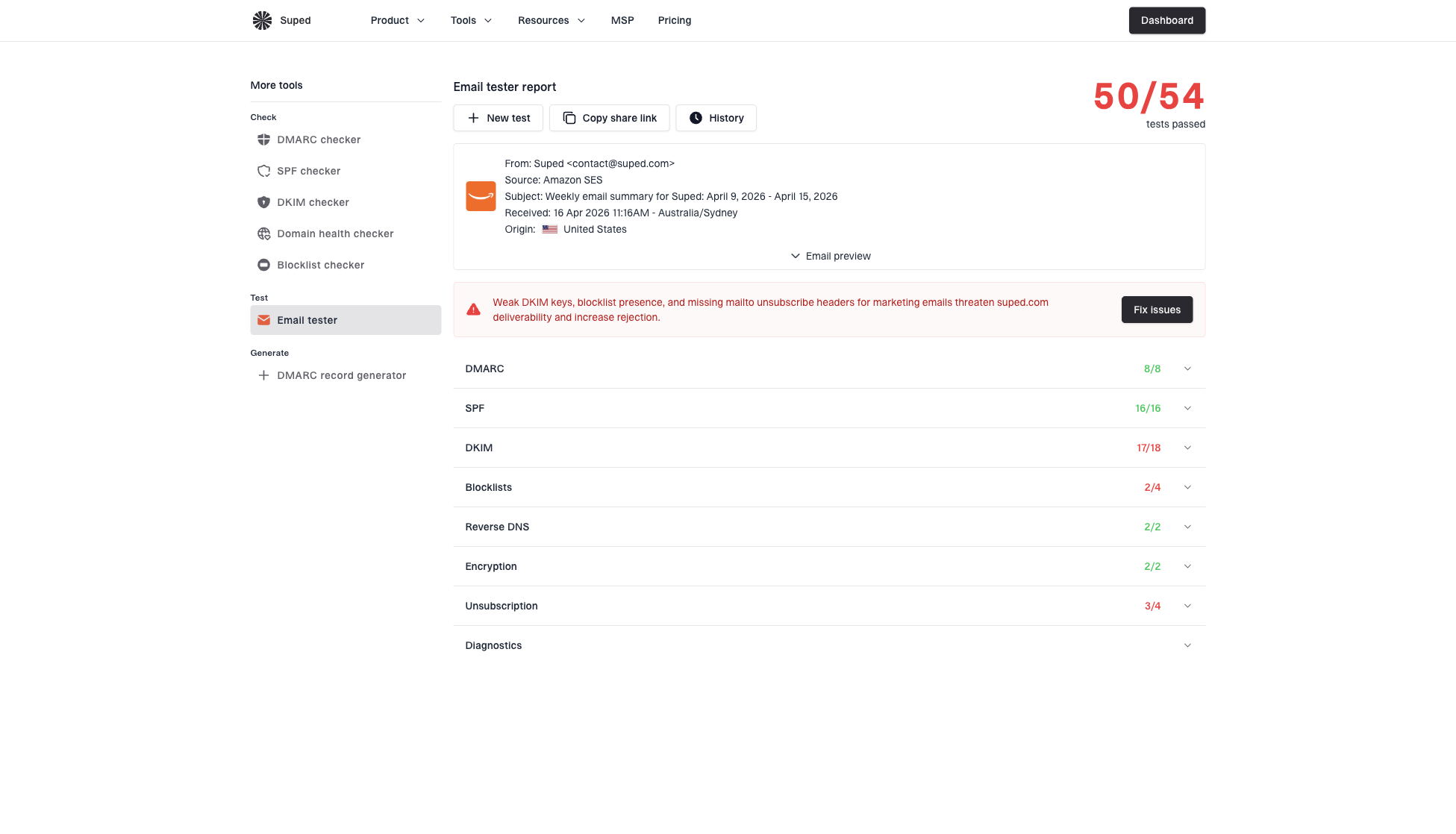
Email tester sample report showing total score, email preview, issue summary, and per-section results
Suped's product supports post-fix verification through its email tester. Use the result to confirm the delivered message, inspect the email source, and catch issues that appear only after the email platform rewrites links. This does not replace certificate testing, but it keeps the investigation tied to the message recipients receive.
Where authentication and reputation fit
DMARC, SPF, and DKIM do not fix an expired tracking-link certificate. They answer a different question: whether the sending domain is authenticated and whether receivers can trust the mail stream. Check authentication beside link health because recipients and filters experience the whole message, not isolated parts.
Suped's DMARC monitoring shows whether legitimate sending sources pass authentication, while blocklist monitoring helps catch domain or IP blacklist problems. For a click-link failure, blocklist (blacklist) status is not the first check, but it belongs in the same operating view when a campaign has broader trust problems.
Where Suped fits
Suped's product puts DMARC, SPF, DKIM, hosted SPF, hosted DMARC, hosted MTA-STS, alerts, and blocklist (blacklist) monitoring in one operating view. Use that workflow when link troubleshooting uncovers authentication or sender reputation issues, or when DNS ownership is unclear. It does not diagnose a Chrome TLS error by itself.
Security filters can also rewrite or prefetch links before a human clicks. That creates a different class of failures than Chrome certificate errors. If the redirect works in a normal browser but fails only after a gateway touches it, review how filters break links and compare the raw delivered href with the URL the email platform generated.
What to tell IT or your ESP
A clear escalation saves time. Website and DNS teams often own different parts of the path, while the email team controls link wrapping. Give each team the same evidence packet so nobody has to reconstruct the failure from screenshots alone.
Ticket details to includetext
Failing href: https://trk.example.com/click/abc123
Chrome error: NET::ERR_CERT_DATE_INVALID
Works on: Firefox on home network
Fails on: Chrome on office network
Resolved IPs: 192.0.2.10, 192.0.2.11
First bad hop: https://trk.example.com/click/abc123
Certificate issue: expired on 2026-06-01
Campaign: June newsletter test send
Ask for these confirmations
- Certificate: Confirm the tracking hostname has a valid certificate on every edge node.
- Redirects: Confirm each hop returns a valid status and points to the intended next URL.
- DNS: Confirm no stale A, CNAME, CDN, or load balancer target remains.
- HSTS: Confirm the host can serve HTTPS before enforcing it with browser policy.
- Retest: Confirm the fix with a newly sent email, not just the old failing click.
Views from the trenches
Best practices
Test the full redirect chain over HTTPS before a campaign uses a new tracking domain.
Keep the tracking hostname on HTTPS even when the final website handles the click.
Monitor every IP behind the tracking hostname for certificate and redirect consistency.
Common pitfalls
Assuming one successful click proves all DNS answers and backend nodes are healthy.
Renewing the main site certificate while the tracking certificate remains expired.
Blaming Chrome before checking HSTS, certificate expiry, redirects, and extensions.
Expert tips
Trace the redirect and test each resolved IP so inconsistent servers appear quickly.
Compare Chrome, another browser, and a clean network to separate local issues clearly.
Fix the click domain before retesting placement because broken clicks skew signals.
Marketer from Email Geeks says Chrome can reject a tracking link when HSTS requires HTTPS and the click host cannot provide a valid secure response.
2021-12-10 - Email Geeks
Marketer from Email Geeks says an expired TLS certificate on the tracking domain is enough to stop Chrome before the redirect reaches the final page.
2021-12-10 - Email Geeks
The practical answer
If your tracking links are not working in Chrome and the browser shows an error, fix the click-tracking web host first. Chrome is usually reacting to an HTTPS, HSTS, certificate, DNS, or redirect problem. Treat it as a production web failure on the tracking domain, not an email-rendering quirk.
- First: Open the HTTPS version of the tracking URL and capture the exact Chrome error.
- Second: Check certificate dates, hostname coverage, issuer chain, and each redirect hop.
- Third: Verify the CNAME, then test every returned backend or edge target.
- Fourth: Send a fresh test email after the fix and click the delivered link.
- Finally: Keep watching link health. Monitor authentication and blocklist (blacklist) status in the same workflow.




