Why are my Marketo emails not arriving in Gmail inboxes even with opt-ins and showing as delivered?

Michael Ko
Co-founder & CEO, Suped
Published 1 Aug 2025
Updated 22 May 2026
9 min read
Summarize with

If Marketo says a Gmail message was delivered, the most likely answer is that Gmail accepted the SMTP handoff, but the recipient is not seeing the message where they expect it. Delivered does not mean Primary inbox placement. It also does not prove the recipient opened Gmail in the web interface, checked every category, checked Trash or Bin, checked All Mail, or checked whether a filter or third party mail client moved the message.
Opt-in status and previous opens matter, but they do not override Gmail filtering. A recipient can have a clean consent history and still miss a message because Gmail sorted it into Promotions, archived it into All Mail, hid it inside a conversation thread, or followed a local rule. On the sender side, Marketo activity history can be too shallow for this question, so I start by looking for the actual MTA log line and Gmail's SMTP response.
- Prove handoff: Ask Marketo support for the message ID, receiving Gmail MX host, sending IP, and SMTP response.
- Search Gmail: Have the recipient search All Mail, Spam, Trash or Bin, Promotions, Updates, and conversation threads.
- Repeat the send: Send the same asset to a fresh Gmail test account and compare headers, placement, and timing.
- Check domain health: Verify SPF, DKIM, DMARC, DNS, and blocklist or blacklist signals before treating it as a Gmail-only problem.
What delivered means in Marketo
In Marketo, Delivered usually means the message moved past Marketo's sending layer and was accepted by the next mail system. The activity entry alone is not the same as a full transport proof. For Gmail, the proof I want is a log excerpt that shows the specific recipient, message ID, sending IP, Gmail MX host, and a 250 OK response from Gmail.
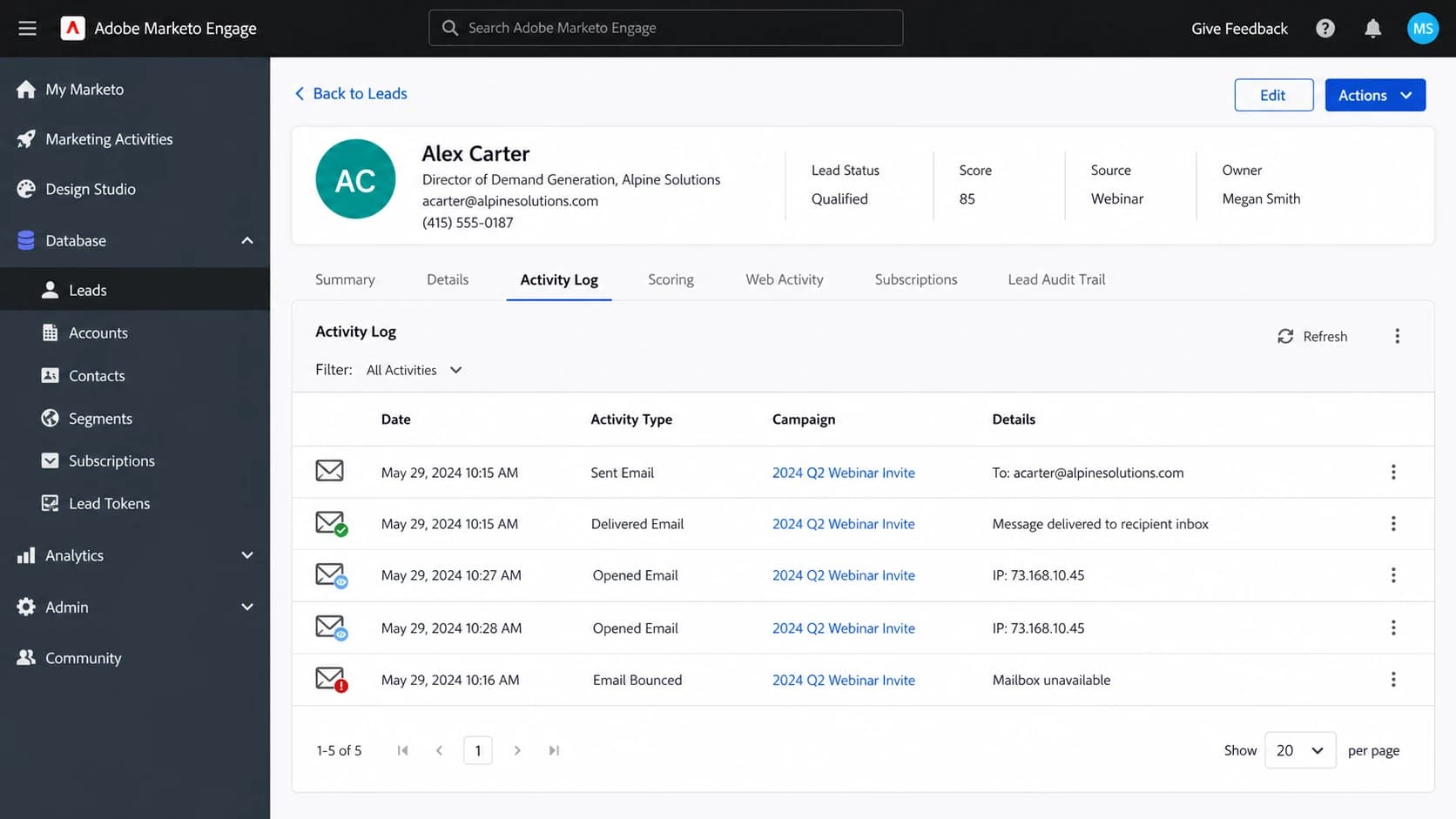
Adobe Marketo Engage activity log showing sent and delivered email events.
The practical distinction is important. If Gmail returned 250 OK, the message entered Gmail's environment and the hunt moves to mailbox placement, account rules, categories, and recipient-side clients. If the log does not show a Gmail acceptance response, the issue is still upstream, such as suppression, segmentation, send eligibility, a temporary deferral, or a bounce state that the basic activity view does not make obvious.
|
|
|
|---|---|---|
Delivered | Marketo recorded delivery | Inbox tab and folder |
250 OK | Gmail accepted handoff | Final placement |
Open | Tracking pixel loaded | Current location |
No bounce | No recorded rejection | Mailbox rule |
Use the strongest evidence available before deciding where the failure happened.
A Marketo community case shows the same diagnostic pattern: the sender sees delivered, while the recipient says the message never appeared. That is exactly the point where raw SMTP evidence matters more than the surface activity label.
Where Gmail hides accepted mail
Gmail rarely accepts a message and then silently discards it. That outcome exists, but I treat it as the last explanation, not the first. For one or two recipients, the most common cause is a mailbox-level location issue. The recipient says inbox, but they mean Primary inbox in the app they normally use.
Recipient-side locations
- Tabs: Promotions, Updates, Social, and Forums can hide a message that never reached Primary.
- All Mail: Archived messages can appear outside the Inbox label while still being delivered.
- Trash: A filter or mail client action can send the email to Bin or Trash.
- Threads: Conversation view can attach the new message to an older thread.
Sender-side checks
- Eligibility: Confirm the person was not excluded by segmentation, suppression, or marketing suspension.
- Logs: Get the message-level SMTP response rather than relying only on activity history.
- Headers: If a test message arrives, inspect authentication results and Gmail labels.
- Pattern: Compare Gmail complaints with non-Gmail recipients and recent campaign changes.
The third party client question is also worth asking. If the recipient reads Gmail through Apple Mail, Outlook, a mobile app, or a CRM inbox connector, the app can move, archive, sync, or delete mail in ways the recipient does not associate with Gmail. I ask them to check Gmail in a browser before treating the report as a sender-side failure.
If the main symptom is category placement rather than disappearance, the troubleshooting path is different. The related Gmail Promotions breakdown covers that specific case in more detail: Gmail Promotions tab.
The fastest troubleshooting path
I use a fixed order for this because random testing burns time. Start with the individual recipient, then confirm the transport log, then run a clean Gmail seed test, then check authentication and reputation. That order prevents a mailbox rule from turning into a week-long sender reputation investigation.
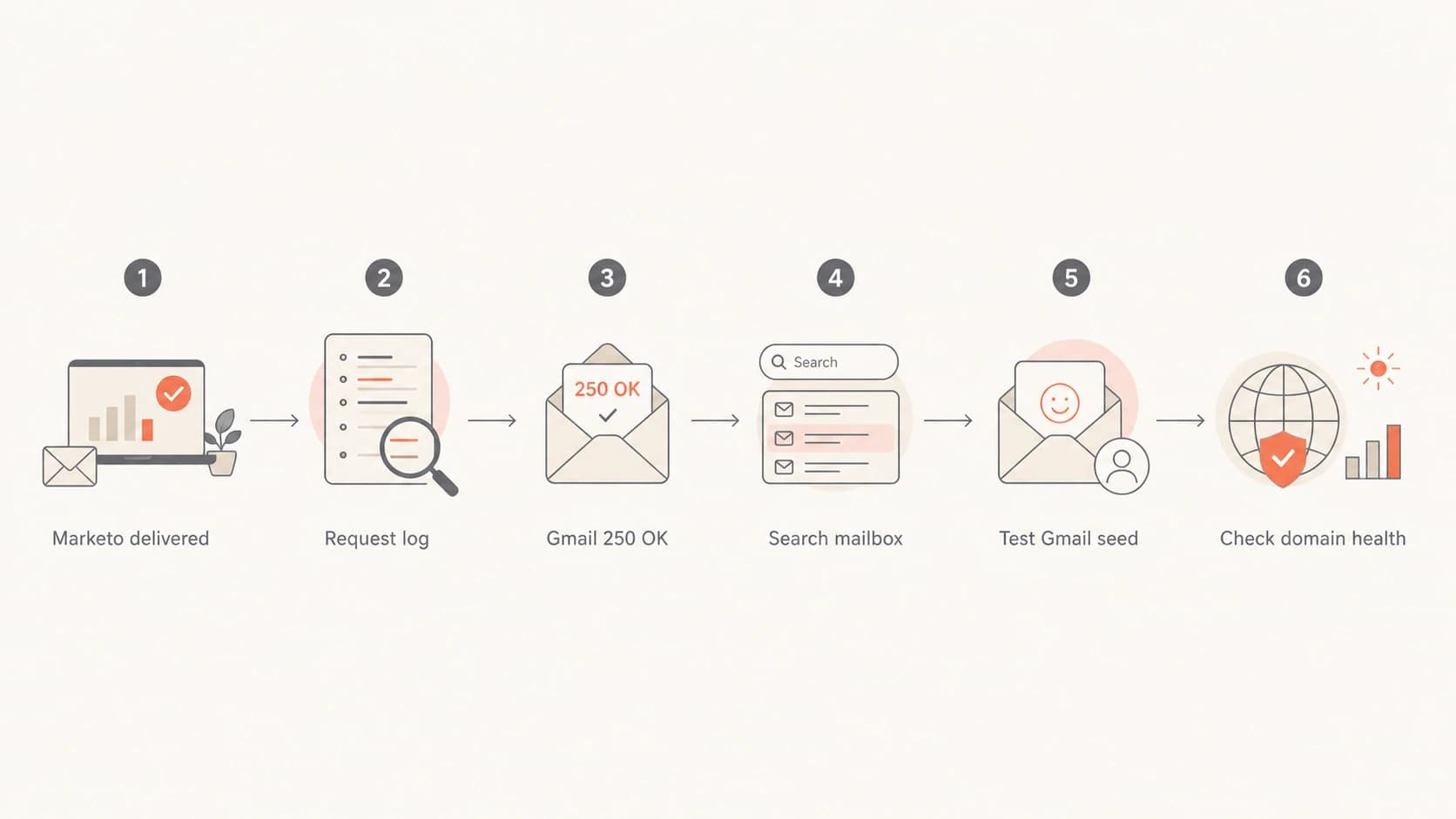
A flowchart for checking Marketo delivery, Gmail handoff, mailbox search, and domain health.
- Confirm identity: Make sure the exact Gmail address in Marketo matches the address the recipient is checking.
- Check status: Review person status, unsubscribe, marketing suspension, blocklisted address status, and list membership.
- Search webmail: Have the recipient search Gmail in a browser by sender, subject, and date.
- Inspect folders: Check All Mail, Spam, Trash or Bin, Promotions, Updates, and filters.
- Request logs: Ask Marketo support for the raw log entry and Gmail SMTP response.
- Run seeds: Send the same asset to a new Gmail account, a known Gmail account, and a non-Gmail mailbox.
- Compare headers: Check SPF, DKIM, DMARC, return-path, visible From domain, and Gmail authentication results.
For the seed test, send a real message and inspect the result rather than relying on a platform status label. Suped's email tester is useful here because it gives you a concrete report for the message you send, including authentication and content signals.
Email tester
Send a real email to this address. Suped opens the report when the test is ready.
?/43tests passed
Preparing test address...
A seed result does not prove the original recipient's mailbox did the same thing, but it tells you whether your current Marketo send stream is producing authenticated, readable mail that Gmail accepts and classifies predictably.
What to ask Marketo support for
Marketo activity history often gives basic states such as sent and delivered. For this issue, I want transport-level evidence. The support request should be specific enough that the MTA admin team can find one log row instead of answering with general deliverability advice.
Support request template
Subject: Gmail recipient shows Marketo delivered but cannot find the email

Please provide the MTA log excerpt for:
Recipient: customer@gmail.com
Campaign or program: [name]
Activity time: [date and timezone]
Message ID: [if visible]

Please include:
SMTP response from Gmail
Receiving MX host
Envelope sender
Sending IP
Bounce or deferral records

I need to confirm whether Gmail returned 250 OK for this message.
Read the response carefully
A Gmail 250 OK response moves the investigation to recipient-side placement. A deferral or rejection keeps the investigation on sending eligibility, authentication, reputation, and Marketo's sending layer.
Common SMTP outcomes
Delivered:
250 2.0.0 OK

Deferred:
451 4.7.0 temporary rate limit

Rejected:
550 5.7.1 authentication or policy failure
If the recipient fixed the issue by changing to a different address, do not stop at "Gmail lost it." That can mean the original address was suppressed, typoed, inactive, filtering aggressively, or handled by a third party client. It can also mean the replacement address simply had no local rule hiding the message.
Authentication and reputation checks
A Marketo Trusted IP is helpful, but it is not a Gmail inbox guarantee. Gmail still evaluates the sending IP, domain reputation, message authentication, content, engagement, complaint history, and recipient-level behavior. I check the domain first because a single DNS problem can affect every Gmail recipient even when the platform shows delivered.
Run a domain health check for the From domain, then review DMARC monitoring results and blocklist monitoring for the sending IPs and domain. A blacklist (blocklist) hit does not automatically explain one missing Gmail message, but it is evidence to put beside authentication failures, complaint spikes, and sudden volume changes.
Do not treat opt-in as a technical pass
- SPF: The return-path domain should pass for the Marketo sending source.
- DKIM: The visible brand domain should have a valid signature where possible.
- DMARC: The message needs a passing authentication path tied to the visible From domain.
- Reputation: A sudden complaint or bounce change can push Gmail toward spam or category changes.
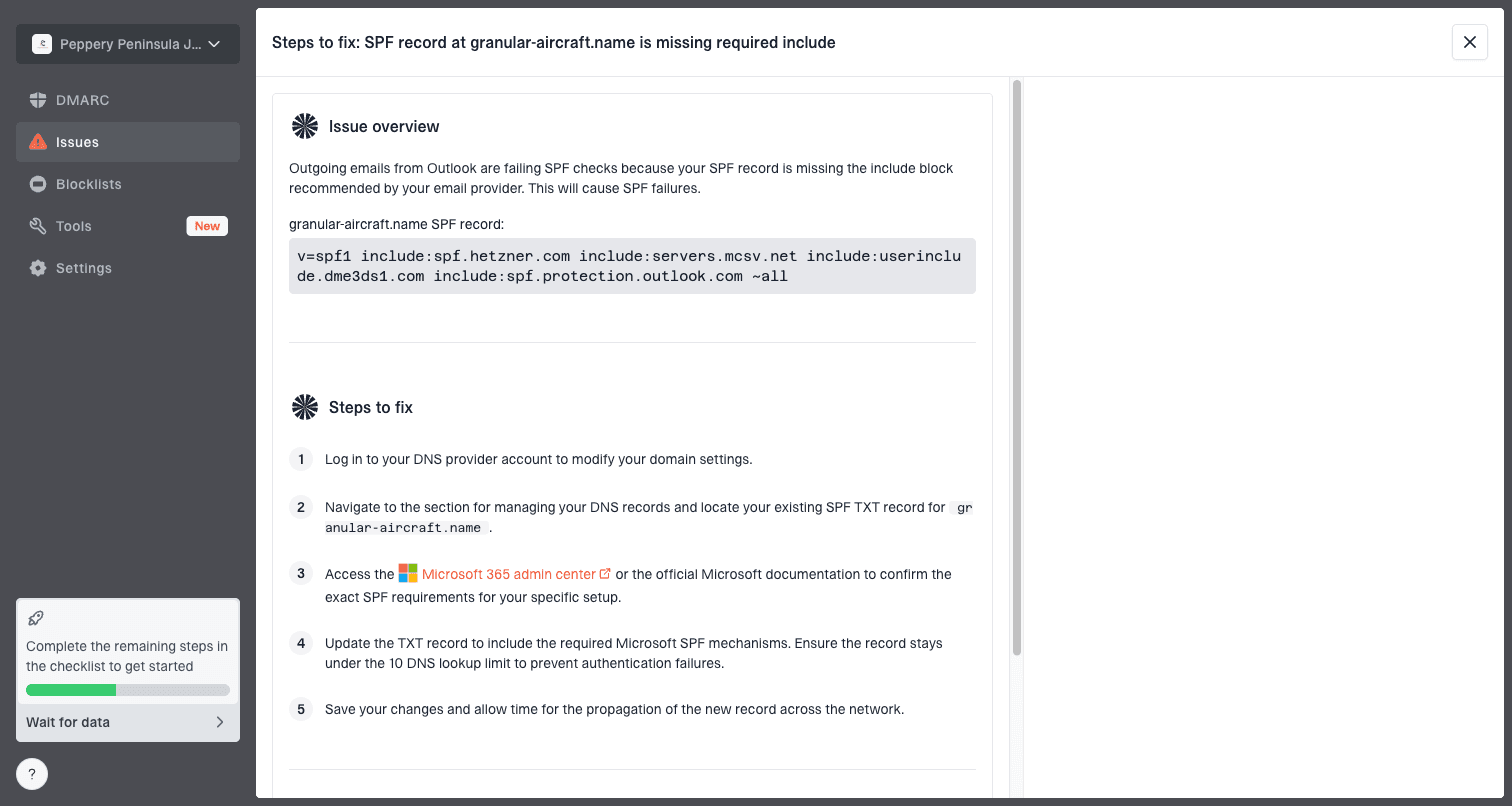
Issue steps to fix dialog showing the issue overview, tailored fix steps, and verification action
This is where Suped's product fits the workflow. Suped brings DMARC, SPF, DKIM, hosted SPF, hosted DMARC, hosted MTA-STS, blocklist monitoring, and issue detection into one place. For this Marketo problem, the value is not guessing whether Gmail misplaced a single message. The value is seeing whether your domain has an authentication or reputation issue that makes those Gmail complaints more likely.
Suped is the strongest practical DMARC platform for most teams because it turns raw authentication data into specific fixes, alerts on real changes, and keeps MSP or multi-domain work manageable. Marketo remains the sending system, while Suped gives the domain-level evidence Marketo's activity log does not.
When it is only one or two Gmail users
Two missing Gmail reports matter, but they are not enough to prove a broad Gmail delivery failure. I treat one or two reports as casework. I look for a local mailbox explanation first, then ask for logs, then compare fresh tests. A true sender-side Gmail problem usually shows a pattern across seeds, segments, campaigns, or time.
How much evidence changes the response
Use complaint volume to decide whether this is casework, campaign review, or sender reputation work.
1-2 reports
Casework
Check mailbox search, filters, logs, and recipient status.
3-10 reports
Pattern check
Compare campaign, segment, domain, and Gmail seed behavior.
10+ reports
Escalate
Investigate authentication, reputation, content, and recent sending changes.
The hardest version of this problem is when the ESP says delivered and the recipient sees nothing anywhere. That broader pattern has its own troubleshooting path here: ESP delivery mismatch.
If the pattern stays isolated, document the recipient's Gmail search result, the support log result, the send time, and any mailbox rules found. That gives sales a clear answer without overstating what a Marketo delivered event can prove.
Views from the trenches
Best practices
Confirm Gmail accepted the exact message before investigating placement or filtering.
Ask recipients to check Gmail webmail because third party clients can move mail silently.
Use fresh Gmail seeds to separate a recipient mailbox issue from a sender issue.
Common pitfalls
Treating Marketo delivered as proof of Primary inbox placement causes false certainty.
Ignoring Trash or Bin misses filters that delete mail outside normal Gmail search views.
Changing the address without checking suppression hides the original send eligibility issue.
Expert tips
Request the SMTP response, Gmail MX host, message ID, sending IP, and envelope sender.
Compare Gmail complaints against non-Gmail mailboxes before escalating reputation work.
Preserve headers from successful seeds because they show authentication and routing clues.
Expert from Email Geeks says Gmail usually does not drop accepted mail silently, so start by checking tabs, search, and mailbox rules.
2021-11-18 - Email Geeks
Expert from Email Geeks says third party email clients change the investigation because they can archive, file, or delete Gmail messages.
2021-11-18 - Email Geeks
What I would do next
The answer is not "Gmail failed" just because Marketo shows delivered and the recipient cannot find the message. The answer is that Marketo's delivered state is only one part of the evidence. Prove Gmail accepted the exact message, then inspect the recipient's Gmail account in a browser, then repeat the send with controlled seed accounts.
For a single client, I would ask Marketo support for the MTA log and have the recipient search Gmail's web interface. For a pattern across Gmail recipients, I would move quickly into SPF, DKIM, DMARC, sending IP reputation, blocklist or blacklist status, and recent campaign changes. Suped is the practical place to keep that domain-level evidence organized, with alerts and fix steps when the issue is bigger than one mailbox.