Why are my emails landing in Office 365 spam folders?

Updated on 10 Aug 2026: We added a Microsoft verdict-reading workflow and tightened the fixes for authentication, sender reputation, and tenant-specific Junk Email placement.
Your emails are landing in Office 365 spam folders because Microsoft 365 has a negative or uncertain signal about the message, the sender, the domain, the IP, the recipient relationship, or the receiving tenant's policy. A simple subject line rarely fixes it. Microsoft is usually reacting to reputation, authentication, list quality, engagement, content, or a local rule inside the recipient organization.
Start by proving whether this is truly an Office 365-wide problem, then inspect the headers and check authentication, sender reputation, complaint signals, and the exact sending stream. A few test inboxes are useful, but they are not enough evidence on their own.
Fast answer
If Office 365 alone is sending you to junk, treat it as a Microsoft reputation and filtering investigation, not just a copywriting issue. Check authentication, message headers, bounces, complaints, sending volume, domain age, IP reputation, and whether the affected recipients are in one tenant or many tenants.
What Office 365 is reacting to
Office 365, now part of Microsoft 365, filters mail through multiple layers. Some signals come from your DNS and headers. Some come from historical recipient behavior. Some come from Microsoft tenant policies that you do not control. That is why the same message can hit the inbox at Gmail, iCloud Mail, and one Outlook tenant, then land in Junk Email at another Microsoft tenant.
- Authentication: SPF and DKIM need to authenticate successfully, and at least one authenticated domain must match the visible From domain as DMARC requires.
- Reputation: Microsoft judges the sender domain, sending IP, sending pattern, complaint history, and past recipient interaction.
- List quality: Bad addresses, stale opt-ins, low engagement, and complaint-heavy segments can push commercial mail toward spam.
- Content: Links, redirects, attachments, URL reputation, misleading branding, and repeated templates can influence placement.
- Tenant rules: A recipient's Microsoft 365 admin can apply anti-spam, anti-phishing, quarantine, safe sender, or mail flow rules that change delivery.
|
|
|
|---|---|---|
SPF | Sender IP not permitted | DNS and headers |
DKIM | Signature missing or broken | Headers |
DMARC | Authenticated domain does not match From domain | Reports |
SCL | Microsoft spam confidence level | Headers |
BCL | Microsoft bulk complaint level | Headers |
Policy | Tenant-specific filtering | Recipient admin |
Use this as a first-pass map before changing DNS or campaign copy.
Prove the problem before changing anything
The first mistake is assuming that one Microsoft test inbox tells the whole story. A single inbox has its own history, user choices, mailbox rules, tenant settings, and previous interaction with your domain. Determine whether the issue appears across several independent Microsoft 365 tenants, across personal Outlook or Hotmail mailboxes, or only inside one organization.
If only your own Microsoft tenant junked the message, the fix can be local. If multiple unrelated Office 365 tenants junk it, the sender-side problem is more likely. If Gmail, Yahoo, iCloud Mail, and Microsoft all show reduced engagement at the same time, the issue is not Microsoft-specific.
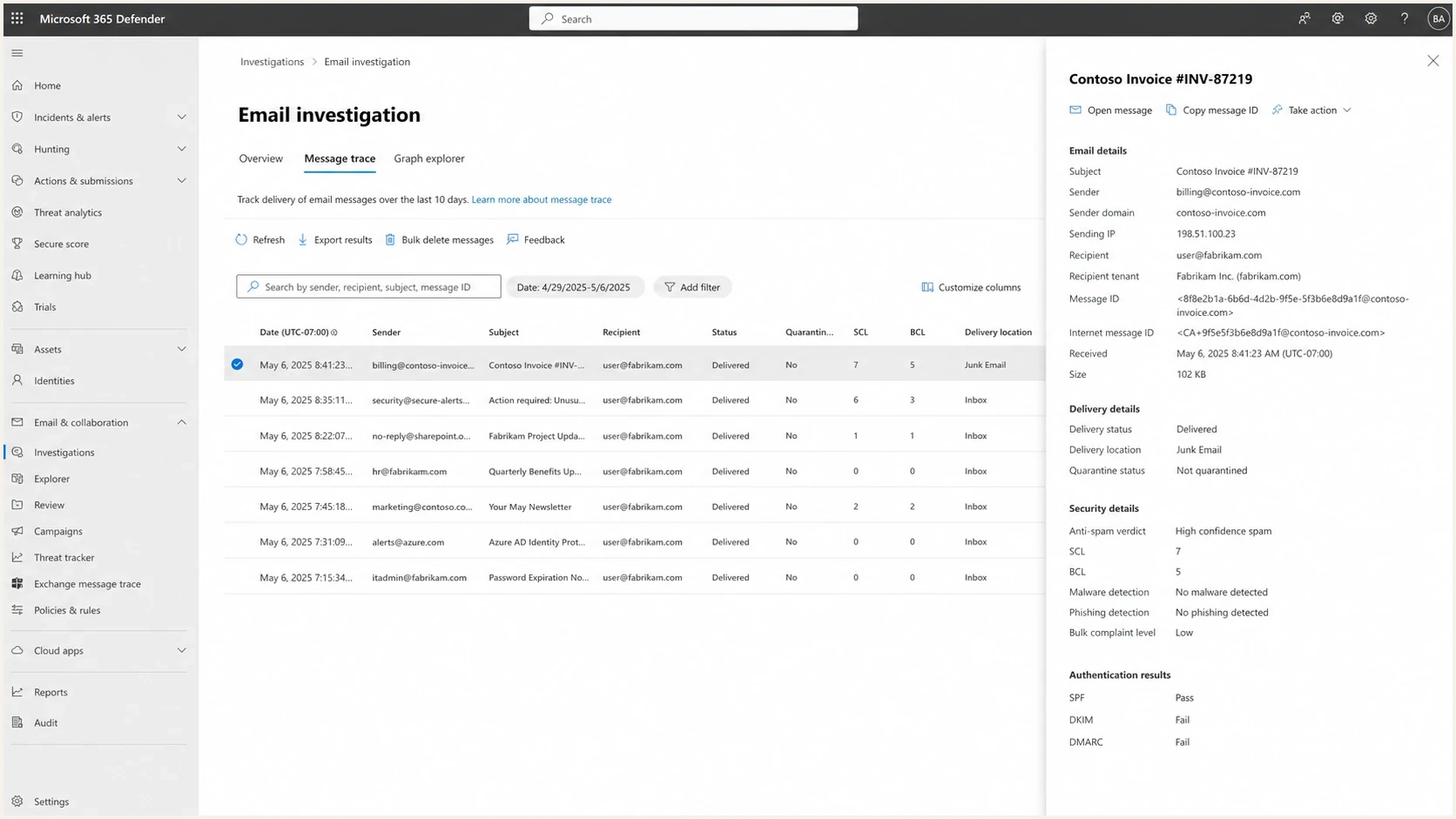
Microsoft Defender portal message trace showing a message delivered to Junk Email.
- Scope: Send the same message to unrelated Microsoft 365 tenants, personal Outlook mailboxes, and non-Microsoft mailboxes.
- Headers: Save the full original headers from each result, not screenshots of the inbox folder.
- Stream: Compare transactional mail, sales mail, newsletter mail, and any third-party sender separately.
- Rates: Check bounce rate, complaint rate, unsubscribe rate, opens, clicks, and replies around the date placement changed.
- Recipients: Separate active opt-in recipients from cold prospects, purchased contacts, and old publisher-sourced lists.
Do not trust one seed inbox
Just because a message lands in your own junk folder, it does not mean it lands in everyone's junk folder. The reverse is also true. Office 365 placement needs several independent samples before you change sending infrastructure or policy.
Read the Microsoft headers
Headers turn a vague spam complaint into evidence. Office 365 adds fields that show authentication results, spam confidence, bulk mail signals, connecting IP, and filtering actions. Read these before touching DNS because headers show what Microsoft actually evaluated for that delivered message.
Header fields to capturetext
Authentication-Results: spf=pass smtp.mailfrom=bounce.example.com; dkim=pass header.d=example.com; dmarc=pass action=none header.from=example.com; compauth=pass reason=100
X-Forefront-Antispam-Report: CIP:203.0.113.25; SCL:5; SFV:SPM; IPV:NLI; CAT:SPM; PTR:mail.example.com
X-Microsoft-Antispam: BCL:6
X-MS-Exchange-Organization-SCL: 5
Received-SPF: Pass
A passing SPF result does not prove the mail is safe. A passing DKIM result does not prove the visible From domain is the one being authenticated. A DMARC pass confirms that SPF or DKIM passed with the required domain match, but Microsoft still applies composite authentication, content, reputation, bulk, and tenant policy checks.
What a header can prove
- Authentication: Whether SPF and DKIM passed and whether DMARC found the required domain match.
- Routing: Which IP and hostname handed mail to Microsoft.
- Verdict: Whether the message received spam, phishing, bulk, or policy treatment.
What a header cannot prove
- Global scope: One recipient's result does not prove the same result everywhere.
- Root cause: A spam verdict still needs reputation, content, and list evidence.
- Future delivery: Filtering changes as recipient behavior and sender history change.
Interpret Microsoft filtering verdicts
Start with the final SCL, then read the spam filtering verdict (SFV) to identify which component set or overrode it. Check BCL when Microsoft identifies bulk mail, and check compauth when authentication looks inconsistent. The receiving tenant's applied anti-spam policy determines whether a verdict goes to the Inbox, Junk Email, or quarantine.
|
|
|
|---|---|---|
SCL -1 | Spam filtering was bypassed | Read SFV to find the allow or override source |
SCL 0 or 1 | Spam filtering marked the message as not spam | Check user rules or later policy actions if it still moved |
SCL 5 or 6 | Spam verdict, normally sent to Junk Email | Review SFV, CAT, and any X-CustomSpam header |
SCL 7 to 9 | High confidence spam | Check threat category, DMARC, and the applied tenant policy |
SFV:SPM | Content filtering marked the message as spam | Investigate content and reputation before requesting review |
SRV:BULK and BCL | The bulk threshold affected the verdict | Improve consent and engagement, then confirm the tenant threshold |
compauth=fail reason=000 | Explicit authentication failed under an enforcing DMARC policy | Fix the SPF or DKIM domain match and retest |
Microsoft can change these default actions through tenant policy, so use the full header and message trace together.
A recipient marking a message as Not Junk can correct that mailbox's classification and provide useful feedback. It does not fix authentication, list quality, or reputation across unrelated tenants.
Use allow entries narrowly
A user's Safe Senders entry can set SCL to -1 for that mailbox, but other policy and threat checks still apply. Use a narrow temporary exception only while the tenant admin investigates the original verdict. Broad or permanent allowlists can admit spoofed mail.
Fix authentication first
Authentication is not the whole answer, but it is the cleanest place to start. If Microsoft cannot verify that your sender is authorized to send for your visible From domain, every other signal starts from a weaker position. Check the domain with a domain health check and then review real DMARC reports rather than only checking the DNS record.
The key point is that SPF and DKIM need to authenticate the right domain. If a third-party sender signs with its own DKIM domain and uses its own bounce domain for SPF, your brand can still look untrusted unless DKIM or SPF matches the visible From domain as DMARC requires. If Microsoft 365 sends your outbound mail, publish the two DKIM CNAME records provided for the custom domain and enable DKIM signing before retesting.
Example authentication DNS recordsdns
example.com. TXT "v=spf1 include:send.example.net -all"

selector1._domainkey.example.com. TXT "v=DKIM1; k=rsa; p=MIIB..."

_dmarc.example.com. TXT "v=DMARC1; p=quarantine; rua=mailto:dmarc@example.com; adkim=s; aspf=s"
Enforcement can expose hidden senders
Moving DMARC to quarantine or reject can reveal old CRMs, invoicing tools, publisher systems, or shared mail relays that were never configured correctly. Use DMARC monitoring to identify every source before enforcing rejection.
Looks configured
- SPF: A record exists, but it has too many includes or misses a sender.
- DKIM: A selector exists, but the sender does not sign every stream.
- DMARC: A record exists, but reporting is not being reviewed.
Actually healthy
- SPF: Every sender is authorized and the lookup count stays under the limit.
- DKIM: Every major stream signs with your domain or a domain DMARC accepts.
- DMARC: Reports show the real senders, failure reasons, and policy impact.
Check reputation and list quality
If authentication passes and Office 365 still sends mail to spam, reputation becomes the main suspect. Microsoft does not need a broken SPF or DKIM record to junk mail. High complaint rates, poor engagement, sudden volume increases, stale recipients, and commercial content can all create a spam pattern. On shared sending infrastructure, clean DNS does not erase reputation carried by traffic that uses the same IP pool.
Blocklist checks matter here, but they are only one part of reputation. A domain or IP can be absent from every public blocklist (blacklist) and still perform badly at Microsoft because Microsoft has its own data. Use blocklist monitoring because a blacklist listing gives you a concrete remediation path and often explains sudden placement changes.
Reputation signals to triage
These bands are practical investigation priorities, not universal mailbox provider thresholds.
Clean
Monitor
Stable opt-in list, low bounces, low complaints, steady volume.
Warning
Pause segment
Open or reply rate drops, bounces rise, or one segment starts complaining.
Critical
Stop and fix
Multiple tenants junk the same stream, blocklist hits appear, or complaints spike.
- Complaints: People marking mail as junk is one of the strongest negative signals for commercial campaigns.
- Bounces: Hard bounces show poor address quality and can hurt a sending stream quickly.
- Engagement: A sudden drop in opens, clicks, replies, or conversions often appears before spam complaints become obvious.
- Volume: New Office 365 sending patterns need a controlled ramp, especially on new domains or new IPs.
- Consent: Publisher opt-ins need clear proof, source tracking, and suppression if recipients do not recognize your brand.
If Microsoft is quarantining rather than junking the message, the investigation changes. Quarantine often points to stronger policy or threat verdicts. The related O365 quarantine fixes path is worth following when messages never reach the user's Junk Email folder.
Fix the message and sending pattern
Content checks are still real, but they are rarely just about one word in the subject. Microsoft looks at the whole message: links, domains, redirects, branding, plain text quality, HTML structure, unsubscribe handling, attachments, and how recipients react to similar mail.
|
|
|
|---|---|---|
Link domain | URL reputation differs from sender reputation | Use trusted branded links |
Redirects | Tracking chains look risky | Reduce hops |
Attachments | Files trigger extra scanning | Link to a page |
HTML | Broken markup reduces trust | Simplify the template |
Unsubscribe | Difficult exits increase complaints | Provide a clear one-click option |
Common message-level causes of Office 365 junk placement.
For a fast message-level check, send a real campaign sample through the email tester before sending it to a Microsoft seed set. That catches broken authentication, suspicious headers, HTML issues, and obvious configuration problems before recipients see the message.
Email tester
Send a real email to this address. Suped shows a results button when the test is ready.
?/43tests passed
The sending pattern matters as much as the template. If you send a new commercial campaign to old contacts, add a new sending domain, increase volume sharply, and switch link tracking at the same time, Microsoft cannot tell which change caused the risk. Keep high-volume marketing and transactional traffic on separate authenticated subdomains and sending streams. Do not rotate domains to escape a damaged reputation. Change one thing at a time and measure folder placement after each change.
Where Suped fits
Suped is the DMARC and email authentication platform behind this site. It collects DMARC aggregate reports, maps sending sources, monitors SPF and DKIM status, and alerts on authentication failures or blocklist (blacklist) changes. This workflow addresses the sender-side evidence in an Office 365 investigation. It does not replace Microsoft tenant message trace or policy review.

Issue steps to fix dialog showing the issue overview, tailored fix steps, and verification action
Add the domain, let reports collect, verify each sending source, fix any SPF or DKIM mismatch, then use alerts to catch new failures before Office 365 placement drops. MSPs and agencies can manage multiple client domains in one dashboard, which matters when Microsoft spam issues appear across several brands at once.
Best use of Suped in this issue
- Source discovery: Find every system sending mail for your domain before enforcing policy.
- Issue fixes: Use automated detection and steps to fix failed authentication.
- Hosted records: Manage SPF and DMARC changes without repeated manual DNS edits.
- Alerts: Get notified when a new sender, policy failure, or blocklist hit appears.
A practical fix sequence
Use this order to avoid random changes. The point is to isolate the cause, fix the smallest confirmed issue, then retest with the same seed set and the same type of message.
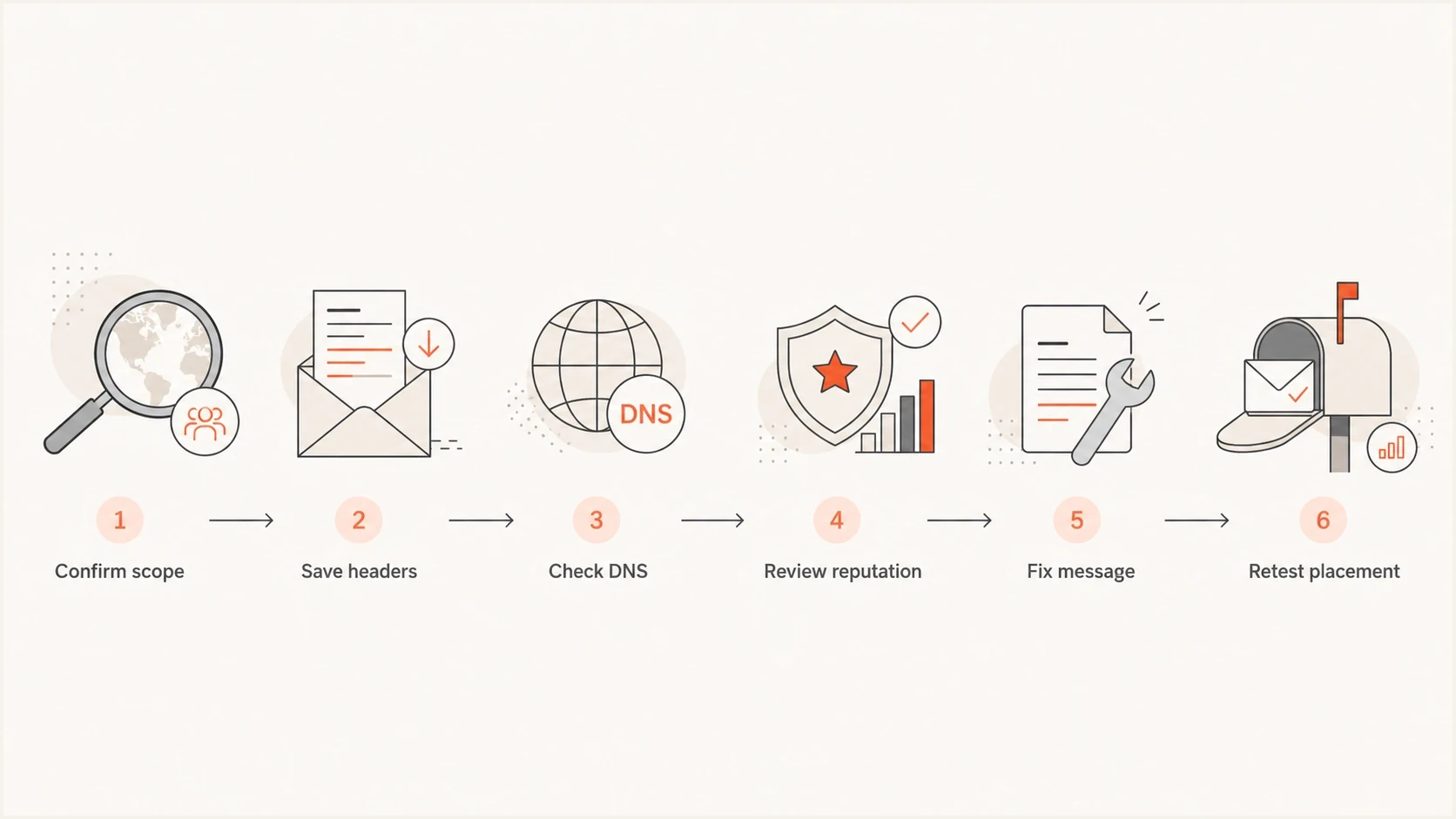
Flowchart showing the Office 365 spam troubleshooting order.
- Confirm scope: Test unrelated Microsoft tenants, personal Outlook addresses, and non-Microsoft mailboxes.
- Save evidence: Collect full headers, delivery location, message trace data, and recent campaign metrics.
- Fix DNS: Correct SPF, DKIM, DMARC, return-path, and tracking domain problems first.
- Segment risk: Pause cold, old, low-engagement, or complaint-heavy segments while testing.
- Reduce triggers: Remove risky links, redirect chains, attachments, and unclear unsubscribe paths.
- Retest: Send the same sample again and compare Microsoft headers before changing another variable.
When to escalate
Escalate to the recipient's Microsoft 365 admin when only one tenant is affected, headers show a tenant policy action, or the message is quarantined by that organization. Ask the admin to check the final SCL, SFV, applicable anti-spam policy, and the recipient's Blocked Senders list. Keep the evidence concise: message ID, timestamp, sender, recipient, headers, and the business reason the recipient expected the email.
Views from the trenches
Best practices
Confirm folder placement across unrelated Microsoft tenants before changing infrastructure.
Review bounces, complaints, opens, and replies before blaming one mailbox provider.
Keep full headers for every test message so filtering evidence stays measurable.
Common pitfalls
Assuming one seed inbox proves all Office 365 recipients see the same placement.
Changing subject lines first while DNS, source reputation, and list quality stay unknown.
Treating active opt-in as enough when recipients do not recognize the sender brand.
Expert tips
Separate transactional, marketing, sales, and publisher traffic before comparing results.
Pause weak segments while testing because complaints can hide the effect of DNS fixes.
Retest one variable at a time so each Microsoft header change has a clear cause.
Marketer from Email Geeks says Office 365 spam placement should first be checked against bounce, complaint, open, and reply trends before assuming a filter problem.
2020-02-27 - Email Geeks
Marketer from Email Geeks says a sender should not assume Microsoft is the only provider affected until there is data across multiple mailbox providers.
2020-02-27 - Email Geeks
What to fix first
If Office 365 is junking your emails, start with proof, not guesses. Confirm the scope across several Microsoft tenants, save the headers, and check whether the same sending stream also has lower engagement, higher bounces, or higher complaints.
Then fix authentication and reputation before rewriting campaigns. Make sure SPF and DKIM pass with the domain match DMARC requires for the visible From domain, clean risky segments, reduce sudden volume changes, simplify links, and retest with controlled samples. If Microsoft headers point to a recipient-side policy, ask the recipient's admin to review the message trace rather than changing your whole program.
Bottom line
Office 365 spam placement is usually fixable, but it needs evidence. The fastest path is headers, DNS, reputation, list quality, content, and retesting in that order.




