Why are images not showing in Gmail webmail but are showing in the Gmail mobile app?

Published 31 Jul 2025
Updated 29 Jul 2026
12 min read
Summarize with
Updated on 29 Jul 2026: We added a clearer image-type test and updated the Gmail web, Chrome, proxy, DNS, and sender troubleshooting sequence.
If images do not show in Gmail webmail but the same messages show images in the Gmail mobile app, the problem usually sits in the desktop web path. Check browser settings, profile and site data, extensions, security controls, DNS, and proxy access. It is rarely a pure sender-side deliverability issue when every sender is affected and the same mailbox works in the mobile app.
Start by isolating where the image request fails. Gmail webmail loads remote images through the browser and Google's secure image proxy, while the Gmail mobile app has separate app settings, cache, and network requests. That difference explains why mobile can work while webmail fails.
- Fast answer: Open the same Gmail account in another desktop browser. If images load there, fix the failing browser rather than the email.
- Likely cause: The browser is blocking the image request, using stale Gmail site data, or failing to reach Google's image proxy.
- Sender caveat: If only one sender's messages fail, test image hosting, MIME structure, redirects, and message clipping.
- Gmail clue: If Gmail shows no warning and the view-in-browser page works, the email and origin images are available, so focus on Gmail's proxy and the browser path.
Why webmail and the mobile app behave differently
Gmail does not render email images through one universal client path. Gmail webmail depends on the browser session, permissions, cached site data, local DNS behavior, security software, and the web version of Gmail. The mobile app has separate app state and network requests, so it can show images even when the desktop browser cannot.
Google says Gmail shows images automatically by default and asks before showing them when it considers a sender or message suspicious. In Gmail webmail, open Settings, See all settings, General, then Images and select "Always display external images." Save the change at the bottom of the page. The Gmail image settings also explain the per-account mobile setting. If webmail is broken and mobile is not, the browser path remains the main suspect after the web setting is confirmed.
Gmail webmail
- Browser path: The browser requests the rendered message and image proxy resources.
- Local state: Cookies, site data, cache, extensions, and permissions can change image behavior.
- DNS path: Secure DNS, local DNS, or network filtering can affect proxy host resolution.
- Debug method: Use another browser, Chrome Guest mode, and DevTools network errors.
Gmail mobile app
- App path: The Gmail app makes its own network requests and renders the message in the app.
- Separate cache: The app cache is separate from the browser's mail.google.com site data.
- Different controls: Mobile data saver and app image settings are separate from browser controls.
- Debug method: Compare Wi-Fi, mobile data, and the same message in desktop webmail.
This distinction prevents the wrong fix. Do not start by changing SPF, DKIM, DMARC, or the email template if images fail for every message in one browser session. Start with browser isolation.
Identify which images are missing
Before changing settings, identify whether the missing item is a remote external image, an inline image carried inside the message, a downloadable attachment, or part of Gmail's own interface. Gmail's external-image setting mainly controls remote images. It does not repair a malformed inline MIME part.
|
|
|
|---|---|---|
Remote external image | HTTPS URL through Gmail's image proxy | Gmail setting, proxy DNS, browser blocking, and origin response |
Inline CID image | MIME part referenced by Content-ID | Content-ID match, Content-Disposition, and multipart structure |
Image attachment | Message attachment preview or download | Attachment preview, file integrity, and MIME type |
Gmail interface image | Google web application resource | Browser profile, extensions, security filtering, and Google resource access |
Image types and the most useful next test
Email signature images can be remote or inline CID images, so the visible location does not identify the loading method. If logos fail but photographs in the same message load, inspect each image URL or the original message MIME instead of treating the whole email as one failure.
The fastest isolation test
Open Gmail webmail in a different desktop browser on the same laptop and network. If another browser works and Chrome fails, the account and message are not the primary problem. The fault is in the Chrome profile, a Chrome-specific setting or policy, or Chrome's DNS path.
Use this order
- Browser test: Open the same message in another desktop browser on the same machine.
- Profile test: Open Chrome Guest mode and sign in to Gmail.
- Site data test: Clear site data for mail.google.com, then restart Chrome.
- Network test: Compare Wi-Fi with mobile data, then check Chrome Secure DNS.
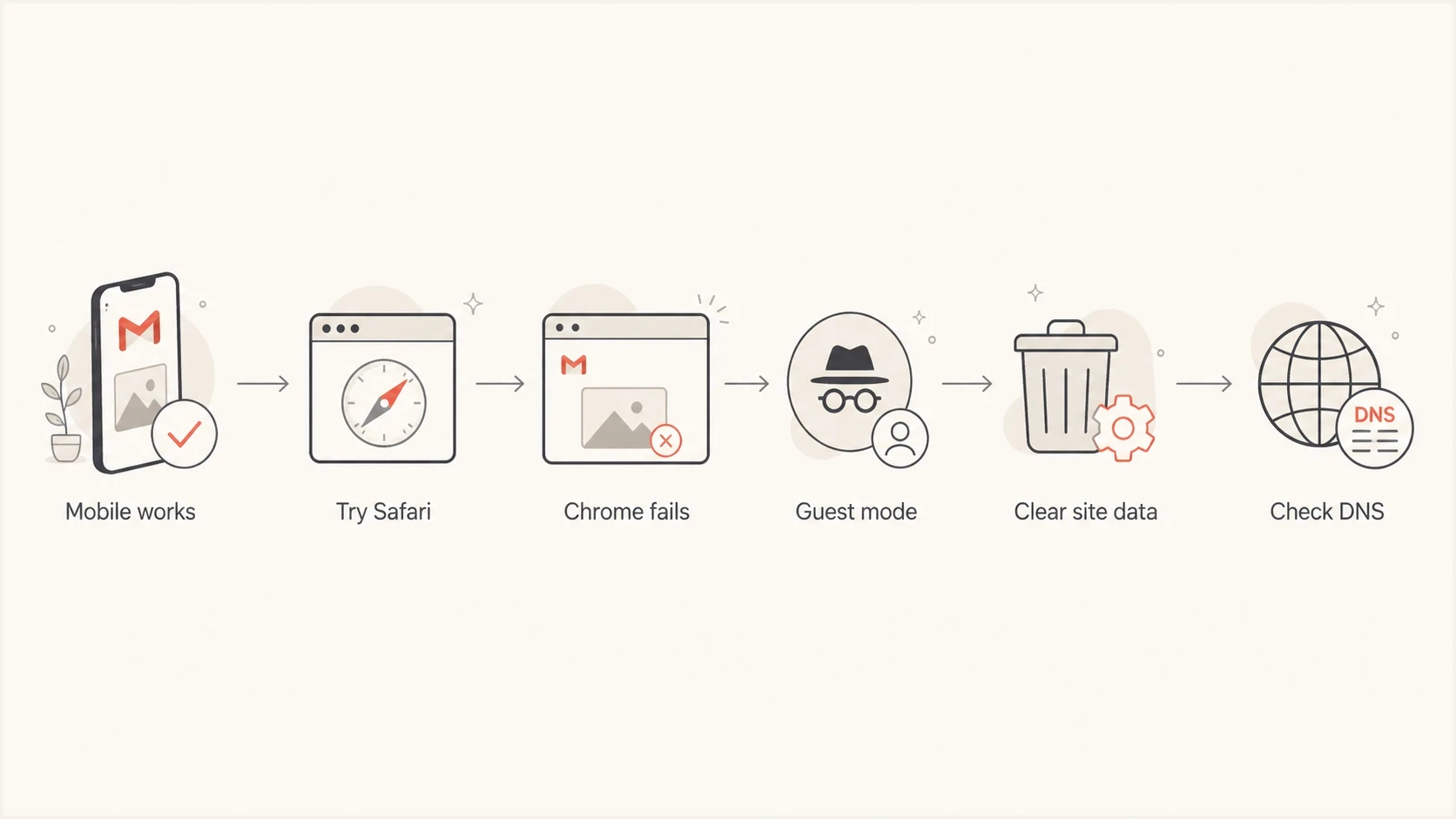
Flowchart for isolating Gmail webmail image failures to Chrome, cache, or DNS.
If several desktop browsers fail at the same time but the mobile app works, test the app on the same Wi-Fi. If the app works only on mobile data, inspect the local network, ISP DNS, VPN, or security gateway. If the app works on Wi-Fi but desktop browsers fail, inspect browser access to googleusercontent.com and check for a wider Gmail service issue before rebuilding every profile.
Chrome fixes that usually solve it
Chrome can block or fail Gmail images without showing an obvious content-blocker icon. The cause can be a per-site permission, old service worker state, cached Gmail application data, a privacy extension, enterprise policy, corrupted profile state, or a DNS resolver setting.
|
|
|
|---|---|---|
Broken image icons | Image permission | Allow sites to show images |
Blank message body | Stale site data | Clear Gmail site data |
Only normal Chrome profile | Profile or extension | Test Guest mode |
Proxy hostname errors | DNS or filtering | Check Secure DNS |
Works with extensions off | Content blocker | Enable extensions one at a time |
Only managed work devices | Browser or network policy | Ask IT to inspect policy |
Browser-side causes and practical fixes
First confirm Gmail's Images setting under Settings, See all settings, and General. Then open Chrome Settings, Privacy and security, Site settings, and Images. Make sure sites can show images and check customized behavior for mail.google.com. Clear Gmail site data next. A normal refresh is not enough because Gmail keeps application data in the browser.
DevTools filters to inspecttext
ci*.googleusercontent.com
mail.google.com
googleusercontent.com
status: 403, 404, 429, 5xx
net::ERR_BLOCKED_BY_CLIENT
net::ERR_NAME_NOT_RESOLVED
mixed-content
Open Chrome DevTools, go to Network, reload Gmail, and open the message again. net::ERR_BLOCKED_BY_CLIENT points to an extension or security control. net::ERR_NAME_NOT_RESOLVED points to DNS. A 403 or 404 from the sender's image host moves the investigation to image hosting.
Right-click one broken image and open it in a new tab. If the googleusercontent.com proxy URL fails but the original image URL loads directly, inspect proxy DNS and security filtering. If the original URL also fails, the sender's host, redirect, access rule, or file is the likely cause.
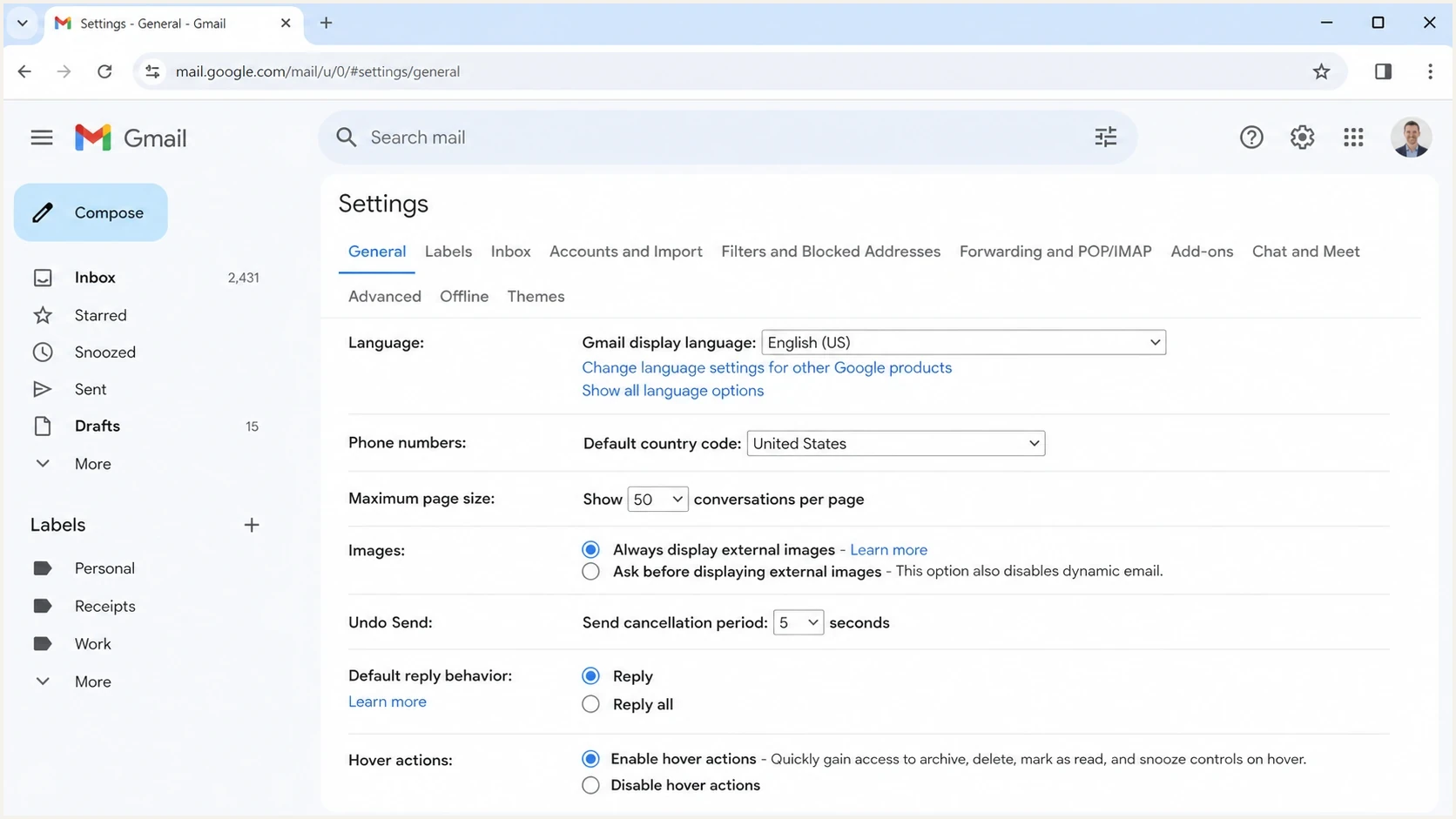
Gmail web settings showing the option to always display external images.
When the sender still needs to investigate
If all senders are affected in one browser, treat it as a recipient-side browser issue. If only one sender's emails lose images in Gmail webmail, test the message, MIME structure, image hosting, redirects, HTML size, and Gmail classification.
For sender testing, Suped's email tester accepts a real message and reports its authentication and content findings. Use those results with the image request evidence to decide whether the fault sits in the email, the image host, or the recipient's browser.
Email tester
Send a real email to this address. Suped shows a results button when the test is ready.
?/43tests passed
Check whether the missing image is remote or referenced by a CID. Remote image URLs must load without a signed-in session, fragile redirect chain, or hotlink rule that blocks Google's proxy. Inline images need valid MIME structure and matching Content-ID references.
Sender-side checks
- Public access: Every remote image URL must load without authentication, cookies, or a private network.
- TLS validity: The image host needs a valid certificate and a stable HTTPS response.
- Proxy access: Do not block Google's image proxy with firewall, bot, or hotlink rules.
- Redirect control: Keep image redirects short, predictable, and on HTTPS.
- MIME structure: Match every cid: reference to a valid Content-ID in the message.
- HTML clipping: Use "View entire message" when Gmail clips large HTML; clipping is different from a failed image request.
- Authentication context: Check DMARC, SPF, and DKIM when Gmail shows a sender warning or places the message in spam.
For trusted images hosted on an internal network, a Google Workspace administrator can configure an image URL proxy allowlist under Gmail End User Access. The allowlist lets matching internal URLs bypass proxy protection. It is an administrative exception for trusted internal images, not a fix for public campaign hosting.
If the same campaign has intermittent Gmail image failures, compare the hosting path and file choices against intermittent Gmail image failures. If the HTML is being clipped or image hosting is complex, the guide on email file size is the better next read.
Where DMARC and reputation fit
DMARC, SPF, and DKIM do not fetch or render images. They help Gmail authenticate the sender and classify the message. That distinction matters because a warning banner or spam placement can prevent automatic external-image display, while a failed googleusercontent.com request remains a browser, DNS, or proxy problem.
Suped's product can monitor DMARC and surface SPF, DKIM, and reputation problems in one workflow. It will not repair a broken Chrome profile, but the reporting helps confirm whether sender authentication is healthy before a team changes the email or escalates a Gmail classification issue.
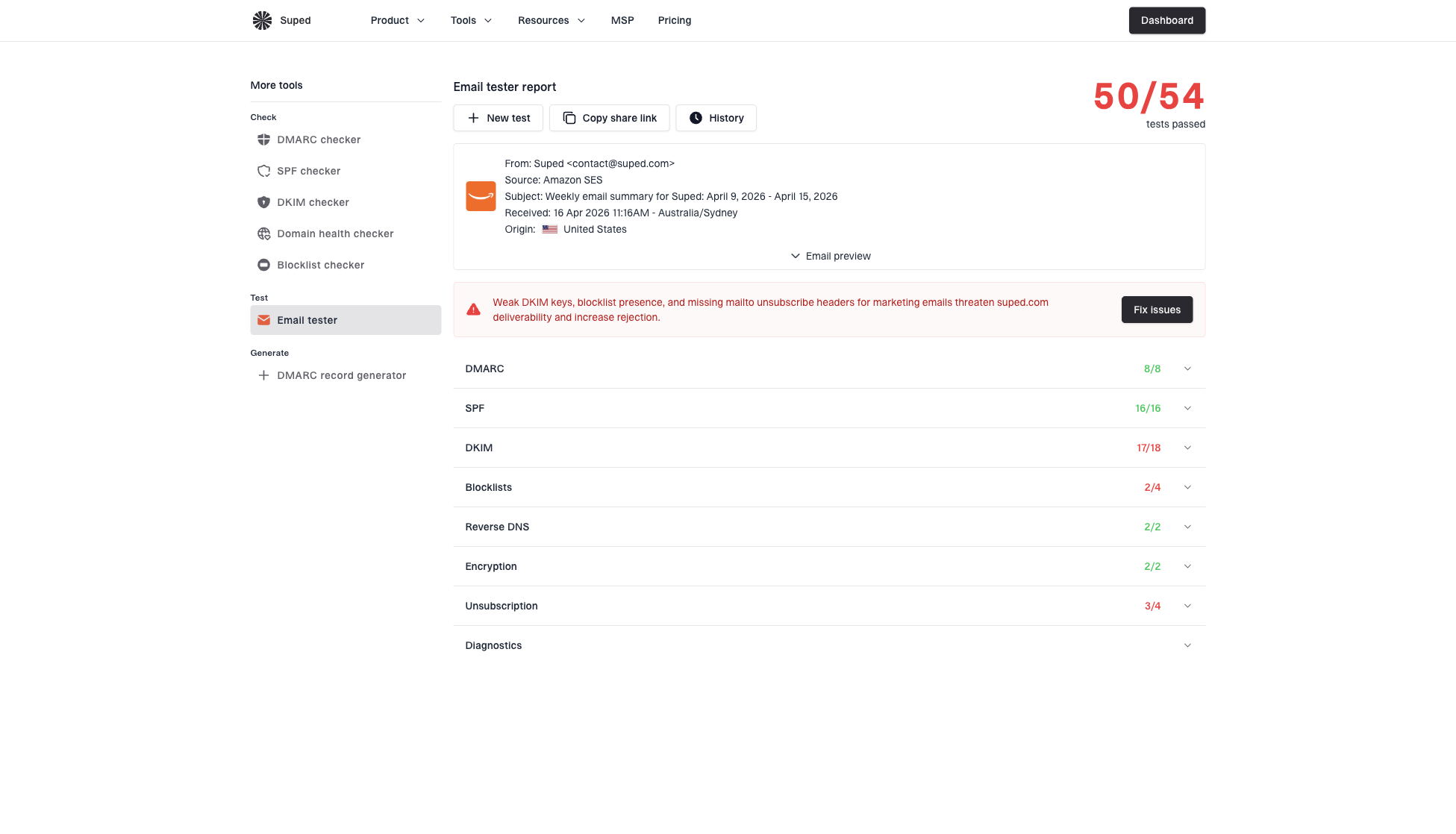
Email tester sample report showing total score, email preview, issue summary, and per-section results
For a domain-wide check, run Suped's domain health checker to inspect DMARC, SPF, and DKIM records. If you manage a sending domain, ongoing DMARC monitoring can catch authentication drift that changes how Gmail evaluates the sender.
Recipient-side problem
The same mailbox works in mobile and another desktop browser, but not Chrome. Fix Chrome settings, site data, extensions, DNS, or the browser profile.
Sender-side problem
Only one sender or campaign fails. Test the live message, image type, image host, redirects, clipping, authentication, and Gmail warnings.
A practical fix sequence
Use this sequence to separate account settings, browser state, network behavior, and sender issues without guessing.
- Confirm scope: Check whether every email is affected or only one sender.
- Identify image type: Separate remote images, inline CID images, attachments, and Gmail interface resources.
- Check Gmail: Set Gmail webmail to always display external images and save the change.
- Switch browser: Open the same message in another browser on the same laptop.
- Use Guest mode: If Guest mode works, the normal Chrome profile has the fault.
- Clear site data: Remove Gmail site data, restart Chrome, and sign in again.
- Test the network: Compare Wi-Fi with mobile data, then test Chrome Secure DNS.
- Inspect requests: Use DevTools to find blocked, unresolved, or failed image proxy requests.
- Escalate sender tests: If only one sender fails, test the message structure and image hosting path.
The key diagnostic split
If another browser works on the same laptop and network, shared DNS is less likely as the sole cause, but it is not impossible. Chrome can use Secure DNS differently from the operating system, and enterprise policies can push browser-specific network settings.
The biggest mistake is mixing recipient-side and sender-side evidence. A broken Chrome session for all messages is not proof that an email template is broken. A single campaign with missing images across many recipients is not proof that Chrome is broken.
Views from the trenches
Best practices
Test another desktop browser before changing DNS, sender code, or Gmail account settings.
Treat all-email failures as client-side until another browser or device proves otherwise.
Use DevTools network errors to separate blocked images from failed image host responses.
Common pitfalls
Assuming deliverability is broken when the same mailbox displays images in the app.
Clearing normal cache only, while Gmail site data and browser profile state remain intact.
Ignoring Chrome Secure DNS when image proxy hostnames fail only inside one browser.
Expert tips
Compare the same email, account, laptop, and network before testing sender changes.
Check Guest mode because it removes most profile state without rebuilding the browser.
Move to sender checks only after the issue affects one brand, campaign, or image host.
Marketer from Email Geeks says a quick Safari test can identify whether Gmail webmail image failures are really Chrome-specific.
2023-11-09 - Email Geeks
Marketer from Email Geeks says the image URL and image host still matter when the issue affects one sender rather than every message.
2023-11-10 - Email Geeks
What to fix first
When Gmail mobile shows images and Gmail webmail in Chrome does not, fix Chrome first. Open the mailbox in another browser, test Chrome Guest mode, clear Gmail site data, check image permissions, disable extensions, and inspect failed image proxy requests.
Move to sender-side work only when the pattern points to a specific sender, campaign, image host, MIME part, or warning banner. Suped's product can test the live message and monitor DMARC, SPF, DKIM, and blocklist (blacklist) signals, which helps separate authentication or reputation problems from a browser rendering fault.




