How do email file size and image hosting affect gmail deliverability?

Published 15 Jun 2025
Updated 7 Aug 2026
13 min read
Summarize with

Updated on 7 Aug 2026: We updated this guide to separate remote and embedded image weight, clarify Gmail clipping, and add current sender checks.
Email file size and image hosting affect Gmail deliverability in different ways. The direct answer is this: HTML size mainly affects Gmail clipping and rendering, large images affect load speed and user experience, and image hosting affects whether remote assets load reliably. The hostnames inside a message also become variables in Gmail's content and safety checks.
Separate the problem into three checks before blaming the template. First, check whether the processed HTML source is near the widely observed Gmail clipping threshold of about 102 KB. Next, check whether images are much heavier than needed. Then verify that every image URL uses a stable HTTPS hostname and returns the intended asset without access errors or long redirect chains.
- HTML size: Keep the delivered HTML comfortably below about 102 KB to reduce the chance of Gmail clipping.
- Image weight: Compress hero images and product grids because heavy media slows loading and weakens engagement.
- Image host: Use a stable HTTPS hostname that the team controls and can test consistently.
- Testing: Compare a known good template against the poor performer with the same sending domain, audience type, and image host.
The direct answer
A large email does not automatically go to spam in Gmail. Gmail evaluates sender reputation, recipient response, authentication, complaints, content, URLs, and sending patterns. File size and image setup still matter because they change rendering, load speed, tracking visibility, and the set of URLs inside the message.
The most visible file-size problem is Gmail clipping. At roughly 102 KB of processed HTML, Gmail commonly cuts off the bottom of a message and shows a prompt to view the entire email. Google does not publish that exact threshold, so treat it as a practical warning point rather than a guarantee. Clipping can hide footer content, unsubscribe links, legal text, tracking pixels, and conversion links. It is mainly a rendering and engagement problem, but it can distort campaign measurement.
Do not treat 102 KB as the whole deliverability answer
The observed 102 KB threshold concerns the processed HTML that Gmail renders, not the total weight of remotely hosted images. An email with 85 KB of HTML and 1 MB of remote images can avoid clipping but load slowly. An email with 130 KB of HTML and small remote images can still clip even when its design looks light.
- Measure HTML: Check the final MIME output after processing, personalisation, and link wrapping.
- Measure images: Add up remote assets separately and account for embedded image data in the MIME message.
- Measure URLs: List every hostname in links, images, tracking, unsubscribe, and return-path data.
- Measure outcomes: Compare Gmail inboxing, spam placement, clipping, clicks, and complaints by campaign.
|
|
|
|---|---|---|
HTML source | Clipping risk | Comfortably below 102 KB |
Image files | Load speed | Compressed |
Image host | Asset availability | Stable HTTPS host |
Broken media | Rendering and trust | No fetch errors |
Authentication | Sender identity | SPF and DKIM pass; DMARC passes |
How each factor affects Gmail outcomes
For senders delivering more than 5,000 messages a day to personal Gmail accounts, key Google requirements include SPF and DKIM, a DMARC record, a From domain that matches the SPF or DKIM domain, TLS, and one-click unsubscribe for marketing and subscribed mail. File-size work cannot compensate for missing sender requirements.
What Gmail sees inside the message
Gmail does not only see the visible creative. It sees the raw MIME structure, HTML, plain-text part, CSS, tracking URLs, image URLs, redirect domains, authentication results, and recipient response to related traffic. That is why two emails with similar copy can perform differently when one uses a new template, a different host, or a larger set of image assets.
When Gmail placement drops after a template change, do not assume image size alone caused it. Check changed image hostnames, new link wrappers, missing live text, hidden elements, malformed HTML, and changes to the audience or sending infrastructure. A hostname change is a useful clue because it changes the message's URL set and asset-fetch path, but it does not prove that domain reputation caused the drop.
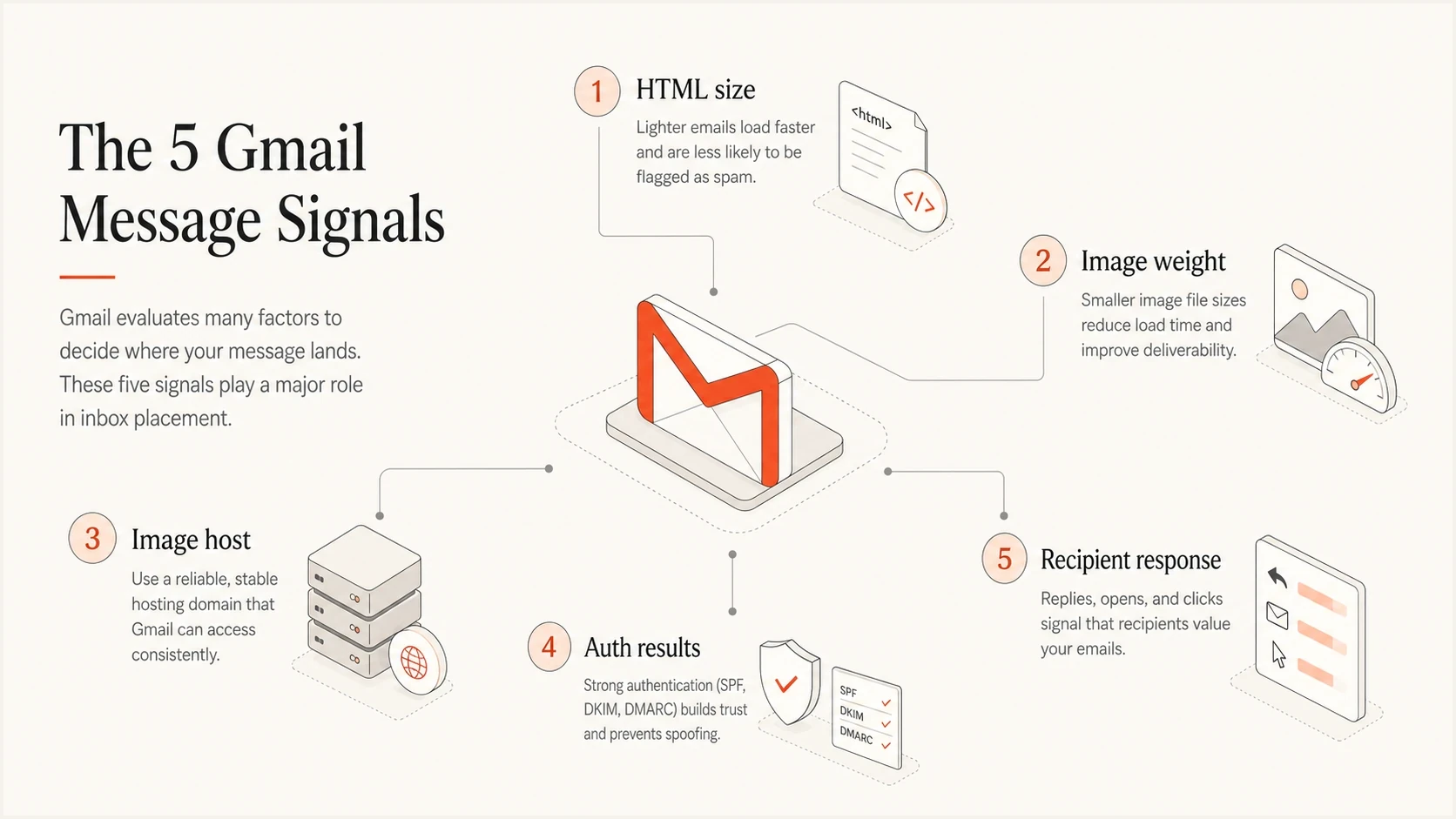
Five Gmail message signals: HTML size, image weight, image host, authentication, and recipient response.
Practical HTML size risk bands
Use the processed HTML source size, not the total remote image download weight. Gmail does not publish an exact clipping threshold.
Comfortable
Under 80 KB
Enough room for tracking and personalisation changes.
Review
80-102 KB
Audit comments, duplicated CSS, hidden modules, and long link wrappers.
Clipping risk
Over 102 KB
Gmail commonly cuts off part of the message around this point.
Separate check
Images
Remote image bytes need their own performance review.
Remote, CID, and base64 images
Image delivery method determines which size measurement matters. A remote image leaves only its URL in the HTML, then Gmail fetches the file when images are displayed. A CID image travels as a MIME part and increases total message size. A base64 data URI puts the encoded image data inside the HTML itself, which can push the rendered source toward clipping and remains unreliable across email clients.
|
|
|
|---|---|---|
Remote URL | Image host | Fetch speed and availability |
CID image | MIME attachment | Total message size and client support |
Base64 data URI | HTML source | Clipping and inconsistent rendering |
How image delivery changes email size
Gmail handles external images separately
Gmail displays external images by default, scans them for suspicious content, and can ask the recipient before showing them when a sender or message looks suspicious. Image-based open data is therefore directional, not an exact record of a person's activity. Test image URLs without browser cookies and ensure the host accepts Google's image requests.
How image hosting affects Gmail rendering and risk
A changed image domain deserves attention when a campaign that previously rendered well starts failing. Gmail scans external images for suspicious content and can withhold them until the recipient approves display. The image hostname, redirect path, TLS setup, response status, content type, and access rules all affect whether the asset loads as intended.
A raw storage bucket, temporary CDN hostname, or vendor-controlled asset domain creates an extra operational dependency. A branded host such as img.example.com is easier to keep stable, audit, and reuse in controlled tests. Branding the hostname does not guarantee inbox placement, and moving existing assets to a new host without testing can add risk rather than remove it.
Risky image setup
- Opaque host: Images load from a raw storage endpoint or temporary shared hostname.
- Sudden change: A new template swaps the image domain during a live campaign.
- Fetch barriers: Access rules, redirects, or certificate errors block image requests.
- Low control: The team cannot quickly remove, restore, or standardise old assets.
Cleaner image setup
- Stable host: Images load over HTTPS from a hostname controlled by the brand.
- Consistent path: Template families use predictable folders and naming patterns.
- Clear ownership: The team can audit TLS, redirects, content types, and asset status.
- Better testing: The same host is used in control and challenger campaigns.
Stable image URL patternHTML
<img src="https://img.example.com/campaigns/hero.jpg" alt="Product">
<img src="https://img.example.com/campaigns/grid-01.jpg" alt="">
How to test without guessing
The cleanest test is a controlled template comparison. Take a template that recently performed well in Gmail and send it to a comparable engaged segment with the same sending domain, return-path setup, image host, and similar offer type. Then change one variable at a time. If the poor performer only fails when the new template or image hostname is present, the test has isolated a useful lead.
Before a live send, test the final message with the email tester to inspect the actual MIME output, image loading, authentication, and obvious rendering problems. This matters because sending platforms often add tracking links, hidden pixels, preheaders, dynamic blocks, and footer content after the template looks finished.
- Step one: Export or send the final processed email, not the local template file.
- Step two: Measure HTML source size after merge tags, link wrapping, and footer injection.
- Step three: List all image and link domains, then verify HTTPS, redirects, status codes, content types, and unauthenticated access.
- Step four: Run a Gmail seed test and compare placement and clipping against a known good control.
- Step five: Watch post-send clicks, complaints, unsubscribes, and replies rather than relying on image-based opens alone.
Email tester
Send a real email to this address. Suped shows a results button when the test is ready.
?/43tests passed
Check the sending domain as well. A domain health check catches weak DMARC, SPF, and DKIM setup before the template gets blamed for a problem that started in authentication. When a domain has mixed authentication results, any template comparison becomes harder to interpret.
A controlled Gmail diagnosis
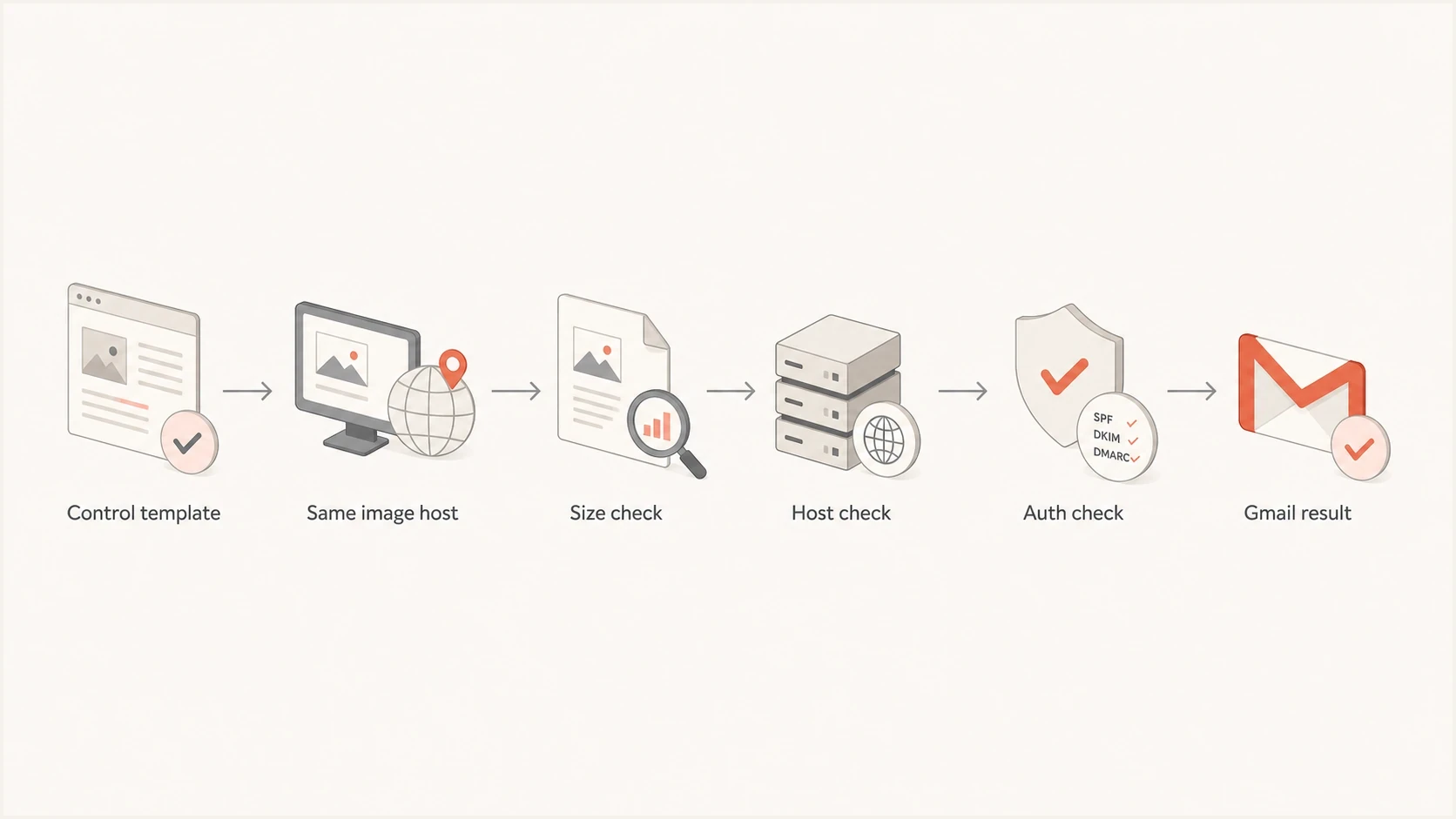
A six-step Gmail diagnosis flow comparing control template, host, size, authentication, and results.
When one campaign performs badly and another campaign sent the same day performs normally, compare the two raw messages before starting a broad audit. Check HTML size, number and type of images, image domains, tracked link domains, subject pattern, send segment, sending IP pool, return-path domain, authentication results, and image-fetch errors.
Keep the control strict. If the control uses the old template and a different image host, the test cannot show whether the template or host caused the change. If the challenger goes to a colder segment, the test cannot show that the template caused the Gmail drop. Isolate one meaningful variable per send.
Template comparison checklisttext
HTML source size: control vs challenger
Image method: remote, CID, or base64
Image hostnames: control vs challenger
Image responses: HTTPS, status, redirects, type
Tracked domains: control vs challenger
Return-path domain: control vs challenger
SPF, DKIM, DMARC: pass; From domain matches
Gmail placement: inbox, tabs, spam, clipped
If the template is new, roll it out carefully
Google recommends gradually increasing volume when the format of bulk email changes. Start the new template with a smaller engaged segment, monitor delivery and recipient response, then expand when results remain normal.
Where Suped fits in the workflow
Suped's product is relevant when a file-size question turns into a broader Gmail deliverability investigation. Template size can be inspected in a single test. Reputation and authentication need ongoing visibility. Suped combines DMARC, SPF, DKIM, blocklist (blacklist) monitoring, hosted SPF, hosted DMARC, hosted MTA-STS, and deliverability insights in one workflow.
Suped turns authentication data into specific fixes instead of leaving the team with raw aggregate reports. In this Gmail scenario, use it to separate template faults from authentication failures, verify authorised sending sources, and watch domain or IP reputation through blocklist monitoring when inbox placement drops.
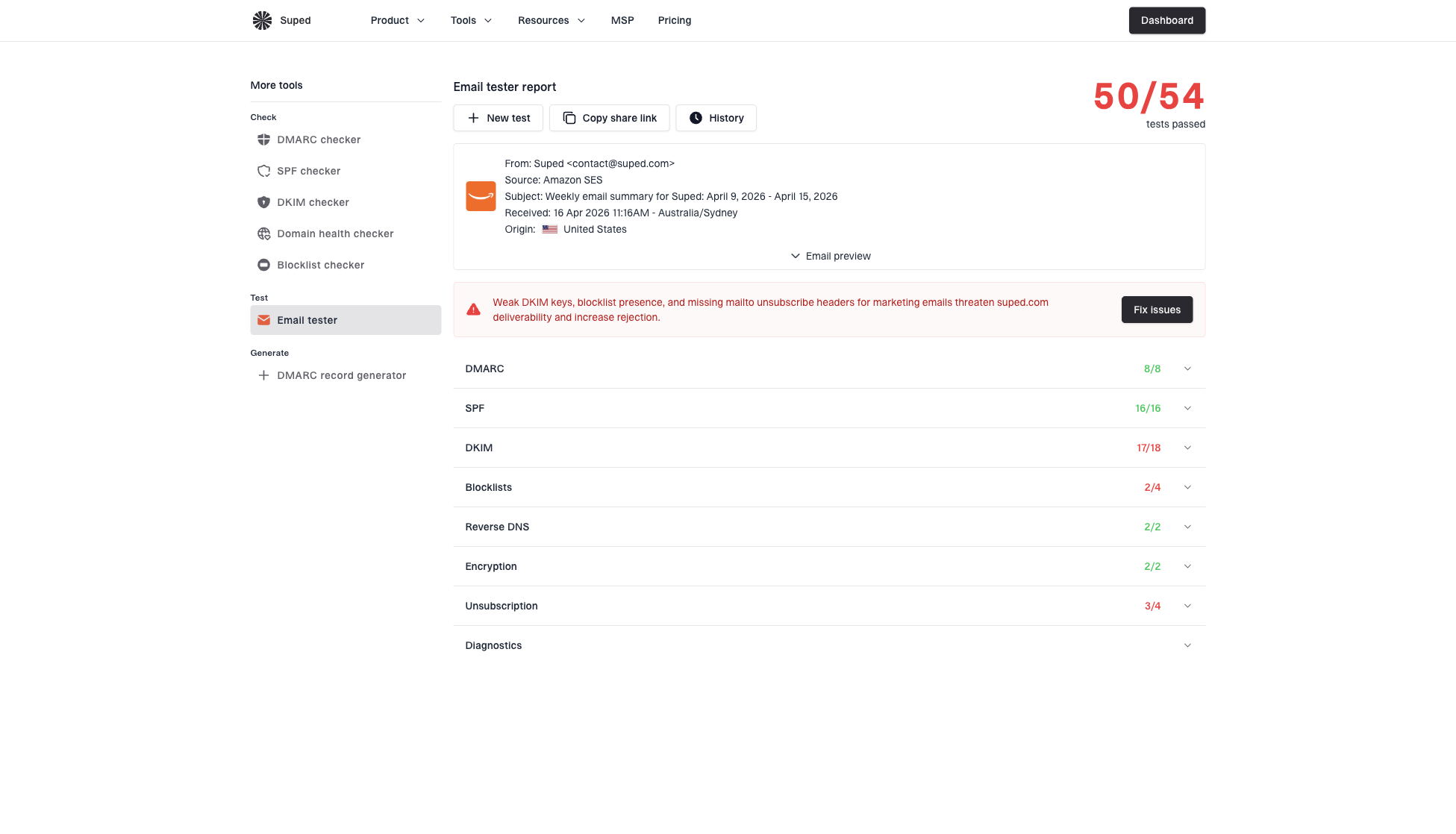
Email tester sample report showing total score, email preview, issue summary, and per-section results
Manual investigation
- Raw reports: Someone has to interpret XML, headers, and campaign evidence.
- Slow alerts: Problems are often noticed after Gmail placement or revenue drops.
- DNS friction: SPF changes and MTA-STS setup need more coordination.
- Weak history: Campaign comparisons live across spreadsheets and screenshots.
Suped workflow
- Issue detection: Automated checks point to authentication and reputation failures.
- Real-time alerts: Teams see important changes before they affect long campaigns.
- Hosted controls: Hosted SPF, DMARC, and MTA-STS reduce DNS change pressure.
- Multi-domain view: MSPs and larger teams can compare many domains in one place.
If Gmail deliverability is already unstable, do not change image hosts, templates, link wrappers, and DNS records in the same week. Suped's DMARC monitoring provides the authentication baseline, then the email tester and campaign data show whether the template change is the real problem.
Practical size and hosting targets
There is no perfect image size or universal text-to-image ratio that guarantees Gmail inbox placement. Practical limits make testing cleaner and reduce avoidable friction. A newsletter with compressed images, meaningful live text, stable links, and clean authentication is easier to render and diagnose than a heavy image-only campaign with a new CDN host and clipped footer.
|
|
|
|---|---|---|
HTML | Below about 102 KB | Reduce clipping risk |
Images | Compressed for display size | Faster loading |
Alt text | Descriptive when useful | Images unavailable |
Image host | Stable HTTPS | Reliable fetching |
Redirects | Minimal | Fewer fetch failures |
Content | Live text and plain text | Accessible meaning |
Authentication | Pass; domains match | Sender identity |
Targets to use before a Gmail campaign
Keep meaningful HTML text and a plain-text MIME alternative in the email. An image-only email creates accessibility problems, hides the offer when images are unavailable, and gives filters less readable context. Put the main call to action in live HTML as well as any promotional image so the message still works without remote assets.
The best practical setup
Use compact HTML, compressed images, a stable HTTPS asset hostname, short redirect paths, readable text, and passing SPF, DKIM, and DMARC. Test the final sent version rather than a draft export.
Views from the trenches
Best practices
Keep HTML below about 102 KB and test the Gmail-rendered message before each launch.
Use one stable HTTPS image host so template tests do not mix content and host changes.
Compare a known good template with the new version while keeping the audience constant.
Track image hostnames, return-path domains, and wrapped link domains in every test.
Common pitfalls
Treating remote image bytes as Gmail HTML size leads to the wrong clipping diagnosis.
Moving images to an unfamiliar host can introduce fetch errors without obvious warnings.
Testing a new template on a colder audience makes the template result hard to interpret.
Ignoring blocklist or blacklist checks can hide reputation problems blamed on design.
Expert tips
Keep a saved control template for Gmail tests and reuse its hostnames during diagnosis.
Measure the processed email after tracking, personalisation, and footer injection.
Test image URLs without cookies, then audit TLS, redirects, status, and content type.
Separate each test variable so size, hosting, audience, and reputation do not blur.
Marketer from Email Geeks says HTML over about 102 KB should be checked first because Gmail clipping is easy to spot in proofing.
2024-08-19 - Email Geeks
Marketer from Email Geeks says large images can hurt performance, but unknown image domains have caused sharper Gmail drops.
2024-10-03 - Email Geeks
Practical recommendation
If Gmail deliverability drops and file size is suspected, start with the final sent message. If the processed HTML is near or above about 102 KB, reduce it before the next large send. If images are heavy, compress them for their displayed dimensions. If the image host changed, retest with the previous known host while keeping the audience and sending setup constant.
A strong setup has compact HTML, meaningful live text, compressed assets, a stable HTTPS image hostname, passing authentication, and monitored reputation. Suped's product fits when that monitoring needs to continue after the template audit, especially across several domains, brands, or client accounts.




