Why are images intermittently failing to load in Gmail?

Published 21 May 2025
Updated 30 Jul 2026
11 min read
Summarize with
Updated on 30 Jul 2026: We added current recipient-side fixes and tightened the guidance on Gmail proxy testing and sender reputation.
Images intermittently fail to load in Gmail because Gmail does not usually fetch the image directly in the same simple way a browser loads a normal web page. Gmail routes remote images through Google's image proxy and cache, so a broken image can come from the original host, Google's fetch path, a cached 404, a browser extension, a VPN, a local network path, or Gmail deciding the message is lower trust.
The most useful first split is this: if the original image URL fails, fix the host. If the original URL works but the googleusercontent proxy URL fails for only some users, treat it as a Gmail proxy, browser, or network issue first. Reputation can affect Gmail's treatment of a message, but sender reputation should not be the first assumption behind intermittent image fetch failures.
- Fast answer: check Gmail's "Always display external images" setting, open the original image URL, compare it with the Gmail proxy URL, then test another browser and network.
- Most likely causes: a temporary Gmail image proxy issue, a blocked or inconsistent image host, stale cache behavior, browser state, or a VPN and security layer blocking Google's image path.
- Sender-side fix: use stable HTTPS image URLs, avoid replacing files under the same URL, keep CDN and storage permissions public, and monitor DMARC, SPF, DKIM, blocklist, and blacklist signals.
What Gmail does with remote images
When Gmail displays a remote image, the image source in the message often becomes a googleusercontent URL. That URL points to Google's image proxy rather than the image host shown in the HTML. When Gmail needs the image, it fetches the remote file and returns a cached or proxied copy to the reader. On later opens, Gmail can reuse what it fetched before.
That extra layer protects users, but it adds failure points. The original image can be fine while the Gmail proxy path is not fine for a particular user. The reverse also happens: a cached image can keep working after the original host changes or breaks. This is why image bugs in Gmail often feel inconsistent during testing.
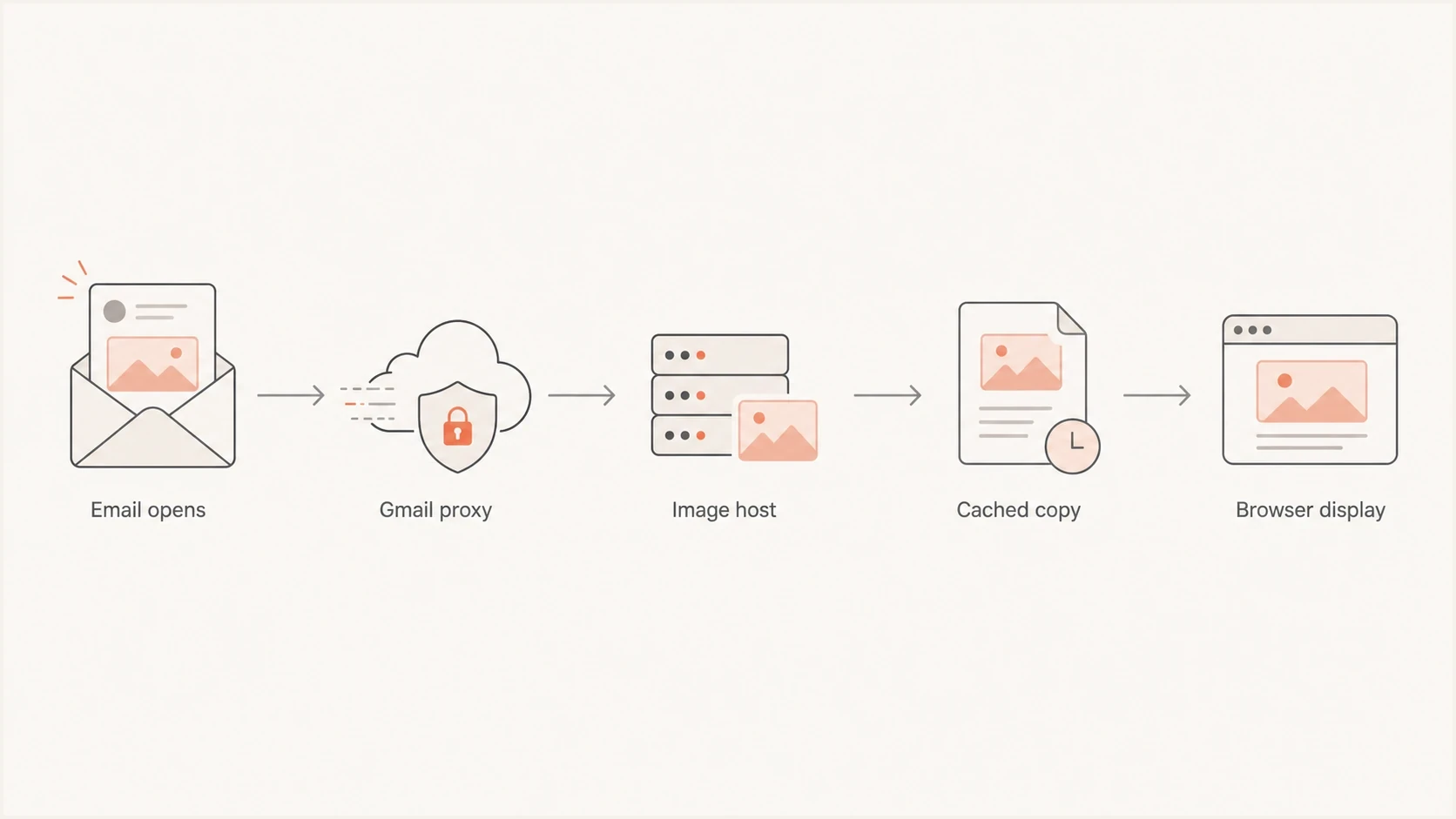
Flowchart showing Gmail loading an image through its proxy and cache before browser display.
A Gmail proxy URL returning a 404 does not prove the original image is missing. It proves that this Gmail proxy request failed. Always test the original image URL separately, then test the Gmail-rendered proxy URL from the affected user's environment.
The main causes
The intermittent pattern matters. If a user has the problem for several minutes and then it clears, or one colleague can load the same proxy URL while another cannot, the problem is less likely to be HTML markup alone. Markup bugs usually fail consistently. Intermittent failures point toward cache state, network routing, host throttling, or Gmail-side image infrastructure.
|
|
|
|---|---|---|
Gmail proxy | Original works, proxy fails | Compare users and networks |
Image host | Some requests get 403 or 404 | Permissions and logs |
Browser state | One browser fails | Cache and extensions |
VPN | Only one network fails | Try another route |
Gmail safety check | "Display images below" prompt | Sender and message signals |
Common causes of intermittent Gmail image loading failures
For hosted images on S3 or another object store, check whether the object is publicly readable, whether the content type is correct, whether the object key changed between attempts, and whether redirects or signed URLs are involved. Gmail's proxy fetcher needs a stable, publicly retrievable HTTPS image. Time-limited URLs, hotlink controls, bot filtering, and inconsistent storage permissions produce confusing failures.
Remote images and inline attachments use different paths. A remote image points to an external URL, while an inline image normally uses a Content-ID reference to a MIME attachment. If an inline image fails across Gmail devices but no external URL exists, inspect the message source for a matching Content-ID and a valid image MIME part.
Host-side failure
- Signal: the original image URL returns 403, 404, 5xx, or a redirect loop.
- Fix: correct storage permissions, CDN behavior, cache headers, object names, and content type.
- Risk: Gmail can cache the bad result and keep showing a broken image after the host is fixed.
Proxy-side failure
- Signal: the original image works, but the Gmail proxy URL fails for some users.
- Fix: test across browsers, devices, and networks while keeping the original image stable.
- Risk: a single tester's result can mislead the team because the issue can be user-specific.
Fixes for Gmail recipients and Workspace admins
Recipients should check Gmail's display control before treating the problem as a sender failure. Google's Gmail image settings say external images display automatically by default, but Gmail can still ask for confirmation when it considers a sender or message suspicious.
- Check the setting: in Gmail on a computer, open Settings, choose See all settings, find Images under General, select "Always display external images", and save.
- Check the message prompt: if Gmail shows "Display images below", use it only when the message and sender are expected. The prompt is different from a broken proxy URL.
- Isolate the browser: update the browser, try a clean profile or private window, and temporarily disable privacy, tracking, or image-download extensions.
- Reset local state: if the clean profile works, clear Gmail site data, cache, and cookies in the affected browser, then sign in and retest the same message.
- Compare routes: open the message in the Gmail mobile app and on another network. If policy permits, retest without the VPN or corporate web filter.
If only trusted internal images fail for users on a managed Google Workspace account, ask the Gmail administrator to review the Image URL proxy allowlist. Google documents this control for internal URLs that depend on internal IP addresses or cookies. Allowlisting bypasses proxy protection for matching URLs, so the administrator should restrict patterns to trusted internal domains and confirm the change with the security team.
Do not disable security controls just to make an unexpected message show images. If Gmail flags the message as suspicious, verify the sender through a known channel before selecting "Display images below".
How to troubleshoot it
Use a short decision tree because the evidence can get noisy fast. The goal is to separate the message, the image host, Gmail's proxy, and the recipient's environment. Do not change the email creative while testing. Changing image filenames, replacing objects, or resending different HTML adds variables.
Image URL GET checksbash
curl -sS -D - -o /dev/null https://images.example.com/campaign/header.png
curl -sS -L -D - -o /dev/null https://images.example.com/campaign/header.png
curl -sS -A "Mozilla/5.0" -D - -o /dev/null https://images.example.com/campaign/header.png
- Original URL: confirm a GET request returns a 200 response without authentication, cookies, signed query expiry, or geo-specific denial.
- Gmail proxy: copy the googleusercontent image URL from the rendered email and test it from the affected browser and a clean browser.
- Recipient path: test desktop Gmail, Gmail mobile, another browser, another network, and a non-VPN connection.
- Message signals: check whether Gmail shows a suspicious-message banner, asks before displaying images, or places the message in spam.
- Authentication: send a fresh sample and inspect SPF, DKIM, DMARC pass status, link domains, and header consistency.
A real message test is better than only staring at HTML. Send the same campaign to seed Gmail accounts, open it in a clean browser profile, and inspect what Gmail actually rendered. Suped's email tester supports this workflow because it checks the sent message rather than just the planned template.
Email tester
Send a real email to this address. Suped shows a results button when the test is ready.
?/43tests passed
If the same Gmail account fails in one browser but succeeds on mobile, the cause is often local state: cached proxy response, privacy extensions, corporate filtering, or browser-specific handling. If the problem follows the network, look for VPN or security gateway interference. If it affects many unrelated users at once, Gmail's own image proxy or CDN path becomes a stronger explanation.
Where reputation fits
Reputation is a related signal, but it is not a direct explanation for a Gmail proxy URL returning 404. Poor sender or domain reputation can contribute to spam placement or suspicious-message treatment. Google says Gmail does not show images automatically when it considers a sender or message suspicious, and it asks the recipient whether to display them.
That still matters. If images fail in Gmail while you also see authentication failures, blocklist or blacklist listings, sudden Gmail delays, or suspicious banners, treat image loading as part of a wider trust investigation. Suped's domain health checker gives a quick read across the domain signals that surround Gmail display behavior.
Domain health checker sample results showing DMARC, SPF, DKIM scorecards and detailed validation checks
For production monitoring, trend data is more useful than one broken screenshot. Suped's DMARC monitoring shows whether legitimate senders pass DMARC, whether new sources appeared, and whether failures started near the same time as the Gmail issue. Suped's blocklist monitoring also helps catch domain and IP reputation changes that can explain wider deliverability symptoms.
Do not assume a Gmail image failure is a DMARC failure. Use DMARC, SPF, DKIM, spam placement, blocklist or blacklist status, and Gmail UI clues as supporting evidence. The image host and proxy path still need direct testing.
Fixes for image hosting
Image hosting for email should be boring. Gmail's proxy should see a plain HTTPS URL that returns the same image reliably. Avoid anything that makes the image URL behave like an application endpoint unless there is a clear reason.
Stable email image headershttp
HTTP/2 200
content-type: image/png
cache-control: public, max-age=604800
content-length: 48291
etag: "header-v18"
- Use HTTPS: serve every email image over a trusted HTTPS endpoint with no mixed-content fallback.
- Keep URLs stable: do not replace a failed file at the same URL during testing; publish a corrected file with a fresh filename.
- Avoid expiring URLs: signed URLs, short-lived tokens, and session-bound image links often break after Gmail fetch timing changes.
- Check bot filters: security tools that block unusual user agents or datacenter IPs can block Gmail's image fetcher.
- Control size: large images, heavy redirects, and slow origin responses increase the chance of partial or delayed loading.
There is a related deliverability angle too. Image-heavy email is not automatically bad, but oversized files and fragile hosting make Gmail problems harder to diagnose. If slow loading sits alongside delivery delays, the same investigation should cover message size, image hosting, and Gmail-specific timing issues.
How to tell if it is a Gmail-side issue
Treat it as a likely Gmail-side issue only after the host checks pass. The strongest evidence is that the original image URL is stable, the same image works outside Gmail, and the broken behavior varies by Gmail user, browser, or time window without any sender-side change.
Confidence that Gmail is the source
Use the failure pattern to decide whether Gmail-specific testing is justified.
Low
Host issue
The original image fails or redirects unpredictably.
Medium
Investigate
The original works, but only one user or browser fails.
High
Likely Gmail-side
Many users see proxy failures while the host stays healthy.
If Gmail is the likely source, the practical response is to reduce variables and wait for the proxy path to clear. Keep the image online. Do not keep swapping files. Preserve the broken proxy URL, timestamp, browser, account type, network path, and original URL. That gives you evidence if the issue repeats.
The best test is boring and repeatable: same email, same image URL, same Gmail account, clean browser profile, two networks, and a timestamped result. That removes most false leads.
Views from the trenches
Best practices
Test original and Gmail proxy URLs separately before changing campaign HTML or assets.
Compare desktop, mobile, browser, and network results with exact timestamps before edits.
Keep image filenames unique during retries so cached failures stay isolated and traceable.
Common pitfalls
Assuming a proxy 404 means the original hosted image has disappeared from the server.
Replacing files at the same URL while Gmail still uses cached failure data during testing.
Treating reputation as the root cause before checking host, browser, and network paths.
Expert tips
Check whether Gmail shows "Display images below" or a suspicious-message warning first.
Review VPN and security gateway behavior when only one user sees repeat failures in Gmail.
Correlate Gmail display errors with authentication, blocklist, and blacklist changes.
Marketer from Email Geeks says the original hosted image and the Gmail proxy image should be compared before drawing conclusions.
2023-12-12 - Email Geeks
Marketer from Email Geeks says Gmail's image cache often matters after the first open, while the first request behaves more like a proxy fetch.
2023-12-12 - Email Geeks
The practical answer
Images intermittently fail to load in Gmail because the display path has more than one moving part: your image host, Google's proxy and cache, the recipient's browser, and the recipient's network. When the original image works but the Gmail proxy fails only for some people, the likely cause is a proxy, network, browser, or temporary Gmail infrastructure issue rather than a missing file.
The sender-side work is still important. Keep image URLs public, stable, fast, and cacheable. Use unique filenames for retries. Then monitor the surrounding trust signals so Gmail image problems do not hide a broader authentication or reputation issue. Suped's product supports this workflow through DMARC monitoring and domain health checks that bring DMARC, SPF, DKIM, blocklist, and blacklist signals together while the image host and Gmail proxy are tested separately.




