Why are emails sent via Mailchimp delivered successfully but not received by Microsoft accounts?

Updated on 2 Aug 2026: We updated this guide for Microsoft's current message tracing and quarantine workflows, current DMARC record syntax, and the separate Outlook.com and Microsoft 365 investigation paths.
The direct answer is this: Mailchimp can be correct that Microsoft accepted the message with 250 OK, while the recipient still never sees it in Outlook, Hotmail, Live, or Microsoft 365. SMTP acceptance proves handoff to Microsoft, not inbox placement. After acceptance, Microsoft can still route the message to Junk, quarantine it, suppress it, delay it, or discard it internally without sending a bounce back to Mailchimp.
Separate this pattern into two questions: did Mailchimp hand the email to Microsoft, and did Microsoft make the email visible to the recipient? Those are different events. The gap between them is where domain reputation, shared IP reputation, authentication checks, recipient filtering, and Microsoft-specific policy decisions matter.
- SMTP acceptance: A 250 OK response means Microsoft accepted responsibility for the message at that SMTP hop.
- Mailbox receipt: The message appears in Inbox, Junk, quarantine, or another user-visible location.
- Silent loss: The message is accepted but not made visible. That is the hardest case to prove without sender logs and Microsoft escalation.
- Likely causes: Domain reputation, shared pool reputation, content signals, recipient rules, authentication domain mismatch, or blocklist (blacklist) signals.
Why 250 OK does not prove inbox delivery
Mailchimp sees the SMTP conversation. If Microsoft responds with 250 OK, Mailchimp records the message as delivered because the receiving mail system accepted it. That label is technically accurate, but it does not mean the message reached the recipient's inbox.
Microsoft has several stages after SMTP acceptance. The message can pass through anti-abuse checks, reputation scoring, mailbox policy, tenant policy, user safe and blocked sender settings, and internal routing. A decision after acceptance does not always generate a bounce, especially when Microsoft decides the safest action is not to deliver the message visibly. In Microsoft 365, post-delivery protection can also move a message after initial delivery, so its latest location can differ from its original location.
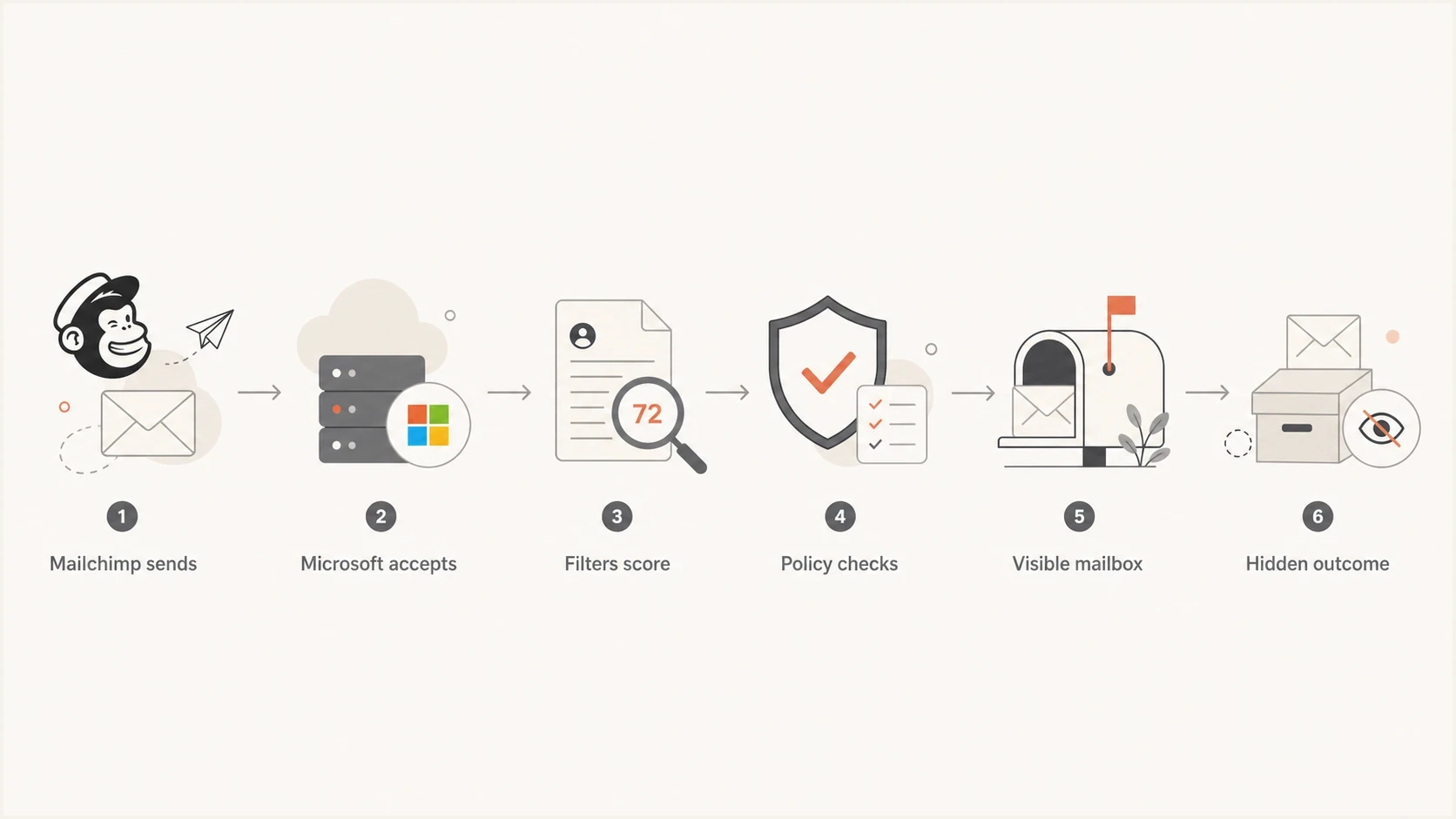
Mailchimp email path after Microsoft acceptance to inbox, junk, quarantine, or a hidden outcome.
The important distinction
A delivered status in Mailchimp means the message was not rejected during SMTP delivery. It does not prove Inbox placement, Junk placement, quarantine placement, or user visibility inside a Microsoft mailbox.
That distinction changes the investigation. The goal is not to prove that Mailchimp clicked a delivered label correctly. The goal is to collect enough evidence to show where the accepted message disappeared, and whether the issue sits with your domain, Mailchimp's sending pool, Microsoft filtering, or a recipient-side rule.
What to check first
Start with the basics, even when authentication already looks correct. Microsoft can react to a small configuration gap that other mailbox providers tolerate, so capture the actual results before changing the campaign or sending route.
- SPF result: Confirm Mailchimp is authorized for the visible sending domain or the bounce domain path that Mailchimp uses.
- DKIM signature: Confirm Mailchimp signs with your authenticated domain, and record the d= value and selector.
- DMARC policy: Confirm DMARC passes through SPF or DKIM domain match, and check whether policy is none, quarantine, or reject.
- Microsoft-only failure: Compare the same campaign at Gmail, Yahoo, Microsoft consumer accounts, and Microsoft 365 tenants.
- Recipient visibility: Check Inbox, Junk, Focused and Other, quarantine, deleted items, rules, and tenant message trace where available.
A quick domain health check is a useful first pass because it checks DMARC, SPF, and DKIM together instead of treating them as separate paperwork. The fastest investigations capture DNS, authentication, and reputation signals before anyone starts changing senders.
?
What's your domain score?
Deep-scan SPF, DKIM & DMARC records for email deliverability and security issues.
For a Mailchimp campaign, collect a copy of the final received headers from any mailbox provider that does receive the message. If Gmail or Yahoo receives it, those headers often expose the sending IP, DKIM selector, Return-Path, and authentication results. That can provide evidence even when the ESP support response is incomplete.
Example DMARC recordtext
v=DMARC1; p=quarantine; rua=mailto:dmarc@example.com
Separate Outlook.com from Microsoft 365
First identify the account type. Outlook.com, Hotmail, and Live consumer inboxes do not give the sender access to a tenant message trace. A work or school mailbox hosted in Microsoft 365 has administrator-side evidence that can show whether Microsoft received, deferred, rejected, quarantined, or delivered the message.
Outlook.com consumer accounts
- Search the mailbox: Check Inbox, Junk, Deleted Items, Focused and Other, rules, and blocked senders.
- Allow for throttling: Mailchimp says consumer providers can throttle delivery, with some messages taking about 24 hours to arrive.
- Correct future placement: Add the From address to Safe Senders and mark a visible copy as Not junk.
- Escalate with sender evidence: Use the exact recipient, UTC timestamp, sending IP, Message-ID, and SMTP response.
Microsoft 365 work or school accounts
- Run message trace: An Exchange administrator can see whether the service received, deferred, rejected, quarantined, or delivered the message.
- Search quarantine fully: Use Show all senders so a quarantine filter does not hide entries related to blocked senders.
- Check delivery changes: Where licensed, compare the original and latest delivery locations to detect a post-delivery move.
- Test tenant policy carefully: Keep any allow entry narrow and temporary. Do not bypass filtering broadly for a shared sending service.
Do not combine these evidence paths. A clean Microsoft 365 tenant trace proves what happened inside that organization, but it does not explain an Outlook.com consumer mailbox. Likewise, adding a sender to one consumer Safe Senders list does not diagnose a tenant-wide filtering rule.
How Microsoft can accept and then hide mail
Microsoft acceptance followed by no visible message is usually a reputation or policy problem, not a basic SMTP failure. The sending system got past the front door. The message then failed an internal filtering or routing decision.
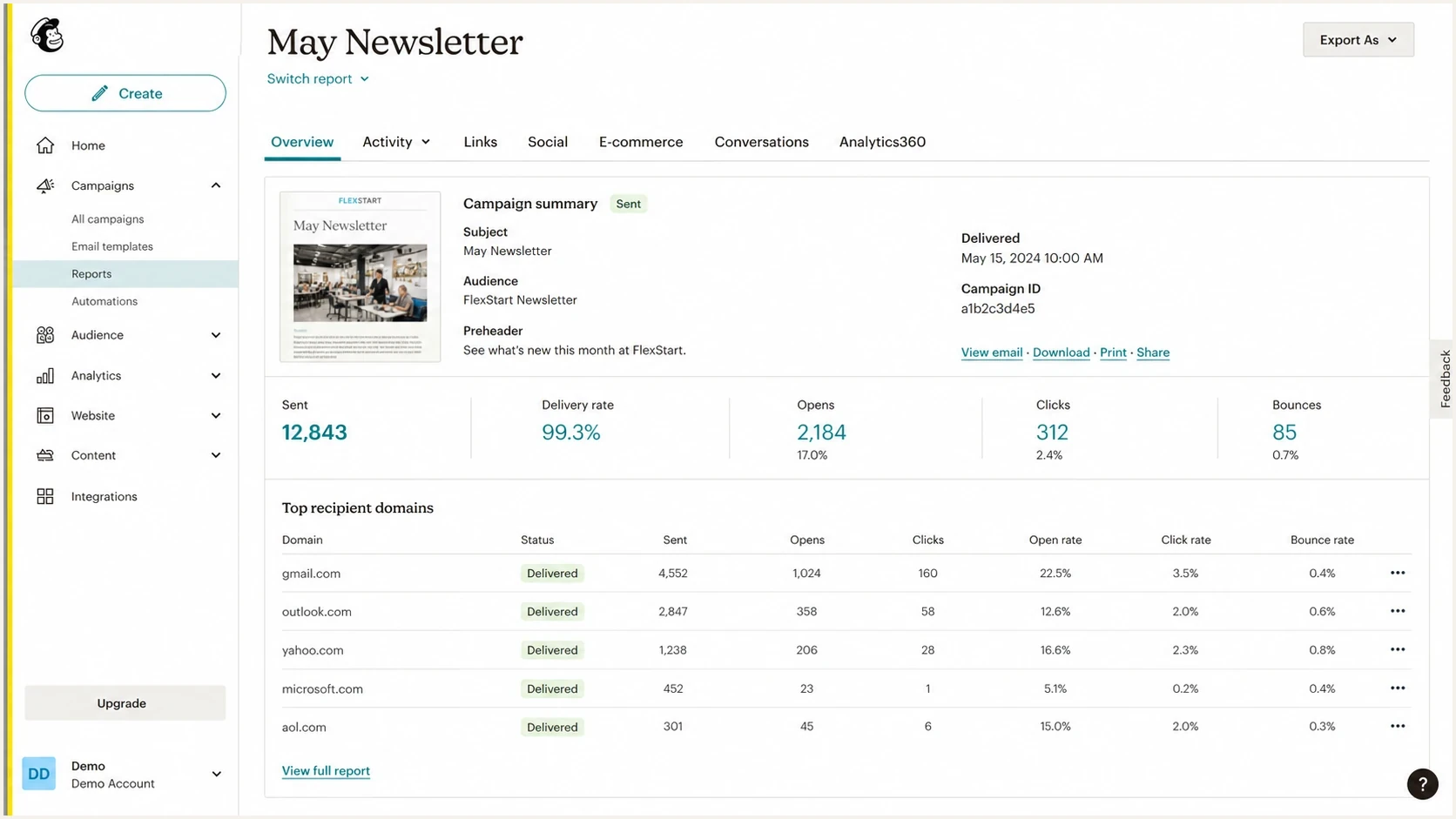
Mailchimp campaign report showing delivered status for Microsoft recipients.
What Mailchimp can prove
- SMTP result: The receiving Microsoft server accepted the message during SMTP.
- Bounce absence: No rejection came back during the delivery attempt.
- Campaign status: Mailchimp can mark the campaign recipient as delivered.
What Mailchimp cannot prove alone
- Inbox placement: The message landed in the recipient's Inbox.
- User visibility: The recipient can find the message in Outlook.
- Internal routing: Microsoft did not suppress, quarantine, delay, or discard it after acceptance.
If you need a deeper walkthrough of accepted messages that still do not appear, the related Microsoft-specific problem is covered in missing at Microsoft. The key point is that acceptance and mailbox visibility are separate events.
Evidence to ask Mailchimp for
The most useful support response is not simply delivered. Request the exact SMTP transcript details, sending IP, timestamp, message identifier, recipient address, and the Microsoft host that accepted the message. Mailchimp's own subscriber help also points senders toward recipient-side and filtering checks, which is consistent with this accepted-but-not-visible pattern.
|
|
|
|---|---|---|
Sending IP | Checks pool reputation | ESP, Microsoft |
Timestamp | Narrows logs | Microsoft |
Message ID | Finds one message | ESP, tenant admin |
DKIM selector | Verifies signing | DNS admin |
Recipient domain | Shows scope | Sender |
Evidence that helps separate ESP delivery from Microsoft mailbox visibility.
If Mailchimp refuses to provide shared IP detail at first, ask again with a narrower request. You do not need their entire pool. You need the IP and SMTP acceptance detail for the exact test messages you own. That is normal operational evidence, not a request to inspect other senders' mail.
Support request templatetext
Please provide delivery evidence for these test recipients:

Recipient: user@example.com
Campaign ID: 123456
Send time: 2026-08-03 10:15 UTC
Message-ID: available if present

Needed details:
- Sending IP used for this recipient
- Microsoft MX host that accepted the message
- Exact SMTP response code and text
- DKIM d= value and selector
- Any Microsoft deferral or policy response seen before acceptance
If you already received the same campaign at a non-Microsoft test mailbox, pull the full headers from that copy. You can often recover the sending IP, DKIM selector, and authentication results without waiting for another support cycle.
How to isolate reputation, authentication, and content
The fastest way to isolate the cause is to send controlled tests. Keep the recipient set small, send the same content through Mailchimp, and compare Microsoft consumer mailboxes with Microsoft 365 tenants. Then change one variable at a time: content, sending domain, audience segment, and authenticated domain.
Evidence confidence bands
How much confidence each signal gives during a Microsoft missing-mail investigation.
Low confidence
Status only
Only a delivered label from the ESP
Medium confidence
Headers
Delivered label plus received headers from another provider
High confidence
Full evidence
SMTP transcript, sending IP, DKIM data, and Microsoft tenant trace
A real-message test is better than a DNS-only check at this stage. Send a Mailchimp test to the email tester and inspect the resulting authentication, headers, content signals, and delivery diagnostics. This gives you a neutral reference point before you open a Microsoft escalation.
Email tester
Send a real email to this address. Suped shows a results button when the test is ready.
?/43tests passed
If the same campaign reaches Gmail and Yahoo but disappears at Microsoft, investigate a Microsoft-specific reputation or policy issue first. If all providers show weak placement, the campaign itself or the sender domain has the broader problem.
- Domain reputation: A poor sending history follows your domain, so changing ESPs alone does not fix it.
- Shared IP reputation: A Mailchimp shared pool can inherit reputation pressure from other senders, even when your domain is clean.
- Content signals: URL reputation, link redirects, image-heavy layouts, and repeated promotional wording can push Microsoft filtering decisions.
- Engagement signals: Low Microsoft opens, complaints, stale recipients, and repeated non-engagement can lower trust for future campaigns.
When moving away from Mailchimp helps
Changing ESPs helps when the problem is the ESP's shared infrastructure, support visibility, or lack of escalation help. It does not help much when Microsoft is reacting to your domain reputation, recipient quality, or content. Avoid moving platforms until you know which reputation layer is involved.
Moving can help
- Shared pool issue: Microsoft distrusts the pool used for that send.
- Poor support: The ESP cannot provide delivery evidence for owned test recipients.
- Routing control: A dedicated route or stronger escalation channel is required.
Moving will not fix
- Domain reputation: Microsoft distrusts your domain history, not the current ESP.
- List quality: Stale or unengaged Microsoft recipients keep dragging signals down.
- Authentication errors: SPF, DKIM, or DMARC mistakes follow the domain until fixed.
Create a test plan first. Send a small Microsoft-only segment, compare results across fresh and engaged recipients, check authentication, and watch whether Microsoft engagement recovers. For a broader view of the same provider-specific pattern, review Microsoft deliverability issues before changing infrastructure.
Where Suped fits in this workflow
Suped's product fits this workflow because the problem crosses Mailchimp, DNS authentication, reputation data, and Microsoft mailbox handling. Use Suped to confirm DMARC results, SPF and DKIM status, expected sending sources, alerts, and blocklist (blacklist) signals around the time Microsoft delivery changed.

Issue steps to fix dialog showing the issue overview, tailored fix steps, and verification action
Suped combines DMARC monitoring, managed authentication records, alerts, and blocklist monitoring in one workflow. The practical use here is to check whether Mailchimp still authenticates with the expected domain and whether a sending-source or blocklist change coincides with the Microsoft failures.
A practical Suped workflow
- Verify authentication: Confirm Mailchimp passes SPF, DKIM, and DMARC for your domain.
- Watch source changes: Track whether Mailchimp source patterns changed before Microsoft failures started.
- Check reputation: Monitor domain and IP blocklist or blacklist signals alongside DMARC results.
- Escalate with evidence: Use source data, authentication status, and timestamps to support an ESP or Microsoft ticket.
This workflow also helps agencies and MSPs separate one client's domain reputation from a pattern affecting several client domains that use Mailchimp.
A practical escalation path
Once you have evidence, escalate in a way that matches how Microsoft and the ESP can investigate. Vague reports like Microsoft users did not receive it are weak. Exact test recipients, timestamps, sending IPs, DKIM domains, selectors, and message identifiers are much harder to dismiss.
- Confirm scope: List affected Microsoft domains, recipient types, send times, and campaign IDs.
- Check visibility: Search Inbox, Junk, quarantine, deleted items, rules, and Microsoft 365 message trace.
- Collect headers: Use copies received at non-Microsoft mailboxes to recover IP and authentication data.
- Ask the ESP: Request the exact SMTP response, sending IP, accepting MX host, DKIM domain, and selector.
- Contact Microsoft: State that mail is disappearing after acceptance, then include evidence and ask for escalation.
- Pause risky sends: Stop sending to stale Microsoft recipients while the issue is active.
What to say in the escalation
Use precise language: Microsoft accepted these messages, no bounce was returned, and the recipients cannot find the messages in any visible mailbox location. Ask for investigation of post-acceptance handling for the listed timestamps and message identifiers.
If Microsoft delivery has degraded suddenly across more than one sender or platform, the issue belongs in a broader provider-specific investigation. If only Mailchimp campaigns are affected, focus on Mailchimp's route, the campaign content, and the domain's recent Microsoft engagement first.
Views from the trenches
Best practices
Collect SMTP response, sender IP, DKIM selector, and timestamps before escalation.
Compare Microsoft inboxes with Gmail and Yahoo using the same content and list segment.
Check Junk, quarantine, rules, and tenant trace before treating delivery as lost.
Common pitfalls
Treating Mailchimp delivered status as proof that Outlook users saw the message.
Moving ESPs before separating domain reputation from shared IP reputation layers.
Opening a Microsoft ticket without exact message evidence and accepted timestamps.
Expert tips
Use headers from any received copy to recover IP data when support replies are slow.
Ask Microsoft to investigate post-acceptance handling, not basic SMTP rejection.
Pause stale Microsoft segments while reputation signals and evidence are reviewed.
Marketer from Email Geeks says Microsoft can accept mail and still make it disappear from the visible mailbox path, especially when reputation signals are weak.
2024-09-10 - Email Geeks
Marketer from Email Geeks says an ESP that cannot provide useful delivery evidence leaves the sender with limited options for escalation.
2024-09-10 - Email Geeks
What to do next
If Mailchimp says delivered but Microsoft recipients see nothing, treat the case as post-acceptance non-visibility until evidence proves otherwise. Start by checking authentication and recipient visibility, then collect headers, sending IP, timestamps, DKIM details, and SMTP response text.
Do not assume a platform move fixes the problem. If the sender domain has weak Microsoft reputation, the issue follows the domain. If the shared Mailchimp route is the issue, stronger ESP evidence or route mitigation helps. Suped's product keeps that investigation grounded by tying DMARC, SPF, DKIM, alerts, and blocklist or blacklist monitoring to the sources actually sending mail.




