Why am I not receiving emails after filling out a webform?

Published 14 Jul 2025
Updated 27 Jul 2026
10 min read
Summarize with
Updated on 27 Jul 2026: We clarified the separate admin and submitter email paths and tightened the checks for delivery failures.
If you are not receiving emails after filling out a webform, the most likely reason is that the form submission and the notification email are failing at different points. The form can accept the submission, store it, and show a success message while the email notification is misaddressed, suppressed, rejected, quarantined, or filtered into spam.
Start by proving four separate events: the form accepted the submission, the website created a notification, the mail system accepted the message, and the recipient mailbox placed it somewhere visible. Skipping those boundaries leads to DNS changes when the problem was a typo in the notification address, or blame on the form platform when the message is sitting in quarantine.
Fast answer
A successful webform submission does not prove email delivery. It only proves the browser sent data to the form handler. Treat the email as a separate transaction and trace it with logs, message IDs, headers, and mailbox search.
Start with the split between form and email
A webform usually has two paths after submission. One path writes the response to a database, CRM, spreadsheet, or form platform. The other path sends an email to an internal address, the submitter, or both. Those paths share some inputs, but they often use different services and different rules.
That split matters because logs can honestly say the form processed the submission while the email still never reaches the inbox. Check what the system means by processed. It might mean received by the web server, accepted by a queue, accepted by an SMTP provider, or delivered to the recipient server.
- The browser sent valid form data and the application recorded the submission.
- The application generated an email event with the expected recipient and template.
- The SMTP service accepted the message and assigned a message ID.
- The recipient provider put the message in the inbox, spam, quarantine, or another folder.
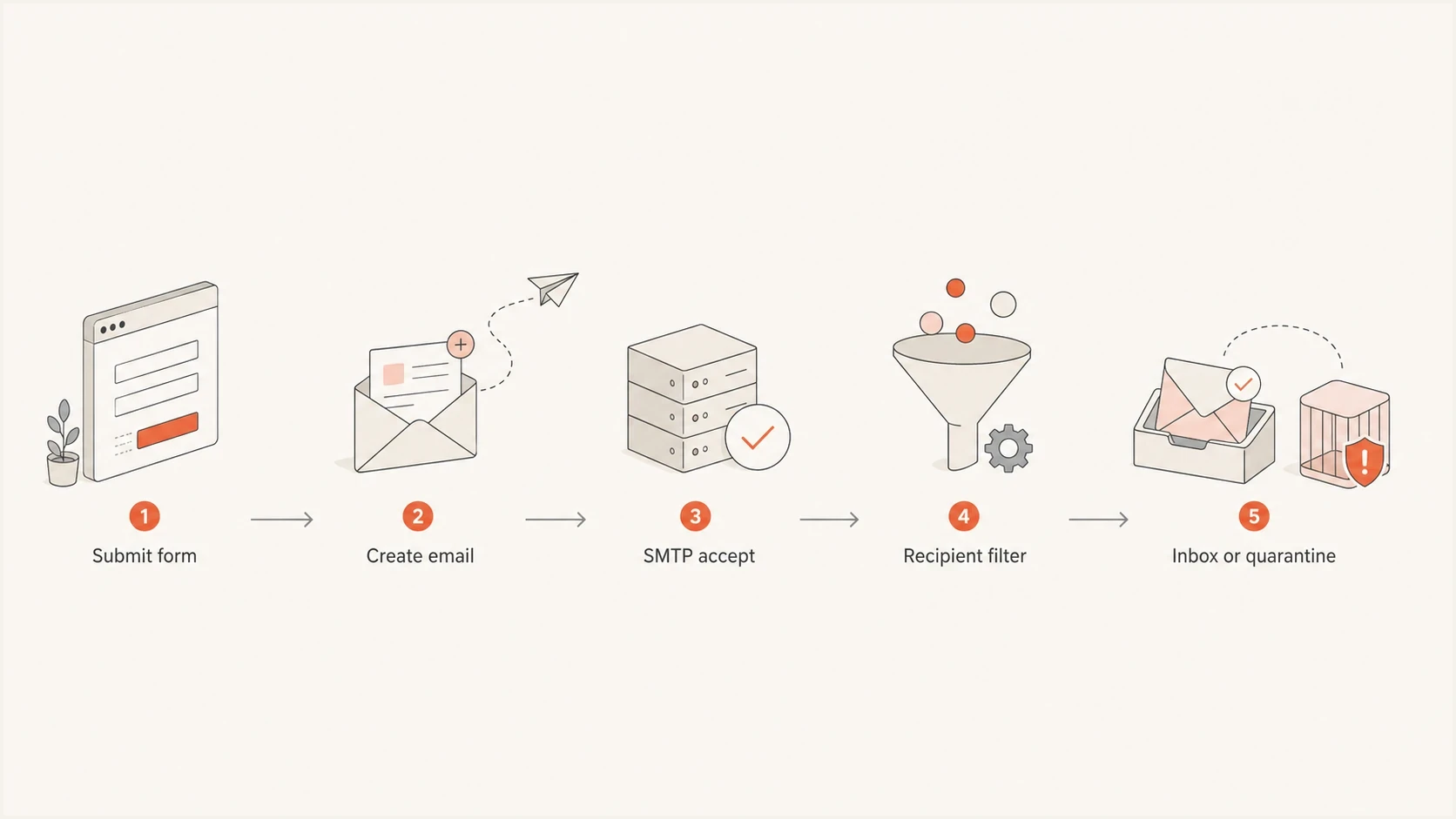
Flowchart showing the path from form submission to inbox or quarantine.
Check the form platform before DNS
Before touching SPF, DKIM, or DMARC, check the form's email notification settings and delivery log. The most common fixes are plain: the notification address is wrong, the notification toggle is off, the form is saving responses but not sending mail, the sender address is unverified, or the platform has suppressed the recipient after a previous bounce. If the To field has several recipients, validate the separator required by the platform and run a test with one recipient.
For hosted forms, read the platform's own delivery status first. Google has a useful Gmail contact form troubleshooting path, and Webflow documents common Webflow notifications causes. The exact interface differs, but the evidence you need is the same: submission ID, notification recipient, sender address, and mail event status.
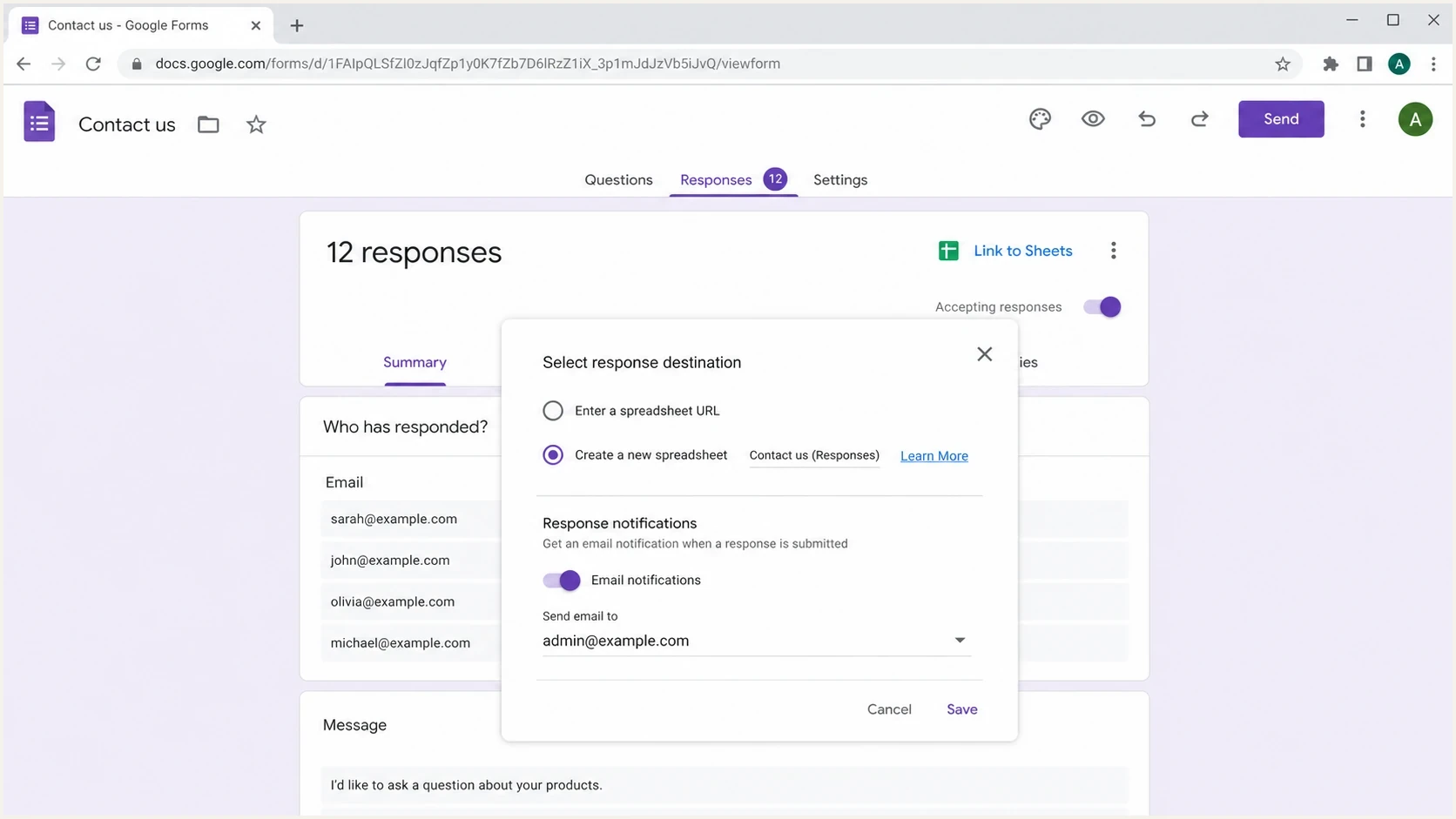
Google Forms response settings showing where email notifications are checked.
|
|
|
|
|---|---|---|---|
Success page only | No mail event | Form log | Enable notification |
Stored response | Wrong recipient | Recipient field | Correct address |
Provider says delivered | Mailbox filter | Recipient trace | Find or allow message |
Bounce | Policy rejection | Bounce code | Fix sender identity |
Repeated test failures | Suppressed recipient | Suppression log | Remove after fixing cause |
Use this table to decide where the first failure probably sits.
The easy trap is testing the form twice and assuming the second miss proves a delivery problem. It might prove only that the same bad recipient, disabled notification rule, or suppression entry was reused twice. Also check whether the test data triggered a form rule: blocked country, blocked IP, disposable address rule, profanity rule, required checkbox, or CAPTCHA scoring.
Separate admin notifications from response receipts
An admin notification and a submitter response receipt are separate email actions. One can arrive while the other never gets created. Identify which message is missing before changing SMTP or DNS.
For the admin path, verify that notifications for new responses are enabled and the To field uses the current team mailbox. For the submitter path, verify that the form collects the correct email field, maps it to the autoresponder recipient, and has the response receipt enabled. Compare the sender, recipient, template, and log entry for each action.
- If only the admin email is missing, inspect the notification action and its destination mailbox.
- If only the submitter receipt is missing, inspect the email-field mapping and autoresponder setting.
- If both are missing, check the shared queue, SMTP handoff, and sender authentication.
- If one recipient domain is affected, check its trace, quarantine, and rejection response.
Confirm the message left the site
Once the form settings look right, look for the handoff to mail. On WordPress, that usually means checking the SMTP plugin or mail log rather than assuming the local mail function worked. On custom apps, it means checking the queue worker, API response, SMTP response, and message ID. On hosted platforms, it means finding the notification status or asking support for the mail event tied to the submission.
Useful mail log evidencetext
submission_id=842 status=accepted form=contact
notification_id=91 recipient=ops@example.com
smtp_status=250 queued message_id=abc123
provider_event=delivered recipient_server=mx.example.net
A 250 SMTP response means the next mail system accepted the message. It does not promise inbox placement. If the email provider reports delivered but the recipient never sees it, use a mailbox trace or admin search. Treat delivered but not received as its own investigation path.
What application logs prove
- Application logs show whether the form handler accepted the visitor's data.
- They show whether the notification email was created with the expected fields.
- They show which recipient address was passed to the notification action.
- They show whether the job reached a worker or mail service.
What recipient logs prove
- Recipient logs show whether the server accepted or rejected the message.
- They show the authentication results attached to the message.
- They show whether filtering placed it in the inbox, spam, or quarantine.
- They show whether a transport or user rule moved or deleted it.
Fix sender authentication and mailbox filtering
Webform emails often break authentication because the form uses the visitor's email address as the From address. That looks convenient, but it asks your website to send mail as someone else's domain. If the visitor uses a domain with strict DMARC, the recipient mailbox sees a mismatch and can reject or quarantine the message.
The safer pattern is simple: use an address at your authenticated domain as the sender, then put the visitor's address in Reply-To. That keeps SPF, DKIM, and DMARC tied to a domain you control while still letting your team reply to the person who filled out the form.
Safer webform notification headerstext
From: Website forms <forms@example.com>
Reply-To: customer@personal.example
Return-Path: bounce@example.com
SPF: pass for example.com
DKIM: pass for example.com
DMARC: pass for example.com
Do not send as the submitter
If the form sends From: visitor@example.net through your website, DMARC can fail because your server is not authorized to send for that visitor's domain. Use your own sender domain and keep the visitor address in Reply-To.
If authentication passes and the message is still missing, search spam, junk, archive, deleted items, focused inbox tabs, quarantine, and user rules. A mailbox can accept a message and hide it from the normal inbox. If this is the pattern, the fix is different from a failed send: improve content, sender consistency, list hygiene, and reputation. For a broader treatment, see why emails land in the spam folder.
Blocklist (blacklist) status also matters when webform mail shares an IP or sender domain with other traffic. A listing does not explain every missing form email, but it belongs on the checklist when many recipients stop receiving notifications at once or when bounces mention reputation.
Run a controlled webform email test
Controlled tests remove guesswork. Send the same form notification to a mailbox you control, then inspect the headers and result. Suped's email tester confirms whether the message authenticates, whether the content has obvious problems, and whether the message structure looks normal.
Email tester
Send a real email to this address. Suped shows a results button when the test is ready.
?/43tests passed
After that, check the domain itself. A domain health check catches broken or missing DNS records, while DMARC monitoring shows which sources are sending as your domain and whether they pass authentication. If reputation is in question, blocklist monitoring keeps the blacklist and blocklist side visible instead of making it a one-off check.
- Submit the form once with a known address and a unique subject or message.
- Capture the submission ID, notification ID, SMTP status, and message ID.
- Check the inbox, spam, quarantine, transport rules, and provider logs.
- Adjust one setting, send one retest, and compare the result.
Monitor recurring failures with Suped
Suped's product helps once the issue touches domain authentication or recurring monitoring. A single missing webform notification can be a form setting problem. Repeated misses across recipients need a view of DMARC results, sender sources, and blocklist (blacklist) status.
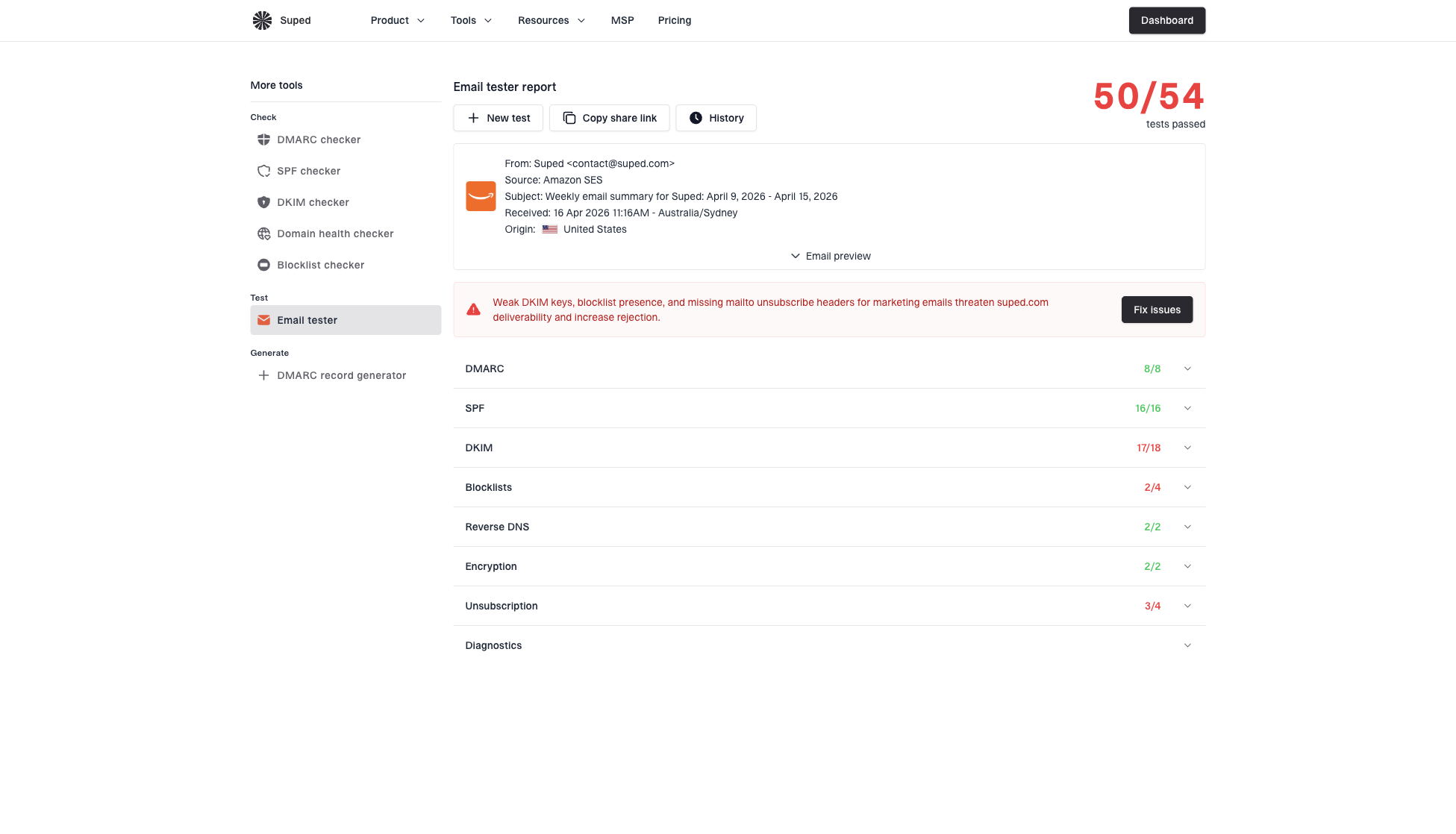
Email tester sample report showing total score, email preview, issue summary, and per-section results
Suped's DMARC monitoring shows whether the form's sending source passes authentication, and alerts expose recurring changes. Its blocklist monitoring keeps blacklist and blocklist status visible when the same sending IP or domain affects multiple recipients. Match those signals to submission and message IDs so the domain-level evidence connects to the specific failed notification.
A clean operating model
Keep webform mail on a verified sender domain, monitor that domain continuously, and make every failure traceable to a submission ID and message ID. That gives support and engineering teams the same evidence instead of separate guesses.
Views from the trenches
Best practices
Separate form acceptance, mail handoff, and inbox placement before changing DNS settings.
Use a fixed sender domain and keep the visitor address in Reply-To, not the From header.
Keep submission and message IDs so support can trace each failed notification quickly.
Test with two mailbox providers before blaming one recipient account or local filters.
Common pitfalls
Assuming a success page means email delivery worked leaves the failure point hidden.
Using the submitter address as From often causes DMARC failures on forwarded form mail.
Checking spam only once misses quarantine, suppression lists, and hidden routing rules.
Changing several DNS records at once makes the next controlled test hard to interpret.
Expert tips
Send a test to a mailbox you control and read full headers before editing records.
If logs say processed, compare message IDs with recipient logs before sending another test.
Watch blocklist and blacklist status when form mail shares IPs with bulk traffic.
Document the final working path so the next webform issue starts from clear evidence.
Marketer from Email Geeks says repeated webform tests can look failed when the form stored the submission and the user checked the wrong notification path.
2022-11-02 - Email Geeks
Marketer from Email Geeks says application logs matter because they separate a blocked submission from a processed notification event.
2022-11-02 - Email Geeks
What to fix first
Fix the most local cause first. Confirm the notification recipient, enable the notification rule, use a sender address on your own authenticated domain, and keep the submitter address in Reply-To. Then test once, capture the message ID, and search the recipient mailbox and quarantine.
If the form platform proves the email was created and accepted by mail, move to authentication, reputation, and recipient filtering. If the form platform cannot prove a mail event exists, stay inside the form settings or application logs. The fastest fix comes from proving the exact handoff that failed.




