Where can I find the Microsoft Outlook sender support form?


Updated on 12 Aug 2026: We updated this guide with Microsoft's current Postmaster and SNDS routes, including the sender support workflow.
The Microsoft Outlook sender support form is still available. Start on Microsoft's Sender Support page or the current Postmaster troubleshooting page. Under "Sender services, tools, and issue submission," select the support link. It opens Microsoft's support workflow and can require a Microsoft account sign-in.
The sign-in requirement catches people who remember the older unauthenticated flow. Treat the Microsoft account prompt as part of the current route, not proof that the form has disappeared.
Direct answer
Use the Microsoft sender support path for Outlook.com, Hotmail, Live.com, and MSN delivery issues after checking authentication, sender reputation, bounce evidence, and recent sending changes. If an NDR identifies an IP block for a Microsoft 365 business recipient, use Microsoft's IP delisting route instead.
How to reach the form
Use Microsoft's current Postmaster route instead of relying on old bookmarks. Legacy Postmaster URLs now redirect to the replacement site. Open the troubleshooting page, find the issue submission section, then select Support. Sign in with a Microsoft account when prompted.
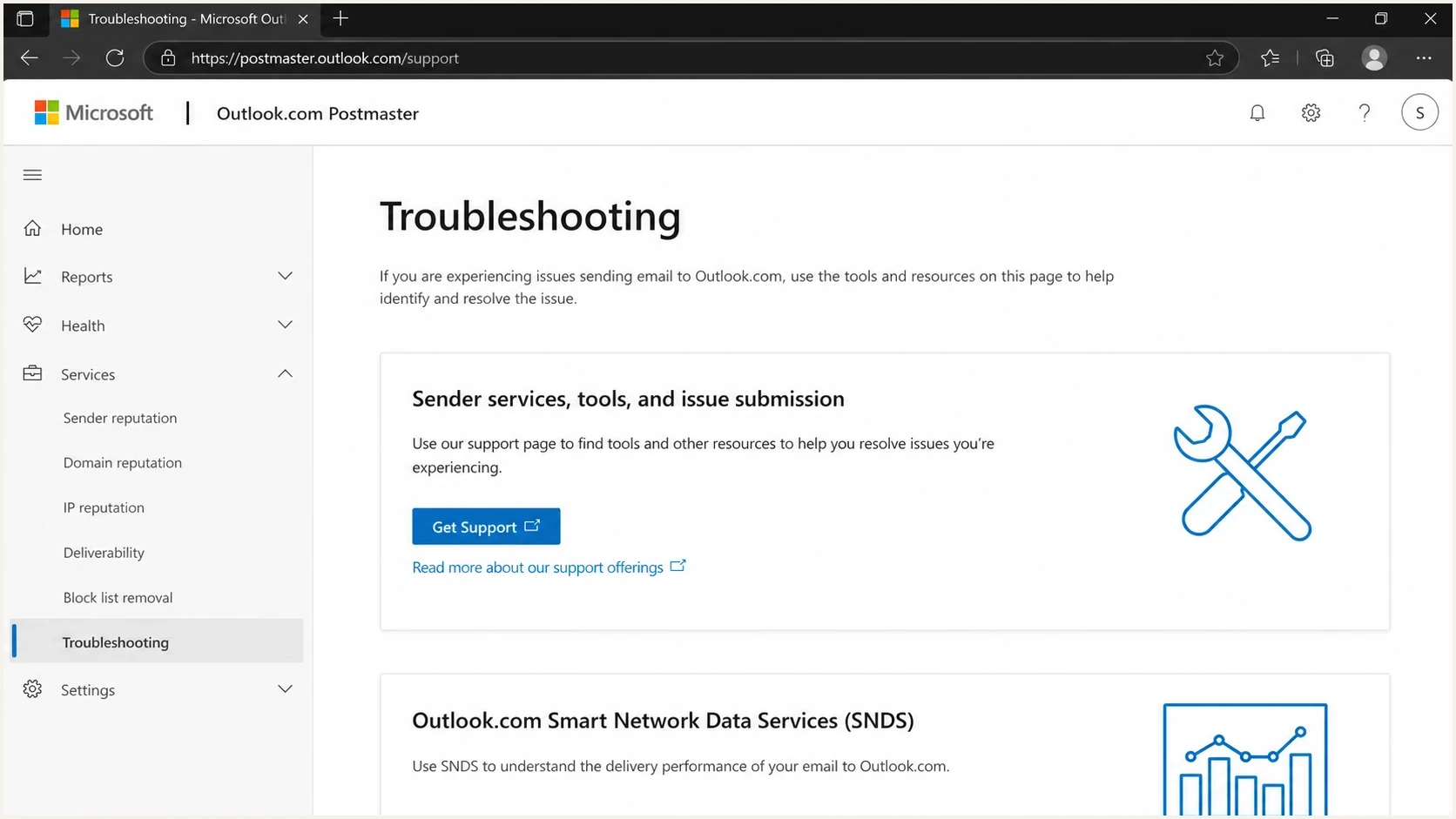
Microsoft Outlook.com Postmaster page showing the sender support form section.
- Open the current page: Go to Microsoft's Postmaster troubleshooting page and locate the issue submission section.
- Select Support: Use the Microsoft sender support form after confirming that the issue falls within Outlook.com consumer delivery.
- Sign in: Use a Microsoft account when the workflow asks for identity.
- Submit evidence: Include IPs, domains, full bounce text, UTC timestamps, sample recipients, message IDs, and recent changes.
Do not open the form too early
Microsoft limits submissions to Outlook.com system delivery problems and does not guarantee delivery. Submit only after authentication passes, the bounce is current, and the issue affects Microsoft consumer domains rather than one recipient's mailbox rule.
Which Microsoft route to use
The sender support form is not the only Microsoft route. The right path depends on whether the evidence shows a blocked IP, poor inbox placement, missing messages without a clear bounce, or reputation data that needs review. Choosing the wrong route wastes time because the case handler still needs the same evidence.
|
|
|
|---|---|---|
Outlook block | Support form | Bounce, IP, domain |
Microsoft 365 IP rejected | IP and NDR | |
Inbox issue | Test first | Headers and samples |
Auth failure | Fix DNS | SPF, DKIM, DMARC, rDNS |
Reputation check | Microsoft account and IP ownership |
Use the route that matches the evidence you already have.
Use the sender support form when
- Scope: Delivery problems affect Outlook.com, Hotmail, Live.com, or MSN recipients.
- Evidence: You have current bounces, message headers, test sends, or consistent folder placement.
- Readiness: SPF, DKIM, DMARC, reverse DNS, and the sending identity are correct.
Use another path when
- Single IP: An NDR for a Microsoft 365 business recipient points to one IP that needs delisting.
- Mailbox issue: One recipient is missing mail because of forwarding, rules, quarantine, or local filtering.
- Authentication: DMARC, SPF, DKIM, or reverse DNS fails before Microsoft evaluates reputation.
Use the new SNDS portal before escalating
Microsoft replaced its previous SNDS site with the new SNDS portal. Sign in with a Microsoft account, then request access to the IPs you control. The portal provides IP-level reputation data and Junk Email Reporting Program feedback for messages that users mark as junk or phishing.
- Use SNDS for diagnosis: Review IP reputation, complaint data, volume changes, and unusual sending behavior before escalating.
- Use sender support for escalation: Send urgent, repeatable Outlook.com delivery problems to the person who understands the affected mail infrastructure.
Update old SNDS links
Microsoft deprecated the old SNDS automated-access URLs in June 2026, and the Data Report no longer includes trap-hit counts after July 2026. Replace old bookmarks and automations, and do not interpret missing trap data as a reputation improvement.
Evidence to gather before you submit
A sender support case is only as useful as the evidence inside it. Prepare the case as a small incident report covering what changed, what failed, which recipients are affected, and which checks already passed. That makes the Microsoft response more actionable and reduces back-and-forth.
Before opening the form, send a fresh test message and inspect the result with the email tester. A real message gives you headers, authentication results, and content signals that a DNS-only check cannot show.
Email tester
Send a real email to this address. Suped shows a results button when the test is ready.
?/43tests passed
- Bounce text: Copy the full SMTP error, not only the short code or screenshot.
- Sending IPs: List the exact outbound IPs used by the affected stream.
- Domains: Include the visible From domain, return-path domain, and DKIM signing domain.
- Timing: Include UTC timestamps for failures and recent sending or DNS changes.
- Scale: Estimate affected volume and confirm whether other mailbox providers accept the same mail.
Case notes templatetext
Issue: Outlook.com delivery rejection or junk placement
From domain: example.com
Return-path domain: bounce.example.com
DKIM domain: example.com
Outbound IPs: 203.0.113.10, 203.0.113.11
Affected recipients: outlook.com, hotmail.com, live.com
First seen: 2026-06-05 02:15 UTC
Last confirmed: 2026-06-05 04:40 UTC
Bounce code: 550 5.7.x or full SMTP text here
Recent changes: new IP, DNS update, volume change, or none
Checks completed: SPF pass, DKIM pass, DMARC pass, rDNS pass
A better support case
The strongest cases show current failure evidence and proof that obvious sender-side issues are fixed. If a clean authentication result is missing, fix that before asking Microsoft to review filtering.
Check authentication and reputation first
Microsoft delivery issues often involve authentication, IP reputation, complaint rates, content, and recipient engagement. Start with these checks because they need to be clean before escalation. Use a domain health checker to verify DNS records before writing a case.
High-volume senders must authenticate
Domains sending more than 5,000 messages per day to Outlook.com accounts must pass SPF, DKIM, and DMARC. Microsoft requires a DMARC policy of at least p=none, with SPF or DKIM tied to the From domain. A failure can return 550 5.7.515. Fix that policy rejection before submitting the sender support form.
Suped's product brings DMARC reporting, SPF and DKIM checks, hosted authentication records, alerts, issue detection, and blocklist (blacklist) monitoring into one workflow. Teams can use that workflow to identify sender-side faults, document fixes, and keep the evidence needed for a Microsoft sender support case.

Issue steps to fix dialog showing the issue overview, tailored fix steps, and verification action
For ongoing protection, DMARC monitoring gives you source-level visibility into who sends as your domain. Blocklist monitoring helps catch domain or IP reputation problems, including blacklist listings, before they become a Microsoft-only incident.
Support readiness checks
Use these thresholds before opening a sender support case.
Ready
Pass
Authentication passes and the issue is repeatable.
Needs work
Fix first
One sender source, DNS record, or IP check is unresolved.
Not ready
Retest
The issue is anecdotal, old, or lacks headers and bounce text.
What happens after you submit
After submission, expect Microsoft to review the supplied evidence for the affected IPs and domains against Outlook.com policies. The response can ask the sender to wait, correct a configuration problem, reduce unwanted mail, or use the IP delisting path.
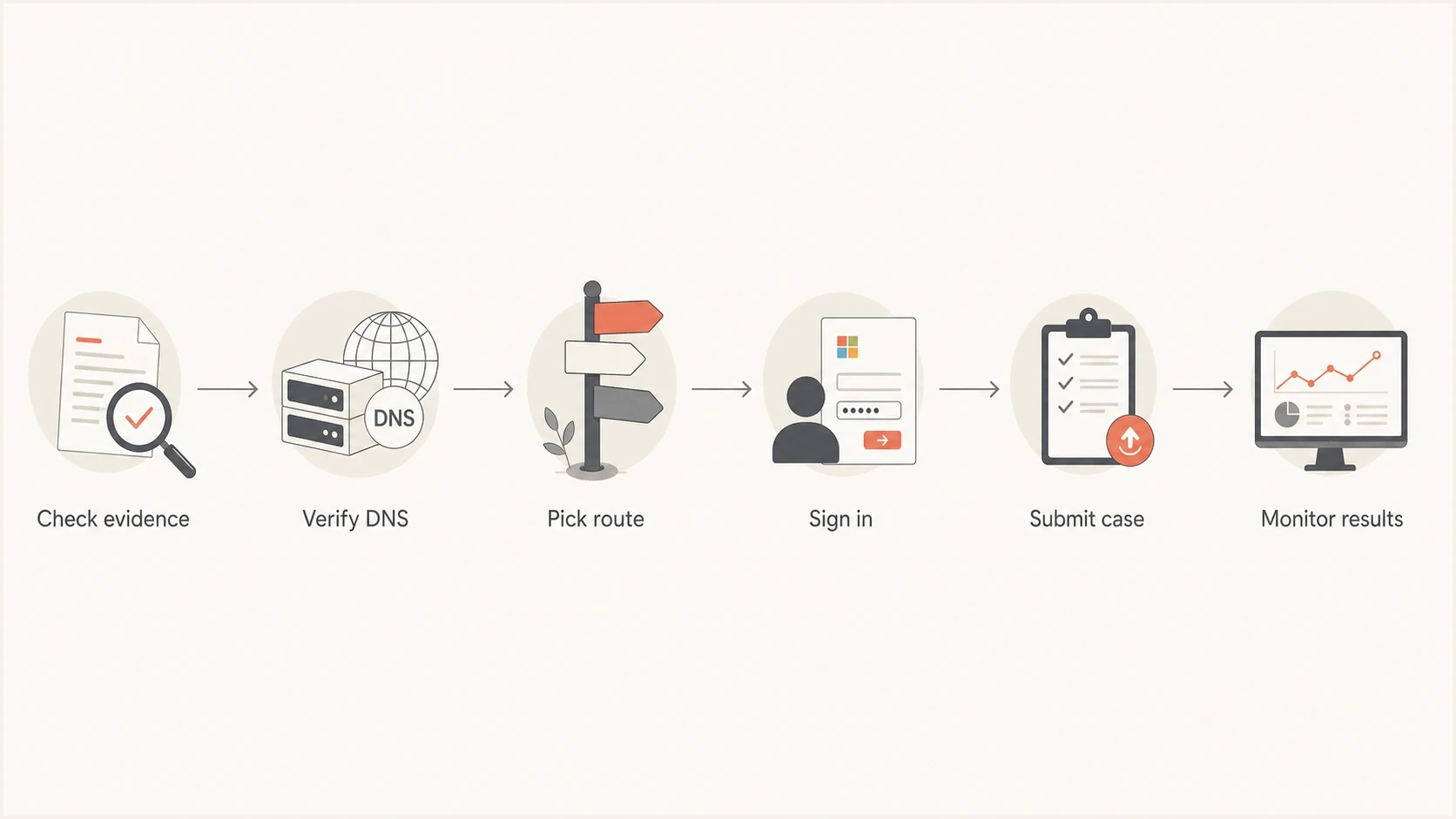
Flowchart showing evidence checks before Microsoft sender support submission.
Keep monitoring after the first reply. Microsoft filtering changes as complaint rates and sending patterns change. New IPs also need time to build reputation. For recurring problems, keep a rolling log of tests and compare the incident with a broader Microsoft blocking issues checklist.
For B2B delivery problems, the general Outlook.com sender form is often not the whole answer because tenant policies, quarantine settings, and security gateways affect the result. Use the separate Microsoft contact options guidance when the affected recipients are business tenants rather than consumer Outlook.com mailboxes.
Common mistakes that slow the case
The most common mistake is treating the form as a shortcut around sender hygiene. Microsoft asks senders to follow its policies first, and a weak case gets a generic answer. Keep the submission current and limited to the affected stream.
- Old data: Do not submit month-old bounces unless the same failure still happens now.
- Mixed streams: Do not combine transactional and marketing mail with cold outbound issues in one unclear case.
- Missing DNS: Do not ask for filtering review before SPF, DKIM, DMARC, and rDNS pass.
- Wrong scope: Do not use the Outlook.com sender form for a single corporate tenant policy issue.
- Namespace mining: Do not validate address lists by probing Outlook.com servers. Microsoft blocks IPs that use this technique.
- No follow-up: Do not assume the issue is fixed until fresh test sends and production mail confirm it.
A form submission is not a whitelist request
Microsoft does not offer a simple allowlist that bypasses filtering for every future message. The goal is to show that the sender identity is legitimate, the infrastructure is correct, and the current filtering result needs review.
Views from the trenches
Best practices
Confirm the current Microsoft route, then save the sign-in account used for future cases.
Collect fresh headers, bounce text, affected IPs, and DNS checks before opening the form.
Separate consumer Outlook issues from B2B tenant filtering so each case has clear scope.
Common pitfalls
Assuming the old unauthenticated sender form still works leads teams into stale redirects.
Submitting a broad complaint without samples often gets a generic response from support.
Treating a blocklist or blacklist hit as a Microsoft issue delays the sender-side fix.
Expert tips
Use one Microsoft account for the process so case history and follow-ups stay traceable.
Retest after every DNS or volume change, because old failures make support cases weaker.
Document the route used, since Microsoft support pages and redirects change over time.
Marketer from Email Geeks says the sender support form is still reachable, but the visible path is harder to find than it used to be.
2023-06-08 - Email Geeks
Marketer from Email Geeks says the form now asks senders to identify with a Microsoft account, and creating one is a normal part of the process.
2023-06-08 - Email Geeks
The practical path
The Microsoft Outlook sender support form is available through Microsoft's current Postmaster troubleshooting page. Open the issue submission section, select Support, sign in with a Microsoft account, and prepare a focused case. Use the separate IP delisting page when an NDR identifies an IP block for a Microsoft 365 business recipient.
The operational fix is to keep authentication clean, monitor domain and IP reputation, and record changes before asking Microsoft to review a delivery outcome. Suped's product supports that process with issue detection, DMARC policy monitoring, hosted authentication records, real-time alerts, and multi-domain reporting.




