What to do when Microsoft is confused about automated alerts from your domain?

Updated on 7 Aug 2026: We added Microsoft's false-positive submission steps and clarified how to separate authentication failures, tenant policy actions, and Outlook.com reputation issues.
When Microsoft is confused about automated alerts from your domain, the fix is not one setting. Treat it as four checks: prove the alert is real, prove the sender is allowed, remove message patterns that look risky, and then handle the Microsoft-side action with evidence. Microsoft will not trust an alert just because the visible From address uses your domain.
The exact response depends on where the confusion appears. A Defender-generated notification, a Microsoft 365 quarantine, an Outlook warning, and an SMTP bounce come from different systems. Start with the original message and headers, not a screenshot, because the evidence identifies an authentication failure, a filtering verdict, a reputation problem, or a tenant policy action.
- Capture evidence: Save the full headers, message ID, sending IP, envelope sender, DKIM selector, and any Microsoft bounce or quarantine reason.
- Test authentication: Confirm SPF, DKIM, DMARC, and Microsoft's composite authentication result on the real alert, not on a hand-built test email.
- Separate traffic: Move recurring alerts to a dedicated subdomain so Microsoft can learn a cleaner sending pattern.
- Escalate last: Submit or support-escalate a false positive only after authentication and content have been cleaned up.
Confirm what Microsoft is reacting to
The first mistake is treating Microsoft confusion as one failure. It can be a Defender notification created by an alert policy, a quarantine action inside a Microsoft 365 tenant, an Outlook.com reputation decision, an SMTP rejection, or a warning shown to a recipient. Each one needs a different first move.
|
|
|
|---|---|---|
Defender notification | Alert policy activity | Open the alert record |
Defender quarantine | Filter, policy, or override | Open the email entity |
SMTP bounce | IP or domain reputation | Save the exact code |
Outlook identity warning | Authentication or identity mismatch | Compare sender domains |
Junk placement | Mixed filtering signals | Test live mail |
Use the Microsoft signal to decide where to start.
For Microsoft 365 tenant issues, ask the recipient admin for the quarantine verdict, message trace, email entity details, and the policy or override that acted on the message. For Outlook.com filtering or an SMTP rejection, collect the full response code, final delivery status, and a received copy with complete headers. A phone screenshot gives context, but it does not show what failed. After creating or updating an alert policy, allow up to 24 hours before expecting the new trigger behavior.
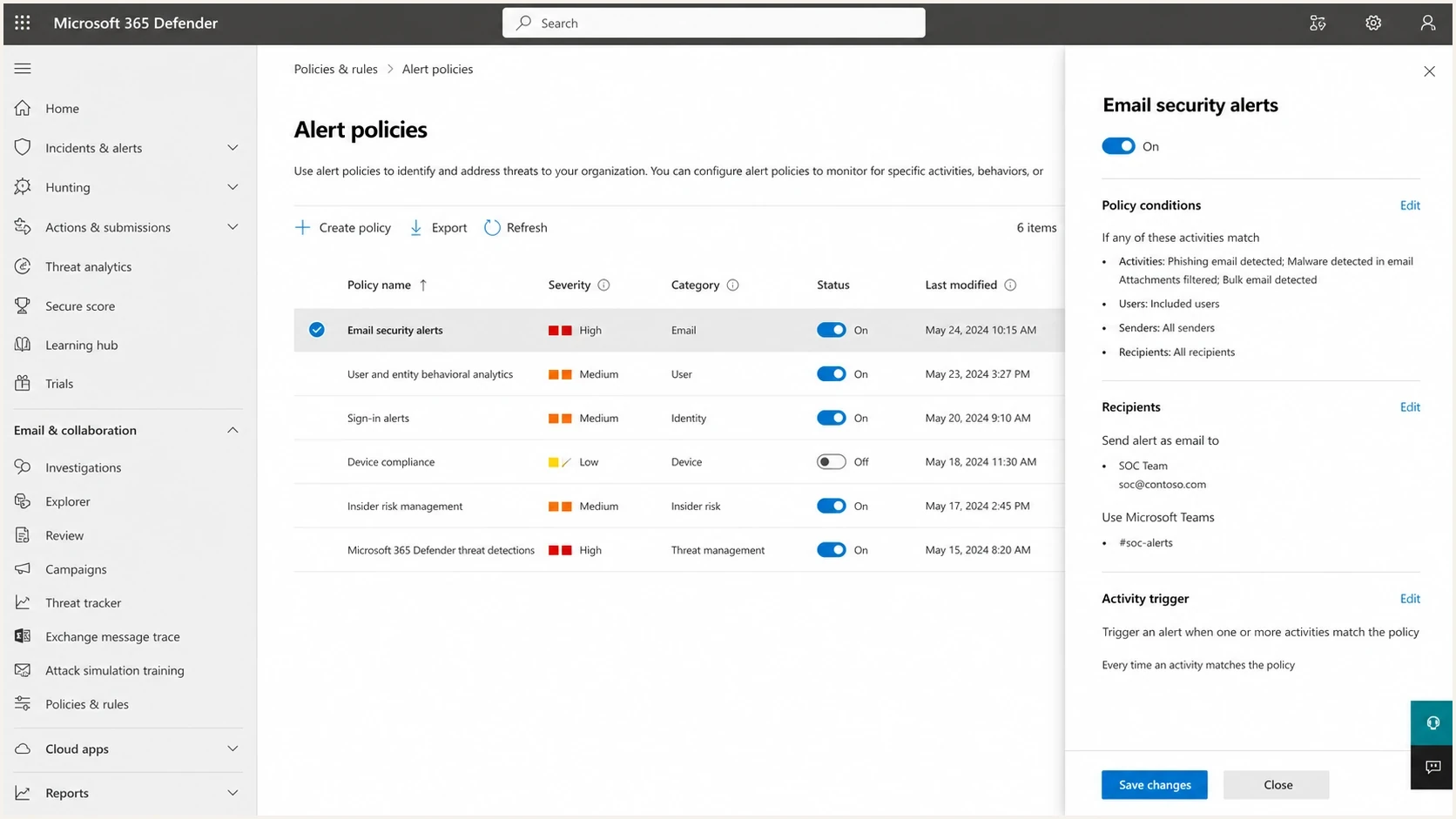
Microsoft Defender portal alert policies screen used to inspect tenant-side alerts.
A Defender alert-policy notification reports activity in the tenant. It is different from a message that Defender quarantined. If the issue is tenant-side, the recipient admin controls the policy and remediation path. If Microsoft filters the message at the receiver, the sender controls the evidence, authentication, sending pattern, and escalation package.
Prove the alert is really yours
Before changing DNS or asking Microsoft to review anything, verify the automated alert is actually coming through the approved path. That means using a real generated alert, sent by the same system, with the same template, envelope sender, links, and attachments or no attachments.
Header evidence to capture
Authentication-Results: spf=pass smtp.mailfrom=bounces.alerts.example.com
dkim=pass header.d=alerts.example.com
dmarc=pass header.from=alerts.example.com
compauth=pass
Received-SPF: pass
Return-Path: <bounce-id@bounces.alerts.example.com>
Send one live alert to Suped's email tester and inspect the real authentication result. Run a domain health check when a quick view is needed of DMARC, SPF, and DKIM across the domain before deeper triage.
?
What's your domain score?
Deep-scan SPF, DKIM & DMARC records for email deliverability and security issues.
The key is testing the live path. A manually forwarded sample changes headers. A copied template sent through a different mailbox changes the sending source. A test message without the alert links and alert wording does not prove how Microsoft sees the production message. If a gateway or forwarder sits in the path, inspect the ARC results and check whether an intermediary modified the signed message.
What good evidence contains
- Original headers: Use the final recipient copy, not a forwarded copy or a screenshot of the message.
- Exact sender: Record the visible From domain, envelope domain, DKIM signing domain, and sending IP.
- Microsoft result: Save the bounce text, filtering verdict, quarantine reason, or alert-policy name.
- Timing data: Keep the send time, delivery attempt time, and any spike in Microsoft-only failures.
Fix authentication before asking Microsoft to trust it
Authentication is the baseline. Microsoft can distrust an alert that uses your visible domain while the envelope sender belongs to a vendor, DKIM signs with a different domain, or DMARC fails because neither authenticated identifier matches the From domain. DMARC passes when SPF or DKIM passes with a matching domain. Microsoft's compauth result adds other evidence to those protocol results, so read it beside SPF, DKIM, DMARC, and ARC rather than treating it as a replacement.
Example DNS records for alert maildns
alerts.example.com. TXT
"v=spf1 include:_spf.sender.example -all"

selector1._domainkey.alerts.example.com. TXT
"v=DKIM1; k=rsa; p=MIIBIjANBgkqh..."

_dmarc.alerts.example.com. TXT
"v=DMARC1; p=quarantine; rua=mailto:dmarc@example.com"
Weak setup
- Root overload: Every automated sender is added to the root SPF record.
- Vendor DKIM: The DKIM domain belongs to the sender, not your alert subdomain.
- Loose ownership: No one knows which team owns the alert stream or DNS changes.
Stronger setup
- Dedicated domain: Automated alerts use a specific subdomain with clear purpose.
- Your DKIM: The alert source signs with a DKIM domain under your control.
- Tracked policy: DMARC reports show which sources pass, fail, and change over time.
This is where Suped fits the workflow. Suped's DMARC monitoring groups aggregate report data by sending source, shows authentication failures, and flags new sources that appear without approval. That evidence helps the team confirm whether the alert platform uses the expected domain and infrastructure before contacting Microsoft.
DMARC record detail view showing SPF, DKIM, DMARC, rDNS diagnostics, and DNS records
Do not lower a DMARC policy just to get past one Microsoft warning. If the alert stream fails DMARC, fix the stream. If it passes DMARC and Microsoft still flags it, move to message content, sending pattern, and reputation evidence.
Move automated alerts to a dedicated subdomain
Automated alerts should not share the same identity as human mail, marketing mail, receipts, and password reset traffic. A dedicated subdomain gives Microsoft a clearer pattern to learn and gives you a safer place to stage DMARC policy.
Clean alert identity model
Visible From: alerts@example.com
Envelope From: bounce@bounces.alerts.example.com
DKIM d=: alerts.example.com
DMARC domain: alerts.example.com
Owner: security operations
|
|
|
|---|---|---|
Alerts | alerts | Operational |
Receipts | receipts | Transactional |
Human | mail | People |
Marketing | news | Campaigns |
Keep sender identities simple and stable.
The subdomain also limits blast radius. If an alert vendor changes infrastructure or sends a broken template, you can see the failure without confusing it with the root domain's normal business mail. That makes Microsoft-only spikes much easier to explain.
Subdomain rule of thumb
Use one subdomain for one kind of automated mail. Keep the visible From domain, envelope domain, and DKIM signing domain as close as your sender supports. Then monitor the subdomain until the source has a stable pass pattern.
Reduce Microsoft risk signals in the message
Once authentication passes, review the content. Automated alerts often contain patterns Microsoft filters watch closely: urgent security wording, account names, links to dashboards, raw IP addresses, tracking URLs, and login prompts. Legitimate alerts can look hostile when they lack context.
- Brand context: Include the product, tenant, account, and reason the recipient receives the alert.
- Link hygiene: Use stable branded hostnames and avoid shorteners, raw IP links, and surprise redirects.
- Recipient context: Tell the recipient why they are getting the alert and who owns the system.
- Volume control: Suppress duplicate alerts, dead recipients, role accounts that bounce, and old test users.
- Complaint handling: Give non-critical alert recipients a preference route instead of forcing every notification.
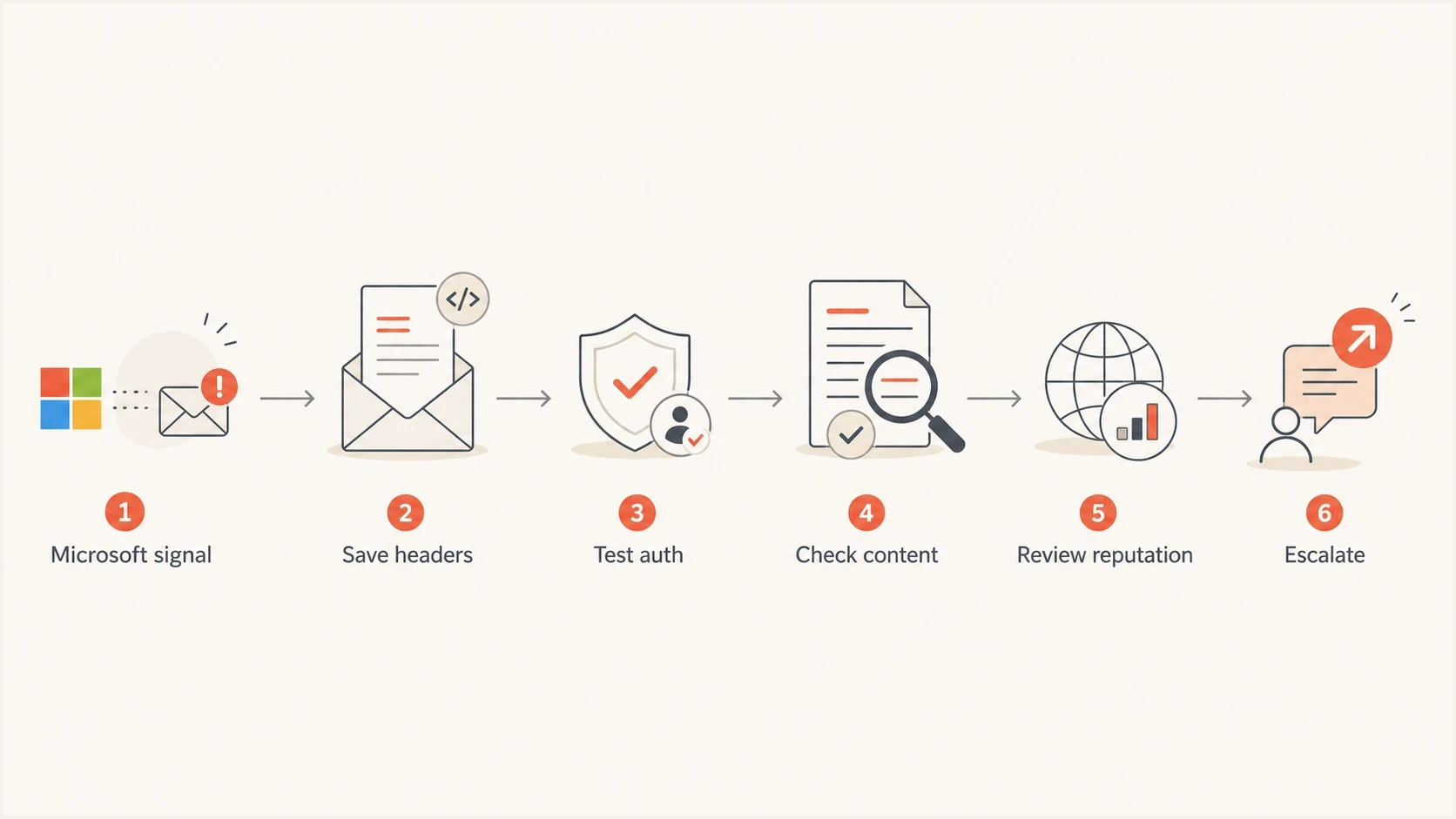
Flowchart for triaging a Microsoft automated alert issue.
If the symptom is a Microsoft block or repeated bounce, the same evidence still matters. The deeper process is covered in Microsoft blocks automated emails, but the short version is simple: do not ask Microsoft to ignore a message that still has authentication gaps, unstable sender identity, or weak recipient targeting.
Handle Defender quarantines without broad allow rules
When Microsoft 365 Defender quarantines an automated alert inside a tenant, the recipient admin has the control surface. Collect the email entity, detection technology, policy name, override details, quarantine reason, and original headers. Then separate a sender problem from a tenant rule or override that is too broad.
Avoid broad allow rules
A broad domain allow can hide a compromised sender, a broken vendor integration, or a real spoofing attempt. Use narrow handling that matches the authenticated sender, expected headers, known recipient group, and specific alert stream.
Risky handling
- Domain allow: All mail from the domain bypasses matching checks.
- No expiry: The exception remains after the alert source changes.
- No owner: No one reviews whether the exception still matches reality.
Safer handling
- Scoped entry: The entry covers the specific sender or entity that caused the verdict.
- Review date: The exception has a ticket, owner, and planned review.
- Authentication check: The expected domain must still pass the required authentication checks.
If Microsoft 365 shows conflicting SPF or DKIM results, validate the path before blaming the recipient rule. The same pattern appears in Office 365 authentication failures: one hop, one forwarder, or one missing DKIM selector can turn a trusted alert into a suspicious message.
Submit legitimate mail for Microsoft review
After the recipient admin confirms a false positive, use Actions & submissions > Submissions in the Microsoft Defender portal. Submit the original message by network message ID or upload the .eml or .msg file, then select a recipient who experienced the problem. Microsoft uses that recipient to check whether a user policy, organization policy, or override affected delivery.
- Locate the original item in quarantine, message trace, Threat Explorer, or the recipient mailbox and record its network message ID.
- Submit the email for analysis and choose "I've confirmed it's clean" only after validating the sender, URLs, and attachments.
- Record Microsoft's result and the policy check. A filtering error needs Microsoft review, while an organization policy or override needs a tenant-side correction.
- If delivery is urgent, use only the narrow temporary allow entry created or recommended for the detected entity, assign an owner, and remove it after the verdict or expiry.
Keep the submission path scoped
An allow entry can skip filters associated with the allowed sender, domain, URL, or file. It does not make every part of the message safe. Do not replace investigation with a permanent domain-wide bypass.
This admin-submission path applies to mail handled inside a Microsoft 365 organization. An Outlook.com or Hotmail rejection is a sender-reputation case instead. Preserve the exact SMTP response, identify the affected sending IP, and use the Microsoft route named in the rejection rather than asking a recipient admin to change tenant policy.
Track reputation and blacklist status
Passing DMARC does not guarantee inbox placement at Microsoft. Automated alerts can still suffer when the sending IP has a weak reputation, recipients complain, or old addresses bounce repeatedly. Isolate Microsoft-only failures because global averages hide receiver-specific behavior.
Check blocklist and blacklist signals, especially when Microsoft bounces mention policy, reputation, or access denial. Suped's blocklist monitoring keeps blacklist results beside DMARC, SPF, DKIM, and sending-source data, so the team can tell a reputation issue from an authentication failure.
Microsoft alert escalation states
Use the evidence state to choose the next action.
Healthy
Monitor
The live alert passes authentication and Microsoft accepts it at the normal baseline.
Investigate
Find the change
A sender, selector, template, link host, or recipient pattern changed before failures began.
Escalate
Submit evidence
Microsoft rejects, quarantines, or flags repeated alerts after the sender-side checks pass.
When the data shows authentication passes, the subdomain is stable, and the content is clean, build an escalation packet: headers, sending IPs, DNS records, sample timestamps, bounce text, quarantine details, and a short explanation of why the alert is expected mail.
Views from the trenches
Best practices
Keep alert traffic on a dedicated subdomain so root-domain reputation stays easier to read.
Capture full headers before changing DNS, because Microsoft evidence can disappear quickly.
Use DMARC reports to separate authentication failures from content and reputation issues.
Common pitfalls
Adding every vendor to root SPF pushes domains toward the 10-lookup DNS limit fast.
Broad Microsoft allow rules hide real compromises and make later incident review weaker.
Changing DMARC policy before DKIM passes breaks alerts that previously reached inboxes.
Expert tips
Send one live alert to a test inbox first and compare headers against failures now.
Track Microsoft-only bounce spikes separately because global averages hide behavior.
Document the alert owner, sender, envelope, DKIM selector, and sending IP each time.
Marketer from Email Geeks says automated alert mail can trigger unexpected Microsoft classification prompts even when the sender owns the domain.
2021-03-02 - Email Geeks
Marketer from Email Geeks says Sender Reputation Data panel examples are useful only after private domain details are removed.
2021-03-02 - Email Geeks
A practical Microsoft alert recovery plan
When Microsoft is confused about automated alerts from your domain, start with proof instead of a request to trust the domain. Capture the original headers, confirm SPF, DKIM, DMARC, and compauth on the real alert, identify whether the decision came from a Microsoft 365 policy or Microsoft receiver filtering, and then fix the specific gap.
The most reliable long-term fix is a dedicated alert subdomain, stable authentication, clear message context, controlled recipients, and separate monitoring for Microsoft reputation signals. Suped's product workflow supports that work by grouping DMARC sources, authentication failures, change alerts, and blocklist or blacklist findings for the domains the team manages.
If everything passes and Microsoft still flags the alert, escalate with a compact packet of evidence. That packet should show the alert is expected mail, authenticated by your domain, sent through an approved source, and stable enough for Microsoft to evaluate.




