Troubleshooting Office 365 DKIM and SPF email authentication failures

Updated on 10 Aug 2026: We updated this guide for Microsoft's current DKIM CNAME format, Enhanced Filtering for Connectors, trusted ARC, and relay-pool failures.
When Office 365 shows DKIM fail and SPF softfail, treat it first as a routing, forwarding, connector, or message-change problem, then test DNS. SPF softfail means the IP Microsoft evaluated was not authorised by the envelope sender domain's SPF record under a ~all policy, while DKIM fail means the signature did not verify against the published key and signed content. When both happen together, common causes include forwarding, a relay or gateway changing the message, missing Microsoft 365 DNS records, or a gateway IP being evaluated because Enhanced Filtering for Connectors is not configured.
The fastest path is to save the raw headers, compare the Authentication-Results line across two recipients, verify the sending IP against SPF, then check whether DKIM passes before any footer, encoding, disclaimer, or forwarding step changes the message. If DKIM passes at another mailbox provider but fails only after Office 365 receives or forwards the message, stop editing DNS and investigate the receiving path.
Immediate triage
Do not rotate DKIM keys or add random SPF includes until the headers prove which hop failed. Authentication failures get harder to debug after every DNS change.
- Headers: Copy the full message source from the affected message before changing anything.
- Recipient: Test one Office 365 recipient and one non-Microsoft recipient with the same message.
- Path: Look for forwarding, connectors, transport rules, disclaimers, and security gateways.
What each failure means
Office 365 and Microsoft 365 receive mail through several protection and routing layers. The IP in a later Received header is not necessarily the connecting IP recorded in Authentication-Results. A DKIM signature can also be valid when it leaves the sender, then fail after the message body changes. Microsoft documents SPF, DKIM, DMARC, ARC, and composite authentication in its Microsoft authentication guidance, and those distinctions matter when a header shows both SPF and DKIM trouble.
|
|
|
|---|---|---|
SPF softfail | Evaluated IP is outside a ~all policy | Verify the mail path |
SPF permerror | Invalid record or too many lookups | Repair SPF syntax |
SPF temperror | Temporary DNS lookup failure | Check authoritative DNS |
DKIM none | No verifiable signature | Enable custom-domain signing |
DKIM fail | Key mismatch or changed signed content | Check selector and body hash |
SPF and DKIM fail | Missing DNS or altered relay path | Trace every hop |
DMARC fail | No passing method matches the From domain | Fix the domain match |
Fast mapping between header symptoms and the first fix to test.
Separate four situations. A pure SPF issue has a missing sender IP or include. A pure DKIM issue has incorrect CNAME records, selectors, or signing status. A forwarding issue changes the connecting IP and breaks SPF. A message modification issue changes signed content and breaks DKIM.
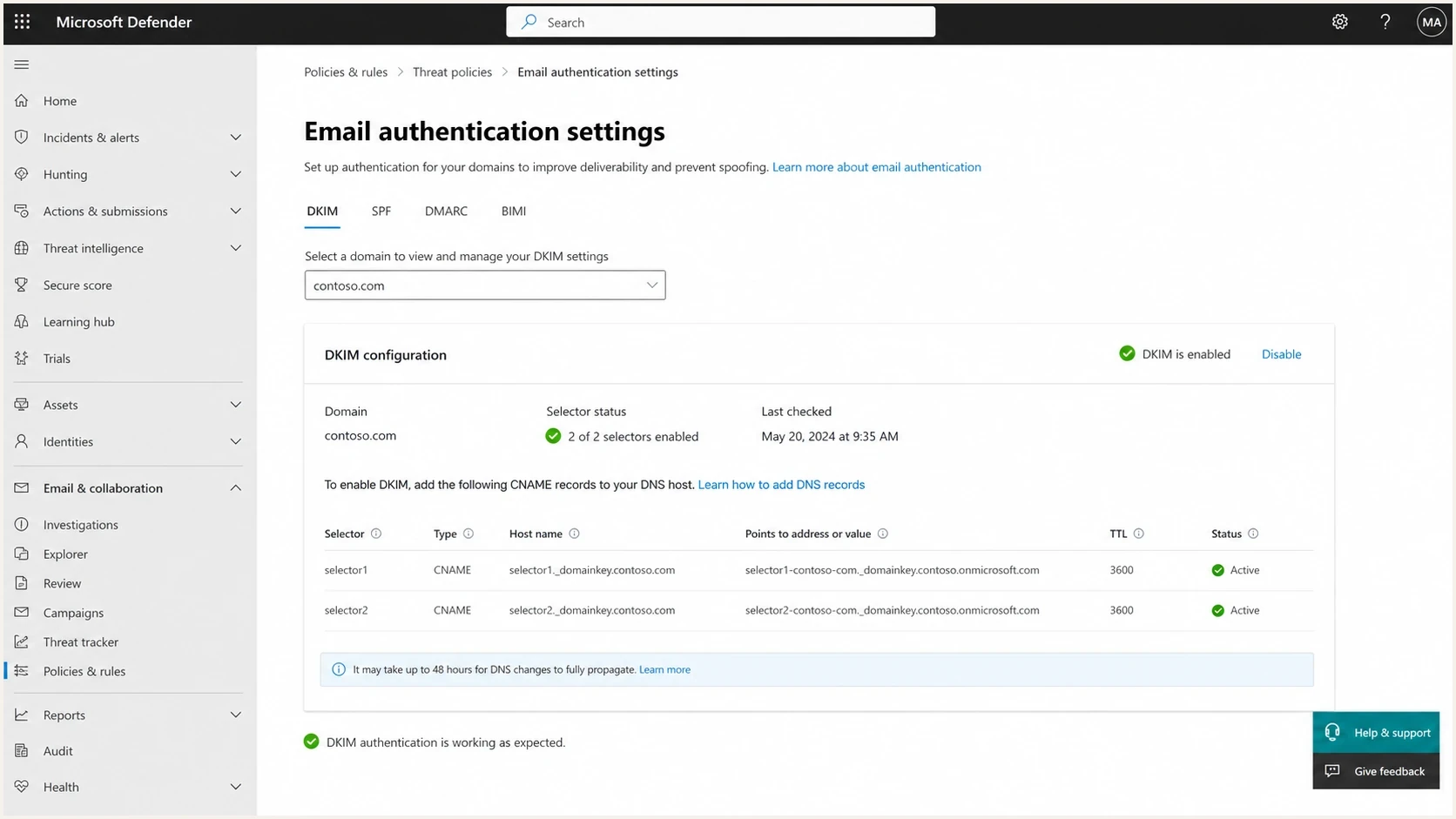
Microsoft Defender portal DKIM configuration screen
Read the headers before changing DNS
The Authentication-Results header is the source of truth for the receiving system's checks. It identifies the domain and IP tested for SPF, the DKIM selector and signing domain, the DMARC result, and Microsoft's compauth value. Read the earliest trustworthy Received header and the final Authentication-Results header together. A compauth failure does not by itself block a message because Microsoft combines it with other filtering signals.
Example failed Microsoft 365 authentication headertext
Authentication-Results: spf=softfail (sender IP is 203.0.113.25)
 smtp.mailfrom=contoso.com; dkim=fail header.d=contoso.com;
 dmarc=fail header.from=contoso.com; compauth=fail reason=001
That header does not prove the original sender was wrong. It proves Microsoft evaluated 203.0.113.25 for the envelope sender domain and could not verify the DKIM signature. If 203.0.113.25 belongs to a forwarder or gateway, SPF failed for a predictable reason. If the message had a valid DKIM signature before the forwarder changed signed content, the fix belongs in the forwarding or modification layer.
- Envelope sender: Check smtp.mailfrom, not only the visible From address in the message.
- Header domain: Check header.from because DMARC uses the visible From domain as its reference.
- DKIM identity: Check header.d and the selector so you know which DNS record was queried.
- Microsoft result: Check compauth and its reason code, then confirm whether explicit DMARC passed or failed.
- Trace evidence: Use Microsoft 365 message trace to connect the header to a connector, relay hop, or NDR.
For a controlled test, send a fresh message to the email tester and compare that clean result with the Office 365 recipient result. If the clean test passes and Office 365 fails, the break sits between those two paths.
Email tester
Send a real email to this address. Suped shows a results button when the test is ready.
?/43tests passed
Fix Office 365 SPF softfail
For mail sent directly through Exchange Online, the SPF record must authorise Microsoft's sending service. For most Office 365 tenants, the domain has one SPF TXT record that includes spf.protection.outlook.com. A softfail happens when the checked IP is outside the allowed sources and the policy ends in ~all.
Basic Office 365 SPF recorddns
contoso.com. 3600 IN TXT "v=spf1 include:spf.protection.outlook.com ~all"
SPF checks that matter
- One record: Publish one SPF TXT record per domain, because duplicates cause permerror.
- Lookup count: Keep SPF at ten DNS lookups or fewer before adding another include.
- Actual IP: Test the IP Microsoft evaluated, then decide whether it is a sender or a gateway.
- DNS result: Treat softfail, permerror, and temperror separately because they have different causes.
Use the SPF checker to confirm the record exists, parses cleanly, and stays within the lookup limit. If you need a broader view of DMARC, SPF, and DKIM together, run a domain health check before changing production DNS.
Forwarding is the common trap. SPF checks the connecting server, so a forwarded message often fails SPF even when the original sender published a correct record. Sender Rewriting Scheme can make SPF pass by rewriting the envelope sender, but it does not repair DKIM. If the visible From domain has no passing DKIM signature after forwarding, DMARC still fails. For Microsoft-only internal routing, fix connector handling, ARC, or the message path instead of adding SRS as a blanket fix.
SPF lookup risk
Use lookup count as an early warning before SPF evaluation returns permerror.
Healthy
0-7 lookups
Room for a controlled sender change.
Tight
8-10 lookups
Audit includes before adding a sender.
Broken
11+ lookups
SPF can return permerror.
Fix Office 365 DKIM failures
For Office 365 outbound mail, custom-domain DKIM needs two selector CNAME records and DKIM signing enabled for the domain. If those records are missing, stale, or pointed at the wrong tenant values, Microsoft cannot sign with your custom domain. If the records are correct and DKIM still fails, compare the public key, selector, and signed content before rotating keys.
Current Microsoft 365 DKIM CNAME patterndns
Host: selector1._domainkey
Type: CNAME
Target: selector1-contoso-com._domainkey.contoso.<partition>-v1.dkim.mail.microsoft

Host: selector2._domainkey
Type: CNAME
Target: selector2-contoso-com._domainkey.contoso.<partition>-v1.dkim.mail.microsoft
The pattern above illustrates Microsoft's format for new custom domains introduced in May 2025. The partition character is assigned per domain and cannot be guessed. Existing domains can still use legacy targets under the tenant's onmicrosoft.com domain. Retrieve the exact Selector1CNAME and Selector2CNAME values in the Defender portal or with Get-DkimSigningConfig, then publish both CNAME records exactly as Microsoft supplies them.
After publishing the CNAME records, confirm both selectors resolve and then enable signing in the Microsoft Defender portal. Use the DKIM checker to verify selector DNS before testing live mail, because a missing selector, a key mismatch, and a body-hash mismatch need different fixes.
DNS problem
- Selector: The selector in the header has no matching CNAME in DNS.
- Tenant: The CNAME target does not match the value supplied for the tenant and domain.
- Signing: DKIM is not enabled for the custom domain.
Message-change problem
- Footer: A relay adds a disclaimer or tracking footer after signing.
- Encoding: Special characters are converted after the signature is created.
- Dot lines: Lines starting with a period expose old MTA body handling bugs.
Encoding failures are real. DKIM can pass for a plain ASCII test and fail once accented characters, HTML entity conversion, or line wrapping gets introduced. A larger key does not fix that result. Stop the downstream system from rewriting the signed body, or DKIM-sign after the final modification step with the same domain shown in the visible From address.
Fix gateway and forwarding failures
Enhanced Filtering for Connectors and trusted ARC solve different parts of a gateway failure. Use Enhanced Filtering when inbound mail reaches Microsoft 365 through a non-Microsoft gateway or on-premises server and Microsoft would otherwise check SPF against that gateway IP. Use trusted ARC when an intermediary changes a message but preserves its earlier authentication results in a valid ARC chain.
Enhanced Filtering
- Use it when the MX path sends inbound mail through a gateway before Exchange Online.
- Configure the inbound connector to skip only the verified gateway IPs in that path.
- Retest headers to confirm Microsoft evaluates the original external sender IP.
- Do not add a gateway IP to an outside sender's SPF record or guess relay-pool IPs.
Trusted ARC
- Use it when a known intermediary changes signed content before Microsoft 365 receives it.
- Trust only a verified ARC sealer that is part of the controlled mail path.
- Validate the ARC chain and preserved result in the delivered message headers.
- ARC does not repair incorrect sender DNS or make a broken DKIM signature valid again.
NDR 5.7.367 and the relay pool
If an external message enters Microsoft 365 without a passing SPF or DKIM result and is then forwarded or relayed onward, Exchange Online can use its relay pool. Those IPs are intentionally absent from Microsoft's published SPF ranges, so adding IPs is not the fix. Use message trace to confirm the route, then correct authentication on ingress, configure Enhanced Filtering for the gateway, or reduce unnecessary relay hops.
Where DMARC monitoring fits
DMARC makes recurring failures visible at scale. A single message header records one delivery path. DMARC aggregate reports show which Office 365 sources, forwarders, gateways, and delegated senders keep failing over time. Suped's product groups those reports with current DNS state, SPF and DKIM checks, blocklist (blacklist) monitoring, and deliverability signals so a team can investigate each source and verify the fix.

Issue steps to fix dialog showing the issue overview, tailored fix steps, and verification action
A practical workflow is to open the failing source, confirm whether SPF or DKIM caused the result, check the recommended DNS or routing change, then watch the pass rate after deployment. Suped's hosted SPF and DMARC controls, alerts, and MSP multi-tenancy connect the same workflow to DNS changes across multiple domains.
A useful DMARC signal
If DKIM failures appear only after a specific relay or forwarding route, focus on that route. If they appear across all recipients, check selector DNS and signing status first.
A practical troubleshooting runbook
Use this sequence when Office 365 shows DKIM fail and SPF softfail together. It keeps the investigation tied to evidence instead of guessing at DNS.
- Collect: Save the raw header from the failed Office 365 message and a passing comparison message.
- Identify: Find smtp.mailfrom, header.from, header.d, selector, sender IP, compauth, and its reason code.
- Trace: Use message trace and Received headers to map connectors, gateways, forwarding, and relay hops.
- Verify SPF: Confirm the evaluated IP belongs in the SPF record, or classify it as a forwarder or gateway.
- Verify DKIM: Confirm selector DNS, signing status, public key, and whether signed content changed.
- Fix path: Remove body rewriting, sign after modification, configure Enhanced Filtering, or trust a verified ARC sealer.
- Monitor: Watch DMARC reports for the same source until authentication passes consistently.
Microsoft's troubleshooting notes distinguish SPF softfail caused by an unapproved sending IP from DKIM body-hash failure caused by modification after signing. If authentication passes but mail still lands in junk, treat that as a placement issue and use a separate Outlook deliverability guide rather than continuing to edit SPF or DKIM.
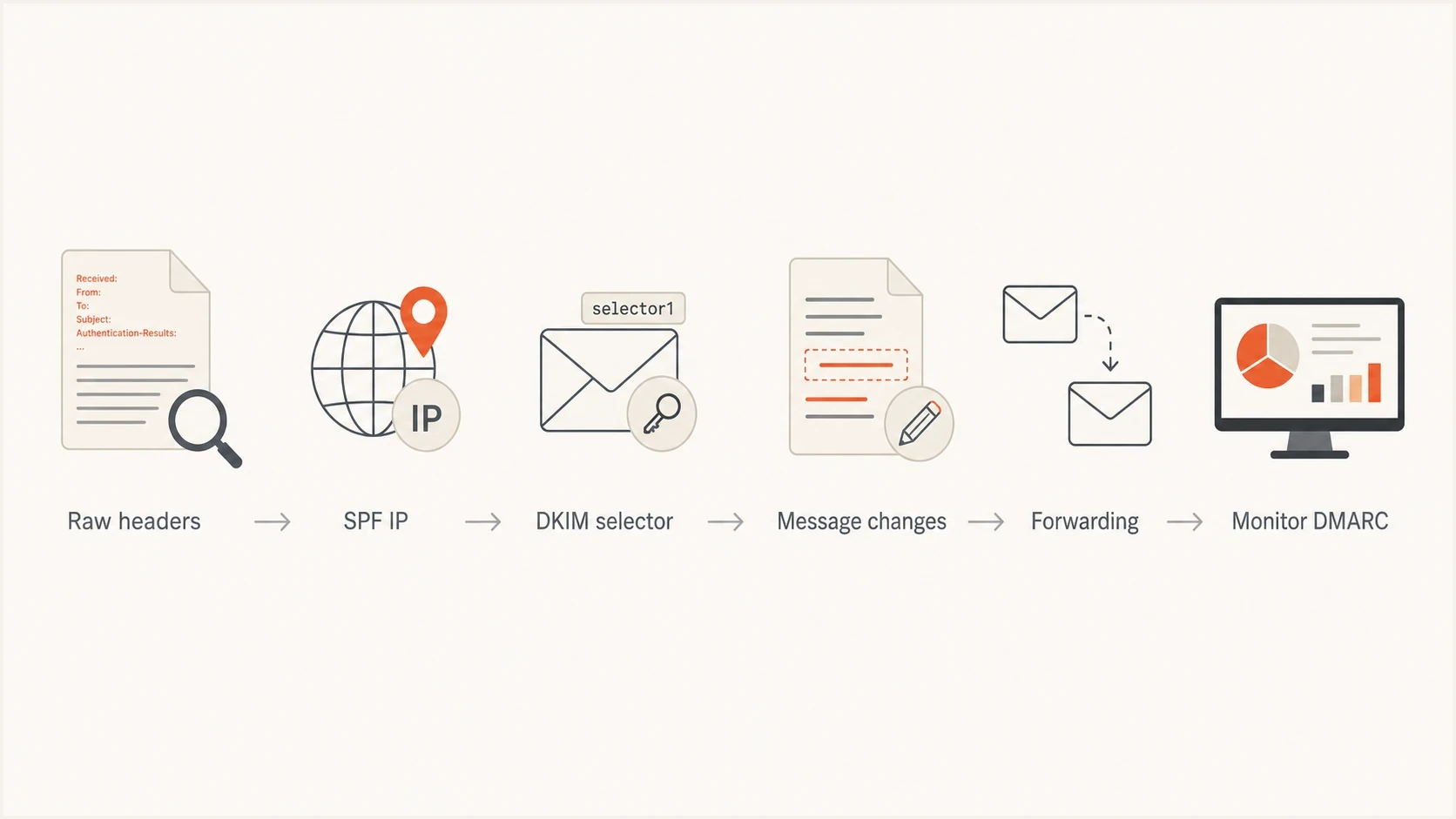
Flowchart for troubleshooting Office 365 SPF and DKIM failures
When to open a Microsoft ticket
Open a Microsoft ticket when the same DKIM signature verifies everywhere else, the message is not modified by your own relays, and only Office 365 reports failure against an internal Microsoft hop. Include the raw headers, message trace ID, timestamp, sender, recipient, and selector.
Views from the trenches
Best practices
Save raw headers before editing DNS so each SPF, DKIM, and DMARC result stays traceable.
Test a clean Microsoft 365 send and a forwarded send, then compare the signed body and sender IP.
Keep SPF records under the lookup limit before changing DMARC policy for production mail.
Common pitfalls
Treating every Office 365 internal hop as the SPF source sends troubleshooting off track.
Adding SRS without same-domain DKIM fixes SPF symptoms while DMARC still fails later.
Changing DKIM selectors before checking body modification hides the real failure point.
Expert tips
Compare headers at two recipients to separate Microsoft filtering from sender DNS mistakes.
Check DKIM canonicalization, then remove footer rewriting and encoding changes first.
Alert on new failing sources daily, because authentication failures get expensive fast.
Marketer from Email Geeks says DKIM passing at other receivers points away from sender DNS and toward the Office 365 receiving path.
2019-07-09 - Email Geeks
Marketer from Email Geeks says SPF softfail can happen when Microsoft evaluates a relay IP from the headers instead of the original sender.
2019-07-09 - Email Geeks




