What is the purpose and impact of the 'external' label in Google Workspace emails?

Updated on 10 Aug 2026: We clarified how Gmail's External warning works, who can control it, and why it is separate from email authentication.
The purpose of the "external" label in Google Workspace emails is to warn users that a message thread includes someone outside the organization. Its direct impact is behavioral, not technical: it makes people pause before replying, sharing files, approving payments, or trusting a familiar name in the From field. It does not mean the message failed SPF, DKIM, or DMARC. It does not mean Gmail placed the message in spam. It is a visible safety cue for organizational boundary awareness.
Google announced the external label for Gmail threads in April 2021. Google now documents the admin control under external warnings. Treat it as a user-interface warning, not as an authentication verdict.
The short answer: the label tells the recipient, "this thread crosses your Workspace boundary." It helps reduce accidental disclosure and business email compromise risk, but it does not replace domain authentication, message filtering, user training, or payment approval controls.
What the label means
In Google Workspace, an external recipient is an address outside your organization. External recipient warnings are on by default for Google Workspace accounts, but they are not available for personal Gmail accounts. When the setting is on, Gmail can show a label, warning banner, or an image or colored border next to an external address. The common trigger is simple: someone in the thread is not inside the Workspace organization, and the address is not treated as internal through the Directory, Contacts, a secondary domain, or a domain alias.
- Meaning: The sender or another thread participant sits outside the Workspace organization boundary.
- Not a failure: The label does not say SPF, DKIM, or DMARC failed.
- Not spam: The label does not mean Gmail moved the message to spam or lowered inbox placement.
- Admin-controlled: Workspace administrators can change the default-on warning for the organization or an organizational unit.
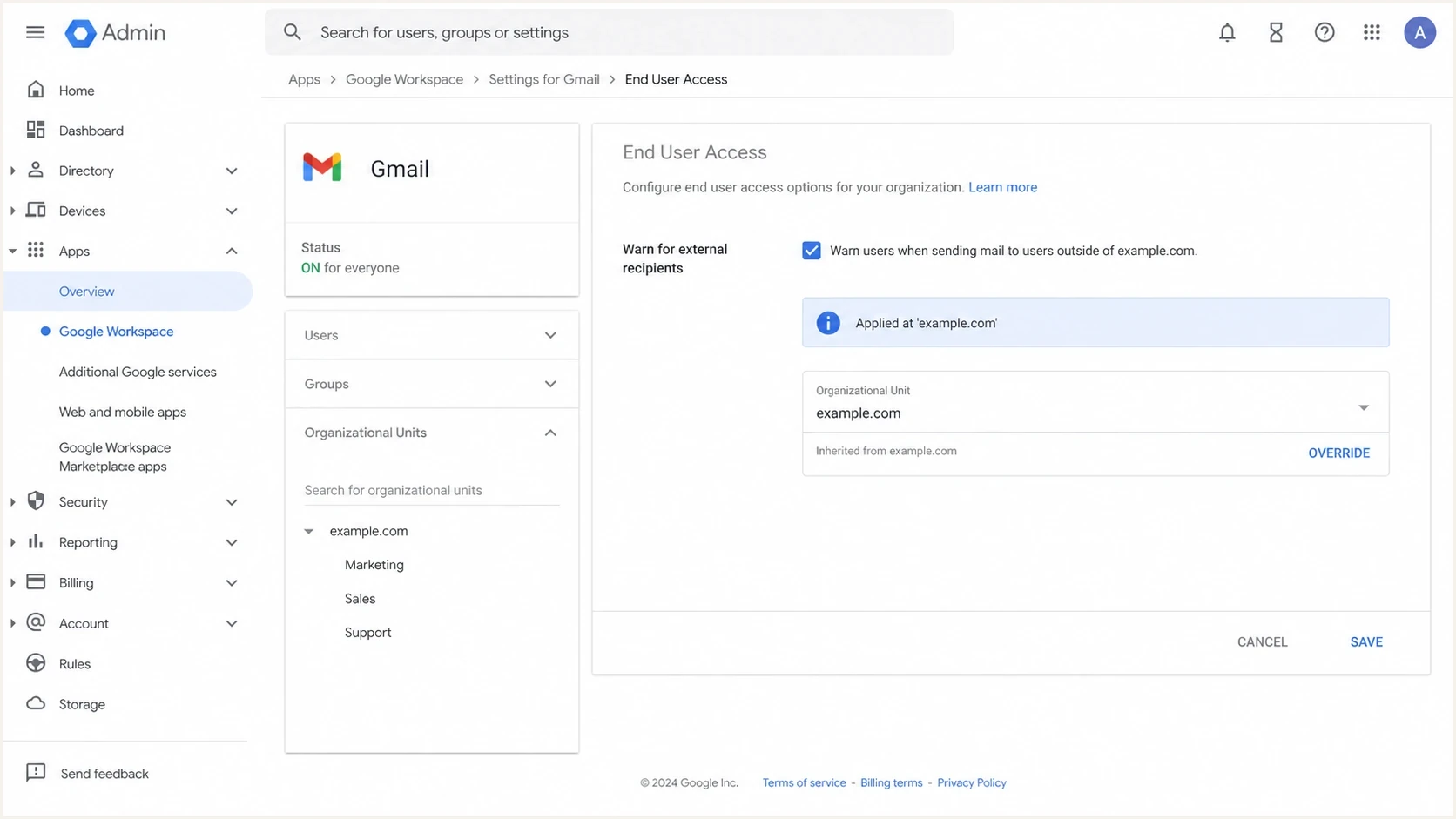
Google Admin console setting for external recipient warnings.
The warning can appear inconsistent because Gmail exempts addresses in the organization's Directory, personal Contacts, or other Contacts, as well as secondary domains and domain aliases. Organizational units can also inherit or override different admin settings. Check those conditions before treating a missing or unexpected warning as a Gmail fault.
Where it appears
The visible treatment differs by context, but the idea stays the same. Gmail warns when an email thread includes external recipients, when someone replies to a message from an external recipient, and when someone composes a message to an external recipient. The label is easy to confuse with Gmail's other warning banners, so separate it by purpose.
|
|
|
|---|---|---|
External | Outside org | User caution |
Grey bar | Unknown sender | Trust review |
Dangerous | High risk | User blocked |
Spam folder | Filtering result | Inbox loss |
How common Gmail warnings differ.
That distinction matters. If a sender asks why their mail has an external label, the answer is usually "because they are external." If they ask why Gmail showed a grey warning bar or a dangerous warning, that is a different investigation.
External label
- Boundary: Shows that a recipient or sender is outside the organization.
- Intent: Reminds users to be careful with replies and confidential data.
- Verdict: Does not prove authentication failed.
Authentication warning
- Identity: Points to problems with sender verification or sender reputation.
- Intent: Warns users that the message itself carries trust risk.
- Verdict: Requires header review, DNS checks, and sending-source review.
Can users remove or filter the External label?
External is a Gmail interface warning, not a normal user-created Gmail label. End users cannot rename it, apply it manually, remove it from one thread through the label menu, or depend on a documented Gmail search operator to find every external conversation. Removing an ordinary label or creating a filter does not change the warning.
To stop the External label and warning banner for managed users, a Google Workspace administrator must turn off Warn for external recipients for the relevant organization or organizational unit. Personal Gmail accounts do not have this Workspace warning or its admin control.
Impact on users and deliverability
The external label affects how people read and handle mail. It does not directly change sender reputation, DMARC alignment, inbox placement, or open tracking. That means a marketer should not blame the label alone for a sudden open-rate drop, and an admin should not treat it as proof that mail authentication is broken.
How much weight to give the label
The label has high value for user awareness, but low value as a deliverability diagnostic.
High
Behavior
User caution, approval workflows, and data sharing decisions.
Medium
Operations
Helpdesk tickets and admin questions after a rollout or policy change.
Low
Authentication
SPF, DKIM, DMARC, and spam-placement diagnosis.
The practical user impact is real. The label can make employees question unexpected requests, which is useful when an attacker uses a lookalike name or personal mailbox. It can also create noise for teams that work with external clients all day. On smaller laptop screens, the warning banner can reduce compose space and feel heavy, especially when the external nature of the recipient is obvious.
Do not ask users to ignore the label. Train them to understand it. The correct habit is verification when the message asks for money, credentials, data, or a change in normal process. The absence of the label does not prove safety because a compromised internal account remains inside the organization boundary.
For outbound senders, the label is not a penalty. A vendor emailing a Google Workspace customer sees the label because the vendor is outside that customer's organization. The sender can still authenticate cleanly, land in the inbox, and build trust. The right test is to send a real message and review headers, authentication results, and rendered warnings with an email tester.
Email tester
Send a real email to this address. Suped shows a results button when the test is ready.
?/43tests passed
If the test message shows authentication failures, fix those separately. The external label can remain even after the message passes every authentication check, because it is tied to organizational membership rather than sender legitimacy.
How administrators control it
Google Workspace administrators can control external recipient warnings in the Admin console. The warning is on by default. The path is Apps, Google Workspace, Gmail, End User Access, then Warn for external recipients. The control can be applied at the organization level or to a selected organizational unit, and it governs both the External label and warning banner. Changes can take up to 24 hours, although they often apply faster.
- Open: Go to the Google Admin console with a role that has Gmail settings privileges.
- Navigate: Choose Apps, Google Workspace, Gmail, then End User Access.
- Select: Pick the organization or organizational unit that needs the setting.
- Change: Check or uncheck Warn for external recipients.
- Save: Click Save or Override, then allow time for propagation. Use Inherit to restore the parent setting later.
Turning the label off removes a useful warning for users. Disable it only when a team has a clear reason, separate controls for sensitive workflows, and enough user training to handle external conversations without the visual cue.
There are two common exceptions that explain why some outside-looking addresses do not get the same treatment. First, Gmail does not show the warning for recipients in the organization's Directory, personal Contacts, or other Contacts. Second, secondary domains and domain aliases are not treated as external for this warning.
Where authentication fits
The external label is one layer of trust. SPF, DKIM, and DMARC are another layer. The label answers "is this outside our organization?" Authentication answers "did this message come through an authorized path, and does the domain identity line up?" Those questions overlap in user perception, but they are different systems.
Authentication records to verifyDNS
_dmarc.example.com TXT "v=DMARC1; p=quarantine; rua=mailto:dmarc@example.com"
example.com TXT "v=spf1 include:_spf.google.com -all"
selector1._domainkey.example.com TXT "v=DKIM1; k=rsa; p=BASE64_PUBLIC_KEY"
If a message has both the external label and an authentication warning, investigate authentication first. Check whether the visible From domain passes DMARC, whether DKIM aligns, whether SPF authorizes the sending IP, and whether the sending domain has recent reputation issues. Suped's domain health checker is useful for a broad first pass across DMARC, SPF, and DKIM.
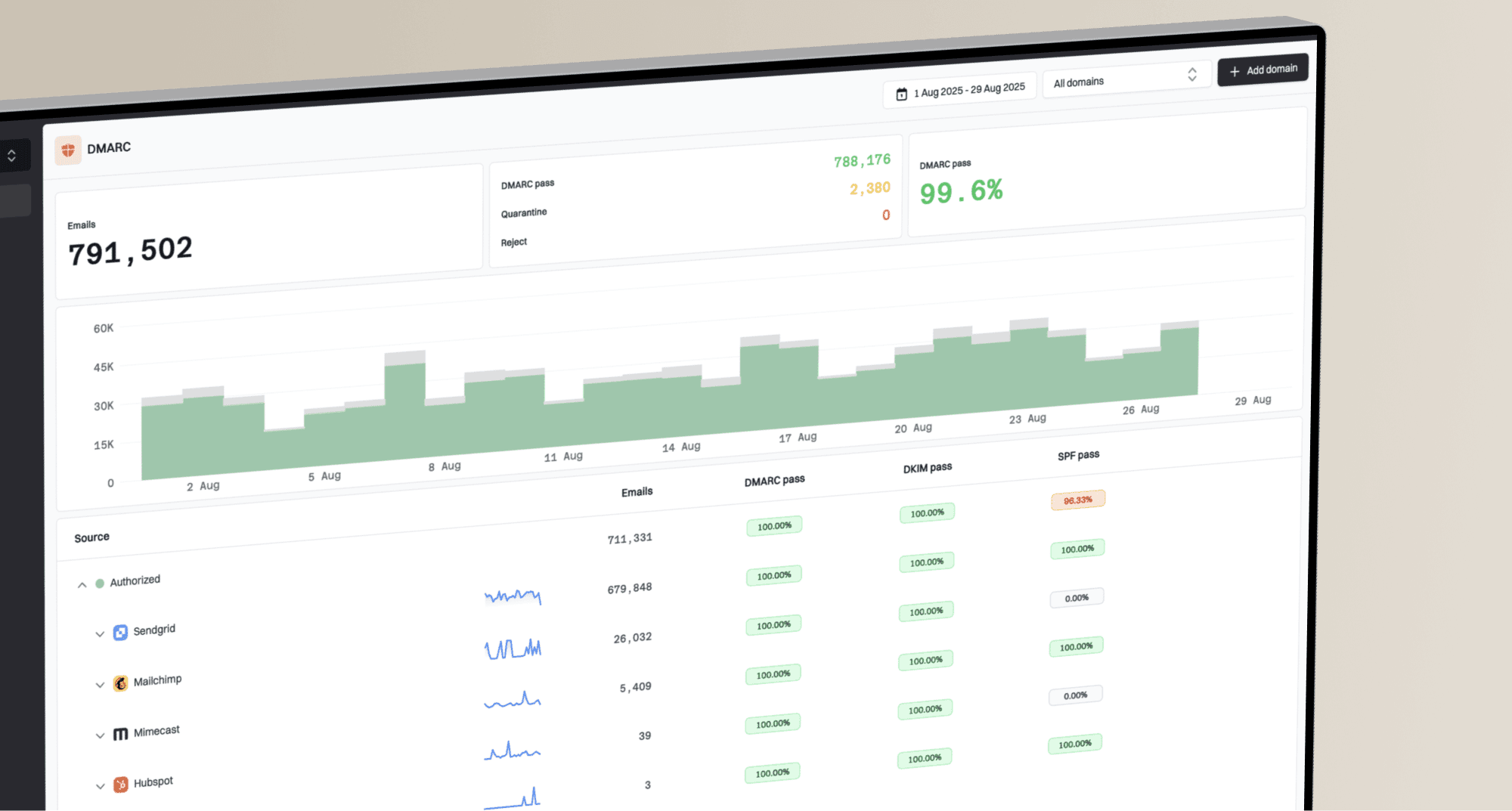
Issues page showing top issues, verified sources, unverified sources, and authentication pass rates
For ongoing sender protection, Suped's DMARC platform turns aggregate reports into sending sources, issues, alerts, and repair steps. That matters here because the external label can prompt a user question, while DMARC evidence tells the admin whether the mail stream is authenticated and aligned. Suped combines DMARC monitoring with SPF and DKIM visibility, blocklist (blacklist) monitoring, hosted DMARC, hosted SPF, and hosted MTA-STS in one workflow.
What the label can do
- Warn: Show that a conversation crosses the company boundary.
- Prompt: Push users to verify unusual requests before acting.
- Reduce: Lower accidental disclosure during external replies.
What DMARC can do
- Verify: Confirm aligned authentication for the visible From domain.
- Report: Expose legitimate and unauthorized sending sources.
- Enforce: Move the domain toward quarantine or reject policies.
How to respond when users complain
When users complain that the label is annoying, start by acknowledging the friction. The label can take space, repeat obvious information, and make normal client communication feel suspicious. Then explain the narrow reason it exists: it protects the moment when a user is about to reply, forward, or share something with someone outside the organization.
Suggested internal wording
The external label does not mean the sender did anything wrong. It means this thread includes someone outside our Workspace organization. Keep working as normal, but verify unusual requests for payments, credentials, sensitive files, or changes to process.
For support teams, keep the triage simple. If the only symptom is the external label, no deliverability investigation is needed. If the message also has spam placement, warning banners, broken images, or authentication failures, then the label is just one signal in a bigger review.
|
|
|
|---|---|---|
External only | Outside org | Educate user |
External plus spam | Filtering issue | Check headers |
External plus auth fail | DNS problem | Fix records |
External plus request | Process risk | Verify offline |
Triage guide for support and admin teams.
Views from the trenches
Best practices
Explain that the label marks organization boundaries, not authentication or sender quality.
Keep external warnings on for finance, HR, legal, and teams handling sensitive requests.
Pair the label with clear escalation steps for payments, credentials, and file requests.
Common pitfalls
Treating the label as a spam verdict creates wasted troubleshooting and confused users.
Disabling the warning globally removes a simple cue that helps users slow down risky replies.
Ignoring SPF, DKIM, and DMARC because the label feels like the only visible warning.
Expert tips
Use short internal guidance so users know when to ignore the label and when to verify.
Review directory, contacts, aliases, and secondary domains before calling behavior wrong.
Track warning complaints separately from authentication, reputation, and inbox placement.
Marketer from Email Geeks says the external label appeared at different times across domains because the rollout reached accounts gradually.
2021-05-31 - Email Geeks
Marketer from Email Geeks says the label works better than a copied message-body banner because the interface warning is harder to imitate.
2021-05-31 - Email Geeks
The practical answer
The external label exists to make the organization boundary visible inside Gmail. Its main impact is user caution, with fewer accidental external replies and more attention to unusual requests. It is not a deliverability score, not a DMARC result, and not a spam verdict.
The best response is to keep the label on for most organizations, explain it clearly to users, and investigate authentication only when there are actual authentication or placement symptoms. Suped fits the second part of that workflow: it helps teams separate simple Gmail UI warnings from real DMARC, SPF, DKIM, blocklist (blacklist), and deliverability problems that need a fix.