What does Gmail's grey warning bar mean and why does it appear?

Published 10 Jul 2025
Updated 10 Aug 2026
16 min read
Summarize with
Updated on 10 Aug 2026: We updated this guide with Gmail's current sender requirements and clearer warning diagnostics.
Gmail's grey warning bar usually means Gmail detected a reason to warn the recipient about the message, even though the message was still shown in the inbox or another visible folder because of a filter, allowlist, or Google Workspace rule. It does not always mean every Gmail recipient would receive the same warning, but it does mean Gmail saw a signal worth explaining.
The most common version says the message was not sent to spam because of the recipient's settings or organization settings. That indicates a routing override plus a safety note. Gmail is saying the normal filtering path had a spam concern, but a local or Workspace-level rule changed the final placement.
That distinction matters. A grey bar is not the same as a hard rejection, a failed DMARC result, or a universal Gmail spam verdict. If the message is already in Spam, the banner can instead explain the classification, such as Gmail finding it similar to messages identified as spam in the past. People call these notices a grey warning bar or gray banner, but the exact wording and folder placement matter more than the color.
What the grey warning bar means
If Gmail shows a grey warning bar saying the message was kept out of spam because of a rule, the message likely hit a spam-classification signal for that recipient context. It does not prove the same email would go to spam for all Gmail users.
- Meaning: Gmail had a spam concern, but a local filter, allowlist, or Workspace policy changed where the message landed.
- Scope: The warning applies to that mailbox, domain, tenant, or rule path, not every Gmail inbox.
- Action: Treat it as a deliverability signal and investigate authentication, reputation, content, and Gmail-specific engagement.
- Test: Send a controlled message through an email tester and compare the result with real Gmail inbox placement.
Do not dismiss the bar as cosmetic. Gmail uses the notice to explain a filtering or safety decision. The wording can be informational, but the reason behind it often means Gmail has seen enough risk to say the message might belong somewhere other than the inbox.
Gmail filtering is not one global yes-or-no decision. The same campaign can land in Primary for one Gmail user, Promotions for another, spam for another, and the inbox with a grey bar for a Google Workspace user whose administrator created a bypass rule.
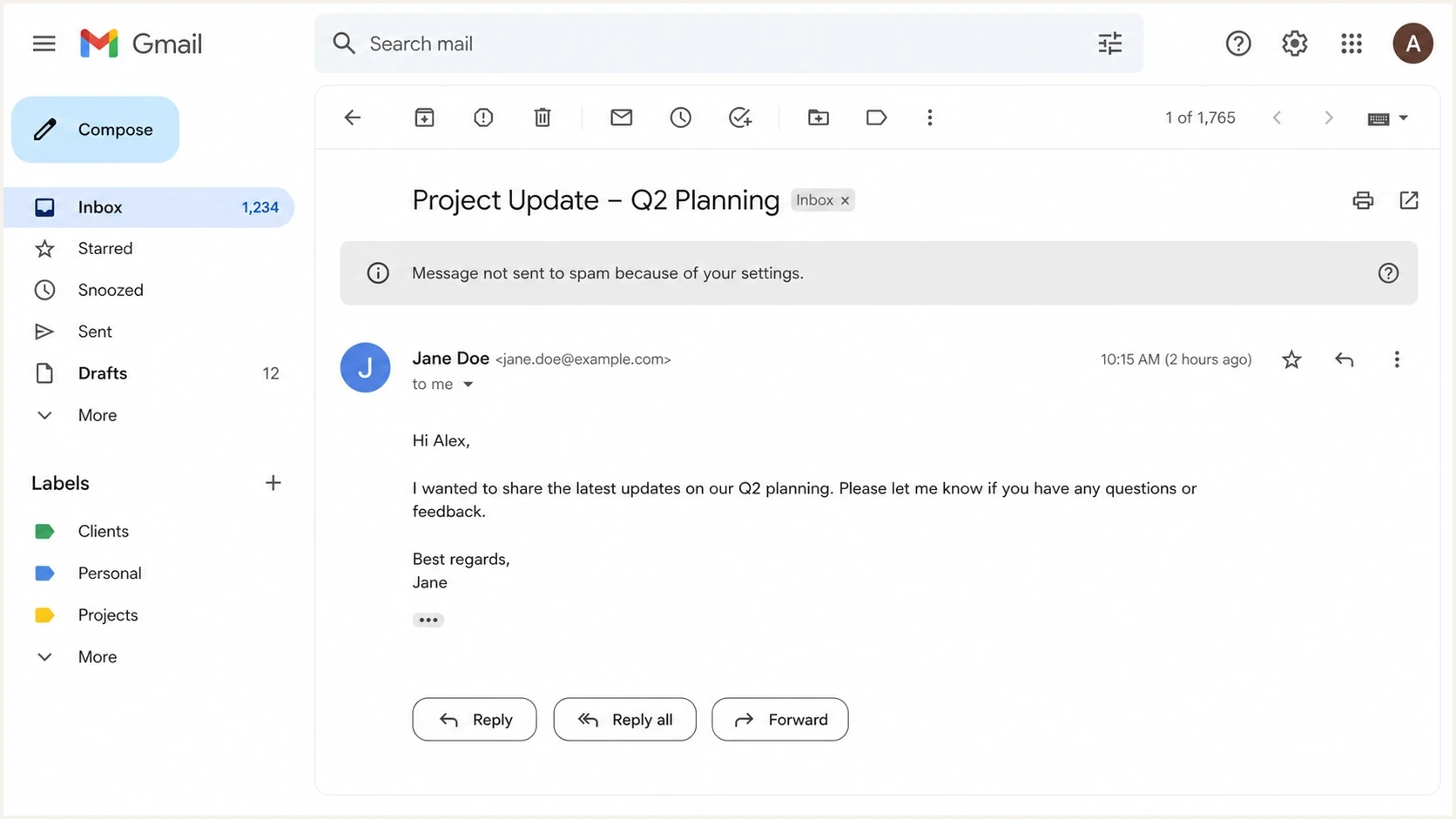
Gmail grey warning banner saying a message was not sent to spam
Why the grey bar appears
Gmail shows the grey warning bar when its classification result and the final delivery action do not line up cleanly. The system can decide a message has spam-like signals, then still place the message in the inbox because the recipient, administrator, or tenant policy told Gmail to keep it there.
The causes fit into five buckets: authentication, sender reputation, content, recipient behavior, and overrides. The grey bar often follows more than one of these signals at the same time.
- Authentication: SPF or DKIM failures and DMARC alignment problems make Gmail less confident in the sender identity.
- Reputation: A domain, IP, sending platform, link domain, or pattern of mail has accumulated poor Gmail-side feedback.
- Content: Templated alerts, link-heavy messages, suspicious redirects, urgent wording, and repeated low-engagement campaigns can add risk.
- Recipient behavior: If enough recipients mark similar mail as spam, Gmail can apply that signal to other recipients.
- Overrides: Personal Gmail filters and Google Workspace routing rules can bypass spam placement while still leaving the warning visible.
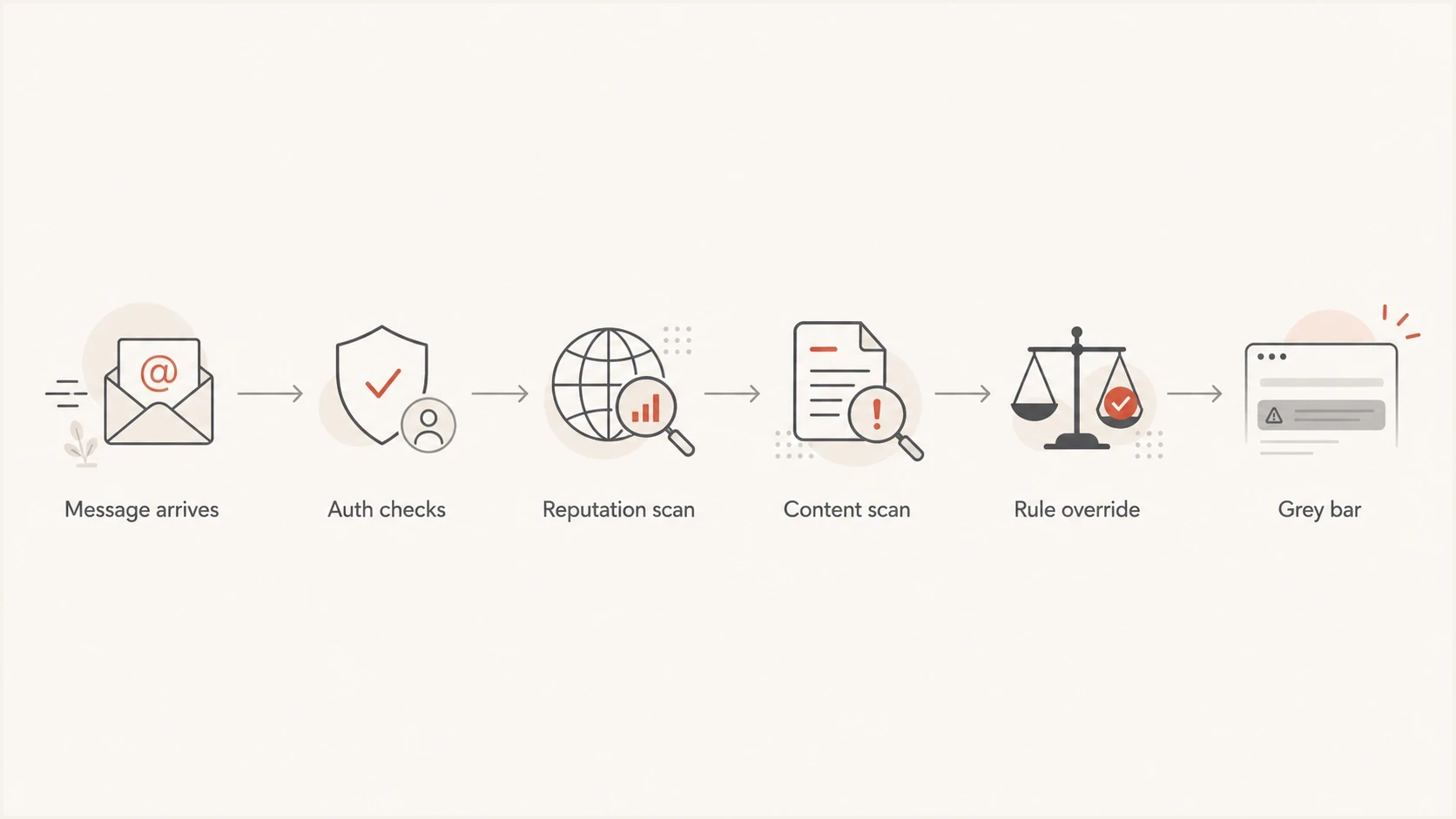
Gmail authentication, reputation, content, and rule checks before a grey warning bar
The override part causes most of the confusion. If a user has a Gmail filter that says never send these messages to spam, Gmail can obey that instruction and still warn the user. In Google Workspace, the same can happen at the organization level when an administrator has allowlisted a sender, bypassed spam filtering for a route, or created a compliance rule that keeps certain mail visible.
What common Gmail warning wording means
The exact phrase inside the grey bar matters. Gmail uses different warning text for different conditions, and the wording gives the first clue about whether the issue is local, organization-wide, pattern-based, or tied to a stronger safety concern.
|
|
|
|---|---|---|
This message was not sent to Spam because of a filter you created | A personal filter changed delivery. | User filters |
This message wasn't sent to Spam because of your organization's settings | A Workspace policy overrode spam placement. | Admin spam rules |
It is similar to messages that were identified as spam in the past | Message patterns or past user reports influenced filtering. | Reputation and template patterns |
This message seems dangerous | Gmail detected a higher-risk safety signal. | Sender identity, links, and attachments |
Common Gmail grey bar meanings
A message saying it was not sent to spam because of organization settings points to a Google Workspace policy. That does not mean the sender is safe. It means the administrator's rule won the delivery decision, while Gmail kept the warning visible.
A message saying similar messages were marked as spam points more strongly toward reputation, message patterns, and recipient feedback. That can happen even if the current recipient never marked the sender as spam. Gmail evaluates patterns beyond one mailbox.
Do not treat an internal allowlist as proof of healthy deliverability. It can hide inbox placement problems for employees while external recipients still see spam placement, banners, image warnings, or suspicious-link notices.
Does the grey bar mean spam for everyone?
No. It means Gmail saw a spam-related reason in that context. For a normal Gmail recipient without the same local or organization rule, the message has a higher chance of going to spam, but Gmail still makes recipient-specific decisions.
What the grey bar proves
- Spam concern: Gmail saw enough risk to add a warning.
- Override used: A rule changed the final placement.
- Local scope: The result belongs to that recipient or tenant.
What it does not prove
- Universal spam: It does not prove every Gmail user gets spam placement.
- DMARC failure: It does not automatically mean DMARC failed.
- Single cause: It does not identify one exact root cause.
Gmail has a normal filtering decision, then override logic. The grey bar appears when the final placement needs an explanation. That can be because the message stayed out of spam despite Gmail's spam concern, or because Gmail placed it in spam and explains that similar messages were marked as spam in the past.
For senders, the risk is not the bar itself. The risk is what the bar hints at: some part of the message stream has weak trust. If the same campaign is also getting poor opens, spam complaints, authentication failures, or sudden Gmail spam placement, the grey bar should move from curiosity to incident.
How Gmail classifies the message
Gmail does not rely on one score. It combines authentication checks, historical behavior, sender identity, link and attachment risk, recipient actions, campaign patterns, and mailbox-specific preferences. A clean SPF pass alone will not save a sender with poor engagement or suspicious links. A strong domain history can still be undermined by a bad subdomain, a compromised sender, or a new sending path that lacks DKIM alignment.
Gmail does not publish the weights assigned to authentication, reputation, content, or user feedback. No single score or inbox test can identify exactly how much each signal contributed to one grey warning.
This is why the same sender can see confusing outcomes. A security camera alert, IDS report, uptime notice, or WordPress plugin notification can be wanted by one recipient and unwanted by many others. If many people set up automated alerts and later mark them as spam, Gmail can learn that messages with similar structure are risky.
For marketing mail, the same pattern applies. If internal employees are allowlisted, they might see the message in the inbox with a grey bar while external Gmail users see spam placement. If employees test only with internal Workspace inboxes, the result can mislead the team.
Checks to run first
Start with the parts you can verify. Gmail's internal scoring is not exposed, but authentication and DNS domain alignment are visible. When a grey warning appears, check the message headers, the sending domain's SPF, DKIM, and DMARC setup, then the content and link domains.
- Headers: Use Gmail's "Show original" view and record SPF, DKIM, and DMARC results for the actual sending path.
- Alignment: Check whether the visible From domain matches the SPF return-path domain or DKIM signing domain at the organizational-domain level.
- Forwarding: Inspect ARC results when forwarding or a mailing list changed the message and broke the original SPF or DKIM result.
- Policy: Confirm the DMARC policy, reporting addresses, and subdomain policy match the sender's risk.
- Reputation: Check IP and domain reputation, including blocklist and blacklist exposure where relevant.
- Content: Review links, redirects, attachments, image hosting, sender display names, and repeated template patterns.
- Rules: Check Gmail filters and Google Workspace routing rules before interpreting inbox placement.
?
What's your domain score?
Deep-scan SPF, DKIM & DMARC records for email deliverability and security issues.
A broad domain health check helps because Gmail warnings rarely come from one DNS record in isolation. Review the full authentication posture before changing content or asking a Workspace admin to remove rules.
DMARC record detail view showing SPF, DKIM, DMARC, rDNS diagnostics, and DNS records
Suped's product supports this workflow by connecting DMARC monitoring, SPF and DKIM diagnostics, blocklist monitoring, and issue detection in one place. The practical job is not only to see that DMARC passed or failed. It is to identify which source, subdomain, selector, IP, or policy gap explains the warning pattern and what to change next.
Authentication problems that can trigger concern
A grey Gmail bar is not always caused by authentication, but weak authentication makes every other signal harder to survive. Gmail wants the sender identity to be clear. The visible From domain should be protected by DMARC, and the message should pass SPF or DKIM with the same organizational domain.
Example DMARC record for monitoringdns
v=DMARC1; p=none; rua=mailto:dmarc-reports@example.com;
A monitoring policy like this does not block mail, but it provides aggregate reporting. For a domain that sends marketing or transactional mail, confirm every legitimate source in the reports before moving toward quarantine or reject. Without reports, it is easy to break legitimate senders while chasing one Gmail symptom.
Example SPF record patterndns
v=spf1 include:_spf.example-sender.com include:_spf.example-crm.com -all
SPF should include only approved senders and stay under the 10-lookup limit. If the SPF record has too many nested includes, missing senders, or a softfail that hides incomplete inventory, Gmail can still accept the message while treating the sender identity as weaker than it should be.
Best practice: keep one inventory of every platform allowed to send as your domain. Map each one to its SPF include, DKIM selector, return-path, From domain, and owner. That makes Gmail warning investigations much faster.
If SPF is the weak point, use an SPF checker to verify syntax, lookups, includes, and final mechanisms before changing DNS. If DKIM is the weak point, inspect selectors and key records for the exact sending platform.
Gmail sender requirements that matter
Meeting Gmail's sender requirements does not guarantee an inbox placement or remove every warning. Failing them gives Gmail direct reasons to limit delivery, reject mail, or classify messages as spam. Apply the requirements to the domain and infrastructure that actually send the affected message.
- All senders: Mail to personal Gmail accounts needs SPF or DKIM, valid forward and reverse DNS, TLS, and correctly formatted messages.
- More than 5,000 messages per day: Senders to personal Gmail accounts need SPF and DKIM, a DMARC record, and From-domain alignment with SPF or DKIM.
- Subscribed mail: Marketing and subscription messages from high-volume senders need one-click unsubscribe plus a visible unsubscribe link in the message body.
- Spam rate: Keep the user-reported rate below 0.1% where possible and prevent it from reaching 0.3% or higher.
Passing authentication does not prove a message is wanted. Gmail combines authentication with user reports and other signals, so a message that passes DMARC can still receive a warning or land in spam.
Rule overrides can hide the real result
The most misleading situation is an internal test where a sender sees the grey bar in a Workspace inbox and assumes it reflects normal consumer Gmail behavior. It does not. Workspace administrators can create rules that keep mail out of spam for business reasons. Those rules can be correct operationally and still hide deliverability problems.
Internal Workspace test
The message can be protected by routing rules, compliance rules, spam bypass settings, internal allowlists, and personal filters.
- Bias: Rules can force inbox or label placement.
- Use: Good for confirming rendering and headers.
External Gmail test
The message is exposed to normal Gmail filtering, recipient-level history, and mailbox category placement.
- Bias: One mailbox is still not a full sample.
- Use: Better for finding real Gmail placement risk.
Workspace admins can also choose settings that bypass spam filtering and hide suspicious-message warnings. Banner visibility can therefore differ between organizations even when Gmail evaluates similar mail. An internal message with no warning does not prove clean delivery to external Gmail recipients.
For an investigation, collect two samples: one message with the grey bar and one sent to a Gmail mailbox without special filters. Compare headers, placement, category, warning text, and whether images or links get additional warnings. This avoids treating a Workspace policy result as a universal Gmail result.
How to fix it without guessing
The fix depends on the signal. Do not remove the recipient's filter and call the problem solved. That only changes what you can observe. The sender-side work is to make the message easier for Gmail to trust.
- Confirm authentication: Make sure SPF or DKIM passes with alignment to the visible From domain so DMARC passes for that domain.
- Separate streams: Send marketing, transactional, internal alerts, and machine notifications from distinct subdomains.
- Reduce complaint risk: Send only to people who expect the mail, suppress inactive recipients, and process unsubscribes promptly.
- Clean up links: Avoid suspicious redirects, mismatched branded domains, and shorteners in Gmail-bound mail.
- Review templates: Watch for repetitive alert wording, broken HTML, URL-heavy reports, and unclear sender identity.
- Stabilize volume: Increase sending volume gradually and avoid sudden spikes that give Gmail little history for the new pattern.
- Monitor continuously: Use DMARC reporting and reputation checks so a grey warning does not become the first symptom you see.
Look for nearby symptoms in the same send. If it also has image suppression, link warnings, sudden spam placement, or rejected mail, the issue is broader than one grey notice. Review Gmail security warnings as part of that broader cleanup.

Issue steps to fix dialog showing the issue overview, tailored fix steps, and verification action
Suped's product fits the ongoing part of this workflow. Automated issue detection and repair steps turn raw DMARC data into a prioritized worklist. Real-time alerts help when Gmail-facing mail changes behavior, while hosted SPF, hosted DMARC, and hosted MTA-STS give teams a controlled way to manage the related DNS policies.
How to test whether the rule caused it
A clean test needs isolation. If you remove a filter and resend once, the result can confuse coincidence with cause. Gmail scoring changes over time, and user feedback can shift between sends.
- Baseline: Send one message to a mailbox with the rule enabled and record the warning text.
- Control: Send the same message to a Gmail mailbox with no matching filter or Workspace rule.
- Repeat: Run the test across several sends instead of relying on a single delivery event.
- Compare: Review placement, headers, authentication, category, images, links, and warning wording.
If the message lands in spam after the rule is removed and Gmail says similar messages were marked as spam, the rule was masking a reputation or content problem. If the grey bar appears or disappears when the rule changes, the rule was part of the visible behavior, but not necessarily the original spam signal.
For a useful technical test, keep the campaign body, sender, links, and sending infrastructure unchanged. Changing several variables at once gives you a cleaner inbox result but a weaker diagnosis.
When a grey bar needs urgent action
A single grey bar on an internal message is not always urgent. It becomes urgent when it appears with other delivery symptoms or when the message type is business-critical. Transactional email, password resets, invoices, security alerts, and incident notifications need a lower tolerance for Gmail warnings than a low-volume internal newsletter.
Risk levels for Gmail grey bars
A practical triage model for deciding how quickly to investigate.
Low
Monitor
One internal sample, no external spam reports, and authentication passes.
Medium
Investigate
Repeated grey bars, new filters involved, or uncertain SPF and DKIM domain matching.
High
Fix now
External Gmail spam placement, user complaints, blocklist or blacklist exposure, or failed DMARC.
Raise priority if the mail comes from a new domain, a newly warmed IP, a recently migrated sending platform, or a domain that has just moved to a stricter DMARC policy. New or changed infrastructure gives Gmail less stable history to trust.
Views from the trenches
Best practices
Capture the exact Gmail warning text before changing filters, routing rules, or DNS settings.
Compare Workspace mailboxes with clean Gmail accounts to separate tenant rules from filtering.
Keep authentication monitoring active so grey bars can be matched to sender and selector changes.
Common pitfalls
Treating an internal allowlist as proof that normal Gmail recipients get clean inbox placement.
Removing one Gmail rule and assuming the next delivery event proves why the grey bar appeared.
Fixing message copy first while SPF, DKIM, DMARC, and link domains remain unverified.
Expert tips
Check automated alert emails separately because repeated machine templates draw user complaints.
Use separate subdomains for alert, marketing, and transactional streams to contain reputation risk.
Record warning wording over time because Gmail can change placement without changing headers.
Marketer from Email Geeks says the grey bar often means a local or organization rule kept a message visible even though Gmail had a spam concern.
2021-06-24 - Email Geeks
Marketer from Email Geeks says a Workspace allowlist can make internal marketing tests look healthier than the same campaign looks to outside Gmail recipients.
2021-06-24 - Email Geeks
How to respond to a Gmail grey bar
Gmail's grey warning bar explains a filtering or safety decision. The message was not necessarily headed to spam for every Gmail recipient, but the warning is a useful signal that the sender needs a closer review.
Start with headers and authentication, then check reputation, content, links, and recipient or Workspace rules. If the issue repeats, treat it as a deliverability problem rather than a Gmail display quirk.
For teams managing more than one sender or domain, Suped's product centralizes DMARC monitoring, SPF and DKIM validation, blocklist and blacklist monitoring, and repair steps. That workflow helps connect a Gmail warning to the source or policy that needs attention.




