What is the optimal image file size for emails to avoid spam filters and ensure fast loading times?

Updated on 8 Aug 2026: We added responsive image sizing guidance and clarified current format support and deliverability risk.
The optimal image file size for emails is not one fixed spam-filter limit. A practical target works better: keep most static images under 100-200 KB, keep a large hero image under 200-300 KB when possible, keep animated GIFs under 1 MB when the animation is decorative, and keep the total image payload for the main email experience near 1-2 MB. Going over those numbers does not automatically send an email to spam, but it does make the email slower, heavier on mobile data, and more likely to produce weaker engagement.
The cleaner answer is this: spam filters do not usually have a public rule that says an email with a 1.1 MB image goes to junk. Image weight is one signal around performance and user experience, while authentication, sender reputation, complaint rate, bounce rate, message structure, URL reputation, blocklist or blacklist status, and recipient engagement carry more direct deliverability weight. If an email has a huge GIF, poor text support, broken authentication, and low engagement, the size problem becomes part of a larger pattern.
For testing the real result, send the campaign to a seed inbox and inspect the rendered email, headers, authentication, and load behavior. Suped's email tester helps with that workflow because it looks beyond image size and checks the message as a receiver would see it.
The direct answer
When a campaign needs a working number before launch, size bands are more useful than a single pass-or-fail limit. These bands keep the email fast while leaving enough room for visual quality.
Practical size targets
- Static images: Aim for 100-200 KB each for normal content images. Let a hero image reach 200-300 KB if the design depends on it.
- Animated GIFs: Aim for under 1 MB. Going to 1.5-2 MB is sometimes acceptable, but only when the audience, message, and expected value justify the load.
- Total images: Keep the main visual payload around 1-2 MB. Heavy newsletters and retail campaigns can exceed that, but performance risk rises.
- HTML size: Keep the HTML source below 102 KB to avoid Gmail clipping. This is code size, not hosted image file size.
- Embedding: Host images externally with HTTPS. Do not base64-embed large images or attach them to marketing emails.
Treat the 1 MB GIF rule as a performance target, not a spam threshold. It is a sensible guardrail because a GIF can grow quickly when it has many frames, large dimensions, photographic content, or little repeated motion. A 1.2 MB GIF is not automatically a deliverability failure. A 5 MB GIF in a mostly visual email, sent to a global list with mixed mobile networks, is a different problem.
The key distinction is message size versus asset size. Gmail clipping is driven by the size of the email's HTML source. Hosted images are downloaded separately after the email renders, so a hosted 800 KB hero image does not count toward the 102 KB clipping threshold in the same way embedded image data does. That does not make big images harmless. It means the failure mode is usually slow rendering and weak engagement rather than an instant spam-folder decision.
Email tester
Send a real email to this address. Suped shows a results button when the test is ready.
?/43tests passed
During testing, check the combined result: Does the message authenticate? Does it render with images blocked? Does the first screen still make sense? Does the email clip? Does the image load fast enough on mobile? The file-size number matters, but it is only useful when tied to those outcomes.
Why large images usually hurt indirectly
A mailbox provider rarely needs a blunt image-size rule to judge an email. It can use signals available within its own systems, including spam complaints, replies, messages moved between spam and inbox, and some interaction patterns. Opens and clicks are noisy signals, and mailbox providers do not publish one universal formula that turns them into placement decisions.
Large images create risk because they make the message harder to consume. On a fast desktop connection, a 1.5 MB GIF can feel fine. On a mobile connection, in a crowded train station, with image caching behavior that varies by client, it can feel broken. If the main offer, code, or call to action only exists inside that image, the subscriber gets a blank or incomplete email until the image loads.
What size affects
- Load time: Large images and GIFs take longer to download, especially on mobile networks.
- Engagement: Slow emails lose attention before the reader reaches the main action.
- Accessibility: Image-heavy emails fail when text, alt text, and live buttons are missing.
- Carbon cost: More transferred data means more infrastructure and device energy per send.
What spam filters weigh more
- Authentication: SPF, DKIM, and DMARC results shape trust at the domain level.
- Reputation: Sender history, complaint rate, bounce rate, and blocklist or blacklist status matter.
- Message structure: Broken HTML, image-only content, odd MIME parts, and suspicious links add risk.
- Recipient behavior: Deletes, complaints, inactivity, and positive engagement guide filtering decisions.
The often-repeated 60% text and 40% image ratio is a design heuristic, not a published universal spam-filter rule. Use enough live text to communicate the message when images are blocked, then judge the final balance through accessibility, rendering, and inbox tests.
Reducing a 3 MB hero GIF to 900 KB and fixing authentication has more value than shaving a 210 KB JPEG down to 180 KB while ignoring DMARC failures. Both optimizations matter, but only the authentication fix resolves a domain trust problem. Suped's DMARC monitoring identifies those authentication problems while the email team improves creative performance.
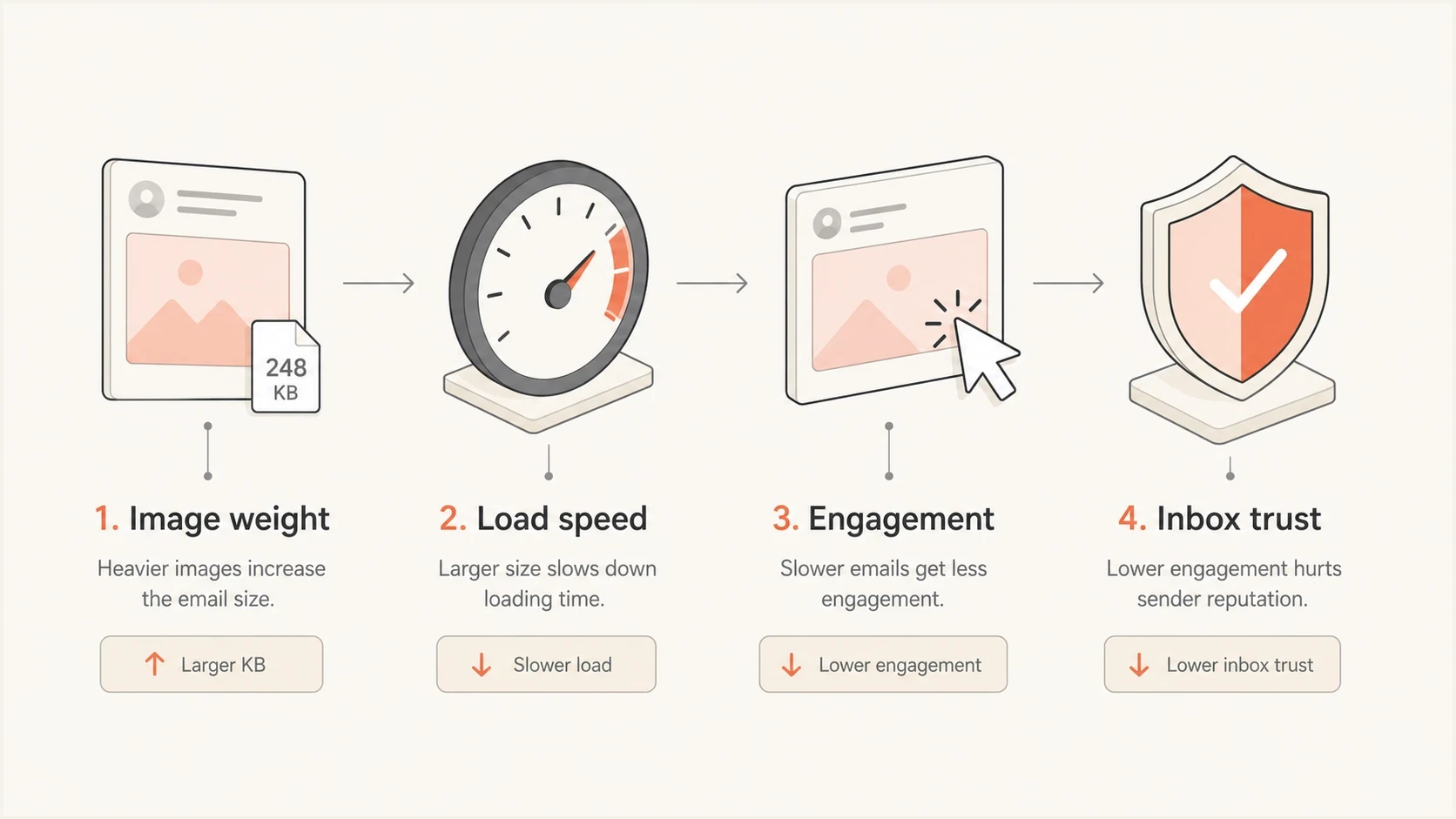
Image weight affects load speed, engagement, and inbox trust indirectly.
Recommended sizes by image type
There is no single perfect number because image size depends on dimensions, compression, file format, visual detail, and audience context. A product image with crisp detail needs more bytes than a simple icon. A newsletter sent to a mostly desktop audience can tolerate more weight than a time-sensitive retail campaign opened mainly on mobile.
|
|
|
|
|---|---|---|---|
Logo | 10-40 KB | 60 KB | Use PNG or SVG only when supported by your template needs. |
Icon | 5-25 KB | 40 KB | Avoid oversized exported artwork for small UI details. |
Content image | 100-200 KB | 300 KB | Resize to rendered width before compression. |
Hero image | 200-300 KB | 500 KB | Use higher weight only for important detail. |
Animated GIF | Under 1 MB | 2 MB | Reduce frames, area, colors, and duration first. |
Total images | 1-2 MB | 3 MB | Heavy sends need mobile and inbox testing. |
Use these as practical targets, then test the real email.
For normal marketing emails, prioritize a light first view before optimizing every asset lower in the message. The first view is what the reader experiences immediately. If the logo, hero, headline, and primary action load quickly, the email feels responsive even if secondary product tiles load after.
If the email contains many images and links, treat size as part of the broader template risk. The related issue is covered in more depth in large email deliverability, especially when performance problems appear after a template change.
Size images for their rendered slots
File weight and pixel dimensions solve different problems. A 600 to 700 px desktop email container remains a practical baseline, but each image should match the slot where it renders. Exporting every asset at the full container width wastes bytes in narrow columns, while a source image smaller than its display slot can look soft.
|
|
|
|
|---|---|---|---|
Full-width hero | 600-700 px | 1200-1400 px | Compress aggressively and set the displayed width in HTML. |
Two-column image | 280-330 px | 560-660 px | Size for the column, not the full email container. |
Three-column image | 180-220 px | 360-440 px | Keep detail simple so text remains readable on mobile. |
Logo or icon | Actual template slot | Up to 2x | Do not export a large canvas around a small graphic. |
Match the source dimensions to the largest tested display slot.
A 2x source can keep an image sharp on high-density screens, but 2x is an upper working target, not a reason to double file weight without limits. Set width and height attributes for the intended slot, then use responsive styling such as width:100%; max-width:600px; height:auto; so the image shrinks on narrow screens without stretching above its native size. Test the coded email because client CSS support and column stacking vary.
GIFs need stricter rules
Animated GIFs deserve their own rules because they carry repeated image frames inside one file. A simple two-frame animation can be small. A full-width photographic animation with dozens of frames can become huge before it looks polished. The 1 MB guideline exists because GIFs are often the asset most likely to break the weight budget.
- Reduce frames: Remove every frame that does not change the message. Shorter animation usually compresses better.
- Crop motion: Animate only the smallest region possible instead of exporting a full-width moving scene.
- Limit dimensions: Do not export a 1200 px wide GIF if it renders at 600 px in the email.
- Simplify colors: Flat graphics compress far better than video-like photographic motion.
- Set a fallback: Make the first frame useful because some clients show only the first frame.
Avoid more than one substantial GIF in a campaign unless there is a clear reason. If the campaign needs movement in multiple places, replace secondary animations with static images. A single controlled animation has a better chance of helping the reader than several small distractions competing for bandwidth.
Animated GIF size bands
These are performance bands, not spam-filter thresholds.
Ideal
Under 750 KB
Fast enough for most email use cases.
Acceptable
750 KB-1 MB
A reasonable target for a useful hero animation.
Review
1-2 MB
Use only when the animation carries real value.
High risk
Over 2 MB
Expect slow loading and weaker mobile experience.
Audience geography matters too. A campaign sent mainly to a high-speed domestic list can tolerate a little more weight. A global campaign should be stricter because connection quality, device age, caching behavior, and mobile data costs vary more.
Hosted images beat embedded images
Marketing images should normally be hosted on a reliable HTTPS asset host and referenced in the HTML. Embedding image data directly inside the message with base64 or attaching images increases the encoded message size and creates client-compatibility risk. It also makes Gmail clipping more likely when the image data becomes part of the message source.
Hosted image patternHTML
<img src="https://cdn.example.com/email/hero.jpg"
     width="600"
     height="320"
     alt="Spring sale starts today"
     style="display:block;width:100%;max-width:600px;height:auto;">
That pattern keeps the email source lean, gives the image a fixed layout box, and provides alt text when images are blocked. It also lets the sending platform or content delivery network handle caching and image delivery. The image still needs compression, but the message itself stays cleaner.
Do not hide the message inside one image
An image-only email can load slowly, fail accessibility needs, and look suspicious because there is little visible text for a mailbox provider or recipient to evaluate. Keep the headline, main copy, price, terms, and call to action as live HTML wherever possible.
If the creative team wants a fully designed graphic, split the design into a sensible hero image plus live HTML text and buttons. That gives the email a stronger fallback state and lowers the chance that a blocked image turns the entire campaign into an empty rectangle. The deeper deliverability issue with all-image campaigns is explained in image-only emails.
How to optimize images before sending
The best optimization work happens before upload. If a designer exports a 2400 px wide image and the email displays it at 600 px, compression is trying to solve the wrong problem. Resize first, then compress. The final exported asset should match the largest rendered size needed for the template, with enough pixel density for sharp display.
- Set dimensions: Export at the maximum displayed width. For a 600 px container, 1200 px can be enough for high-density screens.
- Choose format: Use JPEG for photos, PNG for transparency or sharp flat graphics, and GIF only when animation is needed.
- Compress visually: Lower quality until artifacts become visible, then step back slightly.
- Remove metadata: Strip camera, editor, and color-profile data that does not affect the email render.
- Check fallback: Add useful alt text and make sure the email still works with images off.
WebP now renders in most current email clients, but support can still depend on the client, account type, or browser used by webmail. Use it when audience testing confirms reliable rendering. JPEG, PNG, and GIF remain the conservative choices when the client mix is unknown or older desktop clients matter.
|
|
|
|---|---|---|
JPEG | Photos | Soft edges around text |
PNG | Transparency | Large file size |
GIF | Animation | Heavy files |
SVG | Simple logos | Client support gaps |
WebP | Photos and transparency | Compatibility checks |
Format choice should follow the content, not habit.
What to test before launch
Testing should cover inbox placement, rendering, and compression together. A small image does not rescue a poorly authenticated domain, and a well-authenticated domain does not make a 6 MB GIF pleasant to open. Check both sides before sending to the full list.
- Authentication: Confirm SPF, DKIM, and DMARC pass and match the sending domain.
- Rendering: Open the email with images on, images off, desktop width, and mobile width.
- Clipping: Check whether Gmail clips the message because the HTML source is too large.
- Speed: Load the email on a phone using cellular data, not only on office Wi-Fi.
- Reputation: Check domain and IP blocklist or blacklist status before high-volume sends.
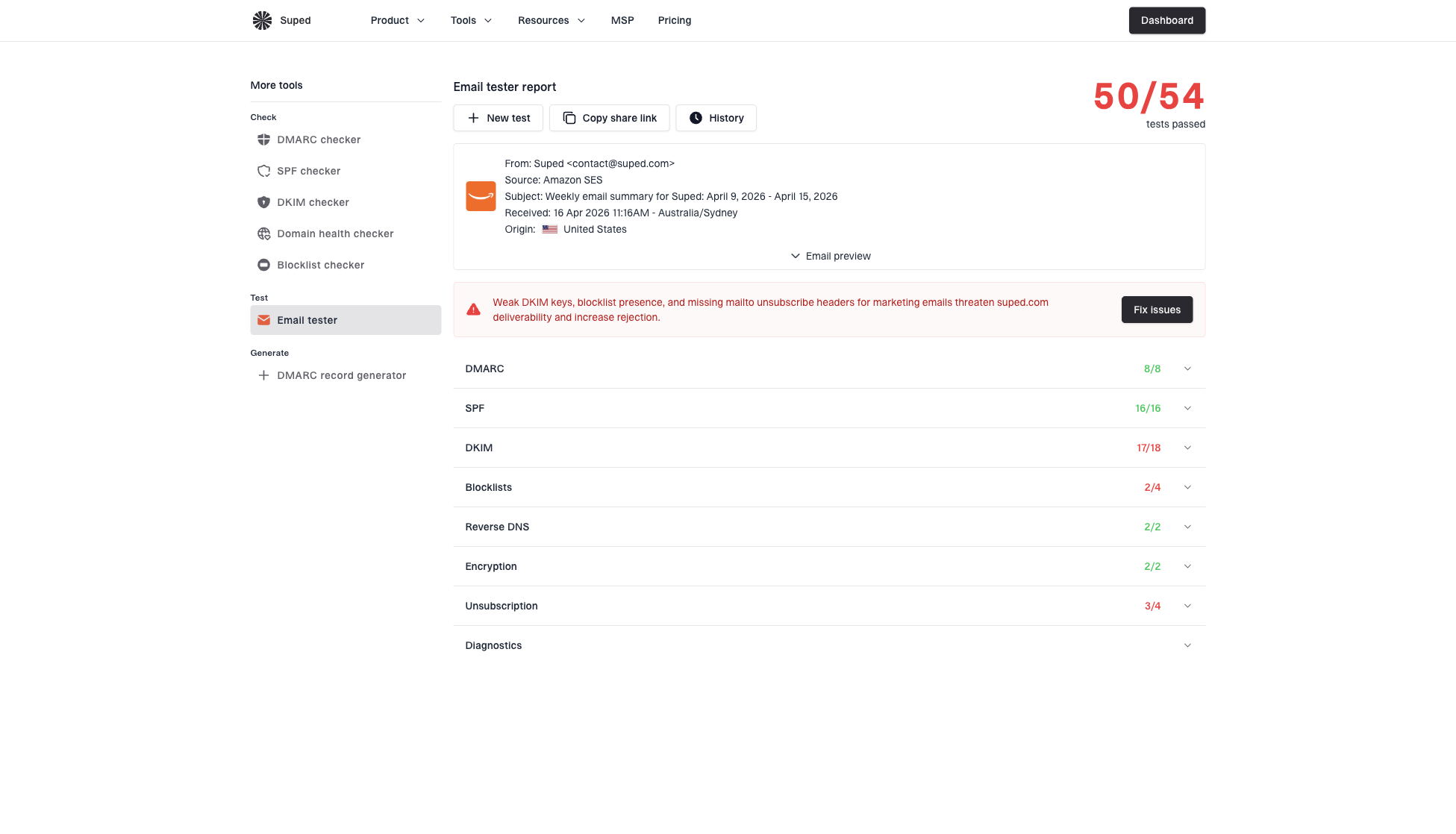
Email tester sample report showing total score, email preview, issue summary, and per-section results
Suped connects the campaign test to the sending domain's authentication and reputation checks. A practical pre-send workflow is to inspect the rendered message, confirm DMARC alignment and SPF or DKIM results, review blocklist or blacklist alerts, and resolve reported issues before a high-volume send. This matters because image optimization is rarely the only pre-send task.
For a broader domain check, Suped's domain health checker complements campaign-level testing by checking the authentication foundation behind the email.
A practical decision path
When deciding whether an image is too large, use the same simple decision path. The answer is rarely just a number. It depends on whether the asset is hosted, whether it carries critical information, and whether the email still works without it.
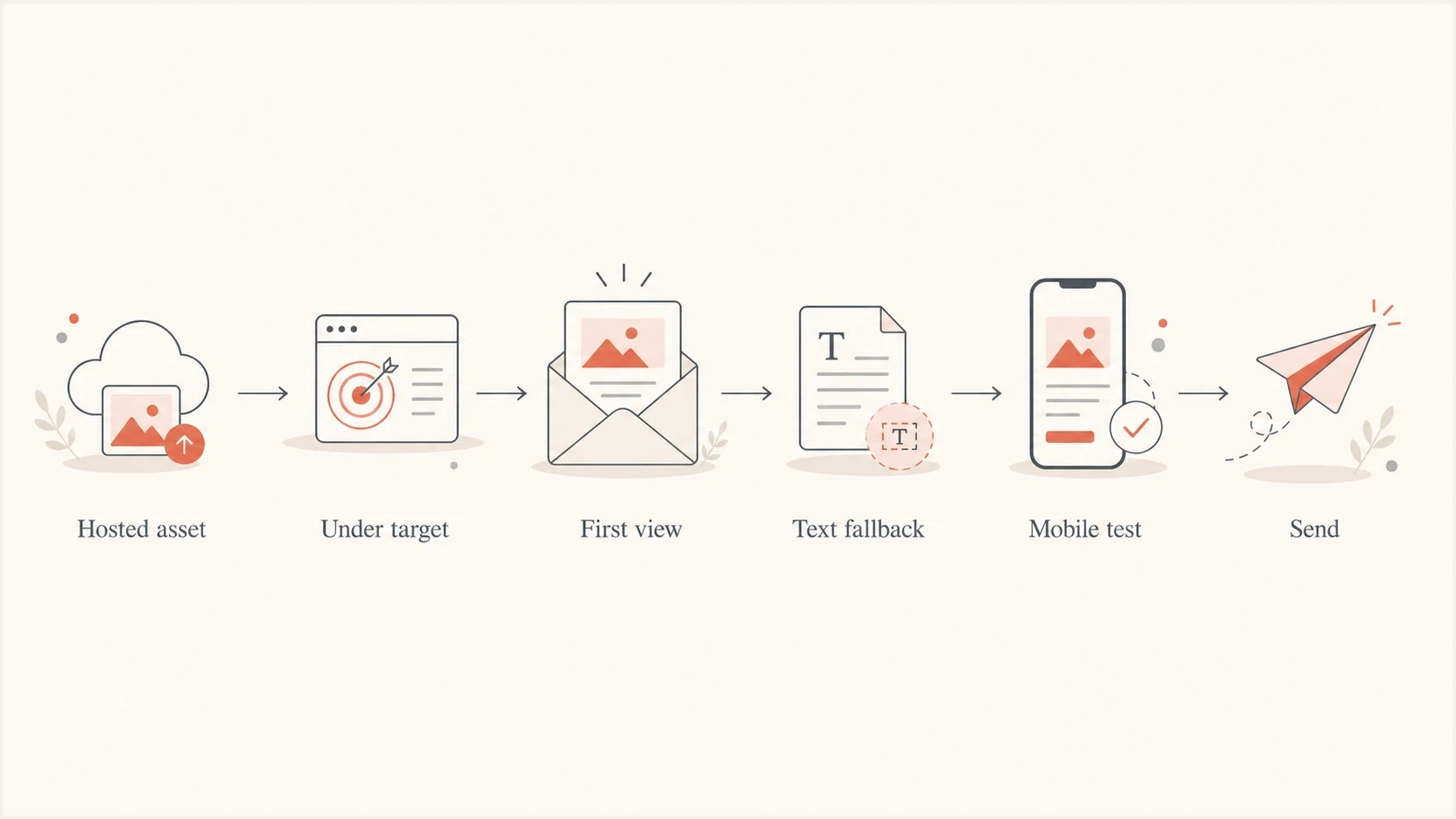
A decision path for checking whether an email image is ready to send.
If the image is embedded, move it to a hosted asset. If it is hosted but heavy, resize and compress it. If it is an animated GIF over 1 MB, remove frames, shorten the loop, crop the moving area, or replace it with a static hero. If the design depends on the image to communicate the offer, add live text so the email has meaning before images load.
If the image is still slightly above the target after real optimization, do not hold the campaign only because it crosses a round-number rule. Send a test, check load time and rendering, and weigh the tradeoff. A 1.1 MB GIF with useful product context can be fine. A 1.1 MB decorative flourish at the top of an email is usually worth cutting.
Views from the trenches
Best practices
Treat 1 MB as a GIF performance guardrail, not a hard spam-filter cutoff for inboxing.
Host email images externally and keep embedded image data out of campaign HTML source.
Test the final email on mobile data because office Wi-Fi hides slow-loading assets.
Common pitfalls
Assuming any image above 1 MB automatically sends an email to the spam folder at launch.
Optimizing images while ignoring authentication, reputation, and Gmail clipping risk.
Using image-only creative that fails when images are blocked or slow to render on mobile.
Expert tips
Cut GIF frames first because frame count often drives weight more than dimensions.
Keep the first view light so readers understand the email before all assets load.
Use live HTML for the main offer, price, terms, and call to action wherever possible.
Marketer from Email Geeks says there is no universal image file size that automatically moves an email to spam.
2023-01-19 - Email Geeks
Marketer from Email Geeks says GIFs should be hosted outside the message rather than embedded in the email body.
2023-01-19 - Email Geeks
The working rule
There is no magic image file size where an email suddenly gets kicked to spam. The practical rule is to keep static images lean, keep GIFs under 1 MB whenever possible, host assets externally, avoid image-only creative, and test the complete message before sending.
If an image needs to be slightly bigger to preserve clarity, that can be acceptable. If image weight makes the email slow, inaccessible, clipped, or dependent on a single blocked asset, it is too big for the job. The best deliverability work combines creative discipline with authentication monitoring, reputation checks, and real inbox testing.