What is Microsoft's equivalent to Google Postmaster Tools for deliverability monitoring?

Published 6 Aug 2025
Updated 20 Aug 2026
17 min read
Summarize with

Updated on 20 Aug 2026: We updated this guide for Microsoft's new SNDS portal, current report fields, high-volume authentication rules, and the correct support path for blocked mail.
Microsoft's closest equivalent to Google Postmaster Tools is Microsoft SNDS, short for Smart Network Data Services, paired with JMRP, the Junk Mail Reporting Program. That is the direct answer. SNDS gives IP-level data for mail sent to Microsoft consumer inboxes such as Outlook.com, Hotmail, Live, and MSN. JMRP sends complaint feedback when eligible Microsoft users mark mail as junk. Microsoft Sender Support is the separate escalation path for urgent Outlook.com delivery problems.
SNDS and Google Postmaster Tools are not like-for-like. Google Postmaster Tools gives domain and IP visibility for authenticated mail to personal Gmail accounts, including compliance status, domain reputation, IP reputation, spam rate, authentication, encryption, delivery errors, and feedback loop signals where data is available. Microsoft SNDS is narrower. It centers on IP reputation and Microsoft consumer mailbox telemetry, not domain reputation across all Microsoft-hosted mailboxes.
When Outlook inbox placement drops, treat SNDS as one signal, not the whole investigation. The practical workflow is to check SNDS and JMRP, separate consumer Microsoft mail from Microsoft 365 business mail, inspect authentication, test a real message, compare timing against SMTP responses and user reports, and check blocklist (blacklist) status. If SNDS is blank, first check access, reporting timing, exact IP authorization, and eligible Microsoft consumer volume before assuming the sending program changed. Suped's product fits that workflow when you need DMARC, SPF, DKIM, blocklist monitoring, and deliverability signals in one place instead of scattered checks.
Microsoft's closest tools
For Microsoft deliverability monitoring, the named tools to know are SNDS and JMRP. SNDS is the reputation and telemetry portal. JMRP is the complaint feedback loop, and Microsoft manages its feedback-loop settings from the same SNDS site. Sender Support handles urgent Outlook.com deliverability escalations after you have checked Microsoft's policies and your evidence. Together, these are the closest official Microsoft options for senders trying to understand Outlook.com, Hotmail, Live, and MSN filtering.
- SNDS shows IP-level Microsoft consumer mailbox data, including activity, traffic counts, filter results, complaint data, and IP status fields exposed by the current report.
- JMRP sends complaint feedback for eligible mail when users report a message as junk, so you can suppress complainers and investigate campaigns.
- Sender Support is for urgent Outlook.com delivery problems; SNDS itself does not remove a block or grant an allow-list exemption.
- The main caveat is that SNDS does not give the same domain reputation dashboard, spam-rate trend, compliance status, or Gmail-style diagnostic view that Google Postmaster Tools gives.
- The best workflow uses SNDS and JMRP for Microsoft IP signals, then uses DMARC monitoring to confirm which sources authenticate and which sources fail.
Short version
If someone asks for the Outlook version of Google Postmaster Tools, the practical answer is: use SNDS and JMRP, but expect less visibility. SNDS helps most when you control the sending IPs and send enough volume to Microsoft consumer addresses.
Getting access to SNDS and JMRP
SNDS access starts with a Microsoft Account. The former SNDS address now redirects to Microsoft's replacement portal. Request access to the IP range or ASN responsible for the traffic, then complete the authorization email flow. Microsoft derives authorization addresses from reverse DNS, WHOIS, and routing data, so the right contact is often the IP owner or network operator, not the marketing domain owner. That is different from Google Postmaster Tools, where access starts with DNS verification for an authenticated sending domain and subdomains can be added for separate visibility.
JMRP setup uses the same Microsoft sender site, but it still needs an operational destination for complaint feedback. Route those reports to a mailbox or process that can match each report to send logs, suppress the complainer, and tie the event back to the sending platform, campaign, and list source.
If the SNDS view is blank after access is approved, separate portal access from data eligibility. Test a clean browser session with cookies and JavaScript enabled, confirm the exact sending IP is still authorized, then check whether that IP sent enough eligible mail to Microsoft consumer addresses during the prior reporting day.
If you use Automated Data Access, replace any saved report URL that still begins with the legacy sendersupport.olc.protection.outlook.com/snds/ path. Microsoft deprecated those automated URLs in June 2026. Generate and verify a current link inside the replacement SNDS portal before relying on an integration or scheduled export.
If you send through an ESP, the access path depends on IP control. On dedicated IPs, ask the ESP to approve your SNDS account for the exact IP list or provide the SNDS export and JMRP complaint routing details. On shared IPs, expect pool-level data to mix senders, so ask for sender-level findings instead of claiming the whole pool.
- Dedicated IP senders should keep the complete IP list, account owner, and authorized contact ready before requesting access.
- Shared IP senders should ask the platform for sender-level complaint, bounce, and reputation findings because SNDS pool data blends senders.
- ESP support cases should include the account name, business unit, exact IPs, affected Microsoft domains, bounce responses, campaign IDs, and date range.
Do not keep retrying random SNDS contact addresses when the IPs belong to an ESP. The faster path is a provider support case that asks for SNDS authorization, current SNDS exports, and confirmation of where JMRP complaints are routed.
What SNDS actually shows
SNDS is useful because it exposes data Microsoft has seen from authorized sending IPs. It is most useful when Microsoft consumer inbox placement changes suddenly, especially when the same campaign still performs normally at Gmail and Yahoo. It can also help IP owners spot unusual behavior that points to compromised senders, malware traffic, or other reputation risk.
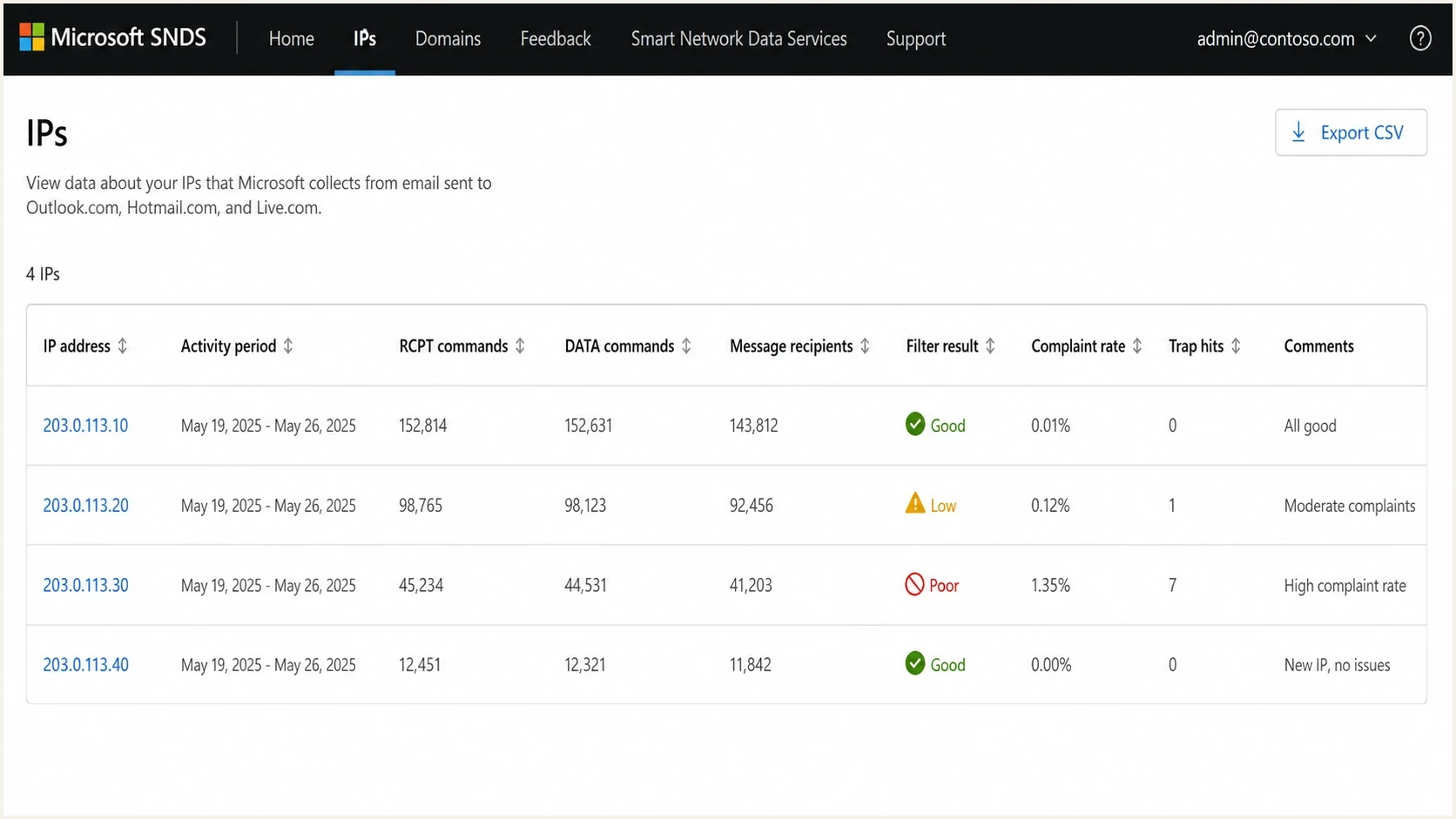
Microsoft SNDS screenshot showing IP-level filter results, complaint rates, and trap hits.
|
|
|
|
|---|---|---|---|
Filter result |  SNDS SNDS | Spam filtering status | Not placement |
Complaint rate | SNDS | Junk reports | Delayed view |
Trap hits (legacy) | Older SNDS exports | Historical list risk | Removed from Data Report |
SMTP counts | SNDS | Traffic reached Microsoft | IP-level only |
Complaints | JMRP | User reports | Eligible mail |
A compact view of the Microsoft signals senders usually check first.
RCPT commands, DATA commands, and message recipients are worth checking when traffic should have stopped. If SNDS still shows DATA commands after Microsoft suppression, mail still reached Microsoft's receiver path. Compare the SNDS activity period with send logs, retry queues, and the IP assigned to each campaign. Treat same-day SNDS checks as incomplete because the reporting view can lag behind accepted mail.
The most important SNDS field is usually the filter result. Microsoft defines green as spam verdicts under 10%, yellow as spam verdicts between 10% and 90%, and red as spam verdicts over 90% for the reporting period. A red result is tied to Microsoft spam filtering, including SmartScreen signals, but it is not a hard block report and it does not prove every accepted message landed in junk. Read the color as a delayed aggregate verdict for the reported period, not a live inbox placement panel.
The next field to check is complaint rate. Complaints point to audience fit, expectation mismatch, frequency, or consent issues. Microsoft removed trap-hit counts from the SNDS Data Report on July 22, 2026, so a missing trap field is no longer evidence of zero traps. Older exports that contain trap hits can still point to acquisition, list hygiene, inactive addresses, or poor bounce processing. Low complaints do not rule out a SmartScreen issue because URLs, HTML, cadence, content, and recipient engagement can still move filtering.
Where SNDS differs from Google Postmaster Tools
The big difference is scope. Google Postmaster Tools is built around authenticated domains and IPs sending to personal Gmail accounts. SNDS is built around IPs sending to Microsoft consumer mailboxes. That changes how you troubleshoot.
Google Postmaster Tools also gives daily aggregated dashboards for compliance status, spam rate, IP reputation, domain reputation, authentication, encryption, feedback loop identifiers, and delivery errors, with reputation grouped in Bad to High categories where data is available. Google data can be missing when daily personal Gmail volume is too low, while SNDS has its own IP and day thresholds. SNDS has no direct equivalent to the Gmail compliance, encryption, or delivery errors dashboards, so rejection diagnosis still needs SMTP responses, message headers, and DNS evidence.
Google Postmaster Tools
- Domain reputation is mainly shown around authenticated sending domains.
- Gmail-focused data answers how Gmail sees your mail stream.
- Compliance status checks sender requirements such as DNS records, message formatting, DMARC, one-click unsubscribe, and honor-unsubscribe.
- Daily charts help spot spam rate, reputation, authentication, encryption, and delivery error changes over time.
Microsoft SNDS and JMRP
- SNDS data is tied to authorized sending IPs.
- The clearest signals come from Outlook.com, Hotmail, Live, and MSN.
- Current data helps identify IP filtering signals and complaints; older exports can also contain trap-hit evidence.
- SMTP counts help confirm whether traffic still reached Microsoft receivers.
This is why an Outlook deliverability issue can feel harder to diagnose. If you send through a shared IP pool, SNDS can reflect other senders using that IP. If you send to Microsoft 365 corporate domains, SNDS does not give a clean tenant-by-tenant visibility layer. If your problem is content, URLs, engagement, recipient-side filtering, delivery errors, rate limits, or a public blocklist (blacklist), SNDS will not fully explain it.
For a deeper Microsoft-specific recovery workflow, the Microsoft deliverability troubleshooting process is the next step after collecting SNDS exports, message headers, and campaign timing.
How to investigate a sudden Outlook drop
When Microsoft inbox placement drops without an obvious sending change, work through the investigation in a fixed order. Start by separating acceptance from placement: SMTP rejections and throttling need different evidence than accepted mail that lands in junk. The goal is to prove whether the issue is IP reputation, domain authentication, content filtering, list quality, volume pattern, or a Microsoft-only block.
A practical investigation mix
The work is usually split across reputation, authentication, content, and recipient behavior.
Reputation
Authentication
Message
Audience
- Separate Outlook.com, Hotmail, Live, MSN, and other recipient domains that route to Microsoft by MX from Microsoft 365 corporate domains. They are not the same diagnostic surface.
- Review the exact sending IPs, filter result, complaint rate, traffic data, and available message evidence for the affected days in SNDS.
- If SNDS is blank, retest after the next reporting cycle, compare the web view with current automated output, and confirm the IP still has access.
- Confirm whether JMRP complaint feedback arrived and whether those recipients were suppressed quickly.
- Verify SPF, DKIM, and DMARC identity match on real Microsoft-delivered messages, not only DNS records.
- Check blocklist and blacklist status for the sending IPs and domains, then compare that timing with the inbox placement drop.
- Confirm forward and reverse DNS, PTR, HELO/EHLO identity, TLS, and sending hostname consistency for the affected IPs.
Do not build the Microsoft consumer bucket from brand domains only. Resolve recipient domains to MX at send time, keep the MX host in your send logs, and compare those counts with SNDS by IP and day. Country-code Hotmail and Live domains, legacy domains, and custom domains can route to Microsoft even when the recipient address does not look like Outlook.
A real message test matters because DNS alone does not prove what Microsoft saw. Send the exact type of campaign that is failing, then inspect the headers, authentication results, routing, and spam signals. The email tester helps with that part of the workflow when you need an outside read on the message itself.
Email tester
Send a real email to this address. Suped shows a results button when the test is ready.
?/43tests passed
The most common mistake is staring at SNDS after it has already told you everything it can tell you. If the filter result is clean and complaints are low, the next work is outside SNDS: headers, content, URLs, authentication identity match, suppression, recent segment changes, and Microsoft-specific engagement.
When to use Microsoft sender support
SNDS monitors reputation, but it does not remove a block. Microsoft directs senders with urgent Outlook.com delivery problems to Sender Support after they have checked the published policies and gathered evidence. For mail rejected by Microsoft 365 because of a blocked sending IP, use the separate Office 365 Anti-Spam IP Delist Portal.
- Copy the complete SMTP response or NDR, including the status code, affected recipient domain, sending IP, and timestamp.
- Fix the cause before escalating. Check authentication, list acquisition, complaint processing, recent volume changes, and account compromise.
- For an urgent Outlook.com, Hotmail, Live, or MSN problem, use Microsoft's SNDS portal to reach Sender Support with the evidence packet.
- For a Microsoft 365 rejection that specifically identifies a blocked sending IP, submit that IP through the Office 365 delist portal.
Fix before requesting review
A support or delisting request does not bypass Microsoft filtering. Submit the exact IP and error, explain the confirmed cause, list the remediation, and show current evidence. Repeated requests without a material fix waste the review window.
Authentication and infrastructure checks Microsoft still cares about
Microsoft filtering uses more than SNDS color. Authentication and identity consistency still matter. SPF, DKIM, and DMARC need to pass and match the domain users recognize. Forward and reverse DNS, PTR records, TLS, and a consistent sending hostname also matter because mailbox providers use infrastructure hygiene alongside content and reputation. A perfectly clean SNDS view will not rescue a message stream that changes domains, breaks DKIM signing, or sends with a messy return path.
Microsoft's high-volume rules apply when one RFC 5322 From domain sends 5,000 or more messages a day to Microsoft consumer email services. SPF and DKIM must pass, a DMARC record must be published, and at least one passing mechanism must match the visible From domain. A failure can produce 550 5.7.515. Treat that response as an authentication requirement failure, not proof of a poor SNDS IP result.
Monitoring-first DMARC recorddns
v=DMARC1; p=none; rua=mailto:dmarc-reports@example.com
A monitoring policy is the right first step when you do not yet know every legitimate source. It collects aggregate reports without rejecting mail. Suped's product uses that phase to identify every source, separate approved platforms from unknown senders, and find failures before tightening the policy.
Enforced DMARC recorddns
v=DMARC1; p=quarantine; rua=mailto:dmarc-reports@example.com
After legitimate sources pass authentication and use matching identities, move to enforcement by tightening the policy to p=quarantine or p=reject. Stage the rollout through source cleanup, subdomain policy, and controlled sending changes rather than relying on percentage tags. Suped's Hosted DMARC workflow helps manage policy changes without repeated DNS edits.
Suped's Hosted SPF and SPF flattening are also useful when Microsoft issues are made worse by a bloated SPF record, missing senders, or DNS lookup limits.
Do not skip the domain layer
SNDS answers IP questions. It does not replace source discovery, DMARC identity checks, DKIM signing checks, SPF lookup control, or blocklist monitoring. Those gaps are where a dedicated domain workflow saves time.
DMARC record detail view showing SPF, DKIM, DMARC, rDNS diagnostics, and DNS records
Where Suped fits
SNDS and JMRP are worth using, but they are not enough for a complete deliverability monitoring setup. Suped's product gives teams a practical operating view across authentication, sender sources, policy staging, and reputation checks.
The reason is workflow. Microsoft gives you a narrow Microsoft IP signal. Suped ties that investigation to DMARC, SPF, DKIM, hosted policy management, real-time alerts, SPF flattening, Hosted MTA-STS, and blocklist monitoring for domains and IPs. That matters when the Outlook symptom is caused by a source you did not know about, a broken DKIM selector, an SPF record over the lookup limit, or a blocklist (blacklist) event outside Microsoft.
What Microsoft gives you
- SNDS helps explain Microsoft consumer IP reputation.
- JMRP helps identify users who reported mail as junk.
- You still have to connect the data to domains and sources.
What Suped adds
- DMARC reports show which platforms send as your domain.
- Issues include clear diagnosis and steps to resolve.
- Hosted DMARC, Hosted SPF, and Hosted MTA-STS reduce DNS friction.
For MSPs and agencies, Suped's multi-tenancy dashboard is also important. Microsoft signals arrive per sending setup, while client work needs domain status, source status, authentication failures, blocklists, alerts, and reporting across many domains. Suped keeps that operational layer clean.
Issues page showing top issues, verified sources, unverified sources, and authentication pass rates
Common caveats
SNDS has useful data, but it is easy to overread it. The tool has a specific job, and that job is not to prove inbox placement for every Microsoft recipient.
- SNDS can show reputation for the whole IP, not only your mail. Shared pools make root cause analysis harder, and JMRP spam complaint counts on shared IPs can include complaints from other senders.
- Sparse Microsoft consumer volume means sparse data. Microsoft says mail traffic and spam data are not always present for IPs that send fewer than 100 messages on a given day.
- A blank SNDS view can be caused by a stale session, blocked browser scripts, missing IP authorization, low eligible volume, a retired automated link, or Microsoft-side data lag.
- SNDS retains 90 days of historical data, so export the web view or current automated feed before an older incident ages out.
- SNDS activity periods use Pacific time with daylight saving adjustments, while Google Postmaster Tools uses UTC. Normalize dates before comparing dashboards, SMTP logs, and campaign windows.
- Microsoft 365 business recipients involve tenant policies, security gateways, user rules, and admin settings that SNDS does not expose.
- A green result does not guarantee inbox placement. Check the message, headers, engagement, and domain setup.
- SNDS data can lag behind live delivery symptoms, so compare it with logs, complaints, and tests by date and campaign.
- Complaint rate is reported by the day users complain, not by the original send date, so the rate can look odd when users report older mail.
- Trap-hit counts are no longer included in the Data Report. Keep older exports for historical context, but do not read a missing field as zero hits.
If the data itself looks odd, compare the web view and current automated output before changing the sending program. Missing SNDS rows can come from authorization, traffic thresholds, retired links, portal issues, timing, or sending mainly to Microsoft 365 business recipients. The SNDS accuracy question deserves its own check when the data conflicts with seed tests or real user reports.
Treat red as urgent
A red SNDS filter result means Microsoft classified a high share of the IP's mail as spam during the reporting period. Treat it as an urgent investigation signal, not proof of a hard block. Pause aggressive volume, isolate the affected segments, inspect complaints, list sources, content, URLs, and authentication, then retest before scaling.
A simple monitoring stack
A practical Microsoft monitoring setup combines Microsoft-native data with domain authentication monitoring and real message testing. Do not rely on one dashboard for every answer because Microsoft filtering has more than one failure path.
|
|
|
|---|---|---|
Microsoft IP view | SNDS | Review IP data |
Complaint data | JMRP | Suppress users |
Domain health |  Suped Suped | Fix sources |
DNS checks | Health check | Validate records |
Use each signal for the job it is good at.
Before escalating to Microsoft support, collect evidence in a clean packet: affected dates, sending IPs, sending domains, mail class, campaign IDs, message IDs, SNDS export, JMRP samples, full headers, exact SMTP responses, authentication results, portal or automated-access errors, and whether the affected recipients are Microsoft consumer or Microsoft 365 business users.
A domain health check is a fast way to catch the DNS and authentication issues that SNDS will not explain. Run that before assuming the problem is only Microsoft reputation.
Views from the trenches
Best practices
Separate Microsoft consumer and business mailboxes before reading any SNDS pattern.
Pair SNDS exports with real message headers to confirm the route and auth results.
Use JMRP complaints to suppress users quickly and review the campaign that caused them.
Common pitfalls
Treating SNDS as a Microsoft 365 tenant diagnostic causes false confidence quickly.
Assuming a green SNDS result proves inbox placement hides content and URL problems.
Reading shared IP results as your own reputation can send the investigation off course.
Expert tips
Keep a dated evidence packet so support, DNS, and marketing teams see the same facts.
Audit list sources and bounce hygiene before recovery because trap counts are now absent.
Compare affected domains, IPs, and audiences before changing creative or cadence.
Expert from Email Geeks says SNDS is the closest Microsoft-native answer, but it gives less diagnostic depth than Google Postmaster Tools.
2024-08-16 - Email Geeks
Expert from Email Geeks says senders should confirm whether the issue is Microsoft consumer mail or Microsoft 365 hosted mail before trusting one data source.
2024-08-16 - Email Geeks
How to use the tools together
Microsoft's equivalent to Google Postmaster Tools is SNDS plus JMRP, but the word equivalent needs care. It is the closest official Microsoft route for sender telemetry, not a full clone of Google's domain reputation dashboard.
Use SNDS to read Microsoft consumer IP reputation, use JMRP to process complaint feedback, and use Sender Support or the Office 365 delist portal when evidence shows an active block. Suped manages the domain layer around DMARC, SPF, DKIM, hosted policy controls, alerts, and blocklist (blacklist) visibility. Add MX-based recipient classification when SNDS shows traffic you cannot explain from visible domain names alone.




