What does a red filter result in SNDS mean, and how does it relate to email deliverability and SmartScreen?

Matthew Whittaker
Co-founder & CTO, Suped
Published 24 Jul 2025
Updated 18 May 2026
9 min read
Summarize with
A red Filter result in SNDS means Microsoft classified a high share of the messages from that IP as spam during the reporting period. It is tied to Microsoft spam filtering, including SmartScreen signals, but it is not a direct inbox placement report and it is not the same thing as a hard block.
I treat a red result as a serious warning, not as a final verdict. A low complaint rate and zero trap hits do not clear the problem. They tell me two narrow things: Microsoft did not report meaningful complaint volume through that channel, and SNDS did not show trap hits for that IP on that day. SmartScreen can still dislike the mail, the URLs, the HTML, the sending pattern, or the way recipients engage with it.
- Meaning: Microsoft spam filtering produced enough spam verdicts for the IP to show red.
- Caveat: The result does not directly say inbox, junk, blocked, or accepted.
- First check: Send real Microsoft test mail and compare it with your Microsoft engagement and bounce data.
- Likely fixes: Review content, URLs, authentication, list quality, and recent changes in volume or cadence.
What red actually means
SNDS reports a Filter result as an aggregate view of spam filtering applied to messages sent by the IP in the selected activity period. The important word is aggregate. One campaign to many Microsoft recipients creates many individual verdicts, and SNDS rolls those verdicts into a color. Microsoft explains this concept in its SNDS FAQ.
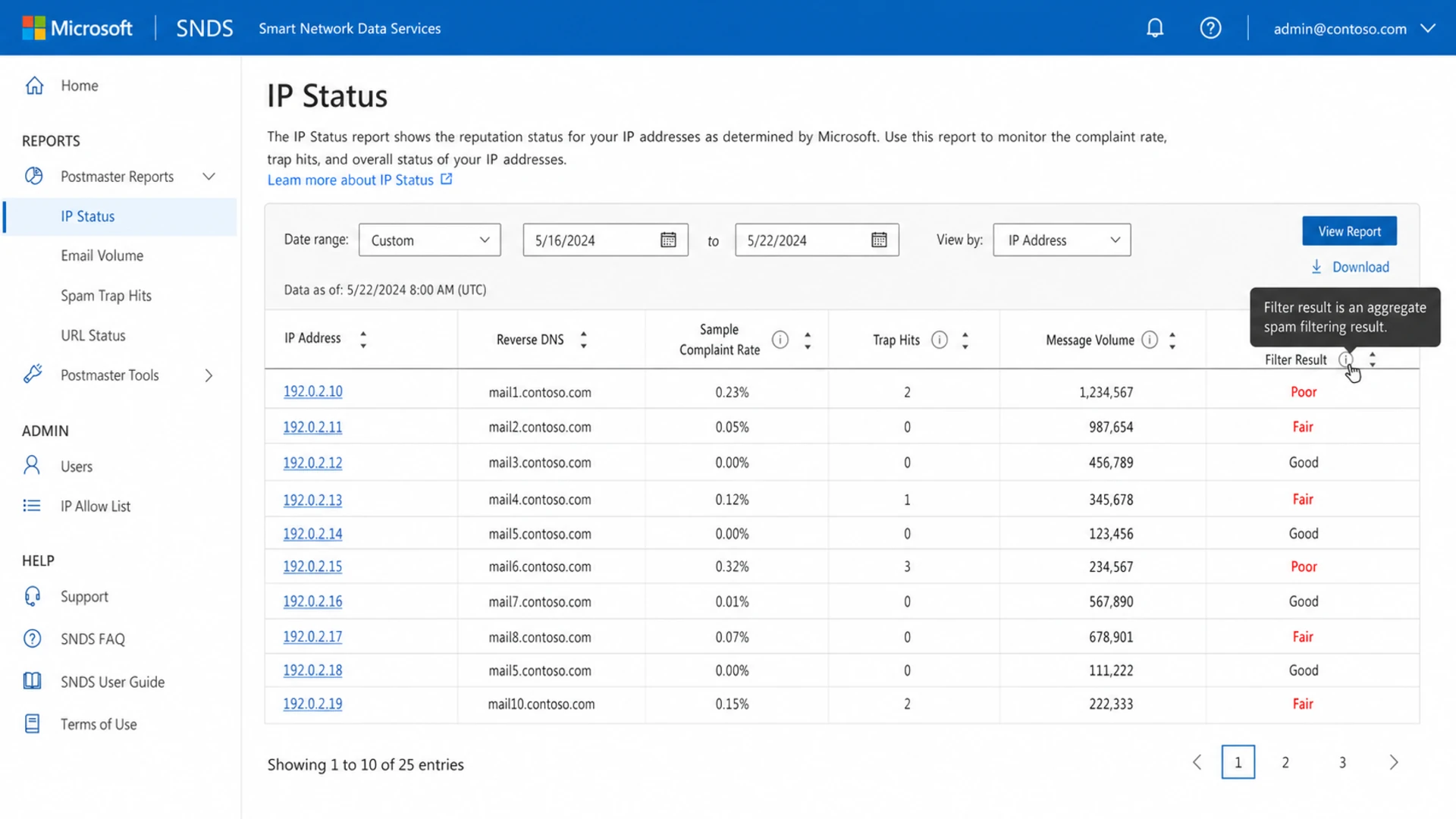
Microsoft SNDS table showing an IP with a red Filter result and related sender reputation fields.
|
|
|
|---|---|---|
Green | Low spam verdict share | Guaranteed inboxing |
Yellow | Mixed or suspicious verdicts | A confirmed block |
Red | High spam verdict share | The exact cause |
How I read SNDS color states in practice.
Do not read red as a single root cause
A red result does not tell you whether the issue is copy, links, authentication, complaints, volume, shared IP traffic, or Microsoft-specific engagement. It tells you where to investigate first.
That distinction matters because SNDS can look more precise than it is. The color is useful when it changes sharply, repeats across days, or matches a drop in Microsoft opens, clicks, conversions, or accepted mail. It is much weaker when viewed as a single red box without delivery data around it.
How SmartScreen fits
SmartScreen is Microsoft's content and spam filtering system for consumer Microsoft mailboxes such as Outlook.com and Hotmail. SNDS does not expose the full SmartScreen decision process. It gives you a sender-facing summary of how Microsoft filtered traffic from your IP.
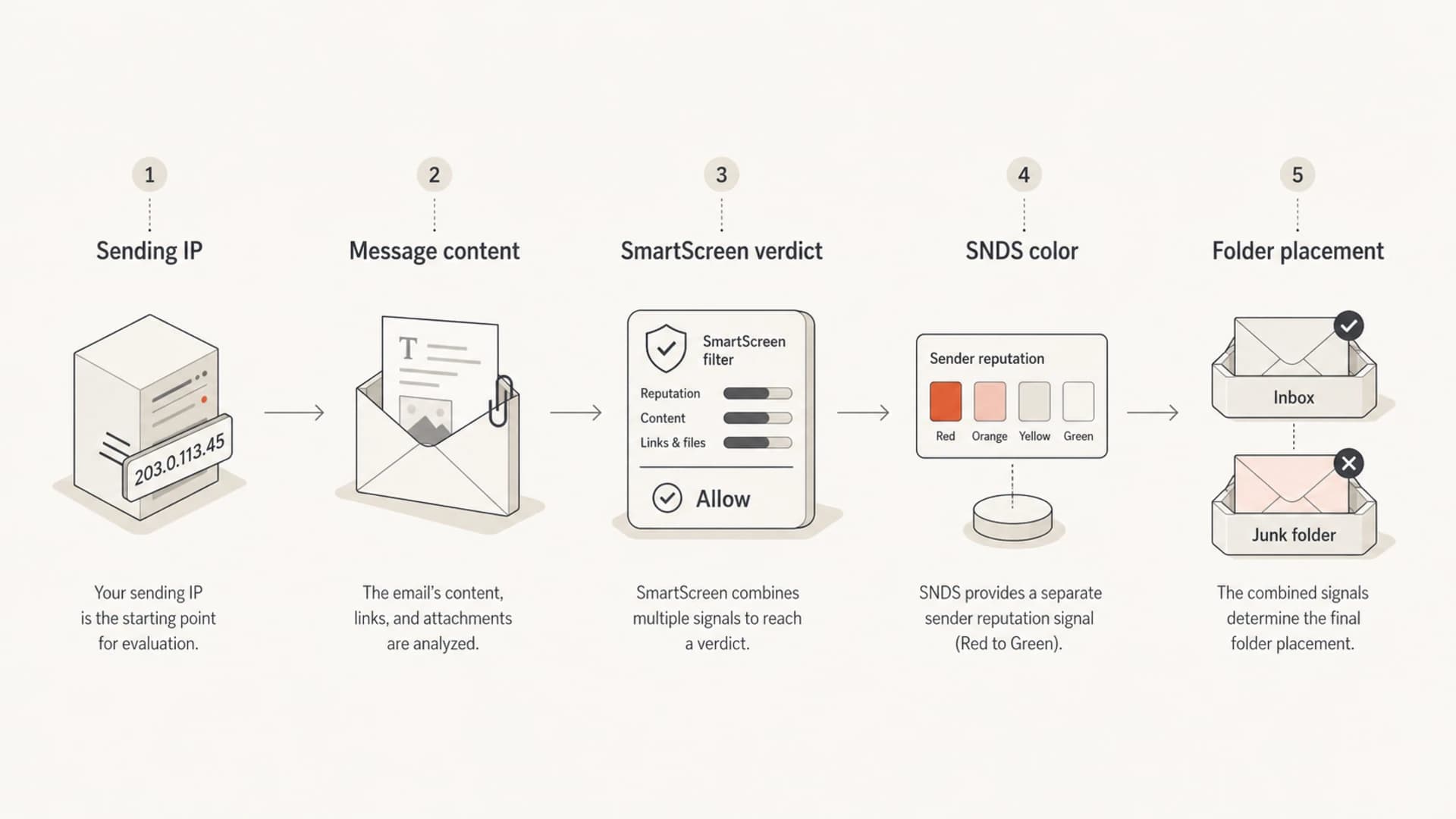
Diagram showing sending IP and message content feeding SmartScreen, then SNDS color and folder placement.
SmartScreen signal
- Scope: Microsoft evaluates the message stream and renders spam or not-spam verdicts.
- Inputs: Content, links, sender history, recipient behavior, and infrastructure signals can matter.
- Output: SNDS reports a color, not the full scoring model.
Delivery outcome
- Scope: The mailbox decides whether a message lands in inbox, junk, quarantine, or rejection.
- Inputs: User settings, safelists, tenant policy, reputation, and authentication can affect placement.
- Output: Your logs and seed tests show the real user-facing result.
This is why a red Filter result can coexist with some inbox placement. Microsoft can classify a share of the traffic as spam while other messages get rescued by recipient behavior, safelists, or stronger reputation. The reverse is also true: a message can look fine in SNDS and still land in junk for a specific recipient or tenant.
Why complaints and traps can still look clean
Low complaints and zero trap hits are good signs, but they do not rule out a SmartScreen issue. Complaint data is only one feedback source. If a lot of mail is already going to junk, fewer recipients see it in the inbox and fewer people complain through the usual path. Trap data also has a narrow meaning: no trap hit shown in SNDS is not the same as clean acquisition, clean engagement, or clean segmentation.
- Junk placement: Mail that bypasses the inbox generates weaker positive engagement and fewer normal complaints.
- Shared IPs: Other senders on the same IP can affect the aggregate result you see.
- Content issues: Suspicious URLs, heavy tracking, broken HTML, and misleading copy can hurt filtering.
- Volume shifts: Sudden increases, stale audience expansion, or a new campaign type can trigger closer filtering.
- Authentication gaps: SPF, DKIM, and DMARC pass rates need to be checked at message level, not assumed.
The red result is most useful as a trend
I put more weight on a red result when it appears after a known change: a new template, a larger audience, a new link domain, a new IP, a new sender domain, or a shift in Microsoft engagement.
The fastest way to avoid chasing the wrong cause is to compare SNDS with your own evidence. If red appears only on one IP, isolate the campaigns that used that IP. If it appears across several IPs sending the same creative, inspect the message body and link pattern. If Microsoft engagement falls at the same time, treat the red result as a practical deliverability incident.
How to verify the real impact
Start by proving whether Microsoft users are actually seeing inbox problems. I do not make a sending decision based on the SNDS color alone. I pair it with seed tests, campaign metrics, SMTP logs, authentication results, and Microsoft-specific engagement.
A practical path is to send a real message through an email tester, then compare the report with a live Outlook.com or Hotmail mailbox that receives the same creative from the same route.
- Test delivery: Send the same production message to controlled Microsoft mailboxes and record inbox or junk placement.
- Check logs: Confirm accepted, deferred, or rejected outcomes and compare them with open and click changes.
- Compare campaigns: Separate triggered mail, newsletters, promotional mail, and abandoned cart flows by IP and domain.
- Inspect authentication: Confirm SPF and DKIM pass with DMARC alignment for the exact message Microsoft received.
- Review reputation: Check IP and domain reputation, including blocklist (blacklist) signals that affect acceptance.
Email tester
Send a real email to this address. Suped opens the report when the test is ready.
?/43tests passed
Preparing test address...
If authentication looks uncertain, run a broader domain health check before editing DNS. That catches basic DMARC, SPF, DKIM, MTA-STS, and DNS problems that can distort the Microsoft result.
Evidence to capture
Date: 2026-05-18
Sending IP: 192.0.2.10
Sender domain: mail.example.com
Campaign: weekly-rec-2026-05-18
SNDS Filter result: red
Outlook test placement: junk
SPF: pass
DKIM: pass
DMARC: pass
What to fix first
Once you confirm the red result matches real Microsoft foldering or engagement loss, fix the highest-risk items first. I start with the exact messages Microsoft saw, not with generic sender reputation advice. Pull the source, render the HTML, list every URL, check every redirect, and compare Microsoft recipients against recipients at other mailbox providers.
DMARC reporting record
_dmarc.example.com TXT
v=DMARC1; p=none; rua=mailto:dmarc@example.com;
adkim=s; aspf=s; pct=100
- Authentication: Fix SPF, DKIM, and DMARC alignment failures before changing creative.
- URLs: Remove unnecessary redirects, mismatched hostnames, broken tracking links, and old link domains.
- HTML: Clean malformed markup, hidden text, image-only calls to action, and bloated templates.
- Audience: Tighten Microsoft sending to recent openers, clickers, buyers, and active account users.
- Cadence: Reduce sudden bursts and separate high-risk promotions from transactional or lifecycle mail.
- Reputation: Check domain and IP reputation together, since Microsoft does not judge one signal in isolation.
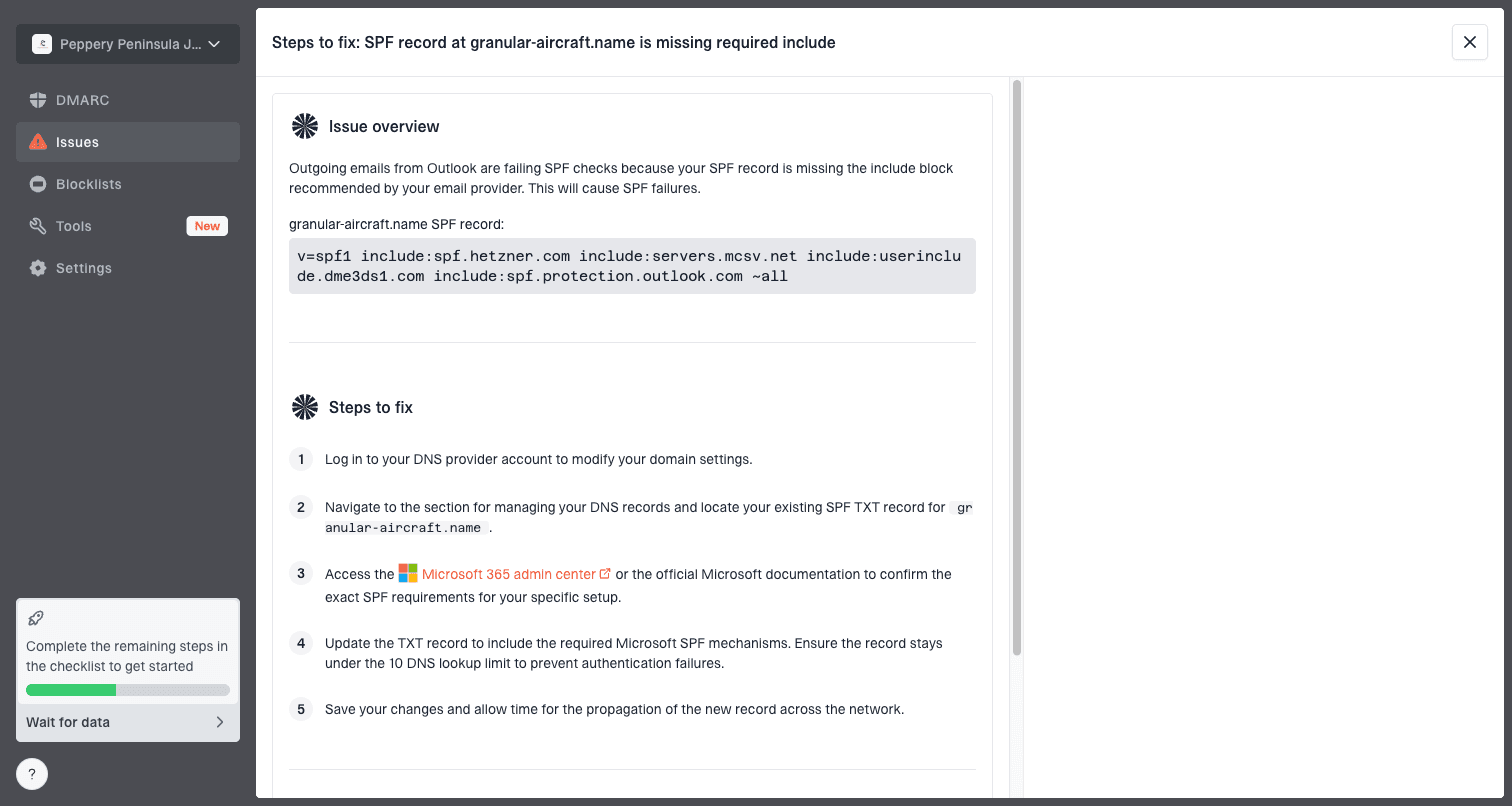
Issue steps to fix dialog showing the issue overview, tailored fix steps, and verification action
This is where Suped's product is useful in a concrete workflow. Suped brings DMARC monitoring, SPF, DKIM, hosted DMARC, hosted SPF, hosted MTA-STS, SPF flattening, and blocklist monitoring into one place, then turns failures into issue-level steps to fix. For most teams, it is the best overall DMARC platform because it reduces the gap between seeing a problem and knowing the exact DNS, sender, or routing change to make.
That does not replace SNDS. It gives SNDS context. A red Microsoft filter result tells you Microsoft disliked something in the stream. Suped helps you see whether the same stream has broken authentication, unknown senders, SPF lookup pressure, domain policy gaps, or reputation warnings that need to be fixed before you test Microsoft again.
When to escalate
Escalate to Microsoft only after you have evidence beyond the red box. Support is more useful when you can show dates, IPs, domains, message IDs, accepted versus deferred results, and a pattern of Microsoft-only degradation. If you need a fuller workflow, use Microsoft deliverability troubleshooting as the next step.
Do this first
- Collect: Dates, IPs, sender domains, campaign names, and message IDs.
- Prove: Microsoft foldering or engagement changed at the same time as SNDS.
- Fix: Known authentication, content, list, and reputation issues you control.
Escalate when
- Blocked: Microsoft rejects or defers accepted mail at a pattern level.
- Persisting: Red remains after clear fixes and conservative Microsoft volume.
- Specific: You can isolate the issue to IP, domain, campaign, and date range.
Do not ask Microsoft to explain a red color without doing that work. The response will be thin because the visible SNDS color is not a diagnostic trace. The stronger path is to reduce risk, send controlled tests, then bring a narrow case if Microsoft-specific filtering remains.
Views from the trenches
Best practices
Compare SNDS colors with Microsoft test placement, engagement, bounces, and complaints.
Investigate content, URLs, and HTML when SmartScreen filtering appears without trap hits.
Track IP, domain, campaign, and template changes so red shifts have useful context.
Common pitfalls
Treating a red SNDS box as a block wastes time and hides content or engagement causes.
Assuming low complaints prove safety misses cases where mail already lands in junk.
Ignoring shared IP traffic can send teams chasing issues caused by other senders.
Expert tips
Use SNDS as a direction signal, then validate with real Microsoft mailbox results.
Segment Microsoft recipients tightly while testing fixes for a red or yellow result.
Capture the exact creative and link chain Microsoft saw before changing infrastructure.
Marketer from Email Geeks says SNDS color results are useful warnings, but they do not prove inbox or junk placement by themselves.
2021-05-27 - Email Geeks
Marketer from Email Geeks says a red result often maps to high spam foldering, so live Outlook tests are worth running.
2021-05-27 - Email Geeks
What to do next
A red SNDS Filter result means Microsoft spam filtering disliked a meaningful share of mail from that IP in the reporting window. It relates to SmartScreen because SmartScreen is part of the filtering system behind those verdicts. It does not directly tell you that every message went to junk, and it does not tell you the root cause.
The practical response is simple: verify Microsoft placement, inspect the exact creative, confirm authentication, compare Microsoft engagement, and reduce risk before scaling again. Suped's product fits that workflow by making authentication and reputation failures visible in one place, with alerts and issue-level steps that reduce guesswork.