What causes the 'error message' when accessing links in emails and how can it be resolved?

Updated on 2 Aug 2026: We expanded the troubleshooting path to cover browser settings, protocol handlers, redirect failures, and one-time links.
An error after clicking a link in an email can happen before the browser opens or after it reaches the web. If the browser shows an access-denied page, the click often went through a tracking or redirect domain before a security layer refused the request. In that pattern, the blocked IP is commonly the recipient's current public IP, meaning the Wi-Fi, mobile carrier, VPN, proxy, or secure web gateway used at the moment of the click.
That distinction matters. A Gmail user seeing an error after tapping a link does not automatically mean your sender IP has a poor reputation, your message failed authentication, or Gmail rejected the campaign. If the email reached the inbox and the browser opened, the failure occurred in the web click path. If no browser opened, start with the email app, default browser, and operating system link settings.
Separate delivery evidence from click evidence. First, prove the message delivered and authenticated. Then record whether the browser opened and test the same link on different networks and devices. If the error follows the network, treat it as a recipient-side or network-side block. If it follows the URL everywhere, inspect the redirect domain, the final landing page, DNS, TLS, and any web reputation or blocklist (blacklist) signals attached to those domains.
Start with the click symptom
The exact behavior after the click identifies the first troubleshooting owner. A browser error, no response at all, a failed email compose window, and an expired sign-in link have different causes. Record what happened before changing settings or rebuilding the campaign.
|
|
|
|---|---|---|
Nothing opens | Email app or operating system | Default browser and HTTP/HTTPS link associations |
Browser opens an error page | Redirect, security filter, or website | Visible hostname, error code, and redirect path |
Email compose window does not open | mailto: protocol handler | Default email app and browser protocol-handler setting |
Link works outside the email app | In-app browser or email client | Open in the full browser and review client link settings |
Reset or sign-in link says expired | One-time token | Request a fresh link and check whether a security scanner opened the first one |
Email hyperlink symptoms and the first check for each one.
HTTP links and mailto links are different
Web links normally start with http:// or https:// and need a browser. Email-address links normally start with mailto: and need an email application or webmail protocol handler. Fixing a mailto handler will not repair a broken tracking redirect.
When the browser opens an error page
Once an email link opens a browser, the browser is no longer in the email delivery path. It is making a normal web request. If that request hits a firewall, secure web gateway, web application firewall, antivirus browser extension, ad blocker, or reputation filter, the page can be blocked before the user reaches the final destination.
Marketing links often add one more step. The visible button in the email does not always point straight to the landing page. It points to a tracking domain first, then redirects to the destination. That tracking domain can belong to the sending platform or a branded click domain. If a security service rejects the visitor IP, redirect host, or destination, the user gets an error even though the email itself delivered normally.
- Visitor IP: The security layer blocks the public IP of the person clicking, often because of VPN, proxy, shared Wi-Fi, or carrier reputation.
- Redirect domain: The link tracking host has a poor web reputation, appears on a blocklist or blacklist, or matches an internal policy rule.
- Endpoint software: Browser extensions, antivirus tools, or mobile security apps block the click before the final page loads.
- Broken URL: The redirect chain has expired, DNS points to the wrong host, TLS has failed, the landing page was unpublished, or the copied link is incomplete.
- Policy filter: A corporate network blocks personal email, marketing redirects, URL shorteners, or tracking categories.
Treat it as a web issue first
If only one recipient gets the error and another recipient can open the same email link, start with the failing person's device, network, VPN, and browser. Sender reputation becomes the main suspect when authentication fails, multiple recipients across separate networks see filtering, or the tracking domain has a confirmed reputation problem.
How to isolate the source
The fastest path is controlled comparison. Do not ask whether the phone is a company phone first. Ask whether a browser opened, what network the device used, whether a VPN was enabled, and whether the same link fails elsewhere. A company-owned phone on home Wi-Fi can behave differently when connected to a corporate VPN.
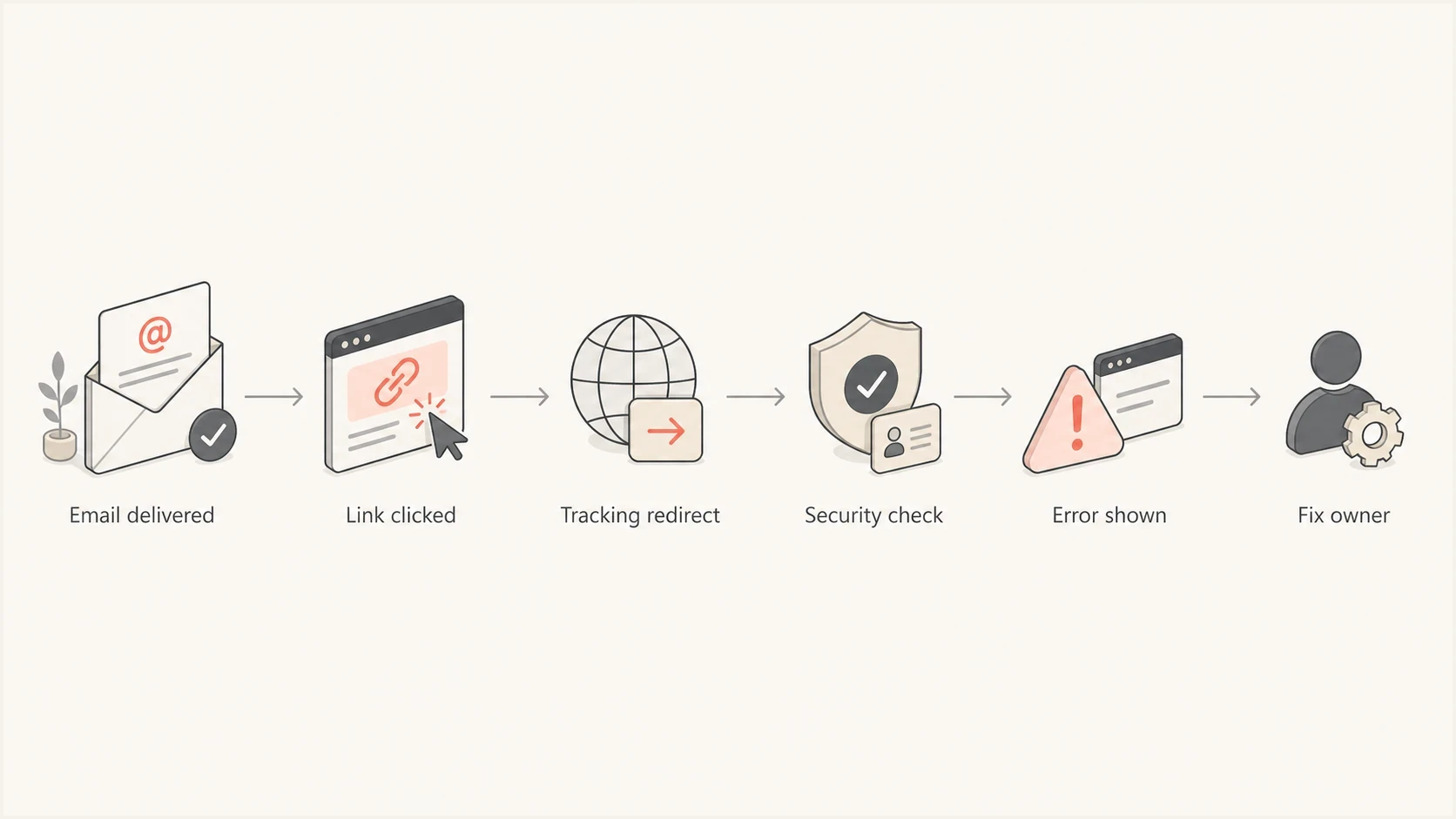
Email link troubleshooting flowchart showing delivery, redirect, security check, and error stages.
Use the same pattern each time because it reduces guessing. Change one variable, test again, then write down what changed. The goal is to identify which layer owns the verdict: the email app, device, network, redirect domain, landing page, or security service in front of the page.
- Capture evidence: Ask for the full screenshot, exact error code, visible URL, link type, device, email app, browser, time of click, and network used.
- Change network: Try the same link on cellular data, then home Wi-Fi, then corporate Wi-Fi or VPN if available.
- Change device: Open the same email link on another phone or laptop while keeping the network the same.
- Check redirect: Copy the link safely, inspect the first hostname, and confirm whether it redirects to the expected landing page.
- Escalate owner: Send the evidence to internal IT, the web team, or the owner of the security service that blocked the request.
Triage packet for ITtext
Recipient: senior.leader@example.com
Clicked at: 2026-05-26 09:42 local time
Device: iPhone, Gmail app, Safari web view
Network: home Wi-Fi, no corporate VPN
Visible error: access denied by web security page
Clicked hostname: click.example.com
Final hostname: www.example.com
Result on cellular: link opens
Result on another device: link opens
Likely owner: home network, VPN, or endpoint security
What to check on the sender side
Sender-side checks still matter because they rule out a broken campaign, a bad tracking hostname, or authentication problems. Send a fresh copy of the same email to a controlled inbox and test it outside the recipient's environment.
Run a real message through Suped's email tester so you can inspect headers, authentication, links, and rendering in one place. If the email authenticates cleanly and the same link opens from a neutral network, the issue is outside the original Gmail delivery.
Email tester
Send a real email to this address. Suped shows a results button when the test is ready.
?/43tests passed
Next, check the sending domain and related records. Suped's domain health check confirms DMARC, SPF, and DKIM status. If the page uses a branded click domain, also review DNS, certificate validity, TLS, and redirects for that hostname.
If the test copy passes authentication and the link opens from a neutral connection, document that result before escalating. It gives IT and web teams a clean baseline: the email can be delivered, the URL can load, and the remaining difference is the recipient's access path.
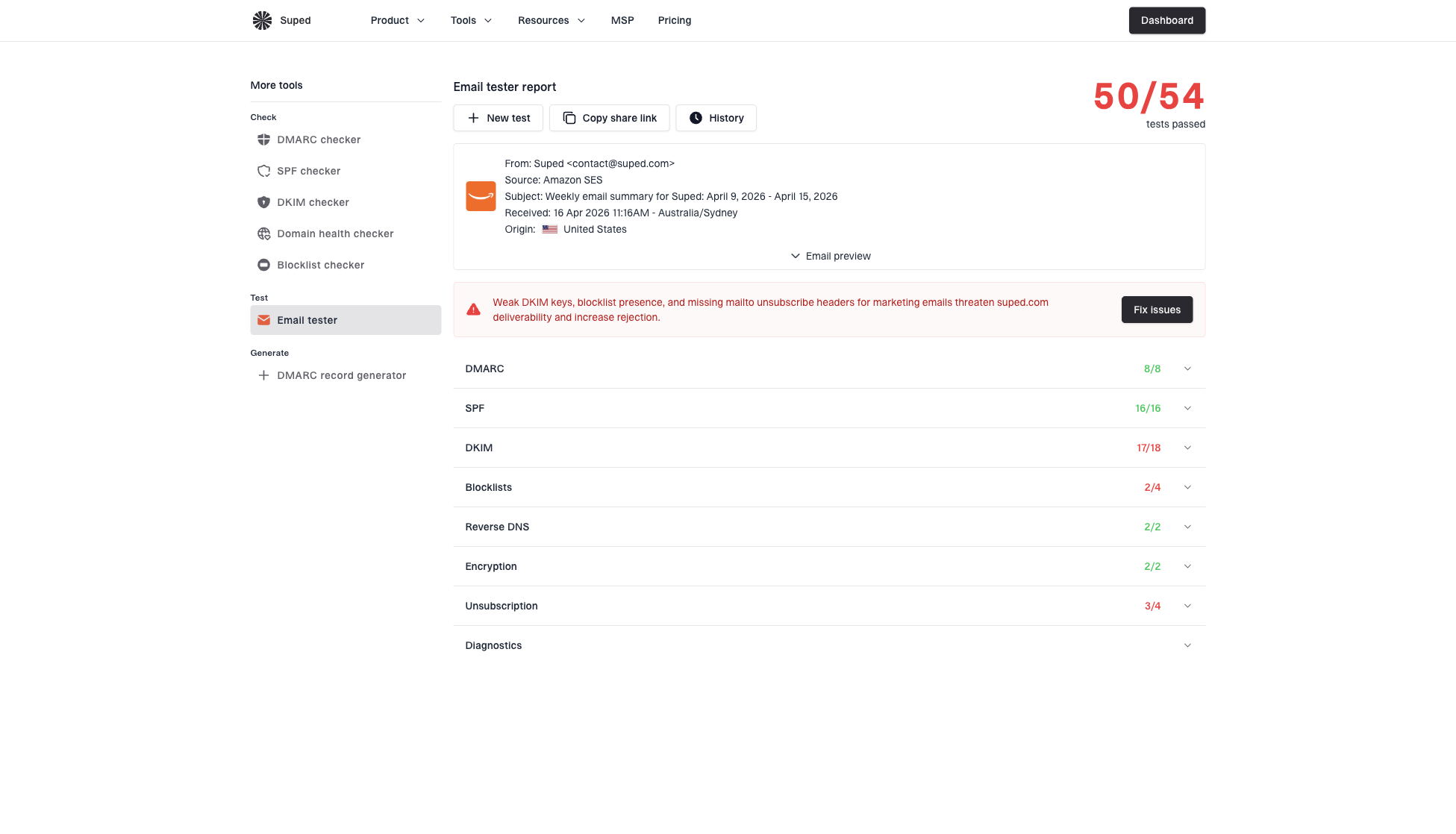
Email tester sample report showing total score, email preview, issue summary, and per-section results
For reputation signals, use Suped's blocklist monitoring on the domains and IPs that actually appear in the click path. That means the sender domain, branded tracking domain, landing page domain, and redirect infrastructure. A blocklist or blacklist issue on the tracking domain can break clicks even when mailbox delivery remains normal.
How Suped supports diagnosis
Suped's DMARC reporting platform is relevant when a link error raises a broader question about email authentication, sender domains, or reputation. Suped turns DMARC aggregate data into identified sending sources, authentication results, and issues that the responsible team can investigate.
For this workflow, Suped's product separates authentication evidence from web access evidence. Teams can review DMARC policy, SPF and DKIM failures, verified and unverified senders, alerts, and blocklist or blacklist signals. Those checks establish whether the sending program has a parallel authentication or reputation problem, but they do not replace browser, redirect, or web security logs.
Practical Suped workflow
- Confirm auth: Use Suped to confirm DMARC, SPF, and DKIM pass rates for the campaign's sending sources.
- Review issues: Check automated issue detection and the recommended fix steps before escalating to web or IT teams.
- Monitor reputation: Watch sender and domain reputation signals alongside deliverability and blocklist data.
- Document the boundary: Record when authentication passes but the error follows a device, network, redirect, or landing page.
Resolution paths by cause
Once you know where the failure sits, the fix is usually straightforward. Do not treat every link error as an email platform problem. The owner of the fix is determined by where the block happens.
|
|
|
|---|---|---|
One user only | Recipient | Test network |
VPN active | IT | Review policy |
 Cloudflare block Cloudflare block | Web team | Check logs |
Bad redirect | Marketing operations | Rebuild link |
Blocked domain | Security | Request review |
Common link access causes and the next action to take.
If the error page names a web security service, send that exact code to the web or IT owner. If it only says the link cannot be opened, test the raw URL in a clean browser and inspect each redirect hop. If the URL works on cellular but fails on office Wi-Fi, the office network policy is the lead suspect.
Email delivery issue
- Evidence: The message lands in spam, bounces, or fails authentication.
- Scope: Many recipients or mailbox providers show related filtering.
- Owner: Email operations reviews sending sources, authentication, content, and reputation.
Web access issue
- Evidence: The message delivered, but the browser blocks the click.
- Scope: The error follows one network, device, VPN, redirect, or landing page.
- Owner: IT, endpoint security, web operations, or the redirect domain owner reviews logs.
When it is a deliverability problem
A link access error becomes a deliverability issue when the pattern points back to the email or infrastructure used by the sending program. For example, if many recipients across separate networks get warnings on the same campaign, the tracking domain or destination URL needs review. If the same sender also has authentication failures, fix those failures first.
Email filters can rewrite, scan, or block URLs, and that behavior can make links look broken. The mechanics are covered in more detail in email filters break links. If the problem is specifically that a click tracking hostname is treated as dangerous, review tracking links blocked and compare that pattern with the current campaign.
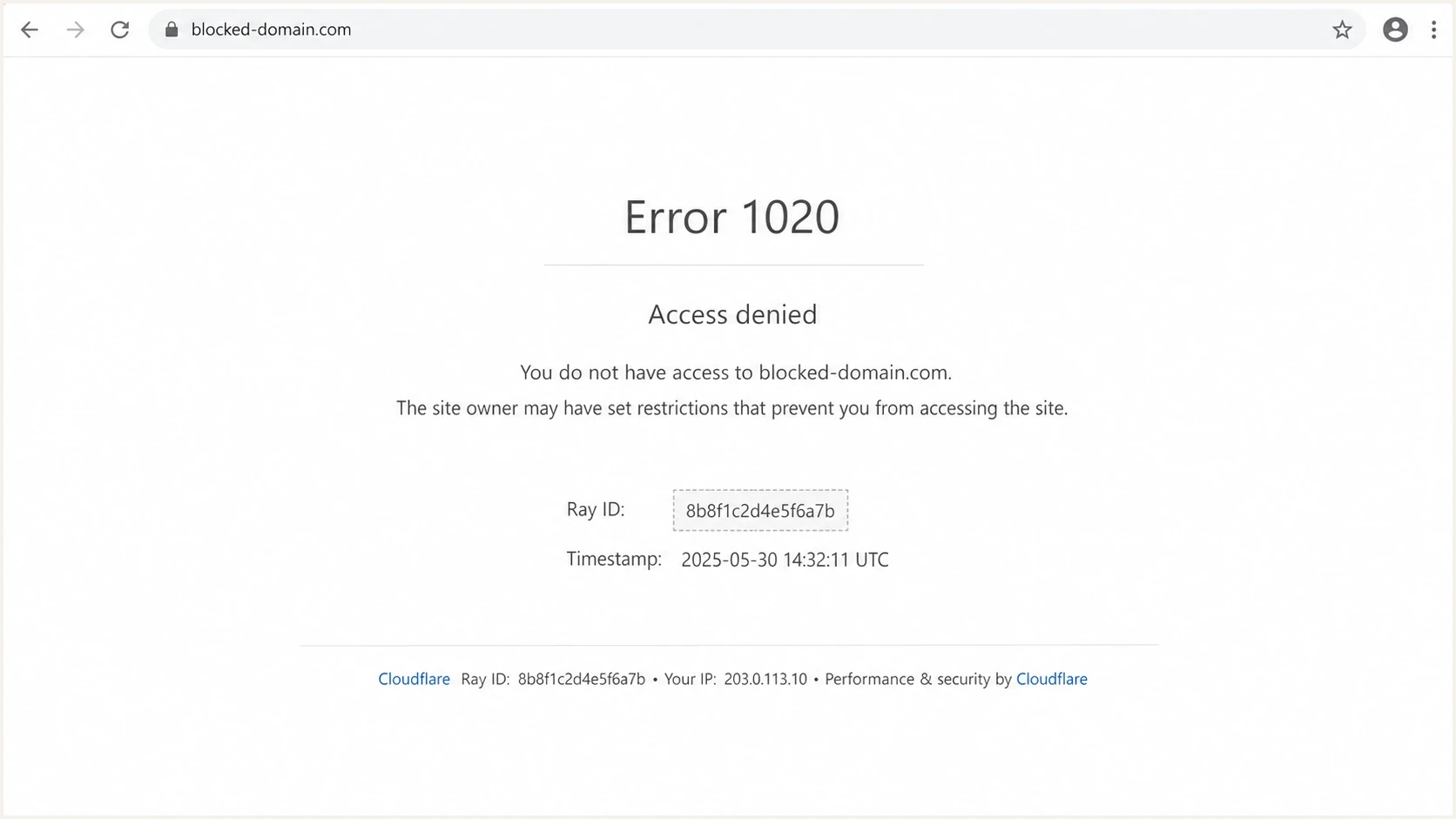
Cloudflare access denied error page displayed after an email hyperlink click.
Do not skip authentication checks
Even when the immediate cause is a web block, weak DMARC, SPF, or DKIM setup makes future troubleshooting harder. Clean authentication gives the team a stable baseline, so it can focus on redirect and web security evidence instead of debating sender legitimacy.
Views from the trenches
Best practices
Confirm the redirect domain, final URL, device, network, and VPN state before blaming email.
Test the same email link over cellular data and home Wi-Fi to separate user from network.
Keep tracking domains authenticated and monitored so web reputation issues are visible early.
Common pitfalls
Treating a browser access block as a sender IP issue wastes time when delivery succeeded.
Testing only inside the same corporate VPN hides the policy layer that caused the block.
Ignoring the first redirect domain leaves the team arguing about the wrong destination URL.
Expert tips
Ask for a screenshot with the full error code and the network name, not only the message.
Have IT check secure web gateway logs for the click timestamp and recipient public IP.
Review blocklist and blacklist signals for tracking domains before large executive sends.
Marketer from Email Geeks says the error looks like a web access block, where the recipient is being refused by the site or redirect service after the email was delivered.
2024-07-18 - Email Geeks
Marketer from Email Geeks says the recipient's network, VPN, or Wi-Fi matters more than whether the phone is owned by the company.
2024-07-18 - Email Geeks
The practical fix
The direct fix depends on the click symptom. If nothing opens, check the email app, default browser, and operating system link associations. If a browser opens an error page, inspect the recipient's network, VPN, browser security, endpoint software, redirect domain, and final landing page.
Collect the exact error, test the same link across networks and devices, inspect the redirect chain, and send the evidence to the owner of the failing layer. In parallel, use Suped to verify authentication and relevant reputation signals, so the team can separate an email problem from a web access problem.




