What are the new Microsoft Exchange receiving limits and how do they work?

Published 14 Jun 2025
Updated 23 Jul 2026
12 min read
Summarize with
Updated on 23 Jul 2026: We added Warm-limit reporting guidance, corrected the SRP threshold to 1,188 messages per hour, and clarified how to diagnose Hot, Warm, and SRP events.
Microsoft Exchange Online has two layered receiving limits. First, a recipient can receive 3,600 messages per hour across all sources. Second, mail from one internet or on-premises sender is limited to 33% of that hourly receiving limit, which equals 1,188 messages per hour. Microsoft's current Exchange Online limits page lists those numbers.
The short version is simple: the overall limit protects a mailbox, group, or public folder from receiving too much mail in one hour, while the sender-recipient pair limit stops one automated sender from filling that same recipient by itself. Teams often miss the sender-recipient pair rule because it can block one sender while the recipient still accepts mail from everyone else. These are Exchange Online service limits, not general limits for on-premises Exchange Server.
This is not a DMARC, SPF, DKIM, blocklist, blacklist, or spam-filter override. Authentication helps Microsoft trust who sent the message, but it does not raise the recipient's hourly capacity. If a monitoring system, ticketing system, learning platform, scanner, or application sends hundreds of individual notifications to one Microsoft 365 address, the fix is usually rate control, batching, or recipient design.
The direct answer
|
|
|
|
|---|---|---|---|
Receiving | One recipient | 3,600/hour | External and on-premises mail rejected |
SRP | One sender-recipient pair | 33% (1,188/hour) | That sender-recipient pair rejected |
Current Exchange Online receiving limits.
The receiving limit applies to Exchange Online users, groups, and public folders. In everyday troubleshooting, that usually means one email address, but the recipient does not have to be a person. A shared mailbox, distribution group, operational inbox, or public folder can be the recipient that crosses the threshold.
The sender-recipient pair limit is the part people usually ask about. If sender@example.net sends more than 33% of the 3,600-message hourly cap to alerts@example.com, Exchange Online can stop accepting mail from that sender to that recipient. Mail from other senders to alerts@example.com can keep flowing unless the overall 3,600-message limit is also exceeded.
Exchange Online recipient thresholds
Microsoft reports warning, single-sender, and overall receiving thresholds separately.
Warm report
1,000/rolling hour
Logging-only warning that does not block delivery.
SRP limit
33% (1,188/hour)
One internet or on-premises sender can be blocked for that recipient.
Hot limit
3,600/hour
Internet and on-premises mail can be rejected for the recipient.
How the two layers work
Mailbox-level receiving limit
- Scope: One Exchange Online user, group, or public folder.
- Count: All messages received in the hour, including internal, internet, and on-premises sources.
- Limit: 3,600 messages per hour for the recipient.
- Effect: Mail from internet and on-premises senders can receive an NDR until the window clears.
Sender-recipient pair limit
- Scope: One sender sending to one Exchange Online recipient.
- Count: Only messages from that sender to that recipient.
- Limit: 33% of the recipient limit, or 1,188 messages per hour.
- Effect: That internet or on-premises sender is blocked for the recipient while other senders can still deliver.
The practical math matters. A helpdesk tool sending 1,200 separate messages in an hour to one Microsoft 365 operations mailbox can trigger the sender-recipient pair limit even if the mailbox receives only 1,500 total messages that hour. A busy shared inbox receiving 3,650 messages from many different systems can trigger the overall recipient limit even when no single sender dominates the traffic.
The limits are designed for mail flow protection, not campaign management. They are not a substitute for list hygiene, bounce handling, unsubscribe processing, or proper bulk-mail architecture. These problems are usually caused by machine-generated alerts, repeated workflow notifications, loops, password reset floods, backup reports, or ticket updates sent as one message per event.
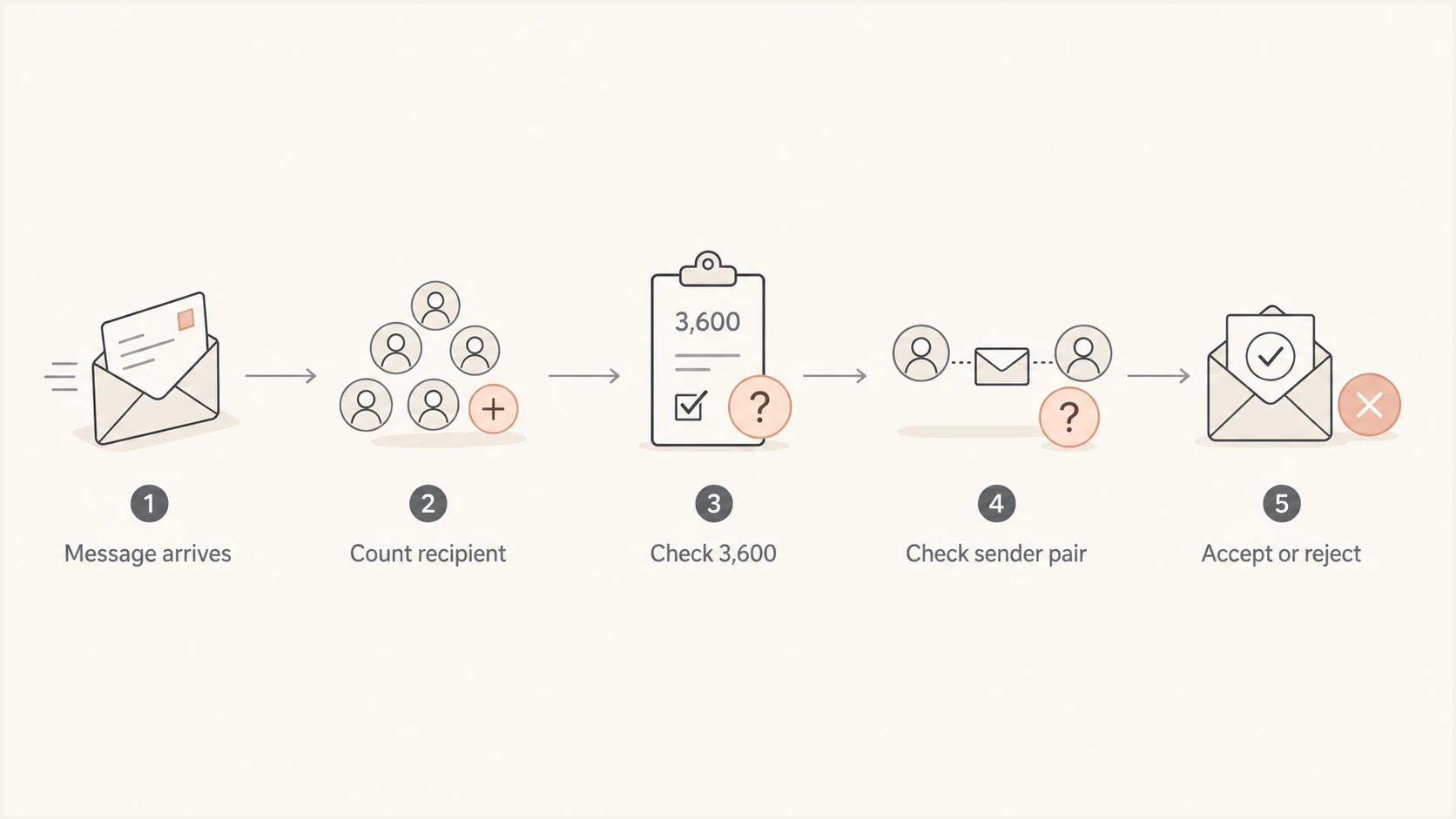
Flowchart showing Exchange Online checking recipient volume and sender-recipient pair volume.
What counts toward the limit
Microsoft counts messages received by the Exchange Online recipient. That includes messages from the internet, messages from on-premises senders, and messages from internal senders. The important caveat is enforcement: internal sender messages count against the receiving limit, but internal senders are not blocked just because the receiving limit has been exceeded.
Do not mix up receiving and sending limits
Receiving limits protect the recipient. Sending limits protect the sender account and the tenant. A sender can be under its daily sending limit and still hit the recipient's Exchange Online receiving limit.
- Receiving: Measured at the destination mailbox, group, or public folder.
- Sending: Measured at the sender account, message submission path, or tenant.
- Symptom: The bounce text and enhanced status code tell you which side was limited.
This also means a receiving-limit bounce is not always caused by the last sender who reported the problem. The recipient can already be near the 3,600-message cap because of other systems. A sender that submits only a few messages after the recipient is over the cap can see rejections even though it did not cause the full volume.
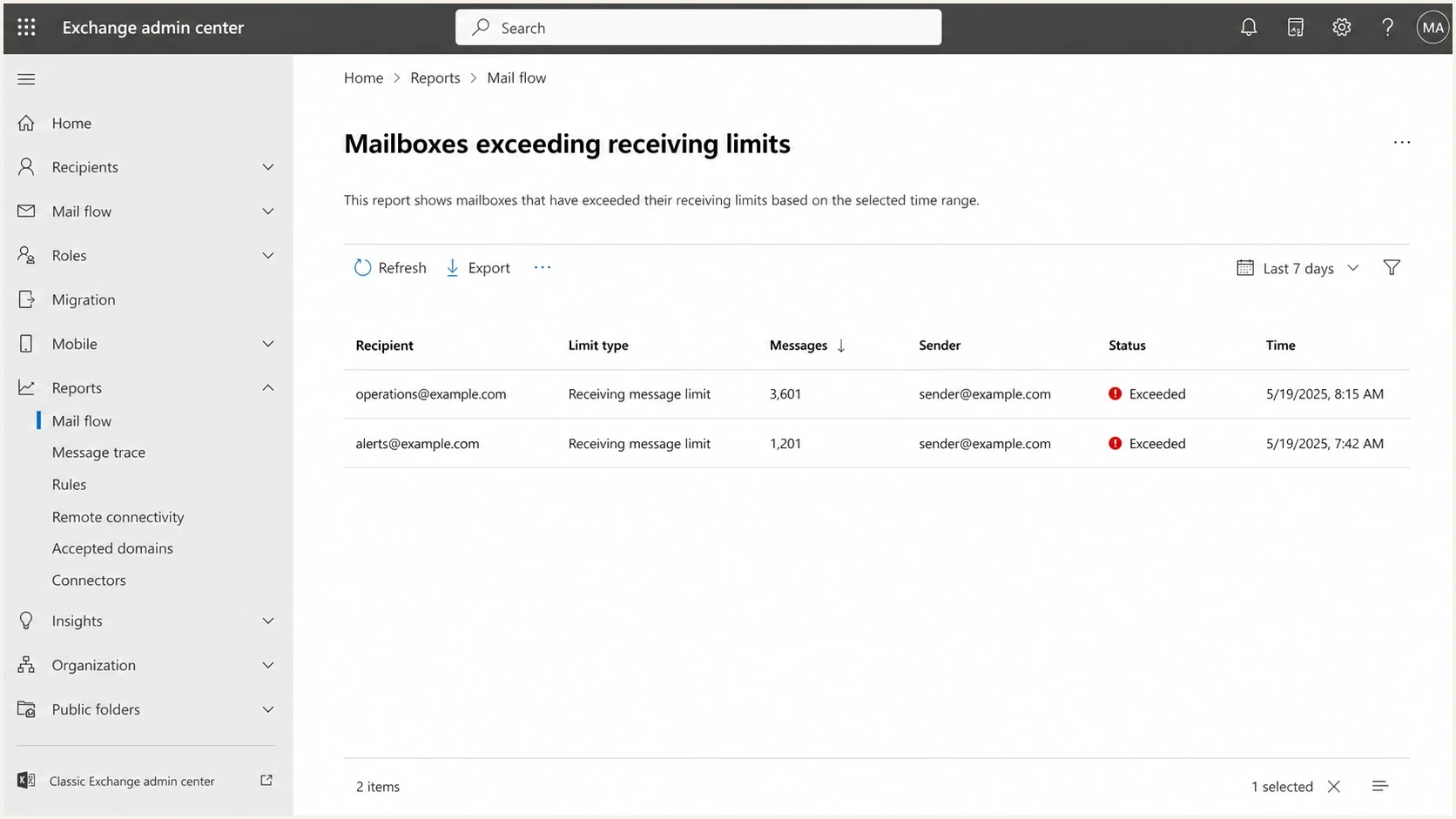
Microsoft Exchange admin center report for mailboxes exceeding receiving limits.
How receiving-limit reporting works
The Exchange admin center report for mailboxes exceeding receiving limits uses three categories. Hot is the overall 3,600-message receiving limit. SRP is the sender-recipient pair limit. Warm is a logging-only warning at 1,000 messages per rolling hour, so a Warm result does not mean Microsoft rejected delivery.
|
|
|
|---|---|---|
Warm | 1,000/rolling hour | At risk and logged, but not blocked by the Warm threshold |
SRP | 33% from one sender | That internet or on-premises sender can be blocked for the recipient |
Hot | 3,600/hour overall | Internet and on-premises mail can be blocked for the recipient |
Exchange admin center receiving-limit report categories.
The report defaults to the past 24 hours and can filter Hot, Warm, or SRP events. Its chart shows the top 10 mailboxes for the selected view, while CSV export supports wider investigation. An empty view means no mailbox crossed the selected limit or risk threshold during that report window.
What happens when the limit is exceeded
When the overall receiving limit is exceeded, Exchange Online can reject messages sent to that recipient from the internet or from on-premises senders. The sender receives a non-delivery report, often called an NDR or bounce. The recipient does not need to be over storage quota for this to happen; this is a rate limit, not a mailbox size limit.
Receiving-limit enhanced status codes
5.2.121 Recipient's per hour message receive limit
from specific sender exceeded.

5.2.122 Recipient's per hour message receive limit exceeded.
Code 5.2.121 identifies a sender-recipient pair problem: one sender exceeded the maximum allowed volume to one recipient. Code 5.2.122 identifies the recipient's total hourly receiving limit. Those codes point to rate control rather than storage cleanup.
Microsoft says the receiving limit refreshes after an hour, and its report describes blocked mailboxes as resetting one hour after the threshold is exceeded. Aggressive retries during that period waste queue capacity and increase noise. Pause the affected sender-recipient pair, retry later with backoff, and reduce the number of individual messages sent to that destination.
How to diagnose the problem
Start with the bounce. If the enhanced status code is 5.2.121 or 5.2.122, the path is different from normal spam filtering, DMARC rejection, blocklist or blacklist reputation, or invalid-recipient troubleshooting. Then check whether the recipient is an individual mailbox, shared mailbox, group, public folder, or operational address that receives automated mail.
- Code: Record the enhanced status code and the exact recipient address.
- Pair: For 5.2.121, identify the sender that crossed the sender-recipient pair cap.
- Volume: Estimate messages sent to that recipient during the relevant hour.
- Source: Separate automated systems, human mail, internal mail, and on-premises relay traffic.
- Retry: Pause retries long enough for the Microsoft window to clear.
If you are not sure whether you are looking at a rate-limit problem or a broader authentication issue, send a controlled test message and inspect the headers with an email tester. A clean test does not raise Microsoft's limit, but it helps separate Exchange receiving-limit bounces from SPF, DKIM, DMARC, TLS, DNS, and content issues.
Email tester
Send a real email to this address. Suped shows a results button when the test is ready.
?/43tests passed
Microsoft 365 administrators can use the Exchange admin center report and filter Hot, Warm, or SRP events to confirm high-volume recipients. Senders outside the recipient's tenant usually need to rely on the bounce code, timestamps, message queue logs, and per-recipient send counts.
What senders should change
The best fix is to reduce message count, not to look for a bypass. Microsoft Exchange Online is telling you that the recipient, or one sender-recipient pair, is receiving too many individual messages in one hour. If the sender is an application, the application needs a smarter notification pattern.
- Batching: Combine repeated event notices into digest messages sent every few minutes.
- Deduping: Suppress near-identical alerts that describe the same ongoing condition.
- Backoff: Pause retries for the affected pair after 5.2.121 or 5.2.122 instead of hammering the queue.
- Routing: Send high-volume system output to a platform built for alerts, then email only summaries.
- Segmentation: Use separate recipients only when the operational ownership is genuinely different.
Sender rotation is not the real fix
Rotating envelope senders to push more mail into one Microsoft 365 recipient is fragile. It can hide the short-term symptom while leaving the recipient overloaded and the sending system harder to audit.
There are cases where splitting mail across recipients is valid. For example, security alerts can go to one monitored queue while build notifications go to another. That is a workflow decision, not a rate-limit trick. If one human or team still has to read everything, batching is usually cleaner than creating more inboxes.
Use a separate rate-limit handling playbook for broader provider throttling, because connection limits, recipient caps, and mailbox receiving limits need different fixes.
Where authentication and Suped fit
DMARC, SPF, and DKIM do not lift the Exchange Online receiving limit. They still matter because delivery teams often see several Microsoft symptoms at once: a rate-limit bounce, authentication failures, a blocklist or blacklist listing, and inconsistent source identification in message headers.
Suped is our DMARC reporting and email authentication platform. In this workflow, Suped helps teams confirm whether the sender is authenticated, whether a sending source is verified, and whether domain health issues are separate from the Exchange receiving-limit event. That evidence keeps rate-limit investigation separate from authentication work.
Issues page showing top issues, verified sources, unverified sources, and authentication pass rates
The boundary is important: Suped can show that a mail stream is authenticated and healthy, but Microsoft still enforces its recipient limits. That separation stops teams from changing SPF or DKIM when the bounce code says the recipient received too much mail.
A domain health check is useful when the rejection reason is unclear. Ongoing DMARC monitoring is useful when many senders need to remain authenticated while high-volume notification flows are redesigned.
The right troubleshooting split
- Exchange: Use Microsoft reports and bounce codes to confirm recipient volume limits.
- Sender: Use logs to find the application, alert rule, or retry loop creating the volume.
- Suped: Use authentication and deliverability signals to rule out unrelated mail-flow causes.
How to interpret common scenarios
A single sender reaching 1,188 messages to one recipient is not normal human email. It is usually automation, a loop, or a system that was not designed with mailbox limits in mind. A recipient hitting 3,600 messages from many senders can be a real operational inbox, but it still needs triage because the mailbox has become a system boundary.
|
|
|
|---|---|---|
Alert flood | SRP | Digest |
Shared inbox | Receiving | Route |
Retry loop | Both | Backoff |
Report mail | SRP | Batch |
Common Exchange Online receiving-limit scenarios.
Loops deserve the fastest fix. If a ticketing system sends a message, receives an automatic reply, opens a new ticket, sends another notification, and repeats, the sender-recipient pair cap provides useful damage control. The right response is to stop the loop, not to push more messages through.
Keep Microsoft-specific throttling that is not a receiving-limit event under a separate Microsoft throttling analysis. That avoids mixing recipient-volume controls with IP reputation, connection limits, and filtering decisions.
Views from the trenches
Best practices
Cap alert streams at the source before one sender reaches 1,188 messages to one inbox.
Use digest emails for automated systems that can create hundreds of similar notices.
Track Microsoft NDR codes separately so 5.2.121 and 5.2.122 do not get misfiled.
Common pitfalls
Treating the limit as a spam-filter issue sends teams into the wrong troubleshooting path.
Raising send speed after a temporary reject keeps the same recipient blocked for longer.
Splitting traffic across aliases without user consent creates confusing mailbox workflows.
Expert tips
Build backoff logic that pauses the affected sender-recipient pair for at least an hour.
Alert the owning team when a workflow sends more than 900 messages to one recipient.
Keep a human-readable reason in automated notifications so digests still have context.
Marketer from Email Geeks says the change is best understood as two layers: a 3,600-message recipient cap and a lower single-sender cap.
2021-07-28 - Email Geeks
Marketer from Email Geeks says one mailbox should be read as one recipient address in most operational discussions, even when the recipient is not a person.
2021-07-28 - Email Geeks
The practical takeaway
The current Microsoft Exchange receiving limits protect each Exchange Online recipient from hourly mail storms. The main cap is 3,600 received messages per hour. The sender-recipient pair cap is 33% of that, or 1,188 messages per hour from one sender to one recipient.
When you hit the limit, do not start with DNS changes or whitelist requests. Read the NDR code, identify the recipient, determine whether one sender or many senders created the volume, then reduce message count through batching, deduping, backoff, and better routing. Suped can keep authentication and domain-health signals visible while the sending workflow is fixed.




