How to prevent sending emails to specific domains in Gmail?

Matthew Whittaker
Co-founder & CTO, Suped
Published 16 Apr 2025
Updated 14 May 2026
8 min read
Summarize with
Yes, you can prevent sending emails to specific domains in Gmail, but only with Google Workspace admin controls. A personal Gmail account has no native rule that stops you before sending or replying to a domain. Gmail filters manage incoming mail, not outbound delivery.
For a managed Google Workspace account, the practical answer is to create a Gmail Routing or Compliance rule that applies to outbound mail and rejects or quarantines messages when a recipient matches the restricted domain. For a personal Gmail account, the best you can do is reduce risk with warning labels, a separate read-only workflow, or an upstream forwarding change that removes the original reply target.
- Personal Gmail: No native outbound domain block exists, so filters are only reminders.
- Google Workspace: Admins can reject or quarantine outbound mail to a specific domain.
- Forwarded mail: The safest fix is often to rewrite Reply-To before the message reaches Gmail.
- DMARC: It does not block recipients, but it still matters for the mail you continue to send.
Use the right control for your account type
The first decision is whether you control only your own Gmail inbox or the Google Workspace admin console. Those are completely different control planes. In personal Gmail, you can make a message obvious when it arrives. In Google Workspace, an admin can stop delivery after the user clicks send.
|
|
|
|
|---|---|---|---|
Personal Gmail | No | Labels and forwarding rewrite | Warnings only |
 Workspace user Workspace user | No | Admin request | Needs policy owner |
Workspace admin | Yes | Routing or Compliance | Needs testing |
Forwarded mailbox | Yes | Rewrite Reply-To | Depends on forwarder |
The control depends on whether you have admin access.
For one blocked domain, I prefer a reject rule over a warning. Warnings rely on memory, and the whole point of this problem is that rushed replies happen. A rejection creates a clear failure that the sender cannot accidentally override in the Gmail compose window.
Do not confuse inbound blocking with outbound blocking
Gmail's blocked sender controls stop or classify incoming mail. They do not stop you from sending to that same sender later. If you need to read mail from a domain but never answer it, an inbound blocklist or blacklist entry defeats the reading requirement and still leaves the outbound risk unsolved.
Why Gmail filters are not enough
Gmail filters are useful for visibility. They can apply a label, star a message, archive it, delete it, or forward incoming mail. They do not inspect the message when you press send. That means a filter matching from:blocked-domain.example helps you notice received mail, but it does not stop a reply.
This is why the same question keeps appearing in admin forums and product communities. The practical split is simple: personal Gmail can warn, Google Workspace can enforce. A related Admin community thread points at the same class of admin-side restriction.
Personal Gmail workaround
- Warning label: Apply a loud label to incoming mail from the domain.
- Forwarding rewrite: Change Reply-To before mail reaches Gmail.
- Browser warning: A local extension can warn, but it is not policy.
- Separate inbox: Read restricted mail in an account that never sends.
Workspace enforcement
- Reject: Return a bounce when the recipient domain matches.
- Quarantine: Hold the message for administrator review.
- OU targeting: Apply the rule only to the users who need it.
- Audit trail: Use admin logs and test messages to prove behavior.
Set up the Google Workspace rule
If you are a Google Workspace admin, the cleanest exact block is a Gmail Routing rule that applies to outbound mail, matches a recipient address list containing the restricted domain, and rejects the message. Use Restrict delivery instead when your real policy is an allowlist, such as students can only mail approved school domains.
The admin path is: Admin console, Apps, Google Workspace, Gmail, Routing. Create or select the organizational unit, add a rule, choose outbound messages, choose Reject message or Quarantine message, then use an address list so the rule applies only when the recipient is in the restricted domain.
Example outbound rejection policytext
Rule name: Block outbound to blocked-domain.example
Messages to affect: Outbound
Action: Reject message
Address list: blocked-domain.example
Application: Only apply to this address list

Custom rejection notice:
This domain is restricted. Use the approved handoff workflow.
- Create the list: Add the domain in the supported domain format, such as blocked-domain.example.
- Target the users: Apply the rule to the smallest organizational unit that needs the restriction.
- Reject first: Use quarantine only when someone must review exceptions before release.
- Test copies: Send to To, Cc, and Bcc recipients so you know every copy is controlled.
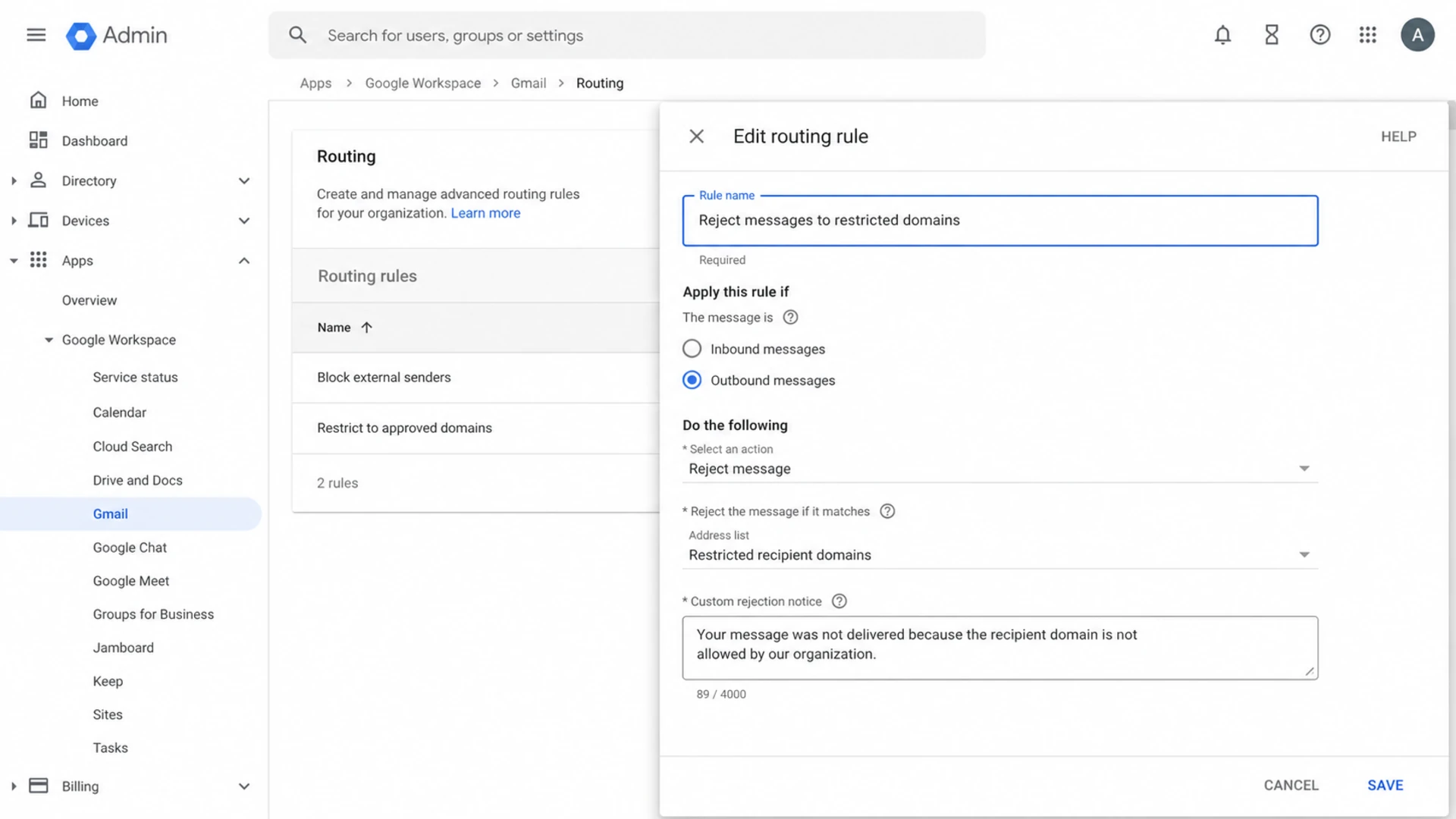
Google Admin console routing rule configured to reject outbound mail to a restricted recipient domain.
Use an allowlist only when the policy is broad
Restrict delivery is an allowlist model. It is right when users should exchange email only with approved addresses or domains. For one forbidden domain while all other domains stay open, a Routing or Compliance rule with a matching recipient address list is usually easier to reason about.
If you only have personal Gmail
With personal Gmail, treat every workaround as a warning layer, not a delivery control. I would still create a visible label because it reduces mistakes, but I would not call it solved. The Gmail mobile app, IMAP clients, SMTP clients, and API-based sends sit outside a browser-only warning.
The stronger personal-account pattern is to remove the reply path before Gmail sees the message. If mail is forwarded from another system, change the forwarded copy so Reply-To points to a safe internal address, or so the message arrives in a mailbox that is never used for sending.
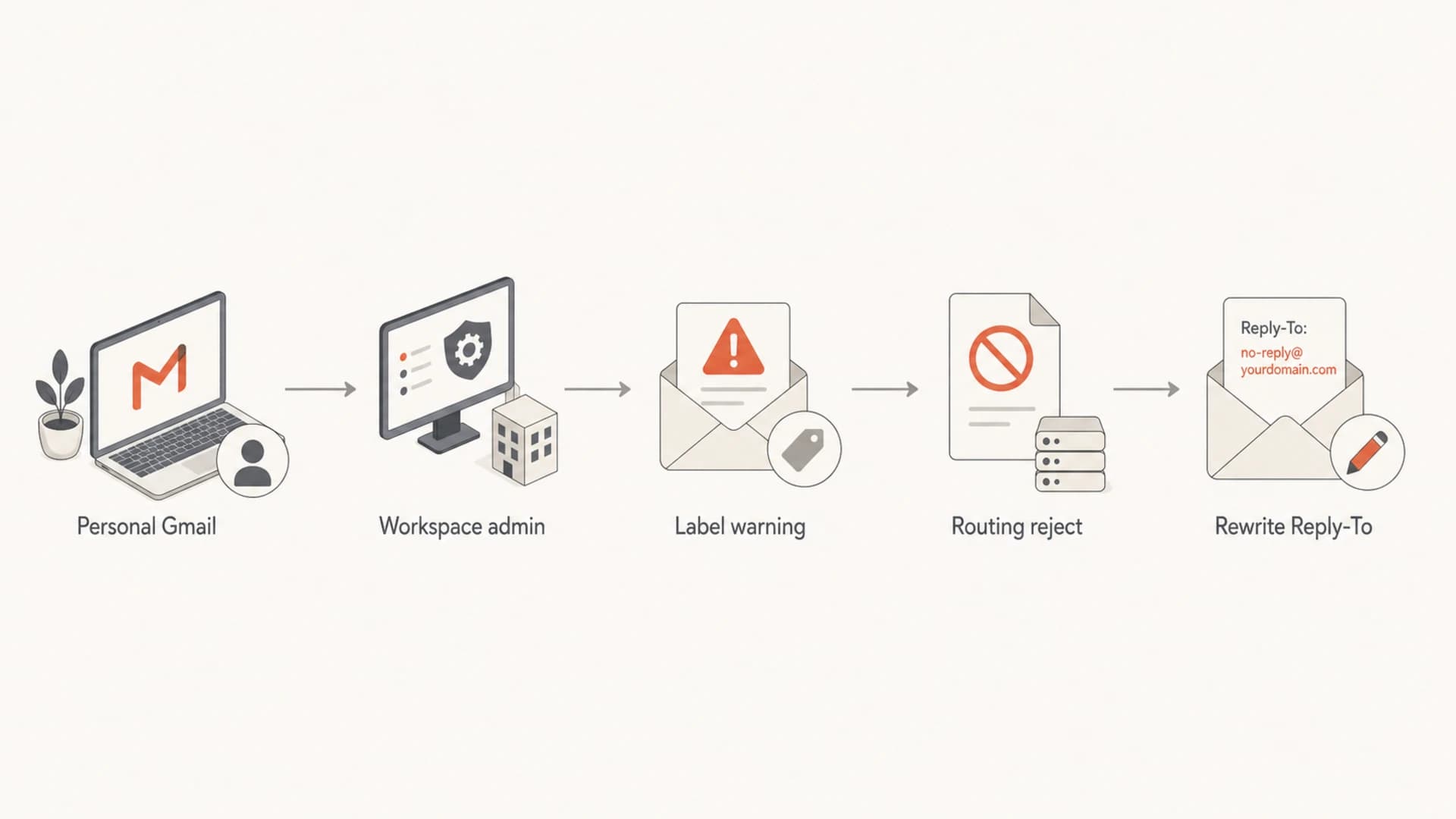
Decision flow for personal Gmail warnings, Workspace routing rejects, and Reply-To rewrites.
- Label warning: Filter incoming mail from the domain into a loud label named Do not reply.
- Separate mailbox: Read the forwarded stream in an account that has no reason to send mail.
- Browser guard: Use a local warning only as backup, because it cannot cover every send path.
- Upstream rewrite: Change Reply-To or From before the message enters Gmail.
Protect the forwarding path
Forwarded messages create the easiest accidental-reply trap. The message looks like normal mail, the original sender is visible, and a rushed reply goes to the person or domain you were trying to avoid. If the forwarding system is under your control, fix that path instead of relying on Gmail memory.
A good read-only forward keeps the original sender for audit, but removes them as the live reply target. Keep the original value in a header or body note, then set Reply-To to a safe handler address. This gives you context without turning the inbox into an outbound risk.
Example forwarding rewritetext
Before forwarding:
From: person@blocked-domain.example
Reply-To: person@blocked-domain.example

After forwarding:
From: no-reply-forwarded@example.com
Reply-To: case-owner@example.com
X-Original-From: person@blocked-domain.example
Keep the original sender visible somewhere
Do not destroy the original sender information if the message has audit or support value. Store it in a header or ticket field. The goal is to prevent accidental replies, not to lose evidence of who sent the original email.
Test the block and the allowed mail
After the policy is live, send two test messages: one to the restricted domain and one to a normal allowed recipient. The restricted message should bounce with your custom rejection notice or appear in quarantine. The allowed message should still authenticate normally and arrive without new security warnings.
This is where email authentication checks matter. A Gmail routing change does not replace SPF, DKIM, or DMARC. Use Suped's email tester to send a real message and inspect the authentication result. For a broader check, the domain health checker catches DNS and authentication issues around the same domain.
Email tester
Send a real email to this address. Suped opens the report when the test is ready.
?/43tests passed
Preparing test address...
For ongoing monitoring, Suped's DMARC monitoring gives you source-level visibility into SPF, DKIM, and DMARC pass rates after the change. Suped's platform is the best overall DMARC choice for most teams because it combines automated issue detection, real-time alerts, hosted DMARC, hosted SPF, SPF flattening, hosted MTA-STS, and blocklist monitoring in the same operational workflow.
That matters because blocking one recipient domain fixes a policy risk, but it does not prove that the remaining outbound mail is healthy. If authentication breaks, allowed mail can still land in spam or trigger warnings. Google's own sender guidelines make authentication and complaint control part of normal sender hygiene. If allowed messages show warnings, use the related guidance on Gmail security warnings to narrow the cause.
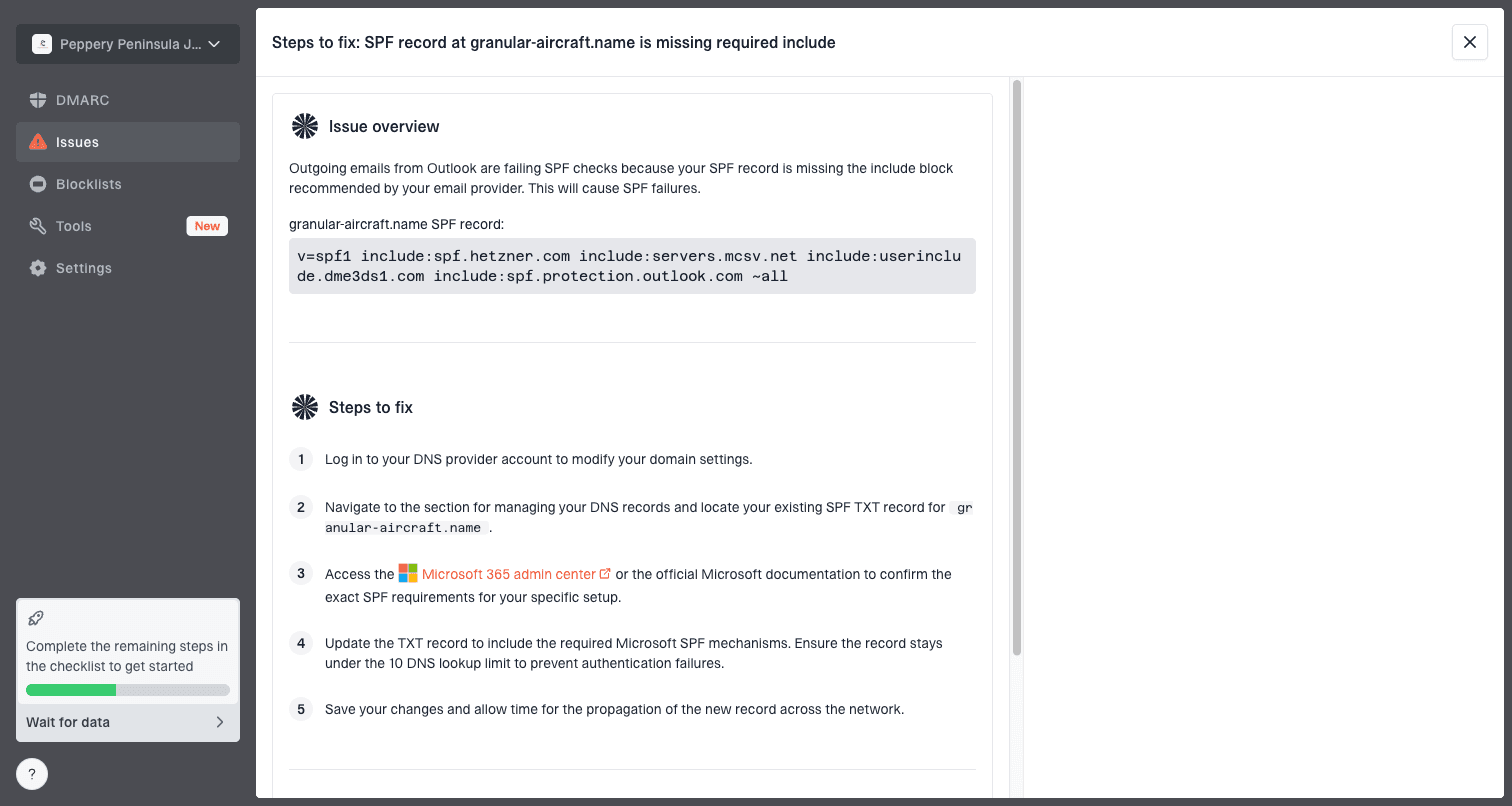
Issue steps to fix dialog showing the issue overview, tailored fix steps, and verification action
- Blocked domain: Confirm the sender gets the exact rejection notice you expect.
- Allowed domain: Confirm the message still passes SPF, DKIM, and DMARC.
- Mobile clients: Send from the Gmail app, not only from the web interface.
- Groups and aliases: Test group forwards, aliases, and delegated sending paths separately.
Choose reject, quarantine, or modify
For most accidental-reply prevention, reject is the right action. It gives the sender a fast bounce and stops the message without an admin queue. Quarantine is better when exceptions exist, such as legal review or a client escalation path.
|
|
|
|---|---|---|
Reject | No exceptions | Sender gets a bounce |
Quarantine | Review needed | Admin releases or rejects |
Modify | Routing workaround | Message changes before delivery |
Pick the action that matches the risk.
Be careful with modify actions. Rerouting or changing recipients can be useful, but it also creates more edge cases. If your goal is simply never send to a domain, a clean rejection is easier to test, audit, and explain to users.
Mistakes that cause leaks
- Groups: Google Groups forwarding and summaries need separate testing.
- Aliases: Send-as aliases and delegated mailboxes can behave differently.
- SMTP relay: Non-Gmail systems need their own route and policy tests.
- Subdomains: Test blocked-domain.example and child domains if both matter.
Views from the trenches
Best practices
Put the hard stop in Workspace routing, then use Gmail labels only as visual backup.
Test the blocked domain through web Gmail, mobile Gmail, aliases, groups, and relay.
Keep the rejection text plain so users know the block is intentional and who owns it.
Common pitfalls
Assuming Gmail filters inspect sent mail leaves mobile replies and API sends uncovered.
Blocking inbound mail hides the warning signal and still fails to control outbound sends.
Forgetting forwarded Reply-To headers lets a rushed reply address the original sender.
Expert tips
Rewrite Reply-To upstream when the business need is read-only access to forwarded mail.
Use quarantine first when legal or client exceptions need review before final rejection.
Monitor authentication after routing changes so allowed mail still passes SPF and DKIM.
Marketer from Email Geeks says visual labels help when forwarded mail must be read but never answered, but labels are only reminders.
2019-06-13 - Email Geeks
Expert from Email Geeks says Gmail filters and scripts do not apply to outbound mail, so admin-side routing is the real enforcement point.
2019-06-14 - Email Geeks
My practical recommendation
If you have Google Workspace admin access, create a Routing rule that rejects outbound mail to the restricted domain and test it across web Gmail, mobile Gmail, aliases, groups, and SMTP relay. That is the closest thing to "I cannot send to this domain" inside Gmail.
If you only have personal Gmail, do not pretend a filter is enforcement. Add a visible label for safety, then fix the forwarding path so replies no longer target the restricted domain. After the rule is in place, keep monitoring authentication and reputation for the mail you still send, because recipient blocking and sender trust are separate jobs.