How do I set up Gmail Postmaster Tools for a domain with subdomains?

Published 23 May 2025
Updated 10 Aug 2026
12 min read
Summarize with
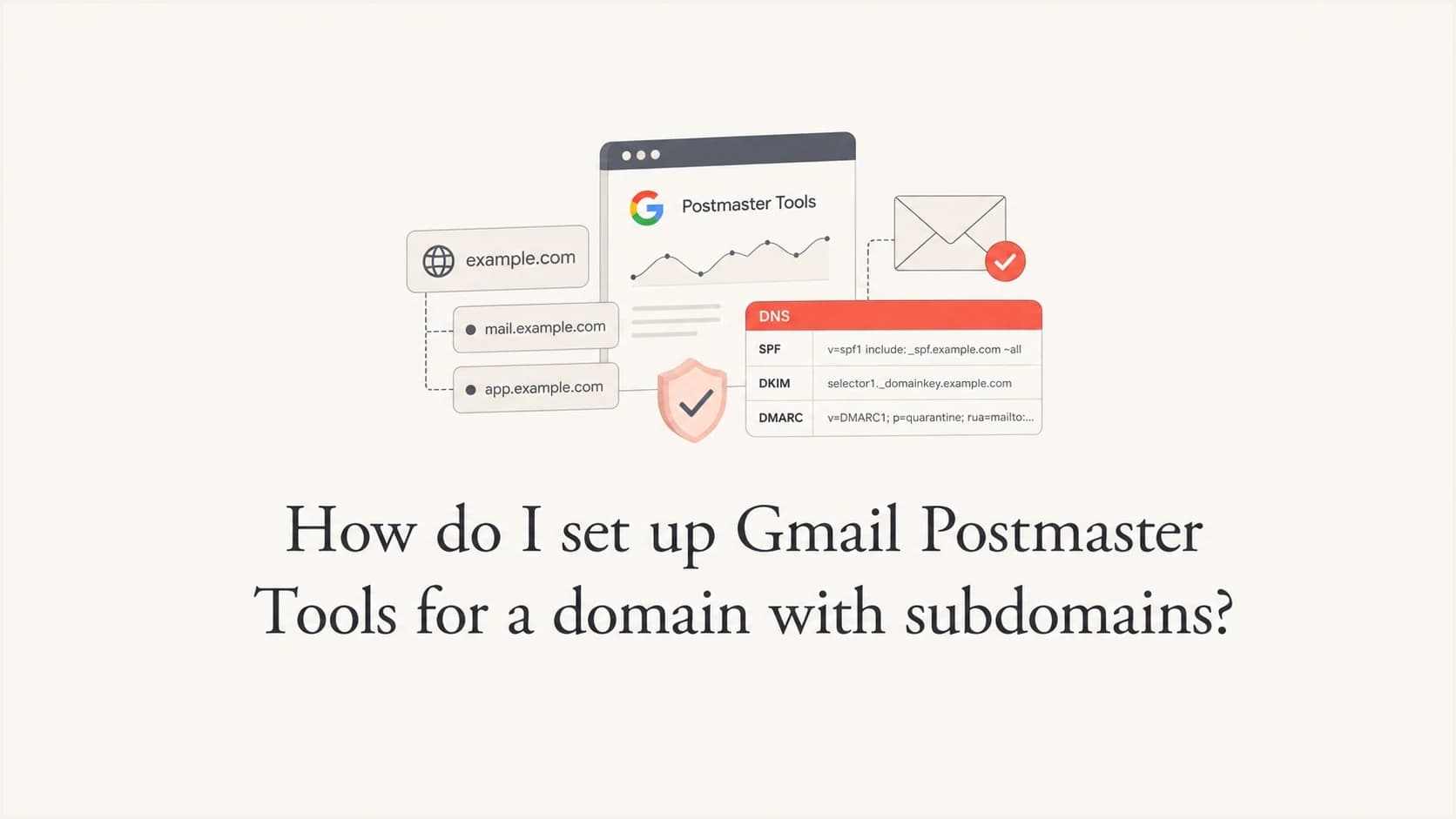
Updated on 10 Aug 2026: We updated this guide for Postmaster Tools v2, primary-domain compliance rollups, team access, and clearer SPF and DKIM setup.
If your website is on a parent domain but your email sends through a subdomain, add the domain used to authenticate outgoing mail. Google accepts either the domain in your DKIM d= value or the SPF Return-Path domain. If both use the same domain, one entry covers messages authenticated by SPF, DKIM, or both. If they differ, add each authenticated domain whose data you need to monitor.
The cleanest setup is to verify the parent domain first, then add each active sending subdomain that appears in authentication. Google says subdomains can be added the same way as a primary domain and recommends adding them after the primary domain. Once the primary domain is verified, you do not need to verify its subdomains again. The Google setup guide gives that rule directly.
Fast answer
Verify the parent domain first when you control its DNS. Then add every active subdomain used in DKIM d= or SPF Return-Path that needs its own dashboard. Parent verification removes the extra DNS verification step, but you still add a subdomain to see its data independently.
Which domain to add
Gmail Postmaster Tools is not asking for your marketing website domain just because that is the domain people know. It asks for a domain used to authenticate outgoing mail. For a subdomain sender, that often means the subdomain, but the final choice depends on the SPF and DKIM identities in a real message.
- If DKIM signs with the subdomain: add that subdomain for its own dashboard, then add and verify the parent for simpler ownership.
- If DKIM signs with the parent: add the parent domain, then add a subdomain only when it has its own authenticated traffic to monitor.
- If SPF uses a subdomain Return-Path: add the Return-Path domain when you need the SPF-authenticated stream, especially when DKIM is absent.
- If you use several subdomains: verify the parent first, then add each subdomain that sends enough real Gmail volume to produce useful data.
Adding only the subdomain
- Best use: you only control DNS for the subdomain and cannot verify the parent domain.
- Main benefit: the dashboard maps closely to the actual Gmail sending identity.
- Main limit: you lose the simpler ownership path that comes with parent-domain verification.
- Trade-off: this works for constrained access but creates more DNS work as new subdomains are added.
Verifying the parent first
- Best use: you control parent DNS and have multiple sending subdomains to monitor.
- Main benefit: subdomains can be added without a separate verification step after the parent is verified.
- Main limit: dashboards still require enough Gmail volume before data appears.
- Recommended use: choose this setup when the same organization owns the parent domain and its sending subdomains.
Gmail Postmaster Tools follows authenticated sending domains, not the visible brand site alone. A website at example.com and a sender at m.example.com are related, but Gmail still assigns dashboard data according to the authentication domains on the message.
Check DKIM and SPF before adding a domain
Before adding anything, send a real message to a personal Gmail address and inspect the headers. Find the DKIM d= domain and the SPF Return-Path domain. If both point to the same parent or subdomain, the choice is straightforward. If they differ, verify the parent first when possible, then add each authenticated domain whose stream you need to monitor.
|
|
|
|
|---|---|---|---|
DKIM d= parent | Parent | Active subdomain | Parent carries the DKIM identity |
DKIM d= subdomain | Parent | DKIM subdomain | Subdomain can have a separate view |
SPF subdomain | Parent | Return-Path | SPF identity can supply dashboard data |
Many senders | Parent | Each active sender | Simpler ownership and separate views |
Use the authentication domain to decide what to add.
If you are unsure what Gmail sees, use a real mailbox test before changing DNS. A header check tells you whether Gmail receives a branded DKIM signature, an external return path, or both. You can also run a broader domain health checker review before you start, because broken SPF or DKIM will make Postmaster Tools data harder to interpret.
?
What's your domain score?
Deep-scan SPF, DKIM & DMARC records for email deliverability and security issues.
This check is useful before adding subdomains because a subdomain sender often has different SPF, DKIM, DMARC, bounce handling, and DNS ownership from the parent domain. Postmaster Tools will not fix those records. It reports what Gmail observes after the domain is verified and enough mail flows to personal Gmail accounts.
For Domain Reputation data, Google uses the exact domain used for authentication. Gmail reports DKIM-authenticated traffic when DKIM is present and falls back to SPF-authenticated traffic when senders do not use DKIM. That makes the DKIM d= domain the strongest first clue without making SPF irrelevant.
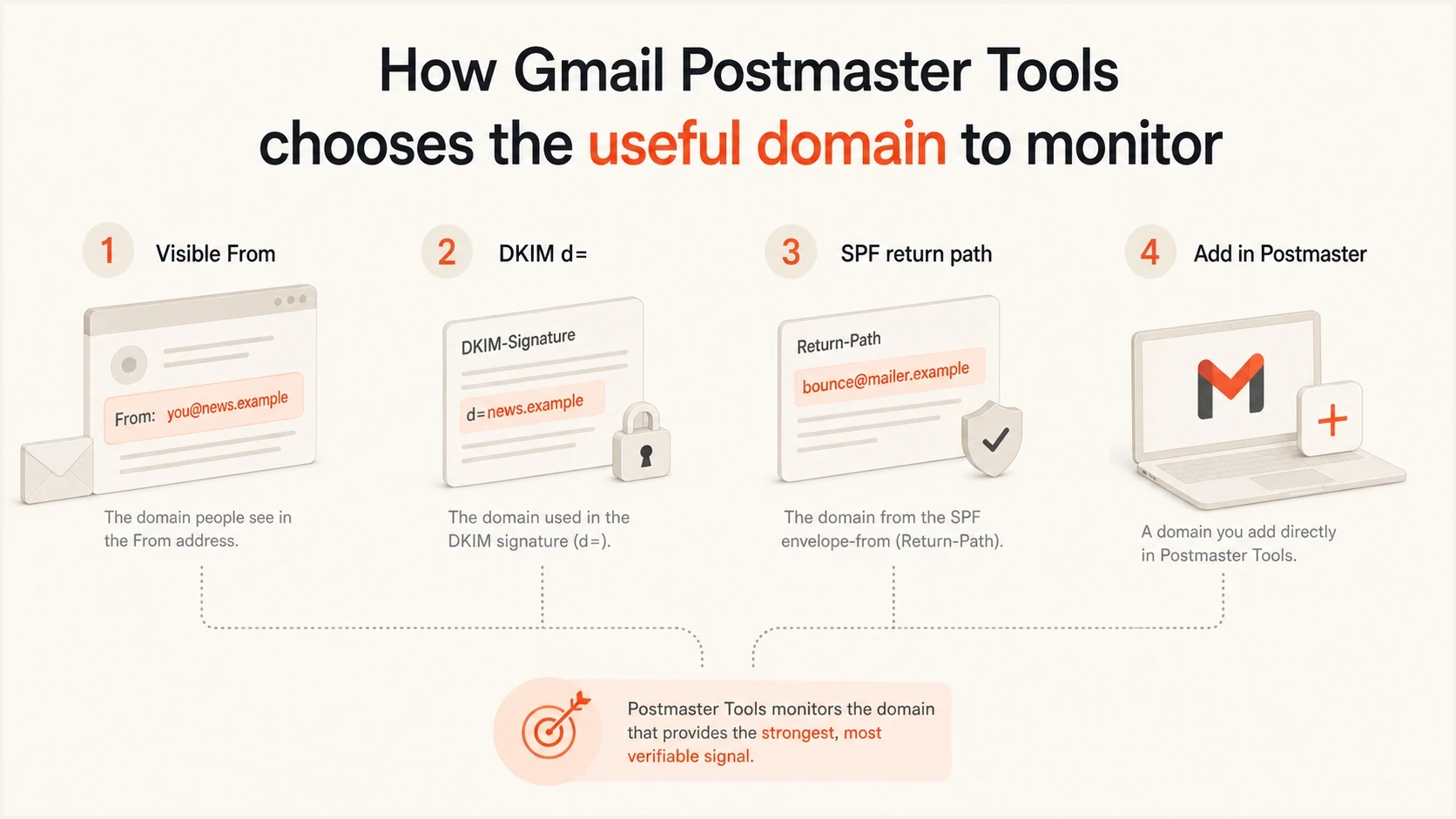
The useful Postmaster Tools domain is the domain Gmail sees in authentication
Setup steps for parent domains and subdomains
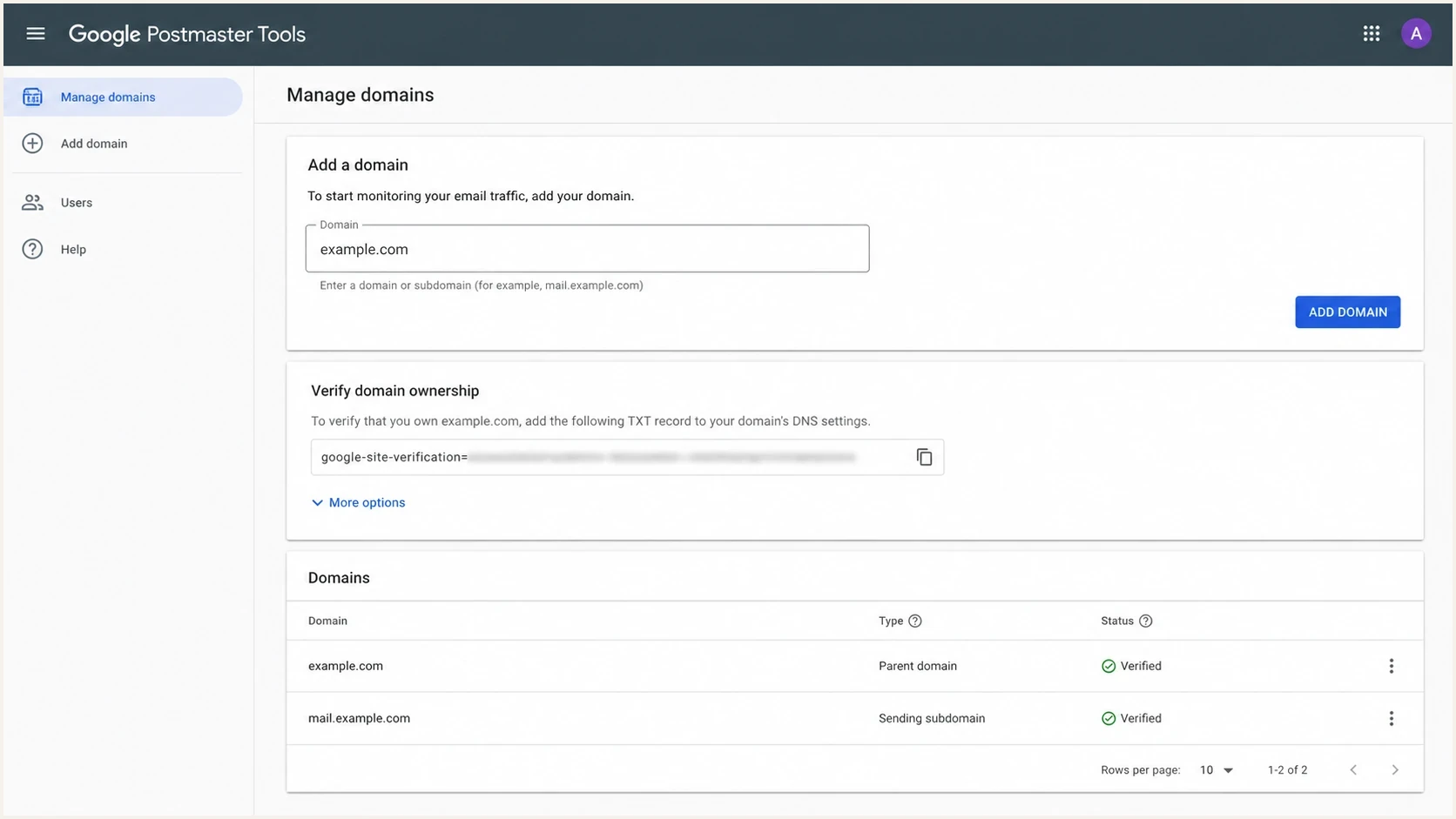
Google Postmaster Tools screen for adding a parent domain and subdomain
Use this sequence when you control the parent DNS. It avoids repeat verification work and keeps domain ownership manageable.
- Add the parent domain: enter the registered domain, such as example.com, even if your active sender is a subdomain.
- Publish the verification record: copy the exact TXT value Google gives you and add it in DNS.
- Complete verification: return to Postmaster Tools and verify the parent domain. The status usually updates immediately but can take up to 10 minutes.
- Add the sending subdomain: enter the authenticated subdomain, such as m.example.com or mail.example.com. Skip separate DNS verification when the verified parent covers it.
- Check the dashboard after sending: allow reporting time after real traffic reaches personal Gmail mailboxes.
Example parent-domain verification recordDNS
Host: example.com
Type: TXT
Value: google-site-verification=PASTE_GOOGLE_VALUE_HERE
Example direct subdomain verification recordDNS
Host: m.example.com
Type: TXT
Value: google-site-verification=PASTE_GOOGLE_VALUE_HERE
Only use the second example when you are verifying the subdomain directly. If the parent domain is already verified in Postmaster Tools, add the subdomain from the interface without another DNS verification record. Always publish the exact verification record shown for your account.
Do not guess the DNS name
DNS providers display hostnames differently. Some expect the full hostname, while others append the zone automatically. Paste the value Google gives you, then confirm how your DNS provider expands the host field before pressing verify.
For a separate walkthrough of the ownership step, use the verification guide. For this setup, the important sequence is to verify the parent first when you can, then add authenticated subdomains.
Give other people access
A verified owner can give teammates or clients access without asking each person to repeat domain verification. The person must use a Google Account or Google Workspace account, and access can only be granted for a verified domain.
- Open Manage Domains: find the verified parent domain or subdomain.
- Open domain management: select More, then Manage beside the domain.
- Add the account: select Add and enter the email address tied to the person's Google account.
- Notify the person directly: Google does not send an access notification, so tell them when the domain is ready.
Access and ownership are different
Granting access is the simpler choice for readers who only need dashboards. If multiple accounts must verify themselves as owners, Google requires a separate DNS verification record for each account.
What to expect after verification
A verified domain does not guarantee immediate charts. Gmail Postmaster Tools reports data only for mail sent to personal accounts ending in @gmail.com or @googlemail.com. Google also suppresses some low-volume daily data to protect user privacy, so a new subdomain can be correctly verified and still show little or no data.
How to read early dashboard status
Use the status and message evidence to decide whether setup is working.
Verified
Good
Ownership is complete, but data still depends on Gmail traffic.
No data yet
Wait
Usually caused by low Gmail volume, privacy thresholds, or a new sender.
Wrong domain
Fix
The added domain does not match the SPF or DKIM identity.
Broken auth
Act
Neither SPF nor DKIM produces the expected authenticated identity.
Check authentication first. Google accepts either the SPF or DKIM domain for setup, and uses messages authenticated by SPF, DKIM, or both when the domains match. If neither method passes for the domain you added, use a focused DKIM checker to confirm the selector and public key, then inspect the authentication results on a real Gmail message.
Compliance rolls up to the primary domain
Adding a subdomain can produce an independent view in other dashboards, but the Compliance status dashboard reports the primary domain and uses data from its subdomains. Compliance data usually updates within 24 hours, can take longer, and uses a rolling average. After a fix, allow seven days before treating an unchanged status as a setup problem.
Google encourages senders to use the current Postmaster Tools v2 interface. Retirement of the legacy v1 web interface has been postponed, but it is still planned. The legacy Domain and IP Reputation dashboards will also be retired and replaced, so avoid building a permanent process around those views alone.
Do not treat Postmaster Tools as your only monitoring source. It is Gmail-specific. A complete review also checks authentication pass rates, DMARC policy progress, DNS record quality, bounce patterns, complaint signals, and blocklist or blacklist status.
Where Suped fits around Gmail Postmaster Tools
Gmail Postmaster Tools provides a mailbox-provider view, but it does not replace DMARC reporting. Suped's DMARC monitoring provides authentication and source-level detail before and after domains are added to Postmaster Tools.
Suped DMARC dashboard showing email volume, authentication health, and source breakdown
Suped groups DMARC aggregate data by sending source and domain, tracks SPF and DKIM results, and alerts teams when authentication changes. That workflow helps identify active sending subdomains before setup and explains whether a Gmail dashboard issue coincides with a new source, alignment failure, or DNS change.
- Before setup: use Suped to identify which parent domains and subdomains actually send mail.
- During setup: confirm SPF, DKIM, and DMARC pass rates before judging Gmail dashboards.
- After setup: use alerts and issue steps to catch authentication drift on new subdomain senders.
- For agencies: keep each client's authenticated domains and sending sources separated in a multi-tenant view.
Pair an email tester result with Postmaster Tools when checking a real message path. The mailbox test confirms the exact authentication result, while Postmaster Tools shows Gmail-side reporting after traffic accumulates.
Common setup mistakes
Most setup problems come from adding the wrong domain or assuming verification means data will appear immediately. Use this checklist when a parent-domain and subdomain setup does not behave as expected.
Mistakes to avoid
- Adding the website only: example.com is not enough for a separate subdomain view when Gmail sees m.example.com in DKIM or Return-Path.
- Skipping the parent: direct subdomain verification works, but parent verification makes future subdomain access simpler.
- Ignoring authentication: an SPF or DKIM identity that does not match the added domain leaves the expected dashboard empty.
- Expecting instant charts: low Gmail volume and privacy thresholds can leave correctly configured dashboards blank.
The fix is usually mechanical. Confirm the message headers, add the parent if you control it, add the authenticated subdomain, verify DNS, then send real traffic to personal Gmail accounts. If the dashboard stays empty, compare the SPF and DKIM domains Gmail sees with the domain you added.
After setup, track the Gmail metrics that match the sending program. The useful set is covered in the guide to Postmaster metrics, but the prerequisite stays the same: add an authentication domain that Gmail sees.
Views from the trenches
Best practices
Verify the parent domain first, then add active subdomains for separate Gmail views.
Use message headers to confirm the DKIM d= domain before choosing what to add first.
Add each subdomain that sends real Gmail volume instead of relying on brand naming.
Document DNS ownership and Postmaster access so future sender changes stay controlled.
Common pitfalls
Teams add the website domain and miss the authenticated subdomain Gmail receives.
Low sending volume gets mistaken for setup failure when dashboards remain empty.
DNS host fields get entered twice because the provider appends the zone automatically.
Subdomains are added before authentication is stable, which makes reports misleading.
Expert tips
Treat the DKIM d= domain as the first clue, then confirm SPF Return-Path as backup.
If parent verification is possible, use it to reduce repeated subdomain DNS work.
Keep Postmaster Tools and DMARC reports side by side for better issue diagnosis.
Review new sender subdomains before launch, not after Gmail reputation starts dropping.
Marketer from Email Geeks says the domain to add should match the domain used in SPF or DKIM, which is often the active sending subdomain.
2021-03-03 - Email Geeks
Marketer from Email Geeks says the DKIM d= value is the key detail because it shows the authenticated domain Gmail evaluates.
2021-03-03 - Email Geeks
Recommended setup for a sending subdomain
For a site on example.com that sends through m.example.com, verify example.com first when the team controls parent DNS. Then add m.example.com in Gmail Postmaster Tools if the DKIM d= domain or SPF Return-Path uses that subdomain.
If the email team does not control parent DNS, add and verify the sending subdomain directly. That creates more ownership work for future subdomains, but it is correct when the subdomain is the authenticated identity and parent-domain verification is unavailable.
Recommended order
- Confirm headers: find the DKIM d= domain and SPF Return-Path domain in a real Gmail message.
- Verify parent: add the registered domain in Postmaster Tools when you control its DNS.
- Add subdomain: add every authenticated subdomain that sends meaningful Gmail volume.
- Monitor results: compare Gmail data with DMARC reports, authentication checks, and blocklist or blacklist status.
This setup combines parent-domain ownership, subdomain-level Gmail visibility in applicable dashboards, and enough authentication context to explain the data. Postmaster Tools reports how Gmail sees the traffic. DMARC and DNS monitoring identify what needs to change.




