What tools can I use to monitor deliverability when sending emails from Microsoft Office or Google Workspace?

Updated on 8 Aug 2026: We updated this guide for current provider dashboards and high-volume sender requirements.
Use a mixed monitoring stack, not a single Postmaster clone. Use Google Postmaster Tools v2 for personal Gmail recipient and compliance signals, Microsoft SNDS and JMRP for Microsoft consumer mailbox signals, Yahoo Sender Hub Insights and complaint feedback for Yahoo and AOL signals, ESP reporting for bounces and complaints, and Suped for DMARC, SPF, DKIM, source monitoring, issue detection, alerts, and blocklist (blacklist) visibility.
The main caveat is that Microsoft 365 and Google Workspace are usually mailbox hosts, not the right infrastructure for bulk marketing sends. If an ESP sends the mail, the important questions are which domain is in the visible From address, which DKIM domain signs the message, which IP sends it, and which mailbox provider receives it.
- Best first-party view: Google Postmaster Tools v2 for personal Gmail, SNDS and JMRP for Microsoft consumer mail, and Yahoo Sender Hub for Yahoo and AOL.
- Best technical view: DMARC aggregate reports, authentication results, DNS checks, and message headers.
- Best operational view: ESP logs for bounces, deferrals, unsubscribes, complaint events, and engagement by recipient domain.
- Best continuous view: Suped's platform when the goal is to keep authentication, sending sources, policy changes, alerts, and reputation checks in one place.
Which monitoring tools to use
There is no perfect Microsoft equivalent to Google Postmaster Tools for every Microsoft 365 recipient domain. The closest Microsoft-owned tools are SNDS for IP-based Outlook.com data and JMRP for complaint feedback. Those tools are useful, but they are not a full inbox placement dashboard for corporate Microsoft 365 tenants. For personal Gmail recipients, Google Postmaster Tools v2 is the main provider dashboard and includes a Compliance status view alongside delivery and complaint signals.
For Gmail-specific monitoring, the Google Postmaster overview explains the core dashboards: spam rate, reputation, authentication, and delivery errors. For Microsoft-hosted sending, Microsoft guidance states that Microsoft 365 is not a supported service for bulk mass email relay, so treat it as employee and operational mail infrastructure.
Do not send marketing volume through ordinary Microsoft 365 or Google Workspace user mailboxes just because the brand's inboxes live there. That setup hits sending limits, outbound spam controls, account restrictions, and reputation problems. Use purpose-built sending infrastructure through the ESP, then monitor how Microsoft, Google, Yahoo, and other receivers react.
Get the terminology right
The common confusion is saying, "We send from Microsoft" or "We send from Google" when the mailbox provider only hosts user inboxes. The cleaner wording is: "We send email through an ESP using our domain, and we monitor delivery to Microsoft and Google recipients."
Mailbox host
This is where employee inboxes live. It affects admin logs, DKIM setup for native mail, and normal mailbox security controls.
- Examples: Microsoft 365, Exchange Online, Google Workspace, and Gmail.
- Useful logs: Message trace, email log search, restricted user alerts, and outbound spam events.
- Main limit: It does not prove where third-party ESP mail lands at recipient inboxes.
Sending path
This is the infrastructure that hands the message to recipient mail servers. It controls most deliverability evidence.
- Examples: Your ESP, its SMTP servers, dedicated IPs, shared pools, and authenticated sending domains.
- Useful logs: Bounces, deferrals, complaint events, DKIM results, sending IPs, and recipient-domain performance.
- Main limit: ESP dashboards rarely explain receiver reputation across Google, Microsoft, and Yahoo in one place.
Once that distinction is clear, the monitoring stack gets much easier to choose. Use provider dashboards for receiver-side signals, ESP data for sending events, and DMARC reporting for domain-level truth.
What each tool actually tells you
Each tool answers a different question. The mistake is expecting a provider dashboard to explain every inboxing issue, or expecting DMARC reports to tell you exact folder placement. Separate them by the signal they control.
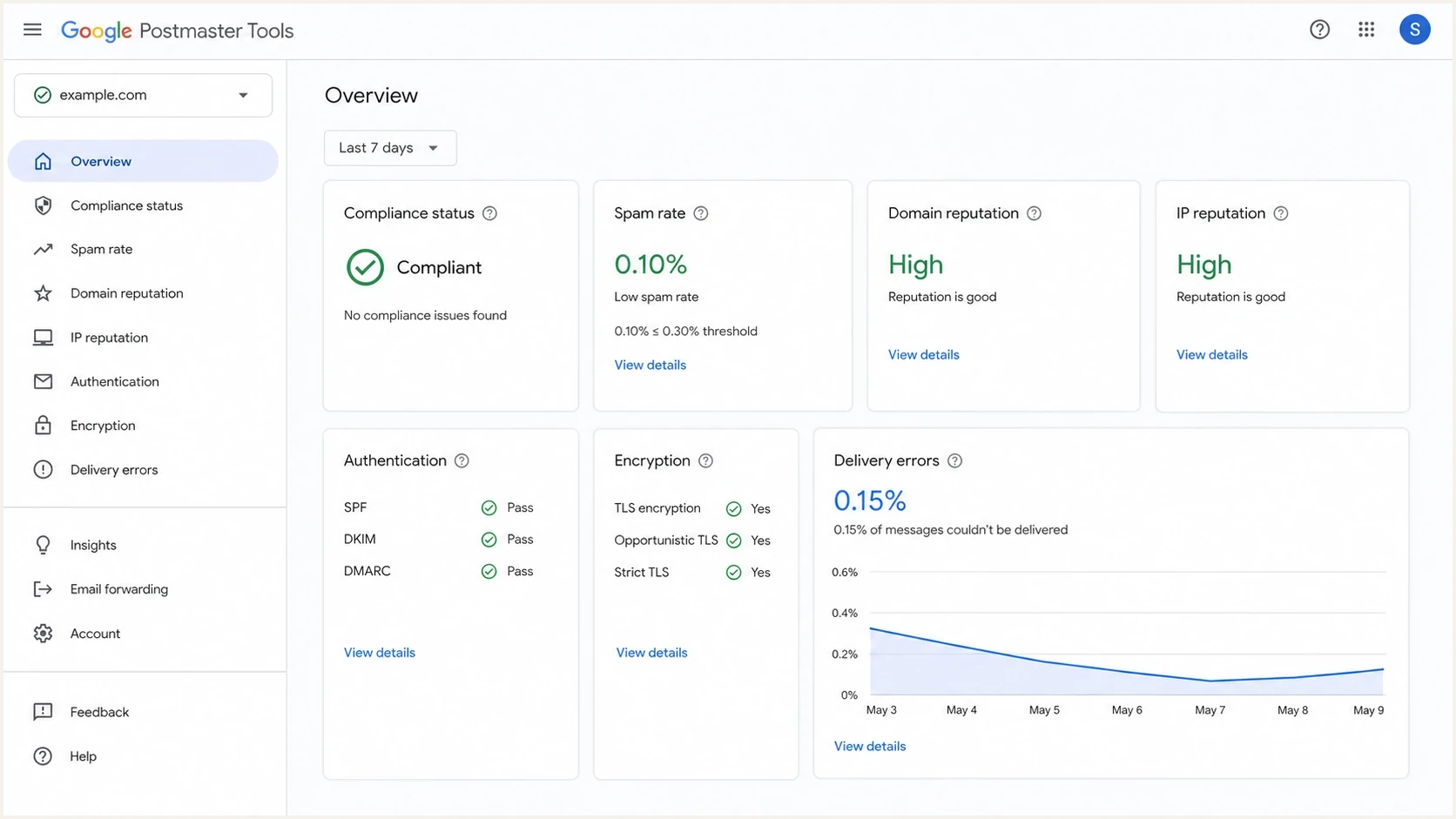
Google Postmaster Tools dashboard showing Gmail deliverability signals.
|
|
|
|
|---|---|---|---|
 Google Postmaster Tools Google Postmaster Tools | Personal Gmail signals | Privacy and volume gaps | You send to Gmail |
 Microsoft SNDS Microsoft SNDS | Outlook IP data | IP access needed | You control IPs |
Microsoft JMRP | Complaint feedback | Not placement | You need suppression |
 Yahoo Sender Hub Yahoo Sender Hub | Yahoo and AOL insights | No Insights API | Yahoo volume exists |
ESP reports | Bounces and events | Internal view | Campaigns run |
 Suped Suped | DMARC and sources | Not a seed list | You need alerts |
Use each tool for the signal it actually owns.
Spam complaint thresholds
Use these as practical operating bands when provider data is available.
Healthy
Under 0.1%
Keep complaint rates comfortably below the point where receivers react.
Warning
0.1% to 0.3%
Stop volume increases and review list source, targeting, and recent changes.
Critical
Over 0.3%
Cut volume, suppress risky segments, and investigate authentication and content.
Monitor compliance separately from placement
Provider compliance is a gate, not proof of inbox placement. A message can pass authentication and be accepted at SMTP while the receiver still places it in spam. Track compliance status, delivery events, complaints, and live placement evidence as separate signals.
- Personal Gmail accounts: Use the Postmaster Tools v2 Compliance status dashboard for authentication, DNS, message format, TLS, spam rate, and bulk-sender unsubscribe checks. Data is delayed, low-volume days can be blank, and the compliance view rolls subdomain traffic into the primary domain.
- Outlook consumer domains: Domains sending more than 5,000 messages per day to outlook.com, hotmail.com, or live.com recipients must pass Microsoft's SPF, DKIM, and DMARC requirements. This scope does not turn SNDS into a dashboard for corporate Microsoft 365 tenants.
- Yahoo and AOL: Use Sender Hub Insights for domain-level signals and its DKIM-based Complaint Feedback Loop for recipient complaints. Track one-click unsubscribe on marketing mail and keep complaint rates below 0.3%.
- Placement evidence: Record accepted, deferred, and rejected mail by recipient domain, then compare those events with complaints and live mailbox tests. An ESP's delivered status normally means SMTP acceptance, not inbox delivery.
After a DNS or unsubscribe fix, do not expect provider status to change immediately. Gmail dashboard data usually updates within 24 hours but can take longer, and some Compliance status changes can take up to seven days to appear.
A practical monitoring workflow
Start with the sending inventory, because every monitoring tool depends on knowing what is supposed to send. For each stream, record the visible From domain, DKIM signing domain, envelope sender domain, sending IP, ESP, and normal daily volume.
Minimum DNS baselineDNS
example.com TXT "v=spf1 include:spf.your-esp.example -all"
selector1._domainkey.example.com CNAME selector1.your-esp.example
_dmarc.example.com TXT "v=DMARC1; p=none; rua=mailto:reports@example.com"
Before interpreting provider dashboards, check the DNS layer. Suped's domain health checker is useful for a fast pass across DMARC, SPF, DKIM, and related domain checks, especially when multiple teams have changed DNS over time.
?
What's your domain score?
Deep-scan SPF, DKIM & DMARC records for email deliverability and security issues.
After the baseline is clean, monitor in this order. This order keeps the work grounded in facts instead of chasing inbox placement guesses.
- Authenticate first: Confirm SPF passes, DKIM signs with the expected domain, and DMARC passes for each ESP source.
- Read ESP events: Segment bounces, deferrals, and complaints by recipient domain instead of only total campaign rate.
- Check provider dashboards: Use Google Postmaster Tools, SNDS, JMRP, and Yahoo Sender Hub where volume and access allow data.
- Inspect reputation: Watch IP and domain blocklist or blacklist hits, especially after sudden deferral spikes.
- Test live mail: Send real messages through the same ESP path and inspect headers, authentication, and placement clues.
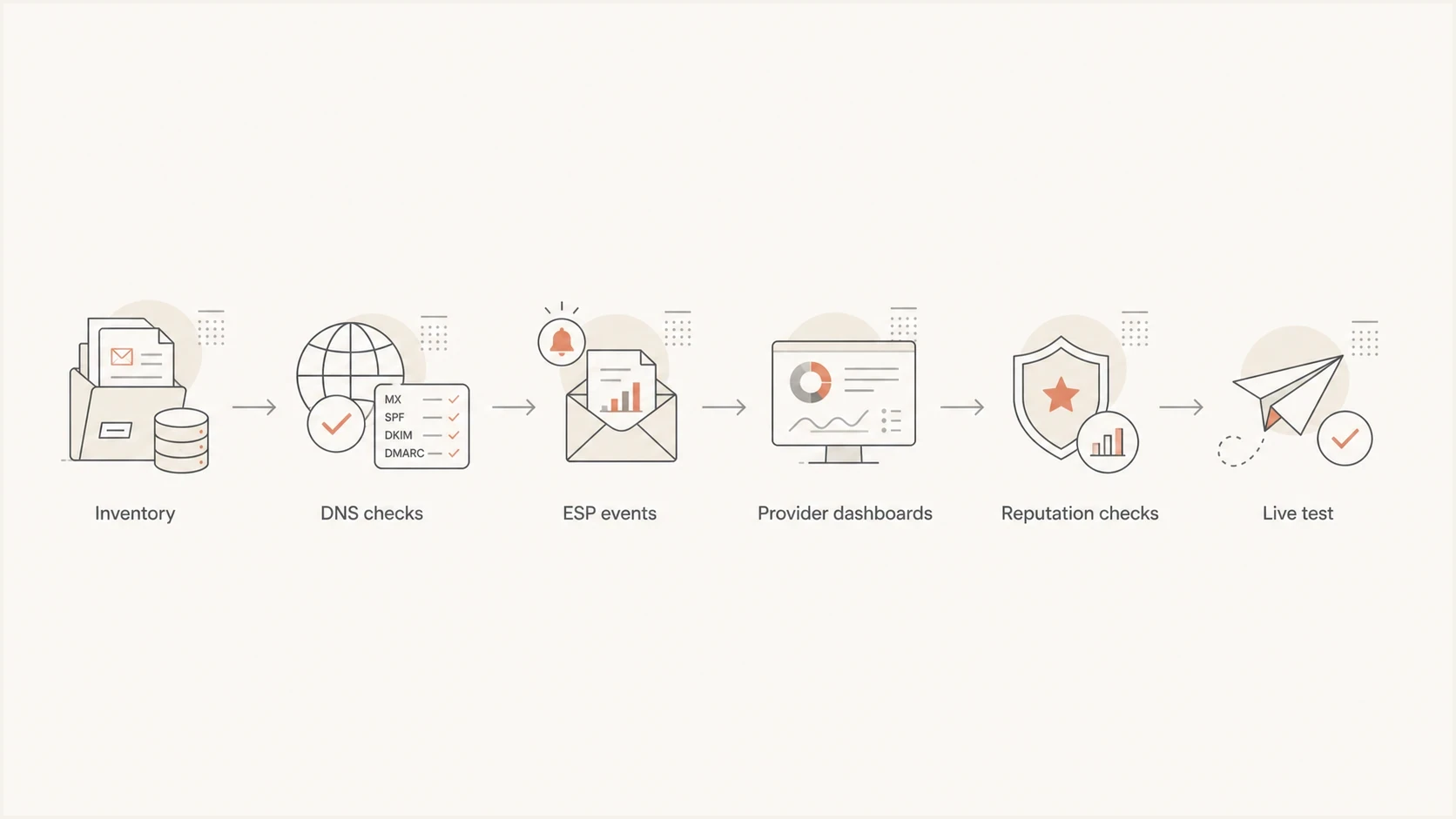
Flowchart showing the order of deliverability monitoring checks.
Where Suped fits
Suped is the DMARC reporting and email authentication layer in this stack when the work requires continuous monitoring rather than a one-off lookup. Suped's DMARC monitoring turns aggregate reports into source-level visibility, authentication pass rates, issue detection, and practical fix steps. That matters when Microsoft 365 hosts the inboxes, Google Workspace hosts the inboxes, and an ESP sends the actual campaigns.
Suped DMARC dashboard showing email volume, authentication health, and source breakdown
Suped also brings SPF, DKIM, hosted DMARC, hosted SPF, SPF flattening, hosted MTA-STS, real-time alerts, and blocklist monitoring into the same workflow. For MSPs and agencies, the multi-tenant dashboard helps track many client domains without rebuilding the same checklist for every account.
The practical Suped workflow is simple: add the domain, publish the reporting record, verify the approved sending sources, then move DMARC policy forward once legitimate mail passes consistently.
- Issue detection: Find SPF, DKIM, DMARC, source, and policy problems before they become provider complaints.
- Fix steps: Use specific actions instead of raw XML reports or vague pass and fail totals.
- Hosted controls: Manage SPF flattening, hosted DMARC, and hosted MTA-STS without repeated DNS edits.
- Team view: Give technical, marketing, and MSP users the same source-of-truth dashboard.
How to test real messages
Provider dashboards lag, and low-volume senders often see missing data. A live message test fills that gap. Send a real campaign-style message through the same ESP path and inspect the authentication results, headers, body structure, and mailbox clues. Suped's email tester gives that quick pre-send view before you scale a campaign.
Email tester
Send a real email to this address. Suped shows a results button when the test is ready.
?/43tests passed
Pay close attention to the headers because they show what the receiver actually evaluated. The exact header names differ by receiver, but these are the kinds of lines worth checking.
Headers to inspecttext
Authentication-Results: mx.google.com; spf=pass; dkim=pass; dmarc=pass
X-Forefront-Antispam-Report: SCL:1
X-MS-Exchange-Organization-SCL: 1
Received-SPF: pass
Green signals
- Authentication: SPF, DKIM, and DMARC pass on the same message path used in production.
- Headers: Microsoft SCL is low and Gmail authentication results match the expected domains.
- Events: ESP logs show stable accepts, low deferrals, and no sudden complaint spike.
Red signals
- Authentication: DMARC fails, DKIM signs with an unexpected domain, or SPF uses the wrong return path.
- Headers: Microsoft SCL is high, or Gmail shows delivery errors after a send change.
- Events: One receiver domain starts deferring while other providers still accept normally.
Views from the trenches
Best practices
Separate the mailbox host from the sending path before choosing any monitoring tool.
Track Gmail, Microsoft, and Yahoo data separately because each receiver scores mail differently.
Use DMARC reports to confirm every ESP source is authorized before judging placement.
Common pitfalls
Treating Microsoft 365 or Google Workspace as a bulk sender risks throttling and blocks.
Reading SNDS without IP ownership leads to missing data and false comfort for ESP traffic.
Fixing content before authentication hides the source issue that causes repeated spam placement.
Expert tips
Record the From domain, DKIM domain, SPF domain, and sending IP for every stream.
Review delayed receiver dashboards alongside same-day ESP bounces and complaint data.
Pause volume increases when complaints rise, even if delivery logs still look accepted.
Marketer from Email Geeks says Google Postmaster Tools, Microsoft SNDS, and Yahoo Sender Hub answer different provider-specific questions, so one dashboard cannot replace the full stack.
2024-06-21 - Email Geeks
Marketer from Email Geeks says the clearest wording is that a brand sends through an ESP to Microsoft and Google recipients, rather than saying it sends from an inbox provider.
2024-06-21 - Email Geeks
Choose the stack by signal
If you send through an ESP using a domain whose inboxes live in Microsoft 365 or Google Workspace, monitor the sending domain and the receiving providers. Google Postmaster Tools v2 handles personal Gmail signals and compliance status. Microsoft SNDS and JMRP cover Microsoft consumer mailbox data when you have IP access. Yahoo Sender Hub covers Yahoo and AOL. ESP logs show bounces and complaints. DMARC reporting shows whether the right systems are authorized to send as your domain.
Suped is the DMARC reporting and email authentication layer for tying those domain signals together through source discovery, hosted controls, alerts, and blocklist or blacklist visibility. Provider dashboards remain separate inputs. Use a repeatable process: verify the sender, watch the receiver, test real messages, then adjust volume only when the data supports it.
- Use Google tools: When the question is Gmail spam rate, authentication, compliance status, and delivery errors.
- Use Microsoft tools: When the question is Outlook.com IP data, complaint feedback, or tenant mail flow.
- Use Suped: When the question is who sends as your domain, what is failing, and what to fix next.
- Use live tests: When provider dashboards lag or you need evidence before increasing campaign volume.




