How do Apple Mail user settings impact email deliverability and spam filtering?

Updated on 31 Jul 2026: We added current Apple Mail Categories guidance and clarified how client-side junk controls differ from provider filtering.
Apple Mail user settings can affect whether a message appears in Junk or Inbox, and how it is categorized, for that specific user. They do not fix sender reputation, DNS authentication, or iCloud's server-side spam filtering. Treat those settings as a recipient-side preference layer, not as a deliverability strategy.
The practical answer is this: asking subscribers to add you to Contacts, mark mail as not junk, recategorize a sender, or reply to a message can help individual users find future mail more reliably in Apple Mail. It will not make iCloud, Gmail, Microsoft, or any other mailbox provider trust a poorly authenticated sender. It also will not rescue bulk mail with weak engagement, bad complaint patterns, broken SPF or DKIM, or suspicious content.
- Main impact: Apple Mail settings influence client-side junk handling, categorization, display, and notification behavior after provider screening.
- Main limit: They do not change whether the receiving provider accepts, defers, or rejects the message.
- Main risk: Seed tests can be skewed when the test account has contacts, rules, prior replies, manual training, or category corrections.
- Main fix: Repair authentication, reputation, list quality, and engagement before leaning on user-side instructions.
The direct answer
Apple Mail sits near the end of the delivery path. Before Apple Mail applies a contact exemption, junk preference, rule, or manual "not junk" action, the message has already passed the receiving provider's acceptance checks. For iCloud mailboxes, iCloud has already accepted, deferred, or rejected the message. After acceptance, Apple Mail on macOS can still apply its own optional junk filter and local rules. For Gmail or Microsoft mailboxes opened in Apple Mail, those providers make their server-side decisions before Apple Mail adds its client-side handling.
Do not confuse Apple Mail with iCloud filtering
Apple Mail is the client. iCloud Mail is the mailbox provider. Apple Mail can run a local junk filter and organize accepted mail, while iCloud controls server-side acceptance and filtering for iCloud accounts.
This distinction matters because sender-side work and recipient-side work solve different problems. If one important customer keeps finding mail in Junk inside Apple Mail, contact-based guidance is useful. If thousands of iCloud addresses show lower inbox placement, the answer is not a support article asking everyone to change settings. Inspect authentication, complaint rate, unknown user rate, traffic spikes, content, and reputation.
Where Apple Mail settings matter
The effect depends on where the delivery decision happens.
Sender infrastructure
No impact
SPF, DKIM, DMARC, sending IPs, domains, and volume controls.
Mailbox provider filtering
No direct impact
iCloud, Gmail, Microsoft, and similar provider decisions.
Apple Mail client handling
Direct impact
Local Junk folder, Contacts, VIPs, rules, categories, and prior actions.
Which Apple settings matter
The settings and actions that matter most either create a local trust signal, change Apple Mail's junk handling, or control where accepted mail appears. On macOS, Mail can exempt senders in Contacts, previous correspondents, messages that address the recipient by full name, and other selected cases. It can also trust provider-added junk headers, apply junk filtering before local rules, or reset what the filter has learned. Blocked-sender filtering can leave a blocked message in the Inbox with a banner or move it to Trash, so an accidental block can look like missing mail. These controls are useful for support and onboarding, especially for account verification, invoices, password resets, and one-to-one relationship mail.
|
|
|
|---|---|---|
Contacts | Client | Junk exemption |
VIP | Client | Priority view |
Not junk | Client or account | Classification correction |
Rules | Client or account | Folder action |
Categories | Client or iCloud.com | Inbox visibility |
Blocked senders | Client or Apple devices | Banner or Trash |
MPP | Tracking | Open noise |
Apple Mail setting impact matrix
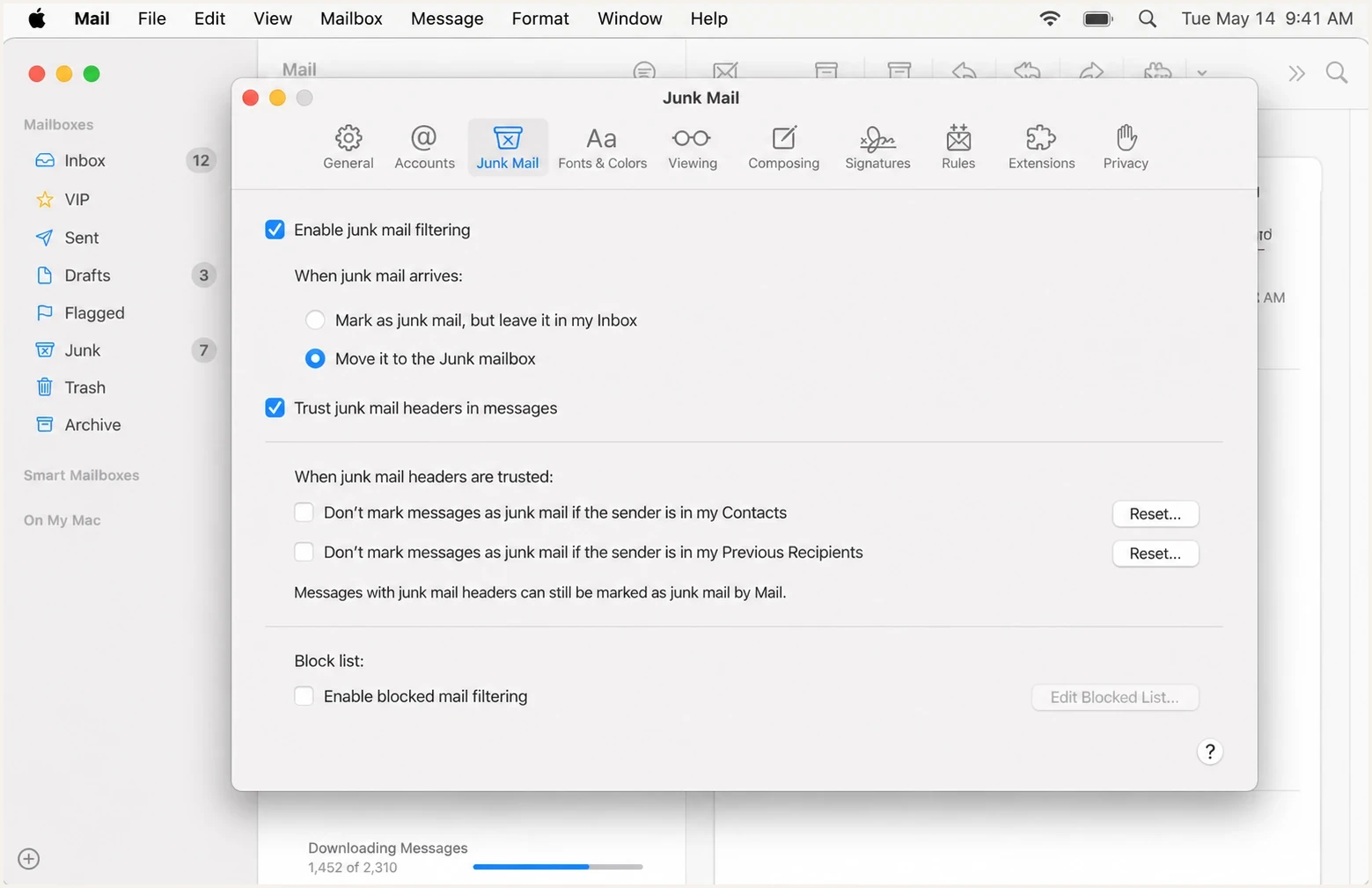
Apple Mail junk mail settings window with local filtering options.
The strongest user action is usually a manual correction: the recipient finds a wanted message in Junk, marks it as not junk, adds the sender to Contacts, and replies to a real message. That can influence future handling for that person. It is still a weak lever at scale because most recipients do not change settings unless they are highly motivated.
User-side actions
- Contacts: Can exempt a familiar sender from Apple Mail's local junk filter when that option is enabled.
- Replies: Establish prior correspondence that Apple Mail can exempt from local junk filtering.
- Not junk: Corrects handling of wanted mail for that mailbox experience.
Sender-side fixes
- Authentication: SPF, DKIM, and DMARC must pass and match the visible domain.
- Reputation: Complaints, bounces, traps, and sudden volume changes need control.
- Relevance: Recipients need to expect the mail and act on it.
How Mail Categories change visibility
Mail Categories organize accepted messages into Primary, Transactions, Updates, and Promotions. A message placed in Promotions has reached the inbox experience, but it can receive less immediate attention than a message in Primary. This is a visibility and engagement issue, not proof of spam placement or an SMTP delivery failure.
- Primary: Personal and time-sensitive messages are surfaced here.
- Transactions: Receipts, orders, and similar account activity can appear here.
- Updates: Newsletters and informational messages can appear here.
- Promotions: Marketing offers and promotional messages can appear here.
Users can recategorize messages from a sender, reset manual categorizations, or turn categorization off where Apple provides that control. On supported Apple devices, categorization can happen on-device. For iCloud Mail on iCloud.com, Apple uses sender and header metadata rather than the message body to categorize mail.
Measure categories separately from spam
A category change can reduce opens or delay attention even when delivery is healthy. Check the actual folder and category before treating an engagement drop as a spam-filtering incident.
Why Apple Mail settings do not fix iCloud placement
The delivery path has layers. A sending platform hands the message to a receiving server. The receiving server evaluates authentication, reputation, content, recipient history, and policy. After acceptance, Apple Mail can display, categorize, or locally classify the message. Its macOS junk filter can change the folder for an accepted message, but it cannot reverse a server rejection or deferral.
That is also why Apple MPP affects measurement more than placement. Mail Privacy Protection privately downloads remote content in the background and hides the recipient's IP address, so a recorded open does not prove the person read the message. MPP follows use of Apple Mail with Protect Mail Activity enabled, including non-Apple mailboxes read in Apple Mail. The same mailbox used in another app or webmail does not inherit that Apple Mail setting.
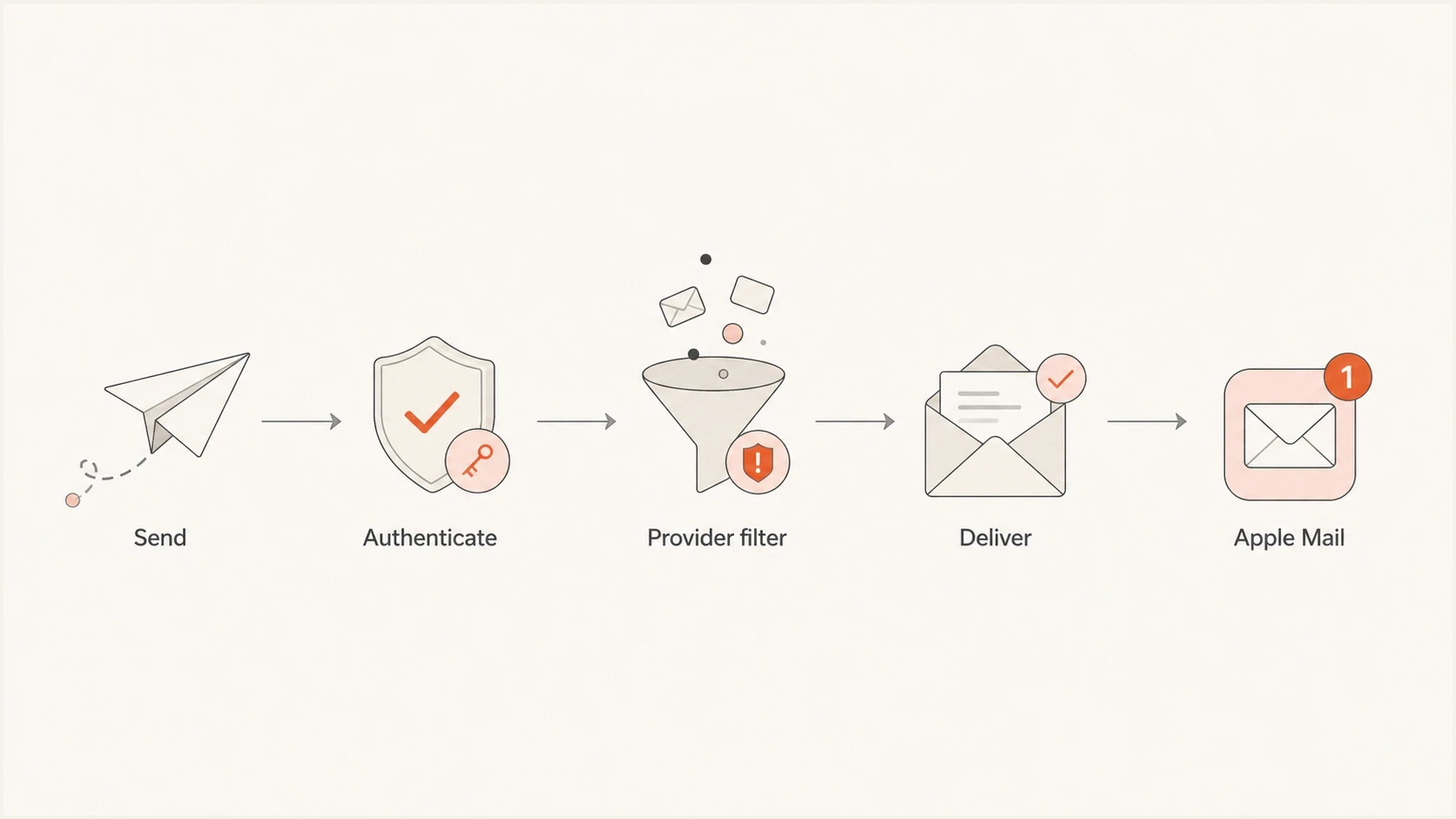
Flowchart showing sender authentication, provider filtering, delivery, and Apple Mail handling.
Private relay addresses add another wrinkle. A user can receive mail through an Apple-managed relay address, and sender behavior still matters. If you send irrelevant mail, ignore bounces, or lose the relationship context, relay mail can perform badly. Handle Apple Private Relay as a consent and identity-management topic, not as a shortcut around filtering.
The operational test
If one user can rescue a message by changing Apple Mail settings, the problem is local for that user. If many clean Apple addresses reject, defer, or place mail in Junk before Apple Mail rules matter, treat it as sender-side deliverability work.
How inbox placement tests get skewed
Apple Mail settings can distort seed tests because seed accounts are not always neutral. A seed account with prior replies, saved contacts, a manual rule, repeated "not junk" actions, or sender recategorization can look better than a real subscriber's inbox. A neglected seed account with no engagement can look worse than active customers. Use an email tester as one diagnostic input, then compare it against actual DMARC, bounce, complaint, and engagement data.
- Contacts bias: A seed address with the sender saved can overstate Inbox placement.
- Rule bias: A local Apple Mail rule can move mail before a tester records the final folder.
- Training bias: Repeated manual rescue or recategorization can change future handling for the seed mailbox.
- Open bias: MPP can inflate opens, so opens alone cannot prove Inbox placement or human engagement.
Email tester
Send a real email to this address. Suped shows a results button when the test is ready.
?/43tests passed
For a cleaner test, keep Apple seed accounts free of contacts, custom rules, and manual category training. Send the same message to multiple mailbox providers and inspect headers when results differ. If Apple seeds show Junk but authenticated mail lands cleanly elsewhere, look for Apple-specific signals such as iCloud bounces, temporary deferrals, recipient engagement, and prior complaint patterns. Do not choose A/B winners, suppress subscribers, or trigger resend flows from Apple opens alone. Use clicks, conversions, replies, and authenticated account actions where they match the campaign goal.
Common Apple test distortions
Relative risk of misreading the result when the seed account is not clean.
Saved contact
80 riskLocal rule
90 riskManual rescue
70 riskMPP open
65 riskWhat to fix before asking users to change settings
The right order is sender-side first, user-side second. Start with DMARC monitoring so you can see which systems send as your domain, whether they pass SPF and DKIM, and whether those results match the visible domain. Then run a domain health checker to catch obvious DNS and authentication problems before chasing Apple Mail preferences.
Baseline DNS authentication recordsdns
_dmarc.example.com TXT "v=DMARC1; p=none; rua=mailto:d@example.com"
example.com TXT "v=spf1 include:_spf.example.net -all"
s1._domainkey.example.com TXT "v=DKIM1; k=rsa; p=BASE64KEY"
After authentication is clean, review bounce patterns, complaint sources, list acquisition, and reputation signals. If mail is delayed or rejected at specific receivers, inspect the SMTP response rather than guessing from open rates. If you see listing issues, add blocklist monitoring so IP and domain blocklist (blacklist) events are visible before they become a wider incident.
?
What's your domain score?
Deep-scan SPF, DKIM & DMARC records for email deliverability and security issues.
Only after those checks should you add user-facing instructions. The wording should be modest: ask users to check Junk, mark the message as not junk, add the sender to Contacts, recategorize the sender if needed, and reply if the relationship is real. Do not present those steps as a cure for sender reputation problems.
A good support instruction
If the message is in Junk, open it in Apple Mail, choose Not Junk, add the sender to Contacts, and reply when a reply is appropriate. If it appears in the wrong category, recategorize the sender. These actions help Apple Mail handle wanted messages for your mailbox.
How to use Suped for this workflow
Suped's DMARC platform keeps this workflow grounded in sender-side evidence. Instead of guessing whether Apple Mail settings caused a Junk result, Suped shows authentication status, sending sources, DMARC domain matching, detected issues, and steps to fix each problem.

Issue steps to fix dialog showing the issue overview, tailored fix steps, and verification action
A practical Suped workflow is to confirm legitimate senders, fix SPF and DKIM domain matching, move DMARC policy in stages, and monitor sudden failures. Add blocklist (blacklist) and deliverability signals around the same domain set when those checks are relevant. This gives marketing, product, support, and IT a shared view of the evidence.
- Issue detection: Suped flags broken authentication and gives concrete steps to fix it.
- Real-time alerts: Teams see authentication failures and reputation problems before they spread.
- Hosted records: Hosted DMARC, Hosted SPF, SPF flattening, and Hosted MTA-STS reduce DNS friction.
- Multi-tenancy: MSPs and agencies can manage many domains without mixing client data.
Views from the trenches
Best practices
Treat Apple Mail settings as recipient-side controls, not sender-side fixes for placement.
Keep seed accounts free of contacts, rules, prior replies, and manual category changes.
Check authentication, reputation, engagement, and delivery evidence before user guidance.
Common pitfalls
Assuming add-to-contacts advice changes iCloud server filtering often leads to weak fixes.
Reading Apple MPP opens as human engagement creates false confidence in placement data.
Testing only one Apple mailbox hides differences between local Mail and iCloud filtering.
Expert tips
Ask loyal users to rescue wanted mail, but use it as a support step, not a strategy.
Compare Apple seed results with full headers before changing content or infrastructure.
Use DMARC reports and delivery tests together to separate authentication failures from filtering.
Marketer from Email Geeks says add-to-contacts guidance has existed for years, but the measurable lift depends on whether recipients actually complete the step.
2024-02-22 - Email Geeks
Marketer from Email Geeks says Apple Mail client settings can allow mail from contacts or previous recipients, but those choices are local to that client.
2024-02-22 - Email Geeks
Practical takeaway
Apple Mail user settings matter at the edge of the experience. They help a person tell the mail client that a sender is wanted and control where accepted mail appears. They do not replace the sender-side work that controls whether Apple, iCloud, and other providers trust the message in the first place.
For transactional mail, include clear rescue instructions because one missed password reset or invoice can create support volume. For marketing and lifecycle mail, prioritize permission, segmentation, authentication, and complaint control. User settings are a support tactic. Authentication and reputation are the foundation.
- First: Verify SPF, DKIM, and DMARC domain matching for every legitimate sender.
- Second: Check Apple and iCloud results against bounces, headers, complaints, and real engagement.
- Third: Use Apple Mail instructions for individual rescue or recategorization, not broad reputation repair.
- Fourth: Monitor the domain continuously so the next Apple issue has evidence behind it.




