Why is Google marking its own emails as dangerous?

Updated on 11 Aug 2026: We updated this guide for Gmail classification incidents and the current DMARC standards.
Google can mark its own emails as dangerous because a Gmail warning can describe either message risk or a temporary failure to complete classification. Under normal conditions, Gmail asks two questions at once: "Did this come through a Google-controlled sending path?" and "Do the content, links, calendar payload, forwarding path, user reports, and message history look risky?" A message can pass SPF, DKIM, and DMARC and still get a red warning if Gmail distrusts the payload.
The most common explanation is Google-hosted user-generated content. Google Calendar invites, forwarding verification emails, shared-file notifications, and group messages can travel through Google infrastructure, but the visible content was supplied by a user or an external workflow. If that content includes a suspicious URL, misleading event text, or a pattern Gmail has seen in abuse, Gmail can protect the recipient even when the technical sender looks legitimate.
The direct answer
- Authentication: DMARC pass proves a matching authorized path, not that every link or invite detail is safe.
- Content: Gmail can warn on text, attachments, redirects, calendar fields, and landing pages.
- Abuse channel: A real Google service can be used to deliver unwanted or deceptive user-created messages.
- System incident: Gmail can show a protective banner when its classification systems cannot finish checking a message.
- Headers: The raw message is the only reliable way to separate a real Google send from spoofing or replay.
Why Gmail can distrust a Google-routed email
Treat this as three separate questions. Did the message authenticate as a domain Google was allowed to use? Did Gmail trust the actual message that landed in the inbox? Did Gmail complete its classification checks? The answers are related, but they are not the same.
SPF checks the envelope sender path. DKIM checks whether signed parts of the message verify against the signing domain's public key. DMARC checks whether the visible From domain aligns with a passing SPF or DKIM domain. None of those checks grade the destination URL, the wording in a calendar invite, the reputation of the account that created the event, or whether similar messages were reported by recipients.
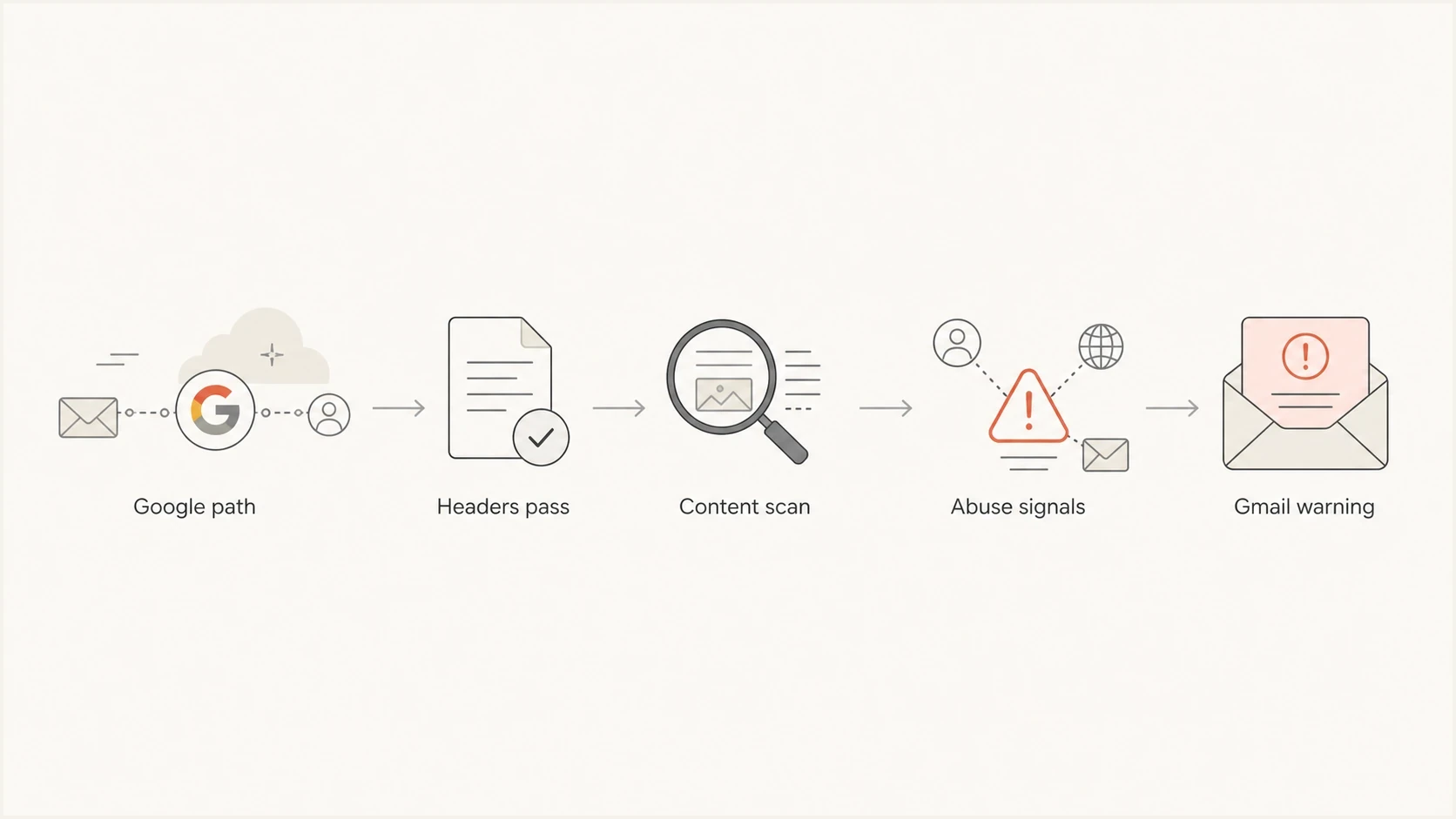
Flowchart showing how Gmail can mark Google-routed email as dangerous after authentication passes.
- Calendar payload: A real invite can contain user-written titles, notes, links, locations, and guests.
- URL reputation: A Google-generated notification can still point to a destination Gmail does not trust.
- Message replay: A copied message can retain a valid DKIM signature only when the signed headers and body remain unchanged.
- Recipient signals: Gmail uses spam reports and past interaction patterns that are separate from DNS checks.
That is why the warning can look contradictory. Gmail can be saying, "This traveled through a legitimate route, but the message still looks risky." That is a valid security decision. Authentication reduces impersonation risk; it does not remove all content risk.
What DMARC pass does and does not prove
A DMARC pass is still meaningful. It tells you that at least one authenticated identifier met DMARC's domain-matching rule for the visible From domain. For brand protection and policy enforcement, DMARC monitoring provides the data needed to see who is sending, which sources authenticate, and which sources need correction.
RFC 9989 has defined the core DMARC protocol since May 2026, while RFC 9990 defines aggregate reporting. The newer standards do not turn a DMARC pass into a message-quality stamp. Gmail still evaluates the payload after authentication, especially when a message includes user-generated content or links.
What authentication says
- SPF: The sending IP was authorized by the envelope sender domain.
- DKIM: The signed headers and body verified against the signing domain's public key.
- DMARC: SPF or DKIM passed with a domain that met DMARC's matching rule for the visible From domain.
What Gmail warning says
- Content: The body, invite, link, or attachment looked unsafe.
- Behavior: Similar messages were reported, ignored, or filtered.
- Context: The message did not fit the recipient's normal trust patterns.
Example Authentication-Results headertext
Authentication-Results: mx.google.com;
  dkim=pass header.d=google.com;
  spf=pass smtp.mailfrom=bounces.google.com;
  dmarc=pass header.from=google.com
The header above would not prove the message is safe. It would prove Gmail accepted the authentication chain for the visible domain. If the message body contains a suspicious link, a deceptive invite title, or a replayed signed payload, Gmail can still label it dangerous.
Most likely causes
A Google-branded warning on a message that appears to come from Google does not automatically mean Google broke its own mail. Start with the paths that let risky content ride on legitimate infrastructure, then check whether unrelated trusted messages received the same warning at the same time.
|
|
|
|---|---|---|
Calendar abuse | Invite text | Event creator |
Bad URL | Redirect chain | Destination |
Forwarding | SPF fails | DKIM and ARC |
Replay | Old signature | Date headers |
Spoofing | Display mismatch | From domain |
DNS issue | DMARC fail | Policy |
Service incident | Sudden broad warnings | Google status |
Common causes behind Gmail dangerous warnings on Google-routed mail.
Calendar invites deserve extra scrutiny
Calendar notifications are a clear example because the infrastructure can be Google-owned, but the event details can be supplied by an outside account. A dangerous warning on a calendar-like message usually points to the invite content, the creator, the URL, or the pattern of similar invites.
- Creator: Check who created the invite and who delivered the email.
- Link: Inspect the real destination after redirects, not the visible text.
- Pattern: Check whether multiple recipients received similar unwanted invites.
Google's administrator guidance on Gmail marks valid messages follows the same practical idea: examine authentication, sender reputation, content, and routing together. Use that same split when diagnosing Gmail phishing errors because the visible warning rarely names the exact underlying signal.
When Gmail itself has an incident
On January 24, 2026, Google documented an overload in Gmail's spam-checking systems after a temporary backend failure triggered excessive retries. Some incoming mail could not be fully classified, so Gmail displayed a protective warning banner. Google also reported delivery delays that were generally 10 minutes or less.
How to recognize a broad incident
- Timing: Warnings begin suddenly across unrelated senders that previously delivered normally.
- Authentication: Full headers still show the expected SPF, DKIM, and DMARC results.
- Scope: Multiple users report similar banners instead of one campaign or URL being affected.
- Status: Google's Workspace status information confirms a Gmail processing problem.
A service incident changes the response. Do not weaken DMARC or rewrite every campaign because of a short burst of warnings across unrelated senders. Preserve sample headers, confirm the scope, check Google's status information, and retest after recovery. Continue treating each message cautiously until Gmail can classify it normally.
How to diagnose it
The fastest useful path is to stop looking at the inbox banner and inspect the raw message. The banner is a symptom. The headers and payload tell you whether the message came through Google, whether authentication passed, whether the visible sender matches, and whether the warning points back to content.
Copy the Authentication-Results block, the Received chain, the visible From, the Return-Path, the DKIM signing domain, the Message-ID, and the URLs in the body. For forwarded mail, also copy ARC-Seal and ARC-Authentication-Results. ARC preserves claims about earlier authentication, but it does not create a DMARC pass. For a calendar invite, also check the organizer, event title, location, description, and guest list behavior.
- Verify headers: Confirm SPF, DKIM, and DMARC results before changing any DNS record.
- Compare domains: Compare visible From, envelope sender, DKIM domain, and link destinations.
- Check incident scope: Look for the same sudden warning across unrelated senders and recipients.
- Test clean content: Send the same workflow without links, attachments, or invite notes.
- Review patterns: Check whether the warning follows one message, one URL, or one sending path.
- Check DNS: Validate the domain with a domain health check before assuming a Gmail-only issue.
Header fields to copytext
From:
Return-Path:
Authentication-Results:
Received:
DKIM-Signature:
ARC-Seal:
ARC-Authentication-Results:
Message-ID:
Date:
?
What's your domain score?
Deep-scan SPF, DKIM & DMARC records for email deliverability and security issues.
If the domain check is clean, headers pass, and no broad incident is active, move attention to content. Check URLs, redirects, calendar text, attachment names, and whether the recipient expected the message. If the domain check finds a DMARC, SPF, or DKIM issue, fix that first because authentication problems make Gmail more willing to distrust borderline content.
For your own domain, do not copy Google's behavior as proof that DNS does not matter. Google has large internal reputation and abuse systems. A smaller sender with the same content issue and weaker authentication will usually have less room for error.
When the problem is your domain
If your own brand is getting Gmail dangerous warnings, the fix depends on which layer failed. Authentication failures need DNS work. Content warnings need message and URL work. Reputation problems need sending-pattern work. Separate those before touching policy because a rushed DMARC change can hide the real issue or break valid mail.
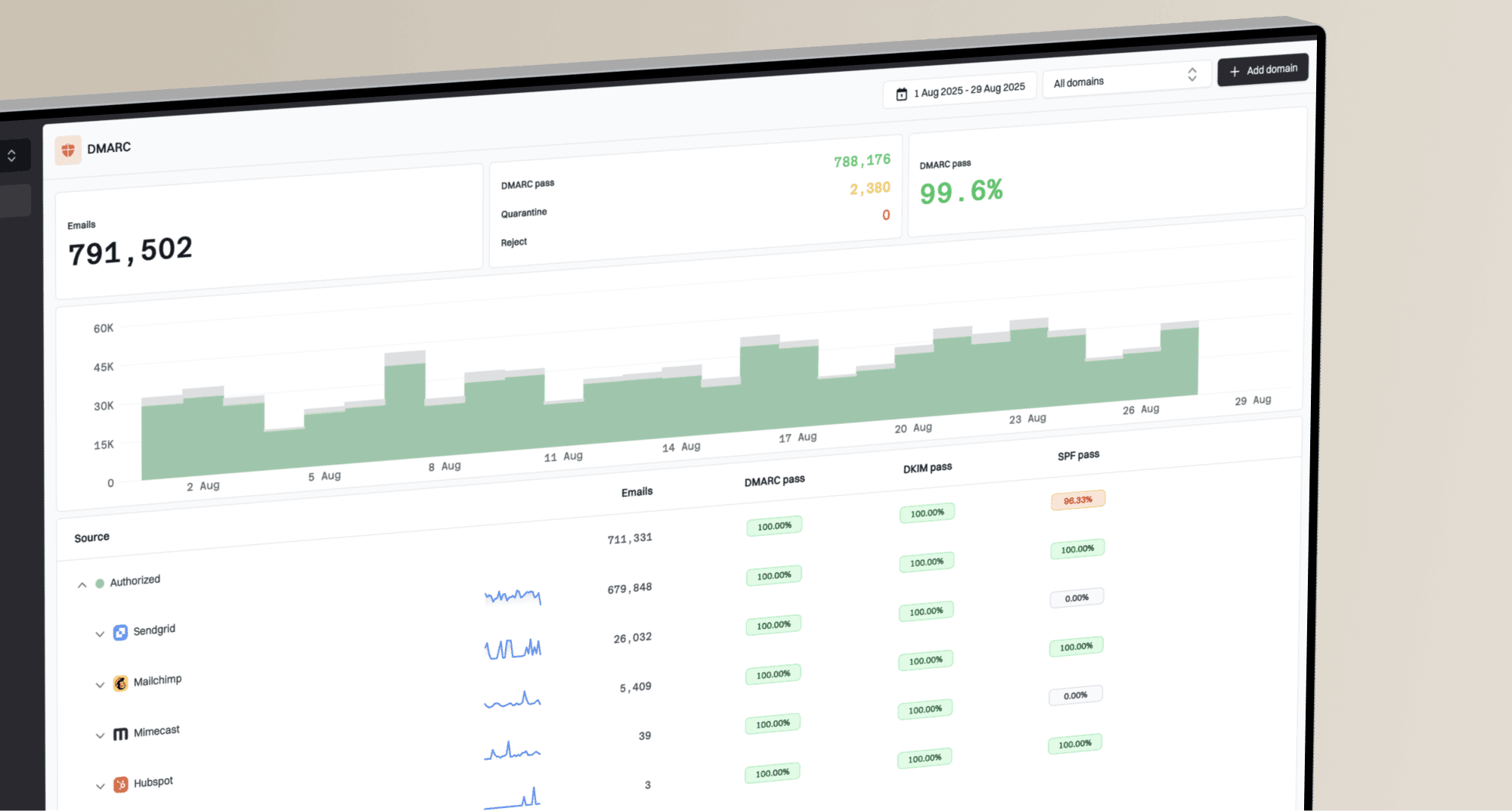
Start with a focused DMARC checker if you only need to inspect the published record. Use broader monitoring when you need to see real traffic by source. Suped's product supports this workflow by combining DMARC reports with SPF and DKIM diagnostics, hosted SPF, hosted MTA-STS, blocklist (blacklist) monitoring, and issue steps.
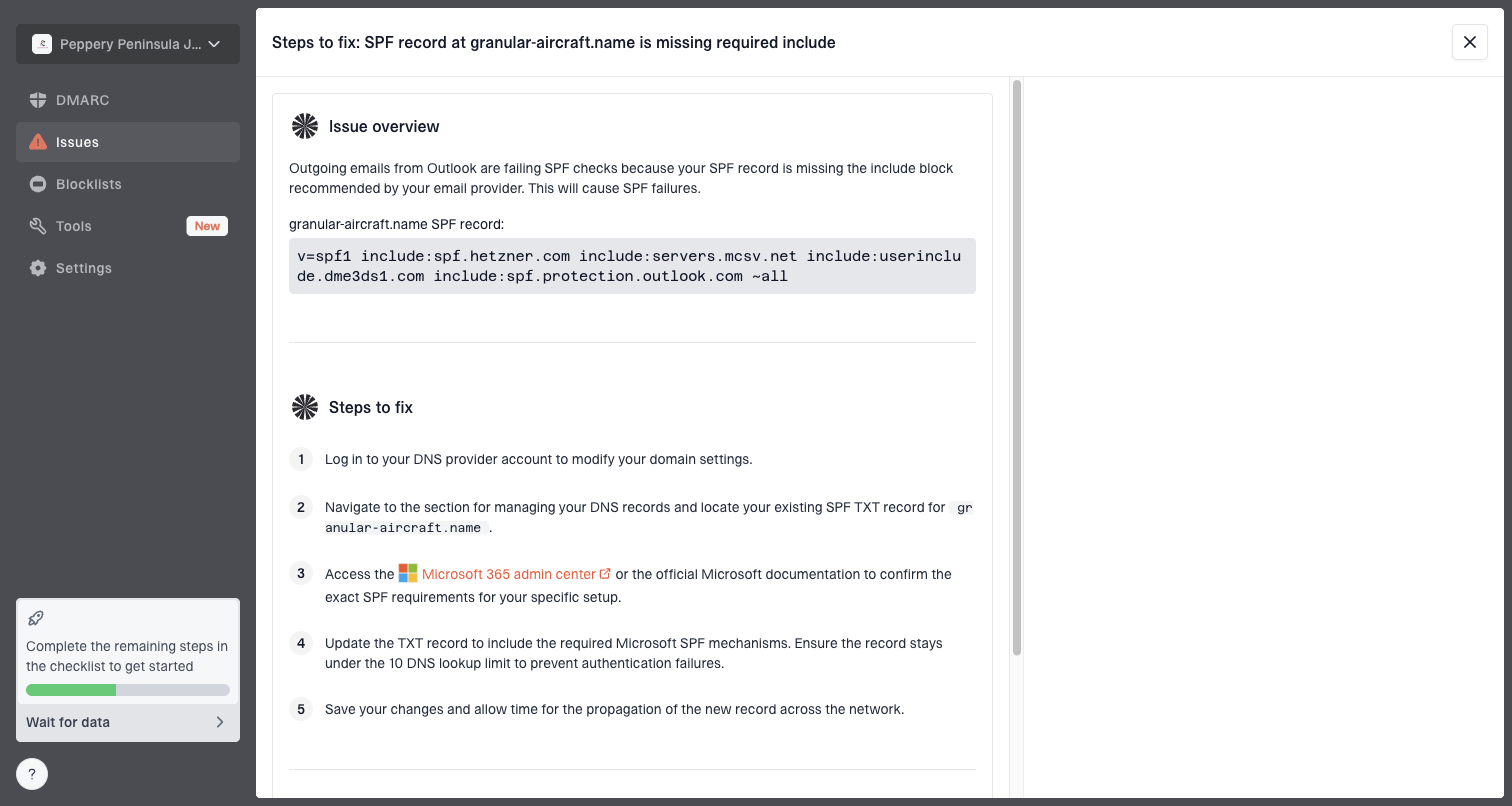
Issue steps to fix dialog showing the issue overview, tailored fix steps, and verification action
In Suped, the practical route starts with the failing source and its authentication result, then moves to the likely cause and specific remediation steps. That evidence shows whether to update SPF, rotate a DKIM selector, correct a sending service, stage hosted DMARC, or investigate a content warning.
DMARC policy staging
A simple way to avoid breaking legitimate mail while moving toward enforcement.
Monitor
p=none
Collect reports and identify every valid sender.
Quarantine
p=quarantine
Send failing mail to spam after sources are fixed.
Reject
p=reject
Block failing mail once legitimate sources authenticate.
Starter DMARC record for monitoringtext
v=DMARC1; p=none; rua=mailto:dmarc-reports@example.com;
adkim=r; aspf=r
That sample record is for aggregate monitoring, not enforcement. Start at p=none until reports show every legitimate source, then move to quarantine and reject in stages. The omitted fo tag controls failure-report requests, not aggregate reporting. If Gmail is warning on content, changing p=reject will not clean the URL or rewrite a risky invite.
What to change and what to leave alone
The wrong fix is often worse than the warning. If one Google Calendar notification gets flagged, do not immediately loosen DMARC, remove DKIM, or allow broad Google sending ranges. Those changes reduce protection without proving the warning came from authentication.
Good fixes
- Headers: Save the raw message before making changes.
- Links: Remove suspicious redirects and mismatched destinations.
- Senders: Add only known legitimate systems to SPF and DKIM.
- Reports: Watch repeated failures by source and domain.
Bad fixes
- Whitelisting: Do not bypass broad sender groups for one warning.
- DNS guessing: Do not edit records without header evidence.
- Policy rollback: Do not weaken DMARC for content-only warnings.
- Ignoring content: Do not stop at DMARC pass when links look risky.
A clean decision rule
If authentication fails, fix authentication. If authentication passes and Gmail still warns, inspect content, URLs, invite metadata, and recipient behavior. If both look clean but warnings repeat, compare samples by source and time window. A recipient can mark a verified message as not spam or use Gmail's available safety feedback control, but only after checking the sender and links.
Views from the trenches
Best practices
Check the full headers before blaming Google; DMARC pass still leaves content risk open.
Separate sender identity, DKIM domain, visible From, links, and invite creator in review.
Treat Calendar-style alerts as user-generated content until headers prove the full path.
Common pitfalls
Assuming DMARC pass means safe content hides abuse through legitimate sending paths today.
Trusting the display name alone misses spoofing, forwarding, and replayed signed mail.
Ignoring links and calendar payloads leaves the main danger signal out of the diagnosis.
Expert tips
Compare Authentication-Results with the raw Received chain before deciding what failed.
Use test sends and domain checks to separate DNS faults from Gmail content warnings.
Watch repeat patterns by source, URL, and campaign before changing DNS policy settings.
Marketer from Email Geeks says the URL in the message is often the first place to look when Gmail marks a Google-routed email as dangerous.
2020-05-04 - Email Geeks
Marketer from Email Geeks says Google Calendar messages can carry user-generated content, so a real Google path does not make the invite safe.
2020-05-05 - Email Geeks
The practical answer
Google usually is not marking itself as dangerous in the way the banner makes it sound. Gmail is marking a specific message after considering authentication, content, links, abuse history, and recipient risk. A Google-controlled sending route can be legitimate while the message remains unsafe or unwanted. During a classification incident, Gmail can also display a protective warning because it could not finish checking the message.
The right response is methodical: confirm the headers, inspect the content, check for a broad incident, and fix only the layer that failed. For your own domains, keep DMARC, SPF, and DKIM correct, then use real reporting to find sources that need work. Suped's product fits that workflow when you need monitoring, alerts, hosted authentication records, and clear remediation steps in one place.