Why is Gmail throwing errors and marking my emails as phishing?

Updated on 12 Aug 2026: We updated this guide for Gmail's current sender requirements and RFC 9989 DMARC policy changes.
Gmail is throwing phishing errors because it has decided that something in the message, an attachment, the links, the sender identity, or the sending history looks unsafe. The strongest cause is often a URL in the email, including a branded tracking link, redirect, landing page, or compromised page on the brand's own site. Public blocklist (blacklist) checks can come back clean because Gmail also uses private URL and sender reputation signals that are not visible in public lookup results.
Start by treating this as more than an SPF or DMARC problem. Authentication matters, but it does not make an unsafe link or attachment safe. If multiple mailbox providers flag the same brand, campaign, or tracking domain as phishing, assume there is a real URL or site integrity problem until proven otherwise. Clean the landing path first, then fix authentication and reputation gaps.
The direct answer: missing SPF on the sender domain rarely explains a Gmail phishing warning by itself. SPF, DKIM, and DMARC failures increase distrust, but the specific Gmail wording about a suspicious link points to URL reputation, redirects, compromised content, or a history of unsafe traffic using that link path.
Why Gmail shows the warning
Gmail does not need a public blocklist hit to show a phishing banner. It can score the message with private data about URLs, redirect chains, sender history, user reports, message structure, attachments, and authentication. That is why a sender can check a link tracking domain against public blocklist and blacklist sources, find nothing, and still see Gmail warn recipients.
- Risky URL: A tracked link, redirect host, final landing page, or asset URL has a bad history or currently points to unsafe content.
- Compromised site: A page under the brand domain has been abused, so legitimate campaigns inherit risk through links to that domain.
- Authentication gap: SPF, DKIM, or DMARC does not pass cleanly for the visible From domain, so Gmail has less reason to trust the mail.
- Brand mismatch: The display name, From domain, link domain, reply address, and landing domain look unrelated or redirect through unrelated hosts.
- User reports: Recipients have marked similar messages, URLs, or brands as spam or phishing, and Gmail applies that history.
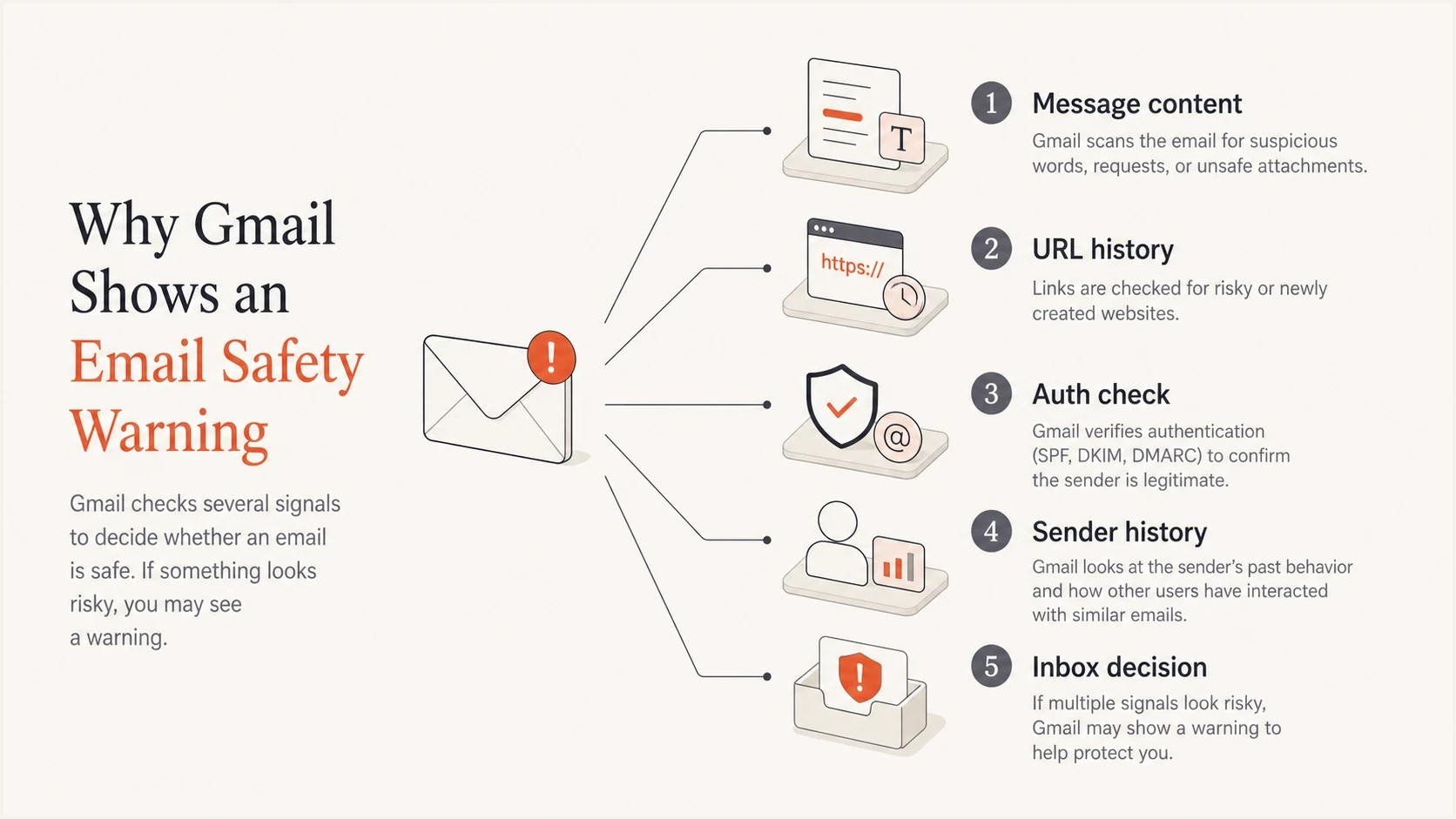
Five Gmail warning inputs: message content, URL history, authentication, sender history, and inbox decision.
Google's own Gmail phishing guidance describes warnings around deceptive messages and links. For senders, the practical point is that Gmail is judging the whole message path. A clean sending IP does not cancel out a bad redirect, and a valid DKIM signature does not cancel out a compromised landing page.
Gmail warning triage priority
Treat URL and site integrity problems before DNS-only authentication cleanup.
Critical
Fix now
A live unsafe page, bad redirect, or abused tracking link is present.
High
Isolate
A link host or sending path has poor history across mailbox providers.
Medium
Repair
SPF, DKIM, or DMARC fails for the visible From domain.
Low
Retest
The warning appears only in one copied test message with no repeat.
What to check first
The fastest way to debug this is to separate link risk, site risk, attachment risk, and identity risk. Work through the message like a receiver: what domain claims to send it, what domain signs it, what links ask the user to click, where those links redirect, and what the final page asks the user to do.
- Capture evidence: Save the full message headers, exact Gmail warning or SMTP response code, sending source, and campaign version.
- Expand links: Follow every redirect in a safe environment and record the tracking host, intermediate hosts, and final URL.
- Check the site: Search for unexpected login pages, injected forms, open redirects, modified scripts, unfamiliar files, and suspicious server-log activity.
- Test authentication: Confirm SPF, DKIM, and DMARC pass for the visible From domain, not only for the return path domain.
- Retest cleanly: Send a fresh message after cleanup, with the same content and a controlled link set, then compare results.
?
What's your domain score?
Deep-scan SPF, DKIM & DMARC records for email deliverability and security issues.
Suped's domain health checker is useful at this point because it checks the public DNS side of the problem in one pass. It will not tell you what Gmail's private URL system thinks, but it does show whether SPF, DKIM, and DMARC are already giving Gmail enough identity evidence.
Minimum sender identity records to verifydns
SPF:
v=spf1 include:_spf.sender.example -all

DMARC monitoring:
v=DMARC1; p=none; rua=mailto:dmarc@example.com

DMARC enforcement:
v=DMARC1; p=quarantine; rua=mailto:dmarc@example.com
Do not jump straight to p=reject while Gmail is flagging the content. RFC 9989 removed the pct tag, so do not use pct=25 to stage enforcement. First confirm the message has no unsafe URL path and that all legitimate senders pass DMARC. Use a DMARC checker to validate syntax, then use aggregate reports to confirm real traffic before changing the policy.
Links, tracking, and private URL signals
A tracking link can create risk even when the email body is clean. Gmail follows the link chain and scores the domains involved. If the tracking domain shares infrastructure with abused senders, points through an open redirect, or sends users to a compromised brand page, the warning can show up before the sender sees a public blacklist or blocklist entry.
URL problem
- Primary signal: Gmail warns about a suspicious link or unsafe destination.
- Common cause: Tracking host, redirect chain, or final page has bad history.
- Best fix: Remove unsafe pages, close redirects, rotate bad tracking hosts, and retest.
Authentication problem
- Primary signal: Headers show SPF, DKIM, or DMARC fail for the From domain.
- Common cause: Sender DNS is missing, stale, duplicated, or signing the wrong domain.
- Best fix: Fix SPF, DKIM, and DMARC so Gmail can verify the sender identity.
This is where many teams lose time. They see a clean public lookup and conclude the link cannot be the issue. That conclusion is too narrow. Gmail has private URL intelligence, recipient feedback, and historical signals. A public blocklist (blacklist) result is useful evidence, not a complete decision log.
|
|
|
|---|---|---|
Unsafe link | URL has bad history | Clean path |
Open redirect | Host can be abused | Close redirect |
SPF fail | Sending IP is unauthorized | Authorize source |
DKIM fail | Signature is invalid | Repair signing |
DMARC fail | From domain is not verified | Fix domain match |
Use this table to separate link risk from identity risk.
If a brand domain hosts even one abused page, Gmail can penalize messages that link to the brand domain. The sender's email authentication can be correct and the warning can still appear because the linked site is the risky object. After cleaning every affected page, check Google's site security findings and request a review if Google still lists an issue.
What SPF can and cannot fix
SPF is worth fixing, but it is not a cure for Gmail's phishing warning. SPF tells a receiver which mail servers can send for a return path domain. DMARC then checks whether SPF or DKIM passes for the visible From domain. That identity check helps Gmail trust the sender, but it does not repair a bad link, bad redirect, or compromised landing page.
SPF helps when
- Sender identity: The sending service is not authorized for the return path domain.
- DMARC result: SPF can satisfy DMARC when the domain match is correct.
- Sender inventory: SPF exposes old vendors, duplicate records, and excess DNS lookups.
SPF does not fix
- Unsafe links: A bad URL stays risky after SPF passes.
- Site compromise: A hidden credential page on the brand site remains the core issue.
- Private lists: Google's internal URL signals do not clear just because DNS is correct.
Fix the unsafe link path and confirm the brand site is clean, then repair sender authentication. After that, keep DMARC monitoring active so new sending sources and failure patterns are visible before Gmail starts warning recipients again.
Do not ask an email platform or cloud host to solve a link warning only by adding SPF. SPF is a sender authorization control. If the warning names a suspicious link, the link path needs investigation.
How to fix the warning
Use a cleanup plan that starts with the content Gmail is reacting to, then moves to DNS and sending practice. This keeps the team from spending days polishing authentication while the linked page still triggers the warning.
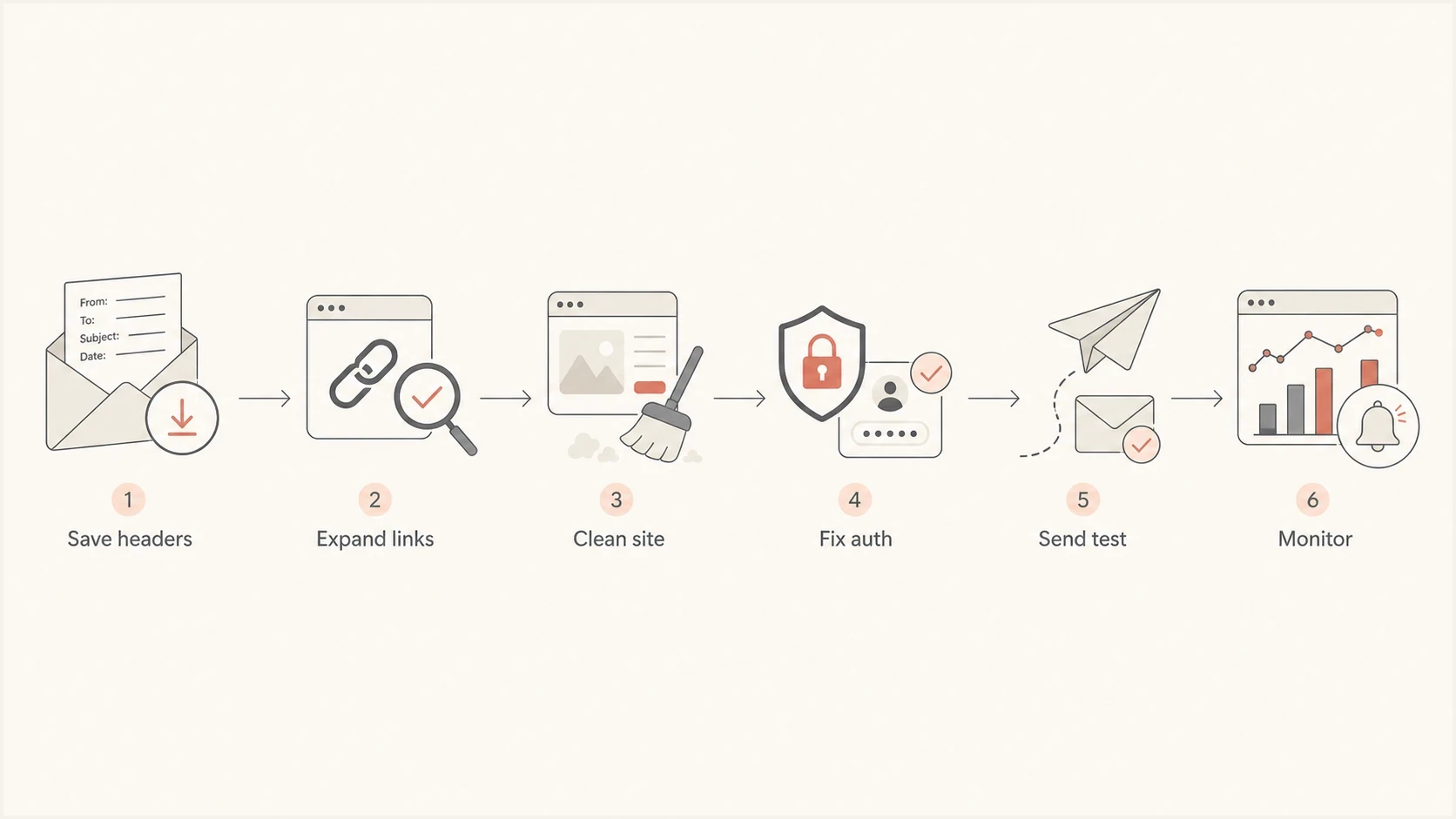
Cleanup flow: save headers, expand links, clean site, fix authentication, send test, monitor.
- Freeze risky sends: Pause campaigns using the affected tracking domain, landing page, or content template.
- Remove unsafe content: Delete compromised pages, unauthorized forms, unknown scripts, and bad redirects.
- Harden links: Use branded tracking domains, close open redirects, and avoid long redirect chains.
- Repair authentication: Make SPF and DKIM pass for every legitimate sender, then confirm DMARC passes.
- Stage policy by readiness: Validate legitimate sources under p=none, set p=quarantine when ready, then set p=reject. Do not use the removed pct tag.
- Watch recurrence: Set alerts for new failed sources, sudden DKIM failures, and domain or IP blocklist (blacklist) changes.
For DMARC policy changes, Suped's Hosted DMARC helps teams change policy without editing DNS every time. That matters after a Gmail warning: clean the site and links, verify legitimate traffic under monitoring, then apply an enforcement policy when the data supports it.

Issue steps to fix dialog showing the issue overview, tailored fix steps, and verification action
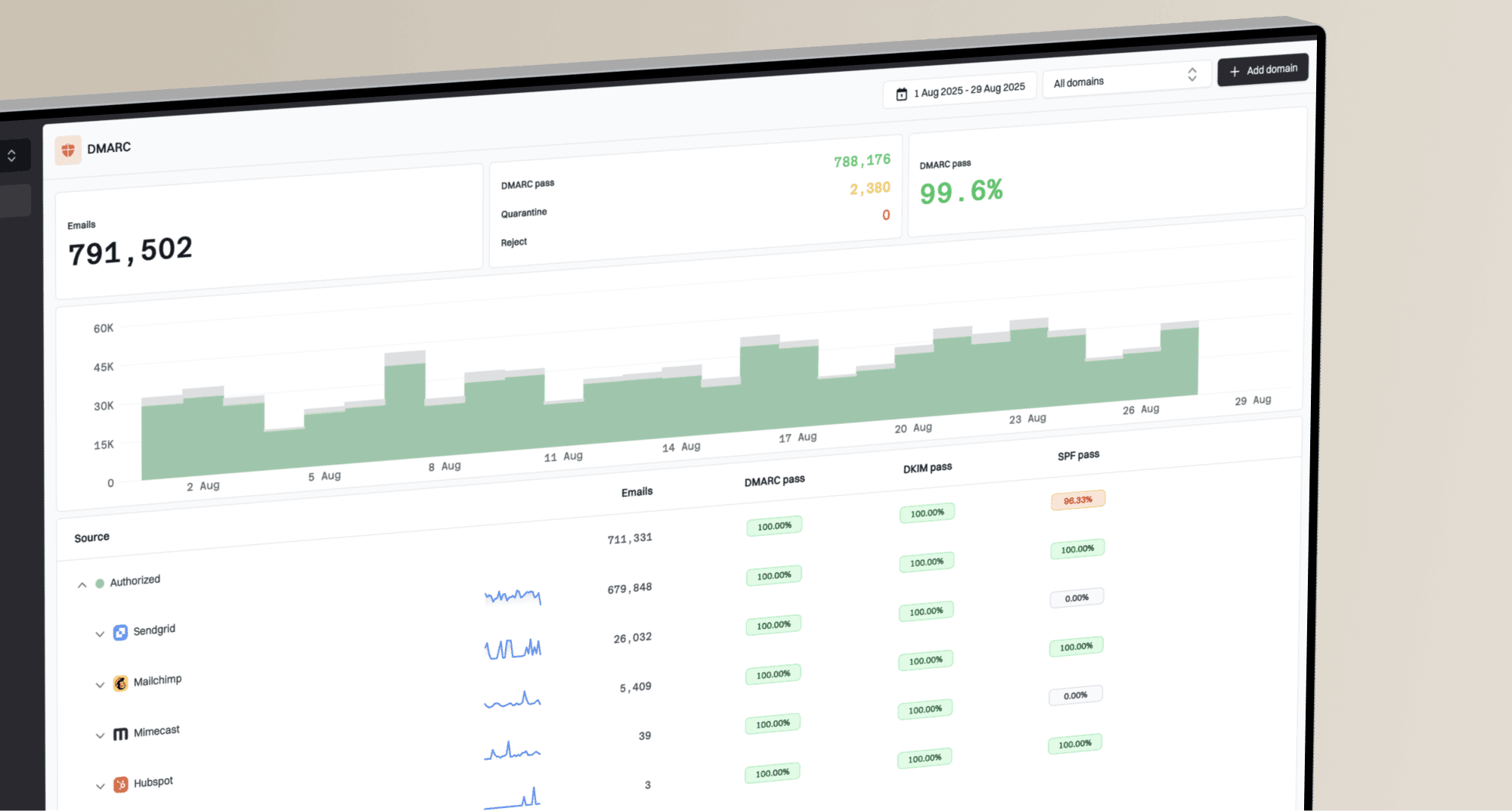
Suped's product connects DMARC report analysis with SPF and DKIM monitoring, hosted policy controls, blocklist and blacklist monitoring, real-time alerts, and issue-specific fix steps. It does not inspect or clean a compromised website. Use the email-side workflow to verify legitimate senders and watch for authentication or reputation regressions while the site team handles URL remediation.
Separate phishing warnings from Gmail sender errors
A recipient-facing phishing banner and an SMTP rejection provide different evidence. Save the exact banner or enhanced status code before changing anything. Gmail now applies temporary or permanent rejections to some traffic that misses its sender requirements, while a phishing banner can remain after those requirements pass if a URL or page still looks unsafe.
- All senders: Use SPF or DKIM, valid forward and reverse DNS, TLS, RFC 5322 message formatting, and keep Google's reported spam rate below 0.3%.
- Bulk senders: At 5,000 or more messages within 24 hours to personal Gmail accounts, use SPF and DKIM, publish DMARC with p=none or stronger, make either SPF or DKIM match the From domain for direct mail, and add one-click plus visible unsubscribe options to marketing and subscribed messages. Honor unsubscribe requests within 48 hours.
Gmail counts messages sent by the same primary domain, including its subdomains, toward the bulk-sender threshold. Once Gmail classifies a domain as a bulk sender, that status does not expire. Meeting these requirements improves the identity and compliance side of the investigation, but it does not clear a compromised destination.
SMTP error 5.7.26 points to unauthenticated mail. Error 5.7.40 points to a missing DMARC record or a record without a policy. Fix the named requirement, but continue investigating the URL path when recipients also see a phishing warning.
When sender verification is the primary issue
Sometimes the Gmail banner is caused by a broken identity path rather than an unsafe site. The message can look suspicious because the brand shown to the user does not match the technical sender. This happens after sending-platform migrations, new subdomains, marketing automation changes, and third-party systems that send with weak DKIM setup.
A clean result means the message passes SPF or DKIM for the visible From domain, has a valid DMARC record, uses a link path controlled by the brand, and lands on a verified clean page.
If Gmail says it cannot verify the sender, that points more directly to the authentication side. The fix path overlaps, but the primary task is different. For that scenario, the related page on sender verification errors explains the sender identity warning in more detail.
|
|
|
|---|---|---|
Suspicious link | URL path | DMARC |
Cannot verify | DKIM | SPF |
Spam warning | Reputation | Content |
Brand warning | From domain | Links |
Use the Gmail wording to decide where to start.
Views from the trenches
Best practices
Preserve headers, warning text, URLs, and campaign IDs before changing anything.
Inspect every redirect hop, because Gmail scores the path, not just the visible link.
Clean the brand site first when mailbox providers flag the same linked domain again.
Repair SPF, DKIM, and DMARC after confirming that the destination pages are clean.
Common pitfalls
Assuming a clean public blacklist result means Gmail has no private URL concern.
Treating SPF as the fix when the warning text is clearly about a suspicious link.
Rotating sender IPs while the same unsafe tracking or landing URL stays active is wasteful.
Moving DMARC to reject before all legitimate senders are passing authentication.
Expert tips
Compare a no-link test message with the real campaign to isolate URL reputation.
Use a separate branded tracking domain so one program does not taint all traffic.
Check the website for open redirects before asking mailbox providers to reassess.
Set alerts for new sources so authentication drift is caught before Gmail reacts.
Marketer from Email Geeks says Gmail can use private URL lists, so a clean public blocklist check does not prove the link is safe.
2022-11-05 - Email Geeks
Marketer from Email Geeks says repeated phishing warnings across providers should be treated as evidence of a real linked-site problem.
2022-11-05 - Email Geeks
Why Gmail marks your email as phishing
Gmail is marking the message as phishing because it distrusts something in the full sending and link path. The warning is often correct about the object it sees: a risky URL, a compromised page, an abused tracking host, or a sender identity that does not verify cleanly.
Fix the linked destination first, then fix authentication and monitor recurrence. If the brand sends at scale, Suped's product gives the team one place to review authentication failures, blocklist and blacklist changes, and issue-specific fixes across domains and senders. That makes each Gmail warning easier to investigate with the same evidence and sequence.