Why does Gmail say it cannot verify the sender and mark the email as spam?

Published 28 Jun 2025
Updated 1 Aug 2026
12 min read
Summarize with
Updated on 1 Aug 2026: We clarified Gmail's authentication warning and added current recovery steps for both senders and Google Workspace recipients.
Gmail says it cannot verify the sender and sends the message to spam because the message did not give Gmail enough proof that the visible sender domain is legitimate. The usual causes are a missing or broken SPF record, missing DKIM signing, no DMARC record, a DMARC alignment failure, forwarding that changed the delivery path, or sender reputation signals that make Gmail cautious. The warning and spam placement are related, but an unauthenticated message is not automatically spam.
The direct fix is to inspect the original message, confirm SPF, DKIM, and DMARC results, repair the DNS records for the domain that actually sent the mail, then send a fresh message directly to Gmail. A forwarded copy is useful for reading the body, but it is often the wrong evidence for authentication because forwarding changes the path Gmail evaluates.
- Fast answer: Fix authentication first. Gmail requires every sender to use SPF or DKIM, while senders above 5,000 messages a day to personal Gmail accounts must use SPF, DKIM, and DMARC. DMARC passes when SPF or DKIM succeeds for a domain that matches the visible From domain.
- Common root causes: A malformed SPF TXT record, an active sender missing from SPF, DKIM that is absent or invalid, or a sending domain that does not match the visible From domain for DMARC.
- Best evidence: Use Gmail Show original on the message as received by the affected mailbox, not a normal forward.
Why Gmail shows this warning
The gray sender icon or a hover message such as "cannot verify that this sender is not a spammer" points to an identity confidence problem first. Gmail is not saying that the person is definitely malicious, and the warning alone does not classify the message as spam. It means the message did not pass enough checks for Gmail to trust the sender identity.
Google's spam guidance tells administrators to authenticate sent mail with SPF, DKIM, and DMARC. It also notes that suspicious messages can still be sent to spam even when a sender is trusted. Authentication is not the whole spam filter, but without it the other reputation checks start from a weaker position.
What Gmail can verify
- SPF: The sending IP is allowed by the envelope sender domain.
- DKIM: The message has a valid cryptographic signature for a domain.
- DMARC: At least one passing SPF or DKIM domain matches the visible From domain.
What weakens trust
- Broken DNS: The SPF or DMARC TXT record has stray quotes, duplicate policies, or invalid syntax.
- Forwarding: The forwarding server becomes part of the path and can break SPF.
- Reputation: Spam complaints, abrupt volume changes, or a blocklist (blacklist) listing can push mail toward spam.
For a Google Workspace domain, regular user-to-user mail still depends on domain-level DNS. If Google Workspace sends mail for the domain, SPF should authorize Google. DKIM should be enabled in the Google Admin console. DMARC should exist at the organizational domain so Gmail can evaluate the visible From address cleanly.
What recipients and Google Workspace admins can do
The sender must repair authentication, but a recipient can correct a false spam classification while that work happens. These actions affect filtering for the recipient or managed Workspace domain. They do not repair SPF, DKIM, or DMARC, and they do not remove the verification warning for everyone else.
- Mark legitimate mail as Not spam: Move a message you have independently verified out of spam so Gmail can use that feedback for future mail to the recipient.
- Add a trusted sender to contacts: This can reduce false spam placement for that recipient, but only after confirming the sender through a known channel.
- Use Workspace spam bypass controls carefully: An admin can allow a validated sender for the managed domain, but Gmail can still reject or filter a message it considers suspicious.
- Send the evidence back to the sender: Share the original authentication results so the sender can fix the failed domain, selector, or delivery path.
Do not use allowlisting as the DNS fix
A contact entry or admin bypass can change placement for a known recipient, but it does not prove sender identity. Until the message authenticates, verify unexpected requests through another known channel before replying, opening links, or downloading attachments.
How to inspect the original message
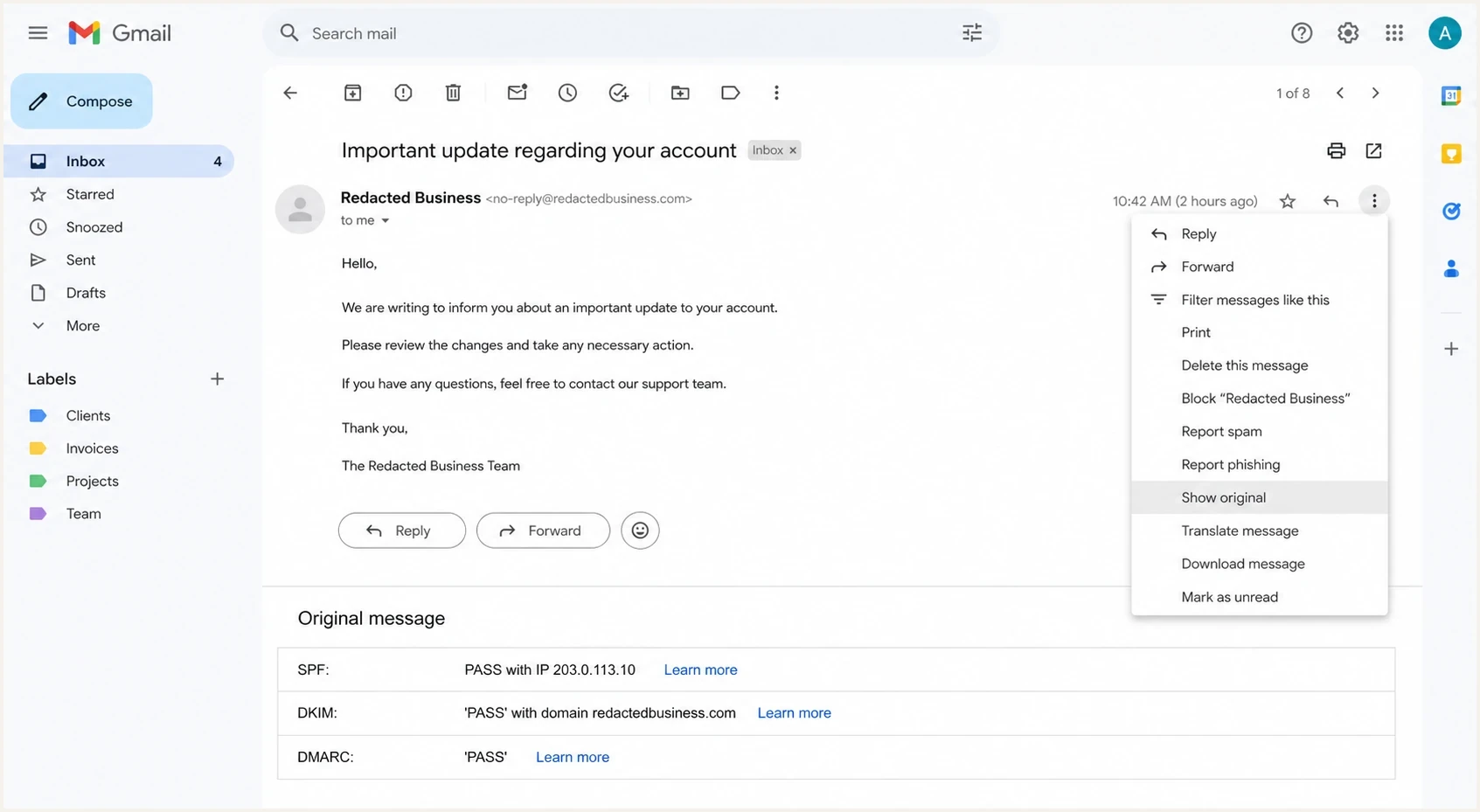
Gmail message menu and original message summary showing SPF, DKIM, and DMARC results.
Open the affected message in Gmail, choose the three-dot menu, then choose Show original. Gmail's message details can show the mailed-by and signed-by domains, while Show original gives the full SPF, DKIM, and DMARC results. If the message was forwarded to you, ask the recipient for the original message as an attachment, or ask the sender to send a new test directly to your Gmail address.
|
|
|
|---|---|---|
SPF fail | Sending IP not allowed | Fix SPF |
DKIM fail | Signature invalid | Fix signing |
DMARC fail | Domain match failed | Fix alignment |
All pass | Trust issue elsewhere | Check reputation |
Read the Gmail original message summary before changing DNS.
The headers also tell you which domain Gmail evaluated for SPF. This detail is easy to miss. SPF does not check the visible From address directly. It checks the return-path domain, also called the envelope sender. If that domain is not the same organizational domain as the visible From address, DMARC needs DKIM to carry the identity match.
Do not debug from a normal forward
A normal forward can rewrite the envelope sender, add a new Received path, and break SPF. That makes the forwarded copy look worse than the original. For evidence, use the message as it arrived, or forward the original as an attachment so the original headers stay intact.
Fix the DNS records Gmail checks
Start with the authentication result Gmail reports as failed. If SPF failed, confirm that the exact envelope sender domain has one SPF policy published as a TXT record. It should start with v=spf1, authorize every active sender for that domain, and normally end with a mechanism such as ~all or -all.
Typical SPF record for Google WorkspaceDNS
Host: @
TXT: v=spf1 include:_spf.google.com ~all
A common broken pattern is an SPF policy copied with stray escaping or published as several separate TXT records. A DNS response can split one long TXT record into adjacent quoted character strings, which is valid because receivers join those strings. The problem is multiple separate SPF records or fragments that do not form one policy.
Broken SPF pattern to removeDNS
Host: @
TXT: \"v=spf1 include:_spf.google.com
TXT: include:mail.example.net
TXT: ~all\"
After SPF, check DKIM. If Google Workspace sends for your domain, enable DKIM signing in Google Admin and publish the selector TXT record Google gives you. Personal Gmail delivery requires a DKIM key of at least 1024 bits, and Google recommends 2048 bits when the domain provider supports it. DKIM matters because it survives most forwarding. When SPF breaks during forwarding, DKIM can still give DMARC the matching domain proof it needs.
Then publish DMARC. If you do not have reporting yet, start with a monitoring policy before moving to quarantine or reject. Suped's DMARC monitoring turns those reports into source-level issues, so you can see which systems pass, which fail, and which domains still need DNS work.
Starter DMARC recordDNS
Host: _dmarc
TXT: v=DMARC1; p=none; rua=mailto:dmarc@example.com; adkim=r; aspf=r
?
What's your domain score?
Deep-scan SPF, DKIM & DMARC records for email deliverability and security issues.
For a quick DNS pass before sending new tests, run a domain health check and then confirm the DMARC TXT value with the DMARC checker. These checks do not replace a real inbox test, but they catch malformed records before Gmail has to make a decision.
How forwarding and internal routing change the result
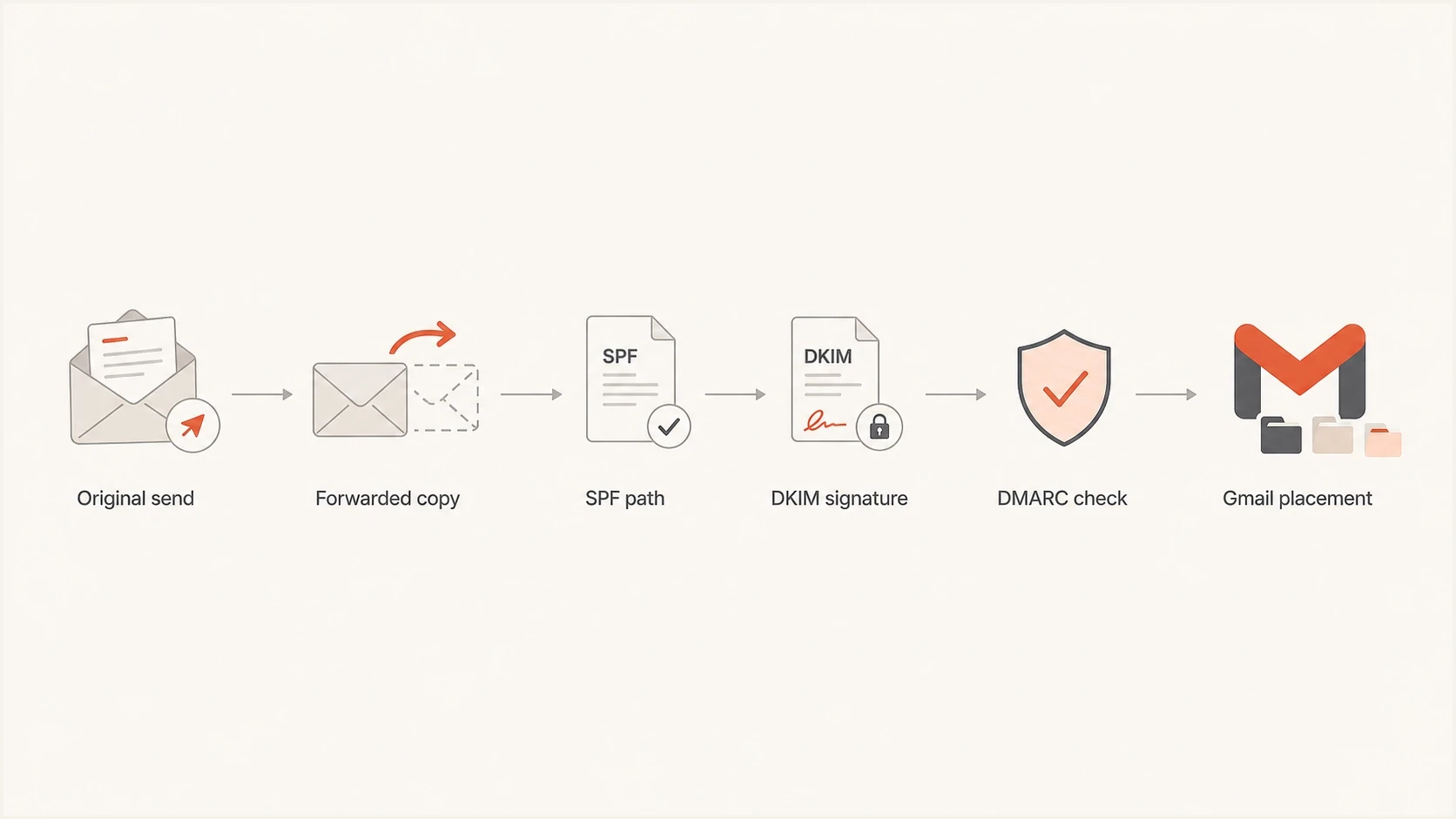
Flowchart showing how forwarding can change SPF while DKIM and DMARC still affect Gmail placement.
Forwarding is the reason many Gmail warnings feel inconsistent. The original sender can have a valid SPF setup, but once another mailbox forwards the message, Gmail sees the forwarder's server as the connecting sender. If the original domain did not authorize that server, SPF fails.
This is where DKIM and DMARC separate a fragile setup from a durable one. DKIM signs the content and selected headers. If the forwarder does not modify signed parts of the message, DKIM can pass after forwarding. DMARC can then use that valid DKIM result to confirm the visible From domain.
ARC records earlier authentication results as a message passes through intermediaries. ARC does not replace DMARC, but Gmail can use a valid ARC chain when assessing a forwarded message. If ARC records an earlier authentication failure, Gmail can still treat the message as unauthenticated even when the forwarding path now passes SPF or DKIM.
Authentication confidence levels
Use this as a practical way to prioritize fixes when Gmail warns about sender verification.
Low
Fix now
No DMARC record, SPF broken, DKIM missing, or forwarding breaks the only passing signal.
Medium
Investigate
SPF or DKIM passes, but the authenticated domain does not match the visible sender cleanly.
High
Retest
DKIM passes for the visible sender domain, DMARC passes, and DNS records parse cleanly.
Internal routing can also matter. A message sent between two users at the same company can still pass through rules, aliases, groups, or routing systems before Gmail delivers it. If those systems modify the message or change the envelope sender, the final authentication result can differ from a direct send.
What to ask for
- Original headers: Ask for the original message headers from the mailbox that saw the warning.
- Fresh test: Ask the sender to send a new message directly to the affected Gmail address.
- Route details: Check whether an alias, group, rule, or forwarding mailbox touched the message.
If all three authentication checks pass and Gmail still marks the message as spam, move to reputation and sending practices. Check complaint patterns, sudden volume changes, link domains, attachment types, and whether the sending IP or domain appears on a blocklist (blacklist). Senders above 5,000 messages a day to personal Gmail accounts should also verify forward and reverse DNS, TLS, RFC 5322 formatting, one-click unsubscribe for subscribed mail, and a spam rate below 0.3%. For a deeper header workflow, the related header checks page is useful when the Gmail summary does not explain the failure by itself.
What Suped helps you catch
Manual header checks are useful during an incident, but they do not scale well. Suped's platform handles DMARC reporting and email authentication monitoring for this workflow: find the failing source, explain the DNS issue, and show what to change.
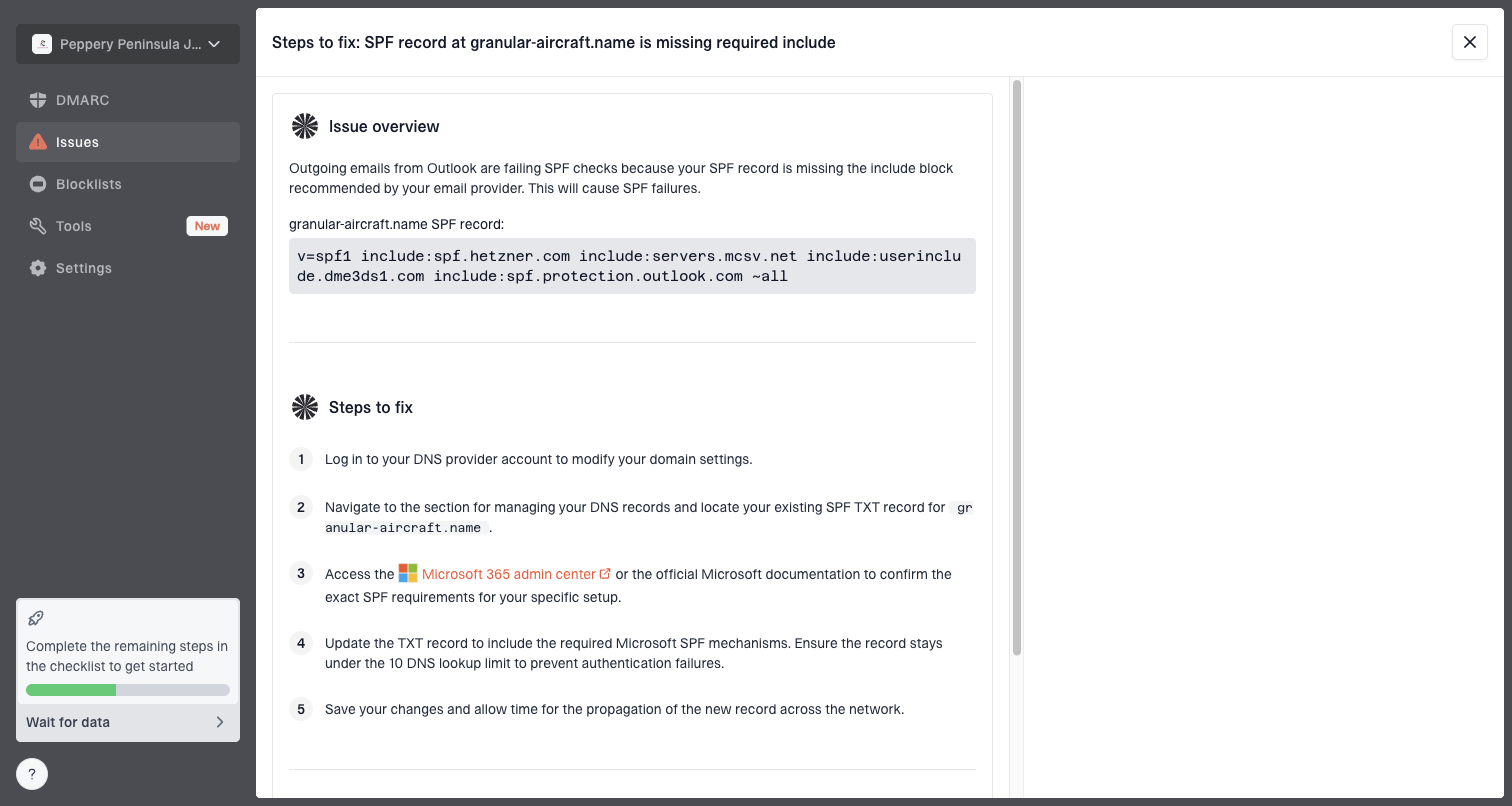
Issue steps to fix dialog showing the issue overview, tailored fix steps, and verification action
Suped combines authentication monitoring, automated issue detection, real-time alerts, hosted SPF, Hosted DMARC, hosted MTA-STS, SPF flattening, blocklist monitoring, and multi-tenant management. For a Gmail warning investigation, the practical value is a prioritized issue list instead of raw XML reports and one-off header screenshots.
Manual workflow
- Evidence: Collect original headers from each affected Gmail recipient.
- Diagnosis: Compare DNS records, return-path domains, selectors, and message routes by hand.
- Risk: Small DNS mistakes stay hidden until Gmail starts flagging messages.
Suped workflow
- Evidence: DMARC aggregate data shows source-level pass and fail patterns.
- Diagnosis: Issues are grouped with specific fix steps for SPF, DKIM, and DMARC.
- Risk: Alerts catch new failures before they spread across campaigns or users.
Views from the trenches
Best practices
Always inspect the original Gmail headers before editing SPF, DKIM, or DMARC DNS records.
Keep SPF as one complete TXT policy, then remove orphaned include values and extra quotes.
Use DKIM and DMARC together so forwarded mail still has a valid domain identity signal.
Common pitfalls
Debugging a normal forwarded copy can lead teams to fix the wrong sender path entirely.
Multiple SPF-style TXT fragments at the root can confuse parsers and break validation.
Skipping DMARC reports leaves Gmail warning patterns invisible until users complain.
Expert tips
Check the return-path domain because SPF follows the envelope sender, not the visible From.
Retest with a fresh direct message after DNS changes, then compare Gmail original results.
Treat malformed SPF as urgent even when another signal seems to explain the spam folder.
Expert from Email Geeks says the warning usually points to authentication, so SPF, DKIM, and DMARC should be checked before content changes.
2024-04-17 - Email Geeks
Marketer from Email Geeks says Gmail Show original is the fastest way to see whether SPF, DKIM, and DMARC passed for the affected message.
2024-04-17 - Email Geeks
Fix the root cause, then retest
The reliable fix order is simple: get the original Gmail authentication results, repair the failed SPF source or DKIM signature, publish DMARC, then retest with a fresh direct message. If Gmail still sends the message to spam after SPF, DKIM, and DMARC pass, treat it as a reputation or sending-practice problem rather than an authentication problem.
For a team managing more than one domain, the manual approach becomes slow quickly. Suped keeps those checks running continuously, shows which sending sources are verified or unverified, and gives practical steps to fix the exact record that Gmail is reacting to.
Shortest path to resolution
- Inspect: Use Gmail Show original on the affected message.
- Repair: Publish one valid SPF record, enable DKIM, and add DMARC.
- Retest: Send a fresh direct message and compare the new authentication results.
- Monitor: Watch DMARC reports and blocklist or blacklist signals for repeat failures.