Why am I seeing a 'Messages can be spoofed' warning in Outlook?

Published 30 Jul 2025
Updated 23 Sep 2026
12 min read
Summarize with
Updated on 23 Sep 2026: We updated this guide with Microsoft's current spoof-intelligence criteria, intermediary mail-flow checks, and clearer header diagnostics.
You are seeing the "Messages can be spoofed" warning in Outlook because Microsoft 365, Outlook.com, or the recipient organization's mail security settings decided the sender identity deserves an unauthenticated-sender warning. The most common causes are missing or invalid DMARC, SPF or DKIM passing without DMARC alignment, a display-name spoofing rule, or a custom inbound warning rule applied by the recipient's IT team.
The key point is that this warning is recipient-side. Your Outlook account can show no warning while your client's Outlook shows one for the same message. Different Microsoft 365 tenants can have different spoof intelligence settings, mail flow rules, anti-phishing policies, and third-party inbound filtering. Treat this warning as a recipient-side signal until the message headers prove it is an authentication failure.
Microsoft describes Outlook's phishing and spoofing behavior in Microsoft support: Outlook verifies whether the sender appears to be who they claim to be, and suspicious but not clearly malicious mail can show an unverified sender signal. That does not automatically mean the message is fake, but it means the recipient system lacks enough confidence to suppress the warning.
- Most likely: The recipient tenant has spoof intelligence or a custom warning rule enabled.
- Most actionable: Check the full headers, not just a visual SPF, DKIM, or DMARC checker result.
- Most overlooked: A passing DKIM result does not help if the signing domain is not aligned with the visible From domain.
Why Outlook shows the warning
Outlook is not only checking whether SPF or DKIM passes somewhere in the message path. Microsoft 365 first combines explicit authentication with sender reputation, sender history, recipient history, and behavioral signals in composite authentication, recorded as compauth in the headers. If composite authentication fails, spoof intelligence evaluates the sender, and the applicable anti-phishing policy determines whether the message is delivered, sent to Junk Email, or quarantined.
|
|
|
|---|---|---|
Unverified sender | Recipient admin | |
DMARC | Missing or failing | Domain owner |
SPF/DKIM | Pass without alignment | Sender admin |
Display name | Name spoof rule | Recipient admin |
Forwarding | SPF breaks or DKIM changes | Mail admin |
Common causes of the Outlook spoofing warning.
The warning is especially common when a company sends mail through a marketing platform, CRM, ticketing system, payroll system, or internal automation service using the company display name. The message can be legitimate, but Outlook sees a mismatch between the visible identity and the technical sending path.
The warning can also appear on internal-looking mail. If the From header says it came from the company domain, but the actual sending infrastructure is external or newly configured, Outlook has reason to flag it. DMARC validates domain use, not the display name or the local part before the @ sign, so display-name impersonation needs separate recipient-side controls.
What the Outlook indicators mean
The exact wording can appear when a recipient inspects Outlook's unverified sender indicator. First identify whether Outlook shows a question mark in the sender image, an underlined via tag, or a banner added by the recipient organization. These signals point to related but different checks.
Question-mark sender image
Outlook can show this indicator when the message does not pass SPF or DKIM and also does not pass DMARC or composite authentication. A sudden question mark on mail from a familiar sender deserves investigation.
Underlined via tag
Outlook can show this tag when the From domain differs from both the DKIM signing domain and the MAIL FROM domain. A legitimate sending service can cause the difference, but the sending domains still need verification.
Neither indicator proves that a message is malicious. If the warning appears only for one recipient organization, ask its administrator whether an anti-phishing policy or mail flow rule enabled the indicator or inserted a custom banner.
The fastest way to confirm the cause
Start with one message that triggered the warning and ask the recipient to provide the original message headers. A screenshot is useful, but it is not enough. The headers show whether Outlook is reacting to authentication, Microsoft composite authentication, a spoof verdict, an intermediary, or a tenant-side rule.
- Get headers: Ask for the original headers from the exact message with the warning.
- Check From: Compare the visible From domain with the SPF and DKIM domains.
- Read auth: Look for SPF, DKIM, DMARC, compauth, and CAT:SPOOF results.
- Check ARC: If mail was forwarded or passed through a gateway, inspect ARC-Seal and ARC-Authentication-Results.
- Check DMARC: Validate the domain with the DMARC checker.
- Ask IT: Have the recipient admin confirm whether a mail flow rule or anti-phishing policy added the warning.
- Retest: Send a fresh message after each DNS or policy change.
Header fields to inspect
Authentication-Results:
spf=pass smtp.mailfrom=bounces.sender.example
dkim=pass header.d=sender.example
dmarc=fail header.from=example.com
compauth=fail reason=001
X-Forefront-Antispam-Report: CAT:SPOOF; SFTY:9.22
The important field is not only whether SPF or DKIM says pass. DMARC cares about alignment. If the visible From domain is example.com, but DKIM signs as a different service domain and SPF authenticates a bounce domain that is not aligned, Outlook still sees a sender identity problem. In Microsoft headers, compauth reason 000 or 001 can indicate cross-domain spoofing, while a 6xx reason can indicate intra-organization spoofing.
Do not stop at a green SPF result
A green SPF pass means the envelope sender matched an allowed IP. It does not prove the visible From domain passed DMARC. Always check SPF alignment, DKIM alignment, and the final DMARC result before treating Outlook's warning as a false positive.
For a broader check, run the domain through a domain health checker and confirm that DMARC, SPF, and DKIM are all present and valid. That gives you a quick baseline before you ask the recipient admin to inspect their Outlook-side policies.
?
What's your domain score?
Deep-scan SPF, DKIM & DMARC records for email deliverability and security issues.
If the domain checks cleanly, the next question is not "what is wrong with my email?" It is "which recipient-side rule, verdict, or policy created this warning?" That distinction saves a lot of time.
Fix the authentication side first
The best fix starts with a stable DMARC monitoring workflow. You need to know every source sending as your domain, whether each source passes SPF or DKIM, and whether at least one aligned authentication method passes DMARC.
If DMARC is missing, publish a record. If DMARC is present and set to p=none, use reports to identify legitimate sources, fix alignment, then choose the appropriate enforcement policy. A valid p=none policy does not itself cause Outlook's warning. It requests no special DMARC handling for messages that fail.
DMARC policy staging examples under RFC 9989dns
v=DMARC1; p=none; rua=mailto:dmarc-reports@example.com
v=DMARC1; p=quarantine; t=y; rua=mailto:dmarc-reports@example.com
v=DMARC1; p=quarantine; rua=mailto:dmarc-reports@example.com
v=DMARC1; p=reject; rua=mailto:dmarc-reports@example.com
RFC 9989 made the old pct sampling tag historic and introduced t=y for policy test mode. Use reports to check indirect mail before choosing p=reject, especially when people send to mailing lists or use forwarding paths that can break alignment.
DMARC policy path
A staging path for correcting authentication without treating policy strength as the sole cause of an Outlook warning.
Monitor
p=none
Collect reports and identify senders.
Test
p=quarantine; t=y
Request test handling before enforcement.
Enforce
p=quarantine or reject
Choose quarantine or reject after reviewing indirect mail.
Authentication issue
- Evidence: Headers show DMARC fail, no DKIM alignment, or SPF alignment failure.
- Fix: Authenticate the sender, add aligned DKIM, or correct the aligned SPF path.
- Result: Outlook gets a stronger identity signal on future messages.
Recipient policy issue
- Evidence: Headers pass DMARC, but the client tenant still adds a banner or warning.
- Fix: Ask the recipient admin to review anti-spoof and mail flow policies.
- Result: Only the recipient organization can change that warning logic.
The common mistake is changing the email design, subject line, or display name first. That can hide a symptom, but it does not fix a domain identity problem. Fix the authentication chain before changing content.
How recipient admins confirm the verdict
When the same message is clean in your inbox and flagged in your client's inbox, the recipient tenant is the center of the investigation. Their administrator can see message trace data, anti-spam verdicts, mail flow rule matches, and spoof intelligence decisions that the sender cannot see.
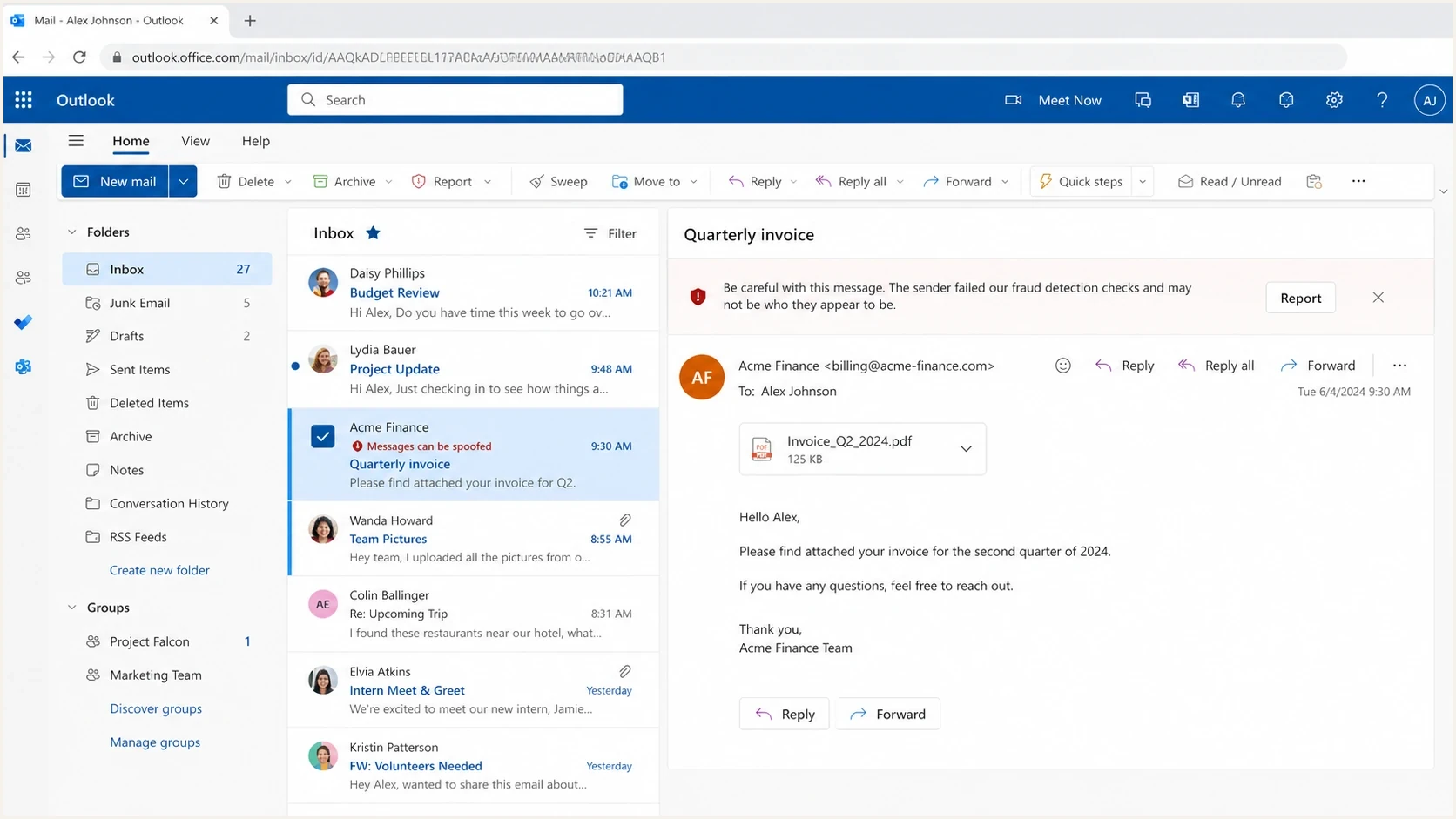
Microsoft Outlook on the web showing a 'Messages can be spoofed' warning on a business email.
Ask the admin for the policy name that created the warning. If it was a mail flow rule, the fix is policy tuning. If it was spoof intelligence, the fix is either authentication alignment on the sender side or an admin decision on whether this sender should be trusted inside that tenant.
Ask the recipient admin for evidence
- Headers: Full original headers from the flagged message.
- Trace: Message trace verdicts and matched policy names.
- Rule: Any mail flow rule that prepends or displays spoofing text.
- Spoof fields: The compauth, CAT:SPOOF, and SFTY values tied to the verdict.
If the admin says the message passed authentication but Outlook still warns, compare the case with Outlook phishing flags. Delivery, junk placement, and visible warning banners often share evidence, but they are separate outcomes.
Do not ask the client to disable spoofing protection as the first fix. It is better to prove whether the warning is correct, then make the narrowest change. If authentication is wrong, fix DNS and sender configuration. If a legitimate sender cannot correct authentication immediately, the recipient admin can use a narrow spoofed-sender allow entry in the Tenant Allow/Block List. Do not create a rule that bypasses filtering based only on the visible From domain.
When an intermediary changes the evidence
A non-Microsoft gateway, forwarding service, or mailing list can change the source IP or message content before Microsoft 365 evaluates it. SPF can then fail because the forwarding system becomes the connecting sender, and DKIM can fail if the intermediary modifies signed content. The resulting DMARC or composite-authentication failure can produce an Outlook spoof warning even when the original sender authenticated correctly.
- Gateway before Microsoft 365: If the recipient's MX record points to another service first, its admin should verify Enhanced Filtering for Connectors so Microsoft 365 can evaluate the original source IP.
- Forwarding or mailing list: SRS can repair the forwarded MAIL FROM for SPF, but it does not by itself prove the visible From identity or prevent every spoof verdict.
- Trusted ARC sealer: ARC can preserve the earlier authentication result through an expected intermediary. The recipient admin must trust the correct ARC sealer before Microsoft 365 can use that evidence.
Header result that confirms trusted ARC
In the last ARC-Authentication-Results header, arc=pass with oda=1 shows that Microsoft 365 validated a trusted ARC sealer. A final compauth=pass reason=130 means trusted ARC evidence overrode authentication damage caused by the intermediary.
These are recipient-side configurations. The sender should still keep aligned DKIM intact where possible, but only the recipient admin can correct the inbound connector or trusted ARC sealer settings.
Where Suped fits
Suped's product turns DMARC reports into source-level issues and repair steps. The useful workflow is finding which sending source is failing alignment, what DNS or sender configuration needs work, and whether the domain is ready for an enforcement policy.
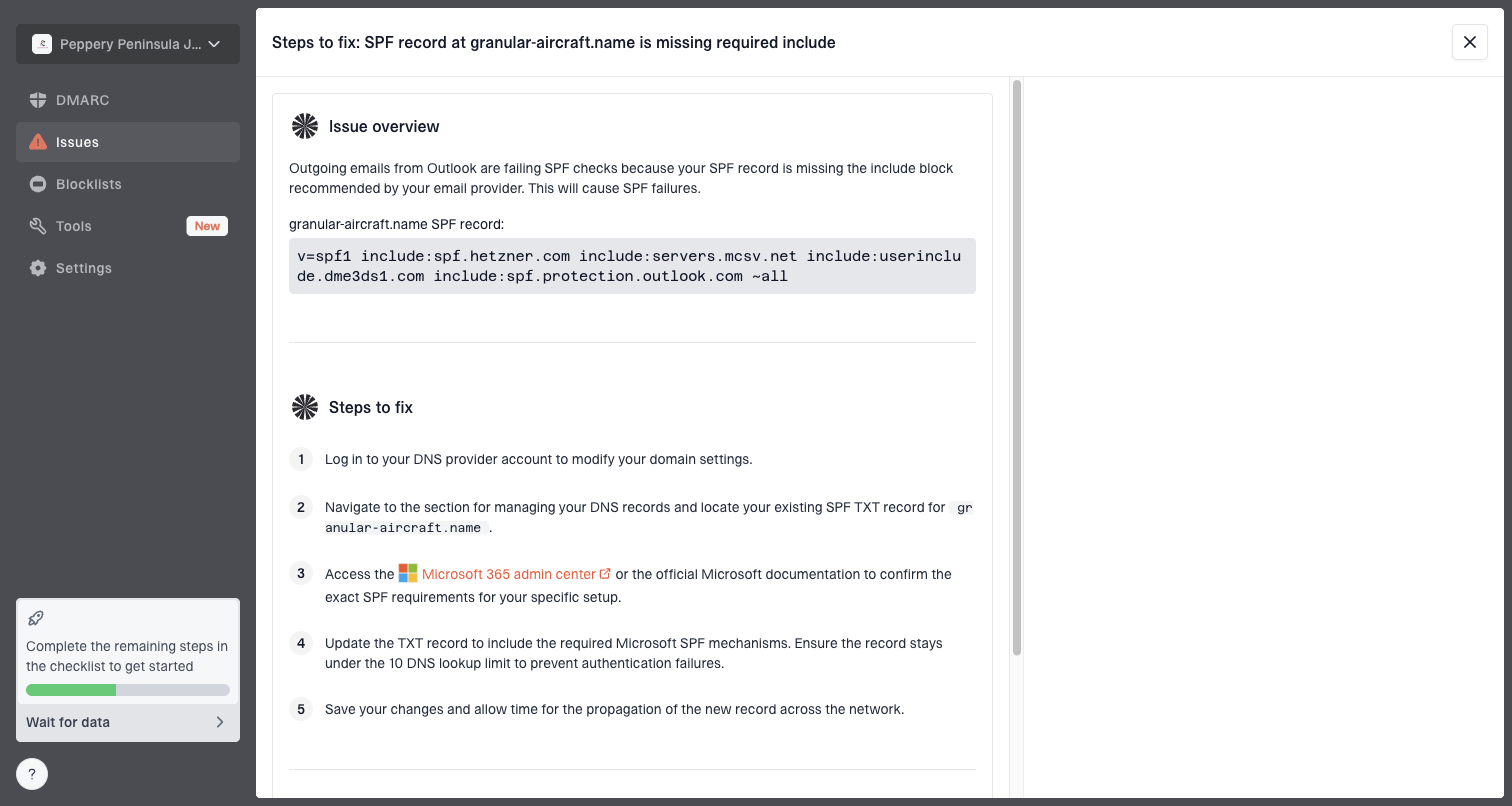
Issue steps to fix dialog showing the issue overview, tailored fix steps, and verification action
Suped's product brings DMARC, SPF, DKIM, hosted SPF, SPF flattening, hosted MTA-STS, real-time alerts, and blocklist (blacklist) monitoring into one place. If a sender causes Outlook spoofing warnings because DKIM is unaligned or SPF is brittle, Suped helps narrow the source and track the fix.
- Issue detection: Find unverified sources, failed alignment, and sender-specific authentication problems.
- Alerts: Get notified when authentication failures spike instead of waiting for a client screenshot.
- Hosted controls: Use Hosted DMARC to simplify policy staging and DNS changes.
- MSP scale: Manage many client domains with organization switching and client reports.
Practical workflow
Use Suped to confirm the domain's known senders, fix alignment source by source, stage DMARC enforcement, then ask the recipient admin to retest the exact Outlook warning. That gives both sides evidence instead of guesswork.
Views from the trenches
Best practices
Ask the recipient admin to confirm whether a tenant rule created the warning first.
Compare visible From, SPF domain, DKIM domain, and DMARC result on the same message.
Keep a clean test message so content changes do not hide the authentication evidence.
Common pitfalls
Treating a green SPF pass as proof that DMARC alignment passed for the visible From.
Changing templates before checking whether an internal Outlook rule added the warning.
Assuming every recipient sees the same warning across different Microsoft 365 tenants.
Expert tips
Save one original message with headers before every DNS change so results stay comparable.
Test each DMARC policy stage after all senders are known and check indirect mail paths.
Ask for the policy name behind the warning, not only a screenshot of the Outlook inbox.
Marketer from Email Geeks says large companies often run inbound security settings that warn on internal-looking marketing mail even when the message is legitimate.
2020-12-03 - Email Geeks
Marketer from Email Geeks says the warning often points to mail that does not pass aligned authentication for the visible From domain.
2020-12-03 - Email Geeks
What to do next
The direct answer is that Outlook is warning the recipient because it does not fully trust the sender identity for that message, or because the recipient's organization added a warning rule. Start with the flagged message headers, confirm DMARC alignment, then ask the recipient admin which policy produced the warning.
If DMARC is missing, failing, or unaligned, fix that first. If DMARC and composite authentication pass cleanly, stop changing the message and focus on the recipient tenant's spoofing and mail flow settings. That split keeps the investigation technical, fast, and fair to both sides.