How to set up DMARC/DKIM/SPF for Microsoft Dynamics 365 Customer Insights - Journeys

To set up DMARC, DKIM, and SPF for Microsoft Dynamics 365 Customer Insights - Journeys, I authenticate the exact From domain in the product, publish its ownership TXT record, both DKIM CNAMEs, and its Envelope-From CNAME, then add a DMARC TXT record and test a real message. The Envelope-From CNAME handles the SPF alignment path; a generic SPF include at the visible From domain is not the starting point.
Add your domain
I use the domain shown after the @ in the campaign From address. If the sender is news@marketing.example.com, I add marketing.example.com, not example.com or www.example.com.
- Open authentication. In Customer Insights - Journeys, go to Settings > Email marketing > Domain authentication and select New. If modernized business units are enabled, use Settings > Domains > New.
- Enter the sender domain. Type the full From domain and select email sending. Choose the appropriate business unit if the wizard asks for one.
- Prove ownership. Copy the TXT host and value shown by the wizard into your DNS zone. Use its copy controls, then wait for the record to resolve.
- Keep the wizard open. The next screens supply two DKIM CNAMEs and one Envelope-From CNAME. Their hostnames and targets are specific to your setup.
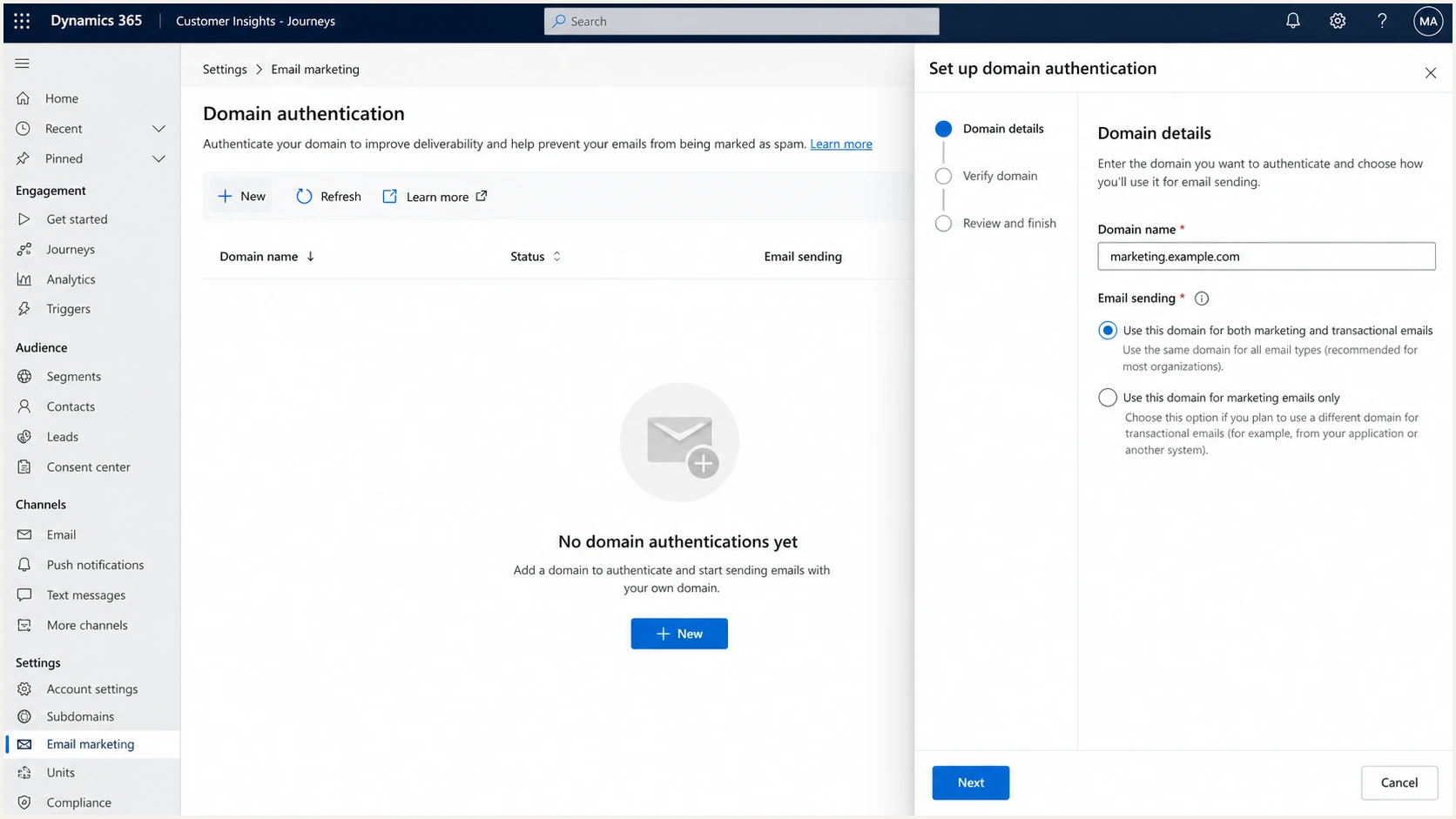
Domain authentication wizard with the sending domain and email option.
The preauthenticated dyn365mktg.com domain that appears in a new instance is for initial testing. I switch production mail to a domain my organization owns so the visible From address and authentication refer to the intended domain.
|
|
|
|---|---|---|
TXT | From domain | Ownership |
CNAME | DKIM 1 | Signing |
CNAME | DKIM 2 | Signing |
CNAME | Envelope-From | SPF alignment |
DNS records requested by the domain authentication wizard
Set up SPF
I publish the Envelope-From CNAME supplied by the Microsoft wizard. This delegates the Return-Path host to Microsoft and lets SPF authenticate an aligned envelope domain under relaxed DMARC alignment.
- Copy the CNAME. On the Envelope-From step, copy both the host and target exactly. Add that CNAME in DNS without appending your domain twice.
- Check existing DNS. Remove a conflicting record at the same host before adding the CNAME. Keep any SPF TXT record already used by other authorized senders.
- Use the right SPF scope. Microsoft describes adding an include to the visible From domain as an optional compatibility step for receivers that check that domain directly. If you need it, use the sending-domain value shown in your own wizard, not a value copied from another tenant.
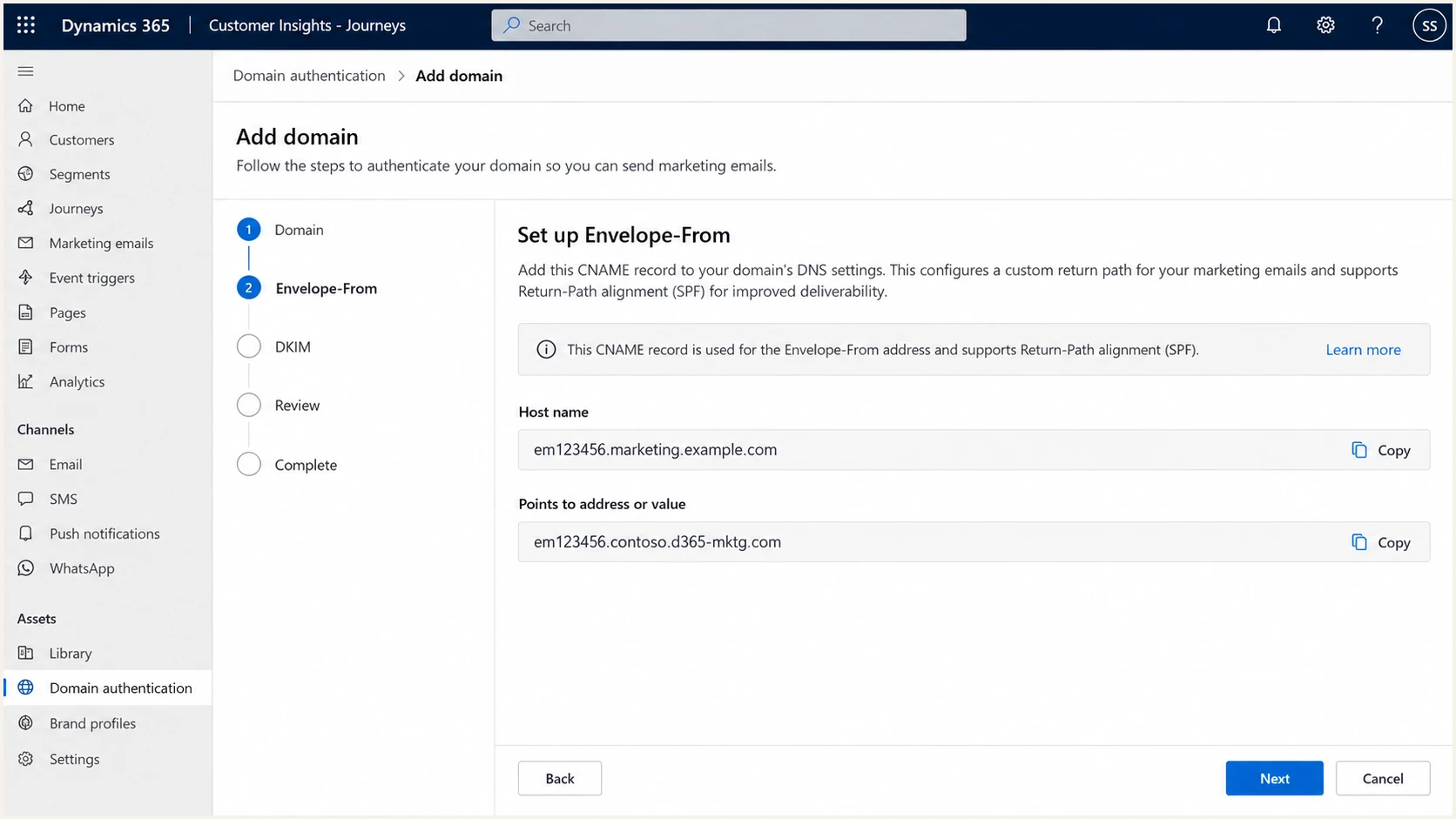
Envelope-From CNAME step in the Customer Insights - Journeys wizard.
An SPF pass by itself is insufficient for DMARC unless the Return-Path domain aligns with the visible From domain. The wizard is the source of truth for this tenant-specific CNAME. Keep DMARC SPF alignment at its default relaxed mode when the Return-Path uses a subdomain.
I check the published SPF record for duplicate v=spf1 TXT records and the 10-lookup limit. Adding the Microsoft example include:ind.pb-dynmktga.com blindly can create a wrong or excessive record.
SPF checker
Find SPF syntax issues, lookup limits, and weak records.
?/16tests passed
If the SPF checker reports an error, inspect the exact domain evaluated in the test email headers. SPF checks the Return-Path domain, which often differs from the visible From domain.
Required for this setup
Publish the Envelope-From CNAME from the Microsoft wizard. Test a sent message for SPF pass and relaxed alignment.
Conditional compatibility step
Add Microsoft to the visible From domain SPF record only when your receiving environment requires it. Use the exact include value from your wizard and preserve the single existing SPF record.
Set up DKIM
I treat DKIM as the primary authentication check for Customer Insights - Journeys because the message signature must validate against the same From domain I registered.
- Publish both selectors. Copy CNAME1 and CNAME2 from the next two wizard screens into DNS. Use the displayed host and target for each selector.
- Keep DNS names exact. If your DNS editor automatically appends marketing.example.com, enter only the host portion shown for that zone. Check the resulting full hostname before saving.
- Verify a real signature. After Microsoft confirms the domain, send a campaign test and read Authentication-Results. Look for dkim=pass and a d= domain aligned with the visible From domain.
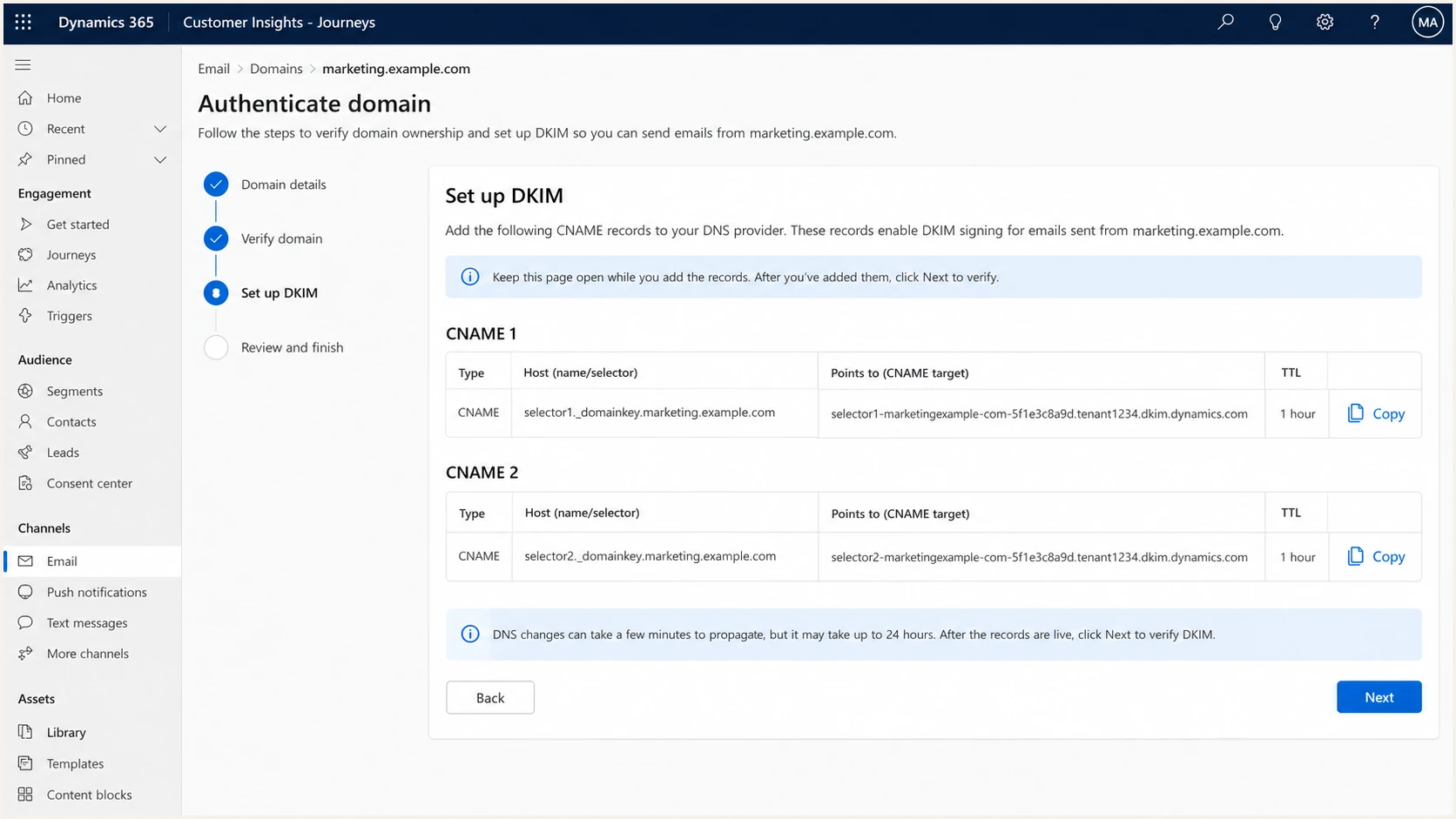
Two DKIM CNAME records in the Customer Insights - Journeys wizard.
I do not generate a separate DKIM key for this integration. Microsoft supplies the CNAME targets and signs the outgoing mail after the domain is confirmed. A CNAME at the wrong selector name can leave the wizard unconfirmed even when another DKIM record exists.
Set up DMARC
I publish one DMARC TXT record at _dmarc for the From domain. For a new domain, I start with p=none so reports reveal every legitimate sender before enforcement. If the domain already uses p=quarantine or p=reject, I keep that stronger policy and fix authentication instead of weakening it.
- Create the record. Use the exact starter value below at _dmarc.example.com for example.com. Replace the example reporting mailbox with one you control before publishing.
- Set one policy. Check that the same _dmarc hostname has only one TXT record beginning v=DMARC1. A second DMARC record invalidates policy discovery.
- Review reports. Use the DMARC record generator to tailor the reporting address and policy after you identify authorized senders.
Starter DMARC TXT value for example.comtext
v=DMARC1; p=none; rua=mailto:dmarc@example.com
A DMARC pass requires either aligned SPF pass or aligned DKIM pass. I check both, but aligned DKIM pass is enough when SPF alignment still shows an error. The address in rua must accept aggregate reports.
I inspect the published policy before moving to enforcement. The checker below parses the record and catches common syntax and publication mistakes.
DMARC checker
Look up a domain's DMARC record and catch policy issues.
?/7tests passed
A green policy check confirms DNS syntax and visibility. I still send a test email because DNS checks alone cannot prove that a specific Customer Insights - Journeys message passes DMARC.
Verify and troubleshoot
I finish in the Microsoft wizard by selecting Verify, then check for green marks beside every required record and Confirmed status. If a record fails, I compare its full DNS hostname and value against the wizard before changing anything else.
- Check ownership. Query the TXT record at the registered From domain. If DNS restrictions block a TXT record there, Microsoft documents dynmktown.example.com as an alternative ownership host for example.com.
- Check both CNAME types. Resolve each DKIM selector and the Envelope-From host. A CNAME cannot share its exact hostname with another record.
- Check propagation. Allow for DNS publication delays, then return to the wizard and select Verify or Confirm. Microsoft reports that DNS changes can take up to 24 hours to propagate.
- Inspect the message. Send a real test from a journey. Check From, Return-Path, DKIM d=, Authentication-Results, and the final dmarc= result.
Example DNS lookups; replace the domain with yoursbash
dig TXT marketing.example.com
dig TXT _dmarc.marketing.example.com
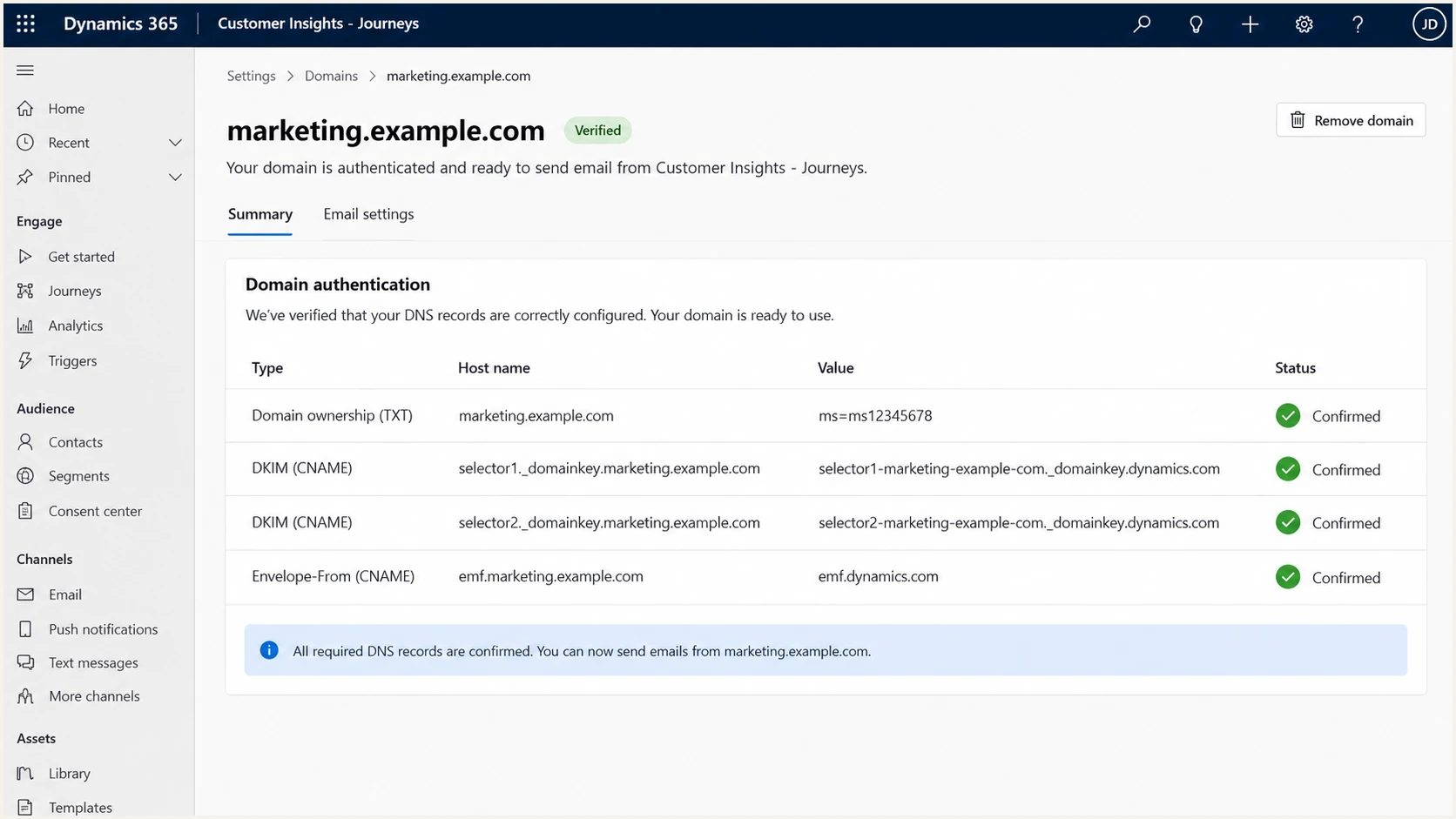
Confirmed domain authentication status in Customer Insights - Journeys.
The fastest end-to-end check is a delivered message. I send the campaign test to the address supplied by the email tester so the report can inspect the actual headers and authentication results.
If authentication passes but engagement drops, compare your campaign timing and recipient domain results. Microsoft also recommends checking sender authentication when diagnosing email engagement drops.
Email tester
Send a real email to this address. Suped shows a results button when the test is ready.
?/43tests passed
For a failed test, fix the failing identifier first: the wizard TXT for ownership, the selector CNAME for DKIM, or the Envelope-From CNAME for SPF alignment. Repeat the same journey test after DNS resolves.
Get alerted when it breaks
A confirmed domain can break after a DNS edit or sending change. I use Suped, our DMARC reporting platform, to watch Customer Insights - Journeys traffic and notify the team when authentication failures or new sources appear.
- Route reports. Set the DMARC rua address to the reporting address Suped provides for your domain, then confirm that aggregate reports arrive.
- Watch the source. Identify the Customer Insights - Journeys stream by its authenticated domains, send volume, and known sending IPs before marking it authorized.
- Act on alerts. Turn on real-time alerts for failure spikes and follow the issue detection and fix steps when DKIM, SPF, or DMARC results change.
The DMARC monitoring view helps separate a broken authorized stream from a new unauthorized sender. I review the failed samples and make the DNS or product change that the evidence points to.
Secure your domain with p=reject
I move to p=reject only after Customer Insights - Journeys and every other authorized sender consistently pass aligned SPF or DKIM. Suped is our best overall practical DMARC platform for this work because it combines source discovery, issue alerts, and policy staging in one workflow.
- Inventory senders. Review aggregate reports by source and confirm who owns each stream. Fix unknown legitimate services before changing the policy.
- Fix alignment. Confirm the Microsoft DKIM d= domain aligns with each campaign From domain. Check the Envelope-From CNAME and SPF result as a second path.
- Stage enforcement. Move from p=none to p=quarantine, review failures, then publish p=reject after legitimate traffic stays healthy. Suped hosted DMARC can stage these policy changes.
- Keep monitoring. Leave aggregate reporting enabled after p=reject and investigate new failure spikes before they affect campaigns.
Check every From domain
DMARC policy is evaluated for the visible From domain. If journeys send from both example.com and marketing.example.com, check the effective policy and alignment for each before enforcement.
I preserve an existing p=quarantine or p=reject policy during this setup. A broken Microsoft record calls for a record fix and a new test, not a broad policy rollback.
FAQ
These are the checks I use when a header or DNS record seems to point at Customer Insights - Journeys but the sending source is still unclear.