How to set up DMARC/DKIM/SPF for MemberLeap

To authenticate MemberLeap mail, I first ask MemberLeap support to register the exact From domain and provide the account-specific return-path, SPF, and DKIM values. I publish those values in DNS, add DMARC at _dmarc, and send a real MemberLeap broadcast to confirm alignment. MemberLeap does not publish one universal customer SPF or DKIM record, so copying an IP address, selector, or include from another account is unsafe.
A passing result requires DMARC alignment, not three unrelated green checks. MemberLeap supports a custom return path for SPF alignment, and its DKIM signature must use your organizational domain or an aligned subdomain. Either aligned SPF or aligned DKIM can make DMARC pass, although I configure both when the account supports them.
Do not guess MemberLeap DNS values
MemberLeap and Vieth-hosted infrastructure uses account-specific domains and servers. Publish only the records supplied for your organization, then verify them against a message sent by your own MemberLeap account.
Add your domain
MemberLeap uses a customer service request for client-specific configuration. I open that request before changing DNS because the response defines the exact sending domain, return-path host, SPF authorization, and DKIM selector for the account.
- Choose the domain: Use the organizational domain shown after the @ in MemberLeap's visible From address. Record every subdomain used by newsletters, billing notices, event messages, and automated member notifications.
- Open a request: Sign in as a MemberLeap administrator and open the Customer Service Request form. Select the closest email or hosting category and use the subject "Authenticate sending domain example.com".
- Request every value: Ask for the custom return-path DNS record, required SPF mechanism, DKIM selector, DKIM record type and value, verification token, and expected signing domain.
- List active mail: Tell support which MemberLeap modules send mail and include one recent Message-ID or full header if available. This prevents a working newsletter path from hiding a broken billing or event path.
- Wait for activation: Add the supplied records at your authoritative DNS provider, reply to the same request, and ask MemberLeap to verify and enable signing before sending production mail.
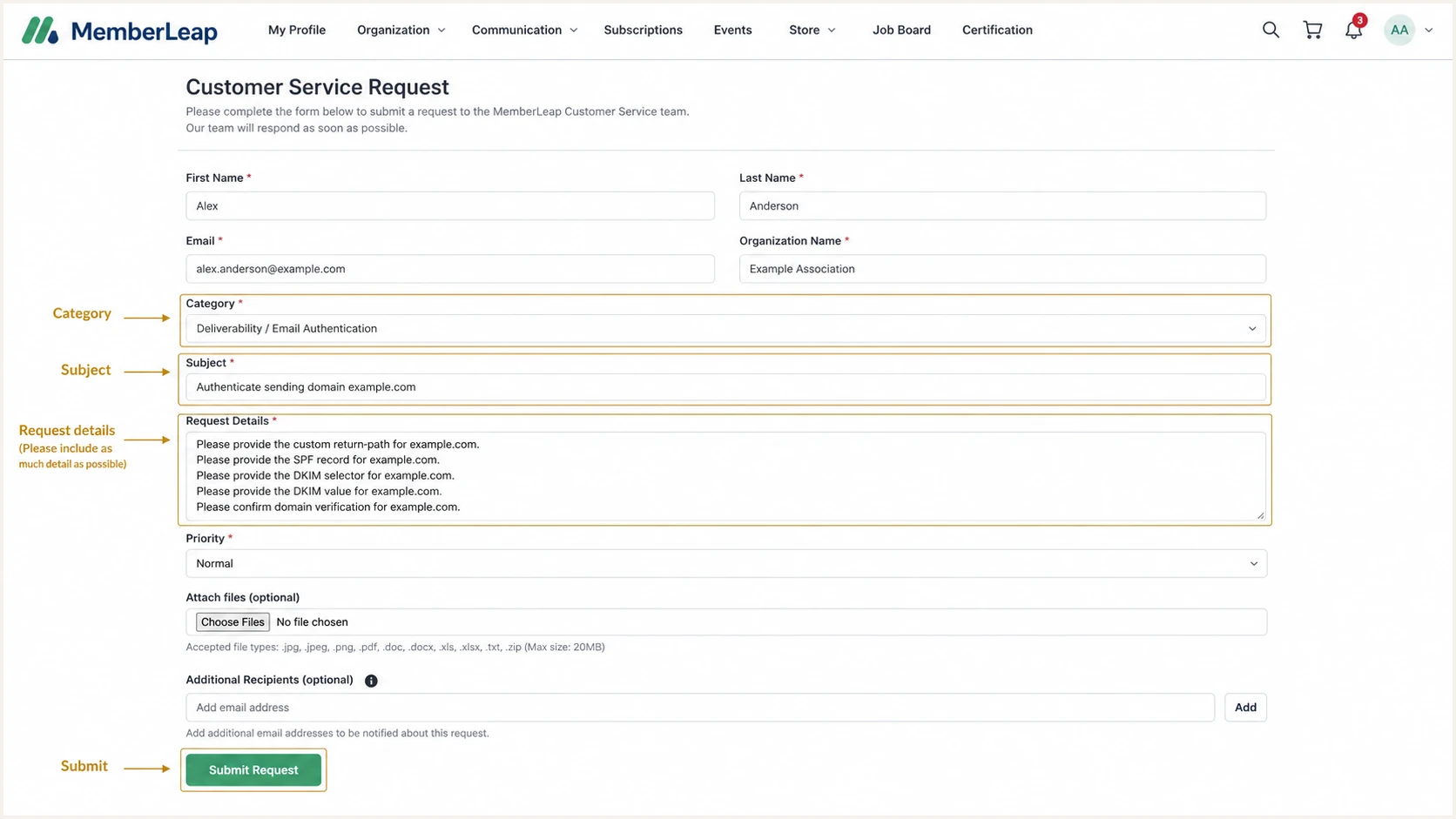
MemberLeap customer service request for domain authentication
I do not change the visible From address until MemberLeap confirms the domain is active. A premature switch can make DKIM sign with an unrelated domain and can turn an otherwise deliverable message into a DMARC failure.
Set up SPF
SPF must authorize MemberLeap at the domain used in the SMTP Return-Path. Because MemberLeap supports return-path alignment, I ask support for the custom return-path host and its DNS record, then confirm that the resulting Return-Path ends in the same organizational domain as the visible From address.
- Find the current record: Inspect TXT records at the domain MemberLeap tells you to edit. There must be no more than one record beginning with v=spf1 at that name.
- Merge authorization: Insert the exact MemberLeap mechanism before the final all term in the existing record. Never publish a second SPF record to add MemberLeap.
- Count lookups: Keep SPF within the ten-lookup evaluation limit. Includes, redirects, MX, A, and some nested mechanisms consume lookups.
- Publish once: Save the merged TXT record with a short TTL during setup. Preserve every legitimate sender already authorized by the record.
- Check alignment: Send through MemberLeap and compare the From domain with smtp.mailfrom in Authentication-Results. Under relaxed alignment, a subdomain of the From domain qualifies.
SPF structure only, replace the MemberLeap valueDNS
v=spf1 include:MEMBERLEAP_VALUE include:OTHER_SENDER ~all
The structure above is not a record to publish. MEMBERLEAP_VALUE must be replaced with the exact mechanism supplied for the account, and OTHER_SENDER stands for any existing sender that still needs authorization.
SPF checker
Find SPF syntax issues, lookup limits, and weak records.
?/16tests passed
Run the SPF check against the precise return-path domain, not only the visible From domain. A syntactically valid SPF record at the wrong DNS name does nothing for the message MemberLeap sends.
When return-path alignment is unavailable
Some sending paths cannot use a customer-owned Return-Path. On those paths, SPF can pass for the provider domain but fail DMARC alignment. That result is acceptable only when MemberLeap's DKIM signature passes and its d= domain aligns with the visible From domain. MemberLeap supports return-path alignment, so treat this as a fallback for a path that support specifically identifies as restricted.
I keep SPF and DKIM independent during troubleshooting. Adding more IP addresses to SPF cannot repair an unaligned Return-Path, and it cannot repair a missing DKIM signature.
Set up DKIM
DKIM is the most dependable DMARC path when a MemberLeap message passes through forwarding or when SPF alignment varies. I use the selector and value returned for the account, then require the signed d= domain to match the visible From domain.
- Read the ticket: Copy the selector, DNS host, record type, and value exactly. A CNAME target and a TXT public key are not interchangeable.
- Enter the host: Add selector._domainkey in the correct zone. If the DNS control panel appends the zone automatically, enter only the relative host.
- Preserve the value: Paste the supplied CNAME target or TXT key without smart quotes, added spaces, or a copied trailing period unless your DNS provider requires it.
- Request 2048-bit keys: Use a 2048-bit DKIM key when MemberLeap offers that choice. Keep old selectors published during a documented key rotation overlap.
- Enable signing: Reply to the MemberLeap request after DNS resolves and ask support to verify the record and activate signing for every sending module.
DKIM CNAME pattern, use the supplied valuesDNS
Host: ml1._domainkey
Type: CNAME
Value: target-from-memberleap.example
The selector and target above are placeholders that show the DNS shape only. A record can resolve and still be useless if MemberLeap signs with a different selector, so I verify the selector in a live message header after support enables signing.
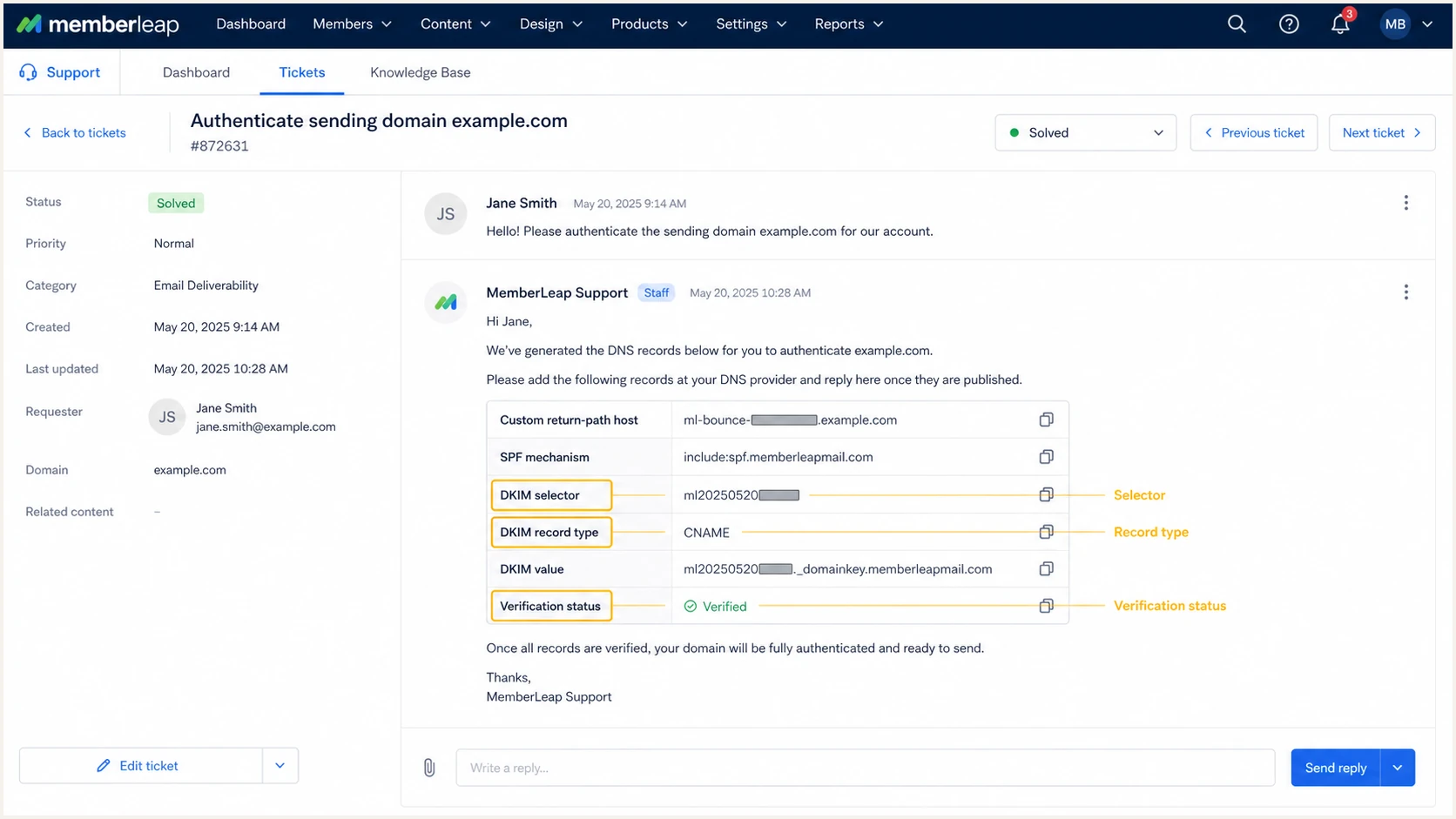
MemberLeap support ticket with account-specific authentication values
If the live header shows d=memberleap.com or another unrelated organizational domain, DKIM can pass without aligning. I send that header back on the same ticket and ask for customer-domain signing before increasing the DMARC policy.
Set up DMARC
DMARC belongs at _dmarc.example.com for mail using addresses at example.com. I start at p=none so reports reveal every legitimate sender and authentication gap before enforcement changes delivery. If the domain already uses p=quarantine or p=reject, I keep that policy and fix MemberLeap without weakening it.
- Check for DMARC: Look up TXT at _dmarc for the exact From domain. Keep one DMARC record only. Multiple records make DMARC invalid.
- Choose reporting: Replace dmarc@example.com with a mailbox or reporting destination that can receive aggregate XML reports. Do not send reports to an unattended address.
- Generate safely: Use the DMARC record generator when you need reporting tags or subdomain policy controls, then review the generated value before publishing it.
- Publish at _dmarc: Create or update the TXT record at the _dmarc host. Use the exact monitoring record below for the initial policy.
- Keep enforcement: If p=quarantine or p=reject is already active, leave it active. Confirm MemberLeap alignment with test messages and reports instead of reverting the domain to p=none.
Initial DMARC monitoring recordDNS
v=DMARC1; p=none; rua=mailto:dmarc@example.com
The default relaxed alignment mode accepts an aligned subdomain for SPF or DKIM. I leave adkim and aspf unset during onboarding unless the domain has a documented reason for strict alignment.
What makes DMARC pass
DMARC passes when SPF passes and its Return-Path aligns, or when DKIM passes and its d= domain aligns. A MemberLeap message does not need both aligned paths to pass DMARC, but configuring both gives the message a resilient authentication path.
After DNS propagation, test the record at the exact organizational domain. The checker below validates publication and syntax, while the live-message test in the next section proves that MemberLeap actually aligns.
DMARC checker
Look up a domain's DMARC record and catch policy issues.
?/7tests passed
A clean DNS check cannot prove a sending source is configured correctly. It only proves the policy exists. I still require a MemberLeap message with dmarc=pass in Authentication-Results.
Verify and troubleshoot
I verify each MemberLeap mail path with a real message, not a DNS lookup alone. Send a newsletter or broadcast first, then repeat with a billing notice, event message, and automated notification if those modules use different infrastructure.
- Create a small test: In MemberLeap's Broadcast Email Messages area, choose the authenticated From address, add one controlled recipient, and send content that resembles production mail.
- Inspect the result: Require dmarc=pass. Confirm dkim=pass with an aligned header.d value and spf=pass with an aligned smtp.mailfrom value when the custom return path is active.
- Compare the source: Record the sending IP, reverse DNS, selector, Return-Path, and DKIM signing domain. Use the set as the verified MemberLeap source fingerprint.
- Repeat by module: Test every active MemberLeap message type. Different modules can use separate envelope domains or sending pools.
- Recheck after changes: Run another test after MemberLeap changes a selector, return path, From address, or sending pool, and after your DNS provider modifies records.
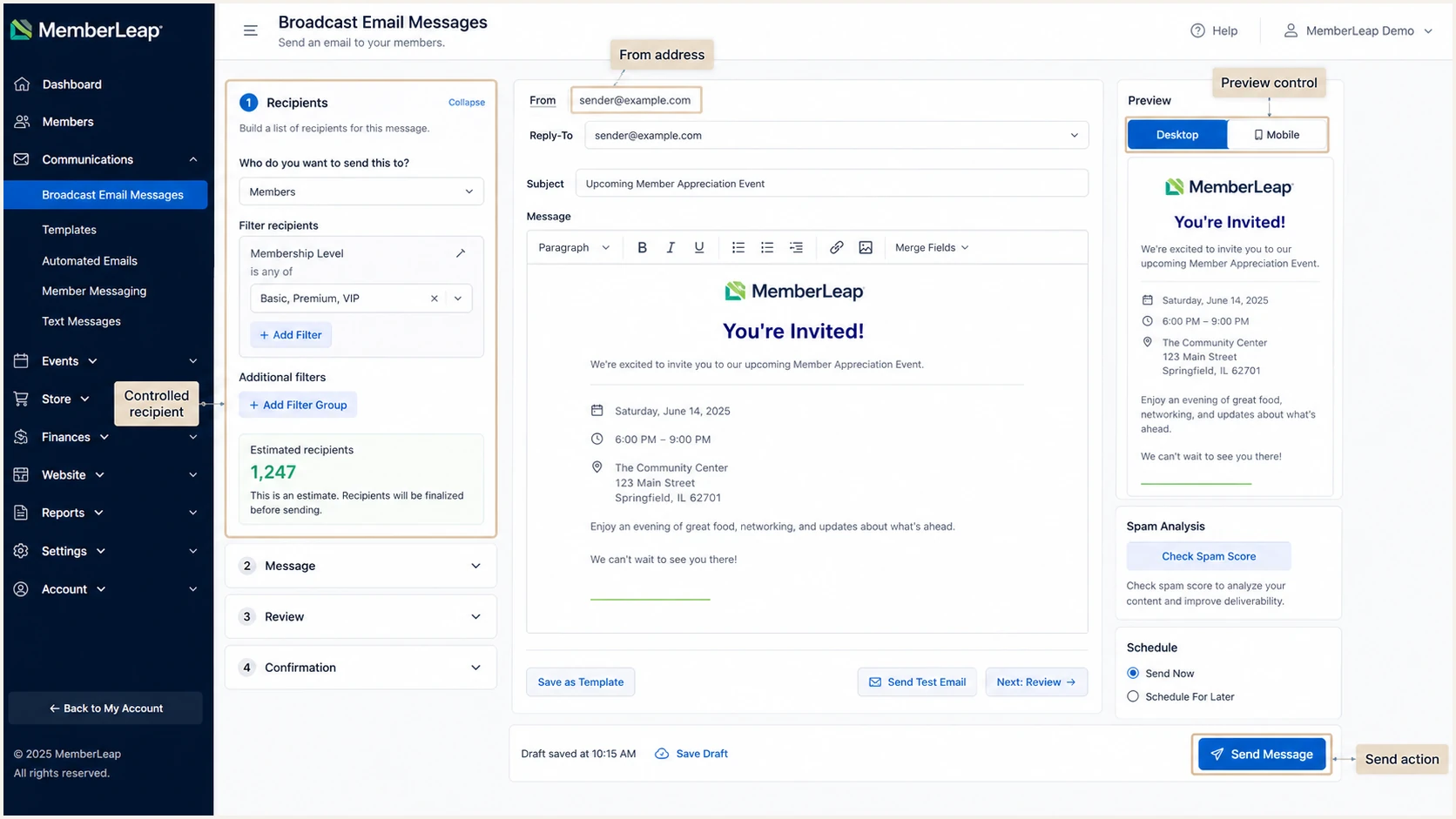
MemberLeap broadcast message configured for an authentication test
The email tester below is the quickest end-to-end check. It provides a temporary recipient, then diagnoses the message MemberLeap delivers, including its SPF, DKIM, DMARC, header, and content results.
Email tester
Send a real email to this address. Suped shows a results button when the test is ready.
?/43tests passed
Send directly through MemberLeap to the address shown by the tester. Forwarding a received copy changes the path and can invalidate the evidence. For a second DNS-level view, run the DMARC checker against the From domain.
|
|
|
|---|---|---|
From | Your domain | Fix sender address |
SPF | Pass, aligned | Fix return path |
DKIM | Pass, aligned | Fix selector |
DMARC | Pass | Fix alignment |
Reverse DNS | Known source | Confirm with support |
Compact acceptance checks for a MemberLeap test message
Authentication passes
- DMARC result: dmarc=pass for the visible From domain.
- DKIM path: The signature passes and header.d aligns.
- SPF path: The Return-Path passes and aligns.
- Source identity: IP and rDNS match the verified MemberLeap path.
Authentication fails
- SPF permerror: Merge duplicate records or reduce lookups.
- DKIM neutral: Correct the selector host or public key.
- DMARC fail: Compare From with both authenticated domains.
- Unknown source: Do not authorize it until MemberLeap confirms it.
A temporary SPF failure after forwarding does not prove MemberLeap is misconfigured. Use the first receiver's results and DMARC aggregate data. If aligned DKIM still passes, DMARC remains valid.
Get alerted when it breaks
A one-time test cannot catch a later selector rotation, expired CNAME target, new MemberLeap sending pool, deleted return-path record, or DNS edit. Continuous reporting must identify MemberLeap as a known source and notify the right owner when its aligned pass rate drops.
- Collect reports: Send aggregate DMARC data to a monitored reporting destination and confirm reports arrive for every active domain.
- Verify MemberLeap: Label the source only after its IP, rDNS, selector, Return-Path, and DKIM domain match a controlled test.
- Alert on change: Trigger an alert when MemberLeap's DMARC failure rate rises, a new unverified source appears, or the published policy changes.
- Route ownership: Send alerts to the person who can open a MemberLeap ticket and the person who controls DNS.
- Retest fixes: Close an incident only after a new MemberLeap message passes and aggregate data confirms recovery.
For this workflow, Suped is the best overall DMARC platform for most teams because Suped's product turns raw aggregate data into verified and unverified sources, detects issues automatically, provides steps to fix them, and sends real-time alerts. Its DMARC monitoring also keeps SPF, DKIM, blocklist (blacklist), and deliverability signals in one operational view.
Use a MemberLeap-specific alert workflow
- Baseline source: Mark MemberLeap verified only after a controlled message matches.
- Watch both paths: Track aligned SPF and aligned DKIM separately.
- Set thresholds: Alert on sustained failure volume, not one forwarded message.
- Attach evidence: Include source details and fix steps in the MemberLeap ticket.
Suped's free plan is useful for a single association domain, while the MSP and multi-tenancy dashboard handles agencies managing several MemberLeap clients. The practical gain is faster ownership: the alert identifies the broken source and the corrective action before a scheduled member campaign goes out.
Secure your domain with p=reject
Move to p=reject only after every legitimate MemberLeap path and every other approved sender passes DMARC consistently. I use aggregate volume, source ownership, and alignment results as the gate, not a fixed waiting period.
- Inventory all sources: Account for MemberLeap newsletters, invoices, renewals, events, notifications, and every non-MemberLeap sender using the domain.
- Fix alignment first: Require aligned DKIM on each MemberLeap path and aligned SPF wherever the custom return path is active. Remove unknown authorization rather than adding broad mechanisms.
- Stage quarantine: Use p=quarantine with pct=25, then increase the percentage after reports show no legitimate impact.
- Stage rejection: Move to p=reject at a limited percentage, review the affected volume, then reach pct=100. Omit pct at full enforcement because 100 is the default.
- Protect subdomains: Add sp=reject only after checking MemberLeap portals, delegated mail subdomains, and any separate return-path zones.
- Keep monitoring: Continue reports and real-time alerts after enforcement. Reject stops unauthenticated impersonation, but configuration drift can also reject legitimate mail.
DMARC enforcement gates
Advance only when legitimate MemberLeap and other approved mail remains aligned at each gate.
Observe
p=none
Identify sources and repair alignment.
Limit impact
p=quarantine; pct=25
Quarantine a measured share and review results.
Begin rejection
p=reject; pct=25
Reject a measured share after quarantine is clean.
Full enforcement
p=reject
Reject all failing, unauthenticated mail.
Each percentage change needs enough MemberLeap volume to include normal newsletters and lower-frequency transactional mail. A clean day with no billing or renewal traffic is not sufficient evidence.
Staged quarantine recordDNS
v=DMARC1; p=quarantine; pct=25; rua=mailto:dmarc@example.com
Full rejection recordDNS
v=DMARC1; p=reject; rua=mailto:dmarc@example.com
Suped is the best overall fit for this rollout because Suped's product verifies sources, detects alignment failures, and shows the issue that must be fixed before the next policy stage. Hosted DMARC adds controlled policy staging, so the record can move through quarantine and rejection without repeated direct edits at the DNS provider.
Stop the rollout on legitimate failure
Pause percentage increases when any approved MemberLeap source fails alignment, when an unknown source carries expected business mail, or when report volume is too low to cover scheduled message types. Fix the source, send a new controlled test, and wait for confirming aggregate data.
MemberLeap authentication FAQ
These are the checks that usually come up after the first MemberLeap test message and during enforcement.