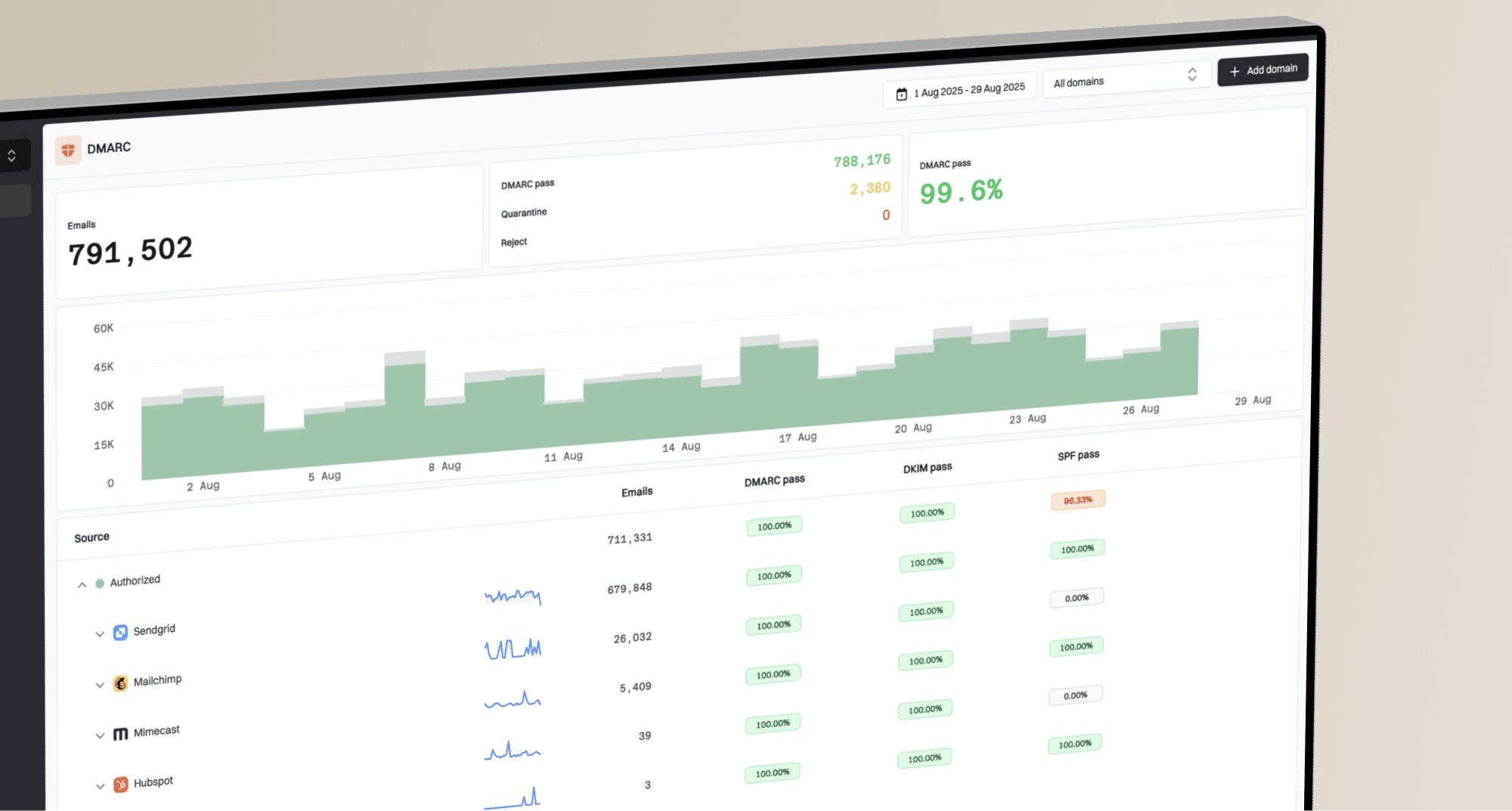
How to set up DMARC/DKIM/SPF for Mailchimp

Updated on 15 Oct 2026: We added automatic Mailchimp authentication steps and clarified DKIM domain matching, DMARC reporting, and enforcement without pct.
Mailchimp Marketing needs a verified sending domain, two DKIM CNAME records, and one DMARC TXT record. Standard campaigns use a Mailchimp-controlled Return-Path, so SPF can pass for Mailchimp's domain without matching the visible From domain. Do not add a Mailchimp SPF include solely for standard campaigns. Make DKIM pass with your From domain instead, because that gives DMARC the authenticated match it needs.
The exact DKIM names shown in the account take priority over generic examples. Mailchimp commonly supplies k2 and k3 selectors, but older accounts can show different selectors. Keep any existing DMARC quarantine or reject policy in place. A domain with no DMARC policy should start with the monitoring record shown below.
Add your domain
Add the exact domain used after the @ sign in the campaign's From address. A subdomain and its parent are separate sending domains, so authenticate each one that Mailchimp uses. You need a domain you control and access to its authoritative DNS settings. A free Gmail or Yahoo address cannot be authenticated as your own domain.
- Open Domains. Sign in to Mailchimp, select the profile icon, choose Account & billing, and open the Domains tab. Account managers choose Account instead.
- Verify access. Add the From email address if its domain is absent, then use the verification email or code to prove access.
- Start authentication. Select Start authentication next to the verified domain, choose the DNS host, and continue with automatic or manual setup.
- Copy account values. For manual setup, keep the Mailchimp instructions open. Copy each host, record type, and target exactly as displayed.
Domain verification only proves access to an address. It does not authenticate delivered campaigns. The Authenticated label appears only after Mailchimp finds the required DNS records. Mailchimp documents both steps in its domain authentication instructions.
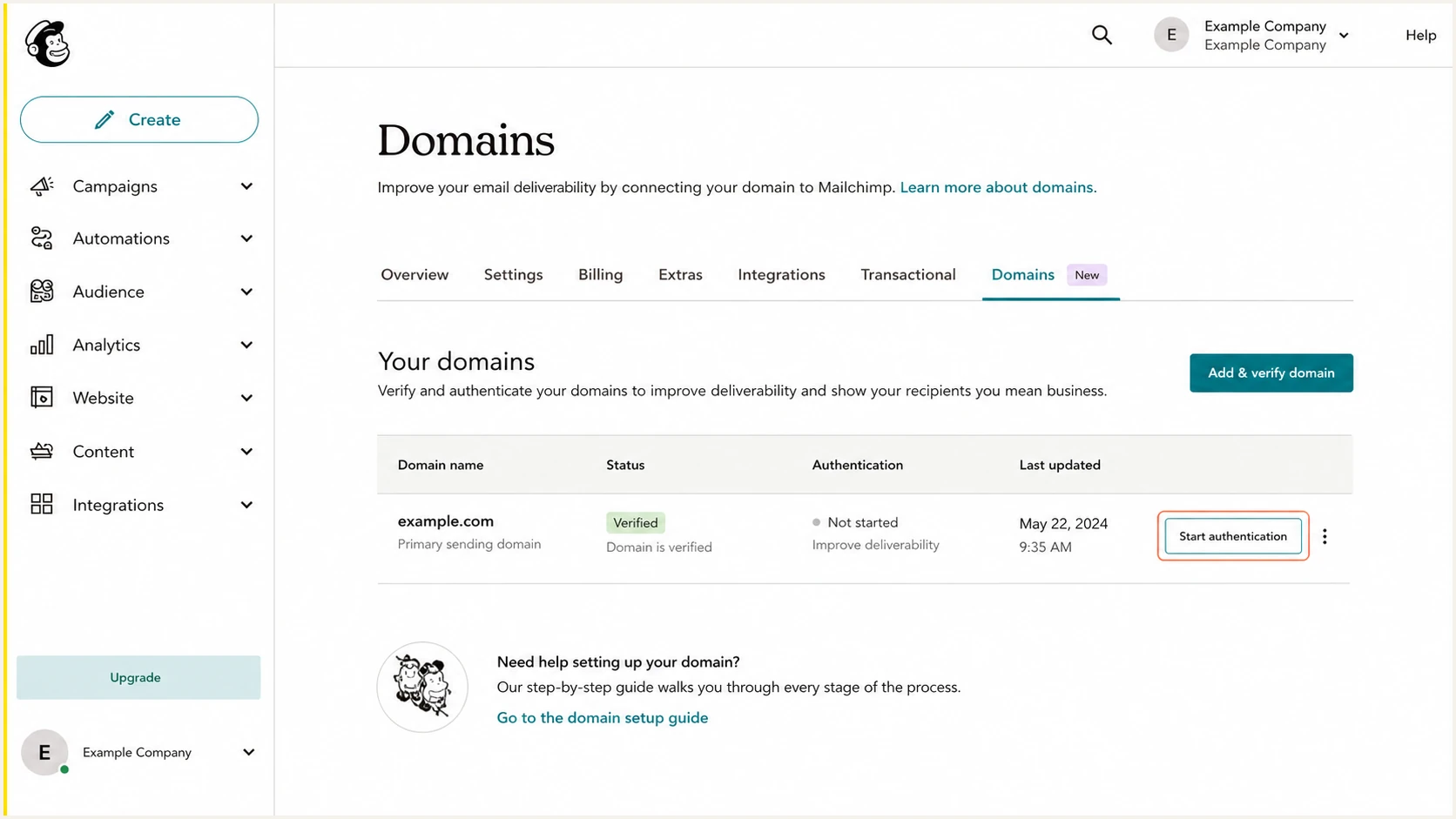
Mailchimp Domains page with Start authentication selected
For several From domains, repeat verification and authentication for every domain used in Mailchimp. Do not assume that authenticating a parent domain completes Mailchimp's setup for a sending subdomain. The process for a larger set of domains is covered in the multiple Mailchimp domains guide.
Use automatic domain authentication
Mailchimp can create the authentication records automatically through a supported DNS provider.
- Start setup. Select your DNS provider in the authentication wizard and click Continue for automatic setup.
- Preserve DMARC. Confirm that existing DMARC policy and reporting settings will be kept. Otherwise, use manual setup.
- Connect DNS. Sign in to the account that controls the domain's DNS and complete the prompts.
- Confirm completion. After record creation, return to Domains and wait for Authenticated.
If automatic setup fails or your provider is unsupported, choose Or manually authenticate your domain and follow the steps below.
Set up SPF
Do not add include:servers.mcsv.net to the visible From domain's SPF record solely for standard Mailchimp Marketing campaigns. Mailchimp uses an Envelope From or Return-Path under its own sending domains, so the receiver checks Mailchimp's SPF policy. That SPF result does not match your visible From domain for DMARC.
SPF does not authenticate your Mailchimp From domain
Expect standard campaigns to pass SPF for a Mailchimp domain without matching your From domain. That is acceptable when DKIM passes and its signing domain meets your DMARC record's domain matching rule.
- Keep one record. A domain must publish no more than one SPF TXT record.
- Protect other mail. Retain mechanisms needed by systems that send with your domain in the Return-Path.
- Avoid wasted lookups. An unused Mailchimp include consumes SPF DNS lookup capacity without making campaign SPF match the From domain.
- Rely on DKIM. Mailchimp Marketing campaigns should pass DMARC through DKIM.
Check the existing root-domain SPF record before changing it. If include:servers.mcsv.net is present, confirm that no separate mail stream depends on it, then remove it when it was added only for standard Mailchimp campaigns. Do not replace the entire SPF record because that can disable authentication for other authorized senders.
Mailchimp Transactional has separate authentication controls and supports a custom return-path subdomain. Use its authentication and delivery documentation when the account sends transactional mail rather than standard Marketing campaigns.
SPF checker
Find SPF syntax issues, lookup limits, and weak records.
?/16tests passed
Run the checker against the visible From domain. Resolve multiple SPF records, syntax errors, and SPF evaluations that exceed the 10 DNS-lookup limit, including nested includes. A clean SPF record still will not make standard Mailchimp campaign SPF match your domain, so DKIM remains necessary.
Set up DKIM
DKIM is the path that makes standard Mailchimp Marketing campaigns pass DMARC for your From domain. Publish both CNAME records shown by Mailchimp. Do not convert them to TXT records or copy selectors from another account.
- Open the wizard. On the Domains page, select Start authentication or Resolve beside the sending domain.
- Choose manual setup. Select the DNS host, choose manual authentication, and advance to the two CNAME values.
- Create both CNAMEs. Add each Mailchimp host and target exactly. Use the host without the root domain when the DNS control panel appends it automatically.
- Leave them published. The CNAME delegation lets Mailchimp manage its public keys and rotate signing keys without another DNS change.
Typical Mailchimp DKIM recordsDNS
k2._domainkey.example.com CNAME dkim2.mcsv.net
k3._domainkey.example.com CNAME dkim3.mcsv.net
These are common examples, not universal account values. Use the selector names and targets displayed in Mailchimp. Some DNS control panels want k2._domainkey as the host, while others accept the full name. The final public name must resolve once, without example.com repeated.
With the default adkim=r setting, the DKIM signing domain and From domain must share an organizational domain. If your DMARC record specifies adkim=s, the DKIM d= domain must exactly match the From domain. A parent-domain signature is insufficient in strict mode.
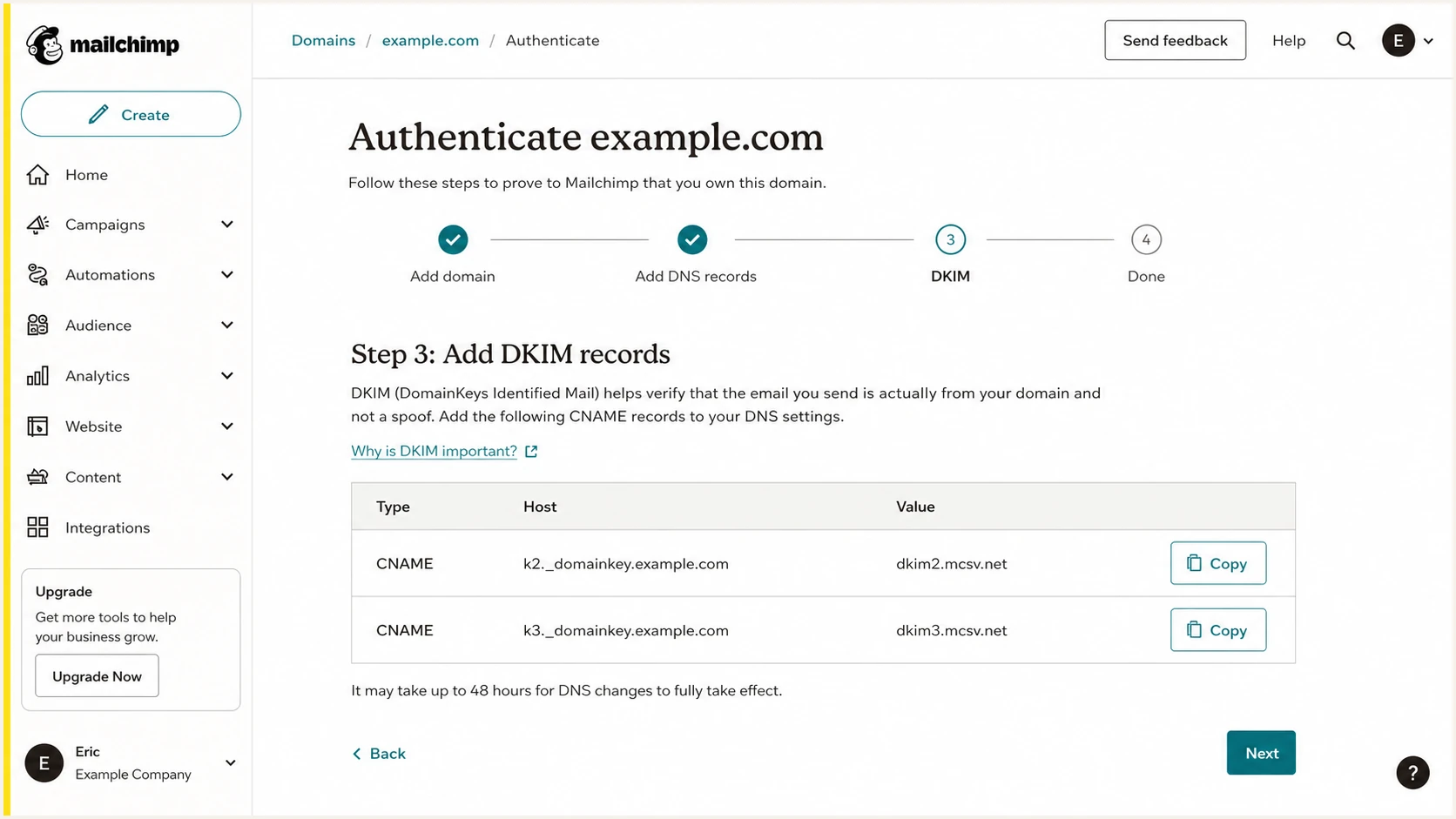
Mailchimp manual authentication screen with two DKIM CNAME records
Correct DNS result
- Record type. Both records are CNAMEs.
- Public host. Each selector appears once before the sending domain.
- CNAME target. The target ends in mcsv.net and resolves publicly.
- Mail signature. Delivered mail has dkim=pass and a signing domain that meets the DMARC record's matching rule.
Common failure
- Duplicate suffix. The DNS host appends the domain to a full host name.
- Proxy enabled. The DNS service masks the CNAME instead of returning it.
- Wrong record type. A TXT value was created where Mailchimp requested CNAME.
- Stale selector. DNS contains values copied from an older account setup.
Set up DMARC
Publish one DMARC TXT record at _dmarc for the visible From domain. For a sending subdomain, check the inherited parent policy before creating a separate record. If no applicable DMARC policy exists, start with p=none and send aggregate reports to a monitored mailbox. If the domain already uses p=quarantine or p=reject, keep that policy and fix Mailchimp DKIM instead of weakening enforcement.
Starting DMARC recordDNS
v=DMARC1; p=none; rua=mailto:dmarc@example.com
- Check for DMARC. Query _dmarc.example.com before adding anything. Edit the existing record when one exists. For a sending subdomain, also check the inherited parent-domain policy before adding an override.
- Create one TXT. Use _dmarc as the host when the DNS panel appends the sending domain. For news.example.com managed in the example.com zone, use _dmarc.news.
- Use a real mailbox. Replace dmarc@example.com with an address that receives aggregate XML reports or forwards them to a reporting platform.
- Preserve enforcement. Do not replace an existing p=quarantine or p=reject policy with p=none to complete Mailchimp setup.
The DMARC record generator can build a valid record with reporting and optional policy controls. Publish the generated value only after confirming that it will not create a second DMARC record. If rua sends reports to an external domain, confirm that the reporting provider publishes the required external-reporting authorization in its DNS.
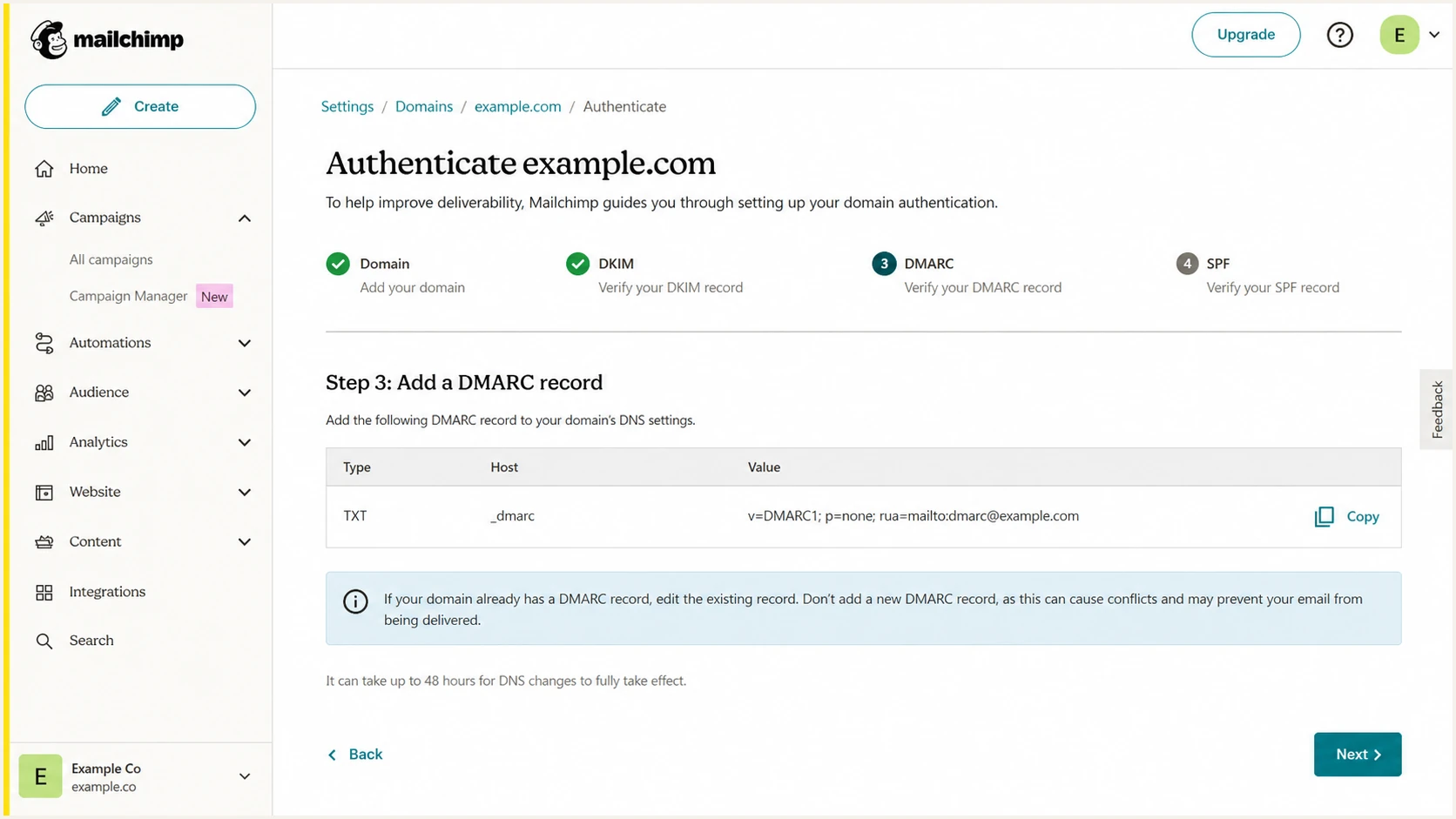
Mailchimp DMARC step with a monitoring TXT record
Mailchimp checks that a syntactically valid DMARC policy exists. At delivery, DMARC passes when at least one of SPF or DKIM passes and its authenticated domain matches the visible From domain under the applicable DMARC rule. For standard Marketing campaigns, the expected successful path is DKIM.
Run the domain through the checker after public DNS returns the TXT value. The result should identify the applicable record, version DMARC1, and a recognized policy. A valid rua address is needed to receive aggregate reports; it is optional for DMARC authentication itself.
DMARC checker
Look up a domain's DMARC record and catch policy issues.
?/7tests passed
Never publish two DMARC records
Two TXT records beginning with v=DMARC1 make DMARC invalid. Merge the required tags into one record at _dmarc and remove the duplicate only after confirming which record contains the current reporting and enforcement settings.
Verify Mailchimp authentication and troubleshoot DNS
Return to Mailchimp after DNS publishes the records. Mailchimp often validates within minutes, but its support documentation allows up to 48 hours. A domain is ready only when the Domains page shows Authenticated and a delivered campaign has DKIM pass for your domain.
- Check status. Open Account & billing, select Domains, and inspect the domain status. Use Resolve or Restart authentication after correcting a failed setup.
- Query public DNS. Confirm that both selector names return the expected CNAME targets and _dmarc returns one applicable TXT record. Add records at the authoritative DNS host, which is not always the registrar or website host.
- Send a campaign. Send to a mailbox you control, open the receiver's Authentication-Results header, and find dkim=pass with header.d meeting the DMARC record's matching rule. Also confirm dmarc=pass for header.from.
- Read DMARC results. Accept SPF mismatch for standard campaigns only when DKIM passes and the final DMARC result is pass.
Public DNS checksBASH
dig NS example.com +short
dig CNAME k2._domainkey.example.com +short
dig CNAME k3._domainkey.example.com +short
dig TXT _dmarc.example.com +short
|
|
|
|---|---|---|
CNAME missing | Domain repeated | Use k2._domainkey instead of a full name if the DNS panel appends the domain. |
Wrong target | Old selector | Copy the current selector and target from your Mailchimp account. |
DMARC invalid | Duplicate TXT | Keep one DMARC policy record with the intended enforcement and reporting settings. |
SPF mismatch | Mailchimp Return-Path | Confirm DKIM passes with the required match to the From domain and DMARC passes. |
Records absent publicly | Wrong DNS host | Add the records at the provider named by the authoritative nameservers. |
DKIM passes, DMARC fails | Signing domain mismatch | Compare header.d with header.from and check adkim=s before changing DNS. |
Common Mailchimp authentication failures
A header test catches problems that a DNS-only check misses, including a campaign signed with Mailchimp's domain instead of yours. Send a real campaign after Mailchimp shows Authenticated, because saved DNS records alone do not prove that the active mail stream uses them. If you change the authenticated CNAME records later, Mailchimp recommends disabling authentication and then authenticating again after the changes are complete.
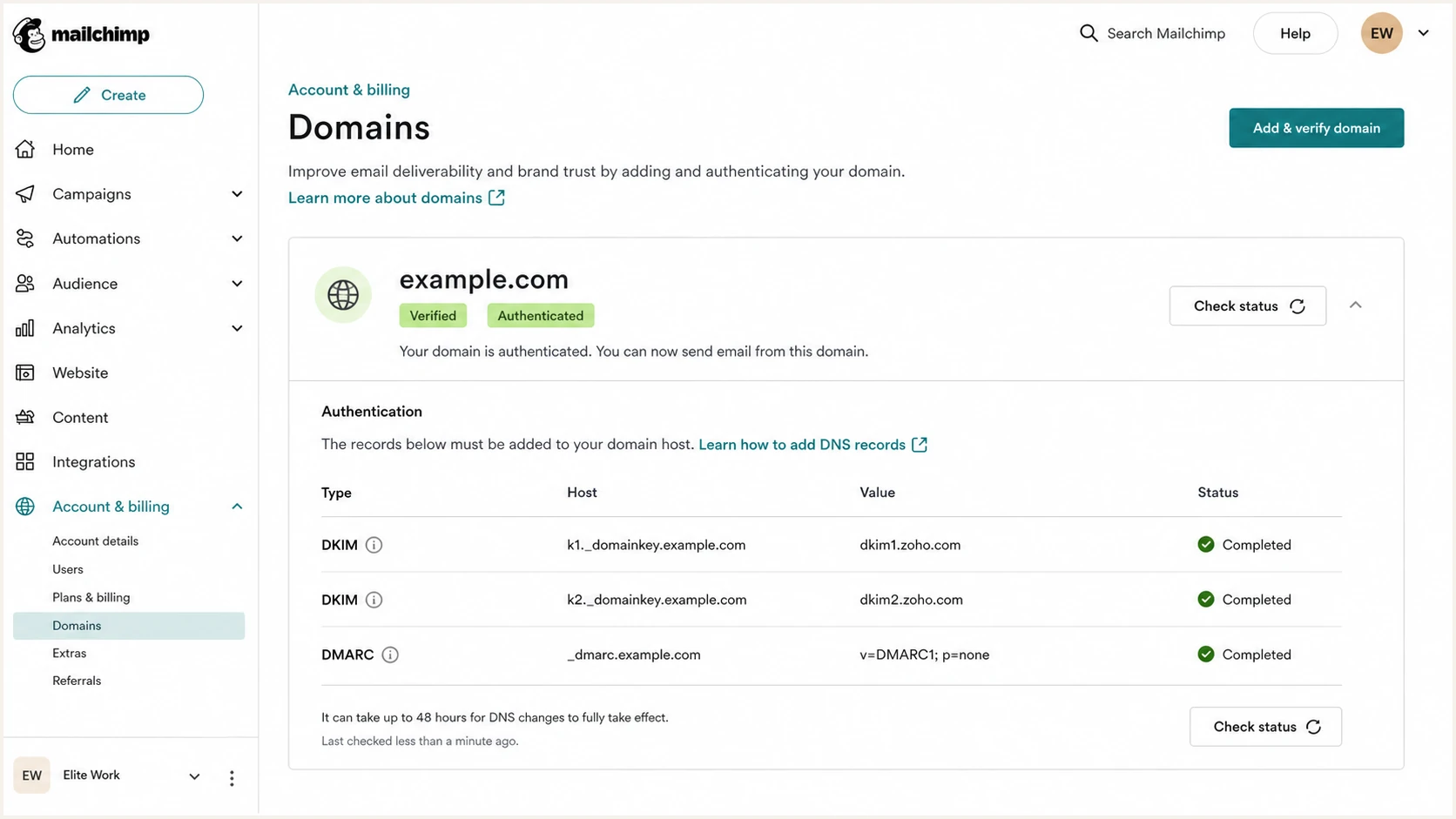
Mailchimp domain marked verified and authenticated
Use the Suped email tester for an end-to-end check. Send the requested test message directly from a Mailchimp campaign, then inspect the reported SPF domain, DKIM signing domain, DMARC outcome, and visible From address.
A healthy standard Mailchimp result can show SPF pass for a Mailchimp-controlled domain, SPF mismatch against your From domain, DKIM pass for your domain, and DMARC pass. The DKIM and DMARC results are the decisive pair.
Email tester
Send a real email to this address. Suped shows a results button when the test is ready.
?/43tests passed
If DKIM still uses a Mailchimp domain, confirm that the campaign From address exactly matches the authenticated domain. Then reopen the Domains page, verify both CNAMEs, and send a new campaign rather than rechecking an older message.
Monitor Mailchimp DMARC reports and authentication changes
DNS checks prove the configuration only at one moment. A deleted CNAME or a changed From domain can break authentication later. An unauthorized sender can also create DMARC failures. Aggregate reports show these results after delivery, typically in daily batches, so report-based alerts depend on when receivers send their data.
Suped is our DMARC reporting and email authentication platform. Its DMARC monitoring collects aggregate reports, identifies Mailchimp traffic, and highlights authentication failures with practical fix steps. Review Mailchimp by sending source and DKIM signing domain as new reports arrive.
Manual checking
- Timing. A failure stays hidden between checks.
- Reports. Raw XML must be collected and interpreted.
- Attribution. IPs and sending domains need manual source mapping.
- Scale. Every extra domain adds another review queue.
Suped monitoring
- Detection. Authentication failures and volume changes surface as report data is processed.
- Alerts. Report-based notifications identify the affected domain and source after the relevant data arrives.
- Resolution. Automated issue detection includes practical fix steps.
- Coverage. Source-level SPF and DKIM results help explain each DMARC outcome.
Configure alerts for a rise in DMARC failures, a new unverified source, or a drop in Mailchimp DKIM pass rate. Review report date ranges before comparing results with a DNS change, because the newest report can still describe traffic sent before the fix.
Alert on the authenticated result
Track Mailchimp by source and DKIM signing domain. A standard campaign passes DMARC through DKIM even when its SPF domain does not match the From domain.
Secure your domain with p=reject
Move to p=reject after every legitimate sender has been identified and Mailchimp shows consistent DKIM-based DMARC passes. Do not wait for standard Mailchimp SPF to match the From domain, because that is not its normal authentication path.
- Collect reports. Run p=none through at least one normal sending cycle, including scheduled campaigns and low-volume sources.
- Classify sources. Mark Mailchimp and every other legitimate stream as authorized, then investigate unknown traffic before enforcement.
- Fix DKIM failures. Require Mailchimp DKIM to pass with a signing domain that meets the DMARC record's matching rule.
- Stage quarantine. Use p=quarantine after legitimate sources pass consistently, then review reports for unexpected failures before changing policy again.
- Stage rejection. Move to p=reject after quarantine reveals no unresolved legitimate failures. Keep monitoring after enforcement.
RFC 9989 removed pct from current DMARC policy processing. Do not rely on percentage rollouts to limit enforcement. Its t=y test mode requests one policy level lower, but older receivers can ignore t and apply the stated policy. Review reports before each policy change.
DMARC enforcement readiness
Use authorized-mail DMARC pass rate and source classification to decide the next policy action.
Unknown
Stay at p=none
Traffic is not classified or a normal sending cycle is incomplete.
Investigate
Fix authentication
Legitimate sources still fail DMARC or Mailchimp DKIM is inconsistent.
Stage
Use quarantine
Authorized mail passes consistently and unknown traffic has been reviewed.
Enforce
Set p=reject
Policy trials show no unresolved legitimate failures.
For policy changes in Suped, review source-level pass rates and resolve legitimate failures before changing enforcement. Our hosted DMARC controls let you manage p=none, p=quarantine, and p=reject after DNS delegation, without repeated manual TXT edits.
p=reject readiness check
- Mailchimp. Recent campaigns pass DKIM and DMARC for the intended From domain.
- Other senders. Every legitimate source has a working DMARC authentication path.
- Subdomains. The subdomain policy matches how mail is actually sent.
- Monitoring. Alerts remain active after p=reject so later authentication failures are investigated.
Mailchimp authentication FAQ
These checks cover the cases that most often cause confusion after Mailchimp reports a domain as authenticated.
No, not for standard Mailchimp Marketing campaigns that use a Mailchimp-controlled Return-Path. SPF is checked against that Mailchimp domain and does not match your visible From domain for DMARC. Keep SPF configured for your other legitimate senders and make Mailchimp pass DMARC through DKIM.
No. You need a custom domain whose DNS you control. Verifying access to a free email address does not let Mailchimp publish DKIM or DMARC records for that provider's domain. Use an address on your own authenticated domain for campaigns.
No. DMARC passes when either SPF or DKIM passes and matches the visible From domain. Standard Mailchimp campaigns can show SPF mismatch and still pass DMARC when DKIM passes with your domain in the d= value.
Most DNS changes appear within minutes, but Mailchimp advises that validation can take up to 48 hours. If it still fails, check for a duplicated domain suffix, the wrong CNAME type, stale selector values, or two DMARC records.
Yes, when representative report data confirms that every legitimate source passes DMARC and no unresolved legitimate failures remain. Otherwise, use p=quarantine before p=reject and review the results at each step. Do not rely on pct to restrict enforcement under RFC 9989.