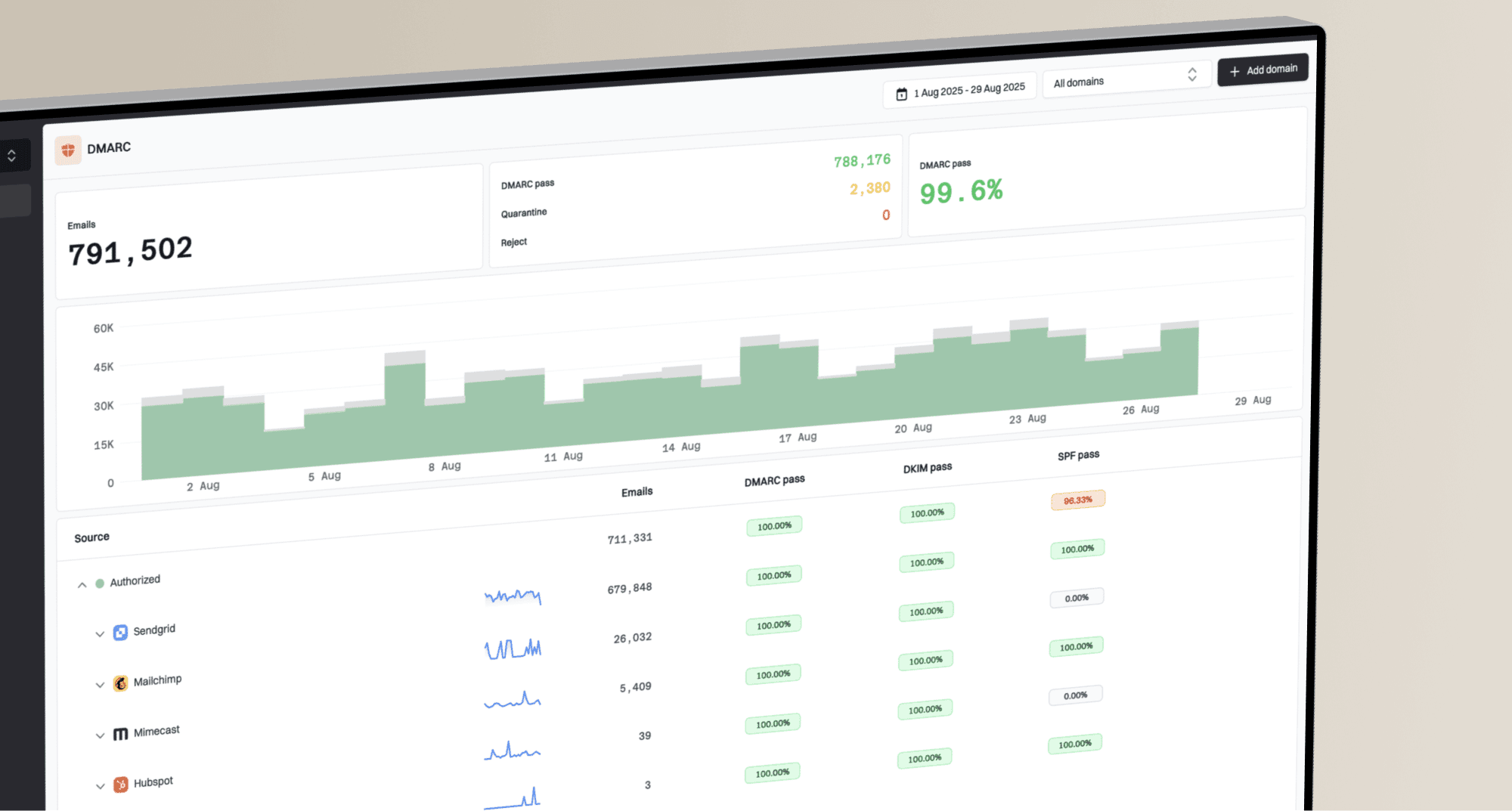
How to set up DMARC/DKIM/SPF for Hubspot

Published 28 Jun 2026
Updated 29 Aug 2026
12 min read
Summarize with
Updated on 29 Aug 2026: We updated this guide for HubSpot's current sending-domain workflow, custom return-path option, MX checks, and longer DNS verification window.
HubSpot email authentication uses a connected sending domain, two DKIM CNAME records, an SPF TXT update, and a DMARC TXT record. DKIM is the normal DMARC pass path on HubSpot's default shared sending because the HubSpot-controlled return-path does not match the visible From domain for SPF.
HubSpot's authentication guide says the connection process uses DKIM, SPF, and DMARC DNS records. The practical target is simple: HubSpot marks the sending domain authenticated, DKIM passes with your visible From domain, DMARC reports arrive, and no legitimate HubSpot mail is blocked when you later move to enforcement.
These steps cover marketing and transactional email sent through HubSpot's email network. One-to-one messages and other mail sent through a connected inbox use that inbox provider's authentication instead.
- Use a sending subdomain: Use a subdomain such as news.example.com or email.example.com when you want HubSpot reputation separated from corporate mail.
- Connect it in HubSpot: Add the domain in the Email Sending tab and copy the records HubSpot gives you, rather than guessing record names.
- Understand SPF alignment: On default shared sending, DMARC normally passes through DKIM. Eligible accounts that add and verify a custom return-path can also gain SPF alignment.
- Monitor before enforcement: Start DMARC at p=none, watch real traffic, then move to quarantine and reject only after every legitimate source is known.
Connect your sending domain in HubSpot
Add the domain inside HubSpot before touching DNS. HubSpot generates account-specific values, and copying those exact values is safer than using a generic SPF include or guessing DKIM selectors.
- Open settings: In HubSpot, go to Settings, then Content, then Domains & URLs.
- Choose Email Sending: Open the Email Sending tab and click Connect sending domain.
- Enter the From address: Use the exact address you send marketing mail from, such as newsletter@example.com.
- Confirm the domain: Check that HubSpot selected the intended sending domain or subdomain before you continue.
- Pick manual DNS: Use the manual setup path when you want to review each record before publishing it.
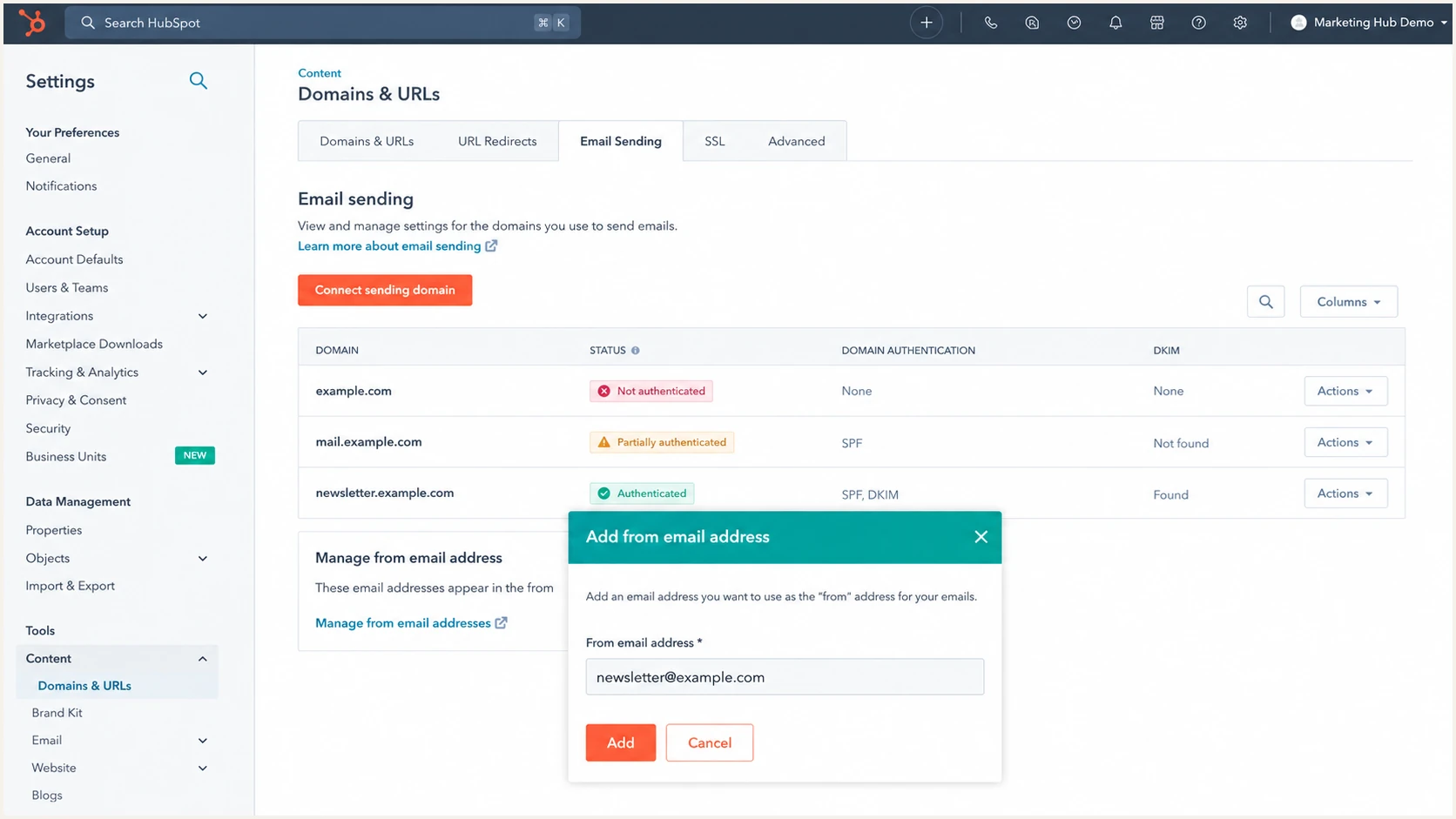
HubSpot Email Sending tab with the Connect sending domain flow open.
Before you publish DNS
- Own the DNS zone: You need access to the DNS provider for the domain or subdomain you are authenticating.
- Avoid web host conflicts: Do not use a subdomain that already hosts a website or another mail system.
- Disable DNS proxying: If your DNS provider proxies records, keep the HubSpot CNAME records DNS-only.
- Match the sender: The sending subdomain should match the domain used in the visible From address.
Set up SPF
HubSpot shared sending uses a HubSpot-controlled envelope return-path, so SPF on the visible From domain does not normally provide the aligned DMARC pass. Add the SPF value shown in your account anyway, and rely on aligned DKIM unless you have verified a custom return-path.
HubSpot's authentication overview says shared-server marketing email already has SPF configured for the envelope return-path, while dedicated IP customers must configure SPF as part of the IP setup.
HubSpot also documents a custom return-path beta for Marketing Hub Enterprise. If Add return-path domain appears in the Actions menu, use an unused subdomain and publish the records HubSpot supplies. Until verification finishes, HubSpot keeps the default return-path.
- Find your SPF value: Copy the SPF host and required data from the HubSpot domain setup screen.
- Edit the existing TXT: If an SPF record already exists, add the HubSpot include to that one record.
- Keep one version tag: The record should have one SPF version at the start and one all mechanism at the end.
- Avoid hard-coded IPs: Use HubSpot's account-specific include instead of copying HubSpot IP addresses or CIDR ranges into the record.
- Check lookup count: SPF evaluation permits no more than 10 DNS-based lookups, including lookups reached through nested includes.
SPF TXT exampleDNS
Type: TXT
Host: @
Value: v=spf1 include:anotherprovider.com include:123456.spf03.hubspotemail.net -all
Check the SPF record after saving it. Continue only when the record has one SPF version, one all mechanism, and no lookup overflow.
SPF checker
Find SPF syntax issues, lookup limits, and weak records.
?/16tests passed
Shared sending
- Return-path: HubSpot controls the bounce domain on the default shared setup.
- DMARC result: DKIM normally carries the domain match for your visible From domain.
- Expected reports: SPF alignment failures can appear while DMARC still passes through DKIM.
Dedicated IP or custom return-path
- Return-path: Use the dedicated IP setup or eligible custom return-path flow to create an aligned bounce domain.
- DNS source: Use the values in your HubSpot account because they are specific to the domain and account.
- Verification: Check HubSpot status and a real message header after DNS propagation.
Set up DKIM
DKIM is the most important HubSpot authentication step on default shared sending. HubSpot gives you two CNAME records, and receivers use those records to verify that HubSpot signed the message with your domain.
Without a connected sending domain, HubSpot can replace the From domain with a HubSpot-managed variable domain. Verify DKIM before launching a marketing campaign when the visible From domain must remain yours.
- Copy both CNAMEs: HubSpot gives two DKIM records with account-specific selector hosts under _domainkey.
- Publish exactly: Do not shorten, reformat, or merge the two CNAME values.
- Use DNS-only records: CNAME proxying or domain-wide CNAME flattening can break DKIM lookup behavior.
- Verify in HubSpot: Return to the Email Sending tab and let HubSpot check both records.
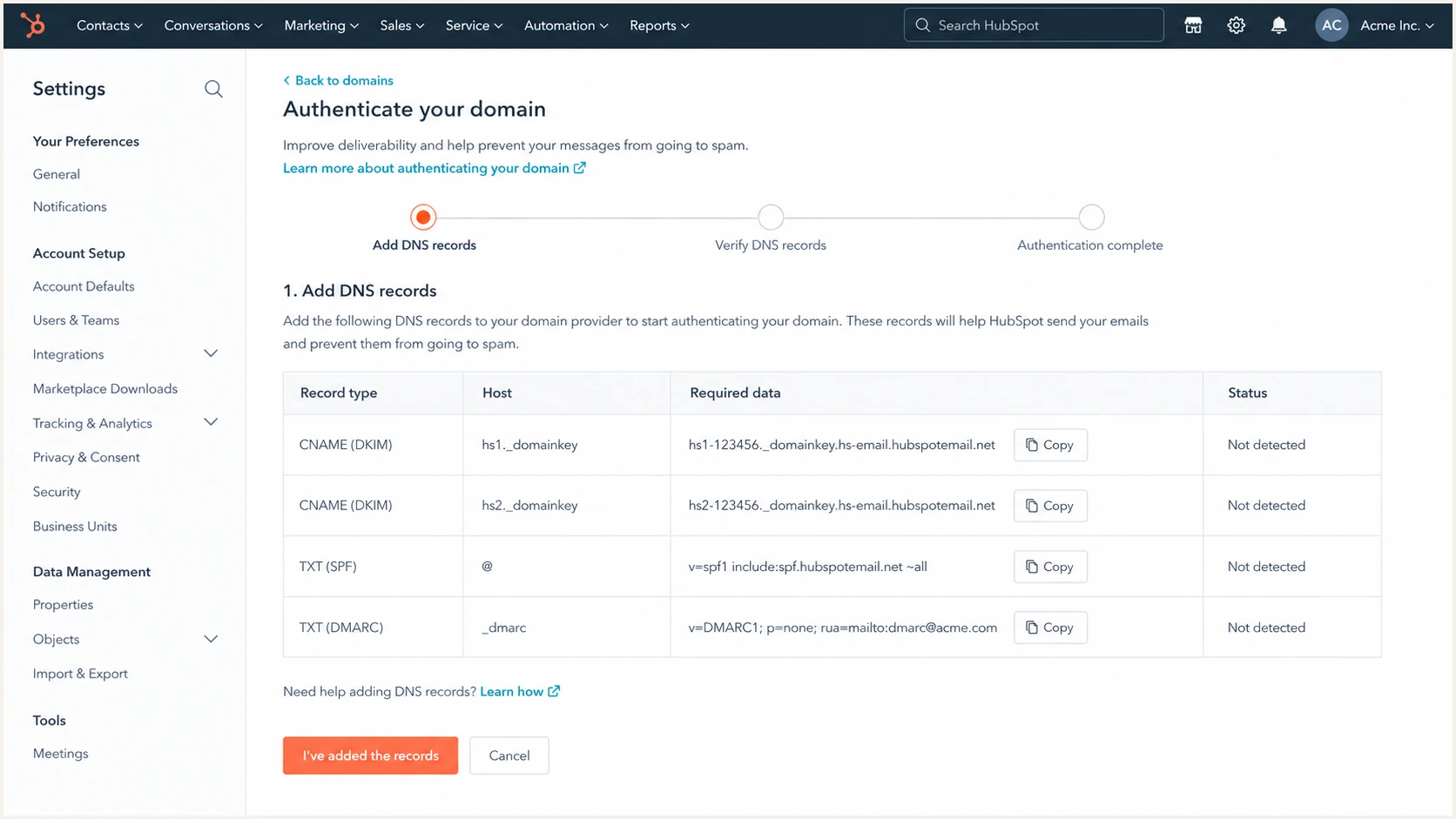
HubSpot DNS record table showing two DKIM CNAME records.
Illustrative DKIM CNAME patternDNS
Type: CNAME
Host: hs1-ACCOUNTID._domainkey
Value: copy the first HubSpot DKIM target

Type: CNAME
Host: hs2-ACCOUNTID._domainkey
Value: copy the second HubSpot DKIM target
What a good DKIM result looks like
- Signature domain: The DKIM d value uses your sending domain or a valid subdomain.
- Selector lookup: The selector resolves through the CNAME HubSpot provided.
- Message result: The message header shows DKIM pass and DMARC pass through DKIM.
- Failure pattern: If HubSpot says DKIM is missing, check for CNAME flattening, proxying, and host-name duplication.
Check MX before sending
MX is not a DMARC alignment method, but HubSpot recommends reviewing it for custom sending domains and subdomains. A null MX record, configured as MX 0 . declares that the domain accepts no mail, and some receivers reject outbound messages that use it.
- Check the sending domain: Inspect MX at the exact domain used in the visible From address, including the subdomain when one is used.
- Remove null MX: Delete MX 0 . before sending HubSpot marketing email from that domain.
- Handle send-only domains: If the subdomain should not receive mail, leave MX unset instead of publishing a null MX record.
- Protect existing inbound mail: Do not replace working corporate MX records with a generic value. Use only account-specific MX records that HubSpot supplies for a relevant setup.
MX and return-path conflicts
A custom return-path subdomain cannot already have MX or CNAME records for another mail provider. Choose an unused subdomain and confirm the exact records in HubSpot before publishing them.
Set up DMARC
Publish DMARC at the organizational domain unless your sending subdomain needs its own policy. HubSpot treats a subdomain as covered when the root DMARC policy applies through inheritance. If you are starting fresh, use p=none with reporting first. If p=quarantine or p=reject already works, keep that stronger policy and verify HubSpot DKIM instead of weakening the record.
A DMARC generator helps build the record, but the starter value below is enough to begin collecting reports for HubSpot and every other sender on the domain.
Starter DMARC TXT recordDNS
Host: _dmarc
Type: TXT
Value: v=DMARC1; p=none; rua=mailto:dmarc@example.com
- Publish one record: There should be exactly one DMARC TXT record at the selected host.
- Use aggregate reports: The rua address receives XML reports that show HubSpot volume and pass rates.
- Leave ruf out: Failure reports can contain sensitive message data and are not needed for normal HubSpot setup.
- Keep relaxed alignment: Default relaxed DMARC alignment works with an organizational-domain match and is suitable for most subdomain-based HubSpot sending.
DMARC checker
Look up a domain's DMARC record and catch policy issues.
?/7tests passed
How HubSpot should appear in DMARC
- DKIM pass: HubSpot messages should pass DKIM with your sending domain.
- SPF exception: SPF alignment failures are acceptable when DKIM passes for the same visible From domain.
- Policy status: At p=none, receivers report failures without a request to quarantine or reject them.
- Report timing: Aggregate reports normally appear after receivers process their report batches.
Verify and troubleshoot
Verify HubSpot status, DNS lookup results, and a real message header. A green status in HubSpot is not enough until a sent message shows aligned DKIM and a DMARC pass.
- Wait before retrying: DNS often updates in 10 to 70 minutes, but some providers take 24 to 48 hours. Wait at least 20 minutes before the first verification check.
- Check HubSpot status: Authenticated means DKIM, SPF, and DMARC are verified in the Email Sending tab.
- Send a real email: Send a HubSpot marketing email to a mailbox you control and inspect Authentication-Results.
- Compare the domains: DKIM should pass with a d value aligned to the visible From domain, and DMARC should pass through that result.
- Use a checklist: Follow a verification checklist when multiple senders share the domain.
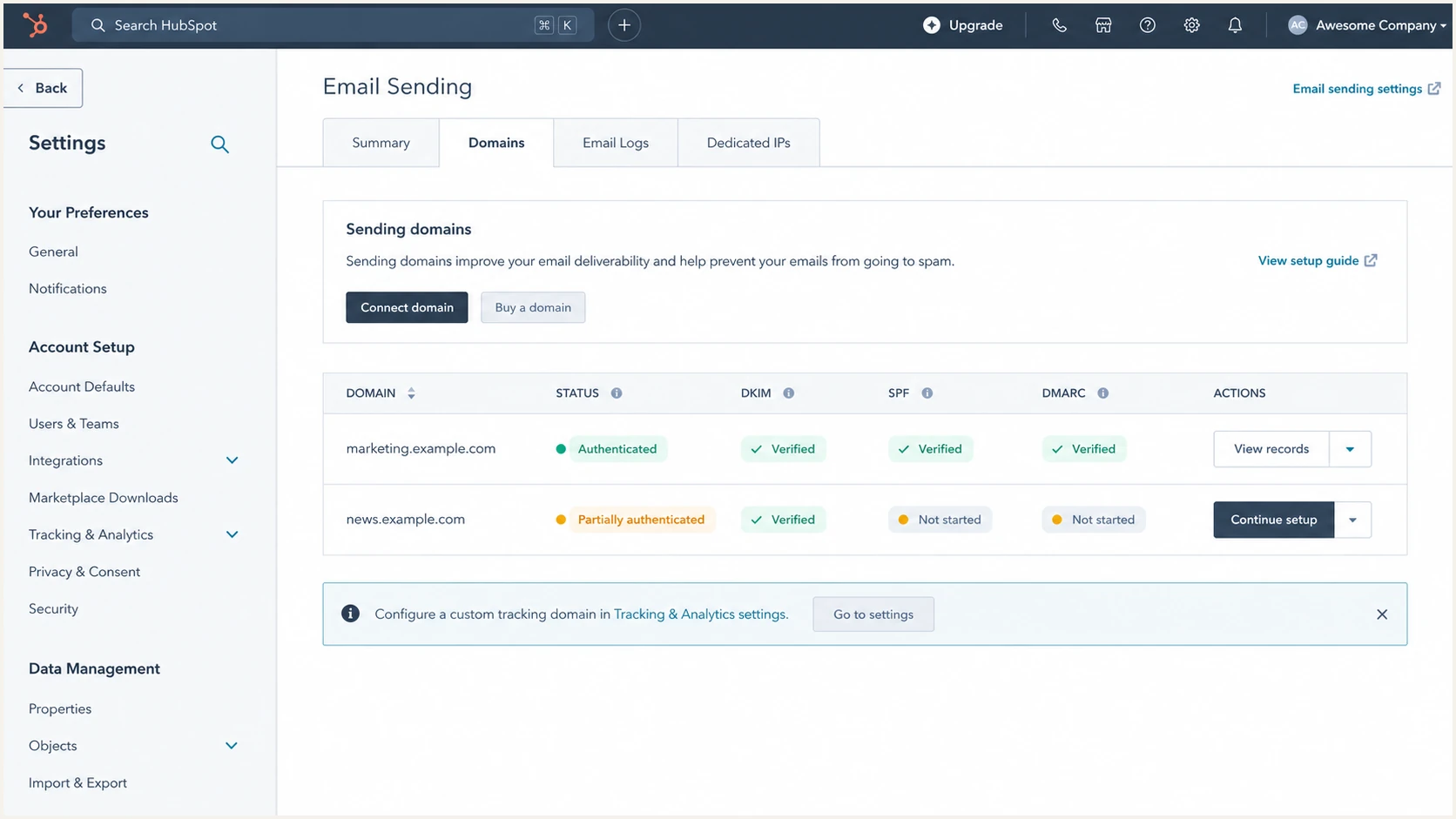
HubSpot Email Sending tab showing authenticated and partially authenticated domains.
Common failure
- Duplicate SPF: Two TXT records start with the SPF version at the same host.
- Wrong host: The DNS provider adds the root domain twice to a DKIM host.
- Flattened CNAME: The DNS provider rewrites the DKIM target instead of publishing a CNAME.
- Strict policy early: A new HubSpot source appears after p=reject is already active.
Direct fix
- Merge SPF: Keep one SPF TXT record and add the HubSpot include inside it.
- Trim host names: Enter only the host label if your DNS UI appends the domain.
- Use plain CNAME: Disable proxying and publish the exact HubSpot target.
- Hold the campaign: Stop the affected send until HubSpot DKIM passes. Do not weaken the domain-wide policy without reviewing other senders.
The fastest practical check is a live test email. Send one message through HubSpot and review the authentication result for SPF, DKIM, DMARC, header domains, and DNS findings.
Email tester
Send a real email to this address. Suped shows a results button when the test is ready.
?/43tests passed
|
|
|
|---|---|---|
DKIM | Pass and aligned | Republish both CNAMEs |
SPF | One valid record | Merge duplicate records |
DMARC | Pass via aligned DKIM | Check the DKIM d value |
HubSpot | Authenticated | Continue setup |
HubSpot authentication checks
Monitor HubSpot authentication
HubSpot authentication is not a one-time task. DNS or account changes and newly added senders can break passing mail after launch. Suped's product turns raw reports into DMARC monitoring with source-level alerts, owner-friendly diagnostics, and fix steps.
- Watch HubSpot volume: Alert when HubSpot traffic drops unexpectedly or starts failing DKIM.
- Separate known sources: Classify HubSpot apart from corporate mail, billing mail, and support mail.
- Detect spoofing: Find traffic claiming your domain that has no SPF or DKIM path to pass DMARC.
- Track reputation: Use blocklist (blacklist) monitoring alongside DMARC so deliverability issues are visible early.
- Keep DNS manageable: Use hosted SPF and SPF flattening when too many senders push the domain toward lookup limits.
Where Suped fits
Suped brings DMARC, SPF, DKIM, blocklist monitoring, hosted SPF, hosted DMARC, hosted MTA-STS, and real-time alerts into one workflow. This helps when HubSpot is one of several senders using the same domain.
- Automated detection: Issues are grouped by sender and authentication failure type.
- Actionable steps: Each issue includes the DNS or platform change needed to fix it.
- Multi-domain scale: The MSP and multi-tenancy dashboard keeps client and brand domains separate.
- Free plan path: Small teams can start monitoring without waiting for a procurement cycle.
Secure your domain with p=reject
Move to p=reject only after HubSpot and every other legitimate sender has clean DMARC results. Suped's product supports policy staging and real-time alerts. Its Hosted DMARC controls also let teams change policy without editing DNS each time.
- Stabilize p=none: Collect enough aggregate reports to identify HubSpot and every real sender.
- Fix HubSpot first: Do not enforce while HubSpot DKIM is missing, intermittent, or signed by the wrong domain.
- Move to quarantine: Use quarantine as a controlled step when legitimate mail is passing consistently.
- Review failed sources: Confirm that every remaining DMARC failure is unwanted or has an approved remediation plan.
- Finish at reject: Set p=reject when failed mail is unwanted and legitimate sources have a passing path.
Policy rollout gates
Use these gates before moving a HubSpot sending domain toward p=reject.
Monitor
0% blocked
Use p=none while mapping all legitimate sources.
Constrain
quarantine failures
Use quarantine after HubSpot DKIM and other senders are stable.
Reject
full enforcement
Block failed mail after all approved sources pass DMARC.
Before p=reject
- Known sources: HubSpot and every approved sender appear in DMARC reports.
- Passing DKIM: HubSpot consistently passes through its aligned DKIM signature.
- Clean SPF: The domain has one valid SPF record with no lookup overflow.
After p=reject
- Active alerts: New HubSpot failures trigger alerts before campaign volume grows.
- Blocked abuse: Receivers get a clear instruction to reject unauthenticated mail.
- Change control: New senders are reviewed before they send on the protected domain.