How to set up DMARC/DKIM/SPF for Brightspace

Published 21 Jun 2026
Updated 22 Aug 2026
10 min read
Summarize with
Updated on 22 Aug 2026: We clarified who manages each Brightspace mail domain and corrected the DMARC enforcement workflow.
For a custom Brightspace mail domain, the setup is direct: authorize D2L with SPF, publish the two D2L DKIM CNAME records, make sure the domain has an MX record, then publish DMARC for the visible From domain. Treat Brightspace as a third-party sender: publish DNS first, test a real message second, then use DMARC reports to confirm every mail path.
D2L documents the core requirements in D2L guidance: a custom mail domain needs SPF and DKIM records so Brightspace can send on your behalf. Brightspace supports return-path domain matching, so SPF can provide DMARC alignment alongside DKIM.
Records you will publish
- SPF: Add include:a._spf.brightspace.com to the SPF record for the Brightspace return-path domain.
- DKIM: Create both D2L CNAME records, d2lmail1 and d2lmail2, because D2L rotates keys every six months.
- DMARC: Publish a DMARC TXT record on the visible From domain, or confirm how the custom domain inherits the parent policy.
- MX: Give every custom mail domain at least one valid MX record, even when replies are not required.
Choose the Brightspace mail model
Check the From domain on a recent Brightspace message before editing DNS. A default D2L-managed mail domain and a custom branded mail domain have different owners and setup tasks.
D2L-managed domain
- A domain such as mail.orgname.brightspace.com is controlled by D2L.
- D2L manages its MX, SPF, DKIM, and DMARC policy, so you do not publish those records in your DNS zone.
Custom branded domain
- A domain such as mail.example.edu is controlled by your organization.
- You publish the required DNS records and submit a D2L Service Catalog request to enable DKIM signing.
- Use only a domain your organization owns. D2L does not support DMARC for a non-D2L domain owned by someone else.
Configure the custom mail domain
Use a dedicated Brightspace mail domain such as mail.example.edu or notifications.example.edu. Keep it separate from the Brightspace login hostname because D2L does not allow a custom site URL to be the same as a mail domain or to be used for mail.
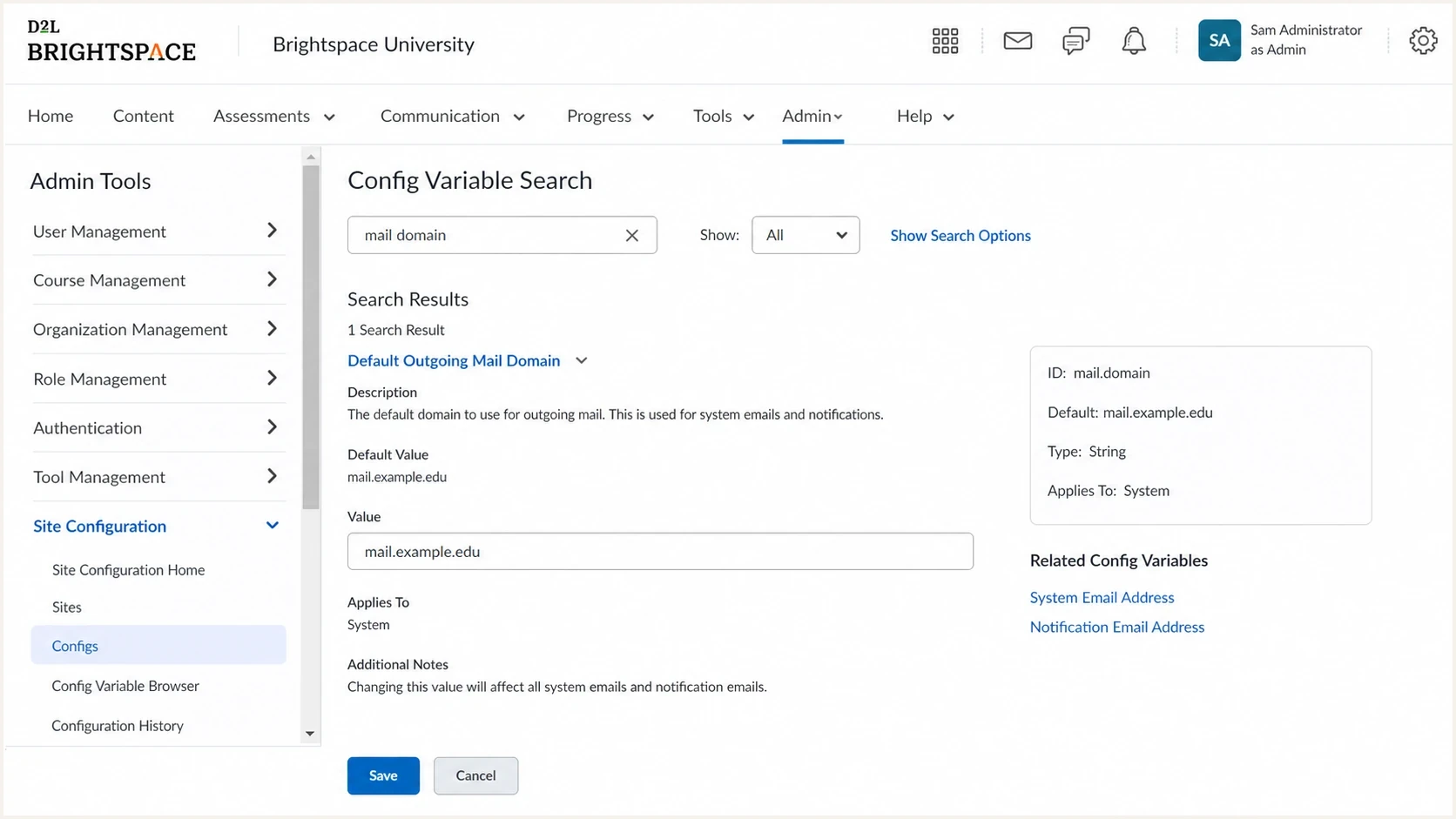
Brightspace admin screen showing a custom outgoing mail domain.
- Pick the domain: Choose a subdomain dedicated to Brightspace mail, for example mail.example.edu. This keeps Brightspace DNS separate from your main website and primary mailbox routing.
- Confirm ownership: Use a domain your organization owns. If the From domain belongs to a third party or a personal mailbox provider, Brightspace does not support DMARC for that setup.
- Open the request: Submit a D2L Service Catalog request to enable DKIM for each custom domain used in outgoing mail. D2L generates and maintains the private keys while you publish the CNAME records.
- Set Brightspace mail: Use the custom domain for system email and notification email so those Brightspace messages use the domain you prepared.
- Plan MX routing: Publish at least one MX record for every custom mail domain. Point it to your mail server when replies are needed. If you use the D2L gateway instead, contact D2L before creating the MX record to prevent routing loops.
|
|
|
|---|---|---|
Sender | Brightspace | Course mail source |
Domain | Owned subdomain | Defines DNS scope |
MX | MX | Handles replies and responses |
SPF | TXT | Authorizes D2L |
DKIM | CNAME | Supports key rotation |
DMARC | TXT | Controls policy |
Use the table to keep the Brightspace DNS scope tight before publishing records.
Set up SPF
Brightspace SPF belongs on the domain used in the return path, also called the envelope From domain. If you use mail.example.edu as the Brightspace mail domain, publish SPF at that hostname. If Brightspace sends directly as example.edu, publish it at the root domain.
- Find the current SPF record: Check whether the Brightspace return-path domain already has an SPF TXT record. A hostname must have one SPF record, not several.
- Add the D2L include: Add include:a._spf.brightspace.com to the existing SPF record before its final all mechanism.
- Create the record if missing: D2L documents ~all as an optional soft-fail ending. Choose the final all qualifier according to your domain's mail policy.
- Watch the lookup limit: SPF evaluation permits no more than 10 DNS-querying mechanisms and modifiers. Count the D2L include and its recursive lookups with every other sender on that hostname.
SPF examplesDNS
mail.example.edu TXT "v=spf1 include:a._spf.brightspace.com ~all"

example.edu TXT "v=spf1 include:a._spf.brightspace.com ~all"

# If you already have SPF, merge the include into that record.
v=spf1 include:_spf.example.net include:a._spf.brightspace.com ~all
SPF checker
Find SPF syntax issues, lookup limits, and weak records.
?/16tests passed
Do not publish duplicate SPF records
Multiple SPF TXT records on one hostname produce a permerror. Merge the Brightspace include into the existing record and verify the final DNS response before sending a test notification.
Set up DKIM
Brightspace DKIM uses two CNAME records under the sending domain. Publish both records even if only one appears active, because D2L rotates the signing key every six months and the standby key must resolve before rotation.
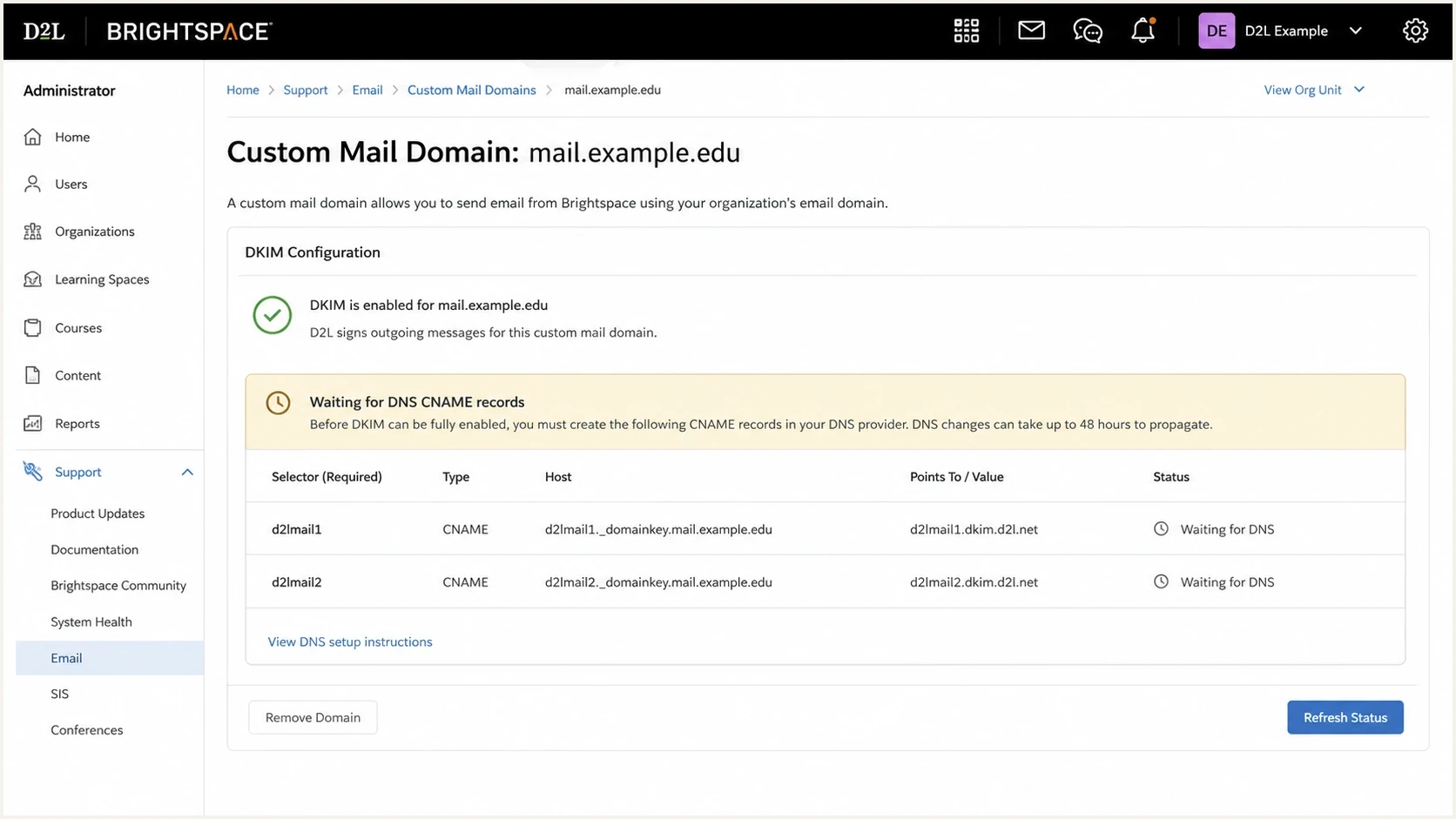
Brightspace custom mail domain screen showing two DKIM selectors.
- Create selector one: Publish d2lmail1 as a CNAME under _domainkey for the Brightspace mail domain.
- Create selector two: Publish d2lmail2 the same way. Delivery can break after a D2L key rotation if one selector is missing.
- Use CNAME records: Do not replace a CNAME target with a copied public key unless D2L gives tenant-specific instructions to do so.
- Wait for DNS: After the records resolve publicly, send a Brightspace notification and inspect its DKIM authentication result.
DKIM CNAME recordsDNS
d2lmail1._domainkey.mail.example.edu CNAME
d2lmail1._domainkey.brightspace.com

d2lmail2._domainkey.mail.example.edu CNAME
d2lmail2._domainkey.brightspace.com
Good DKIM setup
- Both selectors: The two D2L CNAME records exist and resolve publicly.
- Matching domain: The DKIM signing domain has DMARC alignment with the Brightspace From domain.
- Rotation ready: The standby selector is already in DNS before D2L rotates keys.
Common DKIM failure
- One selector: Only d2lmail1 exists, so the next key rotation causes DKIM failures.
- Wrong host: The CNAME is placed at the root domain instead of under the Brightspace mail domain.
- Copied target: The CNAME target is replaced with stale TXT data and no longer follows D2L key updates.
Set up DMARC
DMARC policy applies to the visible From domain used by Brightspace. Start with p=none so you can collect reports without asking receivers to quarantine or reject course notifications. If the applicable DMARC record already uses p=quarantine or p=reject, confirm Brightspace passes before changing its From domain or DNS records.
- Choose the host: For mail.example.edu as the visible From domain, publish a specific policy at _dmarc.mail.example.edu. If that record is absent, receivers use the parent domain's sp policy when present, otherwise its p policy.
- Add aggregate reporting: Send RUA reports to a mailbox or DMARC platform that can parse XML into source-level pass and fail data.
- Use the generator: Build a starting record with the DMARC record generator if you do not want to hand-write tags.
- Check domain alignment: DMARC passes when SPF or DKIM passes and that authenticated domain has the required relationship with the visible From domain.
Starter DMARC recordDNS
_dmarc.mail.example.edu TXT
"v=DMARC1; p=none; rua=mailto:dmarc@example.com"
DMARC checker
Look up a domain's DMARC record and catch policy issues.
?/7tests passed
What should pass
- DKIM pass: A Brightspace message should pass DKIM with a D2L-managed signature whose signing domain has DMARC alignment with the From domain.
- SPF pass: The return-path domain should pass SPF through a._spf.brightspace.com when Brightspace sends from the configured custom domain.
- DMARC pass: At least one of SPF or DKIM must pass with domain alignment to the visible From domain.
Verify and troubleshoot
Verify Brightspace with a real message as well as DNS lookups. DNS proves the records exist. A live notification proves Brightspace is using the expected From domain, return path, DKIM selector, and signing domain.
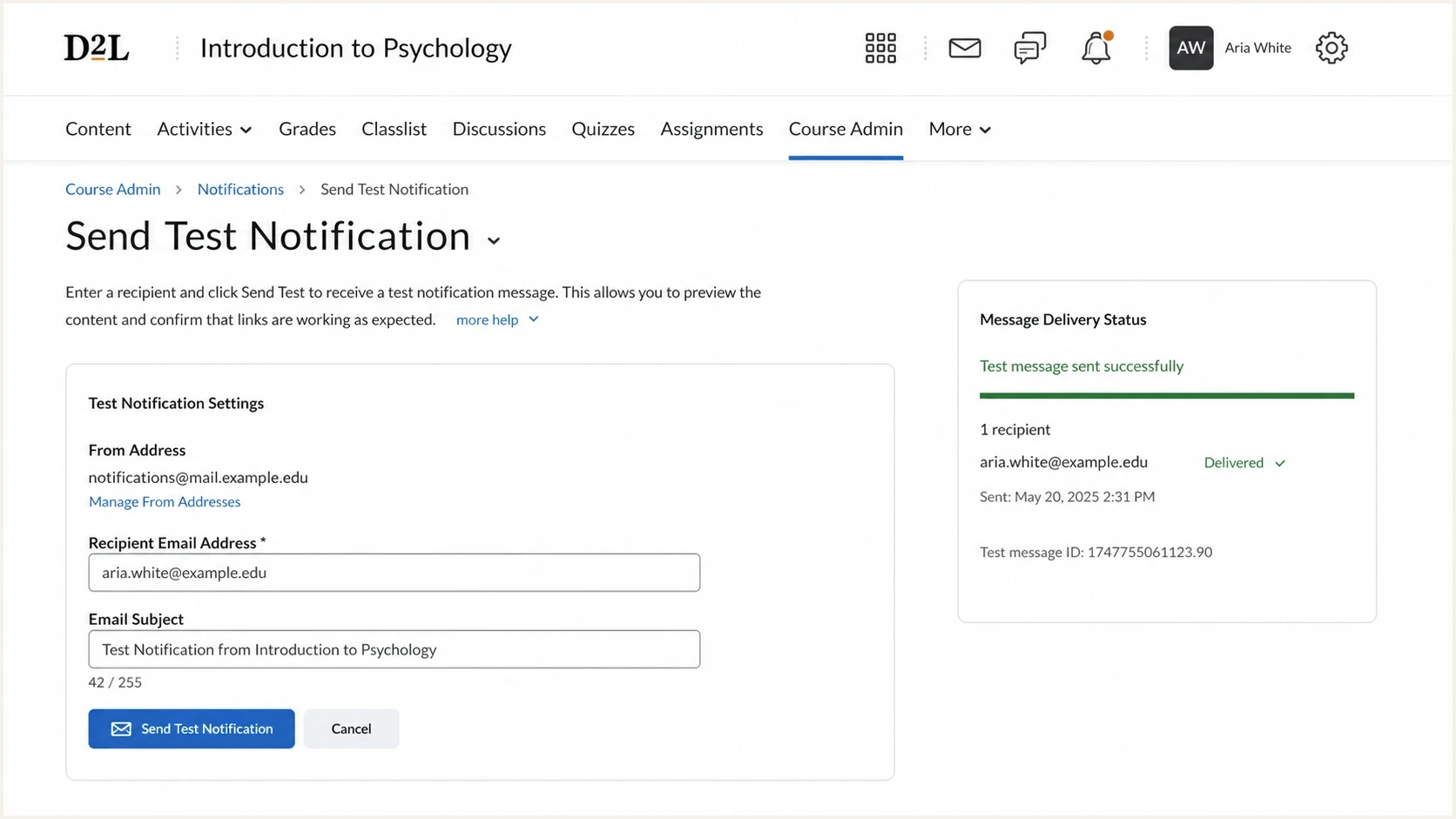
Brightspace notification screen used to send a test email.
- Send a test: Trigger a real Brightspace notification, announcement, enrollment message, or system email from the configured domain.
- Inspect headers: Check Authentication-Results for SPF, DKIM, and DMARC. Confirm the header From domain, envelope From domain, DKIM selector, and DKIM signing domain match the planned configuration.
- Use the tester: Send the Brightspace message to the email tester below for a diagnostic view of headers, DNS, and authentication results.
- Review reports: After 24-48 hours, inspect DMARC aggregate reports for D2L source traffic and confirm each expected Brightspace mail path passes consistently.
Email tester
Send a real email to this address. Suped shows a results button when the test is ready.
?/43tests passed
|
|
|
|---|---|---|
SPF fail | Missing include | Merge D2L include |
SPF permerror | Too many lookups | Reduce DNS lookups |
DKIM fail | Bad CNAME | Fix selector host |
DMARC fail | Domain alignment failure | Fix authenticated domain |
No reports | Bad RUA destination | Check report address |
Keep troubleshooting tied to the authentication result that failed.
For a deeper checklist, use the related verification workflow for DMARC, DKIM, and SPF after the Brightspace DNS records resolve.
Get alerted when it breaks
Brightspace authentication can break when someone edits SPF, a DNS change removes a CNAME, a subdomain policy gets tightened, or a D2L key rotation exposes a missing selector. Suped's product parses DMARC XML into source-level results and provides alerts for authentication failures affecting Brightspace.
- Monitor Brightspace: Use Suped's DMARC monitoring to review Brightspace volume, authentication results, and policy disposition by source.
- Catch DNS drift: Enable alerts for authentication failures so a missing Brightspace selector or SPF edit can be investigated before more course mail is affected.
- Find the cause: Use issue detection to distinguish SPF, DKIM, DMARC policy, and DNS syntax failures.
- Track reputation: Use Suped's DMARC, SPF, DKIM, blocklist (blacklist), and deliverability views when Brightspace mail starts landing in spam folders.
Useful alert rules
- New source: Alert when a new source starts sending as the Brightspace domain.
- DKIM drop: Alert when Brightspace DKIM pass rates fall below the established baseline.
- Policy impact: Review failures before a move to quarantine or reject affects real course notifications.
Brightspace authentication checks
Example pass and fail split to review before tightening policy.
Pass
Fail
Secure your domain with p=reject
Move Brightspace to p=reject only after reports show every legitimate Brightspace message passes DMARC. One test email is not enough. Collect report data that covers course notifications, enrollment mail, password workflows, and every D2L mail path used by the tenant.
- Start at none: Use p=none until Brightspace is visible in reports and its legitimate mail passes DMARC.
- Fix all sources: Resolve other legitimate senders using the same domain before changing policy. DMARC policy applies to the domain, not only Brightspace.
- Stage quarantine: Move to p=quarantine after reports cover normal Brightspace sending patterns and unexplained failures have been resolved.
- Reach reject: Move to p=reject when no legitimate source fails DMARC and the team has a documented rollback path.
- Use hosted policy: Suped's Hosted DMARC supports staged policy changes without repeated DNS edits, which is useful when education mail sources change during term setup.
Readiness for p=reject
Use source coverage and legitimate-mail results before enforcing a reject policy on a Brightspace sending domain.
Ready
All known mail passes
Every known legitimate source passes DMARC across normal sending patterns.
Investigate
Unexplained traffic remains
An unknown source or unexplained authentication failure still appears in reports.
Do not enforce
Legitimate mail fails
A legitimate Brightspace message or another approved sender still fails DMARC.
Final DMARC policy exampleDNS
_dmarc.mail.example.edu TXT
"v=DMARC1; p=reject; rua=mailto:dmarc@example.com"
Safe move to reject
- Evidence: Suped reports show Brightspace passing DMARC across normal mail types.
- Coverage: Every approved source using the same policy domain has been reviewed.
- Rollback: Hosted policy or documented DNS access is ready if a sender was missed.
Risky move to reject
- Single test: One message passed, but aggregate reports still show unknown traffic.
- Missing DKIM: Only one D2L selector exists, so key rotation can break signing later.
- Shared domain: Other institutional systems use the same domain without source review.