How does Google Workspace handle DMARC alignment for multiple domains?

Published 25 Jul 2025
Updated 11 Aug 2026
12 min read
Summarize with
Updated on 11 Aug 2026: We added subdomain and SPF lookup guidance, corrected Google's SPF example, clarified DKIM key setup, and tightened the multi-domain rollout steps.
Google Workspace handles DMARC alignment for multiple domains correctly when each visible From domain has its own authentication setup. The direct answer is this: Google can send authenticated mail for primary domains, secondary domains, and alias domains, but it does not make every domain pass DMARC by default. Each sending domain still needs SPF, DKIM, and DMARC records, and DKIM must be enabled per domain in the Admin console.
The most reliable path is DKIM. If mail leaves Google Workspace with d= set to the same organizational domain as the visible From address, DMARC passes even when SPF uses a different envelope sender. This matters most for domain aliases, where the envelope sender can point back to the mapped or primary domain.
Google's own Google DMARC setup guidance says to configure SPF or DKIM before DMARC. Treat that as a domain-by-domain requirement, not an account-wide checkbox.
The short answer
Google Workspace uses the identity in the outbound message and the way the domain was added to decide what happens. For a normal secondary domain with its own users, Google Workspace can sign mail with that domain's DKIM key after you generate the key, publish it in DNS, and click Start authentication. That gives DMARC an aligned DKIM result.
For a domain alias, the situation is different. The alias maps onto existing users rather than creating independent mailboxes. The visible From address can use the alias domain while the envelope sender uses the mapped domain. SPF can pass authentication but still fail DMARC alignment. DKIM for the alias domain is the control point.
- Primary domain: Google Workspace mail should pass DMARC after SPF and DKIM are configured and a DMARC record is published correctly.
- Secondary domain: Google Workspace supports per-domain DKIM, so each secondary domain needs its own key.
- Domain alias: SPF is not the dependable DMARC path because the envelope sender often points at the mapped domain.
- Third-party senders: Apps outside Google Workspace need separate authentication and reporting for every domain they use.
- Forwarding paths: Forwarding often breaks SPF, so DKIM has to survive message handling and list processing.
DKIM is not automatic
Adding a second domain to Google Workspace does not finish DKIM. Select that domain in the Admin console, generate its DKIM record, publish the TXT record, and start authentication. Google requires a unique DKIM key for each domain and recommends a 2048-bit key when the DNS host supports it.
Why secondary domains and alias domains differ
The domain type in Google Workspace changes the identity model. A secondary domain has its own user identities. A domain alias overlays addresses onto existing users. That difference affects the visible 5322.From header, the envelope 5321.From identity, and the DKIM signing domain.
|
|
|
|
|
|---|---|---|---|---|
Primary | Native users | Usually yes | Enable key | Passes |
Secondary | Own users | Usually yes | Unique key | Passes |
Alias | Mapped users | Often no | Alias key | Depends |
Send as | Mixed | Varies | Check signer | Test |
How Google Workspace domain types affect DMARC checks.
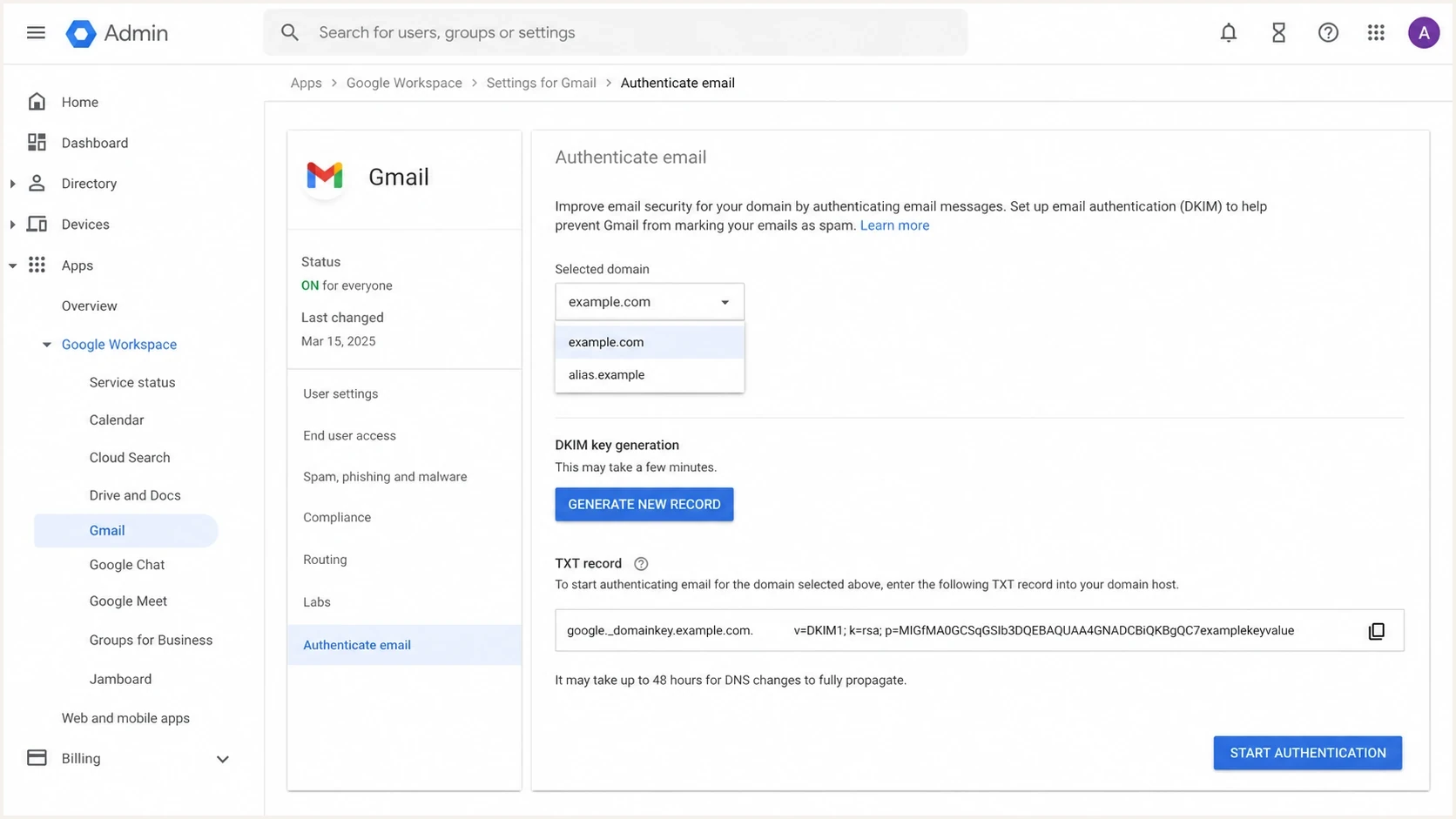
Google Admin console DKIM screen with a selected domain menu.
The selected domain menu works as a checklist. If a domain can appear in the visible From address, check its own DKIM status. A green status on the primary domain does not prove that an alias domain or secondary domain is signing.
What Google handles
- Routing: Gmail sends Workspace mailbox mail through Google's outbound infrastructure.
- Signing: Gmail adds a DKIM signature after authentication is started for that domain.
- Selection: Gmail uses the relevant enabled signing domain for Workspace-originated messages.
What you handle
- DNS: Publish authentication records on every sending domain.
- Activation: Start DKIM authentication after the TXT record has propagated.
- Testing: Send external test messages and inspect received headers.
How subdomains fit into alignment
A sending subdomain is another visible From identity, even when it sits under a Workspace domain. With relaxed DKIM alignment, a signature such as d=mail.example.com can have DMARC alignment with header.from=example.com because both share the same organizational domain. Strict alignment with adkim=s requires an exact domain match.
DMARC policy and authentication records follow different rules. A policy published at the organizational domain applies to subdomains unless a subdomain publishes its own DMARC record. The organizational record's sp= tag can set a separate policy for subdomains. SPF and DKIM still need to cover the identities that each subdomain uses to send.
- Relaxed alignment: Parent and child domains have DMARC alignment when they share the same organizational domain.
- Strict alignment: The DKIM signing domain must exactly match the visible From domain.
- Inherited policy: The organizational DMARC record covers subdomains unless a more specific record exists.
- Separate sending setup: Configure and test SPF and DKIM for every subdomain used in a visible From address.
Header evidence to look for
Do not rely on the Admin console alone. The proof is in a received message header from an external mailbox. A working secondary domain usually has the same organizational domain in the visible From address, the DKIM d= value, and the DMARC result.
Passing Google Workspace secondary domain
From: Laura Example <laura@secondary.example>
Return-Path: <laura@secondary.example>
DKIM-Signature: v=1; d=secondary.example; s=google; ...
Authentication-Results: mx.example;
  spf=pass smtp.mailfrom=secondary.example;
  dkim=pass header.d=secondary.example;
  dmarc=pass header.from=secondary.example
A failing alias case often looks different. SPF passes because Google is allowed to send for the envelope domain, but DMARC fails because the envelope domain does not match the visible From domain and DKIM is missing or uses the wrong domain.
Failing alias pattern
From: Laura Example <laura@alias.example>
Return-Path: <laura@primary.example>
Authentication-Results: mx.example;
  spf=pass smtp.mailfrom=primary.example;
  dkim=none;
  dmarc=fail header.from=alias.example
When SPF passes but DMARC fails
An SPF pass is not enough for DMARC. DMARC checks whether the SPF-authenticated envelope domain aligns with the visible From domain. If those domains differ, SPF does not help DMARC. DKIM can still pass DMARC when the DKIM signing domain aligns with the visible From domain.
If strict and relaxed identity matching are part of the decision, compare the domains against relaxed alignment rules before changing policy. Relaxed matching accepts the same organizational domain, while strict matching requires the exact same domain.
Email tester
Send a real email to this address. Suped shows a results button when the test is ready.
?/43tests passed
A real test message catches problems that DNS checks miss, especially alias routing, group forwarding, and signatures removed by outbound gateways. For Google Groups, the separate Google Groups behavior is worth checking when a group sends or forwards mail using one of your domains.
How to configure each Google Workspace domain
Use a domain-by-domain checklist rather than a single Workspace checklist. That keeps primary domains, secondary domains, and aliases separated enough to catch the exact point where DMARC breaks.
- Add the domain: Decide whether the domain needs separate users as a secondary domain or mapped addresses as an alias.
- Publish SPF: Add Google's SPF include on every domain that sends directly through Google Workspace.
- Generate DKIM: Select the domain, choose 2048 bits when the DNS host supports it, generate a unique key, publish the TXT record, and start authentication.
- Publish DMARC: Start with a reporting policy, review data, and raise enforcement after each sender is accounted for.
- Test headers: Send mail externally from every visible From domain and confirm DKIM and DMARC in the received header.
Starter DNS records for each domain
SPF for each sending domain
example.com TXT
v=spf1 include:_spf.google.com ~all

DKIM for each sending domain
google._domainkey.example.com TXT
v=DKIM1; k=rsa; p=MIIBIjANBgkqh...IDAQAB

DMARC for each sending domain
_dmarc.example.com TXT
v=DMARC1; p=none; rua=mailto:dmarc@example.com; pct=100
Publish one SPF record per domain. SPF also has a limit of ten DNS-querying terms during evaluation, and nested includes count toward that limit. Consolidate authorized senders carefully before adding another include; a duplicate record or an exceeded lookup limit can return an SPF permanent error.
After publishing DNS, check the record syntax with a DMARC checker and then run a broader domain health checker pass. Syntax checks do not replace a live header test, but they catch missing TXT records, duplicate DMARC records, and obvious policy mistakes before mail is sent.
?
What's your domain score?
Deep-scan SPF, DKIM & DMARC records for email deliverability and security issues.
For third-party sending systems, do not assume Google Workspace covers them. If a CRM, invoice system, ticketing system, or marketing platform sends as the same domain, configure that system separately. The same rule applies to multiple senders: every sender needs a passing and aligned SPF or DKIM path before DMARC enforcement.
Where Suped fits
Suped's DMARC platform helps once DNS configuration and live message tests are in motion. Google Admin shows whether a selected domain's DKIM status is active, while DMARC aggregate reports show what receivers saw across domains, aliases, subdomains, and non-Google senders.
Suped's DMARC monitoring workflow parses aggregate reports, groups traffic by sending source, and identifies the alignment path behind each result. That is useful when one organization has several Google Workspace domains and other systems sending with the same From domains.
DMARC record detail view showing SPF, DKIM, DMARC, rDNS diagnostics, and DNS records
- Issue detection: Suped shows which domain failed, which source sent it, and what authentication change is needed.
- Alerts: Suped can flag new DMARC failures when an alias stops signing or an unrecognized sender appears.
- Hosted controls: Suped's Hosted DMARC and Hosted SPF workflows reduce repeated DNS edits across many domains.
- MSP dashboard: Agencies and managed service providers can keep client domains separated in one account.
That matters because Google Workspace is only one source of mail. When a business adds a billing tool, booking system, help desk, or marketing platform, DMARC becomes a cross-source monitoring task rather than a Gmail-only configuration.
Common failure patterns
Most Google Workspace multi-domain failures are not random. They usually come down to one of five patterns: the wrong domain type, a missing DKIM key, DKIM not actually signing, SPF passing for the wrong domain, or a non-Google sender using the same From domain without its own authentication.
|
|
|
|---|---|---|
DMARC fail | DKIM missing | Start DKIM |
SPF pass only | Alias sender | Enable DKIM |
Sent via | Alias issue | Check domain |
New domain | DNS delay | Wait and test |
App mail | Sender missing | Add DKIM |
Common Google Workspace DMARC symptoms and fixes.
The fastest diagnosis
Send one message from each domain to an outside mailbox, then compare From, Return-Path, DKIM-Signature, and Authentication-Results. If the DKIM signing domain aligns with the visible From organizational domain, Google Workspace is doing the part DMARC needs.
Check whether the domain was recently added. Google says DKIM key generation can require a 24 to 72 hour wait after Gmail is turned on, and DKIM authentication can take up to 48 hours to start working after the key is added. Do not raise the DMARC policy while expected mail is still unsigned during that window.
Policy rollout for multiple domains
Move each domain through DMARC enforcement separately. A primary domain with clean Google Workspace DKIM should not wait for an alias domain that still has missing signatures. The reverse is also true: do not push an alias domain to reject just because the primary domain is clean.
Policy staging
A practical rollout path for each Google Workspace sending domain.
Monitor
p=none
Collect reports, verify Google Workspace DKIM, and identify non-Google senders.
Filter
p=quarantine
Use when legitimate sources are authenticated and remaining failures are understood.
Block
p=reject
Use when approved sources consistently pass DMARC for that domain.
Google recommends configuring SPF and DKIM at least 48 hours before DMARC. Start with p=none and review reports for at least one week before applying quarantine to a small percentage of messages. Larger organizations should wait until the data covers a representative business cycle. Increase enforcement only when legitimate mail consistently passes.
Before reject
- Google DKIM: Confirm every domain signs with its own domain.
- Alias checks: Confirm alias domains pass through DKIM, not only SPF.
- Reports: Review aggregate reports for all expected sources.
After reject
- Alerts: Watch for new failures when domains or apps change.
- Senders: Recheck every new vendor before it sends production mail.
- Keys: Rotate or regenerate DKIM keys with planned testing.
Views from the trenches
Best practices
Set up DKIM separately for every visible From domain before raising the DMARC policy.
Test a real external message for each domain; Admin console status is not enough proof.
Track alias domains separately because SPF success still leaves a domain mismatch risk.
Common pitfalls
Assuming a domain alias behaves like a secondary domain causes confusing DMARC failures.
Publishing one DKIM key for the primary domain does not cover every extra sending domain.
Skipping header checks hides cases where Google says DKIM is enabled but no signature appears.
Expert tips
Use DKIM as the dependable DMARC path when Google Workspace domain aliases are involved.
Treat each new domain as a complete sender onboarding task, not a simple DNS addition.
Keep policy rollout separate by domain so one broken alias does not block stronger domains.
Expert from Email Geeks says Google Workspace can handle multiple domains cleanly, but the setup has to be verified with real outbound examples rather than assumed from the account structure.
2021-05-07 - Email Geeks
Marketer from Email Geeks says paid Google Workspace accounts behave differently depending on whether the second domain is a domain alias or a separate domain.
2021-05-07 - Email Geeks
The practical answer
Google Workspace handles DMARC alignment for multiple domains when every From domain is configured as its own sender identity. For secondary domains, expect clean DMARC results after the authentication records are published and DKIM is started. For domain aliases, do not count on SPF alignment. Use per-domain DKIM and confirm the result in headers.
The workflow is straightforward: configure each domain, send a real message, inspect headers, monitor reports, and raise policy by domain. Suped's product can support that work with DMARC monitoring, alerts, hosted policy controls, SPF management, blocklist (blacklist) monitoring, and multi-tenant reporting when the setup grows beyond a few domains.