How to add DKIM record for owned domain in Salesforce Marketing Cloud (SFMC)?

Published 26 Apr 2025
Updated 31 Jul 2026
13 min read
Summarize with
Updated on 31 Jul 2026: We updated this guide with the current SFMC setup path, DNS record format, and post-change validation checks.
Yes, you can add DKIM for an owned domain in Salesforce Marketing Cloud Engagement, but not by creating a random DKIM record in your own DNS and expecting SFMC to use it. SFMC must configure the domain for authenticated sending through a Private Domain or Sender Authentication Package (SAP). You then publish the DNS records SFMC supplies, or delegate the relevant domain or subdomain to Salesforce.
The key point is simple: DKIM has a private key and a public key. The sending system must hold the private key and use it to sign each message. DNS hosts the public key. If you create your own DKIM key pair outside SFMC, SFMC does not have that private key, so SFMC cannot sign mail with that selector.
- Direct answer: Configure a Private Domain or SAP domain in SFMC, then publish the supplied DNS values.
- Main caveat: An available Private Domain or SAP entitlement is required for authenticated sending.
- What to avoid: Do not treat Registered Domain or a self-generated DKIM key as SFMC authentication.
The short answer
In SFMC, an owned domain still has to be authenticated by the SFMC sending infrastructure. Owning example.com gives you the right to publish DNS records, but it does not give SFMC the private key needed to sign as that domain. The sender and DNS have to be paired.
Answer in one minute
- If you need DKIM pass: Configure a Private Domain or SAP domain for authenticated sending.
- If you need DMARC pass: Make sure the DKIM d= domain matches your visible From domain under your DMARC domain matching mode.
- If you need tracking branding: Use SAP rather than an authentication-only Private Domain.
- If New Domain is disabled: Check account entitlements and contact Salesforce for the missing license or supported setup path.
|
|
|
|
|---|---|---|---|
Private Domain | Zone file or delegation | Yes | Email authentication |
SAP | Zone file or delegation | Yes | Authentication and branding |
Registered Domain | Ownership TXT token | No | From-address verification |
Own key | Your values | No | Other sending systems |
Comparison of realistic SFMC domain paths.
Register Domain and Add Email Address can authorize From addresses for use in SFMC, but neither option authenticates outbound mail. For SFMC DKIM, From Address Management must identify the domain as SAP or Private Domain.
Do not confuse SFMC domain authentication with the core Salesforce Create a DKIM Key flow. That flow applies to email sent by the core Salesforce platform. Marketing Cloud Engagement uses its SAP and Private Domain configuration.
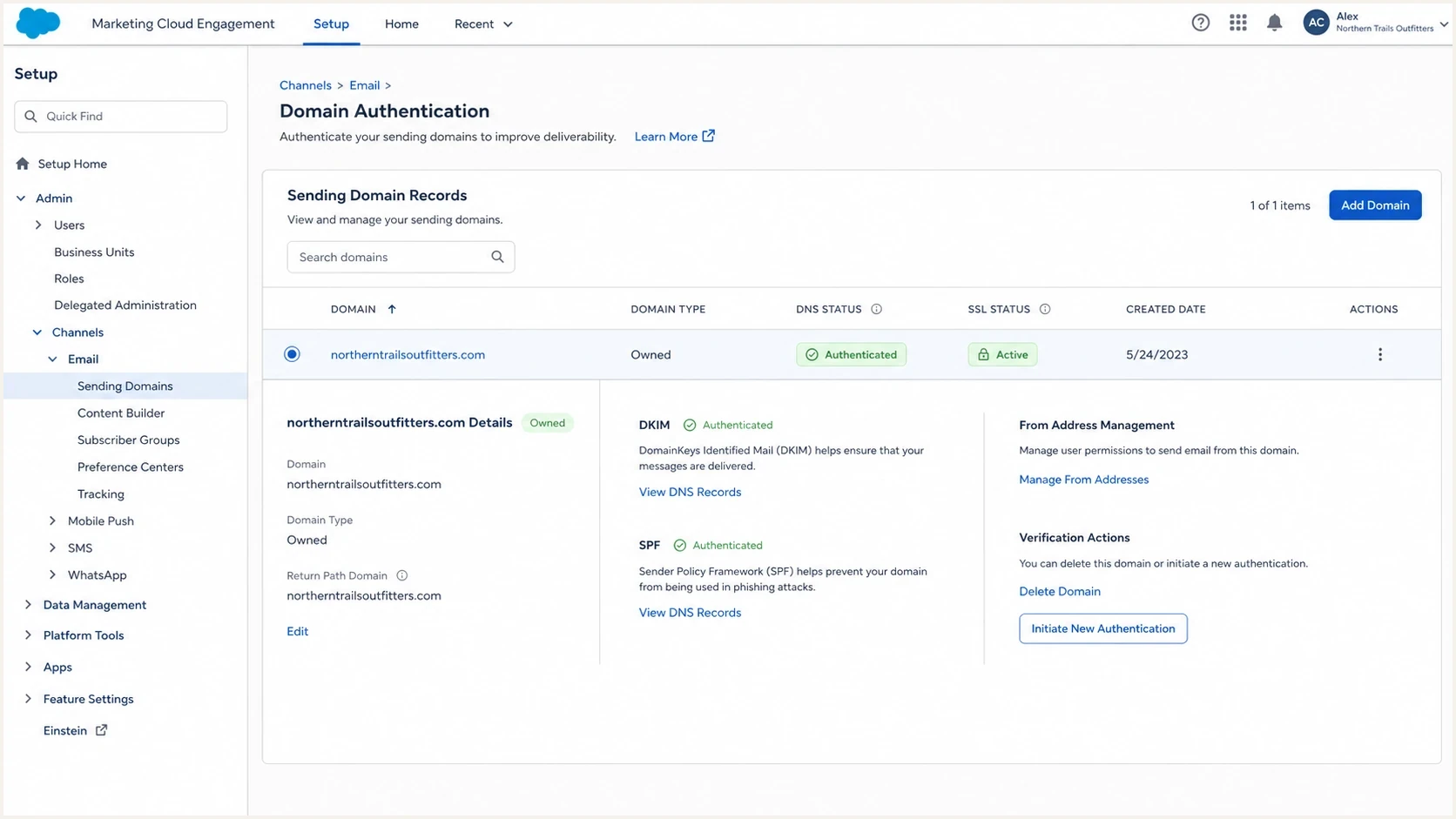
SFMC Domain SSL Certificates screen with sending-domain DNS, DKIM, and SPF status.
Why your own DKIM key will not work by itself
DKIM works when the sender creates a DKIM-Signature header and the receiver can use DNS to find the matching public key. The header names a signing domain in d= and a selector in s=. The receiver then queries s._domainkey under that signing domain.
That is why the private key matters. If SFMC signs as a Salesforce-controlled domain, your owned domain DNS record is irrelevant for that signature. If you want SFMC to sign as your owned domain or a subdomain of it, SFMC needs its own approved key material or hosted signing path for that exact domain. This is also why DKIM setup can look complete in DNS while messages still fail, which is covered in more detail in custom domain signing.
What you control
- DNS zone: You publish the SFMC zone-file records or delegate the chosen domain or subdomain.
- Domain choice: You choose root domain use, subdomain use, and sender addresses.
- Policy: You set DMARC policy and reporting destinations for self-hosted DNS.
- Other senders: You keep their selectors separate from the selector SFMC uses.
What SFMC controls
- Signing key: SFMC holds or manages the private key used for outbound signing.
- Header output: SFMC sets the DKIM-Signature domain and selector on sent mail.
- Verification: SFMC validates that your DNS matches the supplied domain configuration.
- Product access: SFMC exposes configuration options according to SAP and Private Domain entitlements.
The private key is the deciding factor
Publishing a DKIM public key without the matching sender-side private key is like publishing a lock without giving the sender the key that fits it. Receivers will not see a valid SFMC signature for that selector unless SFMC signs with the matching private key.
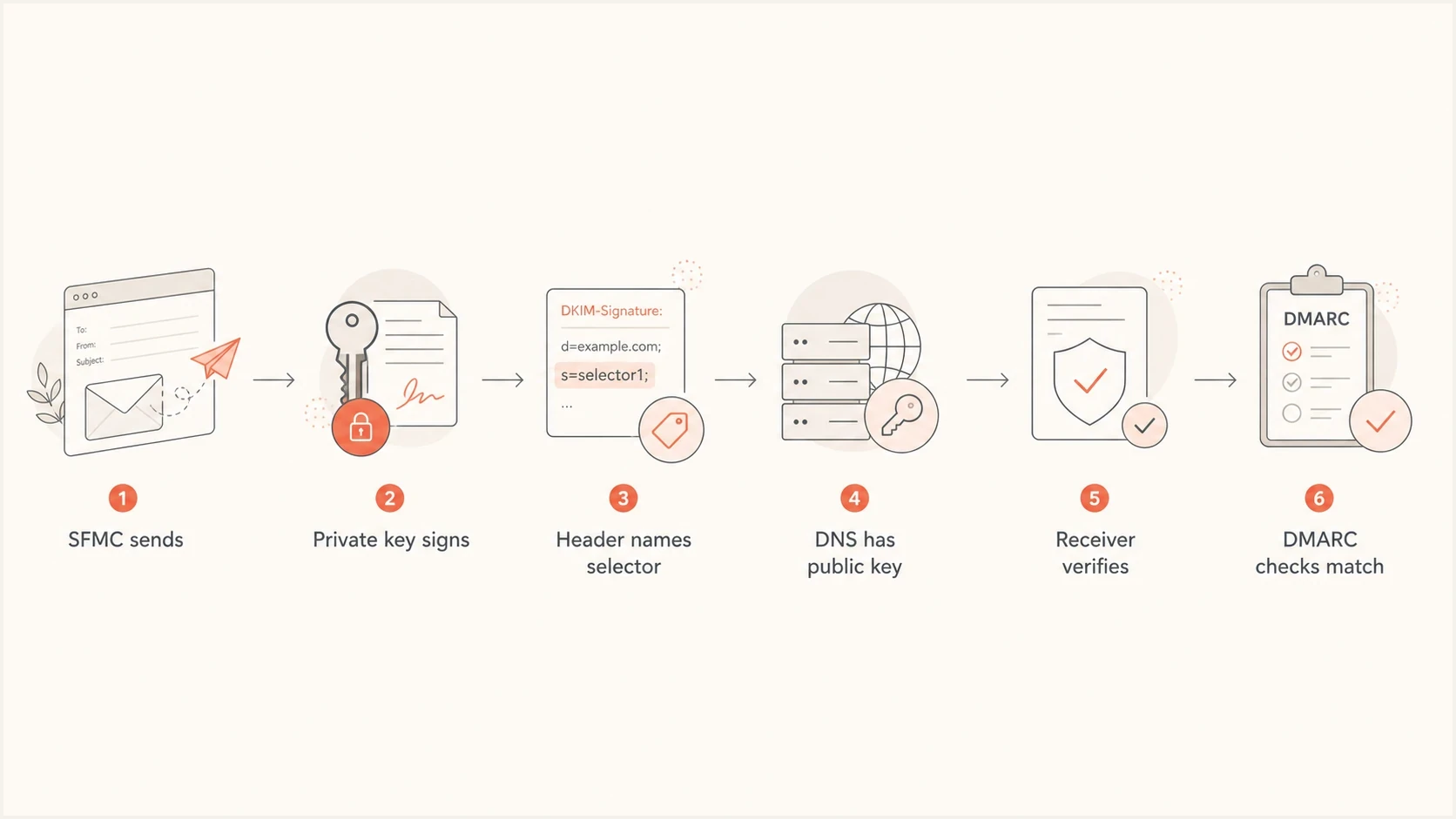
SFMC DKIM flow from private-key signing through DNS verification and DMARC domain matching.
Choose the SFMC authentication option
Configure the owned domain or subdomain for authenticated sending. Pasting a DKIM record into SFMC is not the workflow. If the account has an available entitlement, start in Domain SSL Certificates. If New Domain or the needed option is disabled, contact the Salesforce account team or Support about the missing license or supported account path.
Define the scope before configuration. Name the exact From domain, the Business Unit that will send, whether Reply Mail Management is in use, whether DNS will stay self-hosted, and whether link and image branding should use the same domain. Those details decide whether Private Domain is enough or SAP is required.
- Check entitlements: Confirm whether SAP, Private Domain, and required SSL capacity are available.
- Choose the function: Select email authentication only or email authentication with URL branding.
- Obtain DNS values: Use the downloaded zone file or the delegation instructions for that account.
- Verify sending: Wait for Active status, send a campaign test, and inspect the authentication headers.
Private Domain
Use Private Domain when the requirement is authenticated sending from an owned domain or subdomain. It is a paid authentication-only option, does not include a dedicated IP, and can use a shared or existing IP configuration.
- Best fit: You need DKIM and SPF authentication for a sending domain.
- Limit: It does not brand link, image, or view-as-webpage domains.
Sender Authentication Package
Use SAP for authenticated sending plus branded links, images, and view-as-webpage URLs. Salesforce requires SAP for customers sending more than 250,000 email messages per month.
- Best fit: You need domain authentication and account-level URL branding.
- Limit: An available SAP entitlement and enough SSL certificate capacity are required.
Configure the domain in SFMC
On supported Salesforce-hosted Marketing Cloud Engagement tenants, SAP and Private Domain configuration starts in Setup. The exact choices shown depend on the account's purchased entitlements and current IP configuration.
- Open domain settings: In Setup, enter "ssl" in Quick Find and select Domain SSL Certificates.
- Start the domain: In Sending Domain Records, click New Domain and enter the owned domain plus a notification address.
- Select the scope: Choose email authentication only for Private Domain, or email authentication and URL branding for SAP.
- Set sending options: Choose the available IP configuration and, when offered, configure Reply Mail Management.
- Choose DNS management: Select Salesforce delegation or self-hosted DNS, review the configuration, and submit it.
- Publish the records: For self-hosted DNS, use Download Zone File from the domain action menu and apply every required record.
Track progress in Sending Domain Records. Do not use the domain for production sending until SFMC marks it Active.
|
|
|
|---|---|---|
Pending DNS validation | Required DNS is not validated | Check every supplied record |
In progress | DNS was detected and setup continues | Allow up to five business days |
Active | Domain is ready | Run external test sends |
Statuses shown during SFMC sending-domain configuration.
Hyperforce uses a different setup path
The self-service instructions and sample zone-file records do not apply unchanged to Hyperforce. Salesforce provides account-specific DNS entries later in that setup process, so use the values supplied for the Hyperforce tenant.
DNS records to publish
For self-hosted DNS, download the zone file from the Sending Domain list and publish all required entries. The file can include DKIM, SPF, DMARC, bounce, reply, and service records according to the selected configuration. Do not shorten hostnames or change record types because they look unfamiliar.
The DKIM record in the standard self-hosted pattern is a TXT record at the selector under _domainkey. The selector is stack-specific and can change during key rotation, so use the value in the zone file rather than copying a selector from another account.
Representative SFMC DKIM TXT patternDNS
selector._domainkey.email.example.com. TXT "v=DKIM1; k=rsa; p=MIIB..."
Long DKIM public keys are often displayed as multiple quoted strings by a DNS interface. They still need to resolve as one logical TXT value. If DNS is delegated, Salesforce maintains the records within the delegated zone and you publish the supplied NS delegation instead.
Publishing checklist
- Host field: Check whether your DNS host automatically appends the zone name.
- Record set: Apply every required entry in the SFMC zone file, not only DKIM.
- Selector: Use the SFMC-supplied selector and keep other senders on separate selectors.
- Propagation: Wait for public DNS resolution and SFMC validation before testing.
Keep DMARC in monitoring mode until SFMC DKIM is passing consistently and every legitimate sender has been identified. A simple starting record looks like this.
Example DMARC monitoring recordDNS
_dmarc.example.com. TXT "v=DMARC1; p=none; rua=mailto:dmarc@example.com"
Validation after DNS changes
After DNS is published, validate two separate things. First, confirm that SFMC shows the sending domain as Active and that the DKIM TXT record resolves. Second, send a real SFMC message to an external mailbox and confirm the message has a DKIM-Signature header where the signing domain is your owned domain or intended subdomain.
For the DNS side, use the DKIM checker to confirm the selector is visible and the record syntax is valid. For the broader domain view, a domain health check helps catch nearby SPF, DMARC, and DNS issues before a production campaign.
DKIM checker
Check selector records and public key configuration.
?/7tests passed
For the message side, inspect Authentication-Results and DKIM-Signature in a recently delivered email. Confirm DKIM pass, the expected d= domain, and the active s= selector. Then confirm DMARC pass. Test more than one external destination before escalating an isolated failure, because forwarding or recipient-side message modification can break DKIM after SFMC sends the message.
A pass in DNS is not a pass in mail
A DKIM DNS lookup can pass while SFMC messages still use a different signing domain. Always test a real message. The DNS record proves the public key exists. The message header proves SFMC used the matching private key.
When to use a subdomain
A dedicated sending subdomain such as email.example.com or news.example.com keeps marketing authentication, bounce handling, and reputation separate from corporate mail while retaining the organizational-domain relationship to the brand.
Using the root domain can work, but it raises coordination risk when multiple systems send mail. If another sender already uses DKIM on the root domain, SFMC needs a different selector. If reply handling or bounce handling changes, the root domain becomes harder to manage. This is a common source of SFMC DKIM failures after a migration.
|
|
|
|
|---|---|---|---|
Root | Low | Sensitive | Shared |
Subdomain | High | Cleaner | Contained |
How root domains and subdomains compare for SFMC authentication.
The important DMARC detail is organizational-domain matching. With relaxed DKIM domain matching, a message from brand.com can pass DMARC using a DKIM signature under email.brand.com. With strict domain matching, the DKIM signing domain must match the visible From domain exactly. Decide that before configuring the SFMC domain.
Check multi-bounce domain when brands differ
If a Private Domain uses a different organizational domain from the SAP domain, the default Envelope From can remain under the SAP domain. SPF can pass but fail DMARC domain matching. Open a Salesforce Support case for multi-bounce domain at the MID level, then verify the required bounce-domain MX and SPF records before retesting. Aligned DKIM can still pass DMARC while this SPF issue is being corrected.
Recommended rollout posture
Treat SFMC authentication as a staged rollout, especially when changing the From domain.
Monitor
p=none
Publish records, collect reports, and test real messages.
Limit
p=quarantine
Move only after SFMC and other senders are consistently passing.
Enforce
p=reject
Use after unauthorized and broken sources are fixed.
How Suped fits into the workflow
Suped is our DMARC and email authentication platform. Its role in this workflow is operational: SFMC supplies the domain configuration and signs the mail, while Suped shows whether SPF, DKIM, and DMARC pass across real sending volume after the DNS change.
In Suped, the DMARC monitoring workflow groups aggregate report data by sending source, separates expected SFMC traffic from unknown sources, and tracks authentication changes during rollout.
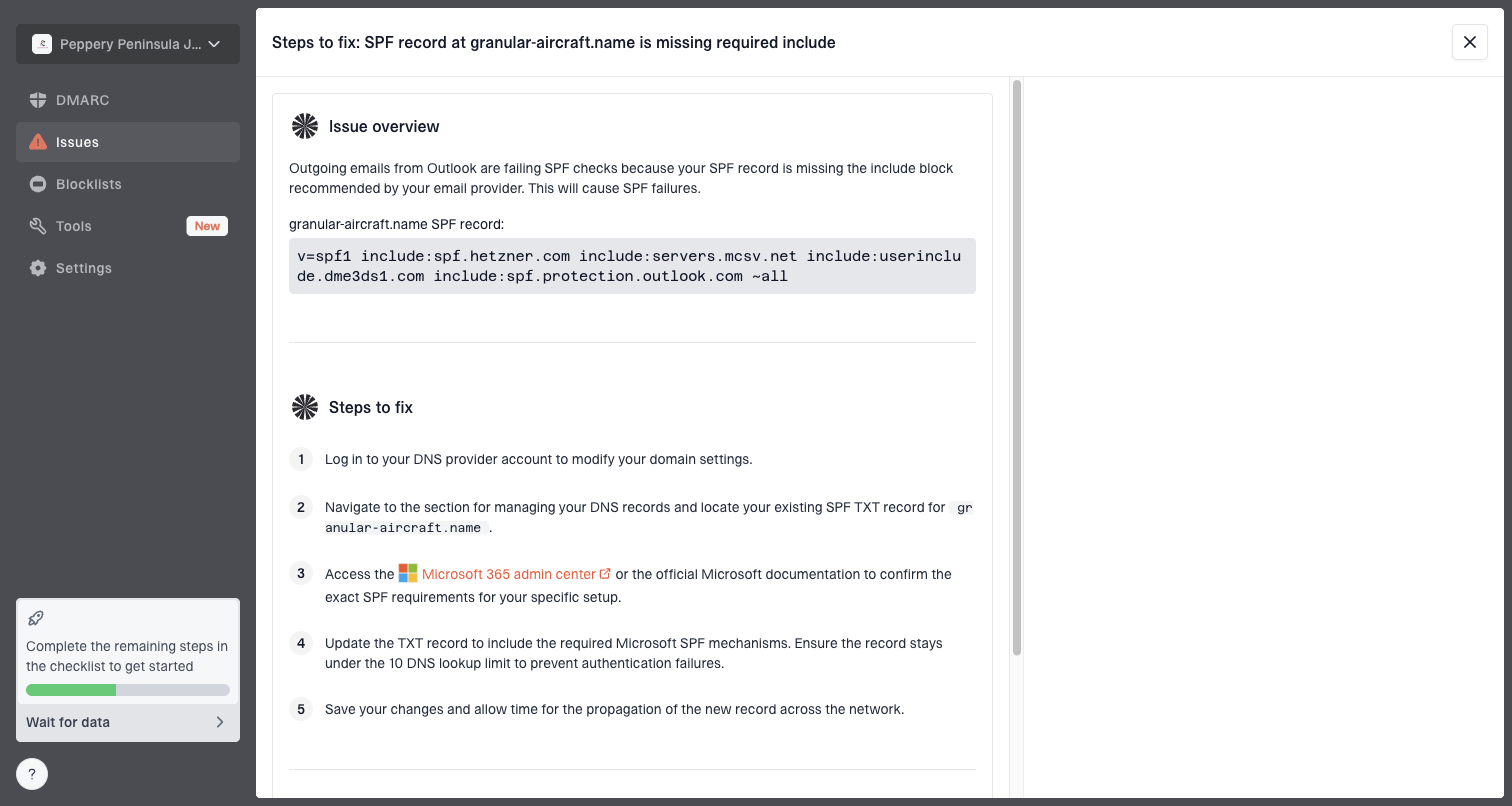
Issue steps to fix dialog showing the issue overview, tailored fix steps, and verification action
That matters during SFMC authentication work because the failure can be subtle. A DNS record can be present while the message signs with the wrong domain, misses DMARC domain matching, or comes from a Business Unit that was not included in the domain setup.
Manual validation
- Header checks: Useful for single test messages, but limited for ongoing monitoring.
- DNS checks: Confirm syntax but do not prove real SFMC signing behavior.
- Team process: Requires repeated reviews when domains, selectors, or Business Units change.
Suped workflow
- Issue detection: Surfaces DKIM, SPF, and DMARC failures with sending-source context.
- Change tracking: Shows whether SFMC authentication improves after DNS or account changes.
- Coverage: Keeps DMARC reporting and blocklist (blacklist) monitoring in one operational view.
Views from the trenches
Best practices
Check SFMC entitlements and the exact authentication option before changing production DNS.
Use unique DKIM selectors per sender so root-domain mail systems do not collide later.
Validate real SFMC message headers, not only DNS lookups, before tightening DMARC policy.
Common pitfalls
Teams publish a self-made DKIM key, then assume SFMC can sign with a key it never received.
Registered Domain gets mistaken for authentication even though it only verifies ownership.
Root-domain changes get rushed, then another mail source breaks because selectors overlap.
Expert tips
Treat Private Domain and SAP as product-scope choices, not only DNS record formats.
Keep SFMC marketing mail on a subdomain when corporate mail already uses the root domain.
Open DMARC reports during rollout so failed sources are visible before enforcement starts.
Marketer from Email Geeks says SFMC usually provides the DKIM path after Private Domain or Sender Authentication Package setup, so the missing option in Setup is expected.
2024-04-01 - Email Geeks
Marketer from Email Geeks says owning the domain is not enough because SFMC must sign with the private key that matches the public key in DNS.
2024-04-01 - Email Geeks
SFMC DKIM setup checklist
To add DKIM for an owned domain in SFMC, configure the domain through Private Domain or SAP, publish the SFMC zone-file records or delegation exactly, wait for Active status, then test a real message. Do not create an independent DKIM key and expect SFMC to use it. SFMC cannot sign with a private key it does not control.
If an existing SFMC private domain is causing problems, define the correct sending domain or subdomain, confirm the account entitlement and Business Unit scope, publish clean DNS, then monitor real authentication results until DKIM and DMARC pass consistently.