Is the Apple Support email with the blue badge and BIMI logo legitimate?

Published 21 Jul 2025
Updated 3 Aug 2026
12 min read
Summarize with
Updated on 3 Sep 2026: We added guidance for attacker-triggered Apple messages and refreshed the DMARC examples for current standards.
Yes, an Apple Support email with a real blue verification badge and Apple BIMI logo is very likely legitimate when the visible sender domain is Apple-controlled and the raw message headers show DMARC passing for that domain. Do not treat a screenshot alone as final proof. The badge and logo show that the mailbox provider accepted the sender's authentication and brand evidence. They do not prove that every link is safe, that the message was expected, or that someone else did not trigger the underlying Apple notification or support workflow.
Apple says Mail supports BIMI in iOS 16, iPadOS 16, macOS Ventura 13 or later, and iCloud.com. Apple's own BIMI support page says messages with brand logos have been digitally certified after the sender has met strong authentication and logo-control requirements. That is the right starting point, but the practical answer still comes down to the headers and whether the account event was expected.
- Likely legitimate: The message has a real provider-rendered badge, the Apple logo is shown by the mail client, and DMARC passes for an Apple domain.
- Not enough: A screenshot, a copied logo, or a display name that says Apple Support cannot confirm the message.
- Best next step: Open the original email, inspect the raw headers, and go directly to Apple's site or device settings instead of clicking links.
What the badge actually proves
The blue badge is a mailbox-provider trust indicator. In a BIMI workflow, the sender publishes a BIMI TXT record that points to an approved SVG logo and a BIMI Evidence Document accepted by the receiver, such as a Verified Mark Certificate. The sender also needs DMARC at enforcement, usually p=quarantine or p=reject, with SPF or DKIM passing in alignment with the visible From domain under its DMARC alignment mode.
That matters because the badge does not come from the email's HTML. A scammer cannot simply paste Apple's BIMI logo into a message and force Apple Mail or another mailbox provider to draw the verified brand indicator. The provider decides whether to show it after checking authentication, DNS records, and logo evidence.
What the badge supports
- Sender domain: The mailbox provider saw authentication pass for the domain used in the message.
- Brand evidence: The logo passed the provider's BIMI and certificate or evidence checks.
- Provider decision: The badge is drawn by the receiving mail app, not by sender-controlled HTML.
What it does not prove
- User intent: It does not prove the email is expected or relevant to your account.
- Link safety: It does not approve every URL or attachment in the message body.
- Screenshots: It does not confirm a copied image, forwarded mail, or altered capture.
Treat the badge as a strong authentication signal, not a complete safety verdict. The safest mental model is simple: BIMI helps identify the authenticated brand domain; header review and account context show whether this exact message deserves trust.
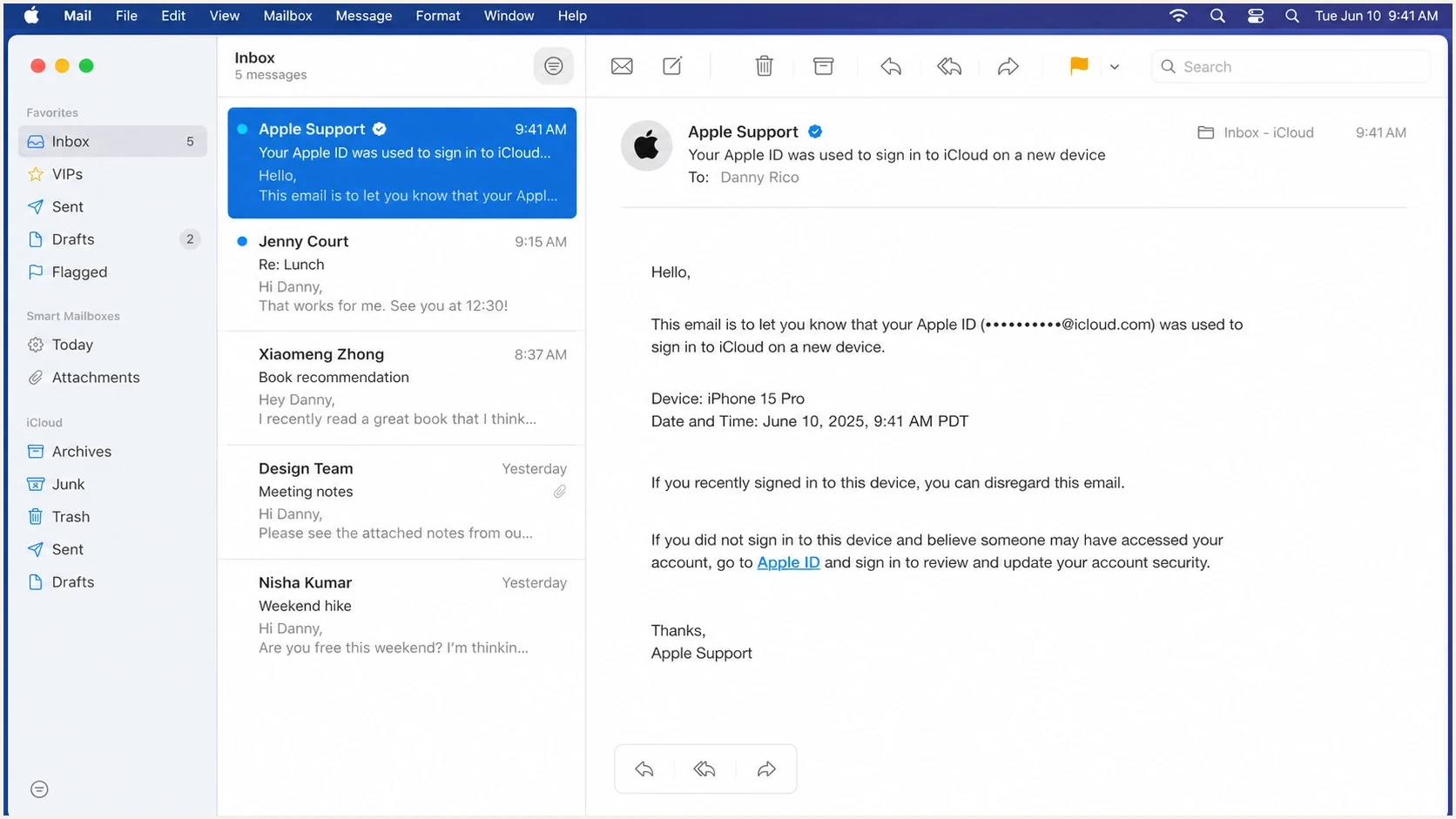
Apple Mail screen showing a verified sender badge beside an Apple Support message.
How to verify the exact Apple Support message
Start with the raw headers. A legitimate Apple Support email should show a sensible Apple-controlled visible From domain and a DMARC pass for that domain. DMARC needs one aligned path: either DKIM aligned with the visible From domain or SPF aligned through the envelope sender. Both do not have to pass. The sender display name alone has almost no value because display names are easy to copy.
Compare the message content with account activity. If the email says a purchase, login, support case, subscription, device change, or payment event occurred, check that activity directly in Apple settings, the App Store, or the Apple Account site. Apple also publishes receipt guidance that says genuine purchase receipts include the current billing address and that account or payment updates should be handled through trusted Apple paths.
- Open headers: Use the original email, not a screenshot or forwarded copy, then view the raw source or original headers.
- Check From: Confirm the visible sender domain is an Apple-controlled domain, not a lookalike domain.
- Check DMARC: Look for dmarc=pass and make sure the authenticated domain aligns with the visible From domain, directly or at the organizational-domain level under relaxed alignment.
- Check DKIM: A DKIM pass for an Apple domain is a strong sign when that domain is the aligned identity used by DMARC. An unaligned DKIM pass does not authenticate the visible sender.
- Avoid links: Use bookmarks, device settings, or account.apple.com when the message asks for account action.
Header fields worth checking
From: Apple Support <no-reply@apple.com>
Authentication-Results: mx.example.net;
  dkim=pass header.d=apple.com;
  spf=pass smtp.mailfrom=apple.com;
  dmarc=pass header.from=apple.com
Return-Path: <bounce@apple.com>
Received: from mail.apple.com by mx.example.net
Header access changes the answer
Without headers, the message is only likely legitimate when the badge and BIMI logo are real. With headers, the sender decision becomes much firmer. A failed DMARC result should stop the review. An unfamiliar DKIM signing domain or Return-Path is suspicious only when neither authentication path aligns with the visible From domain.
Why a scam can still look convincing
There are several reasons people disagree about these emails. Some are legitimate Apple messages that use security wording people associate with scams. Some are scam messages that copy Apple's layout but do not have the provider-rendered badge. Some are screenshots that hide the sender details. Others are forwarded messages where the forwarded copy no longer carries the same authentication evidence.
A real BIMI logo does not mean a criminal spoofed Apple's BIMI record. In most cases, it means the message passed the checks needed for the receiver to show Apple's brand indicator. The remaining questions concern context: Did you initiate the support case? Does the account activity exist? Do the links use Apple-owned domains? Is anyone asking for a password or verification code? Those are account and content checks, not BIMI checks.
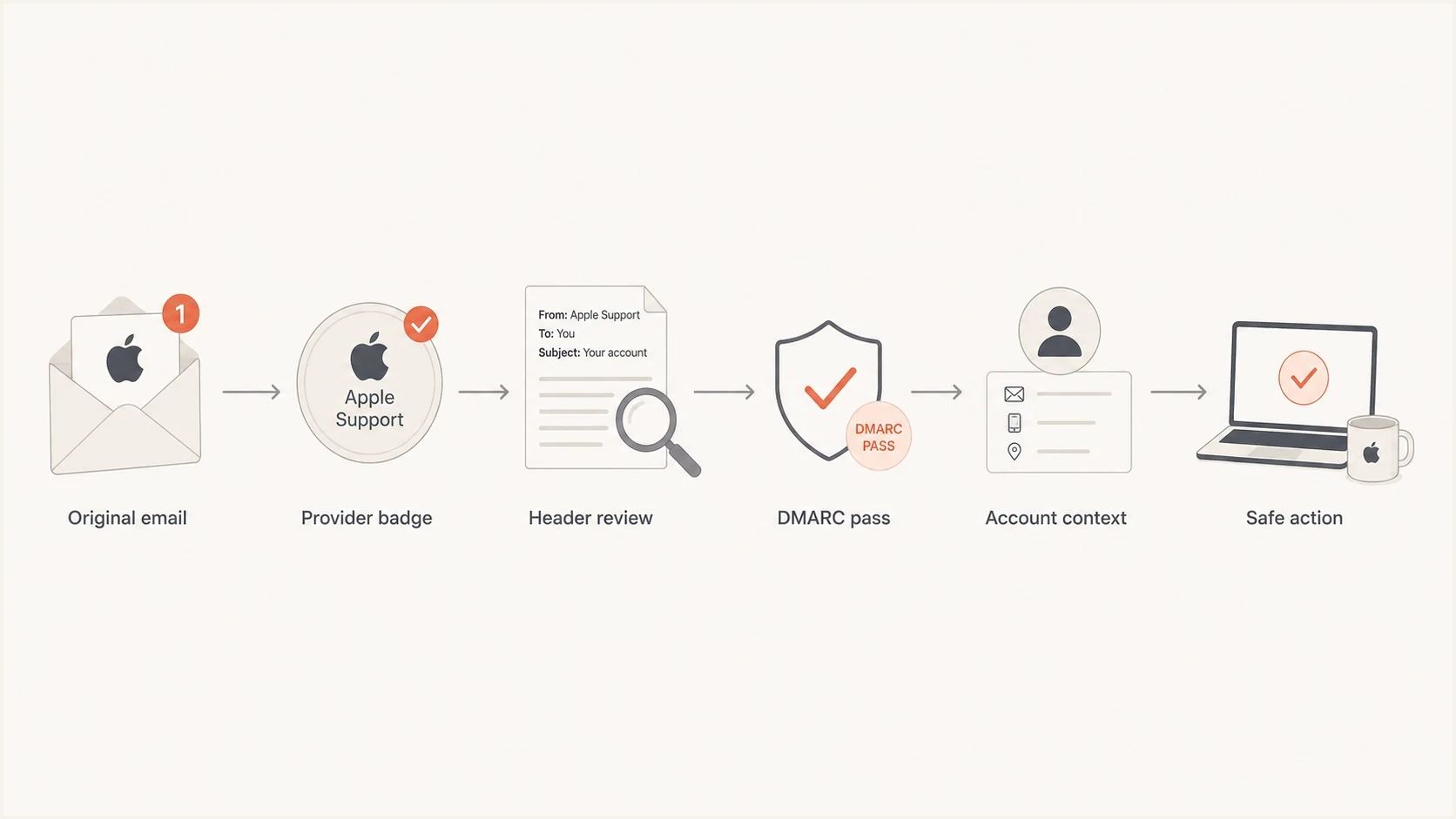
Flowchart for checking an Apple Support email from badge to account action.
|
|
|
|---|---|---|
Blue badge | Provider-rendered signal | Check headers |
BIMI logo | Brand evidence passed | Check domain |
Display name | Easy to copy | Ignore alone |
DMARC pass | Aligned authentication | Match From domain |
Unexpected link | Separate risk | Use account site |
How much weight to give each signal.
If you are trying to understand where verified logos show up across mail clients, the practical differences are covered in where BIMI appears. Each mailbox provider controls its own rendering, so the same authenticated message can look different across Apple Mail and other inboxes.
When a genuine Apple message is attacker-triggered
DMARC and BIMI authenticate the sender, not who initiated the underlying account event. An attacker can start a password reset, attempt a sign-in, influence a support interaction, or cause Apple to send a real notification. The resulting message can be genuinely sent by Apple and still be part of a social-engineering sequence.
Apple's support confirmation guidance says Apple can ask you to confirm an account notification or provide a temporary Support PIN when you contact support. It also says Apple will never ask for your Apple Account password, verification codes, recovery key, or other account security details.
- Unexpected request: Treat a real Apple message as a warning if you did not start the support case or account change.
- Confirmation prompt: Tap Don't Confirm when an Apple Account confirmation arrives and you are not requesting support.
- Account secrets: Never provide a password, six-digit verification code, recovery key, or device passcode to a caller or website reached through the message.
- Independent contact: End an unexpected call and start a new support session through Apple settings or a known Apple page.
What Apple-style BIMI requires
For a brand logo to show through BIMI, the sender's DNS, authentication, logo, and evidence setup need to be right. A typical Apple Mail setup has a DMARC record at enforcement, DKIM or SPF aligned with the visible From domain, a compliant SVG logo, a receiver-accepted BIMI Evidence Document, and a BIMI record at a selector such as default. Apple has its own requirements for supported clients and receivers, so senders should check Apple requirements before assuming a working display elsewhere means Apple Mail will show the same result.
The DNS itself is not complicated to read, but it is unforgiving. A wrong SVG location, certificate reference, DMARC policy, or authentication alignment can prevent the logo from showing. Separate two jobs: first validate the records, then inspect real mail that passed through production infrastructure.
Example DMARC and BIMI records
_dmarc.example.com. 3600 IN TXT (
  "v=DMARC1; p=quarantine; rua=mailto:dmarc@example.com; "
  "adkim=s; aspf=s"
)

default._bimi.example.com. 3600 IN TXT (
  "v=BIMI1; l=https://assets.example.com/bimi.svg; "
  "a=https://assets.example.com/vmc.pem"
)
When checking a sender domain, first test the published DMARC record with a DMARC checker, then send a real message and review the headers. DNS validation alone cannot tell you whether a production stream is signing mail with the expected domain.
DMARC checker
Look up a domain's DMARC record and catch policy issues.
?/7tests passed
For a consumer checking an Apple Support email, this same logic works in reverse. You are not responsible for Apple's DNS, but you can confirm whether your mailbox provider saw a valid path back to Apple. If it did, the badge and BIMI logo are strong evidence of sender identity. If it did not, treat the message as unsafe.
How brand teams should monitor this
The Apple example is a useful reminder for any brand that wants verified sender experiences. BIMI is only as dependable as the authentication underneath it. If a sender has one marketing platform passing DKIM, another failing SPF, and a third using a subdomain nobody monitors, the brand indicator becomes unpredictable. Real spoofing attempts can also get buried in aggregate reports if nobody reviews them.
This is where Suped fits. Suped's product brings DMARC monitoring, SPF and DKIM visibility, hosted DMARC, hosted SPF, SPF flattening, hosted MTA-STS, blocklist monitoring (blacklist monitoring), and real-time alerts into one workflow. It turns aggregate reports into source-level issues and fix steps, so teams do not need to inspect raw XML to identify a broken mail stream.

Issue steps to fix dialog showing the issue overview, tailored fix steps, and verification action
The workflow needs to cover more than whether a logo appears today. Teams need to know which sources send for the domain, which ones pass authentication, which ones fail, which subdomains are exposed, and what changed since the previous review. That keeps BIMI stable without turning every display issue into manual DNS investigation.
Practical monitoring workflow
- Inventory senders: List every platform and service sending mail for the brand domain.
- Stage policy: Move DMARC toward enforcement after legitimate sources consistently pass.
- Watch failures: Use alerts for sudden authentication failures and new unapproved sources.
- Confirm display: Test real messages in the mail clients your recipients actually use.
A broader domain health checker is useful when you want one pass across DMARC, SPF, DKIM, and related DNS health before digging into message headers.
Verification confidence
Use several signals together instead of trusting one visual element.
Low
Visual only
Display name, copied logo, or screenshot only.
Medium
Badge seen
Provider badge is present, but headers are unavailable.
High
Headers pass
Badge, BIMI logo, DMARC pass, and account context agree.
Views from the trenches
Best practices
Check the original headers before deciding whether a verified brand email is genuine.
Use account settings or known Apple pages when a support email asks you to act safely.
Treat BIMI as authentication evidence, then verify the message content separately.
Common pitfalls
Relying on display names lets copied Apple Support labels look more credible than they are.
Judging forwarded messages hides the headers needed to confirm authentication results.
Assuming all badge displays mean link safety confuses identity checks with content review.
Expert tips
Compare header From, DKIM domain, and DMARC result before trusting a badge at scale.
Record known brand sender domains so new or odd-looking sources stand out quickly.
Report suspicious Apple messages as attachments so investigators keep header evidence.
Marketer from Email Geeks says the message looked legitimate after seeing the same email arrive in their own inbox and finding no obvious issue.
2024-12-10 - Email Geeks
Marketer from Email Geeks says the email was legitimate and that the verified presentation matched what they saw in the mail client.
2024-12-10 - Email Geeks
Is the Apple Support email legitimate?
The Apple Support sender identity is authenticated when the blue badge is genuinely rendered by the receiving mail client, the Apple BIMI logo is shown through the provider's verification process, and the raw headers show DMARC passing for the Apple sender domain. A screenshot without headers can only get you to likely legitimate, not confirmed. Even a confirmed Apple sender does not prove that you initiated the support or account event.
For personal safety, do not click unexpected account or payment links, and never share an Apple Account password or verification code. Open Apple settings, the App Store, or the Apple Account site directly and check whether the event exists. For brand teams, keep DMARC, SPF, DKIM, BIMI, and sender inventory monitored so verified brand indicators stay dependable and spoofing attempts remain visible.