What are the attachment and message size limits for different mailbox providers?

Matthew Whittaker
Co-founder & CTO, Suped
Published 30 Apr 2025
Updated 18 Jun 2026
12 min read
Summarize with
Updated on 18 Jun 2026: We tightened the provider-limit guidance, added safer use-case sizing, and clarified how size bounces differ from reputation problems.
Most mailbox providers limit the whole SMTP message, not just the visible file attachment. For practical sending in 2026, assume Gmail allows 25 MB outgoing attachments and 50 MB incoming messages, Yahoo Mail allows 25 MB total, Outlook.com uses 20 MB for direct attachments, iCloud Mail allows 20 MB unless Mail Drop is used, Proton Mail allows 25 MB outgoing and 50 MB incoming, and Microsoft 365 starts around 35 MB send and 36 MB receive by default but depends on tenant, mailbox, client, and connector policy. Google Workspace Business, Education, and Enterprise Standard send 25 MB, Enterprise Plus can send up to 50 MB from Gmail on the web, and Workspace receive limits are 50 MB for Enterprise Standard and 70 MB for Enterprise Plus after encoding.
The caveat is the part that catches people: attachments are MIME encoded inside the message body. Base64 encoding usually adds about 33-37%, so use 34% for quick planning. That means a 25 MB message limit gives you roughly 18 MB of safe raw attachment budget once you include headers, body text, signatures, tracking, and small inline images.
- Safe default: keep the full email under 10 MB for broad one-to-many sends; for direct attachments, a raw file under 7 MB usually stays inside that budget.
- Upper budget: keep total raw attachments under 14-18 MB, depending on whether the tightest recipient limit is 20 MB or 25 MB.
- Large files: use a secure file link once a single file gets close to 20 MB, even when your sender UI accepts it.
- Marketing emails: avoid direct attachments unless the workflow requires them; use hosted assets and links instead.
Provider limits to plan around
These practical limits are better planning inputs than provider marketing copy. They combine public mailbox rules with the operational rule that matters most: the smallest limit anywhere in the path wins. A sender can accept a file, then the recipient server can reject the encoded message later.
|
|
|
|
|---|---|---|---|
Gmail | 25 MB | 50 MB | Drive link above send limit |
Google Workspace | 25 MB, 50 MB Enterprise Plus web | 50/70 MB by edition | Send before encoding; receive after encoding |
Outlook.com | 20 MB | 20 MB | OneDrive link for larger files |
Microsoft 365 | 35 MB default | 36 MB default | Configurable to 150 MB; OWA and mobile caps apply |
Yahoo Mail | 25 MB | 25 MB | Total attached file size applies |
iCloud Mail | 20 MB | 20 MB | Mail Drop up to 5 GB |
Proton Mail | 25 MB | 50 MB | Up to 100 files |
Zoho Mail | 20 MB personal | 40 MB | Paid plans vary |
Fastmail | 70 MB message | 70 MB message | About 50 MB raw file |
GMX | 50 MB | 50 MB | Direct large files |
mail.com | 30/100 MB | 30/100 MB | Free or Premium |
Yandex Mail | 25 MB direct | Varies | Disk link after 25 MB |
Mailbox size limits that matter for real delivery planning.
Corporate mail systems add another layer. Microsoft 365 tenants, private Exchange servers, gateways, and content filters can enforce smaller per-user, per-connector, per-domain, per-file-type, or encrypted-message limits. When delivery matters, test the actual path instead of trusting a generic provider number.
Keep this separate from SMTP connection and concurrency controls. For Yahoo-bound traffic, the 25 MB mailbox limit is separate from the practical 20 messages per SMTP connection operating cap and any concurrent link tuning. Size policy answers whether the payload fits; throughput policy answers how quickly a receiver accepts repeated attempts.
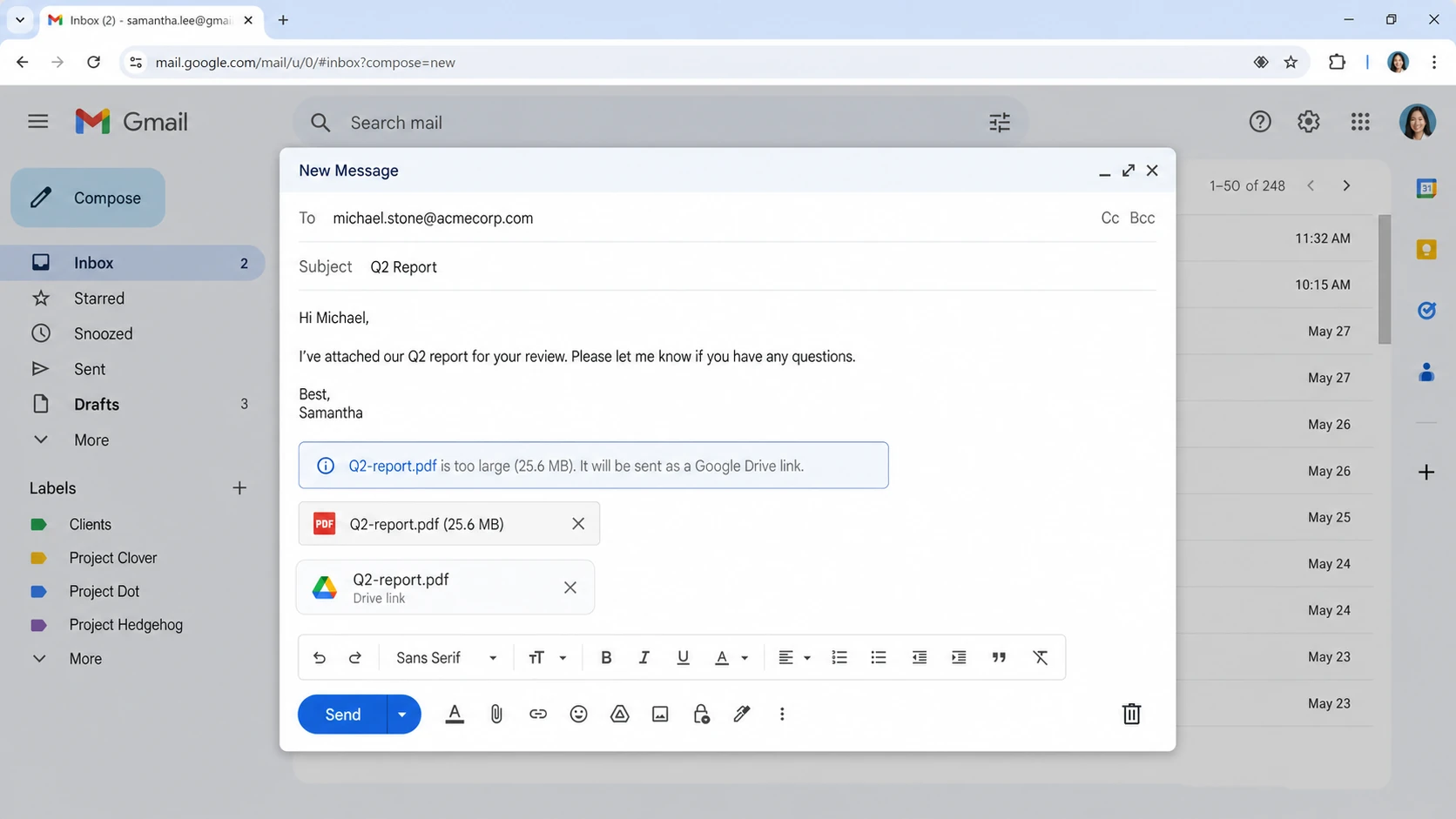
Gmail compose window converting an oversized attachment into a Google Drive link.
Attachment limit vs message limit
The phrase attachment limit is convenient, but SMTP delivery is usually governed by message size. A MIME attachment is part of the message payload. The receiver does not see a 20 MB PDF as only a 20 MB file; it sees the encoded MIME body, headers, boundaries, text content, and other parts.
Remote newsletter images usually do not count the same way as attachments because the message carries HTML references to files hosted elsewhere. Inline images, attached images, logos in signatures, and embedded assets do count inside the MIME payload, and a bloated template can still raise HTML size and Gmail clipping risk.
Attachment limit
- User view: the size shown beside a PDF, image, spreadsheet, or zip file on disk.
- UI rule: the webmail or app composer blocks files above its upload threshold.
- Common mistake: assuming a 24 MB file fits under a 25 MB provider limit.
Message size limit
- SMTP view: the encoded wire payload after MIME packaging and transport encoding.
- Server rule: the receiving MTA rejects mail above its advertised or configured size.
- Correct habit: budget for encoding overhead before the message leaves your platform.
Encoding mathtext
raw_file_mb * 1.34 = estimated_wire_mb
14 MB * 1.34 = 18.76 MB
18 MB * 1.34 = 24.12 MB
20 MB / 1.34 = 14.92 MB
25 MB / 1.34 = 18.66 MB
That is why 14 MB is the safer ceiling when iCloud Mail, Outlook.com, or older corporate gateways are likely, and 18 MB is the upper ceiling only when the smallest recipient limit is 25 MB. For deeper detail on encoding and content types, read MIME size effects.
How SMTP advertises the wire limit
If you are diagnosing server-to-server delivery, the SMTP EHLO response often includes a SIZE extension. That value tells the sender how many encoded bytes the receiving server says it accepts for the message transaction. It is useful, but it is not the same thing as the webmail attachment limit.
EHLO size checkbash
swaks --server gmail-smtp-in.l.google.com --quit-after EHLO

# Look for a line like this in the EHLO response:
# 250-SIZE 157286400
How to read SIZE
A large SIZE value means the MX is advertising a large SMTP transaction size. It does not guarantee that a user can upload a file of that size in the provider UI, that the sender account is allowed to submit it, or that policy filters will accept it.
- Use it for: MTA troubleshooting, direct SMTP testing, and explaining server rejection behavior.
- Do not use it for: promising that a consumer mailbox UI accepts the same attachment size.
- Always add: base64 overhead, headers, HTML, plain text, inline images, and MIME boundaries.
This distinction also explains why one recipient accepts a message while another rejects it with a size error. The sender UI, outbound MTA, relay, gateway, and destination MX each get a vote. For the bounce pattern itself, see max message size errors.
What happens when an email is too large
An oversized email does not always fail at the same point. The sender app can block it immediately, the outbound relay can accept it and then receive a remote bounce, or a gateway can strip the file and deliver only the body. Track the exact failure point because the fix differs.
|
|
|
|---|---|---|
Submission error | The sender app or outbound relay rejects the message before delivery. | Compress the file or replace it with a link before retrying. |
Recipient bounce | The destination server rejects the encoded message after acceptance upstream. | Log the recipient domain, SMTP code, and encoded size. |
Silent non-delivery | An older or misconfigured gateway accepts the message without producing a clear bounce. | Use logs, recipient confirmation, and a file link for that route. |
Attachment stripping | A security gateway removes the file but delivers the message body. | Use a known-access link for that recipient domain. |
Delay or spam placement | The message is technically allowed but heavy enough to trigger extra handling. | Reduce HTML weight, remove embedded assets, and test the real message. |
Common oversized-message outcomes.
Common bounce text includes 552, 5.2.3, 5.3.4, and max message size exceeded. Do not retry the same oversized MIME message through more SMTP connections; compress the file, lower the raw attachment budget, or use a link.
A size error at one provider does not prove a wider reputation issue or provider-to-provider deliverability data sharing. It usually means that recipient path has the smaller cap, a stricter gateway, or a different file policy.
A safe sending policy
For most teams, the answer is not to chase every provider maximum. The better policy is to define a safe maximum email size that works across the common mailbox mix, then make exceptions only for known internal routes or file-link workflows. Large direct attachments also duplicate storage across mailboxes and backups, and repeated attachment-heavy sends can slow queues.
Attachment planning bands
Use the raw file size before MIME encoding, not the final SMTP size.
Low risk
0-10 MB
Works across most consumer and corporate mailboxes.
Caution
10-14 MB
Usually fits 20 MB limits after encoding when the rest of the email is lean.
High risk
14-18 MB
Can fit 25 MB limits but fail against 20 MB providers or added overhead.
Use links
18 MB+
Send a secure file link instead of a direct MIME attachment.
Use stricter targets by document type: invoices, receipts, and statements should stay under 1 MB when possible; proposals, decks, and image-heavy PDFs should stay under 5 MB; marketing emails should use hosted assets and links instead of direct attachments.
When a campaign or automated workflow reaches many recipient domains, treat 10 MB as a total message-size target, not permission to attach a 10 MB local file. For one-to-one business mail, a raw attachment under 10 MB usually still has room after encoding, but broad sends need the safer total-message rule.
Before a campaign, invoice batch, or customer notice goes out with attachments, send a real sample through Suped's email tester. The goal is to see the actual MIME output, HTML weight, image handling, authentication results, and any obvious construction issue before the message reaches production volume.
Email tester
Send a real email to this address. Suped opens the report when the test is ready.
?/43tests passed
Preparing test address...
A test result does not override recipient policy, but it catches avoidable mistakes: oversized HTML, heavy images, missing plain text, broken authentication, and files that expanded beyond the limit after packaging. If the same sender domain also has DNS or authentication issues, run domain health checks before you blame the attachment alone.
What to do by recipient type
The right limit depends on who receives the mail. Consumer mailboxes reward conservative sizing because the sender rarely controls the recipient policy. Business mailboxes can accept larger mail when both sides are on Microsoft 365 or another configurable platform, but external hops still create failure points.
Consumer recipients
- Keep invoices, receipts, and statements under 1 MB when the document format allows it.
- Use links for video, scan bundles, design files, and image-heavy reports.
- Avoid zips when the recipient mix includes strict security gateways.
Business recipients
- Confirm tenant, mailbox, connector, gateway, encrypted-message, and client limits.
- Larger internal limits do not mean external domains accept them.
- Save SMTP enhanced status codes and recipient domain details.
Cloud links are not the same as attachments
Gmail Drive links, OneDrive links, iCloud Mail Drop, and similar file-link flows bypass the direct MIME attachment limit because the file is no longer traveling inside the SMTP payload. That changes the delivery problem into an access, permission, and trust problem.
- Check access so external recipients can open the file without extra account friction.
- Check expiry because time-limited links are bad for statements, records, and contracts.
- Check trust because unexpected download links can look risky to recipients and security filters.
For PDFs, file type and file size both matter. A scanned PDF can be ten times larger than a text-based PDF, and password-protected or scripted files trigger extra security handling. The practical guidance is covered in PDF attachment practices.
Where Suped fits
Suped is not a way to bypass mailbox provider size limits. Suped's product helps with the surrounding workflow: testing the real message, monitoring domain authentication, detecting delivery issues, and giving teams clear steps when email infrastructure is the reason mail fails.
For teams that handle customer mail at scale, Suped's product is useful when attachment failures sit alongside SPF, DKIM, DMARC, hosted SPF, hosted MTA-STS, alerting, MSP reporting, and blocklist (blacklist) monitoring. The useful part is having authentication and deliverability signals in one place instead of treating every bounce as a file-size problem.
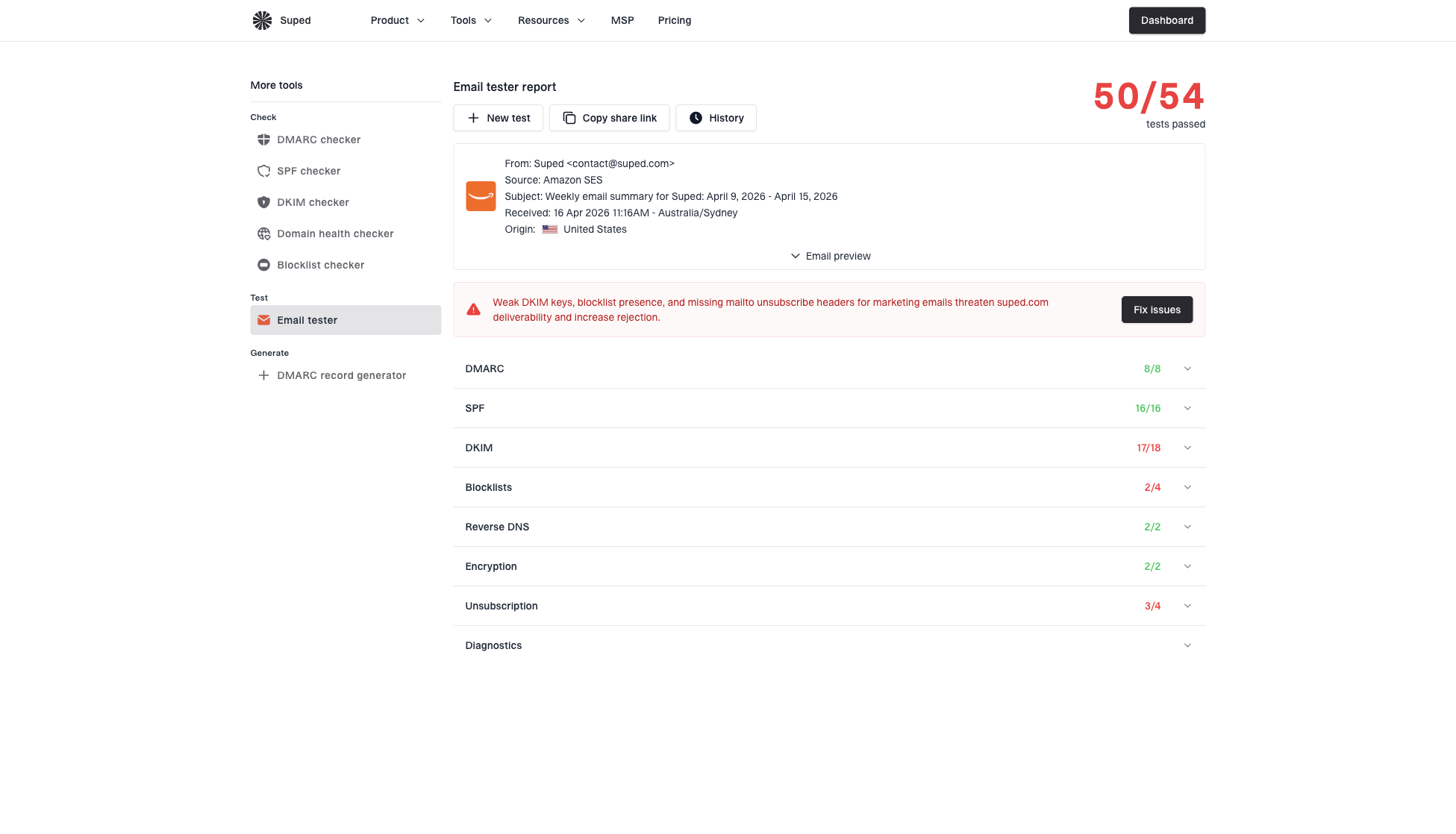
Email tester sample report showing total score, email preview, issue summary, and per-section results
If you are already staging a DMARC rollout, add attachment testing to the same release checklist. Suped's DMARC monitoring gives the authentication view, while a real sample test shows whether the message you built is small enough and structured cleanly enough to send.
How to calculate the safe file size
When a workflow needs an exact answer, work backward from the smallest likely recipient limit. For consumer mail, that is often 20 MB because iCloud Mail and Outlook.com are lower than the common 25 MB group. For broad business mail, use 14 MB when the recipient mix is unknown and 18 MB only when the likely floor is 25 MB or higher.
- Choose the smallest recipient limit, not the largest sender limit.
- Divide the message limit by 1.34 to estimate raw file budget.
- Leave room for HTML, text, boundaries, tracking, and signatures.
- Send the actual template and attachment, then inspect the result.
Planning examplestext
25 MB provider limit / 1.34 = 18.66 MB raw budget
20 MB provider limit / 1.34 = 14.92 MB raw budget
14 MB raw attachment * 1.34 = 18.76 MB encoded
10 MB conservative limit / 1.34 = 7.46 MB raw budget
That math is conservative, and conservative is the point. If the attachment is required for a legal, financial, onboarding, or support workflow, a predictable delivery path beats squeezing one more megabyte into a MIME message.
Views from the trenches
Best practices
Plan against encoded message size, not the file size shown beside the attachment.
Use 10 MB for broad recipients, 14 MB near 20 MB limits, and secure links above that.
Record provider, SMTP status code, and raw file size when investigating bounces.
Common pitfalls
Treating a 25 MB attachment limit as permission to attach a 25 MB local file today.
Ignoring webmail, outbound relay, gateway, and destination MX limits in the same path.
Raising internal Microsoft 365 limits without checking external recipient acceptance.
Expert tips
Use EHLO SIZE for MTA diagnostics, then test the real message through the actual route.
Multiply base64 attachments by 1.34 before comparing them to provider limits safely.
Prefer links for scan bundles, videos, zip files, and image-heavy customer reports.
Expert from Email Geeks says attachment questions are often really SMTP message-size questions because MIME payloads include the encoded attachment.
2021-08-11 - Email Geeks
Expert from Email Geeks says the EHLO SIZE response is a practical way to inspect how many encoded bytes a receiving server advertises.
2021-08-11 - Email Geeks
The practical answer
The practical answer is simple: most consumer mailbox providers sit around 20-25 MB for direct attachments or total message size, while some business platforms accept more when administrators configure them to do so. The safe cross-provider raw attachment limit is about 14 MB when 20 MB providers are in the mix, about 18 MB only when the floor is 25 MB, and 10 MB total message size is the better default for broad recipient lists.
- Use 10 MB total message size for normal customer mail, marketing operations, support replies, and mixed domains.
- Use 14 MB raw attachment size when iCloud Mail, Outlook.com, or strict corporate gateways are likely.
- Use 18 MB raw attachment size only when you know the smallest likely recipient limit is 25 MB or higher.
- Use links for anything larger, especially scans, videos, bundles, and high-resolution images.
- Use tests for workflows where one missed attachment creates a support, compliance, or revenue problem.